
When you download an email from Law App and reply to it, the reply will save itself back to the matter automatically — provided the subject line still contains the matter reference (e.g. [LSA – 20251236]). This article walks through the one-off browser setting that makes the process feel seamless, plus how the auto-save actually picks the reply up.
Set your browser to open emails automatically
This is a one-off setting in your browser. Once it’s done, every email you download from Law App will open straight into Outlook instead of sitting in your downloads folder waiting to be opened manually.
- In Law App, download an email as you normally would.
- Click the download icon in the top right of your browser to open the recent downloads panel.
- Right-click on the downloaded .msg file.
- Tick Always open files of this type.
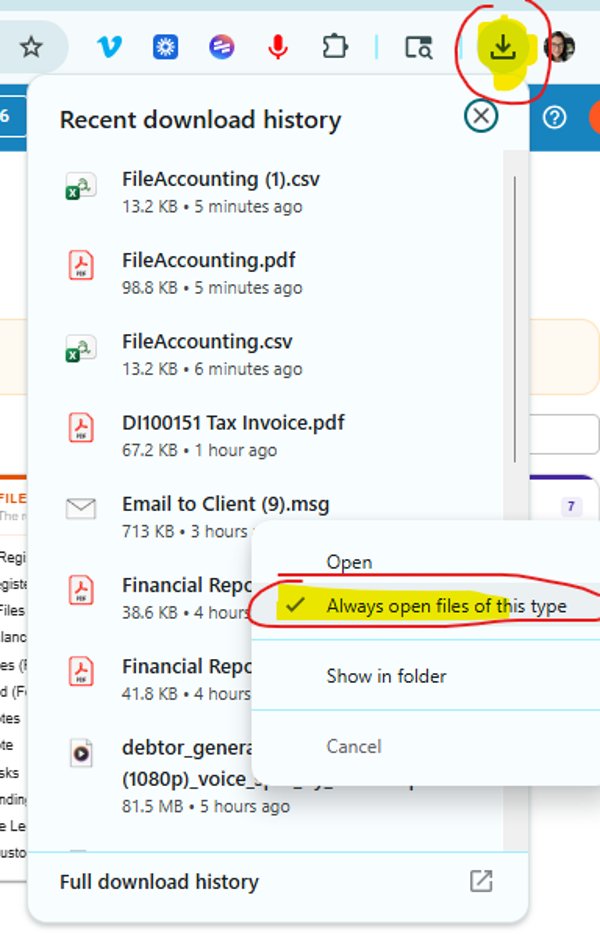
From this point on, every .msg file you download will open directly in Outlook.
Reply as normal
Once the email opens in Outlook, just reply the way you always would:
- Press Reply.
- Type your response.
- Press Send.
There are no special steps. Outlook treats it as a normal reply and the conversation thread continues exactly as your recipient expects.
How the auto-save matches it back to the matter
Auto-save uses the matter reference in the subject line to know where the email belongs. As long as your reply subject still contains the reference in square brackets — for example [LSA – 20251236] — the next auto-save run will pick the reply up and file it on the correct matter.
A small tip on subject lines
The more meaningful your subject line, the easier the matter is to navigate later. The matter reference alone works, but giving each email a distinct, descriptive subject saves time when you’re sifting through a long file.
Compare:
RE: Jones sale to Black [LSA – 20251236]
You end up with a long string of nearly identical “RE: Jones sale to Black” emails and no way to tell them apart at a glance.
RE: Building and pest acceptance — Jones sale to Black [LSA – 20251236]
Tells you what the email is actually about, without losing the matter reference auto-save needs.
Leave a Reply