
Auto Save Emails lets you bulk-save emails from your Outlook inbox and/or sent folder directly into Law App — up to 2,000 emails at a time, covering up to 30 days. It runs in the background, so you can navigate away and let it work while you get on with other things.
Before You Start
You will need your Microsoft 365 Outlook account connected to Law App. When you first click Auto Save Emails, Law App will prompt you to log in and authenticate with your Outlook account.
How to Use Auto Save Emails
-
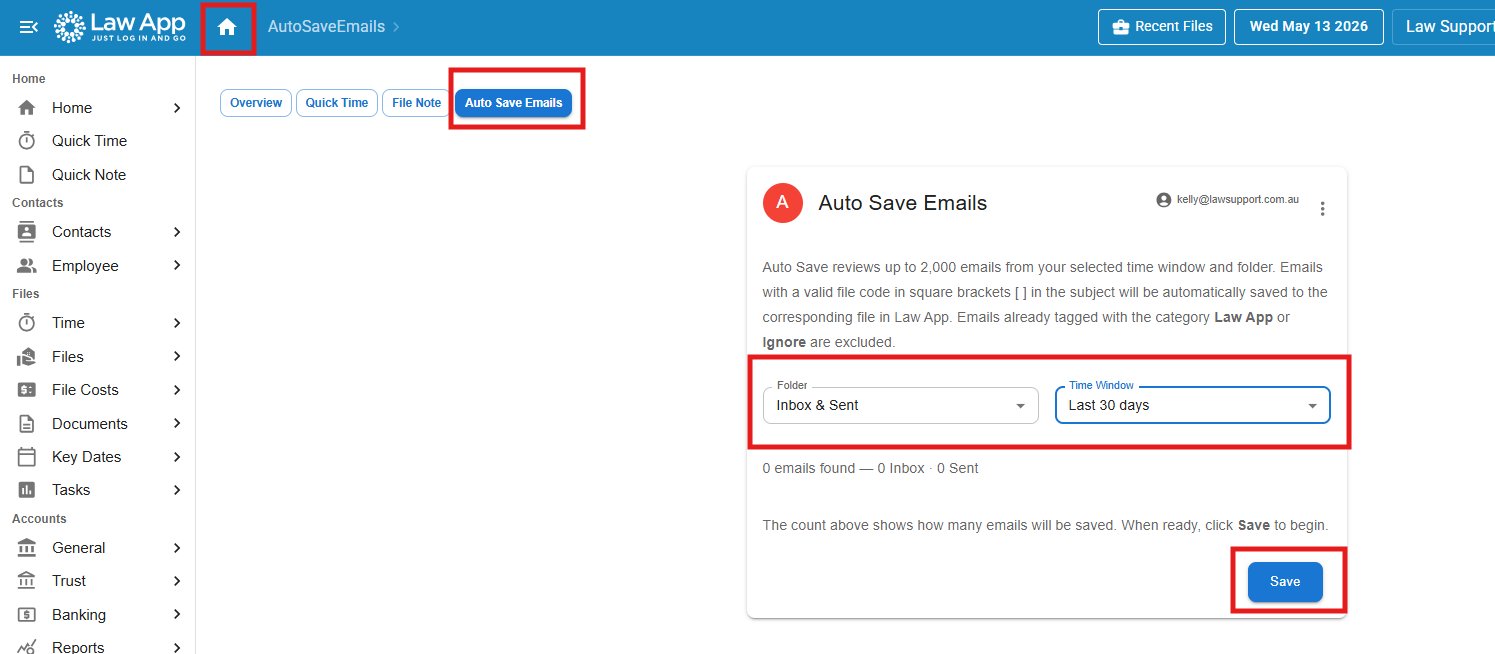
Go to your Home screen
Click the Home icon in the top navigation bar, or select Home from the left-hand menu.
-
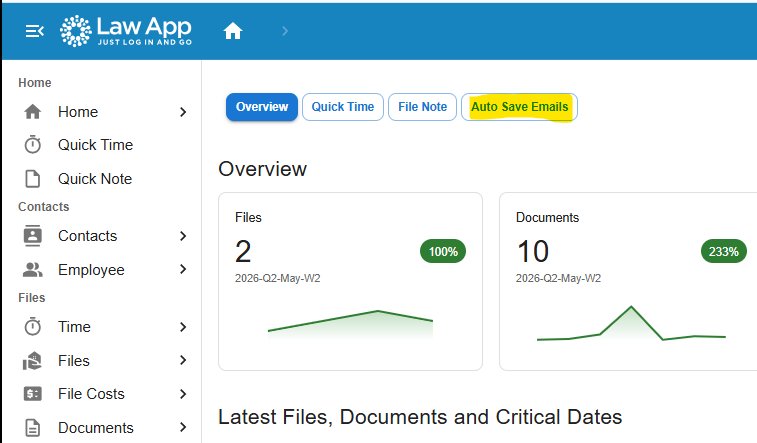
Click the Auto Save Emails tab
Across the top of the Home screen you will see four tabs: Overview, Quick Time, File Note, and Auto Save Emails. Click Auto Save Emails.
-
Choose your folder
Use the Folder dropdown to select which emails to scan:- Inbox only
- Sent only
- Inbox & Sent (both)
-
Choose your time window
Use the Time Window dropdown to select how far back to look — up to the last 30 days. -
Check the count, then save
Law App will show you exactly how many emails it found and how many are ready to save — before anything happens. Review the count, then click Save when you are ready. -
Let it run in the background
Auto Save runs in the background. You do not need to stay on this screen. Move to another tab or carry on working — Law App will keep saving until it is done. This is especially useful if you have several weeks of emails to process.
How Email Matching Works
Law App matches emails using a file code in square brackets in the email subject line. The format combines your firm’s unique acronym with the file number:
[LSA – 20250001]
The firm acronym ensures Law App only captures your firm’s emails — not emails from other firms that may use a similar file number format.
What Gets Skipped
Auto Save automatically skips emails that have already been processed:
- Emails with the Outlook category Law App applied — already saved.
- Emails with the Outlook category Ignore applied — intentionally excluded.
Related Articles
- Saving emails from the Outlook add-in (coming soon)
- Finding and saving emails from the Unsaved Emails section (coming soon)
Leave a Reply