
Options is the list of switches and values that change how Law App behaves for your firm: how searches work, how time is recorded, how trust money is protected, how financial reports open, and more. There are 66 options in nine groups. This help sheet explains how Options works and covers the General, Accounting, Document, Task and security options. The Timesheet and Trust options have their own help sheets: Timesheet and Auto Time options and Trust Compliance Settings.
How to get there
- From the left menu, click Settings.
- Under Firm, click Options.
- Choose Firm-Wide to change a setting for everyone, or Per-Employee to change it for yourself only.
- Pick a group on the left (General, Accounting, Timesheet, Trust and so on), or type in Search settings. A change saves as soon as you make it.
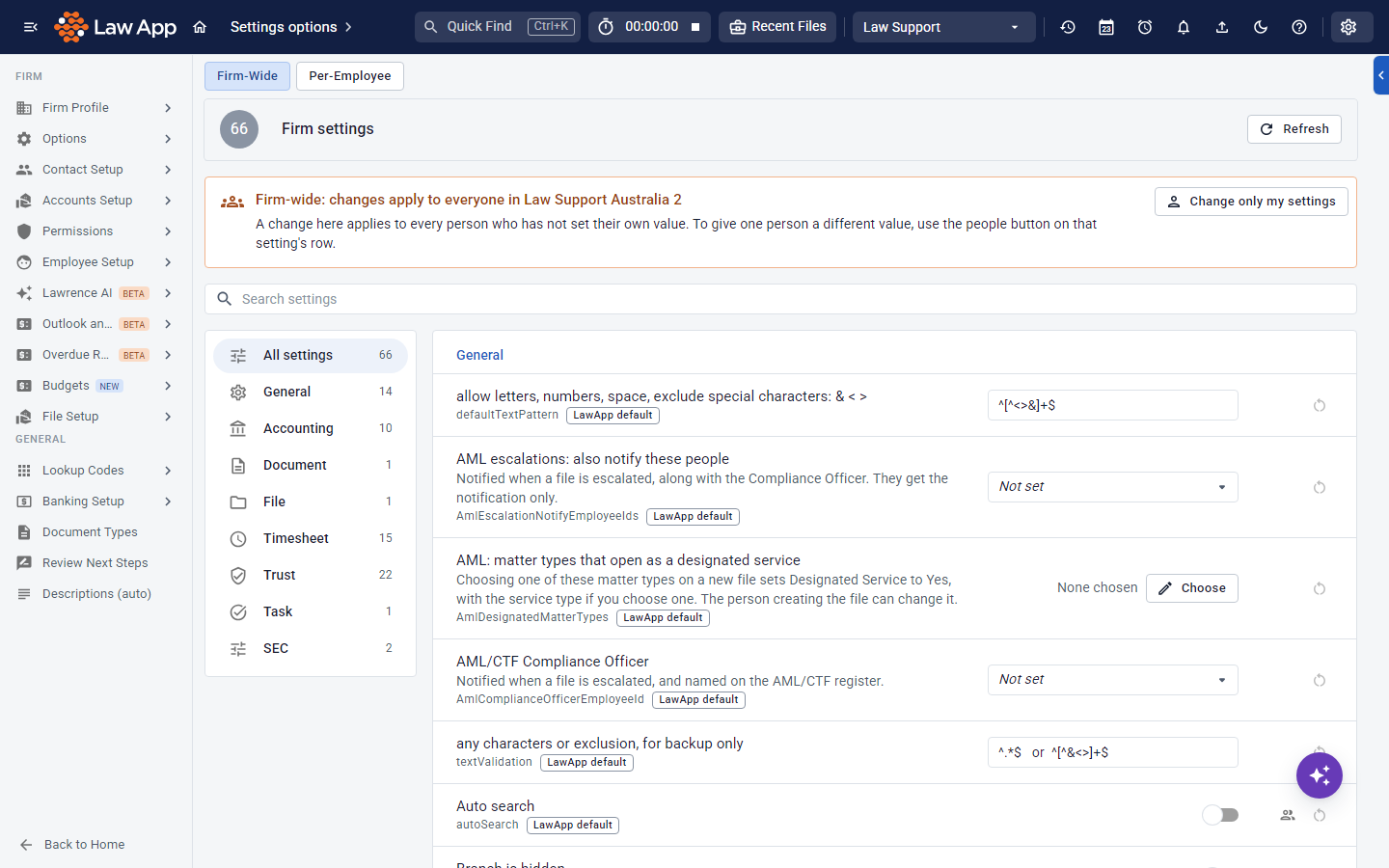
Firm-wide, your own, and the LawApp default
Every option has up to three values, and Law App uses the most personal one that has been set:
| Value | Where it’s set and who it affects |
|---|---|
| Your own value | Set on the Per-Employee tab, or by an administrator with the people button on a row. Affects only that person. |
| Firm value | Set on the Firm-Wide tab. Affects everyone who hasn’t set their own value. The row shows a Firm value badge. |
| LawApp default | What applies when nobody has set anything. The row shows a LawApp default badge. Some trust options also have a default for your state. |
On each row:
- The people button (Firm-Wide tab) sets a different value for one or more people, without changing it for the rest of the firm.
- The round arrow clears the value on that tab, so the row goes back to following the firm value or the LawApp default.
- A lock (Per-Employee tab) means only the firm can set this option. You can see it but not change it for yourself.
- A greyed-out control on the Firm-Wide tab means Law App sets this option for every firm. If you need it changed, contact us.
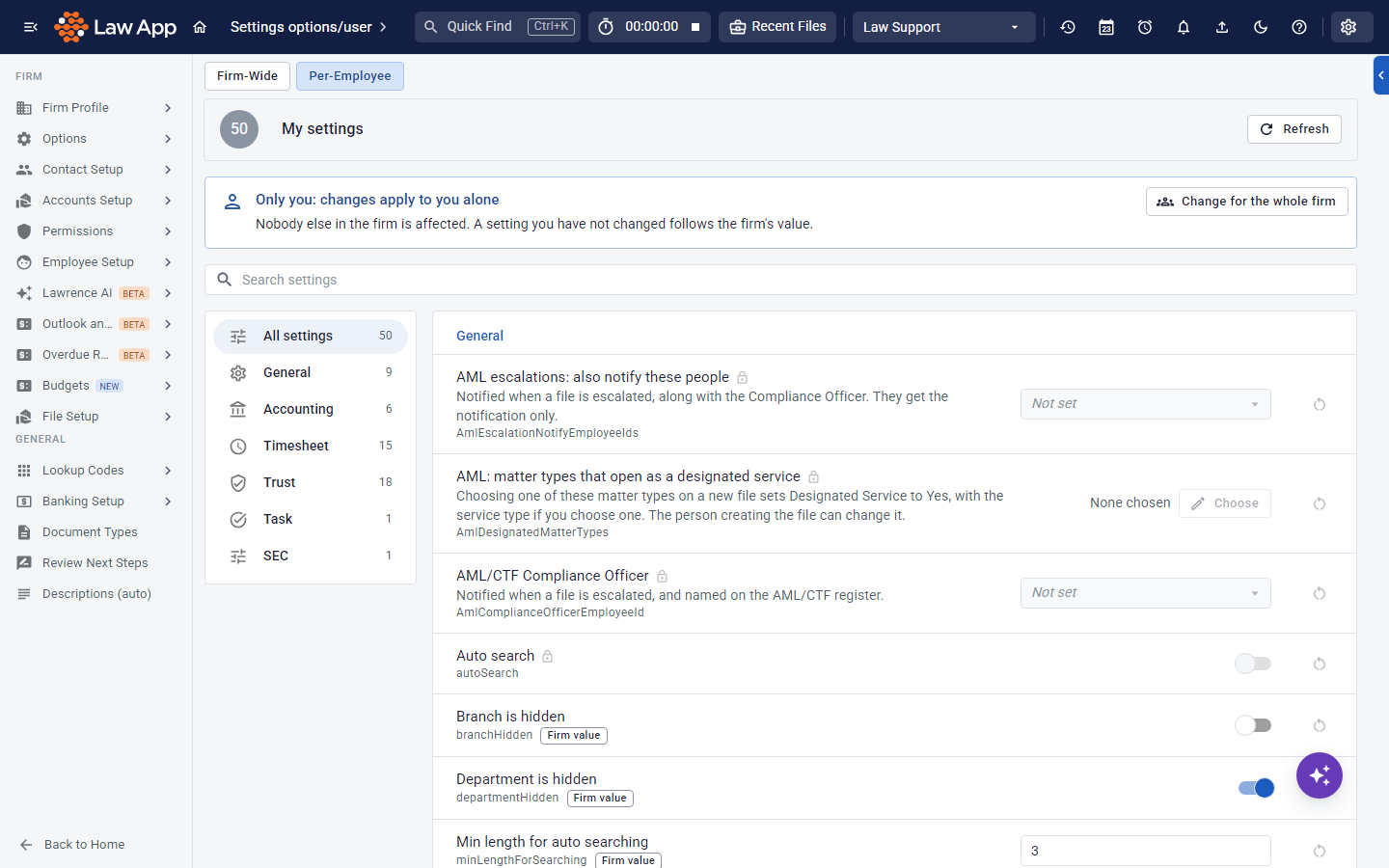
General options
| Option | What it’s for and what it changes |
|---|---|
| AML/CTF Compliance Officer | The one person in the firm who is your AML/CTF Compliance Officer. They are notified when a file is escalated, and named on the AML/CTF register. Firm only. |
| AML escalations: also notify these people | Other people who get a notification when a file is escalated, as well as the Compliance Officer. They are notified only. Firm only. |
| AML: matter types that open as a designated service | Matter types that set Designated Service to Yes on every new file, with the service type if you choose one. The person creating the file can still change it. Firm only. See How to configure Auto-Flagging for Designated Service Matter Types. |
| Branch is hidden | On: the Branch field is hidden on forms. Turn it off if your firm has more than one office and records which one a file belongs to. |
| Department is hidden | On: the Department field is hidden on forms. Turn it off if you record files or staff by department. |
| Min length for auto searching | How many letters you type before a search box (contacts, files and other look-ups) starts suggesting results. 2 to 8, default 3. Lower finds results sooner but slower on big lists. |
| Payment term in business days | Off: an invoice’s due date is its issue date plus your payment days in calendar days. On: weekends and your state’s public holidays are skipped. Payment days are set in Firm Profile. Firm only. |
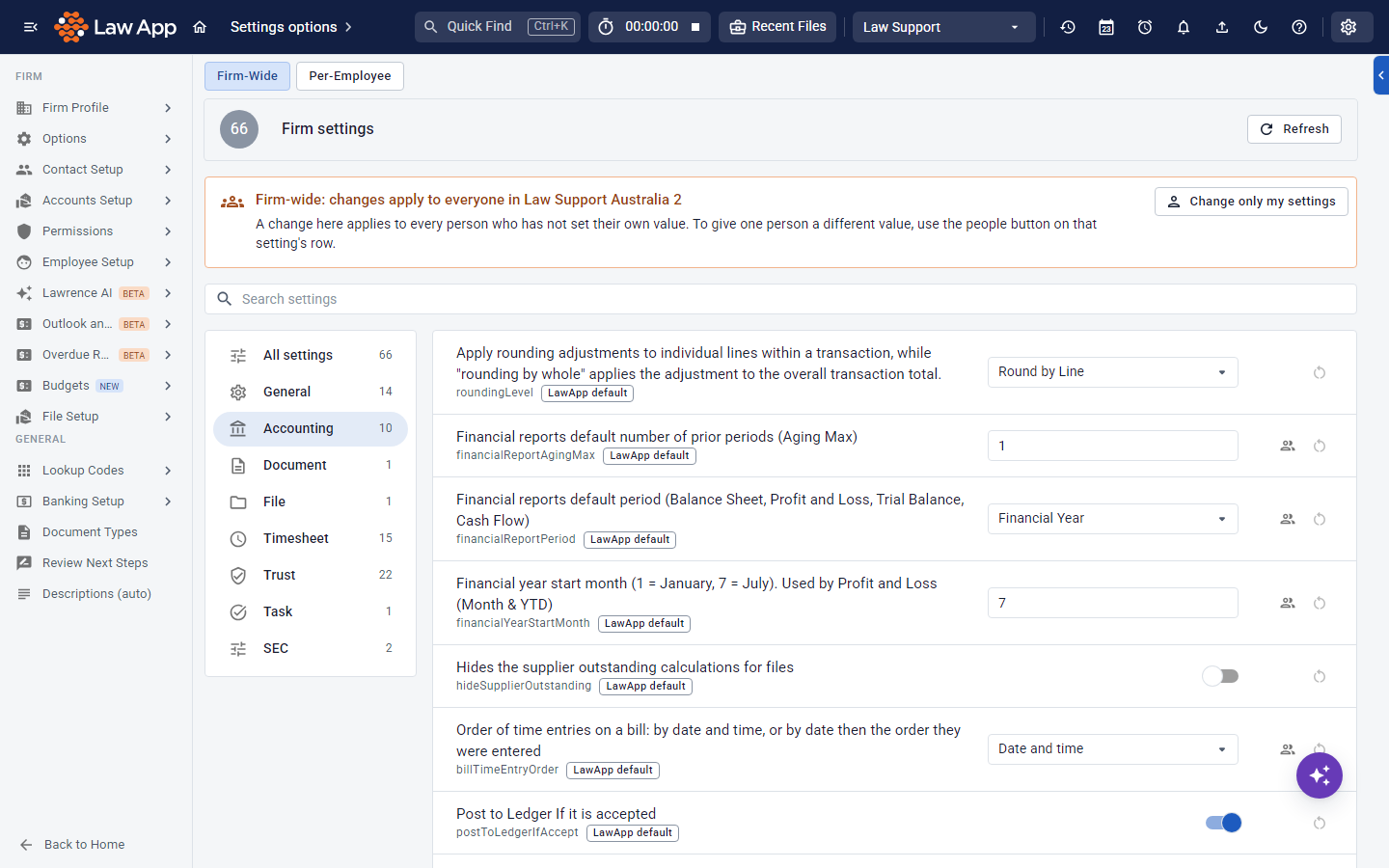
Accounting options
| Option | What it’s for and what it changes |
|---|---|
| Split the InfoTrack disbursement into GST applicable and GST free components | Off: an InfoTrack search comes into Law App as one disbursement line. On: it comes in as two lines, one with GST and one GST-free. See How to Split InfoTrack Disbursements. |
| Order of time entries on a bill | Date and time: time entries print on the bill in date and time order. Date, then order entered: entries on the same day print in the order they were typed in. |
| Remove firm email from cc | Off: Law App copies your firm email on trust statements, invoices, receipts and payments you send from Law App. On: it doesn’t. See How to Turn Off Automatic CC to Your Firm Email. |
| Financial reports default period | The period the Balance Sheet, Profit and Loss, Trial Balance and Cash Flow open with: Month, Quarter, Year or Financial Year. You can still change it on the report. |
| Financial reports default number of prior periods | How many earlier periods those reports show beside the current one when they open. 1 to 24. |
| Financial year start month | The month your financial year starts (7 = July). Used by the Profit and Loss month and year-to-date figures. |
The other accounting rows (rounding, hiding supplier outstanding, posting to the ledger on accept or reject) are set by Law App for every firm.
Document, Task and security options
| Option | What it’s for and what it changes |
|---|---|
| Is able to edit document in days | How many days after you last changed a document you can keep editing it, 0 to 365, default 10. If the row is greyed out, contact us to change it for your firm. |
| Auto generate workflow tasks of new file | What happens when a new file is opened for a matter type with a workflow. Auto: the workflow’s tasks are created straight away. Prompt: Law App asks first. Off: no tasks are created. See How to set up Task Types and Automated Workflows. |
| Permission set given to new employees | The permission set each new employee starts with, by its code. Default STANDARD. You can change a person’s set afterwards. See How to configure user permissions. |
Options set by Law App
Some rows are greyed out on the Firm-Wide tab because Law App sets them the same for every firm: text checking rules, the AI file overview switch, the permission sets switch, and a few accounting and trust locks. You can see their values, but only Law App can change them. If you think one is wrong for your firm, contact us.
Questions
I changed an option but nothing changed for one person. They have their own value. Open the option on the Firm-Wide tab and use the people button to see or clear it, or ask them to click the round arrow on their Per-Employee tab.
How do I put an option back to normal? Click the round arrow on its row. On the Firm-Wide tab it goes back to the LawApp default. On the Per-Employee tab it goes back to the firm value.
Who can change Options? Anyone whose permission set lets them open Settings, Options. Per-Employee changes affect only the person making them.
How do I change a setting just for me, not the whole firm? Use the Per-Employee tab in Settings, Options. Changes there affect only you.
How do I make invoice due dates skip weekends and public holidays? On the Firm-Wide tab, open General and turn on Payment term in business days.
How do I set our AML/CTF Compliance Officer? On the Firm-Wide tab, open General and choose the person in AML/CTF Compliance Officer.
Why can’t I see the Branch or Department field? They are hidden by default. On the Firm-Wide tab, open General and turn off Branch is hidden or Department is hidden.
Leave a Reply