
User permission sets control what each employee can see and do in Law App. Each set is a template — such as Administrator or Bookkeeper — that lists every page in Law App and whether it allows View access, Edit access or no access. You can adjust the standard sets, create your own, and assign a set to each employee. You will need to be an Admin user to use this function.
Coming soon. Permission sets are a soon-to-be-released feature. If you can’t see the Permissions menu yet, it hasn’t been switched on for your firm — contact Law Support if you have questions.
How to view and configure a permission set
- From the left menu, go to Settings, Permissions, Permission Sets.
You’ll see a list of your current permission sets. Use Default for new employees at the top to choose which set is given to any new employee you set up. An admin user can change an employee to a different set at any time.
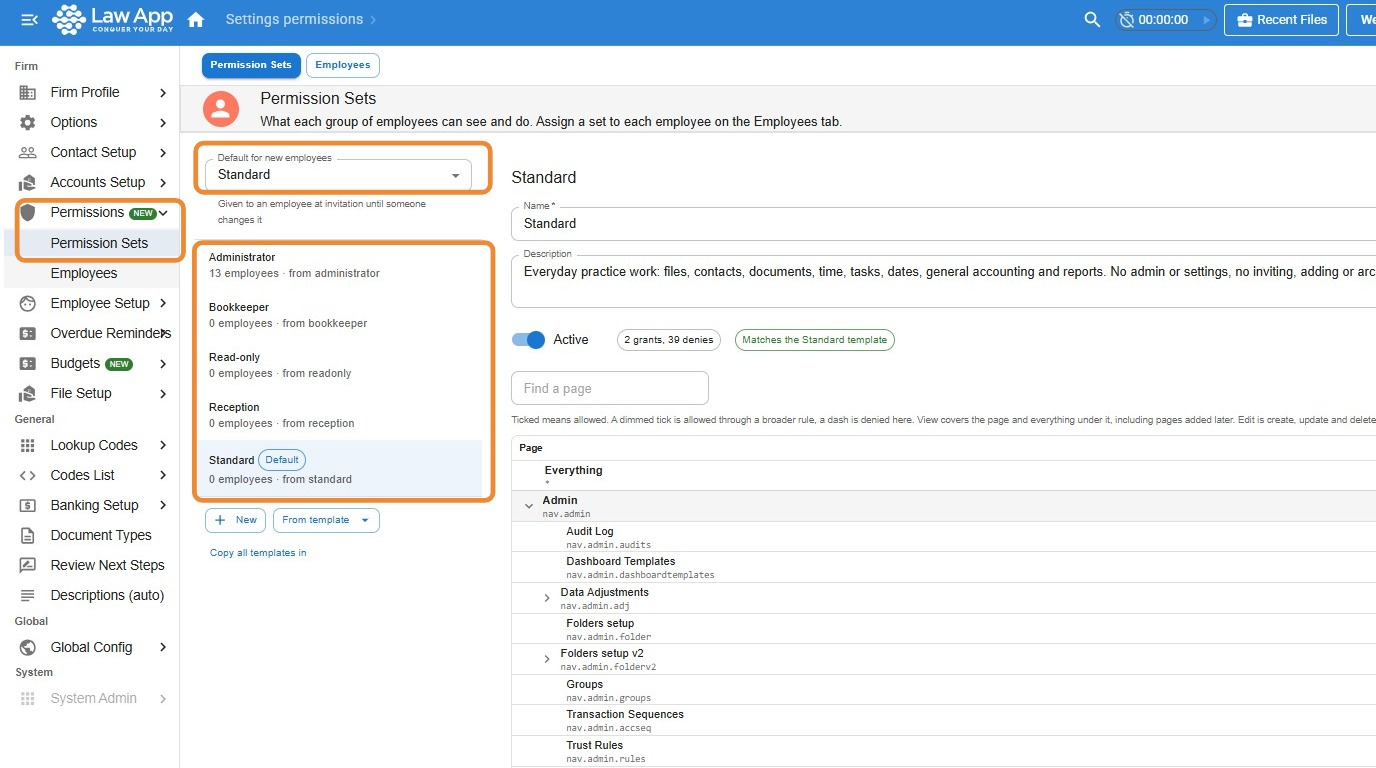
- Click a permission set to open it. You’ll see every page in Law App, with its current View and Edit settings.
- Scroll through the list, or use Find a page to search for a specific page.
- To give access, tick View and/or Edit next to the page. To remove access, untick the relevant box.
- Click Save.
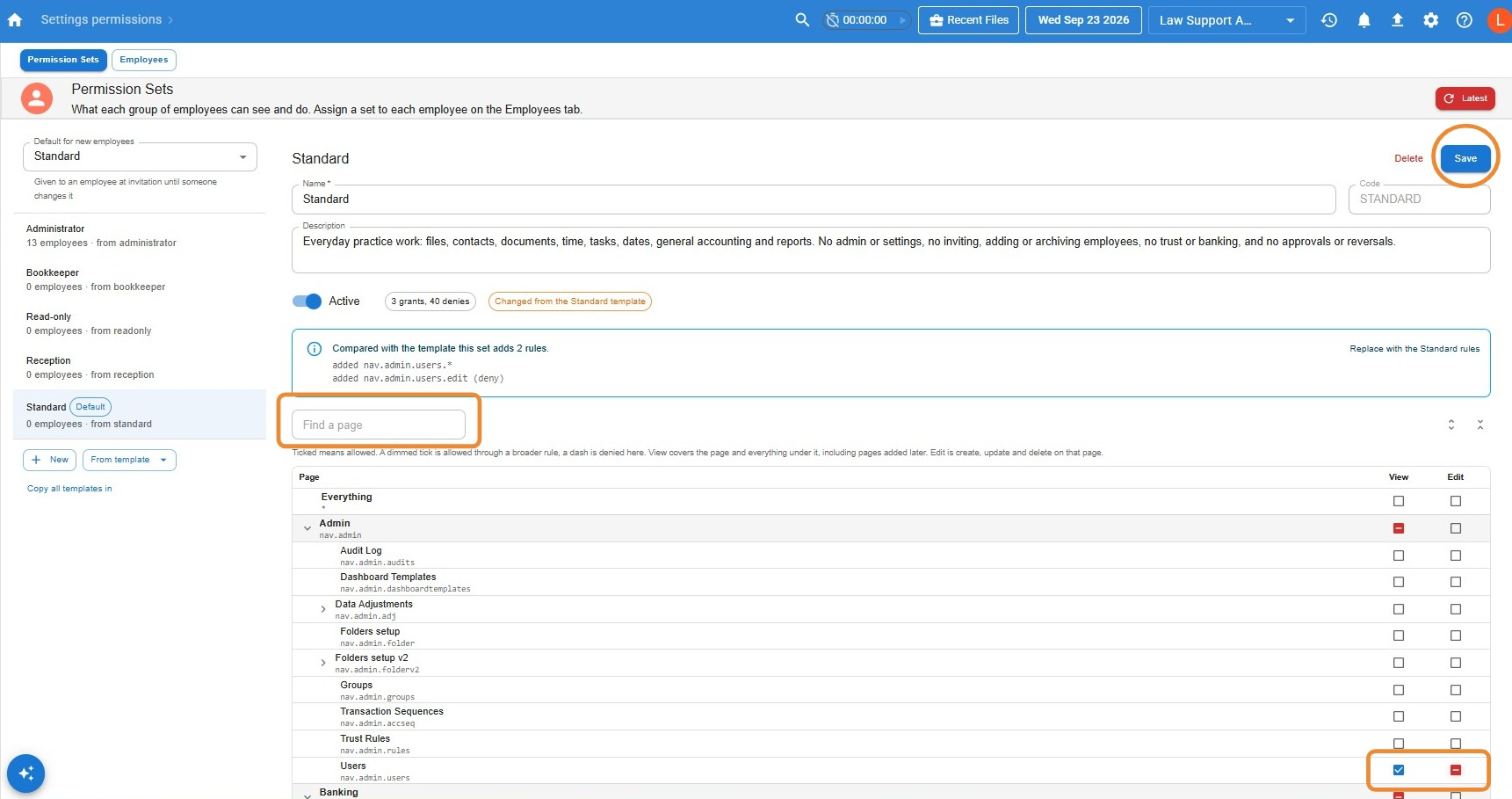
Reading the tick boxes: a tick means allowed, a dimmed tick means the page is allowed through a broader rule, and a dash means it’s denied here. View covers the page and everything under it, including pages added later. Edit covers creating, updating and deleting on that page.
How to add a new permission set
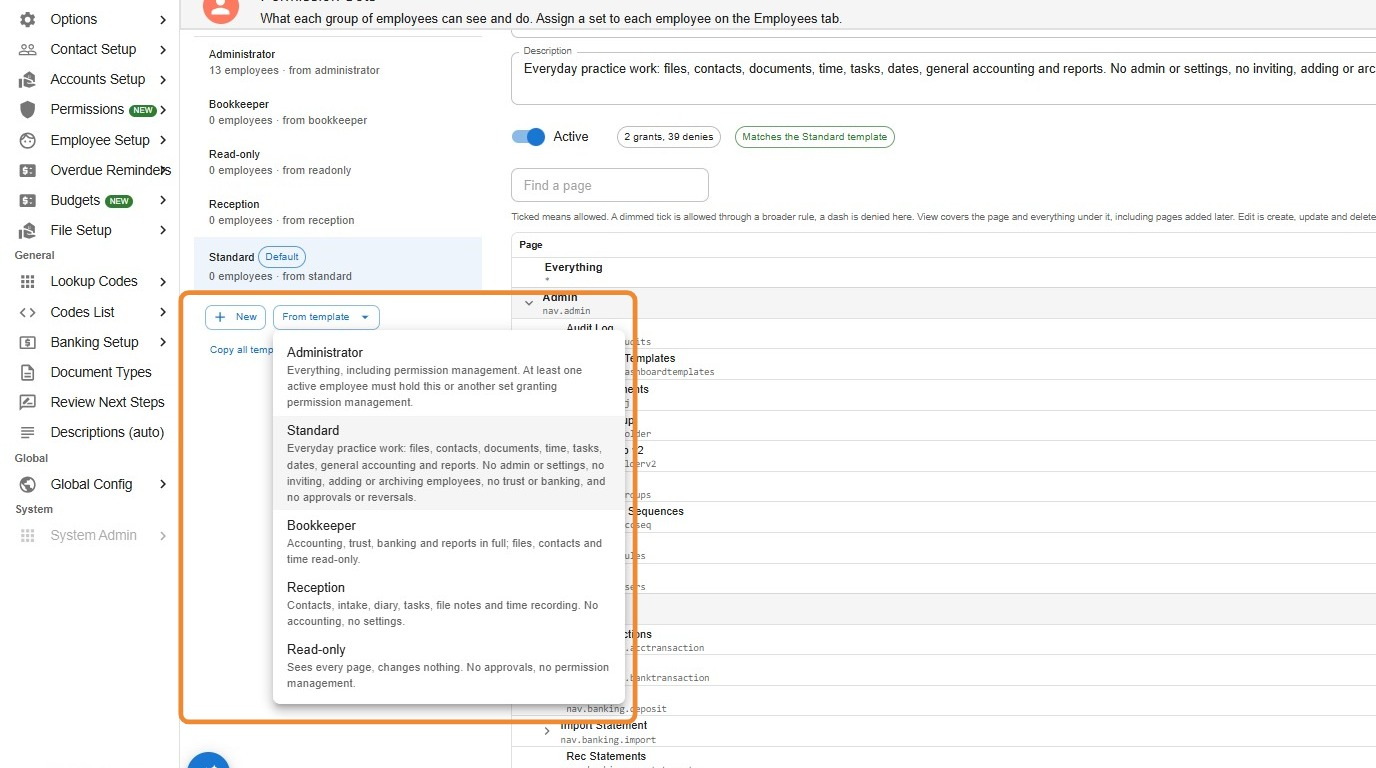
If none of the standard sets fit a role in your firm, create a new one based on the closest match.
- Click From template and choose the standard set you want to base your new set on — Administrator, Standard, Bookkeeper, Reception or Read-only, then click New.
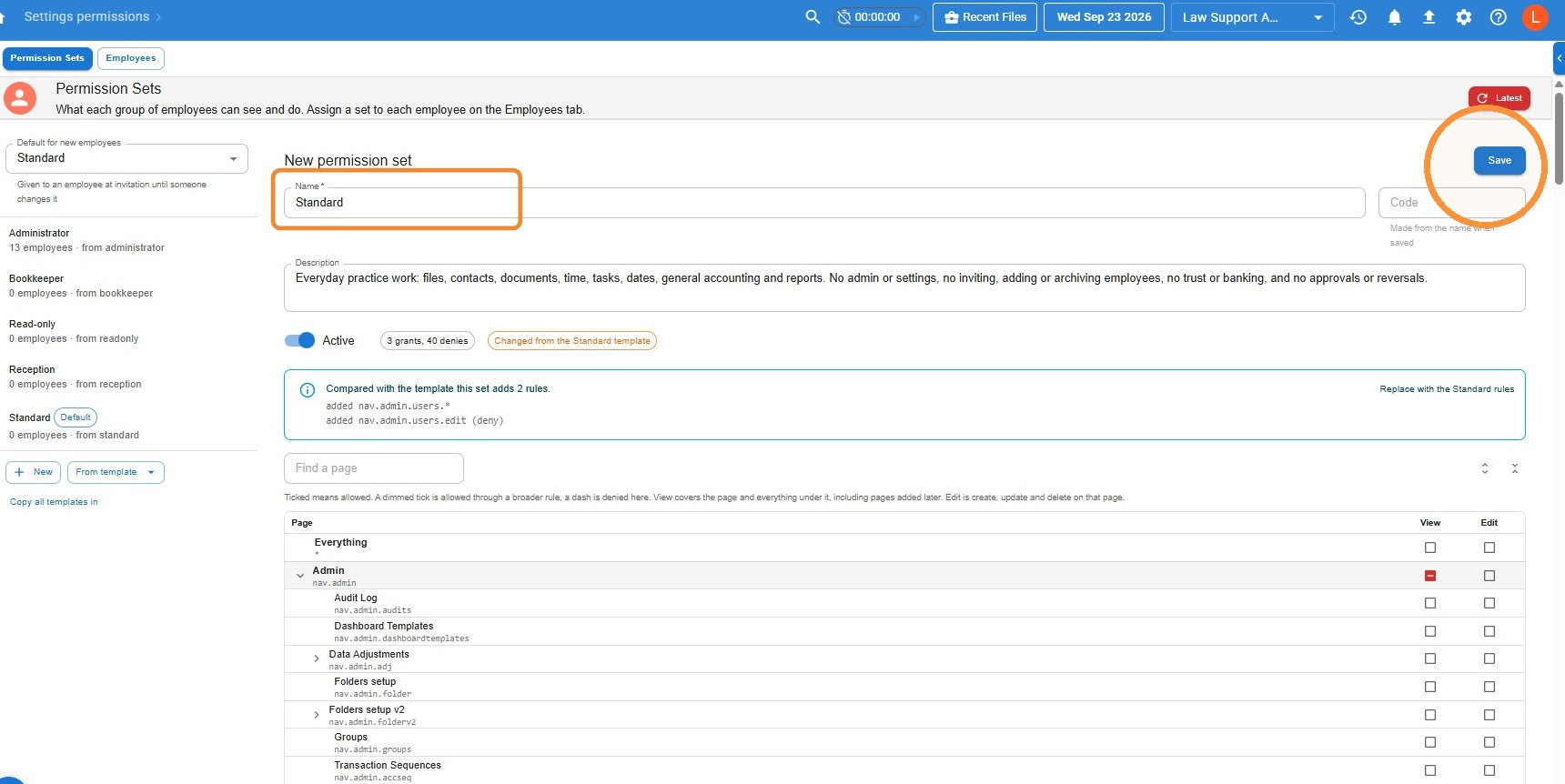
- Give your new permission set a Name.
- Tick the View and Edit access you want for each page, following the steps above.
- Click Save.
How to assign a permission set to an employee
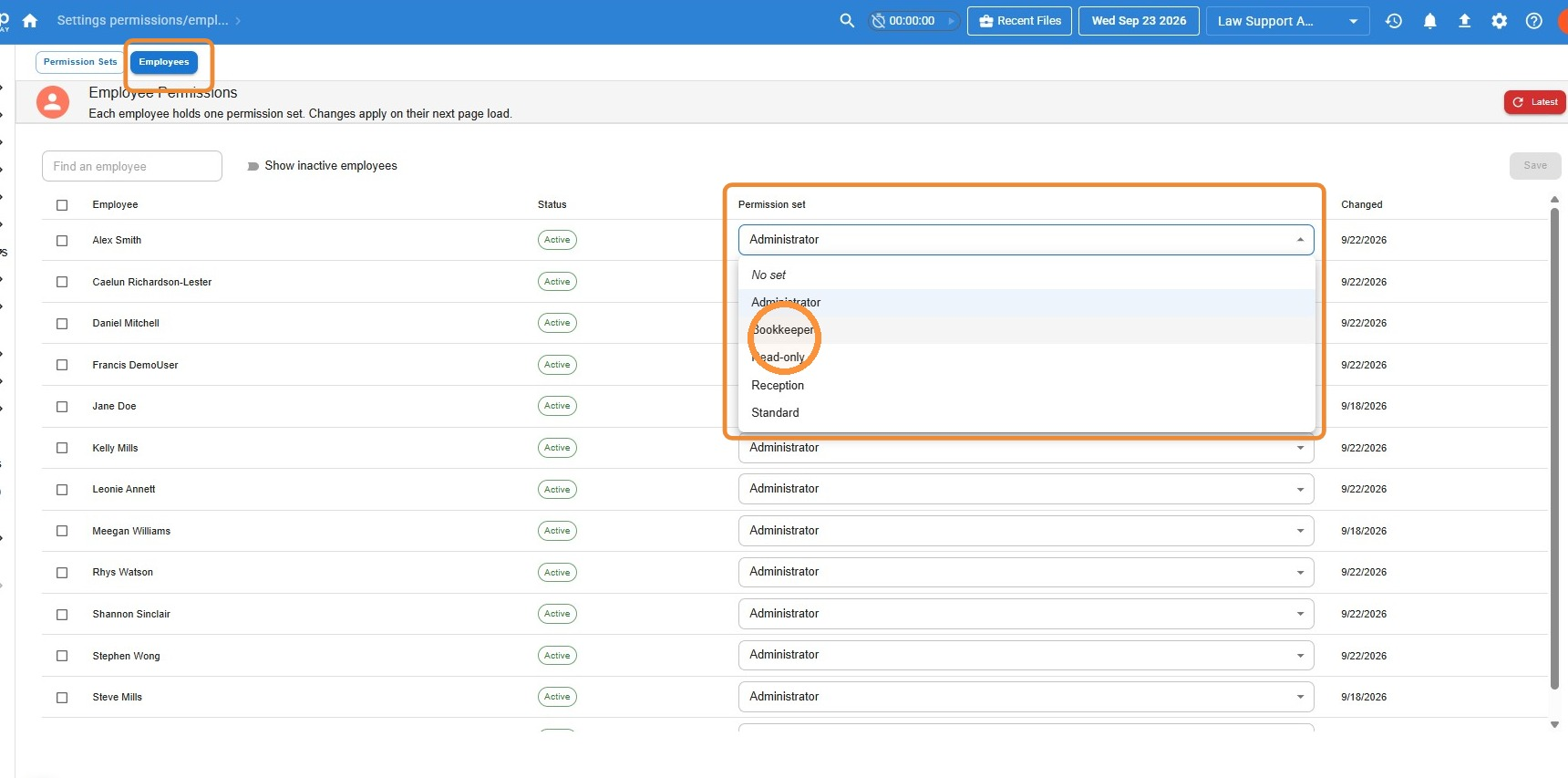
- Click the Employees tab at the top of the page, or go to Settings, Permissions, Employees.
- Find the employee, and click the dropdown in the Permission set column.
- Select the permission set you want to apply.
- Click Save.
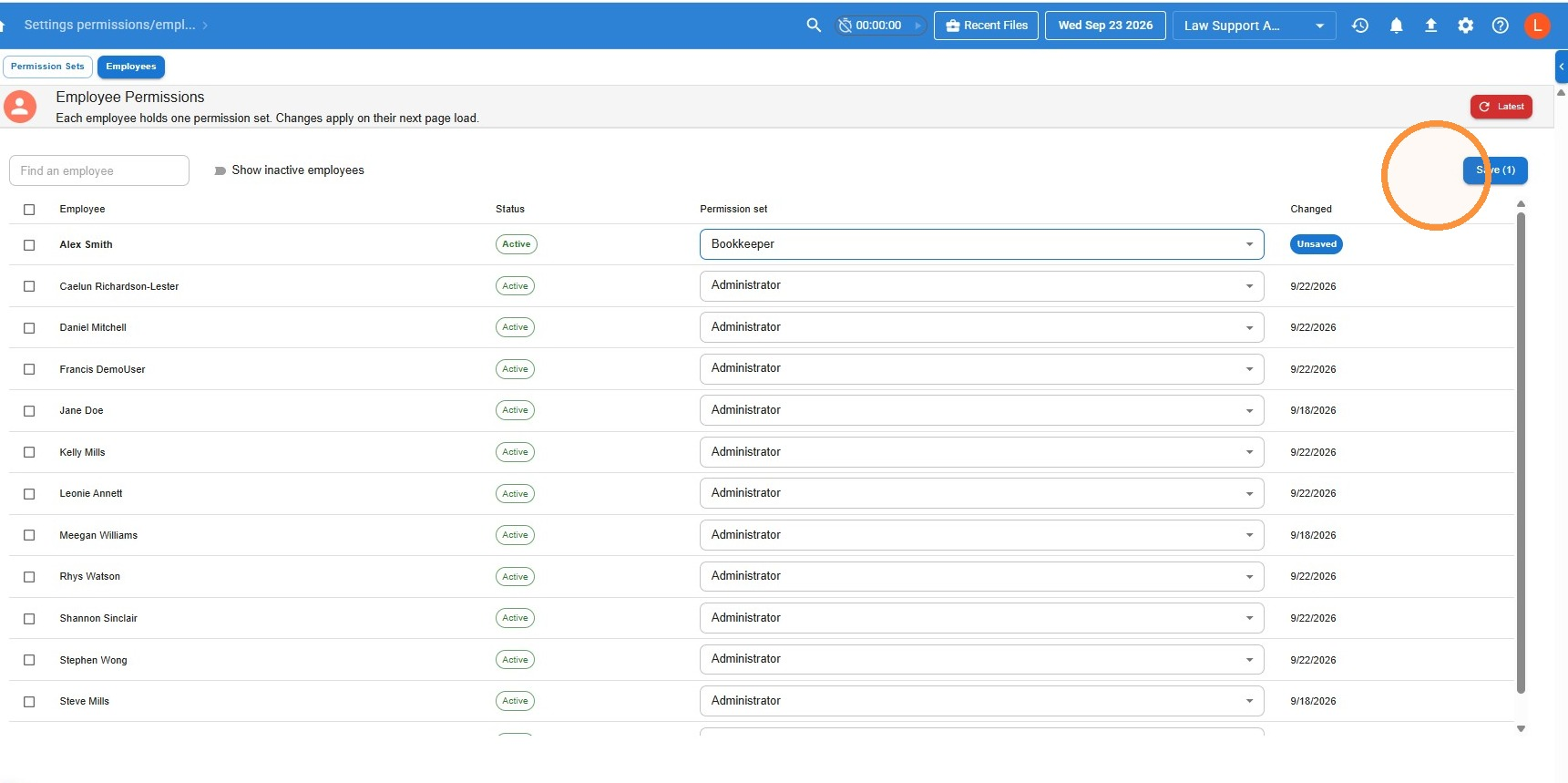
When changes take effect: each employee holds one permission set, and any change applies the next time their page loads.
Leave a Reply