
Two-factor authentication (2FA) adds a second layer of protection to your Law App login, so even if your password is ever compromised, your firm’s client data stays secure. Your 2FA controls live on the 2FA tab inside your user profile — this guide shows you exactly how to get there.
Law App is an ATO-whitelisted legal practice management provider, audited against strict security standards. With 2FA switched on, a verification code is sent to your device each time you log in, so only authorised users can reach your matters, trust data and client records.
How to access your two-factor authentication settings
- Go to app.lawsupport.com.au and log in. You’ll land on your Law App dashboard.
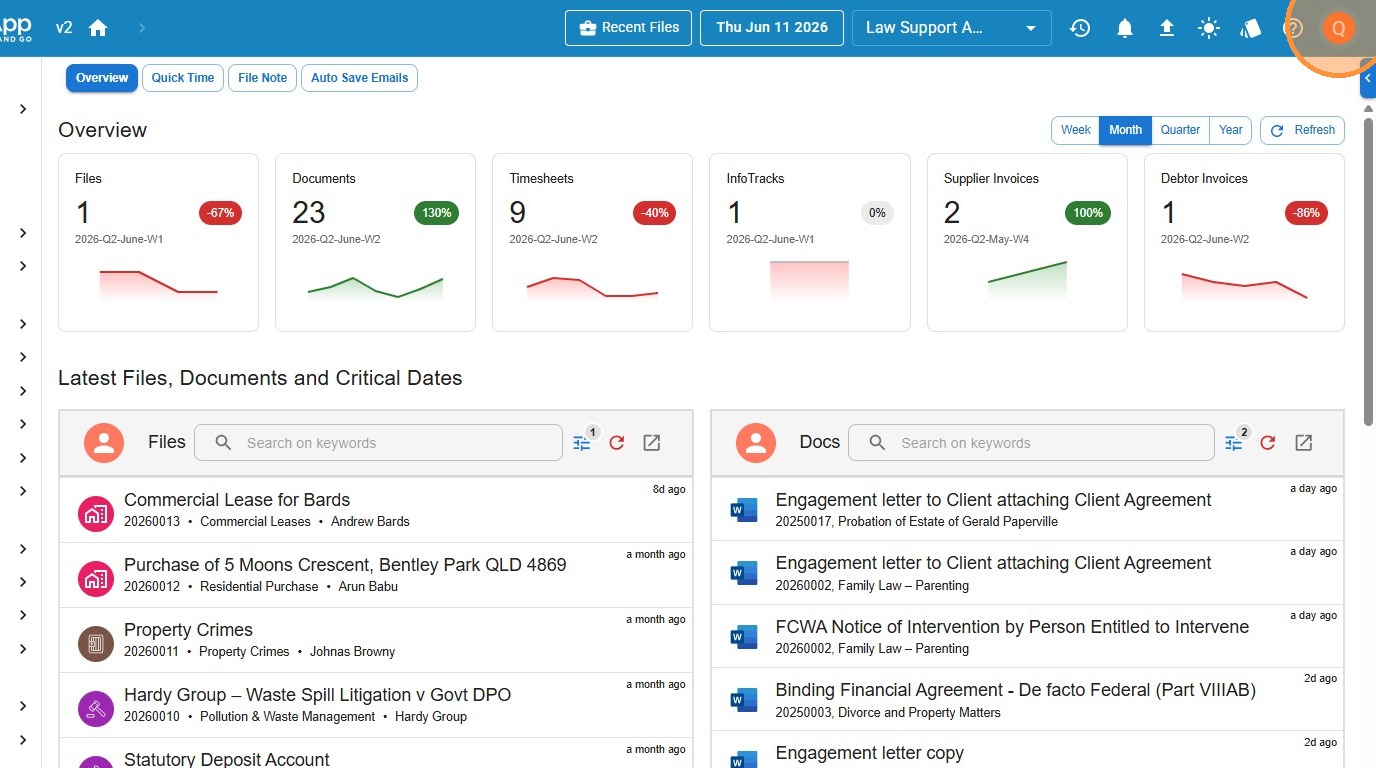
- Click the profile menu icon in the top-right corner of the screen.
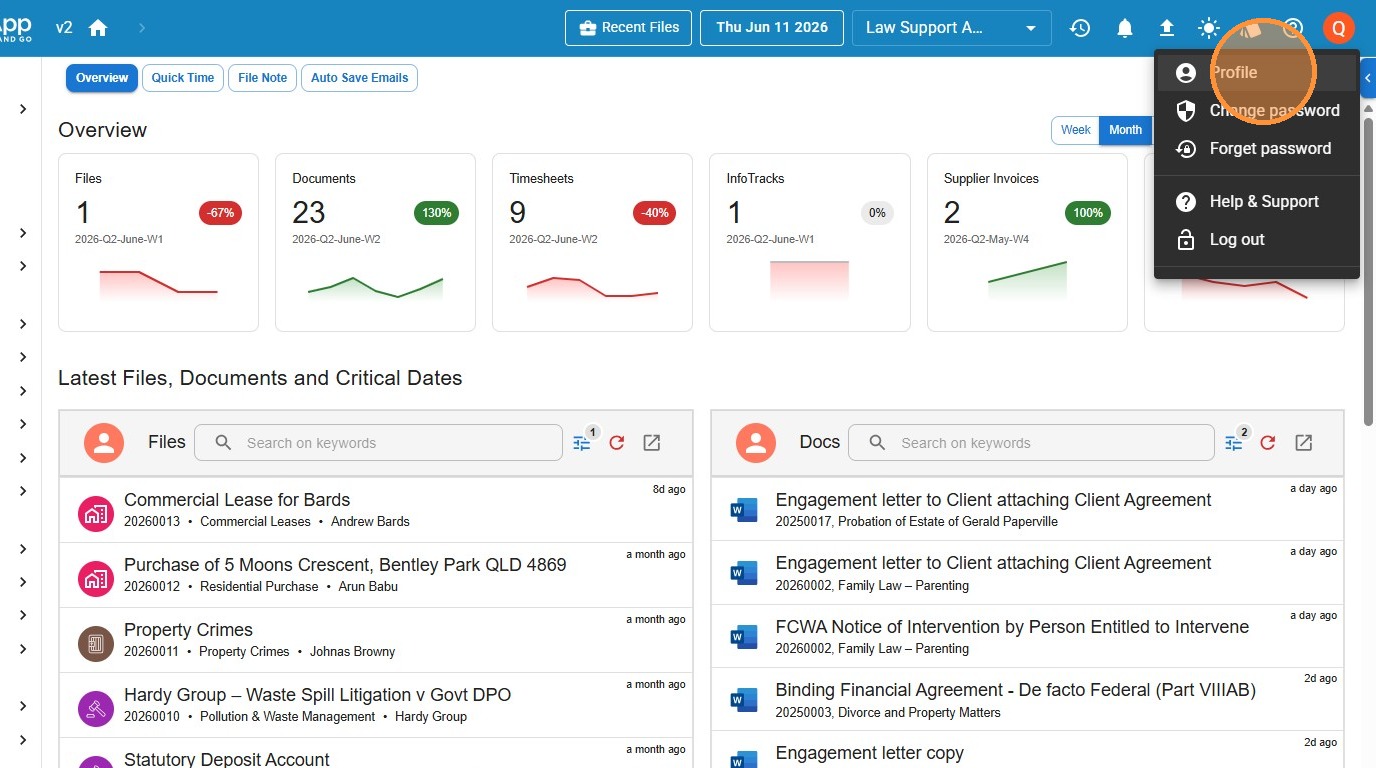
- Select Profile from the dropdown menu.
- Open the 2FA tab. This is where your two-factor authentication settings live.
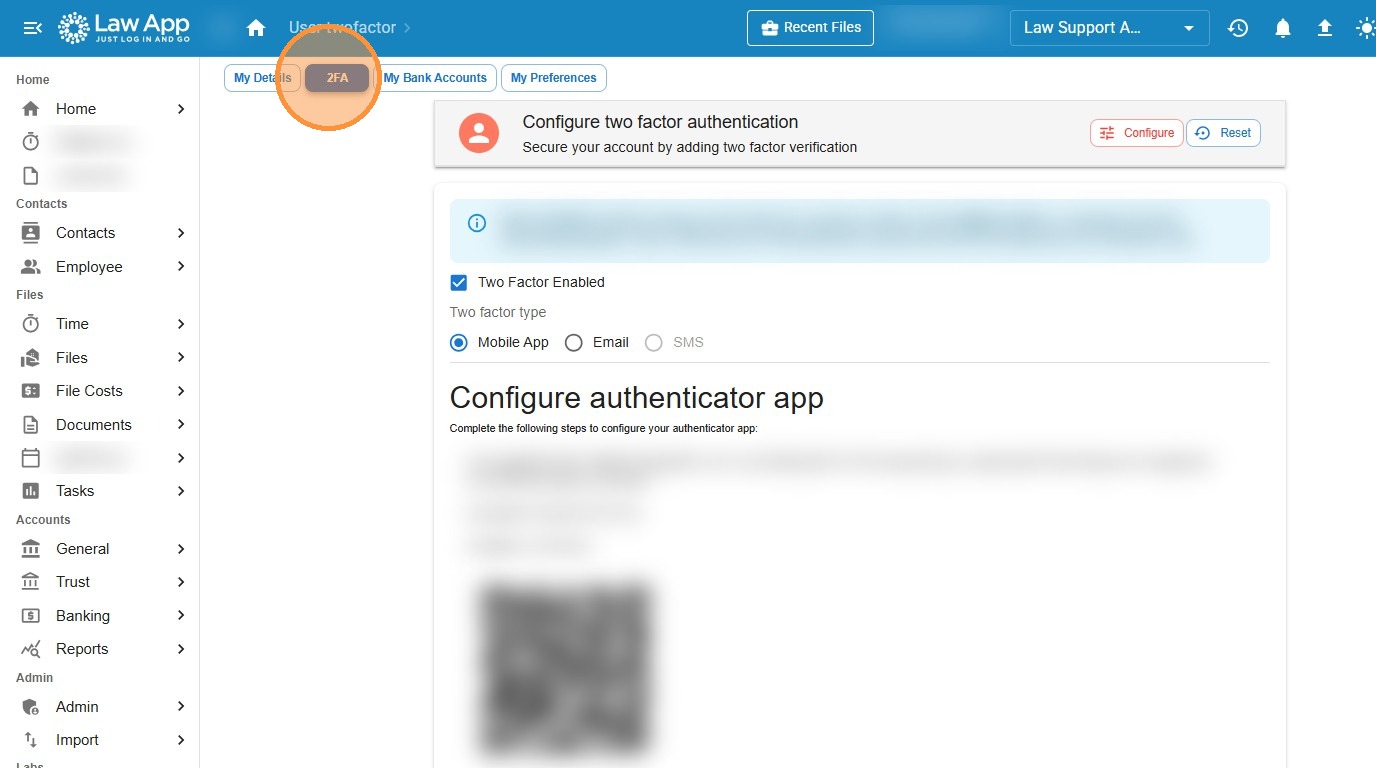
What you can do here: tick Two Factor Enabled to switch 2FA on, choose your verification method — Mobile App, Email or SMS — and, for an authenticator app, scan the on-screen QR code under Configure authenticator app.
Leave a Reply