
To add a new employee or user in Law App, an admin user sends them an invitation from Admin > Employees. The process is the same for anyone who needs to sign in, whether that’s a new lawyer, a support staff member or an external bookkeeper.
Every user needs their own personal Law App login. The invitation lets them create one (or sign in with an existing one) and adds them to your firm.
How to add a new employee or user
You’ll need to be an admin user to do this.
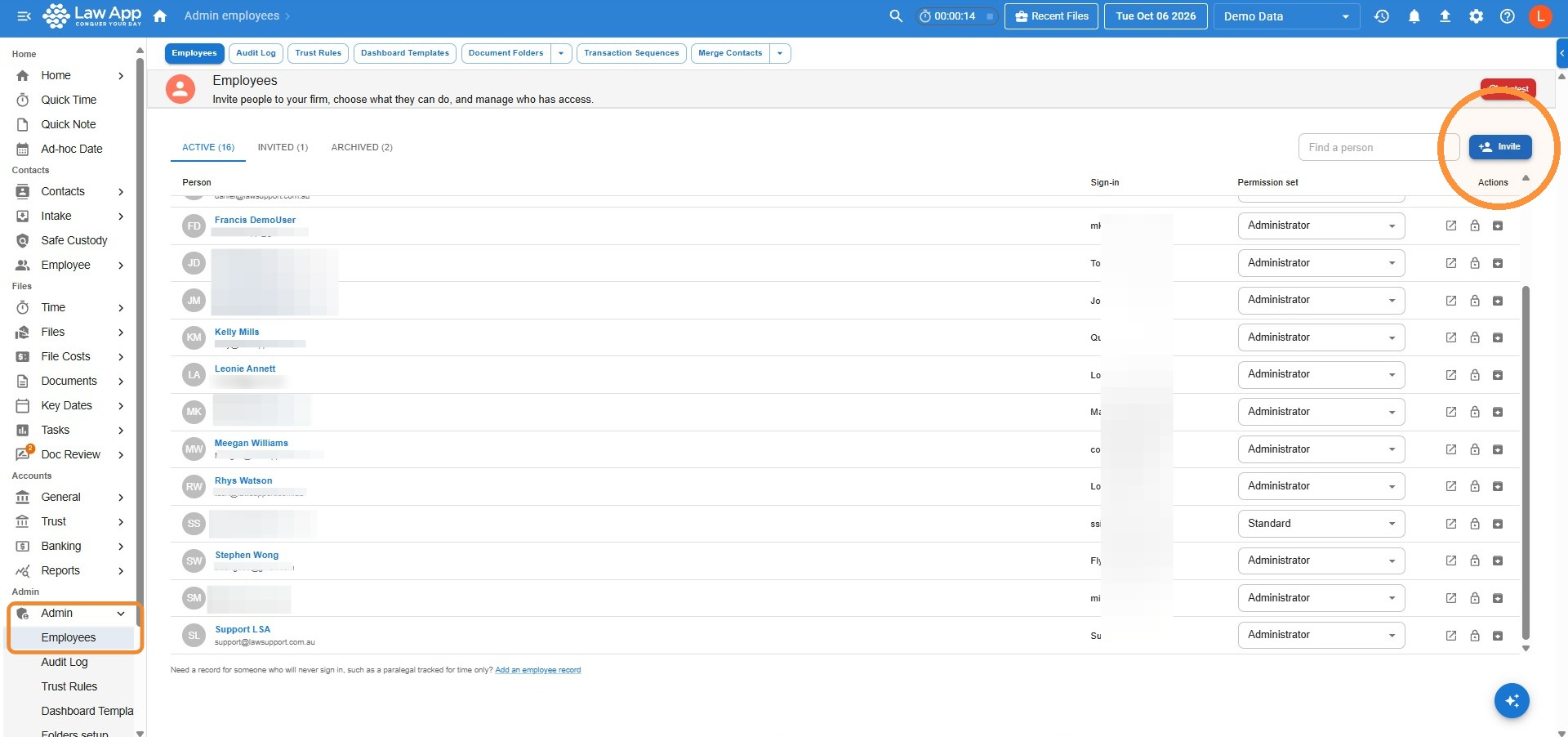
- From the left menu, go to Admin, then Employees.
- Click Invite at the top right of the employee list.
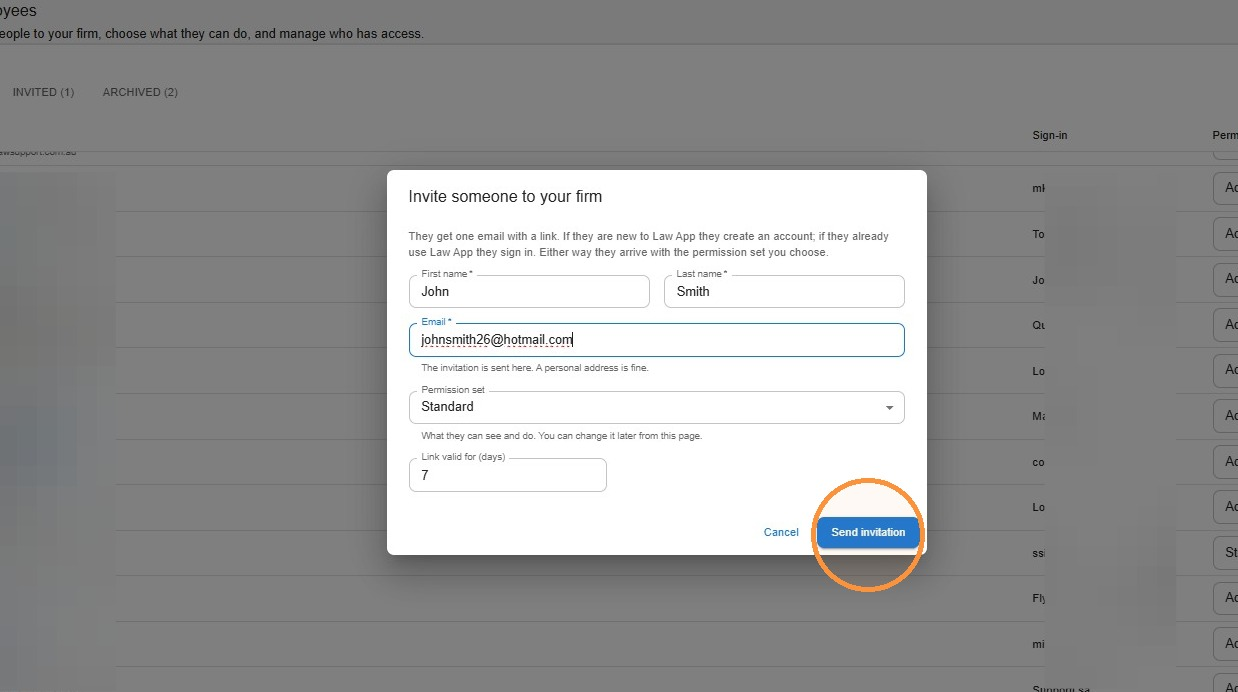
- Enter their First name, Last name and personal Email address. This is where the invitation is sent.
- Choose their Permission set. This controls what they can see and do in Law App, and you can change it later.
- In Link valid for (days), set how long the invitation stays valid.
- Click Send invitation.
Tip: Not sure which permission set to choose? See How to configure user permissions in Law App.
What happens after you send the invitation
The new user receives an email with a link to accept the invitation. If they’re new to Law App, they create their own account. If they already use Law App, they simply sign in. Either way, they’re added to your firm with the permission set you chose.
Leave a Reply