
The General group in Settings holds the smaller lists used across Law App: branches, departments and positions, your bank accounts and bank feeds, the kinds of document you file, the choices a reviewer makes when finishing a review, and the descriptions offered on transactions.
How to get there
- From the left menu, click Settings.
- Under General, click Lookup Codes, Banking Setup, Document Types, Review Next Steps or Descriptions (auto).
Lookup Codes
Short lists picked from on employees, files and contacts. Add a value with +, and archive one you no longer use rather than deleting it.
| Tab | What it’s for |
|---|---|
| Branches | Your offices. Shown on forms only when Branch is hidden is off in Options. |
| Departments | Your departments. Shown only when Department is hidden is off. |
| Position | Job titles, such as Partner, Senior Associate or Paralegal. Used on employees and, if you charge by position, for rates. |
| Teams | Team names. Who is on each team and who leads it is set in Employee Setup, Teams. |
| Report Groups | Groupings you can choose to total or filter by on reports. |
| Country, Gender, Local Governments | Standard choices on contacts and properties. |
Banking Setup
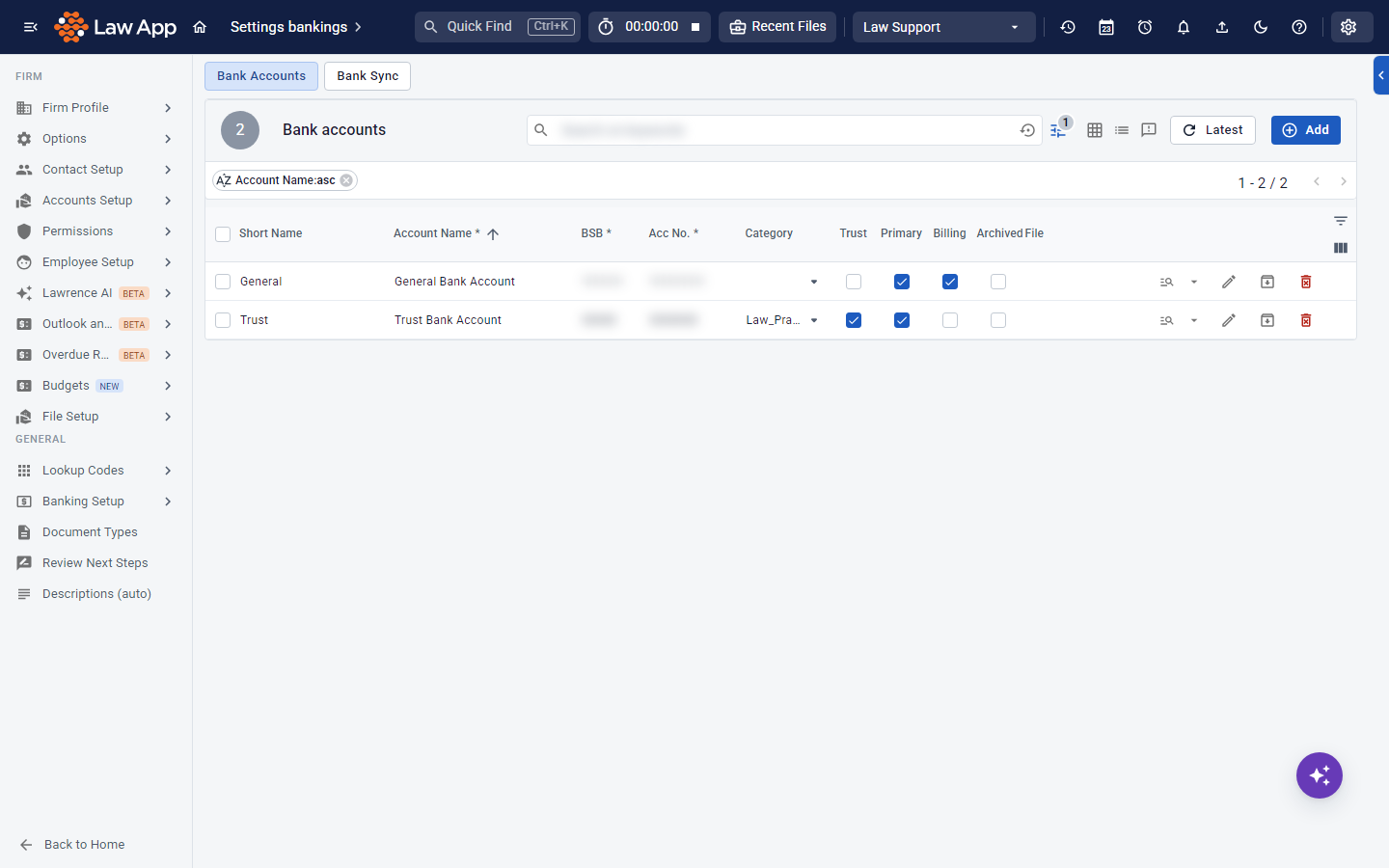
| Column or tab | What it’s for and what it changes |
|---|---|
| Bank Accounts | Your firm’s general and trust bank accounts, with their BSB and account number. Every receipt, payment, deposit and reconciliation is against one of these. Click Add for a new account. |
| Trust | Ticked for a trust account. Trust accounts follow the trust rules in Trust Compliance Settings. |
| Primary | The account Law App picks first for that kind of transaction. |
| Billing | The account used for billing. Where Law App needs one trust account to show on a document, such as a trust ledger, it uses the one ticked here. |
| Bank Sync | Connects an account to your bank’s feed so transactions come in automatically. See Setting up Bank Feeds in Law App and Missing bank feed transactions. |
Document Types
The kinds of document you file, such as Letter, Contract, Affidavit or Invoice. Chosen when a document is saved to a file, and used to find and filter documents.
Review Next Steps
The “what happens next” options a reviewer picks when completing a document review, such as Send to client, Changes required or Escalate for approval. See How to use Document Review in Law App.
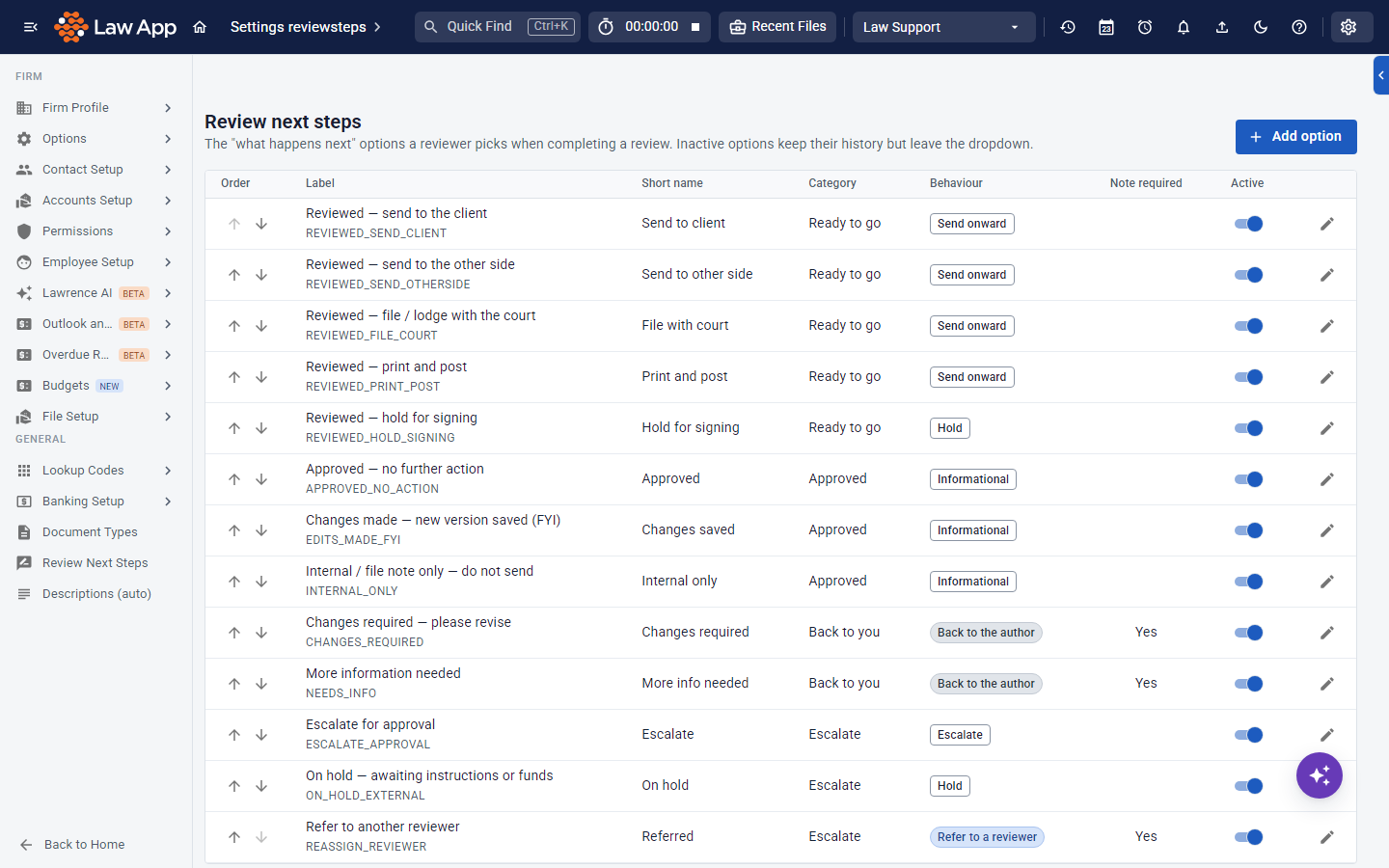
| Column | What it’s for and what it changes |
|---|---|
| Order | The order the options appear in. Use the arrows to move one up or down. |
| Label and Short name | What the reviewer sees in the list, and the short version shown on the review. |
| Behaviour | What picking it does to the review: Send onward, Hold, Informational, Back to the author, Escalate or Refer to a reviewer. |
| Note required | The reviewer must add a note when they pick it, such as what needs changing. |
| Active | Switch an option off to take it out of the list. Reviews that used it keep their history. |
Click Add option for a new one, or the pencil to change one.
Descriptions (auto)
The saved descriptions offered when you type in the Description field on receipts, payments and invoices, by category. See Transaction Descriptions in Law App and Trust Payment Descriptions. This is the same list as Contact Setup, Auto-Text.
Questions
How do I add a new bank account to Law App? Go to Settings, Banking Setup, Bank Accounts and click Add. Tick Trust if it’s a trust account.
How do I change the options a reviewer can pick when finishing a review? Go to Settings, Review Next Steps. You can add options, change their order, require a note, or switch options off.
How do I add a new document type? Go to Settings, Document Types, click + and enter a code and name.
Leave a Reply