
Two settings areas look after your people. Permissions decides what each person can see and do in Law App. Employee Setup holds what each person charges, what they cost the firm, the defaults their time entries start with, and the teams they belong to.
Permissions
- From the left menu, click Settings, then Permissions.
- Permission Sets lists your firm’s sets and how many people hold each. Employees shows who holds which set.
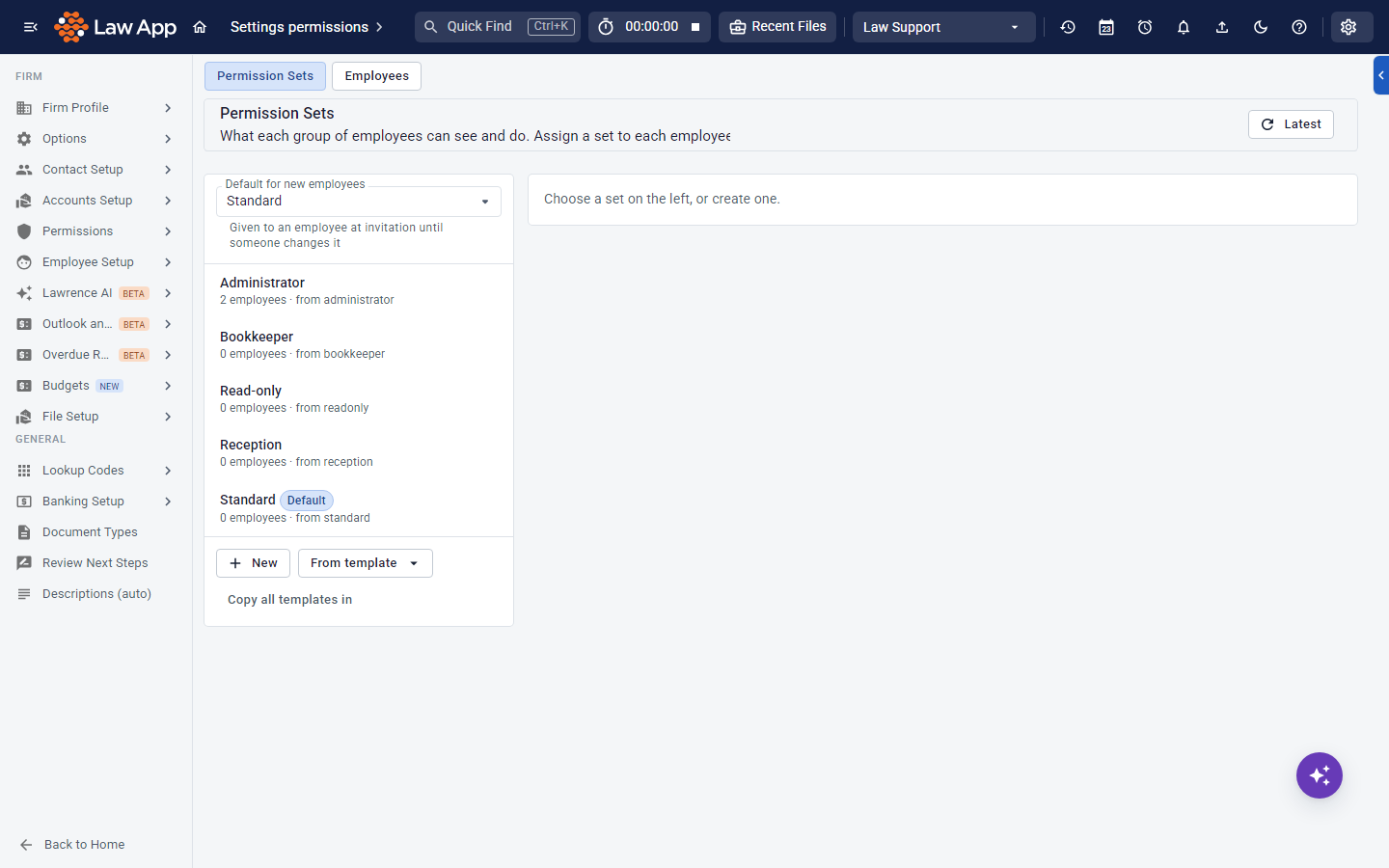
| Part of the page | What it’s for and what it changes |
|---|---|
| Default for new employees | The set a new employee gets when they’re invited, until someone changes it. Usually Standard. |
| The sets | Administrator, Bookkeeper, Read-only, Reception and Standard come from Law App’s templates. Click a set to see and change what it allows. A change applies straight away to everyone who holds that set. |
| New and From template | Make your own set from scratch, or start from one of Law App’s templates and adjust it. Copy all templates in adds any template sets you don’t have yet. |
| Employees tab | Give each person the set that matches their job. A person holds one set. |
For step-by-step instructions, see How to configure user permissions in Law App. To lock one file down to particular people, see How to restrict access to Confidential Files.
Employee Setup
- From the left menu, click Settings, then Employee Setup.
- Use the tabs: Employee Rates, Employee Defaults and Teams.
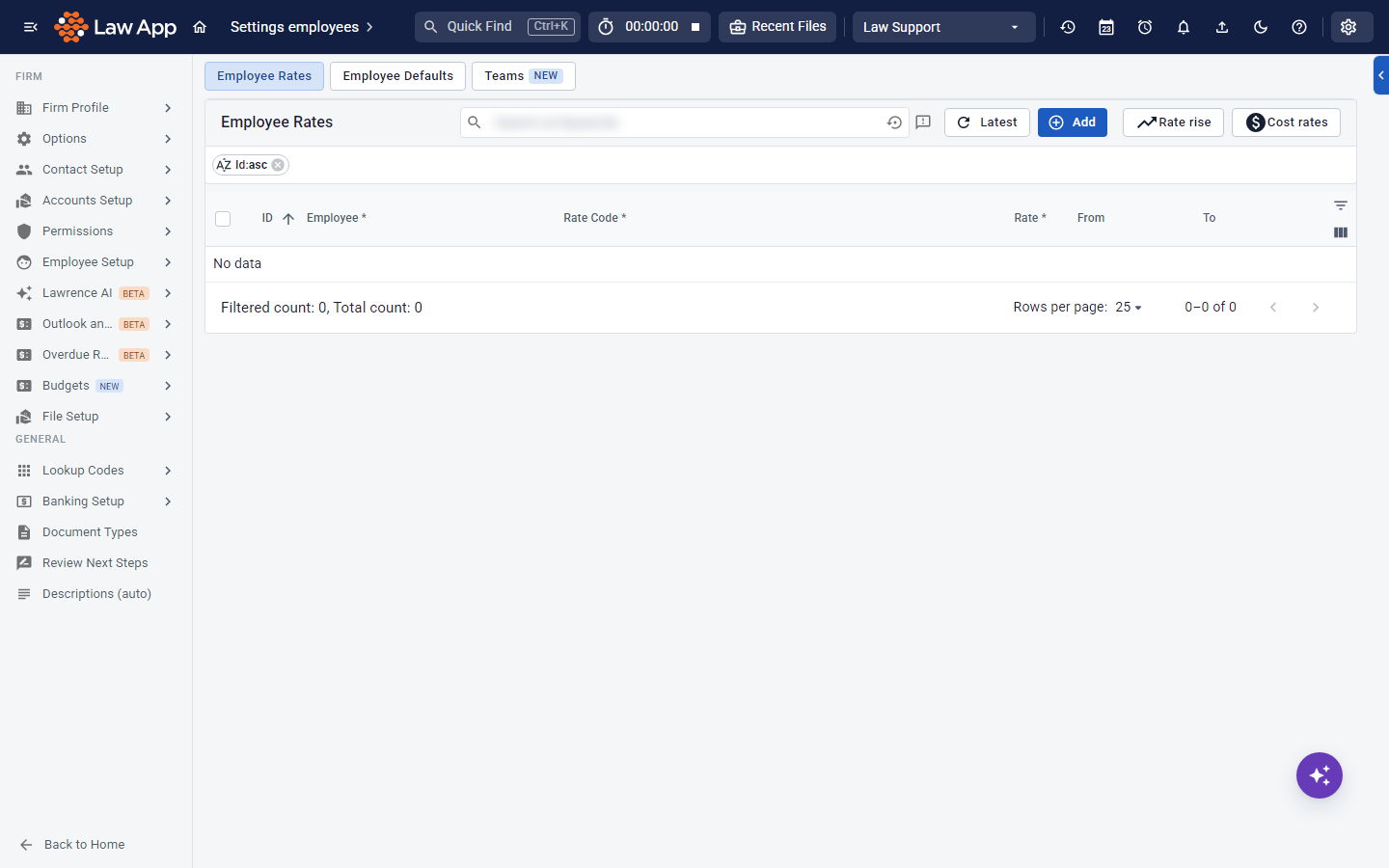
| Tab or button | What it’s for and what it changes |
|---|---|
| Employee Rates | A person’s charge-out rate for a particular rate code, with the dates it applies From and To. When that person records time with that rate code, this rate is used. Click Add for a new rate. |
| Rate rise | Raises everyone’s rates (or the ones you choose) by a percentage from the date you pick, rounded to the nearest dollar, $5 or $10 if you like. A negative figure lowers rates. Click to see the new rates in a preview before they’re applied. Time already recorded keeps its old rate. |
| Cost rates | What each person costs the firm per hour, as opposed to what they charge. Used for profitability and budget reporting. Clients never see it. |
| Employee Defaults | Each person’s Default Rate Code, Default Rate and Default Time Increment, which their new time entries start with when nothing more specific applies. |
| Teams | Create teams, name each team’s lead, and put people on them, all on one screen. Teams are used by budgets and team reporting. |
How Law App picks the rate for a time entry, from the file’s own rate down to the firm default, is explained in Managing Rate Codes and Billing Rates. Whether an employee’s default rate is used at all is the Use Employee Default Rate option in Timesheet options.
To add a person to Law App, see How to add a New Employee or User.
Questions
We put our rates up. Will old time entries change? No. A rate rise applies from the date you choose. Time recorded before then keeps the rate it was recorded at.
A new staff member can see too much. Check which set they hold on the Employees tab, and what Default for new employees is set to.
How do I put up everyone’s charge-out rates? Go to Settings, Employee Setup, Employee Rates and use Rate rise: enter a percentage and the date it starts. You see a preview before anything changes.
How do I set up teams and team leads? Go to Settings, Employee Setup, Teams, create a team, choose its lead and add people.
Leave a Reply