
You can restrict access to confidential files in Law App by flagging them in Settings > File Setup > Confidential Files. A confidential file is kept away from features like Lawrence AI, Law App’s AI assistant, and you can also lock it down so only the staff you choose can open it.
This guide shows you how to flag a file as confidential, what other staff will see once it’s locked, and how to remove the flag later.
How to flag a file as confidential
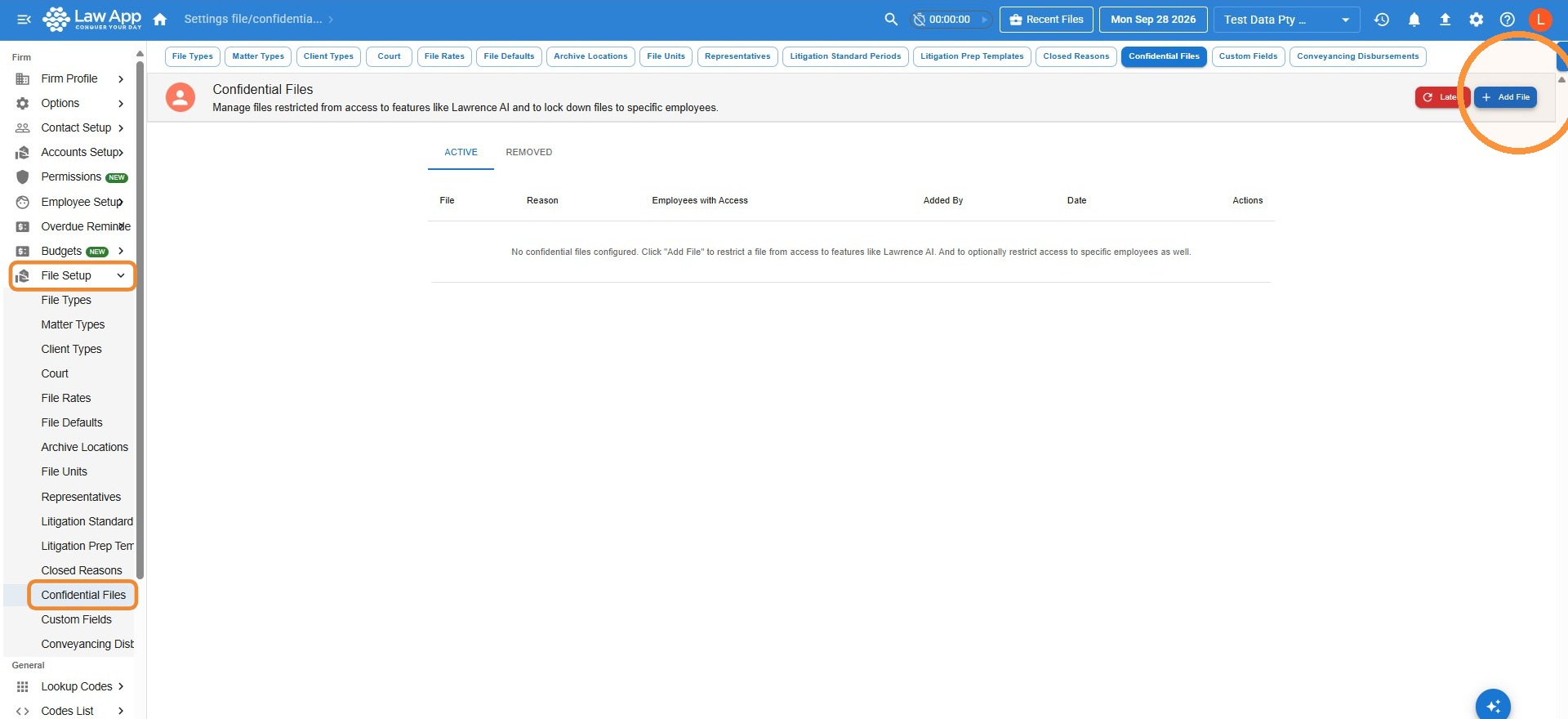
- Go to Settings, then File Setup, then Confidential Files, and click Add File.
- In the Flag File as Confidential window, search for and select the file. Enter a Reason if you’d like one on record, and under Employee Access select the staff who should still be able to open the file. Then click Confirm.
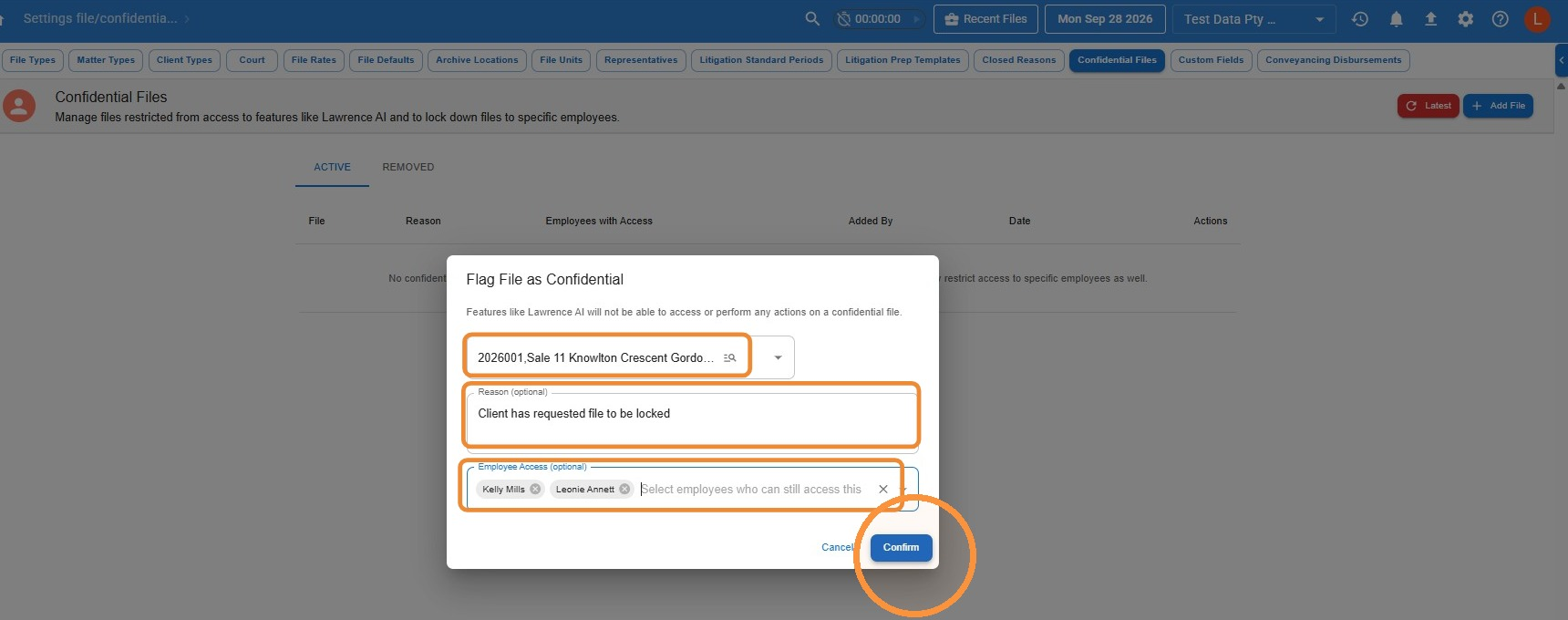
Add at least one person to lock the file down. If a file is marked confidential but no one is added under Employee Access, all staff can still see it — the flag only keeps it away from Lawrence AI. To restrict a file to certain people, make sure they’re added to the access list.
What happens when a file is confidential
Once a file is flagged confidential and has staff on its access list:
- Anyone not on the list can’t open the file. If they try, they’ll see a lock screen telling them they don’t have permission. This applies across every part of the file: details, documents, financials, key dates, contacts and question sheets.
- The file won’t show up for them anywhere. It’s left out of file searches, the Find File list, dropdowns and file pickers, and the Outlook add-in.
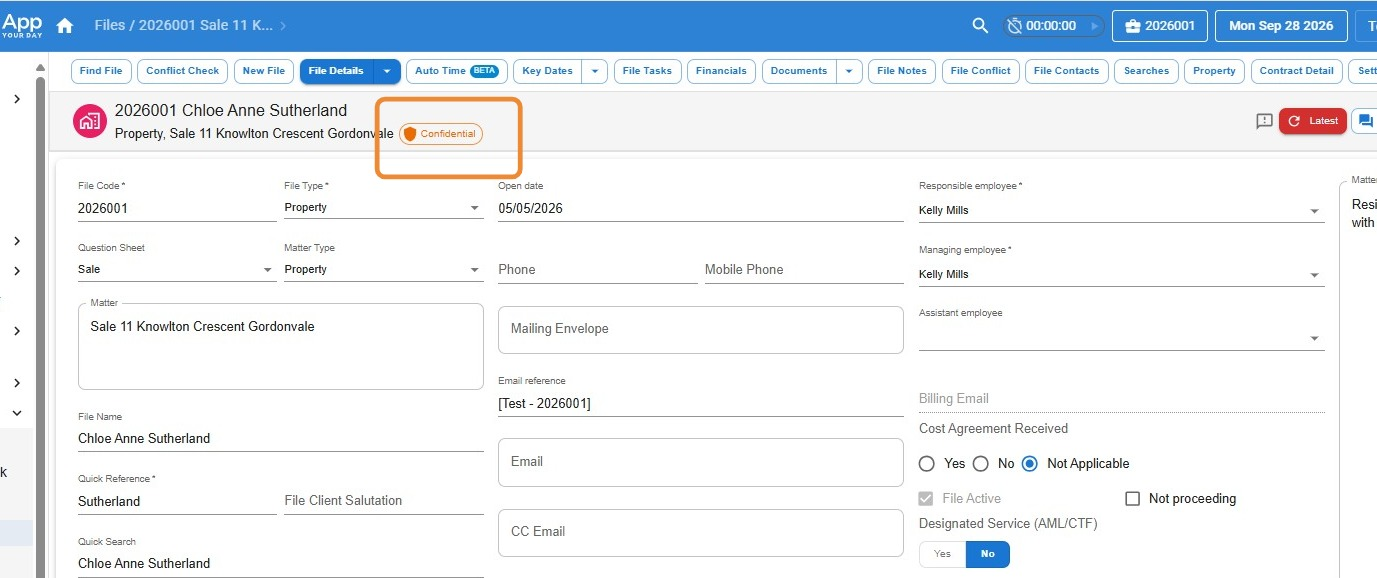
- Staff who do have access see the file as normal, with a small Confidential badge so they know it’s a protected matter.
How to remove the confidential flag
- In Settings > File Setup > Confidential Files, find the file on the Active tab and click the Remove confidential flag icon (the red bin) in the Actions column.
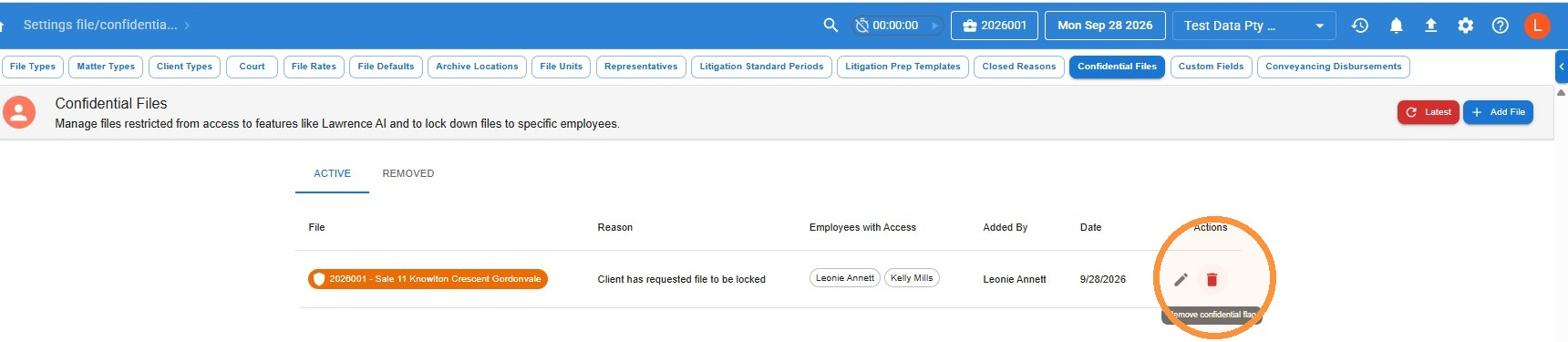
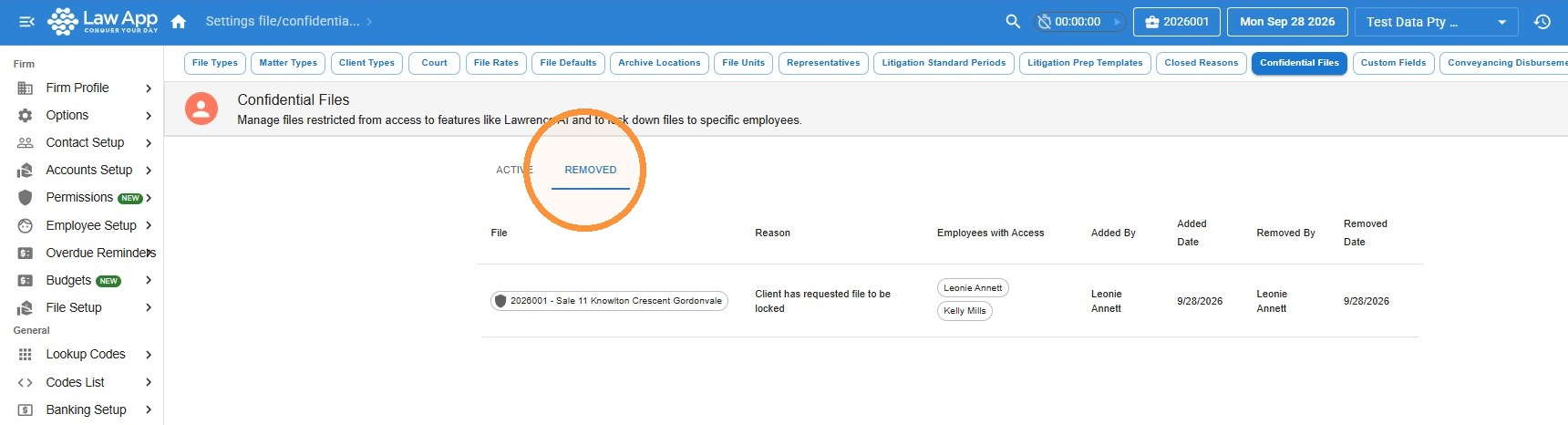
- The Removed tab lists every file that has been flagged confidential and later had the flag removed, including who removed it and when.
Leave a Reply