
A file budget lets you track the time recorded on a matter against the fees you quoted the client. You can set a simple fee limit on the file, or split the matter into phases with their own estimates if you quoted it that way. Law App shows your progress as you go and changes colour as you approach the limit.
Fee limit
One figure for the whole matter: the professional fees quoted to the client. All time recorded on the file counts towards it.
Phases
Break the matter into stages, each with its own estimate, dates and status. Use your own custom phases, or your firm’s standard phases for that area of law.
Set up firm-wide phases and fee limit alerts
These settings are optional and apply across the firm. Set them up once, and they’re ready whenever someone adds a budget to a file.
Standard phases for each area of law
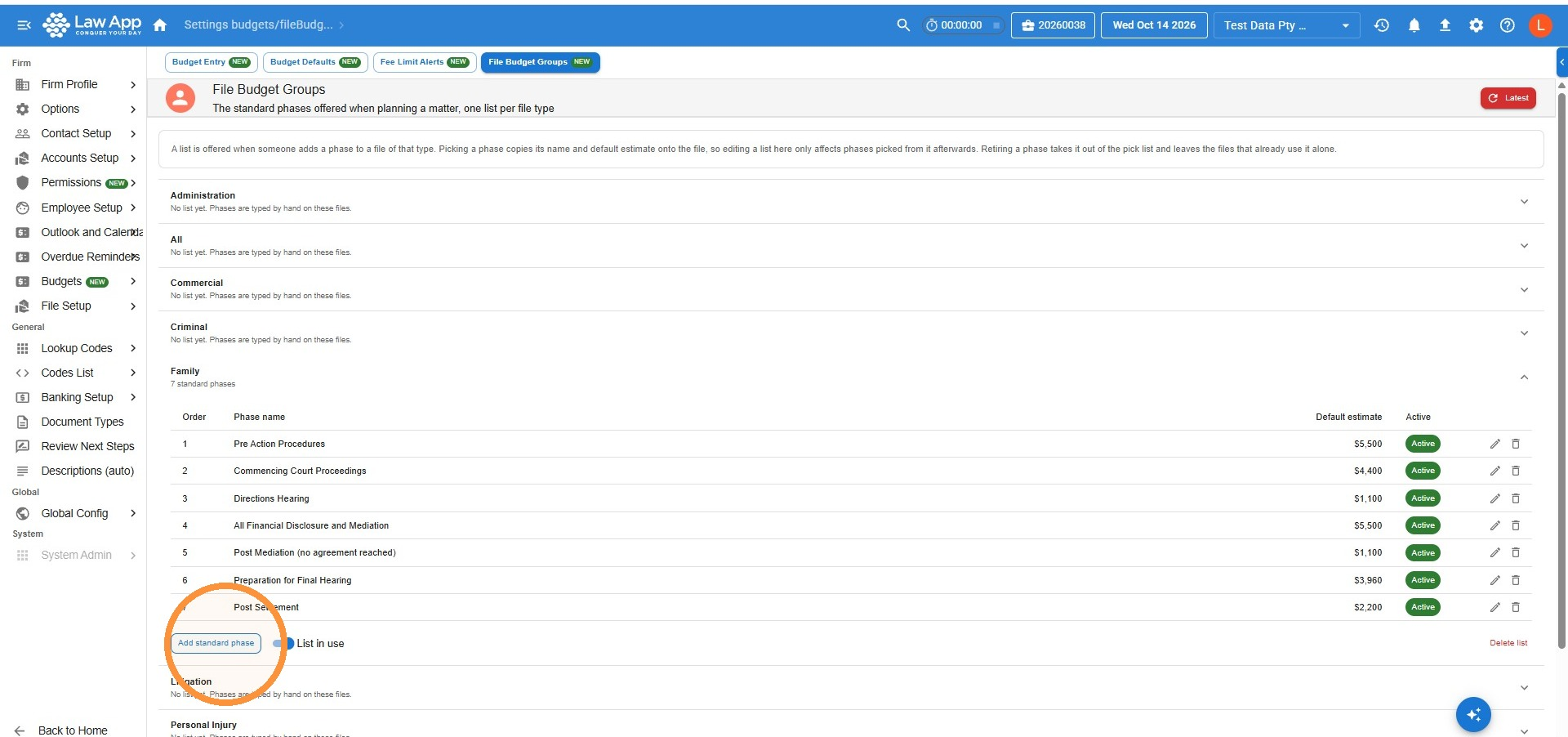
- Go to Settings > Budgets > File Budget Groups. You’ll see a list of areas of law.
- Click the area you want to add phases to.
- Click Add standard phase for each phase, enter its name and default estimate, then save.
Firm-wide fee limit alerts
- Go to Settings > Budgets > Fee Limit Alerts.
- Enter a Warning threshold % (the file turns amber) and, if you want a second level, a Final threshold % (the file turns red). Leave the final threshold blank to use a single alert.
- Click Save.
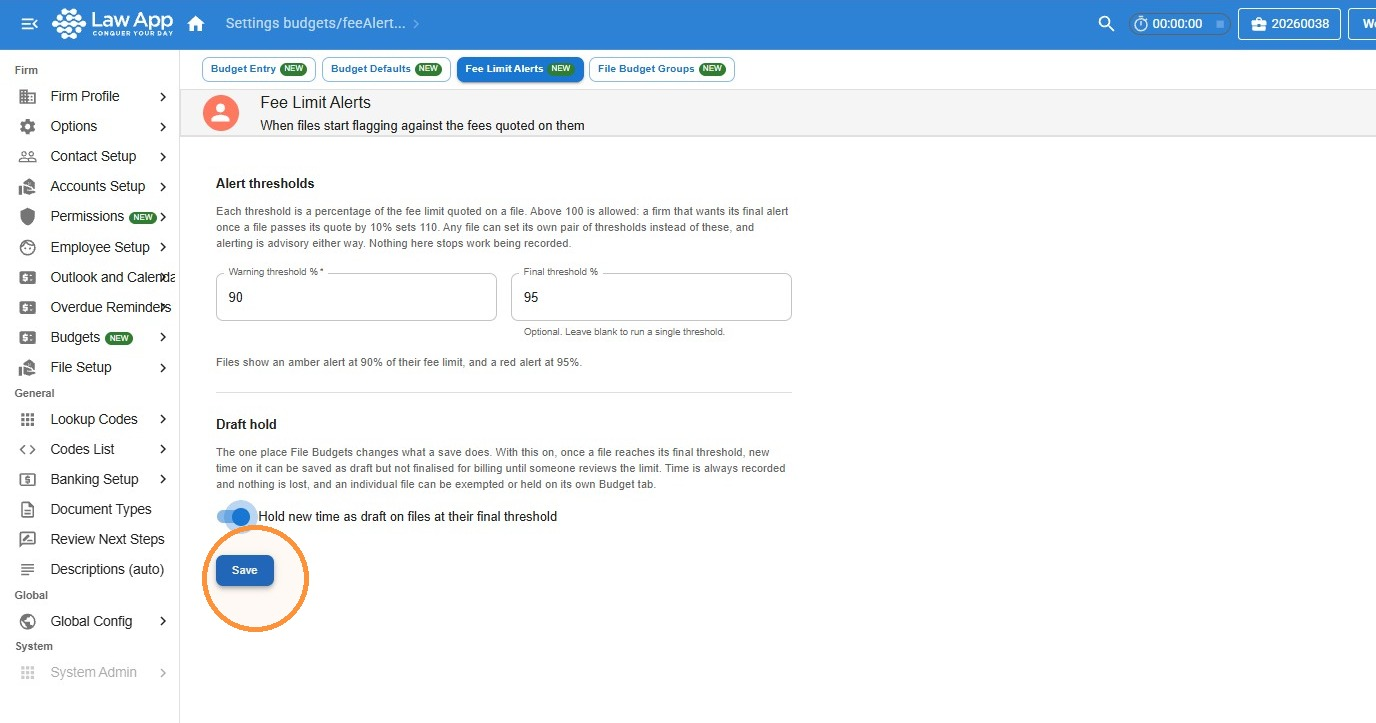 These thresholds apply to every file with a fee limit. You can set different levels on an individual file when you need to.
How to set up a budget on a file
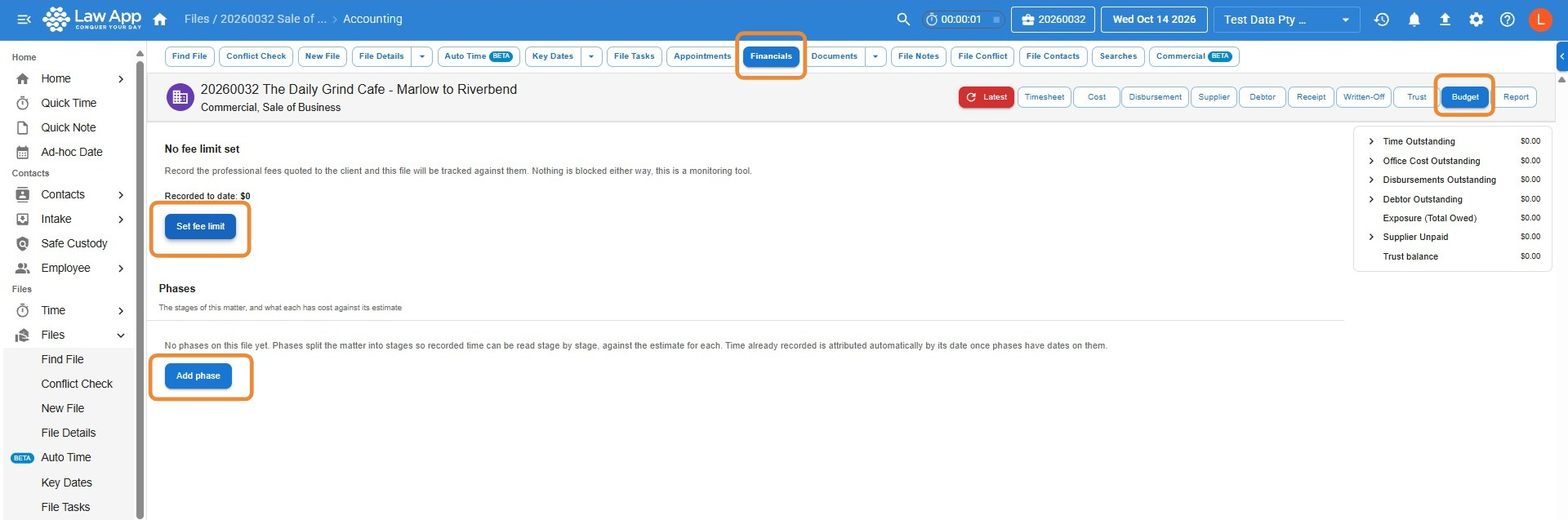
- Open the file and go to Financials > Budget.
- Click Set fee limit to add the quoted fees, and Add phase if you want to split the matter into phases.
Set the fee limit
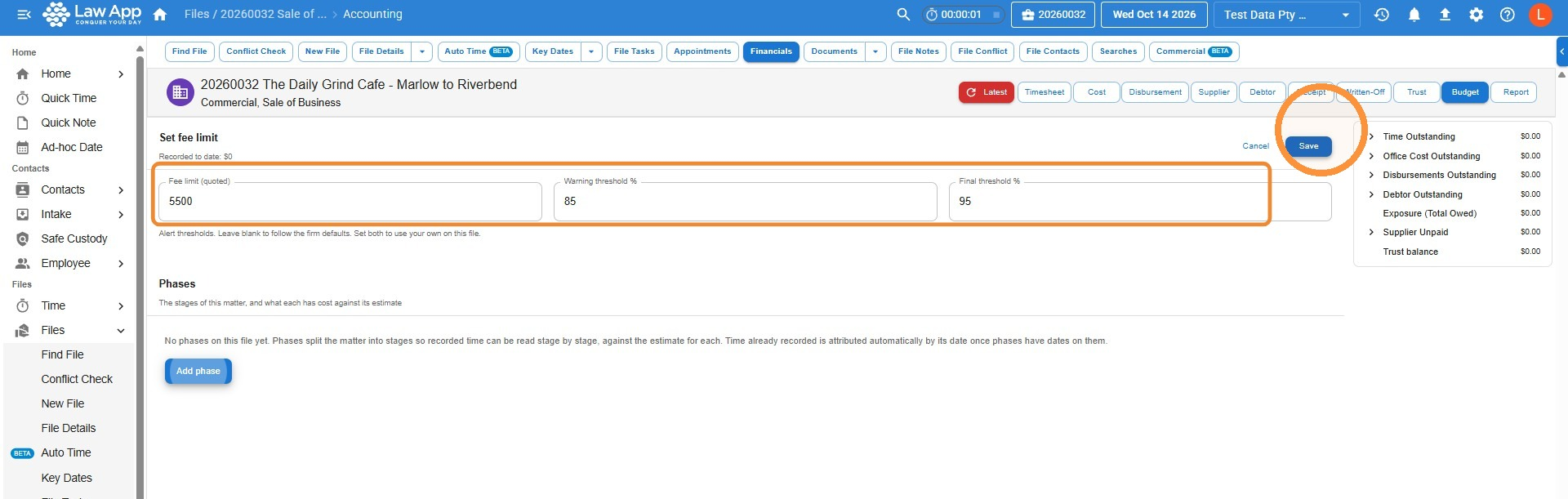
- Enter the Fee limit (quoted).
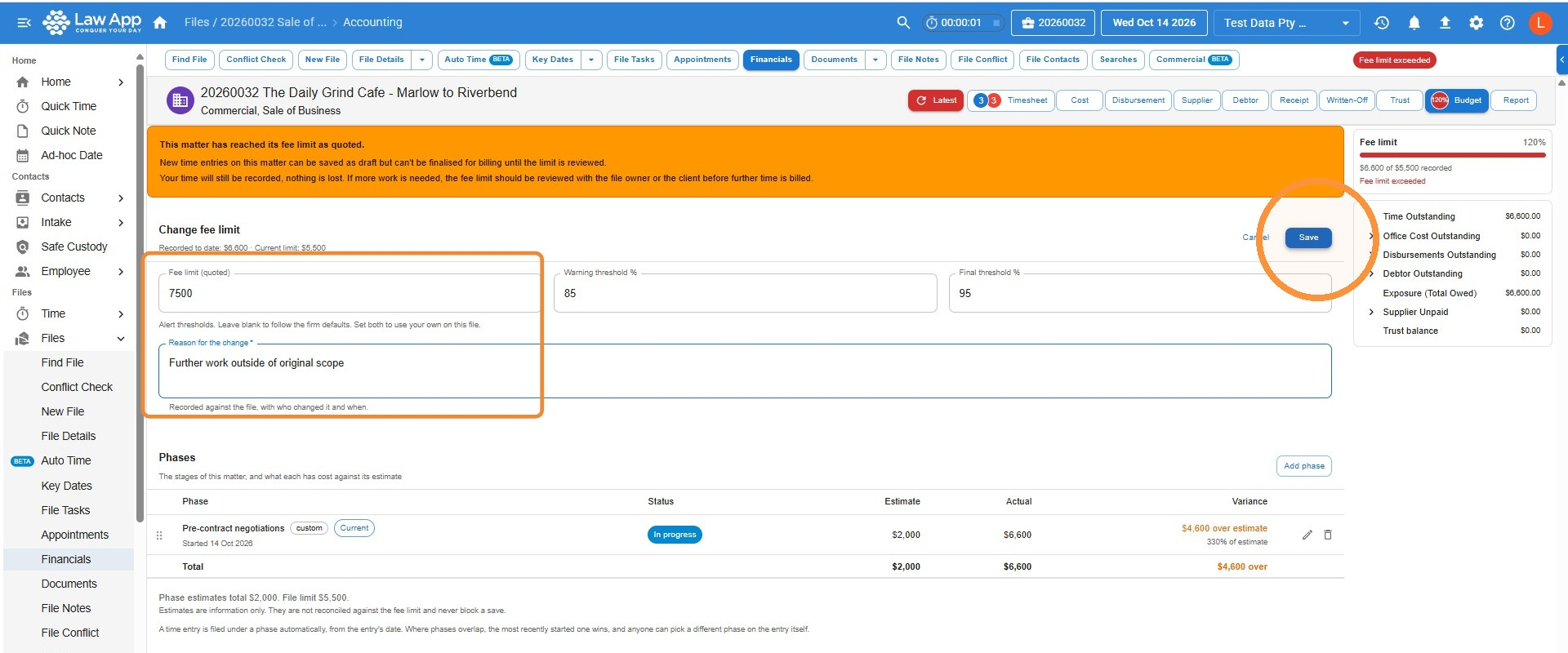
- Enter your own Warning threshold % and Final threshold % for this file, or leave them blank to use the firm’s settings.
- Click Save.
Add phases
- Click Add phase and enter the Phase name.
- Add the Estimate, Start date and End date where they apply. You can leave the estimate blank if the stage hasn’t been estimated.
- Click Save. Repeat for each phase.
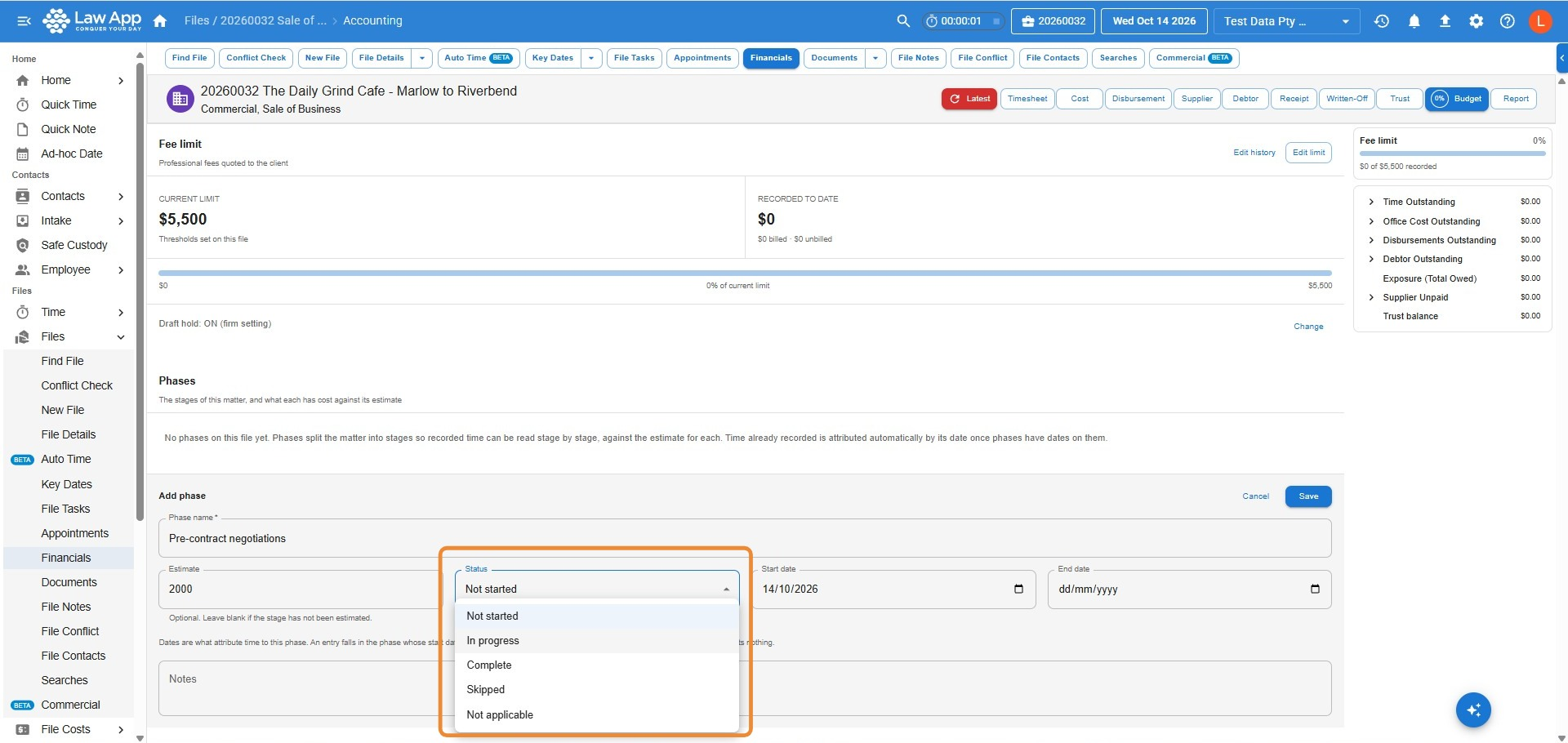
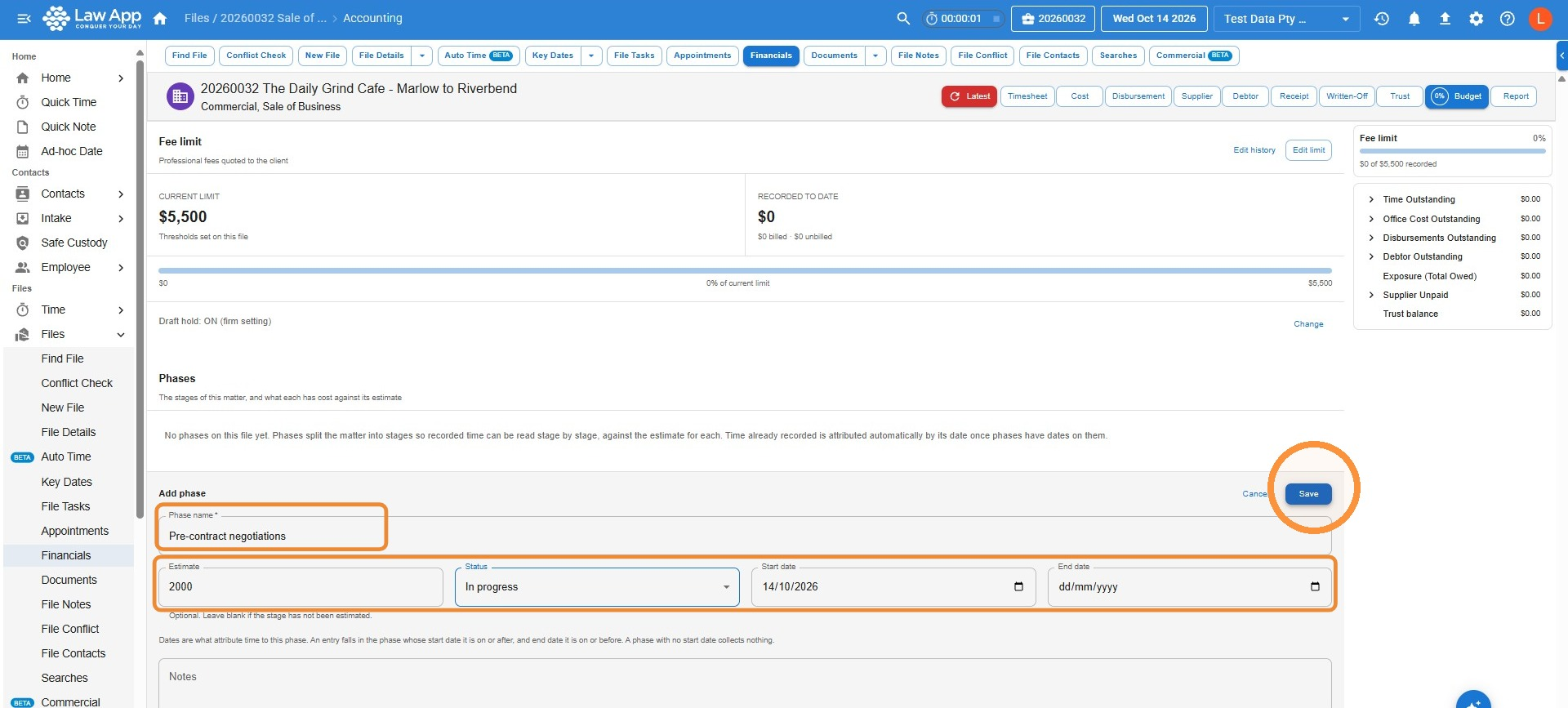 Each phase also has a Status: Not started, In progress, Complete, Skipped or Not applicable. Set it when you add the phase, and update it at any time as the matter moves along.
How time is tracked against file budgets
When you record time on a file with phases, Law App puts the entry into the current phase automatically. Without phases, all time simply counts towards the file’s fee limit.
To move an entry to a different phase, click the Phase field on the timesheet entry and pick another one.
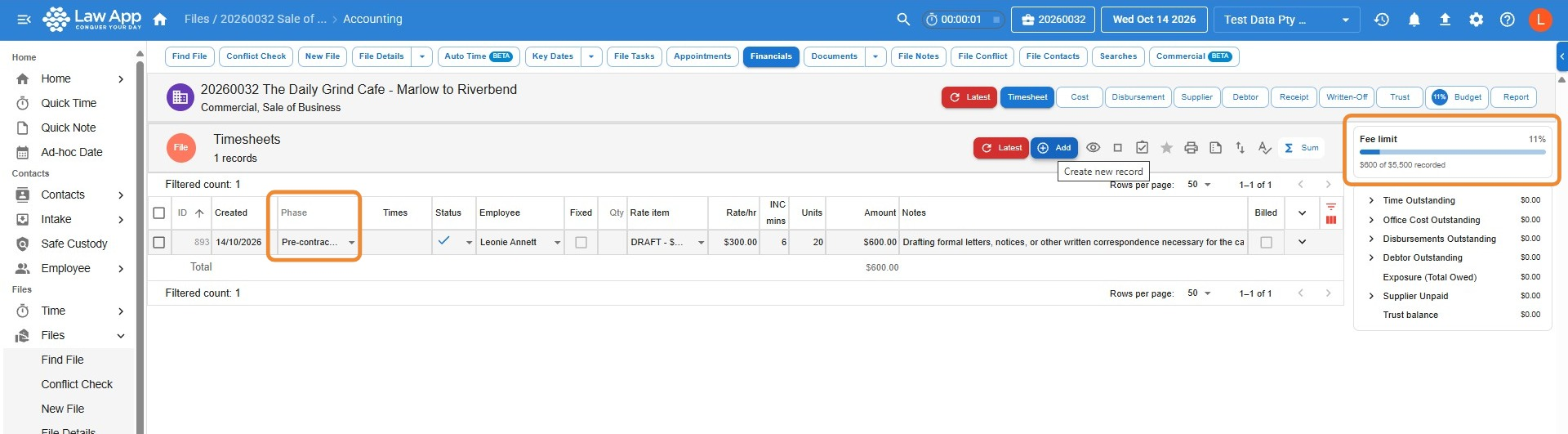 The Fee limit bar in the side panel shows how much of the budget has been used. It turns amber at your warning threshold and red at your final threshold. On the Budget tab, each phase shows its estimate, the actual time recorded, and how far over or under the estimate it is.
When a file reaches its fee limit
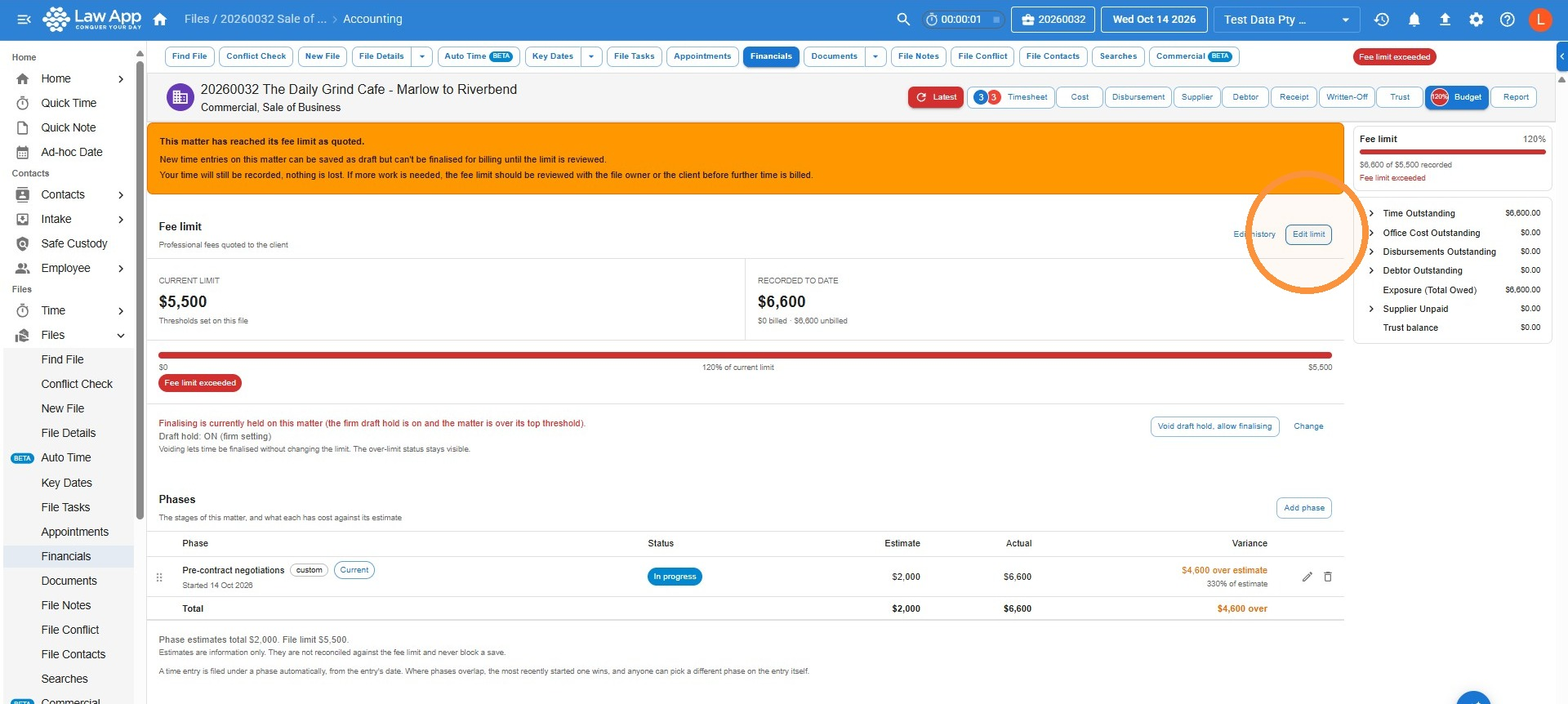
If your firm has turned on Hold new time as draft on files at their final threshold (in Settings > Budgets > Fee Limit Alerts), an orange banner appears once a file reaches its final threshold. New time can still be recorded and saved as draft, but it can’t be finalised for billing until someone reviews the limit.
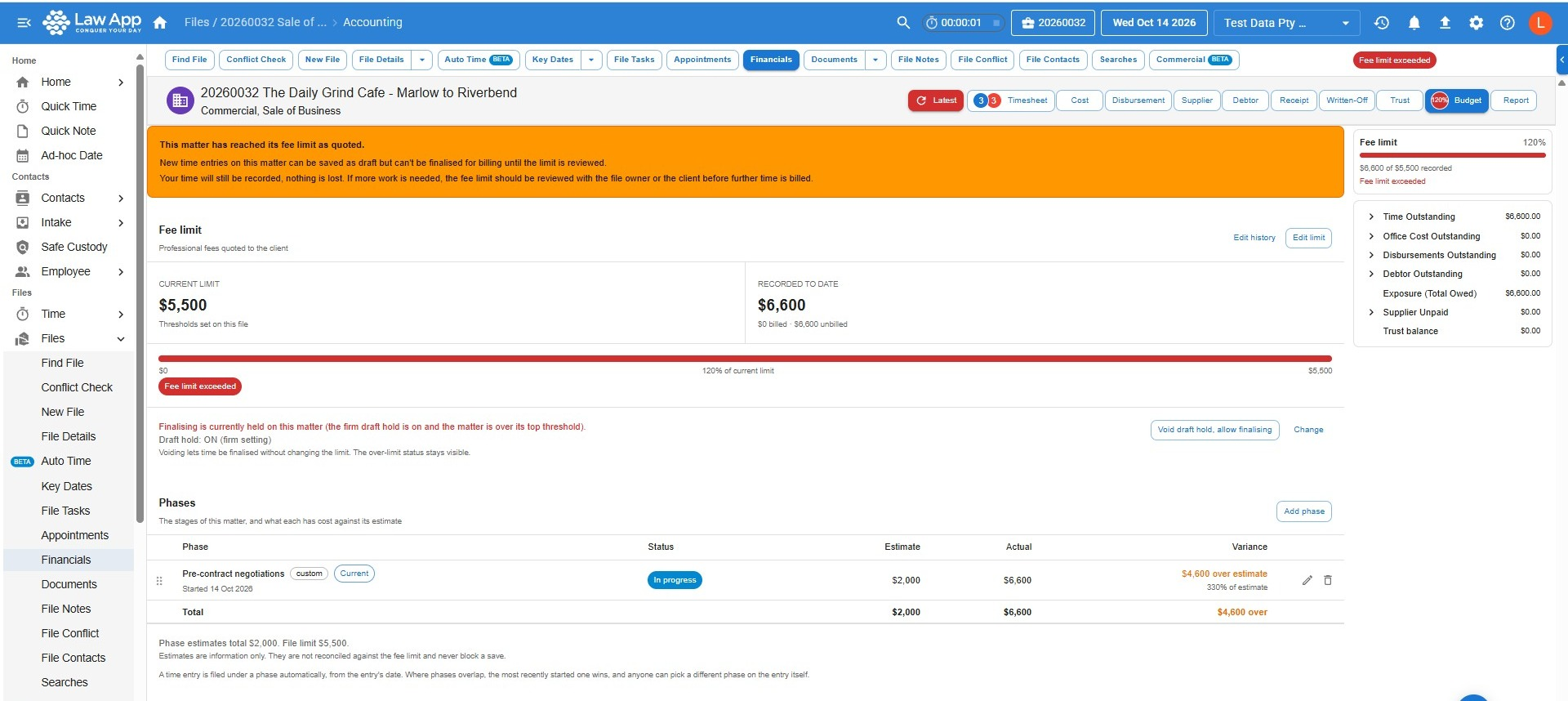
- Edit limit if the client has agreed to further work (see below).
- Void draft hold, allow finalising lets time be finalised on this file without changing the limit. The over-limit status stays visible.
- Change exempts the file from the draft hold, or holds it, regardless of the firm setting.
How to edit a budget on a file
- Open the file, go to Financials > Budget, and click Edit limit.
- Enter the new fee limit and a Reason for the change, then click Save.
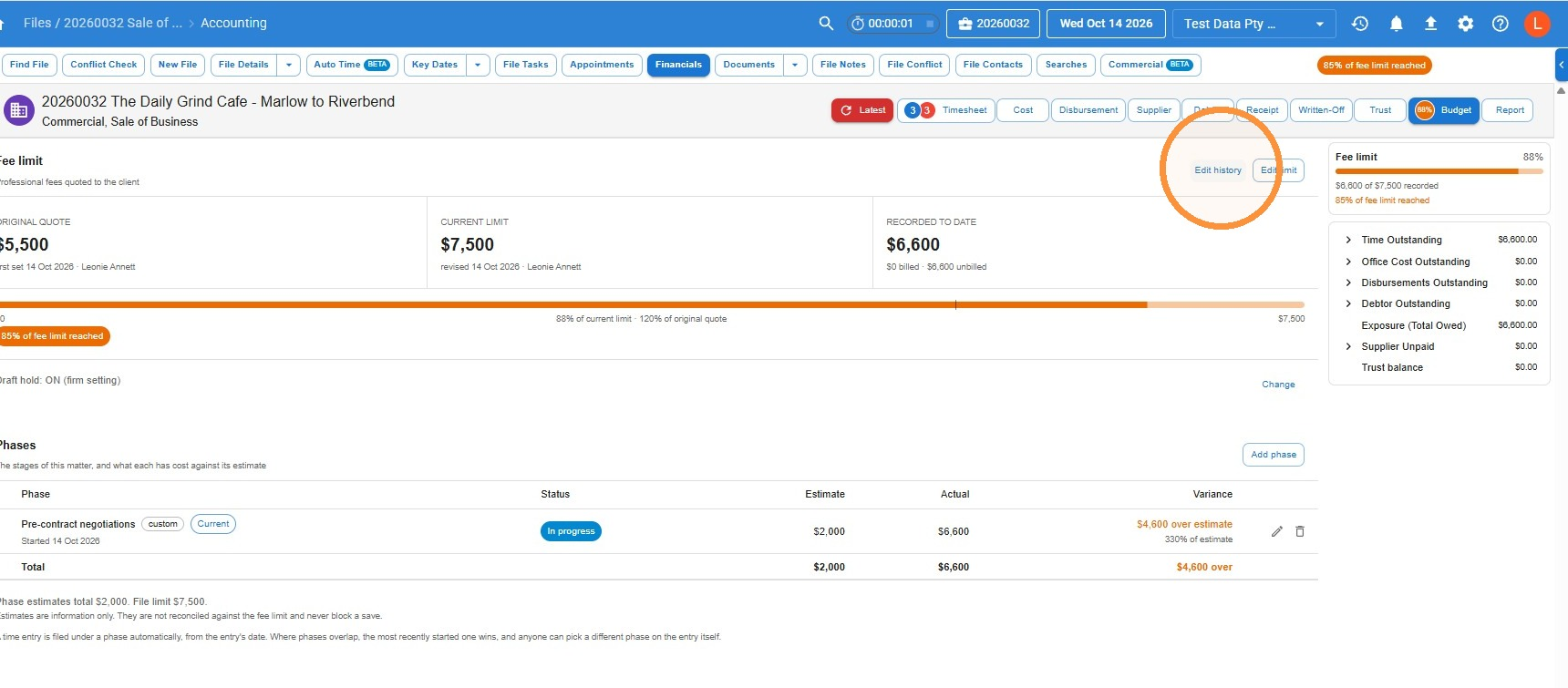
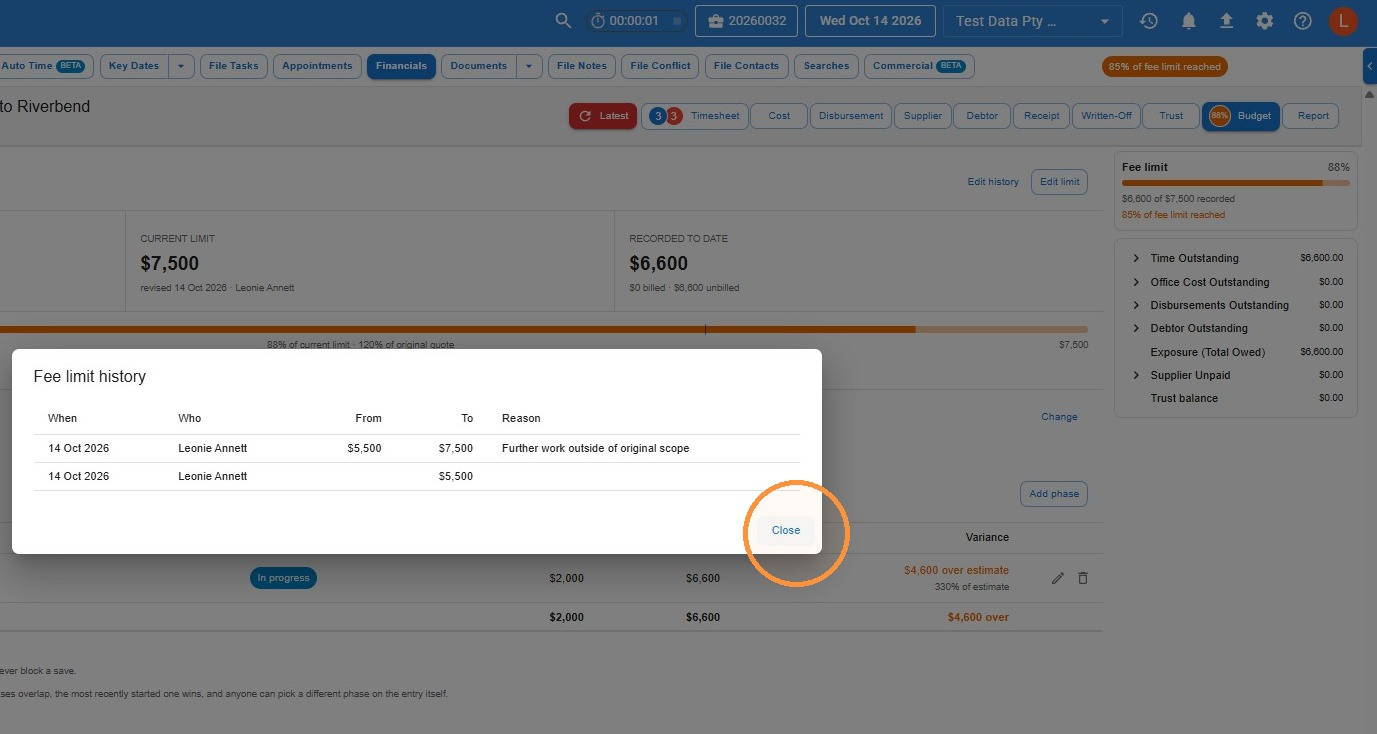
 The Budget tab now shows the Original quote next to the Current limit, with who changed it and when. Click Edit history to see every change.
Leave a Reply