
Document Review replaces the “can you look at this?” email or hallway conversation. You flag a specific version of a document on a file to a colleague, they review it — editing and saving a new version if needed — and they finish by picking a next step, such as “Reviewed — send to the client” or “Changes required — please revise”, with notes. Every note and decision is kept in a thread against the document, on the file, permanently.
You’ll find the feature in the sidebar as Document Review, in the Files group below Tasks, with a badge showing how many reviews are waiting on you.
1. Flagging a document for review
- Open the file and go to its Documents tab.
- Right-click the document and choose Flag for review.
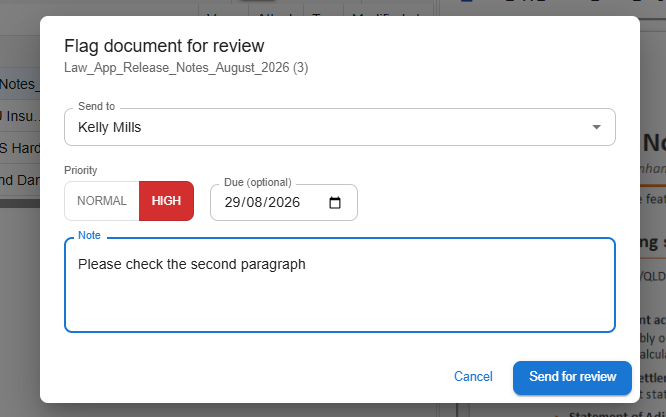
- Pick who it goes to in Send to (you can pick yourself as a self-reminder), set the Priority (Normal or High), optionally set a Due date, and tell them what you need checked in the Note.
- Click Send for review.
2. Doing a review
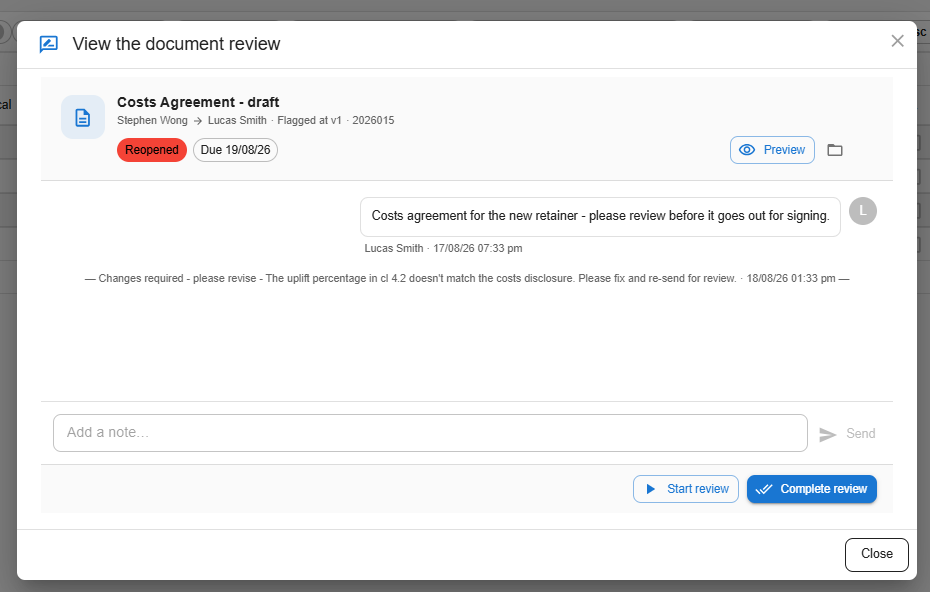
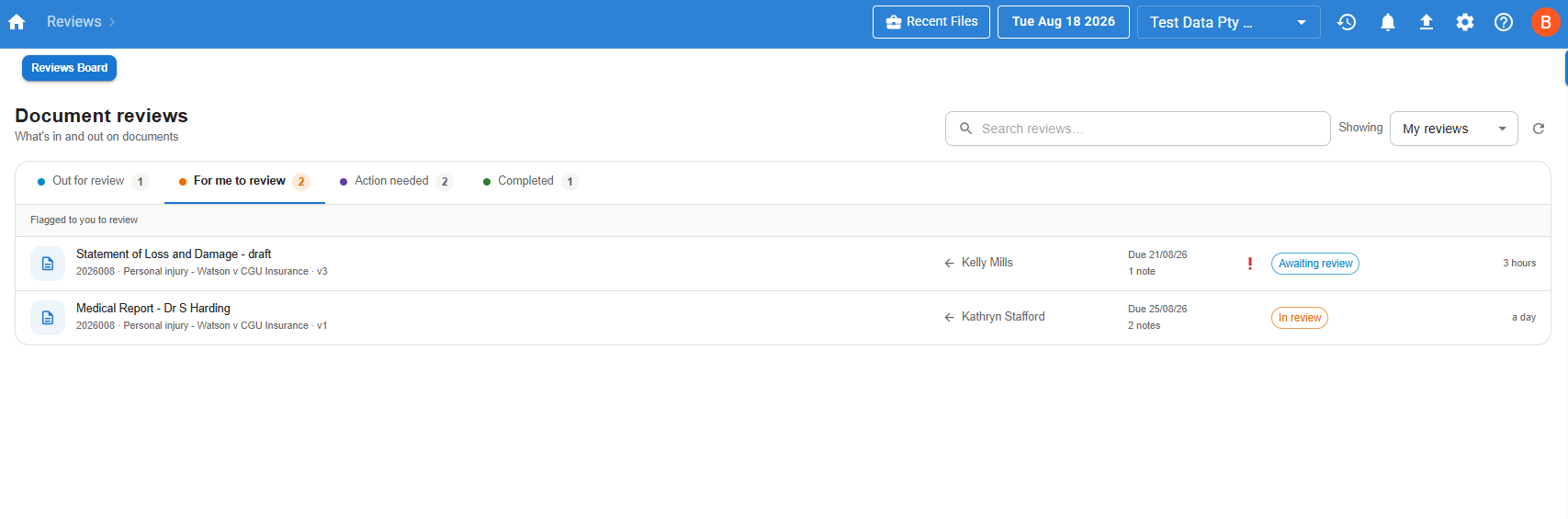
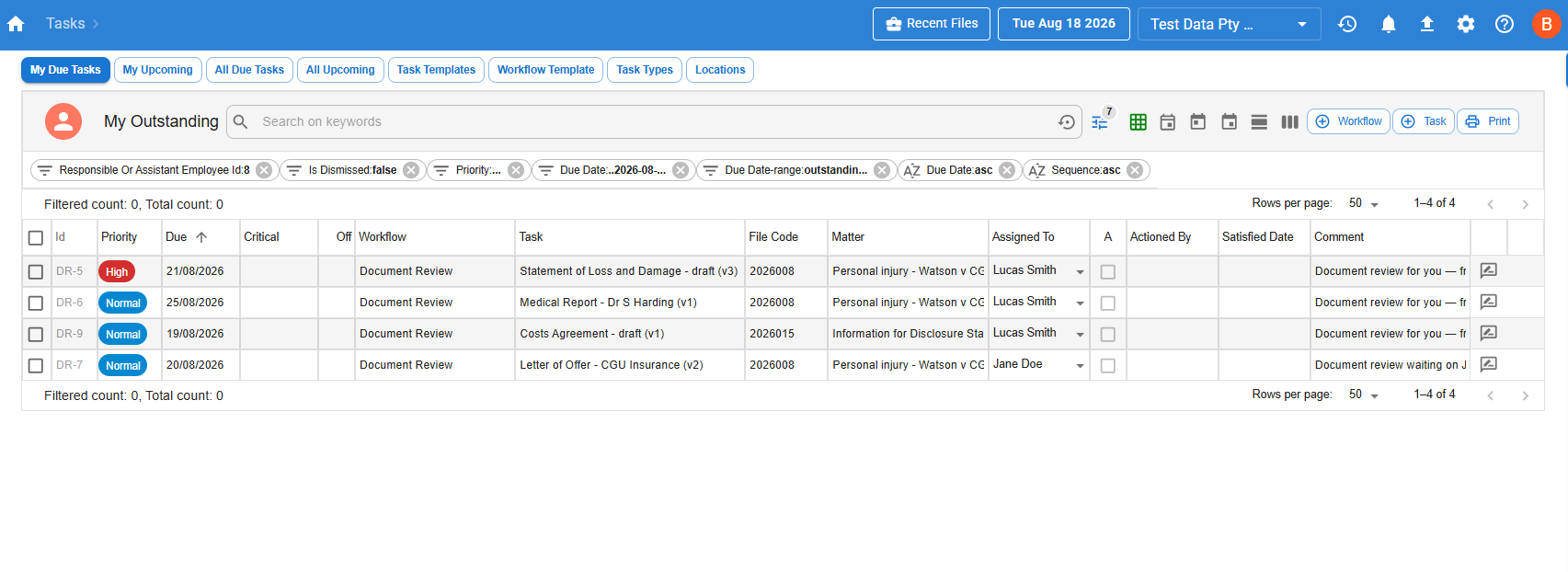
When a document is flagged to you, you’ll see it in four places: on the Document Review badge, in the For me to review tab of the board, as a read-only Document Review row at the top of your task list, and as an amber pill on the document itself. Open it from any of those places to get the review panel.
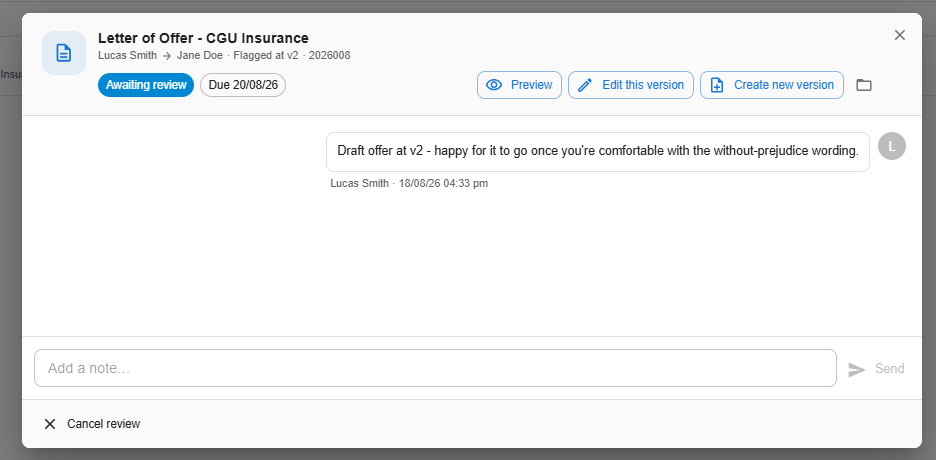
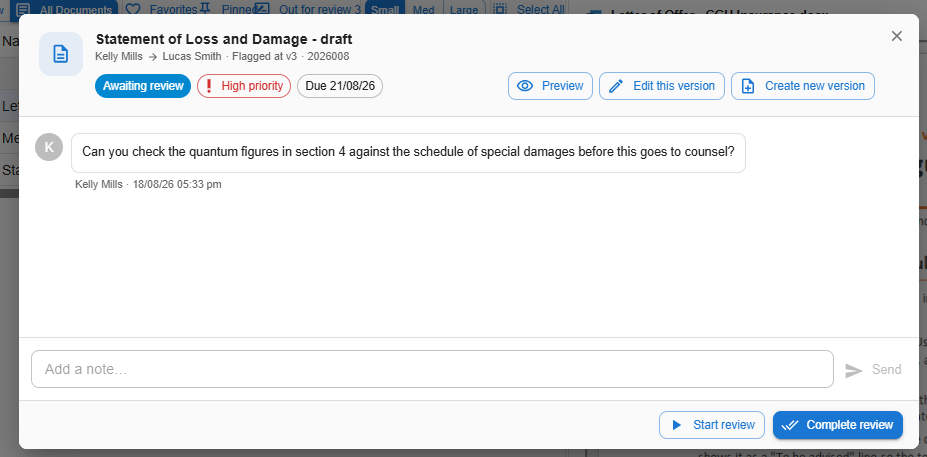 Start review tells the other person you’ve picked it up (status changes to In review).
Add notes in the thread at any time — it works like a chat pinned to the document, and both of you can comment.
Preview opens the document right there — always the version under review, even if newer versions exist.
Edit this version (shown only on Word/Excel documents you own) opens the current version straight in Word or Excel.
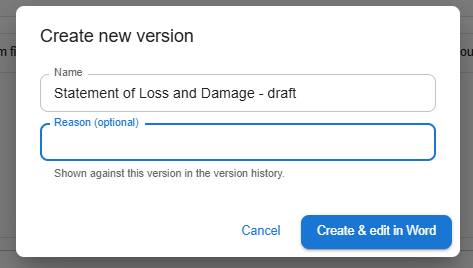
Create new version makes a new version and opens it in Word/Excel in one step — the usual way to make review changes to someone else’s document. You can rename the document as you go, and add a reason that shows in the version history.
 The folder icon opens the file’s Documents tab in a new browser tab (hidden if you’re already on the Documentss screen).
3. Completing a review
Click Complete review and choose what happens next from the dropdown — options are grouped (Ready to go, Approved, Back to you, Escalate; the full list is in “Next-step options” below). Picking an option pre-fills a standard note you can edit; some options require a note. If you edited the document, tick I made changes and saved a new version so the review records exactly which version you reviewed. Then click Send notice.
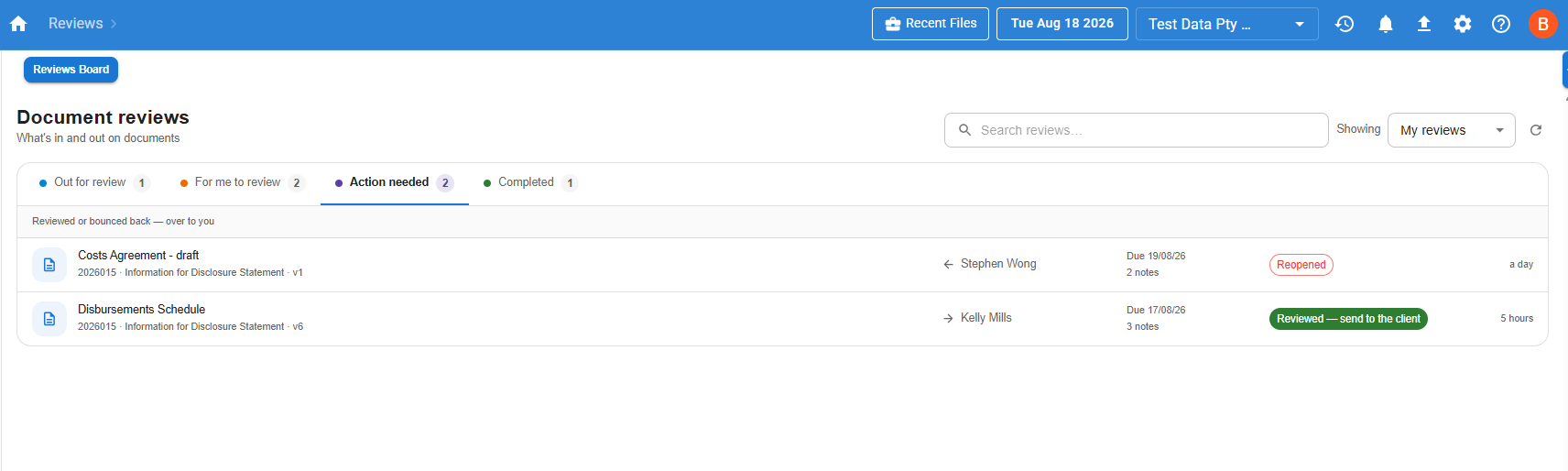
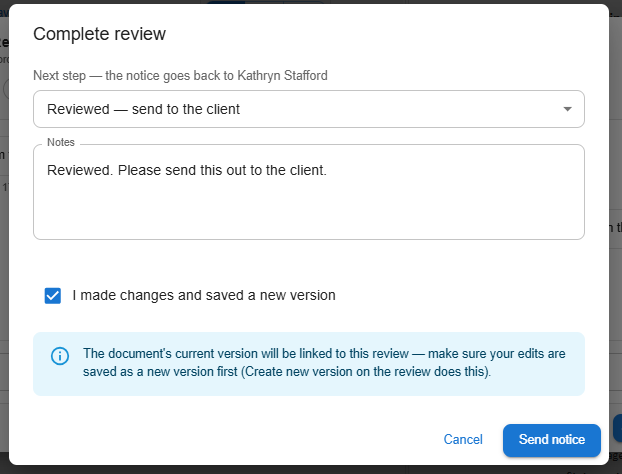 Your decision is posted into the thread, the requester’s board shows it under Action needed, and the document’s pill turns green (for example “Reviewed · send to the client”). A Ready to go outcome carries an orange tag in Action needed until the requester clears it — clearing it is their way of confirming they’ve actually sent the document, rather than it quietly dropping off the board on its own.
4. The “Back to you” loop
Two next steps — Changes required — please revise and More information needed — don’t close the review. They reopen it and hand it back: the person who flagged it becomes the reviewer, the document shows a purple Changes required pill, and the whole exchange stays in one thread.
5. The Reviews board
Document Review in the sidebar opens the board — “what’s in and out on documents”. Four tabs: Out for review (documents you’ve sent), For me to review, Action needed (reviewed or bounced back — over to you), and Completed (closed in the last 7 days, or sooner if you clear it yourself — the Clear button only removes it from your own board; the other person keeps theirs, and the full history stays on the document). The Showing selector widens the view from My reviews to My matters or the Whole firm, the search box filters by document, file, matter or person, and the refresh button checks for the latest.
6. Reviews on the file and in your tasks
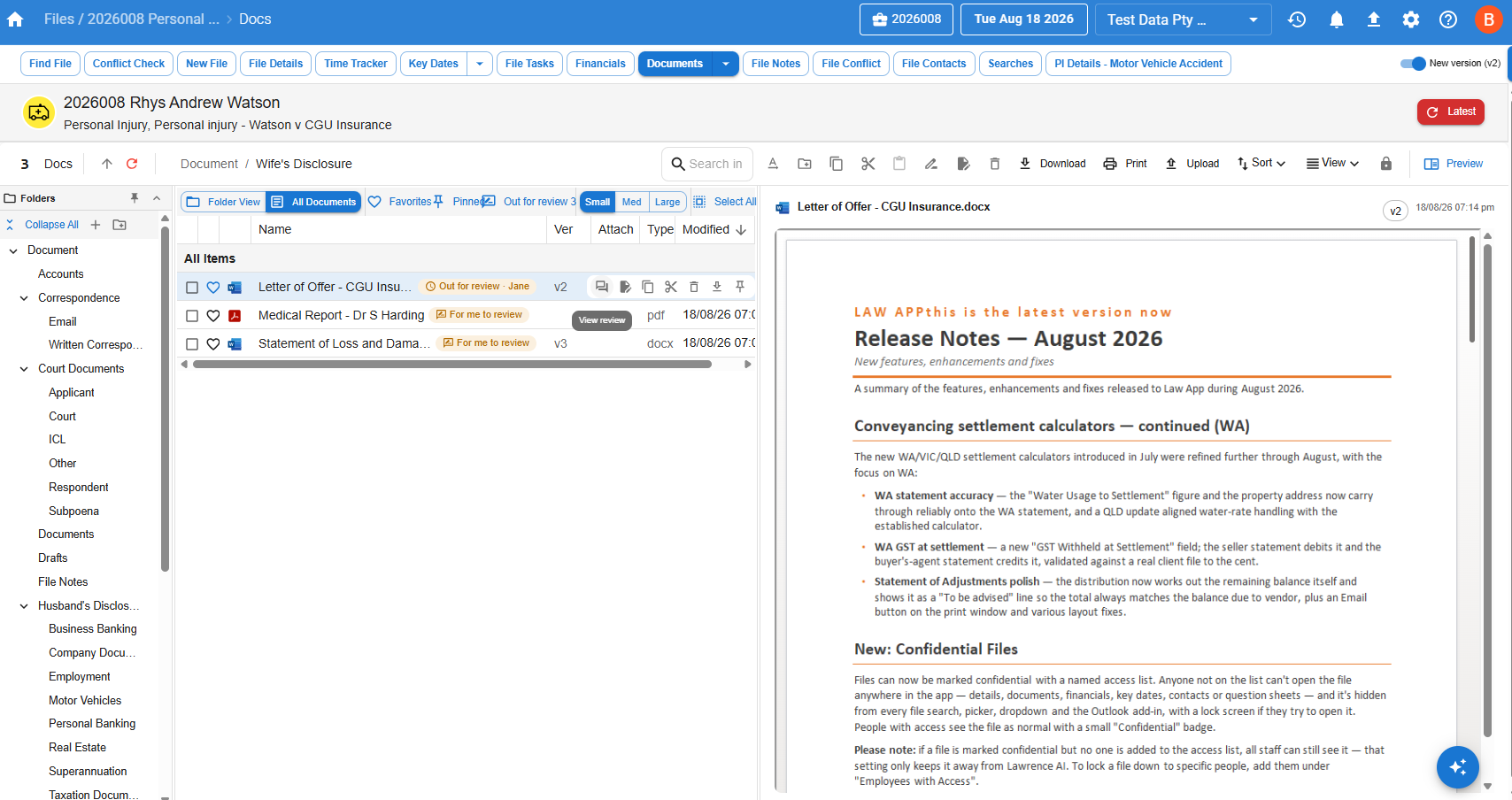
On a file’s Documents tab, documents with review activity carry a pill: amber For me to review / Out for review · name, purple Changes required, green Reviewed · next step. Hover a flagged row and a View review button appears in the quick actions; an Out for review N button in the toolbar filters to just the documents with an open review, wherever they sit in the folders.
 Open reviews also appear as Document Review rows at the top of My Tasks and the file’s task list — both directions, so you see documents waiting on you and your documents waiting on others. They’re read-only reminders: the button on the row opens the review, and they can’t be deleted like tasks (cancel the review from its panel instead).
7. Reopening and cancelling
Reopen — either party can reopen a completed review if the conversation isn’t finished; it stays visible in your Out for review while it’s back with the reviewer, rather than disappearing from your board until they act. Cancel review — only the person who flagged it can cancel, and only while it’s open; the pill disappears and the thread is kept for the record. Cancel-and-reflag is also how you change reviewer. The panel only shows the buttons you’re allowed to use — only the assigned reviewer can start or complete.
8. Next-step options
Completing a review always means picking one of these next steps. They’re grouped by what they do:
Ready to go
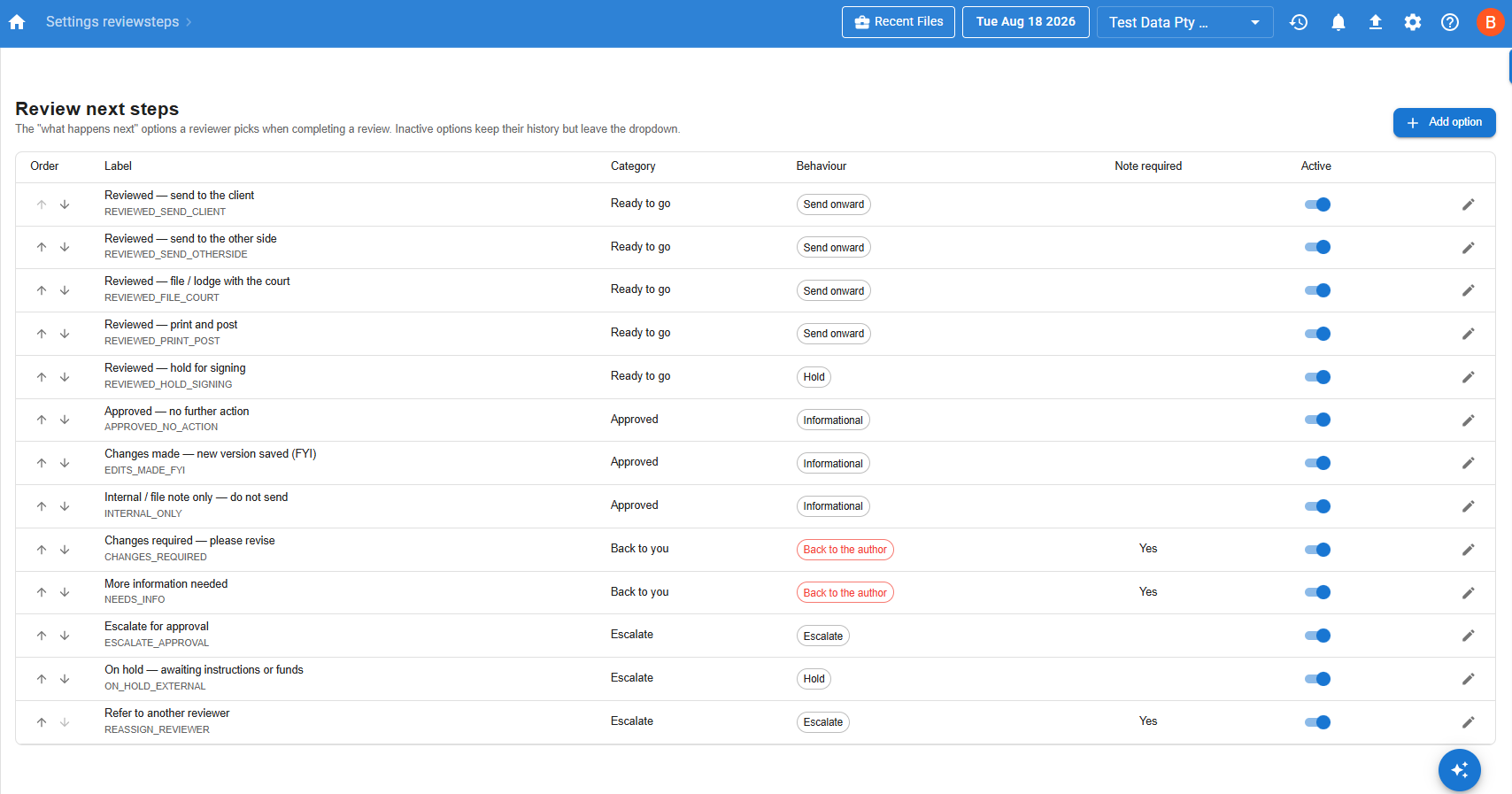
Reviewed — send to the client — Closes the review. You send the document out yourself.
Reviewed — send to the other side — Closes the review. You send it to the other side.
Reviewed — file / lodge with the court — Closes the review. You file or lodge it.
Reviewed — print and post — Closes the review. You print and post it.
Reviewed — hold for signing — Closes the review. The document waits for signing.
Approved
Approved — no further action — Closes the review. Nothing further to do.
Changes made — new version saved (FYI) — Closes the review. The reviewer edited and saved a new version.
Internal / file note only — do not send — Closes the review. For the file only.
Back to you
Changes required — please revise (note required) — Reopens the review and hands it back to the requester.
More information needed (note required) — Reopens the review — the reviewer needs more from you.
Escalate
Escalate for approval — Closes the review. Needs partner / supervisor approval first.
On hold — awaiting instructions or funds — Closes the review. Waiting on the client or cleared funds.
Refer to another reviewer (note required) — Asks who, then moves the review straight to that person with the whole conversation intact — no need to close it and re-flag manually.
9. For administrators
Editing the next-step options
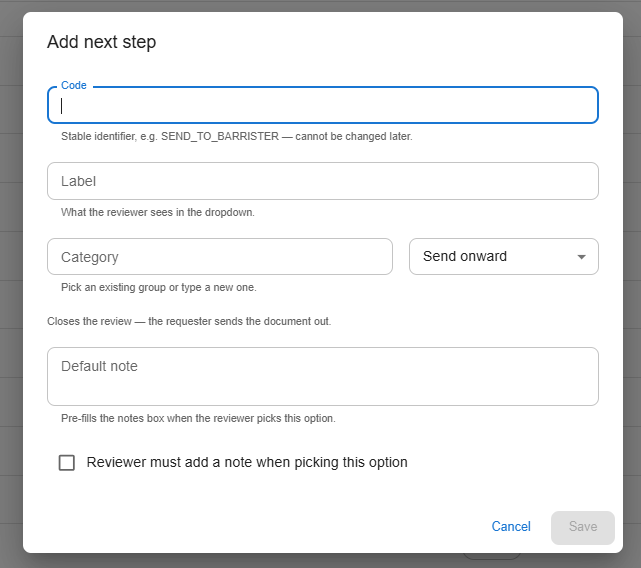
Settings → Review Next Steps lists every option. Reorder, rename, change the pre-filled note, require a note, retire an option (it keeps its history but leaves the dropdown), or add your own — for example “Send to barrister”. Each option’s behaviour controls what completing with it does; Back to the author is the one that reopens and hands back.
Good to know
Nothing is sent automatically. Every next step is a recorded instruction; sending is still done by a person through the usual channels.
One open review per document. Cancel and re-flag to change reviewer or details.
Flagging doesn’t lock the document. It stays fully editable while it’s out for review.
The thread is permanent, even after completion or cancellation.
Completed reviews leave the board after 7 days — or you can clear one yourself sooner with the Clear button, which only removes it from your own board (the other person keeps theirs). Either way, the document keeps its green pill and the full history stays on View review.
Ready to go outcomes stay in Action needed until you clear them. Complete a review with a Ready to go option (see Next-step options below) and it carries an orange tag in your Action needed tab rather than dropping off on its own — clearing it is your way of confirming you’ve sent it.
Versions are tracked for you. The review records the version flagged and, when the changes box is ticked, the version the reviewer saved.
Leave a Reply