
Appointments booked on a file in Law App go straight into the right person’s Outlook calendar, and changes made in Outlook come back to the file. This article covers what syncs, what you’ll see on the Appointments tab, what happens when an event is changed or cancelled in Outlook, and how an administrator keeps the connection healthy.
What syncs, and what doesn’t
Sent to Outlook
Every appointment booked on a file: subject (with the file number at the front, if your firm has that on), time, location, attendees, and a Teams link if asked for. Each file gets its own Outlook category colour.
Comes back to the file
A change to the time, subject or location of the event; each attendee’s reply (accepted, declined or tentative); and a cancellation.
- Never touched: the Invitation text and the Internal notes. Internal notes stay in Law App and are never sent to Outlook or to anyone invited.
- How fast: usually within a few seconds of the change being saved in Outlook. Once a day Law App also re-reads every synced appointment as a safety net, and an administrator can force this at any time with Sync now.
The Appointments tab on a file
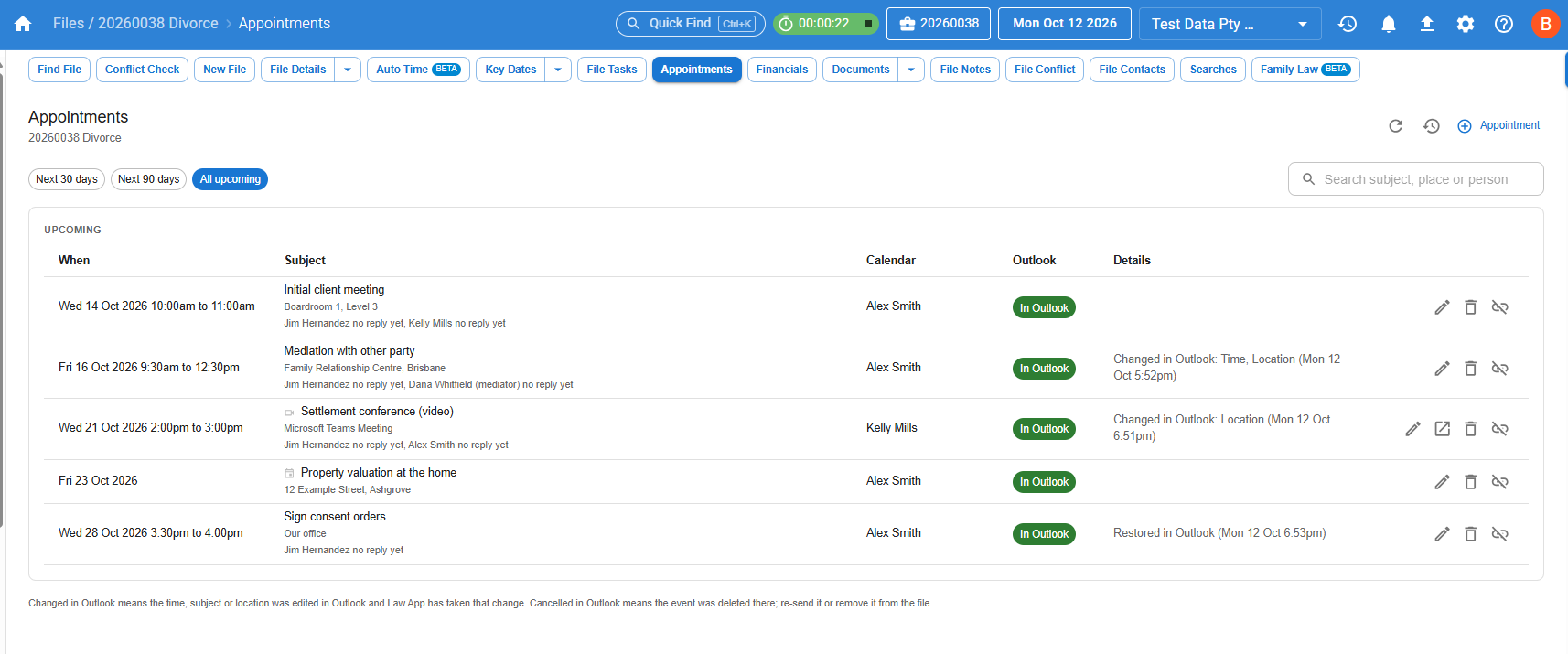
Open a file and click Appointments. Each row shows when the appointment is, the subject with its location and the attendees’ replies underneath, whose calendar it sits in, the Outlook status, and a Details column that explains anything unusual.
The Outlook column
- In Outlook — the event is in the calendar.
- Pending — Law App is still sending it.
- Not in Outlook — the send failed. The reason is in Details, and Retry on the row sends it again (a spinner shows while it sends).
- Cancelled in Outlook — the event was deleted in Outlook. See When an event is deleted in Outlook.
The Details column
- Changed in Outlook: Time, Location (and when) — someone edited the event in Outlook and Law App has taken that change.
- Restored in Outlook — a cancelled event was put back.
- From key date — the appointment was created from a key date. You can create an appointment from Key Dates, and it opens prefilled from the date.
Attendee replies
Under each subject you’ll see everyone invited and their reply — for example, Jim Hernandez accepted, Dana Whitfield no reply yet. The first four people are named; the rest are counted.
Working with the list
- Row actions: on a wide screen, each upcoming row has icons to open the appointment (pencil), Join Teams (Teams appointments only), Cancel (bin) and Remove from file only.
- Change a subject in place: click the subject text on a row, type, then press Enter or click away to save and send the new subject to Outlook. Press Escape to put it back.
- Filter: choose Next 30 days, Next 90 days or All upcoming. The search box matches subject, place or person.
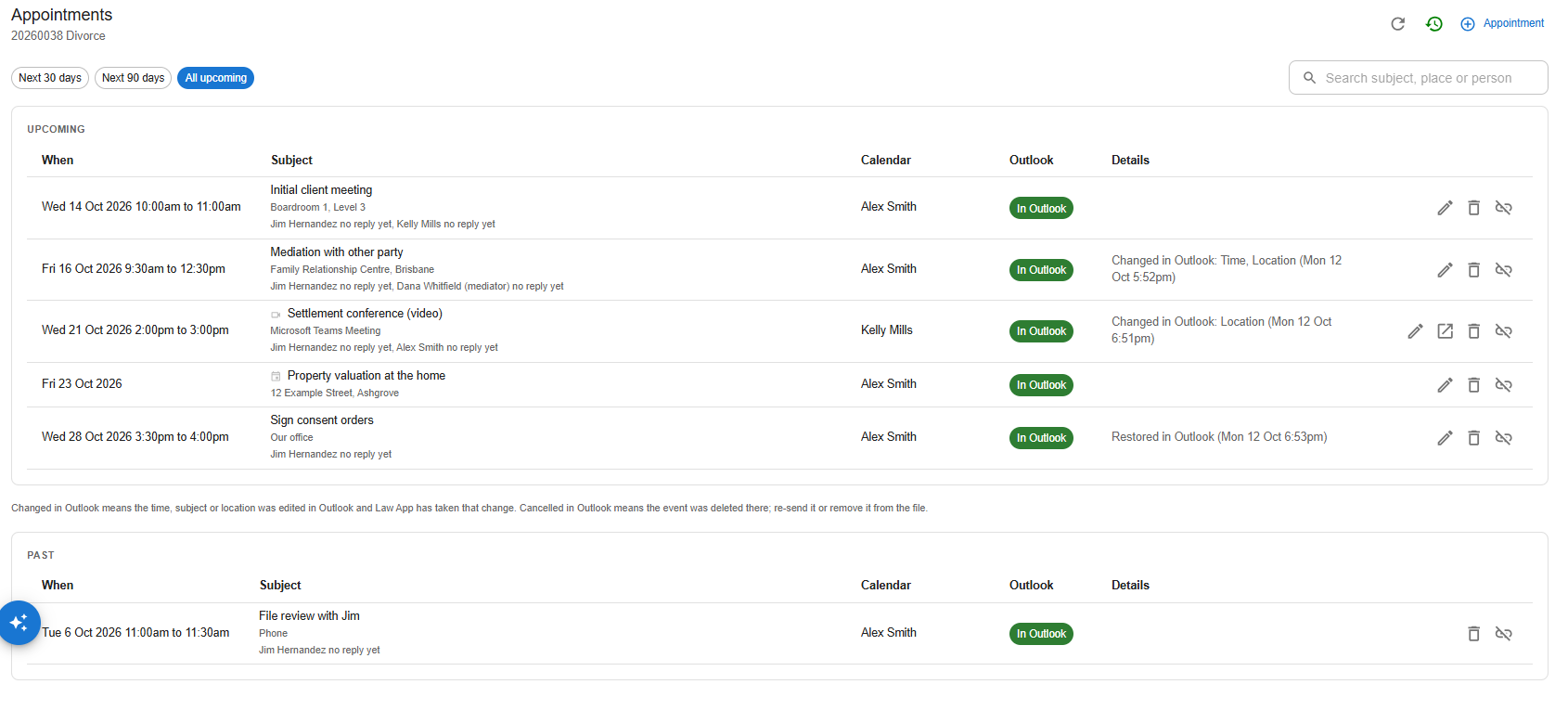
- See past appointments: click the clock icon at the top right.
- Refresh: click the circular arrow at the top right to re-read the list now. The tab also refreshes itself whenever you come back to it.
Booking or opening an appointment
Click + Appointment at the top right of the Appointments tab to book a new appointment, or click the pencil icon on a row to open an existing one. If Outlook has changed anything, a blue bar at the top tells you what changed and when.
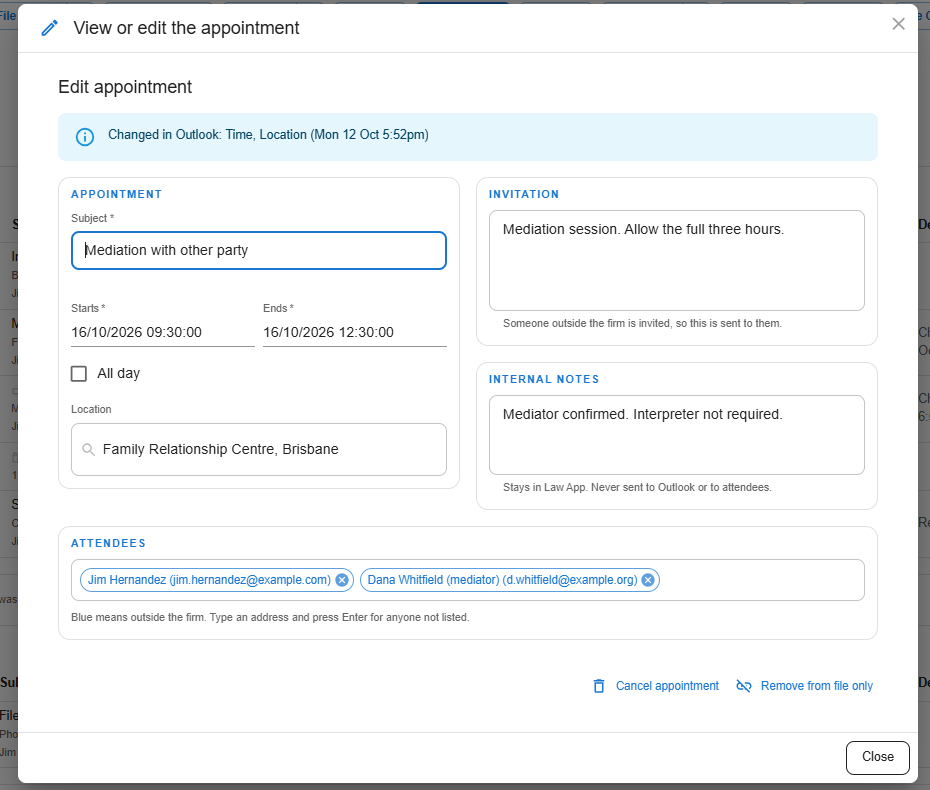
- Appointment: the subject, start and end, the All day switch, and the location (address suggestions appear as you type).
- Book for: whose calendar the appointment goes into. Staff with the Book appointments for others permission can book into a colleague’s calendar.
- Invitation: the text everyone invited sees in the Outlook invitation.
- Internal notes: stays in Law App. Never sent to Outlook or to attendees.
- Attendees: type a name or an email address. Staff and contacts appear as you type, with the people on the file listed first — press Enter to pick the highlighted one. Blue chips are people outside the firm. Once replies arrive, each chip shows a tick (accepted), a cross (declined) or a question mark (tentative). Hover over the chip to see the word.
Saving your changes
Save appears as soon as anything changes, including adding or removing an attendee. Undo puts everything back.
Cancelling or removing an appointment
Cancel appointment
Removes the appointment from the file and from Outlook. Attendees receive a cancellation.
Remove from file only
Takes the appointment off the file and leaves the Outlook event exactly as it is. Use this for an appointment booked on the wrong file.
When an event is deleted in Outlook
If the organiser deletes or cancels the meeting in Outlook, the row on the file isn’t lost. It shows Cancelled in Outlook, the form opens read-only, and you choose what to do:
- Re-send to Outlook creates a fresh event from the appointment on the file. Attendees get a new invitation and their earlier replies are cleared.
- Remove from Law App takes the row off the file. There’s nothing left to remove in Outlook.
Settings for administrators
Firm-wide Outlook settings are at Settings > Outlook and Calendar.
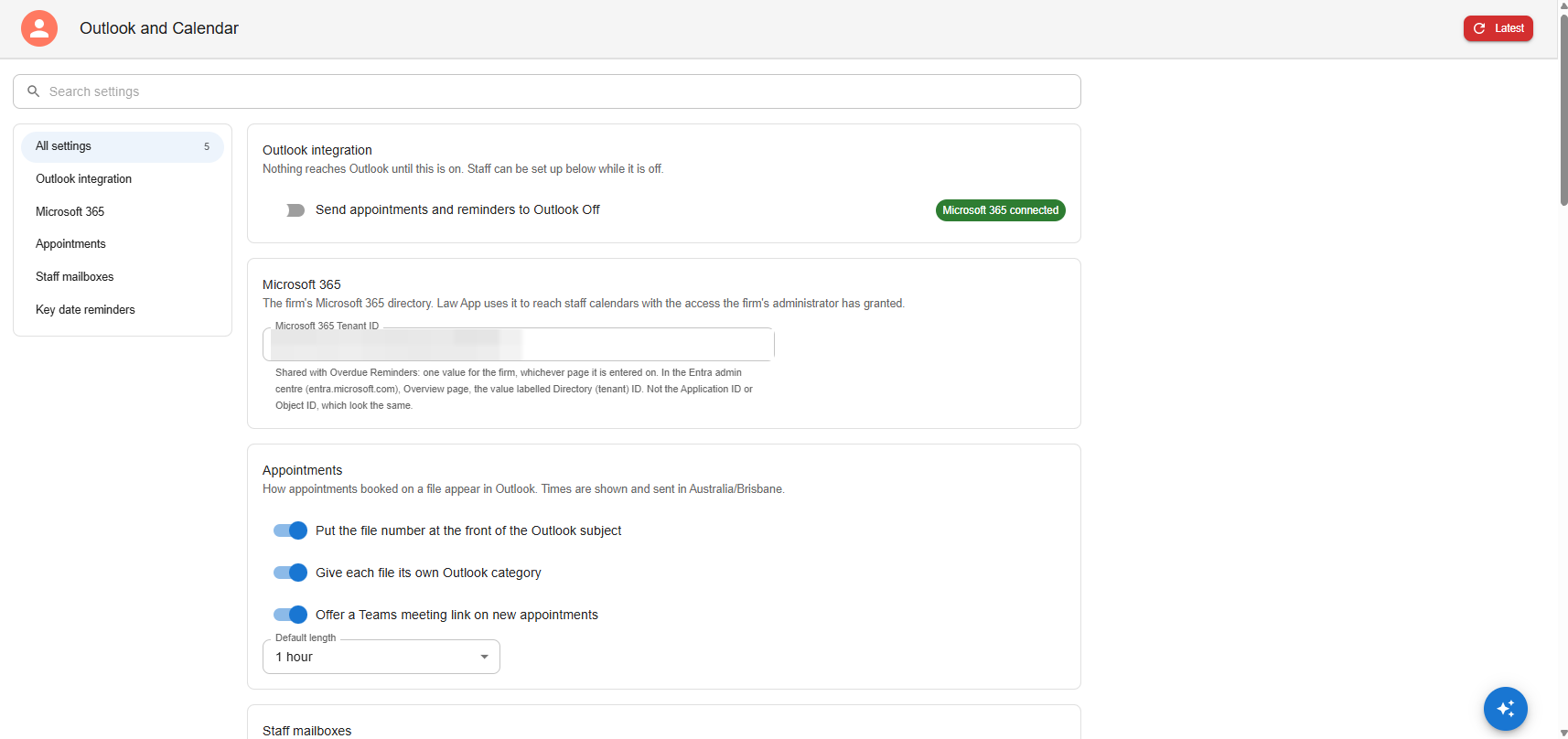
- Outlook integration: the firm-wide switch, Send appointments and reminders to Outlook. Nothing reaches Outlook, and nothing comes back, until this is on. Staff mailboxes can be set up while it’s off.
- Microsoft 365: the firm’s tenant ID, entered once. Microsoft 365 connected means Law App can reach the firm’s calendars with the access your IT administrator granted during setup. The tenant ID is shared with Overdue Reminders, and only firm administrators can change it.
- Appointments: whether the file number goes at the front of the Outlook subject, whether each file gets its own Outlook category, whether a Teams link is offered, and the default length of a new appointment.
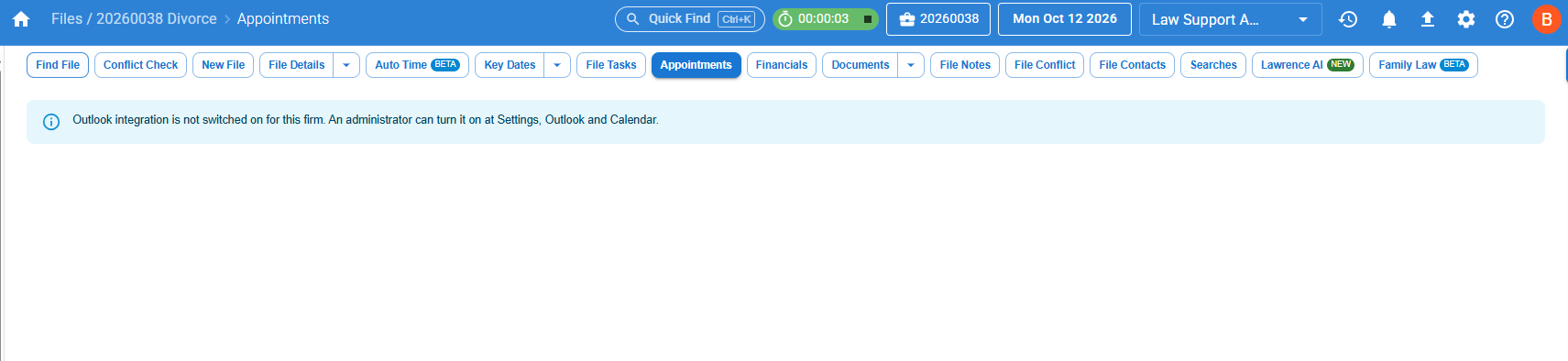
While the firm switch is off, staff see this message on the Appointments tab of every file:
Staff mailboxes and the Sync column
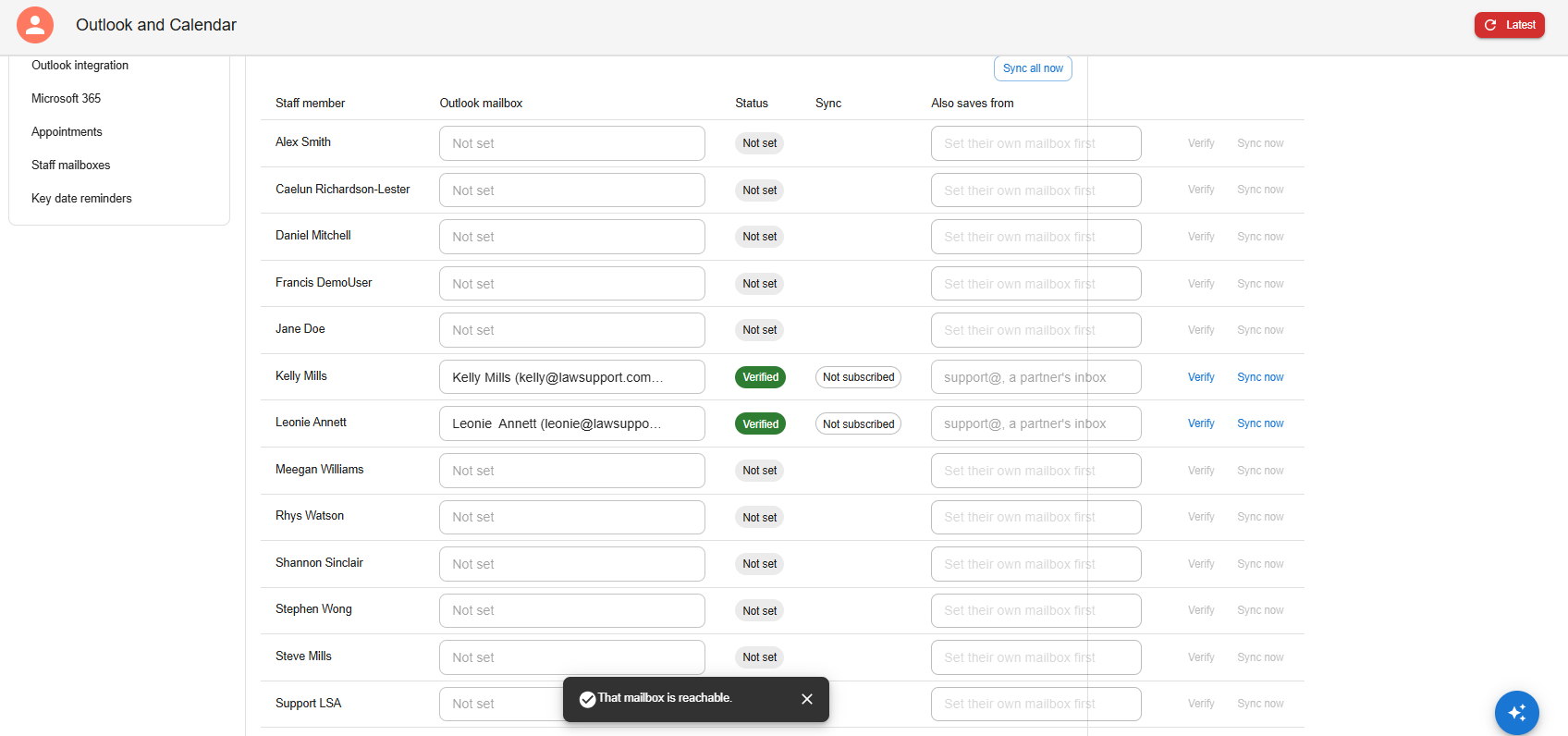
In Staff mailboxes, each person’s appointments go to the mailbox set on their row. The Sync column shows whether Law App is listening to that mailbox for changes. Only active staff are listed.
Setting up a staff member’s mailbox
- In the staff member’s row, pick their mailbox from the firm’s directory in the Outlook mailbox field.
- Click Verify. Verified means Law App has confirmed it can reach that calendar.
What the Sync column means
- Live — changes made in Outlook reach Law App until the date shown, then the connection renews itself.
- Not subscribed — Law App isn’t listening yet. Either the mailbox isn’t verified, sync is off for that person, the firm switch is off, or the next check (every 15 minutes) hasn’t run yet.
- Expired — the connection lapsed and will be recreated at the next check.
- Error — Microsoft refused the connection. Hover over the chip to read why.
Sync now and Sync all now
- Sync now re-reads that person’s synced appointments from Outlook straight away and applies anything missed.
- Sync all now does the same for every verified mailbox — for example, after an outage.
A message afterwards tells you how many appointments were checked and how many changed.
If something looks wrong
| What you see | What to do |
|---|---|
| A change made in Outlook isn’t on the file | Give it a minute, then click the circular arrow on the Appointments tab. If it still hasn’t arrived, an administrator clicks Sync now on that person’s row in Staff mailboxes. If the Sync column isn’t Live, see below. |
| Sync column says Not subscribed | Check the firm switch is on and the mailbox is Verified, then wait for the next 15-minute check. The chip turns Live by itself. |
| Sync column says Error | Hover over the chip for Microsoft’s message. Most often the mailbox was removed or renamed in Microsoft 365 — pick it again and click Verify. Otherwise, send the message to Law App support. |
| Outlook column says Not in Outlook | Read the reason in Details and fix it (usually the person has no mailbox set), then click Retry on the row to send it again. |
| Appointments tab says the integration isn’t switched on | An administrator turns on Send appointments and reminders to Outlook at Settings > Outlook and Calendar. |
| Cancelled in Outlook on a row | Choose Re-send to Outlook or Remove from Law App (see When an event is deleted in Outlook). |
| Someone added in Outlook is missing from the file | Attendees added in Outlook aren’t picked up. Add them on the file and save — the invitation goes from there. |
Leave a Reply