
The Timesheet group in Settings, Options controls how time is recorded: Auto Time, the timer, what a new time entry starts with, and how the Outlook add-in counts time for emails. Most of these can be set for the whole firm and changed by each person for themselves. For how Options works in general (firm values, your own values and the round arrow), see Options Settings in Law App.
How to get there
- From the left menu, click Settings, then Options.
- Choose Firm-Wide for everyone, or Per-Employee for yourself only.
- Click Timesheet in the list of groups.
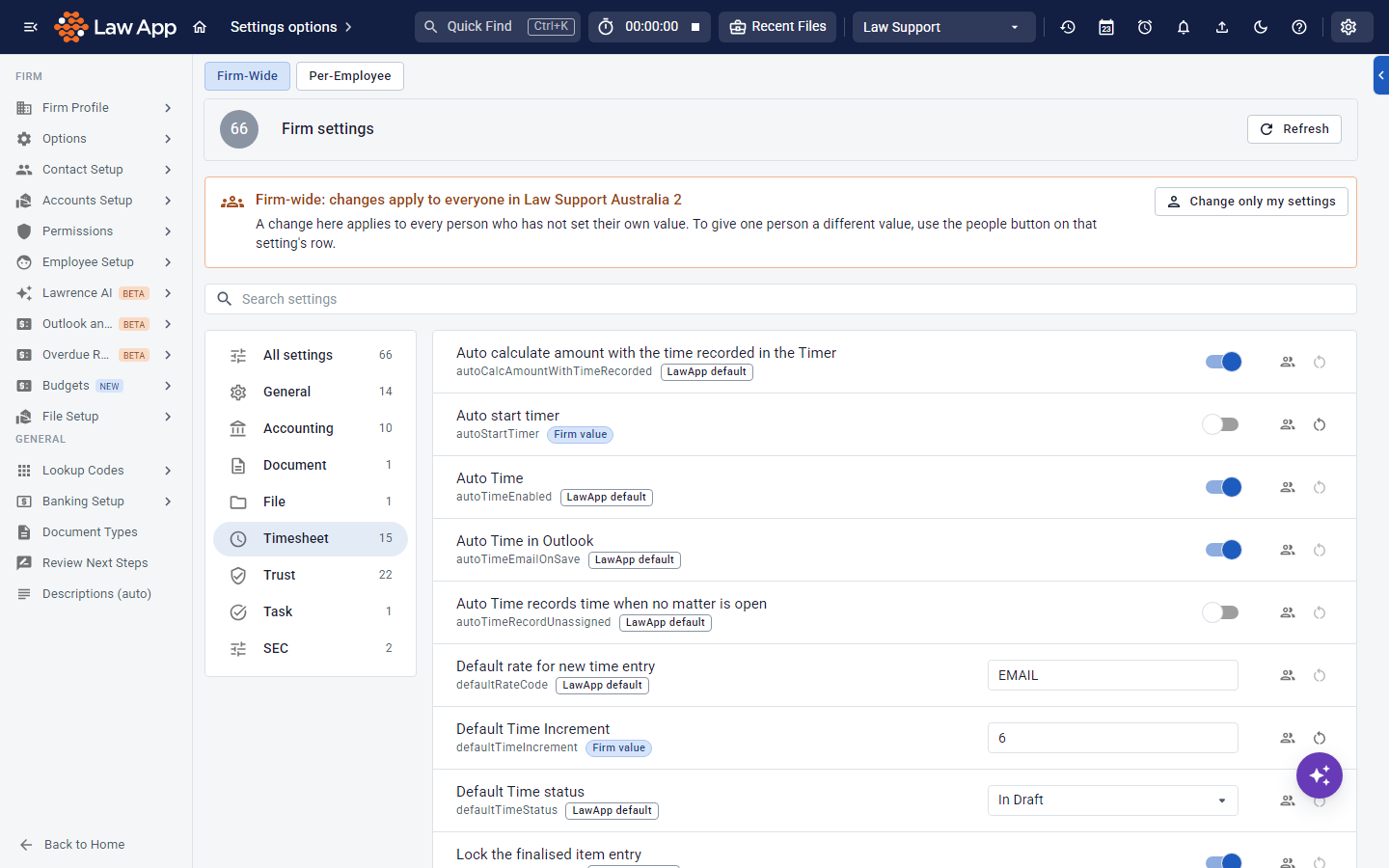
Auto Time
| Option | What it’s for and what it changes |
|---|---|
| Auto Time | On: Law App records time against the matter you are working in, while you work in it. Off: no time is recorded automatically. See How to use Auto Time in Law App. |
| Auto Time in Outlook | On: time is also recorded for emails you work on with the Law App Outlook add-in. |
| Auto Time records time when no matter is open | On: time is still recorded when you’re in Law App without a file open, as unassigned time you can put on a file later. Off: only time on a file is recorded. |
New time entries and the timer
| Option | What it’s for and what it changes |
|---|---|
| Default rate for new time entry | The rate code a new time entry starts with, such as Email correspondence or Phone call. You can change it on each entry. Rate codes are set up as described in Managing Rate Codes and Billing Rates. |
| Default Time status | The status a new time entry starts in: In Draft, Recording (the timer is running) or Stop. |
| Default Time Increment | The length of one unit of time, in minutes. Law App uses 6-minute units. |
| Auto start timer | On: the timer starts as soon as you open a new time entry. |
| Auto calculate amount with the time recorded in the Timer | On: the amount works itself out from the time recorded and the rate. Off: you type the amount yourself. |
| Run continuously if the timer of a tab is hidden | On: a running timer keeps going when you switch to another browser tab or window. Off: it pauses while its tab is hidden. Firm only. |
| Use Employee Default Rate | On: when a time entry has no rate from the file or the rate code, the employee’s own default rate is used. Off: the rate code’s own rate is used instead. Firm only. |
| Lock the finalised item entry | On: once a time entry is finalised, it can’t be edited. Off: finalised entries can still be changed until they are billed. |
Outlook add-in time
| Option | What it’s for and what it changes |
|---|---|
| Outlook add-in: time units prefilled for an email | How many 6-minute units the add-in fills in when you record time for an email. Default 1. |
| Outlook add-in: add time units for each attachment | On: the add-in adds extra units for each attachment on the email. |
| Outlook add-in: time units for each attachment | How many units each attachment adds, when the option above is on. Default 1. |
| Outlook add-in: fill the file when the email matches one file | On: if an email matches exactly one file, the add-in fills that file in for you. Off: you always choose the file. |
Questions
Auto Time isn’t recording for one person. Check their Auto Time option on the Per-Employee tab. Their own value overrides the firm’s.
A new time entry starts on the wrong rate. Check Default rate for new time entry, then the file’s own rate (Set File Rate for an Individual File) and Use Employee Default Rate.
How do I turn Auto Time on or off? Go to Settings, Options, Timesheet and change Auto Time. Use the Firm-Wide tab for everyone, or the Per-Employee tab for just you.
Why does my timer stop when I switch browser tabs? Run continuously if the timer of a tab is hidden is off. An administrator can turn it on in Settings, Options, Firm-Wide, Timesheet. It can only be set for the whole firm.
How much time does the Outlook add-in record for an email? One 6-minute unit by default. Your firm can change that, and add extra units for each attachment, with the Outlook add-in options above.
Leave a Reply