
Firm Profile holds the details Law App prints and uses for your whole firm: your firm’s name, addresses and tax details, the time zone and state that set due dates and “today”, your logo, signature and letterhead, and the starting templates behind the Email and Letter buttons on a file. Change something here and it changes on every new invoice, receipt, report and document from then on.
Who can see it: anyone whose permission set lets them open Firm Profile. Most firms keep this to the principal and the office manager. If you can’t see Firm Profile, ask whoever looks after your users, or see How to configure user permissions in Law App.
How to get there
- From the left menu, click Settings.
- Under Firm, click Firm Profile.
- Use the tabs along the top: Firm Details, Letterhead, Email Template, Word Template and Invoice Layout.
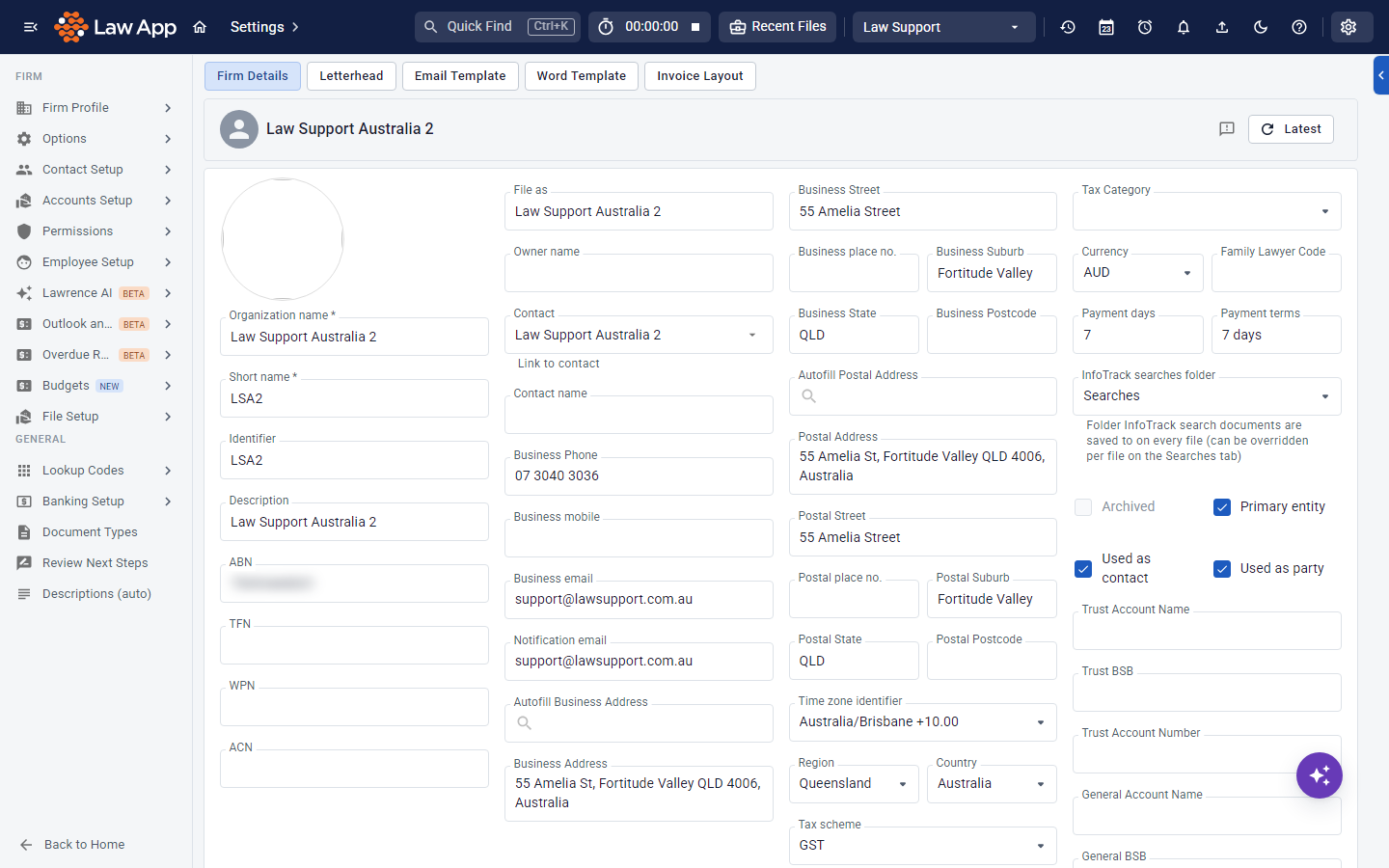
Firm Details
Change any field, then click the orange Save button at the top. Undo clears changes you haven’t saved yet.
Your firm’s name and registration
| Field | What it’s for and what it changes |
|---|---|
| Organization name | Your firm’s full registered name. It prints at the top of invoices, receipts, statements and reports. If Short name, Description or File as are empty when you type it, Law App fills them in with the same name. |
| Short name | The name your firm is known by. Required. |
| Identifier | A short code for your firm, such as ABC, set up by Law App when your firm starts. Don’t change it. Law App adds it to the subject of every email it creates for a file, with the file code: [ABC – 20260038]. That tag is how replies are filed back to the right file, and how Law App tells your file 20260038 apart from another firm’s. |
| Description | A longer description of the firm. For your own reference. |
| ABN and ACN | Print on your tax invoices and receipts. An ABN is required on a tax invoice, so fill it in before you send your first bill. |
| TFN and WPN | Your firm’s tax file number and withholding payer number, for payroll and tax reporting. They don’t print on invoices. |
| File as and Owner name | How the firm is sorted in lists, and the name of the owner or principal. |
Contact details
| Field | What it’s for and what it changes |
|---|---|
| Link to contact | Links the firm to a contact card. Choosing one copies that contact’s phone, mobile and email into the fields below. |
| Contact name | The person clients and other firms should contact. |
| Business phone, Business mobile, Business email | Print on invoices, receipts and statements. Business email is also the “contact us” address on Overdue Reminder emails. |
| Notification email | Prints on invoice layouts that include it. Overdue Reminders use it when Business email is empty. |
Addresses
| Field | What it’s for and what it changes |
|---|---|
| Autofill Business Address | Start typing your street address and pick it from the list. Law App fills in Business Address, Street, Suburb and State for you. Check the postcode afterwards. |
| Business Address and its parts | Your office address. Prints on invoices, receipts, statements and reports. |
| Autofill Postal Address and Postal Address | Your postal address, if different. Fill it in the same way. |
Time zone, state and country
| Field | What it’s for and what it changes |
|---|---|
| Time zone identifier | Your firm’s clock. It decides what “today” is for trust receipts and payments, invoice due dates, Outlook appointment times, when Overdue Reminders are sent, and when Lawrence counts as after hours. Choose the city your office is in. |
| Region | Your firm’s state. Law App uses that state’s public holidays when it counts business days (invoice due dates when business days are on, and budgets), offers that state’s versions of templates, and treats those holidays as after hours for Lawrence. |
| Country | Your firm’s country. |
Tax, currency and payment terms
| Field | What it’s for and what it changes |
|---|---|
| Tax scheme | Your tax scheme (GST in Australia). Prints on tax invoices. |
| Tax Category | The GST code new invoices, payments and trust transactions start with. You can still change it on each line. |
| Currency | The currency new invoices, payments and trust transactions start with. |
| Payment days | How long clients have to pay. A new invoice’s due date is its issue date plus this many days, and invoices can print “payable within 14 days”. These are calendar days unless your firm counts payment terms in business days (Settings, Options, Firm-Wide), when weekends and your state’s public holidays are skipped. |
| Payment terms | The payment terms wording printed on new invoices. |
Other details
| Field | What it’s for and what it changes |
|---|---|
| InfoTrack searches folder | The folder InfoTrack search results are saved to on every file. Choose None (LawApp default) to keep Law App’s usual folder. You can choose a different folder on one file from that file’s Searches tab. |
| Family Lawyer Code | The code the Family Court gives your firm. It goes on Family Court forms so the court knows which firm is lodging them. Fill it in if your firm lodges with the Family Court. |
| Primary entity | Marks this as your firm’s main record, the one Law App reads for everything on this page. Leave it ticked. |
| Used as contact, Used as party | Lets your firm appear in the contact list, and be chosen as a supplier, payee or customer. |
| Trust and General account name, BSB and number | Your firm’s trust and general bank details, for documents and reports that print them. The bank accounts Law App receipts into, pays from and reconciles are set up separately in Settings, Banking Setup. |
Logo, report header, report footer and signature
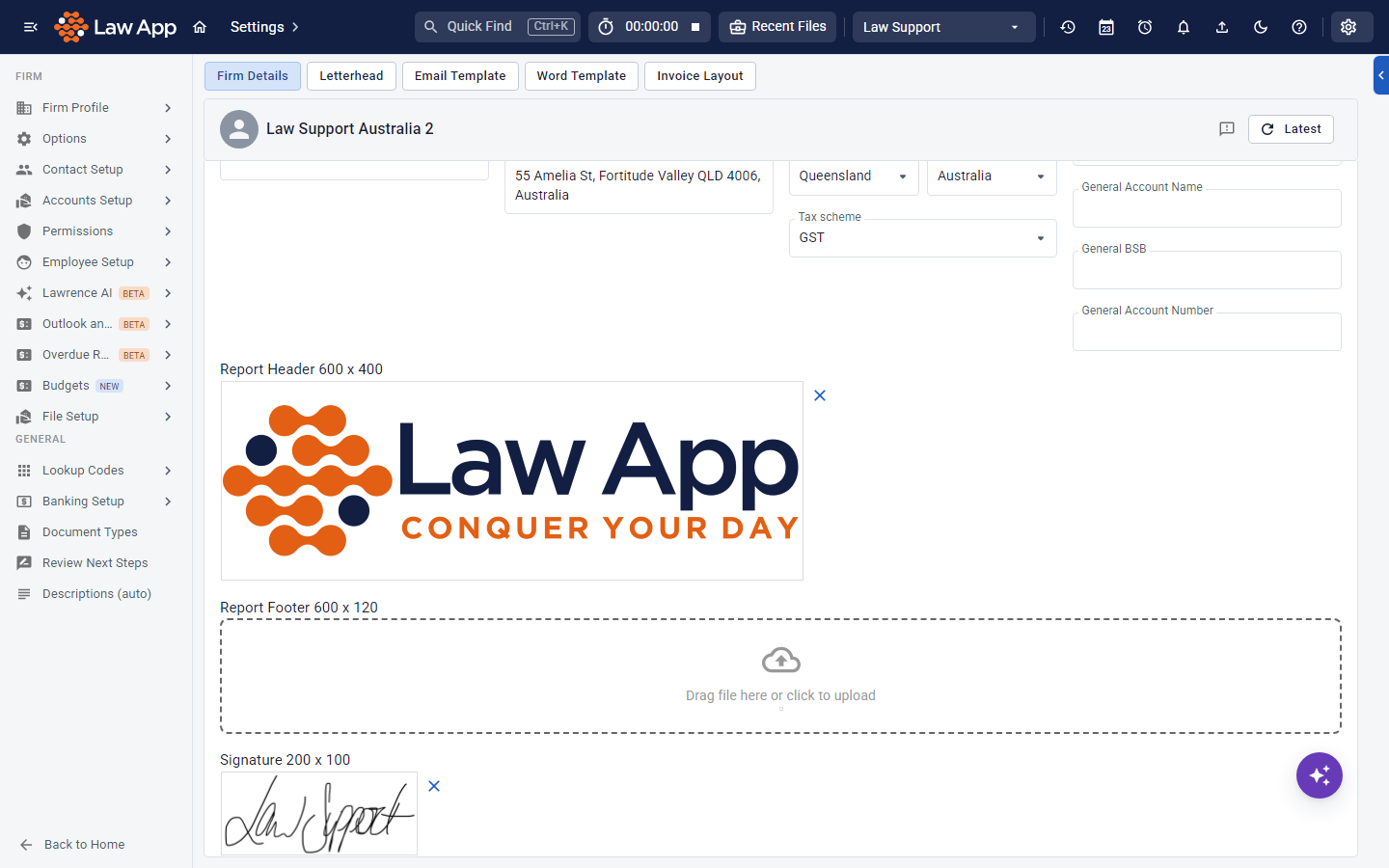
The Logo is the circle at the top left of Firm Details. The Report Header, Report Footer and Signature are at the bottom of the page. Click an image to upload a new one, or the cross beside it to remove it.
| Image | Where it shows |
|---|---|
| Logo | Your firm’s logo, at the top of reports. |
| Report Header | The banner across the top of invoices, receipts, statements and reports. Up to 600 by 400 pixels. |
| Report Footer | The band along the bottom of invoices. Up to 600 by 120 pixels. |
| Signature | The firm signature on invoices and receipts. Up to 200 by 100 pixels. Use a PNG with a transparent background so it sits cleanly on the page. |
Letterhead
The Word document whose header and footer go onto every document generated from a template marked as header and footer compatible. Letters come out on your letterhead without each template carrying its own.
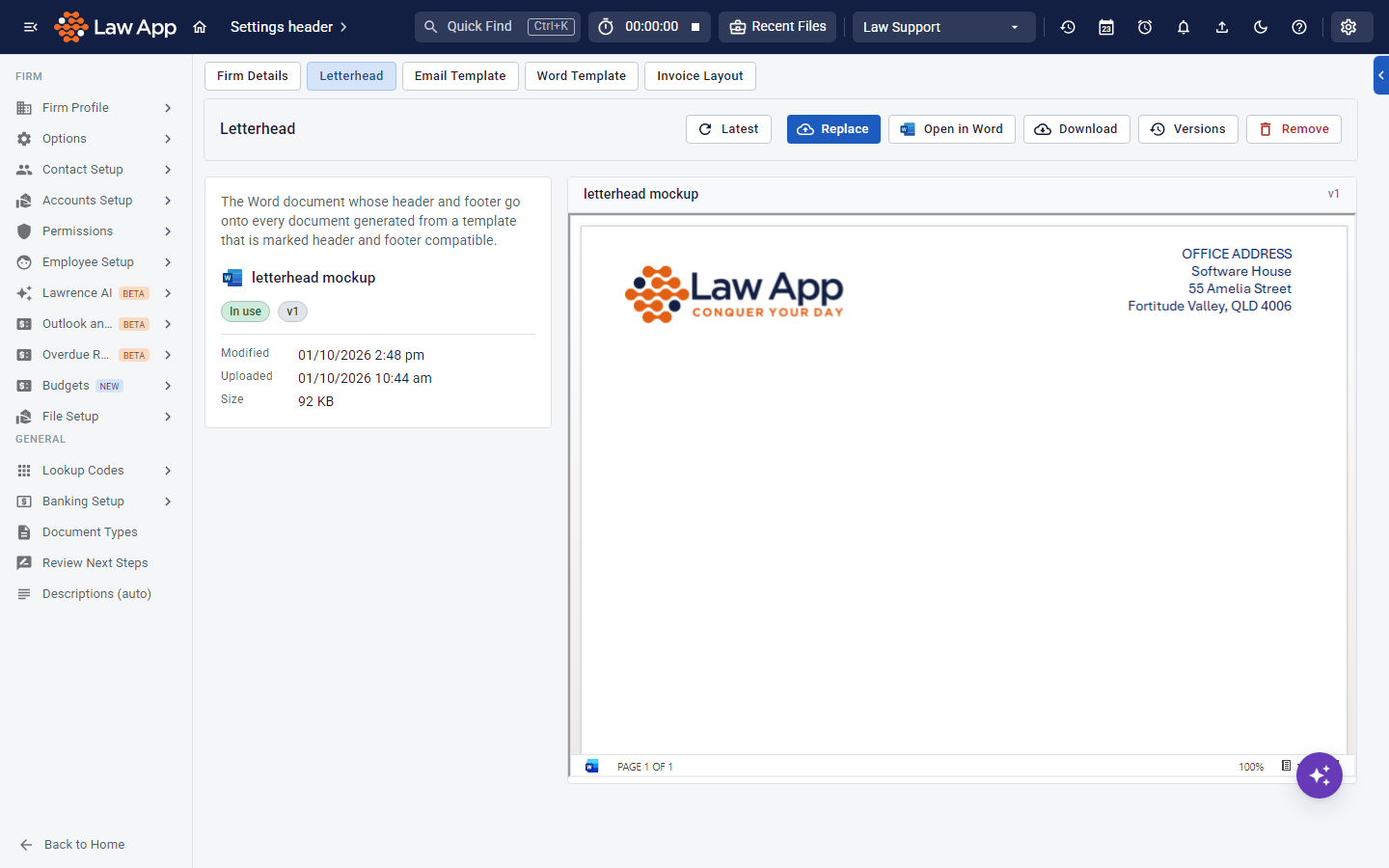
- Click Upload (or Replace if you already have one) and choose your letterhead. It must be a Word .docx file.
- The card on the left shows the letterhead in use, its version and who changed it last. The preview on the right shows it.
- To change it, use Open in Word, edit, and save. Or Replace it with a new file. Either way the old one is kept under Versions, and Make current brings it back.
What it changes: every document generated after you save uses the new letterhead. The letterhead replaces the whole header and footer of the template, so page numbers, confidentiality footers and firm details belong in the letterhead, not in each template. See Letterhead Submission Guidelines for how to set the document up.
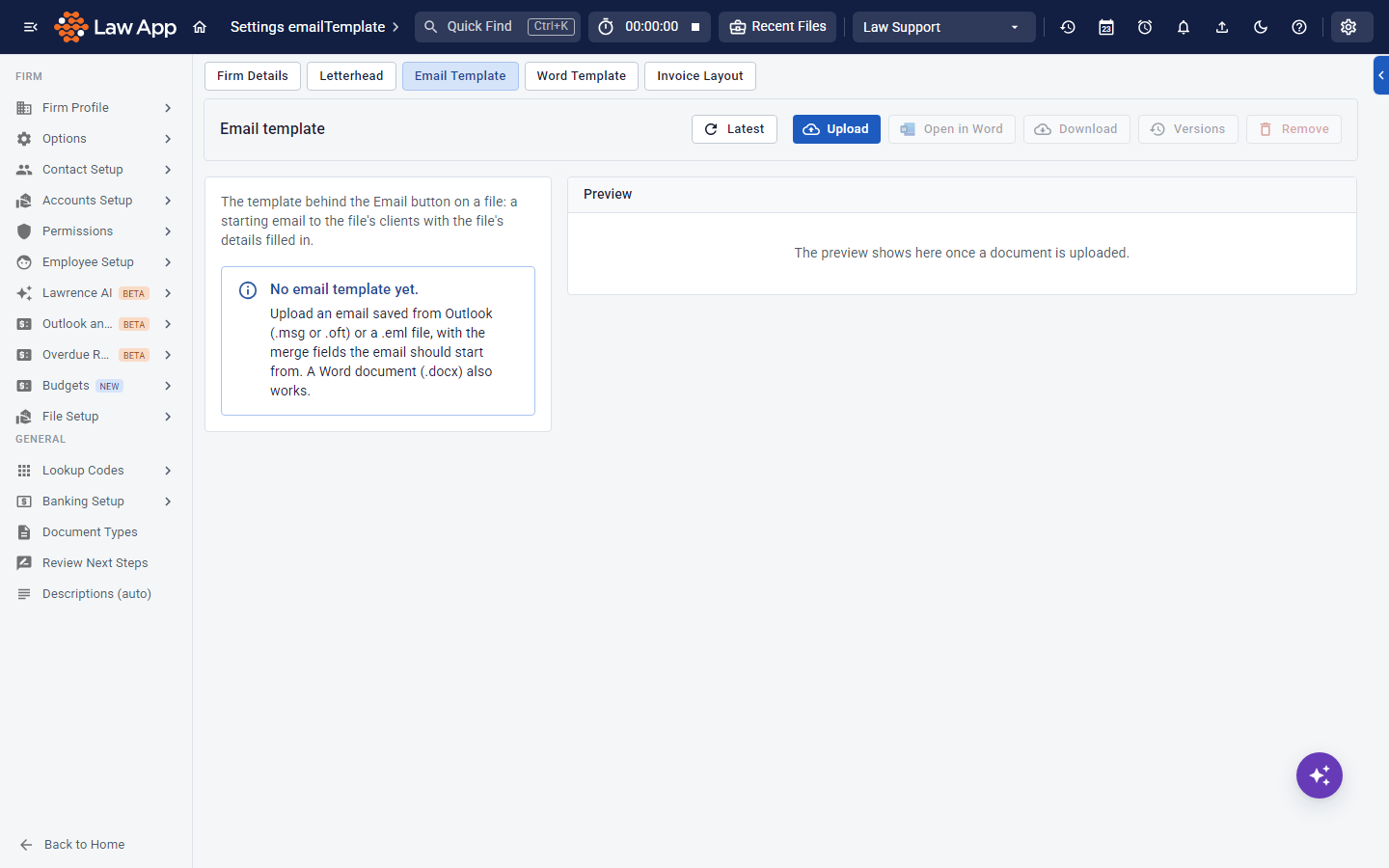
Email Template
The starting email behind the Email button on a file: an email to the file’s clients with the file’s details already filled in.
- Click Upload or Replace and choose an email saved from Outlook (.msg or .oft) or an .eml file containing the merge fields it should start with. A Word document (.docx) also works.
- Check the preview, then try the Email button on a file.
What it changes: every new email started from the Email button on a file. Emails already sent are not affected. The subject gets your Identifier and the file code, as described above.
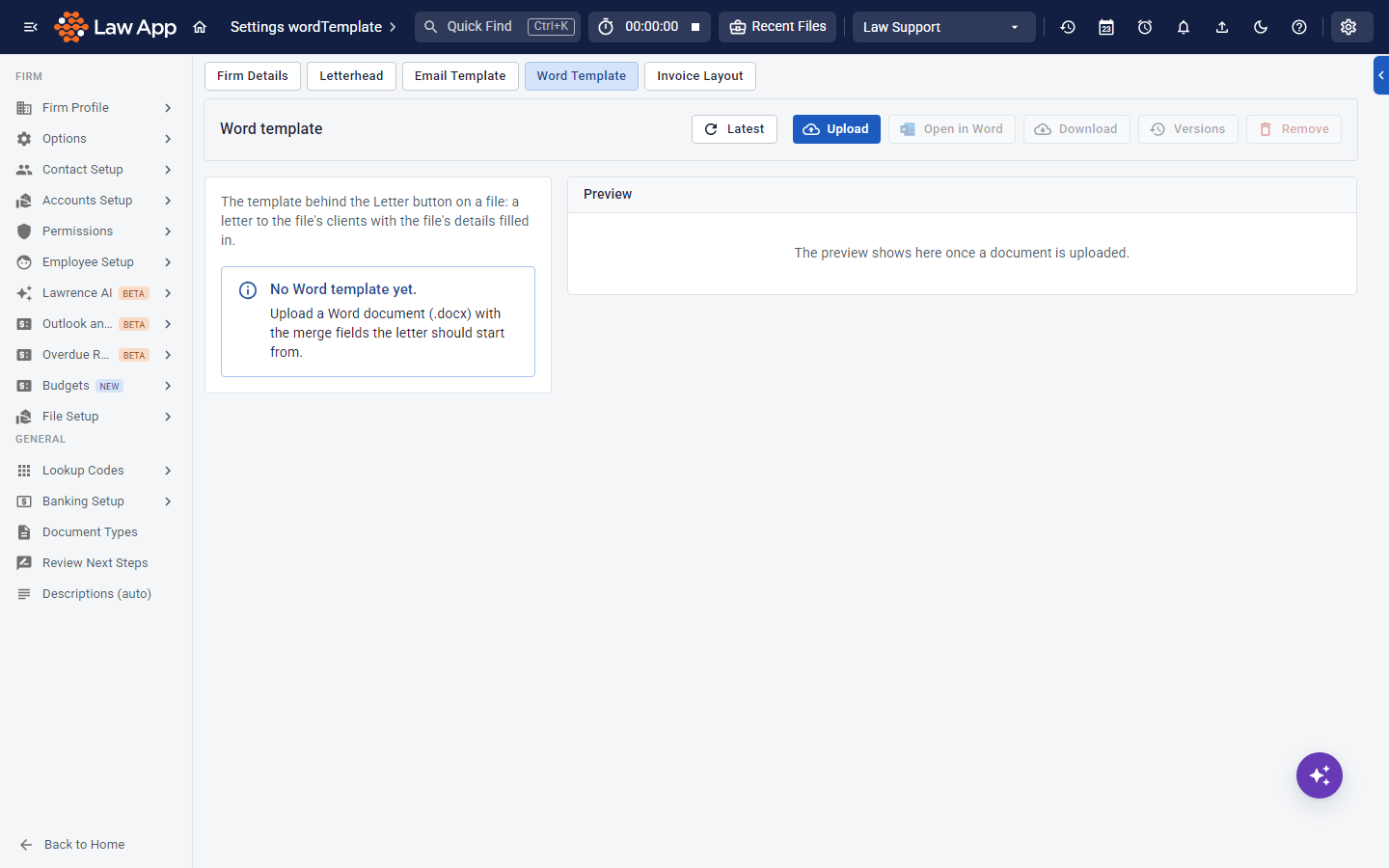
Word Template
The starting letter behind the Letter button on a file: a letter to the file’s clients with the file’s details filled in.
- Click Upload or Replace and choose a Word .docx file with the merge fields the letter should start with.
- Check the preview, then try the Letter button on a file.
What it changes: every new letter started from the Letter button. Your other firm templates are separate. See How to Edit a Firm Template in Law App.
Invoice Layout
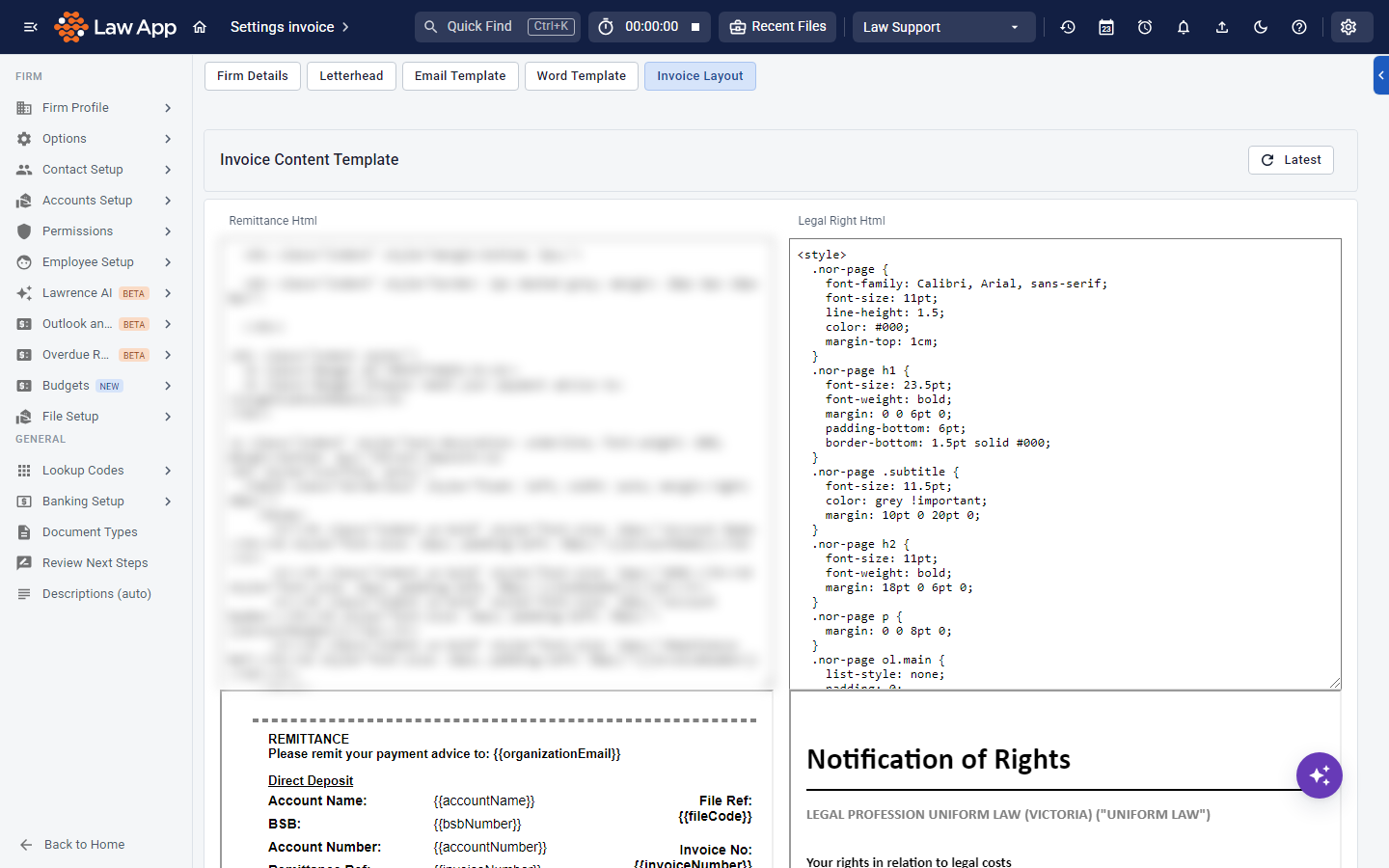
Two blocks of wording printed on your invoices:
| Box | What it’s for and what it changes |
|---|---|
| Remittance Html | The “how to pay” slip at the bottom of the invoice. It’s a piece of HTML, so it can say whatever your firm wants. Law App sets it up with placeholders in double braces, such as {{accountName}}, {{bsbNumber}}, {{accountNumber}}, {{fileCode}} and {{invoiceNumber}}, which are filled in when the invoice prints. With placeholders, the bank details come from your bank account in Settings, Banking Setup. Some firms prefer to type their bank details straight into the box instead. That works too, but then this box is the place to change them. |
| Legal Right Html | The notice of your client’s rights about your legal costs, printed with the bill. Its wording names your state’s legislation, so check it matches the state you practise in. |
The top of each box is the HTML, and the bottom shows how it will look. Edit the HTML, check the preview, then click Save. Every invoice printed after you save uses the new wording, including reprints of earlier invoices. If you’re not comfortable editing HTML, ask us and we’ll make the change for you. Which invoice layout your firm uses is a separate choice, made in Settings, Accounts Setup, Billing Settings. See Invoice layouts in Law App.
Questions
I changed our address. Will old invoices show the new one? The snapshot Law App kept when each bill was issued keeps the old address, and so does any copy you sent. If you reprint an old bill, it prints with the new address.
Our invoice due dates are a day or two off. Check Time zone and Payment days here, and whether your firm counts payment terms in business days under Settings, Options, Firm-Wide.
Replies to our emails stopped filing to the file. Check whether someone changed the Identifier. If they did, contact us: replies to emails sent before the change carry the old tag.
How do I change the logo, header or signature on our invoices? Go to Settings, Firm Profile, Firm Details and upload a new image for Logo, Report Header, Report Footer or Signature, then save.
How do I update our letterhead? Go to Settings, Firm Profile, Letterhead and replace the Word document. Earlier versions are kept, so you can bring one back if you need to.
How do I change how many days clients have to pay an invoice? Set Payment days and Payment terms on Settings, Firm Profile, Firm Details. The change applies to invoices created after you save.
How do I change the bank details printed on our invoices? It depends on how your remittance slip is set up. If it uses fields such as {{bsbNumber}}, change the bank account in Settings, Banking Setup. If your firm typed its bank details straight into the slip, change them in Settings, Firm Profile, Invoice Layout.
Leave a Reply