
A controlled money account is a separate trust bank account for money that can only be withdrawn with the client’s written authority — for example, funds held for a deceased estate or a specific settlement. Setting one up in Law App has two parts: adding the bank account itself, then giving it its own receipt and payment numbering.
How to add a controlled money account
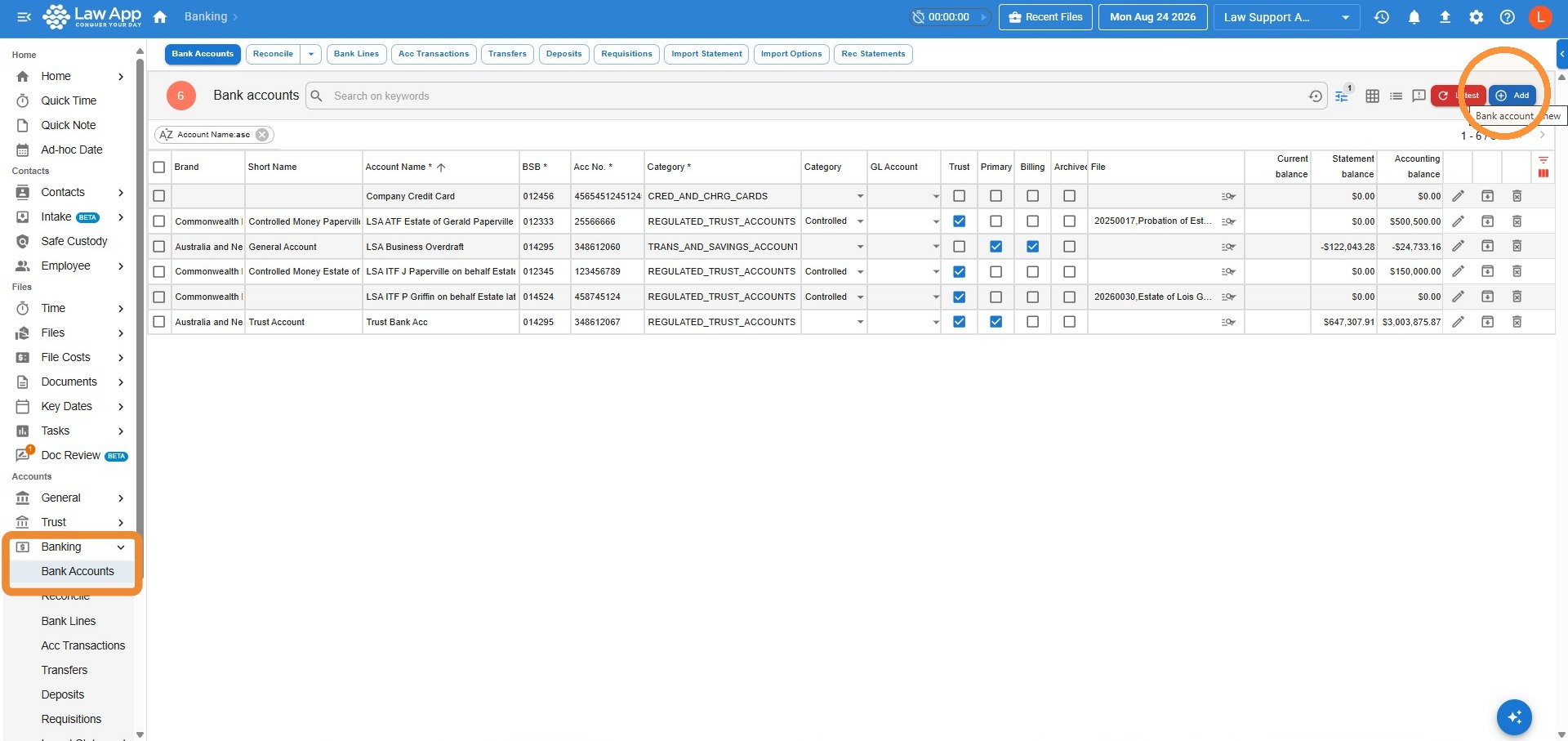
- Go to Banking > Bank Accounts and select Add.
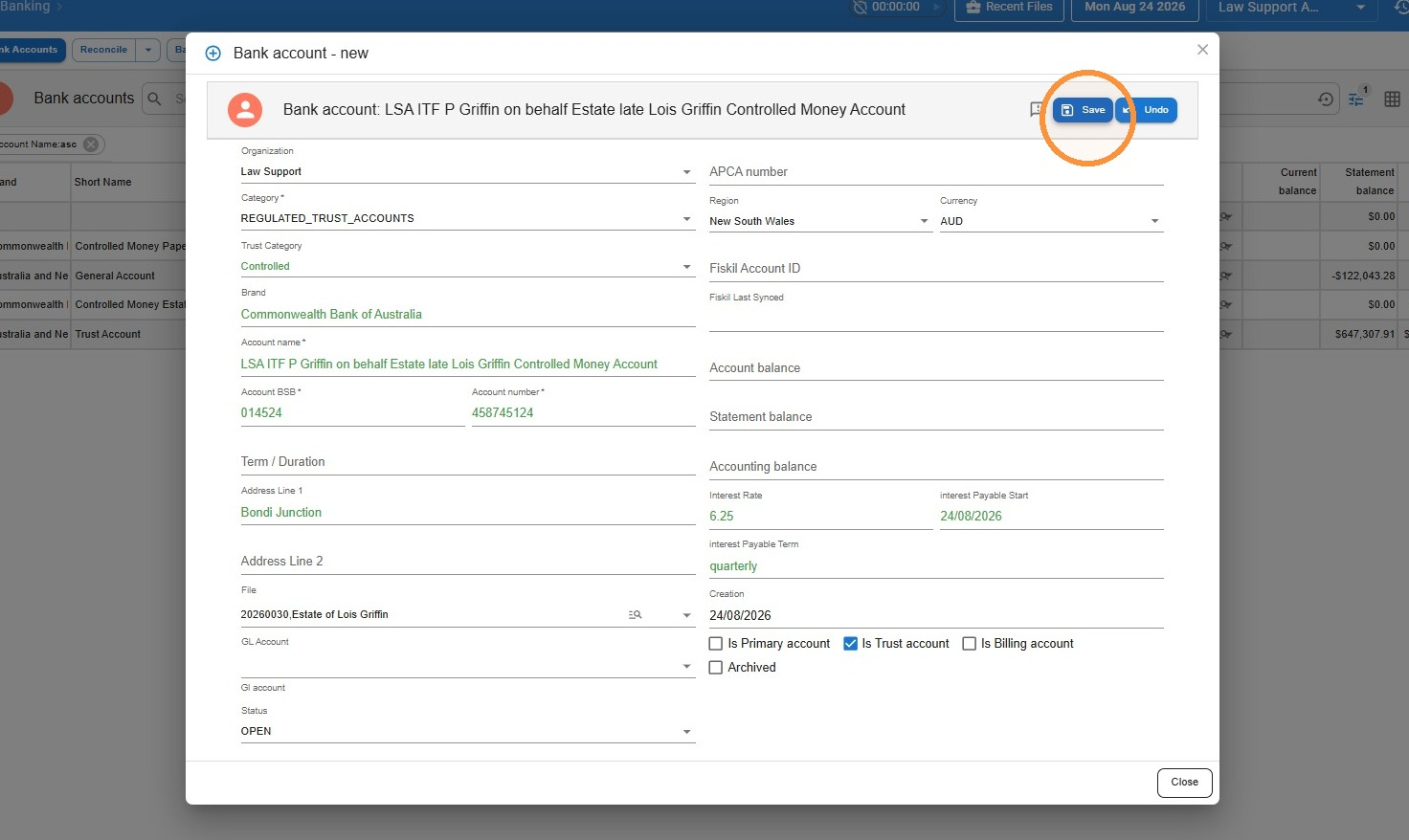
- Fill in the account details. Set Category to Regulated Trust Accounts and Trust Category to Controlled, then enter the account name, BSB and account number and any other relevant details, including the file which the account relates to.
- Select Save.
How to set up receipt and payment numbering
Each controlled money account needs its own receipt number sequence, kept separate from your general trust account. If you already have other controlled money accounts set up, this is likely already done. Setting up a separate payment number sequence is optional.
Transaction sequencer setup
- Go to Admin > Transaction Sequencer.
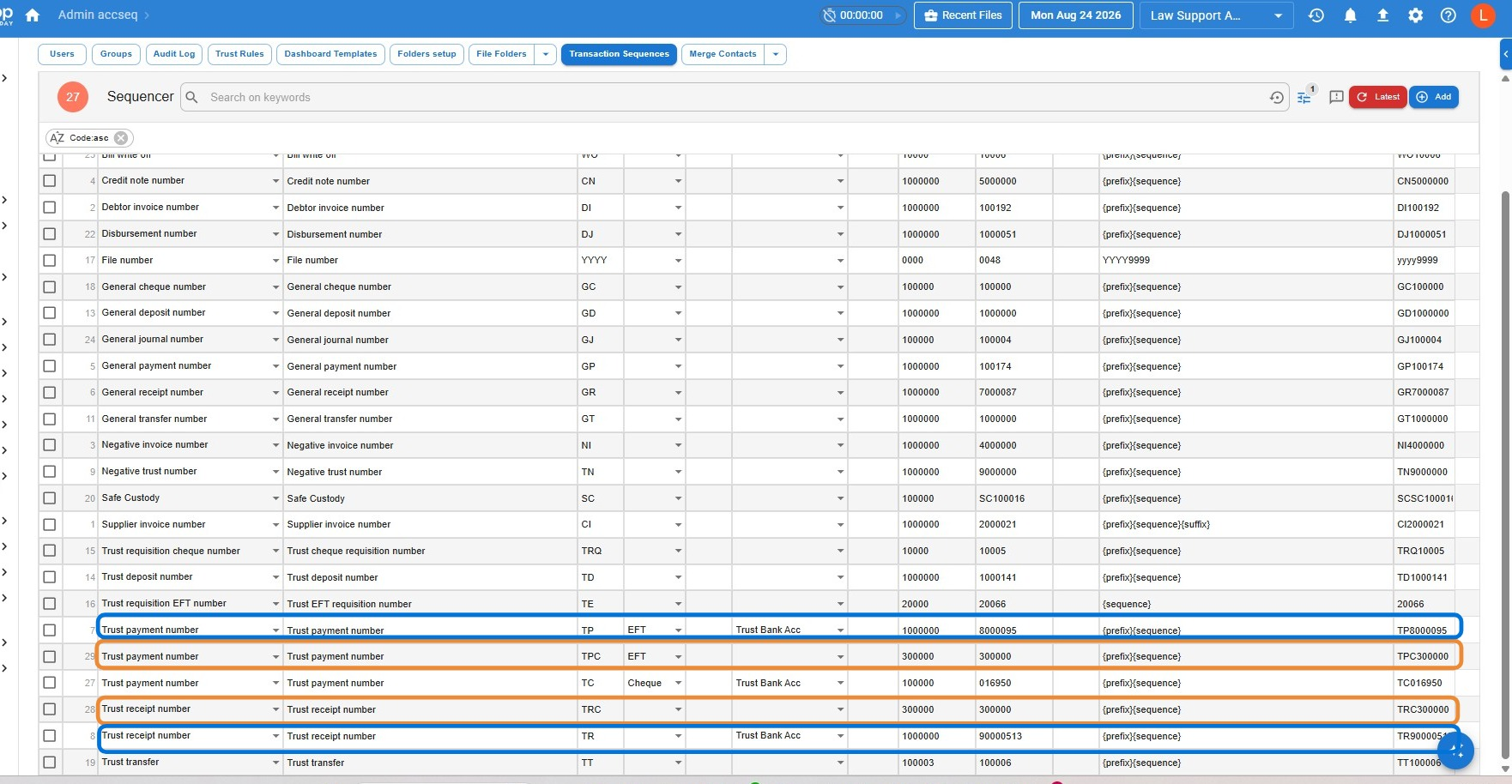
- Find your existing Trust Payment Number and Trust Receipt Number lines, and make sure your general trust account is selected in the Bank Account column — this tells Law App those numbers apply only to your general trust account.
- Add a new Trust Payment Number line and a new Trust Receipt Number line for your controlled money accounts, using a different prefix from your regular receipts and payments. Law Support uses TRC and TPC.
- Leave the Bank Account column blank on these new lines so the sequence applies to any controlled money account, now or in future — or select a specific account if you want separate numbering per account.
- Set the Seed (how many digits the number should have) and the last sequence (the last number used). If you’re continuing numbering from a previous system, enter that system’s last number; for a brand-new sequence, use the same number in both fields.
- In the Pattern column, enter {prefix}{sequence}.
- Select Save.
How the numbering applies to a receipt or payment
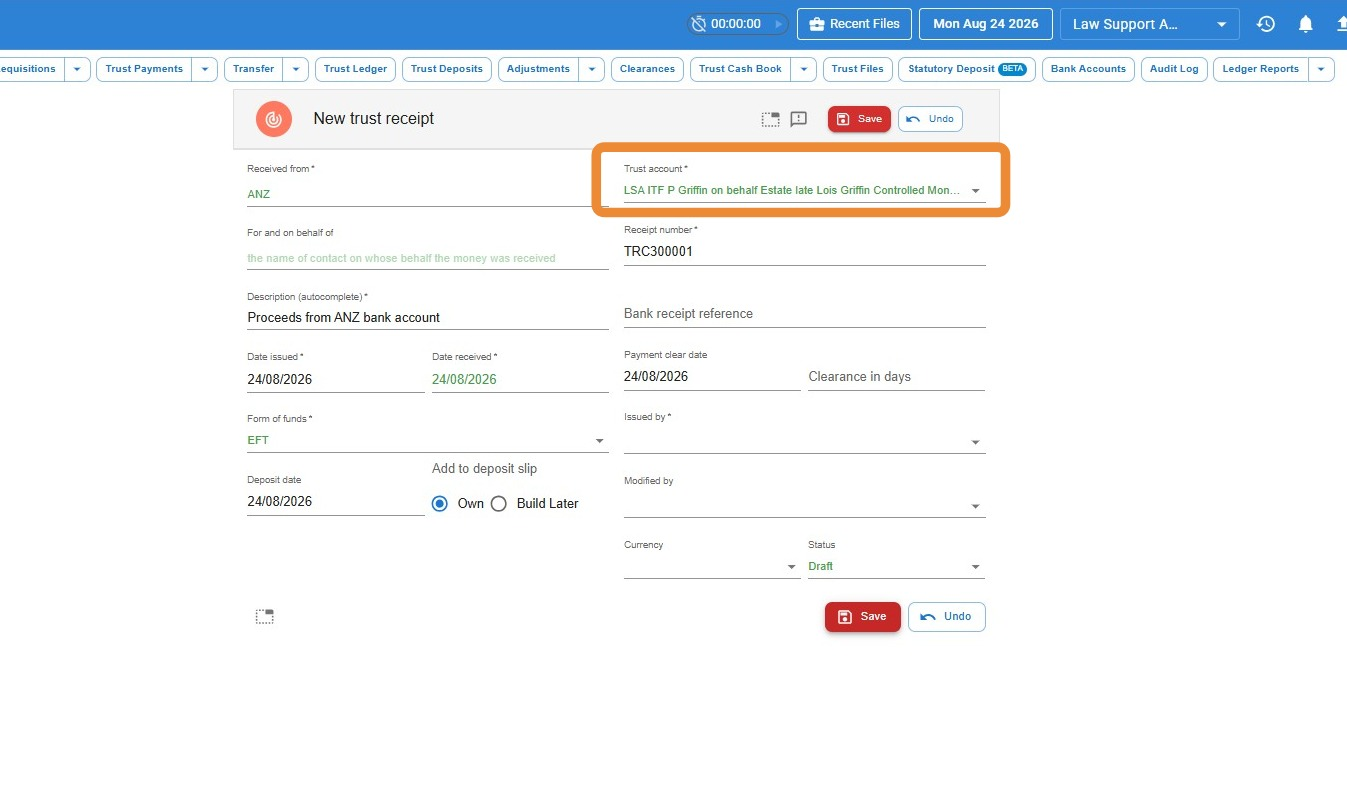
Once your sequences are set up, they apply automatically whenever you raise a trust receipt or payment against a controlled money account.
Leave a Reply