
You can reserve trust funds on a file in Law App to set aside part of the trust balance for a stated purpose, such as barrister’s fees or stamp duty. The money stays in the trust account, but it can’t be drawn on until the reservation is released or cancelled.
This guide covers how to reserve funds, edit or release a reservation, view its history, and report on every active reservation across your files.
Sets money aside
A reservation is held against one trust account on one file. It isn’t a transaction, so no money moves. The file’s Available balance drops by the reserved amount.
Stops it being paid out
Payments, transfers and requisitions are blocked if they would take the trust account balance below the reserved amount.
How to reserve trust funds on a file
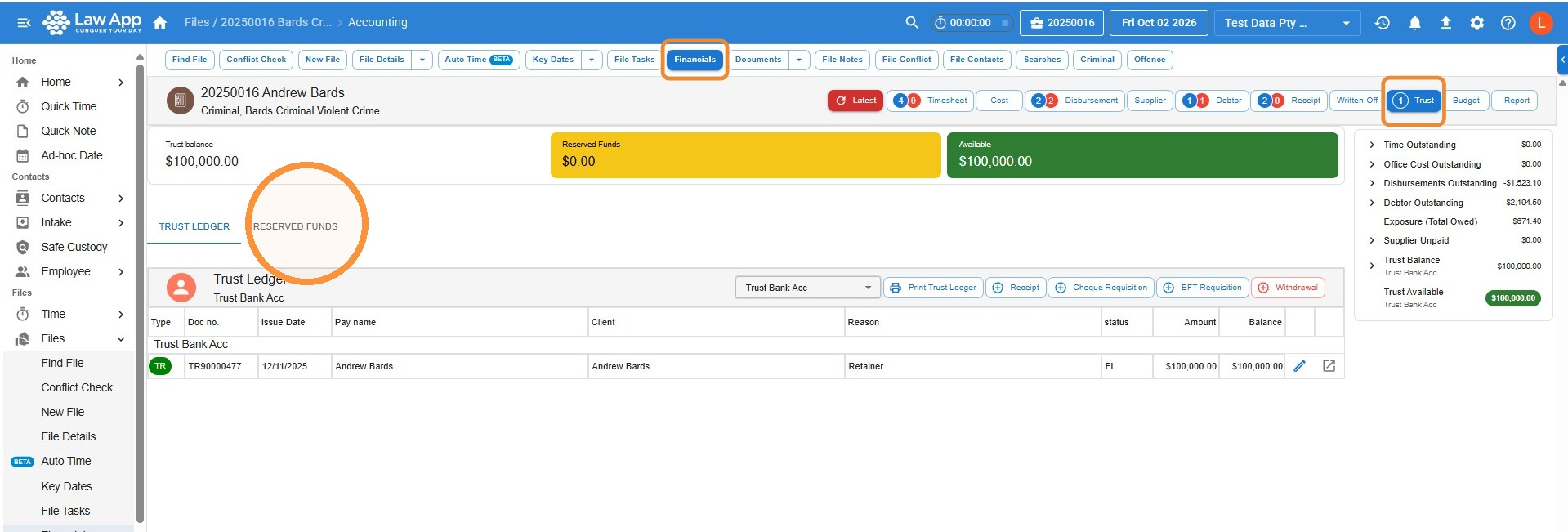
- Open the file and go to Financials, then Trust, then the Reserved Funds tab.
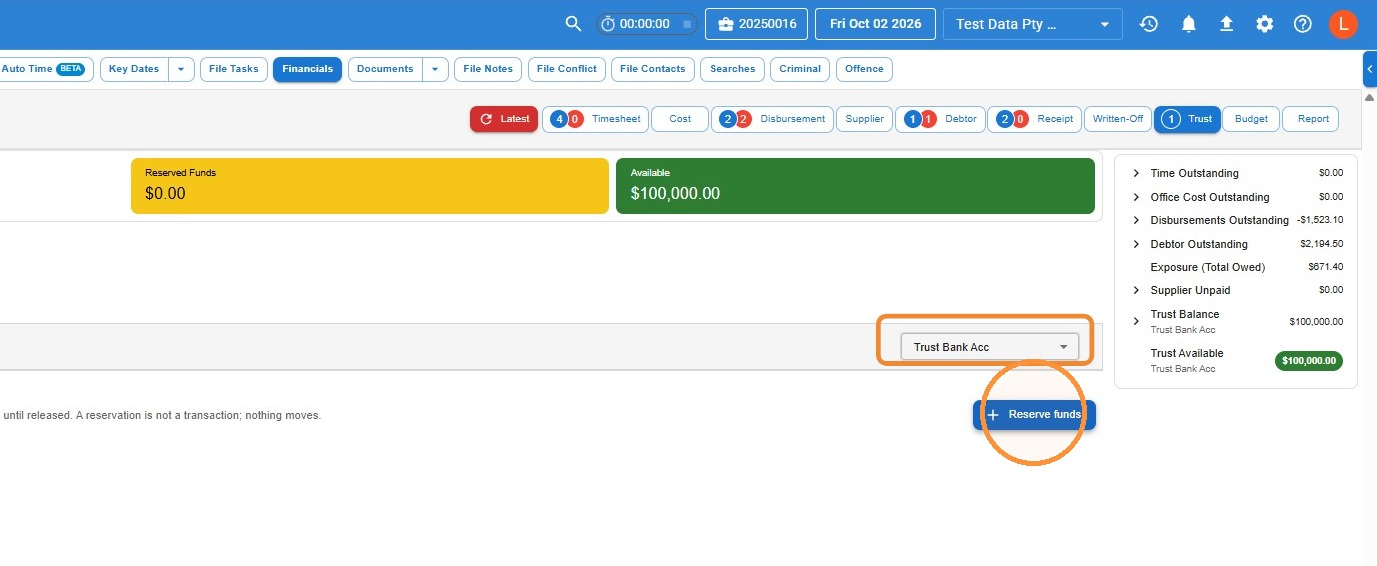
- If your firm has more than one trust account, check the right one is selected in the drop-down. Then click Reserve funds.
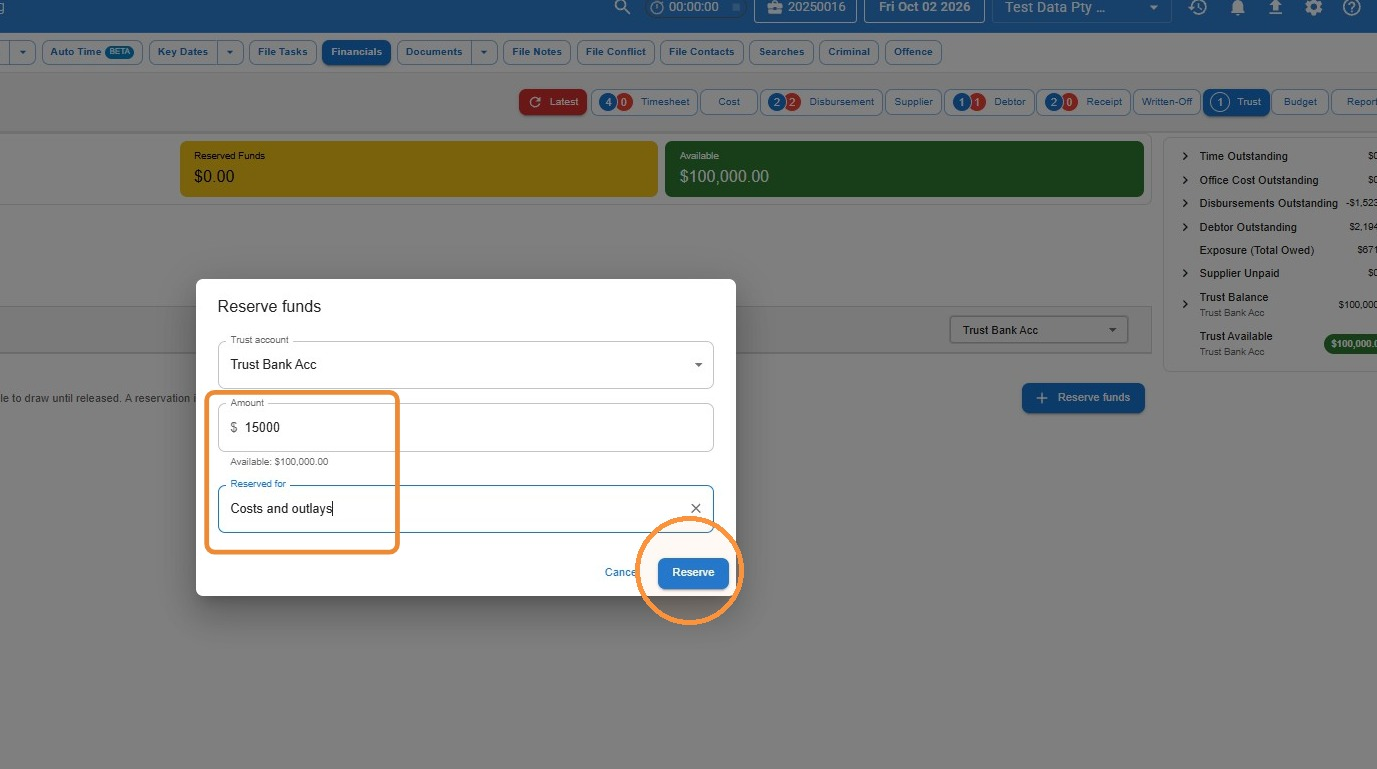
- Enter the Amount and what the funds are Reserved for, then click Reserve.
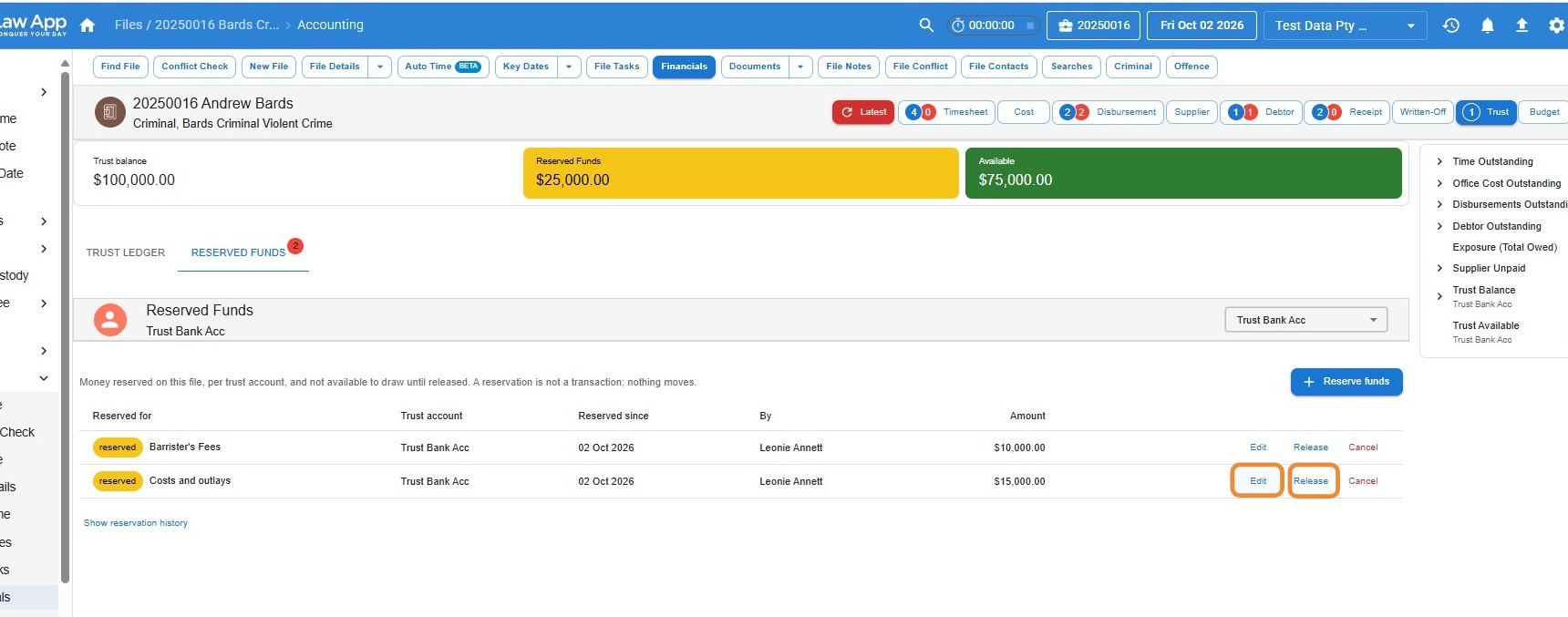
How to edit or release a reservation
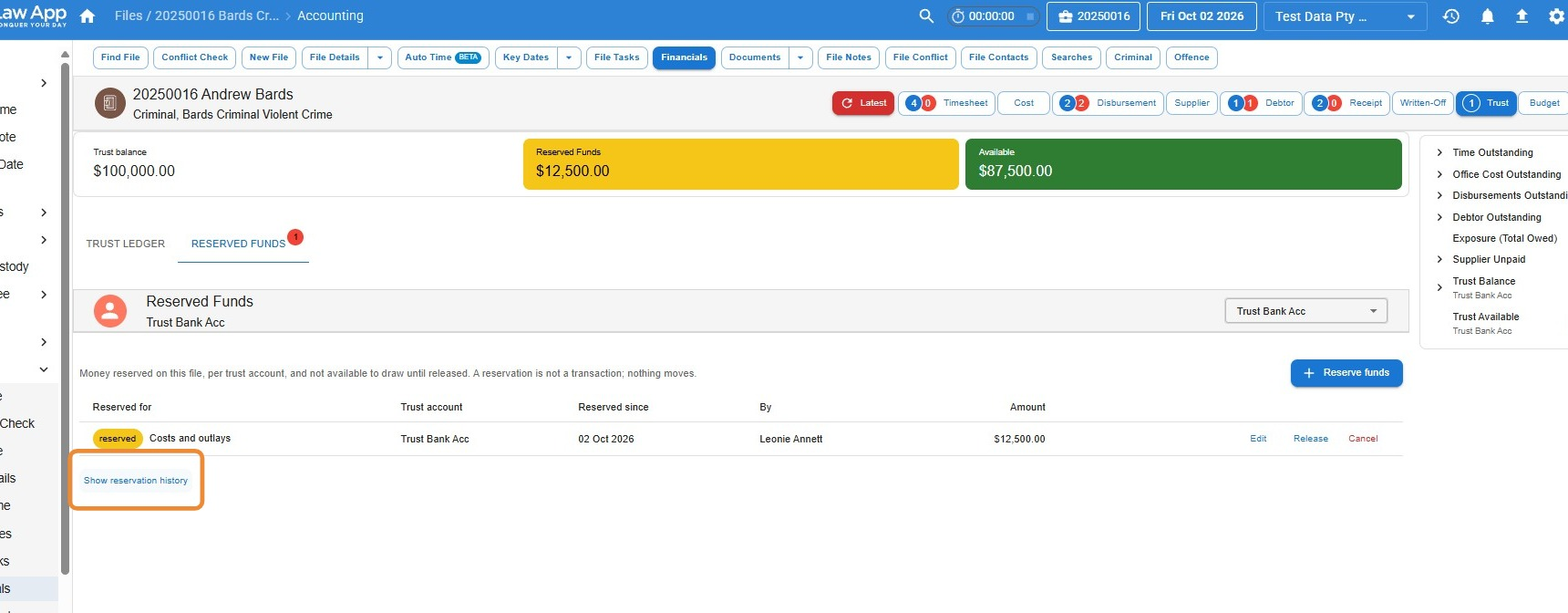
Each reservation on the Reserved Funds tab has Edit, Release and Cancel options at the end of its row.
- To change the amount, click Edit. The amount is the only thing you can edit.
- To free up the money, click Release.
How to view reservation history
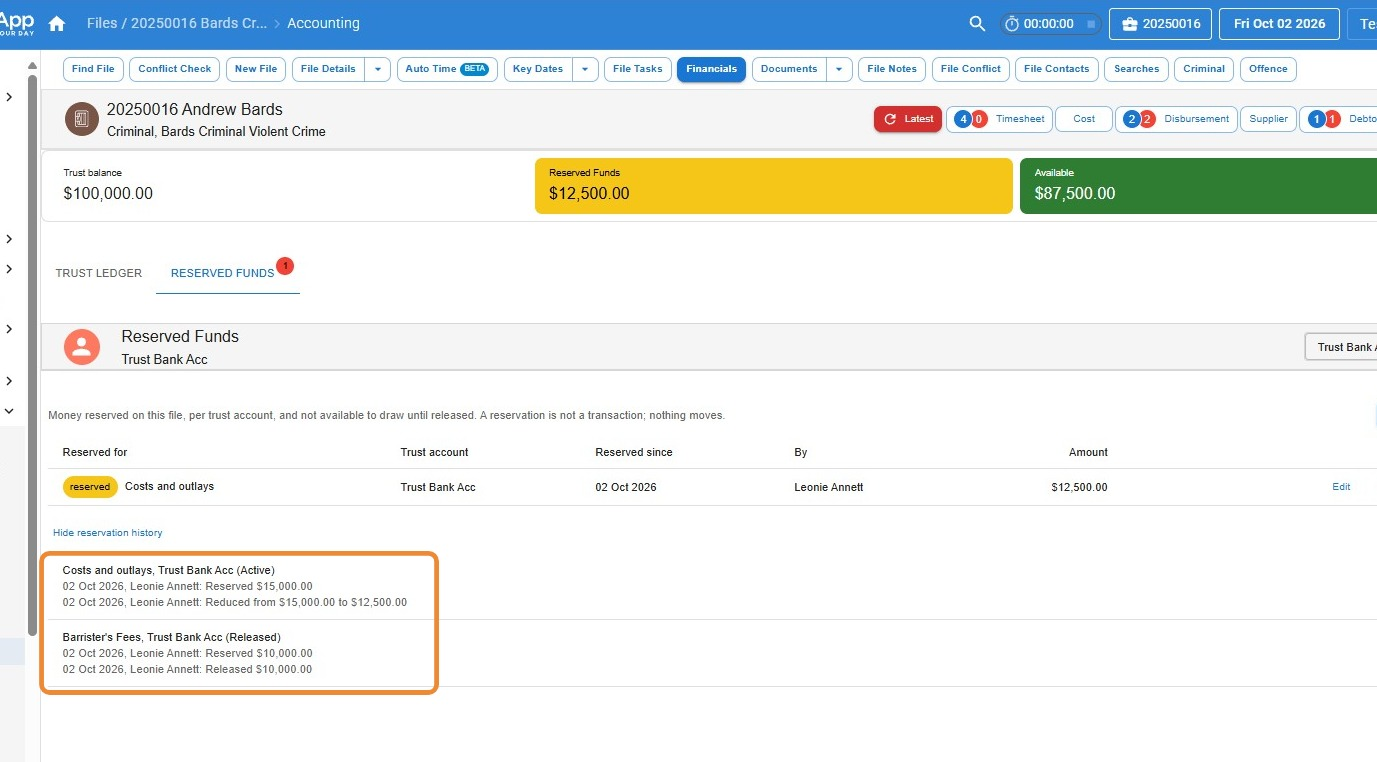
- On the Reserved Funds tab, click Show reservation history under the list.
- You’ll see every current and past reservation on the file, with a log of each change and release, including who made it and when.
How to report on reserved trust funds
The Reserved trust funds report lists all active reservations across every file in one place.
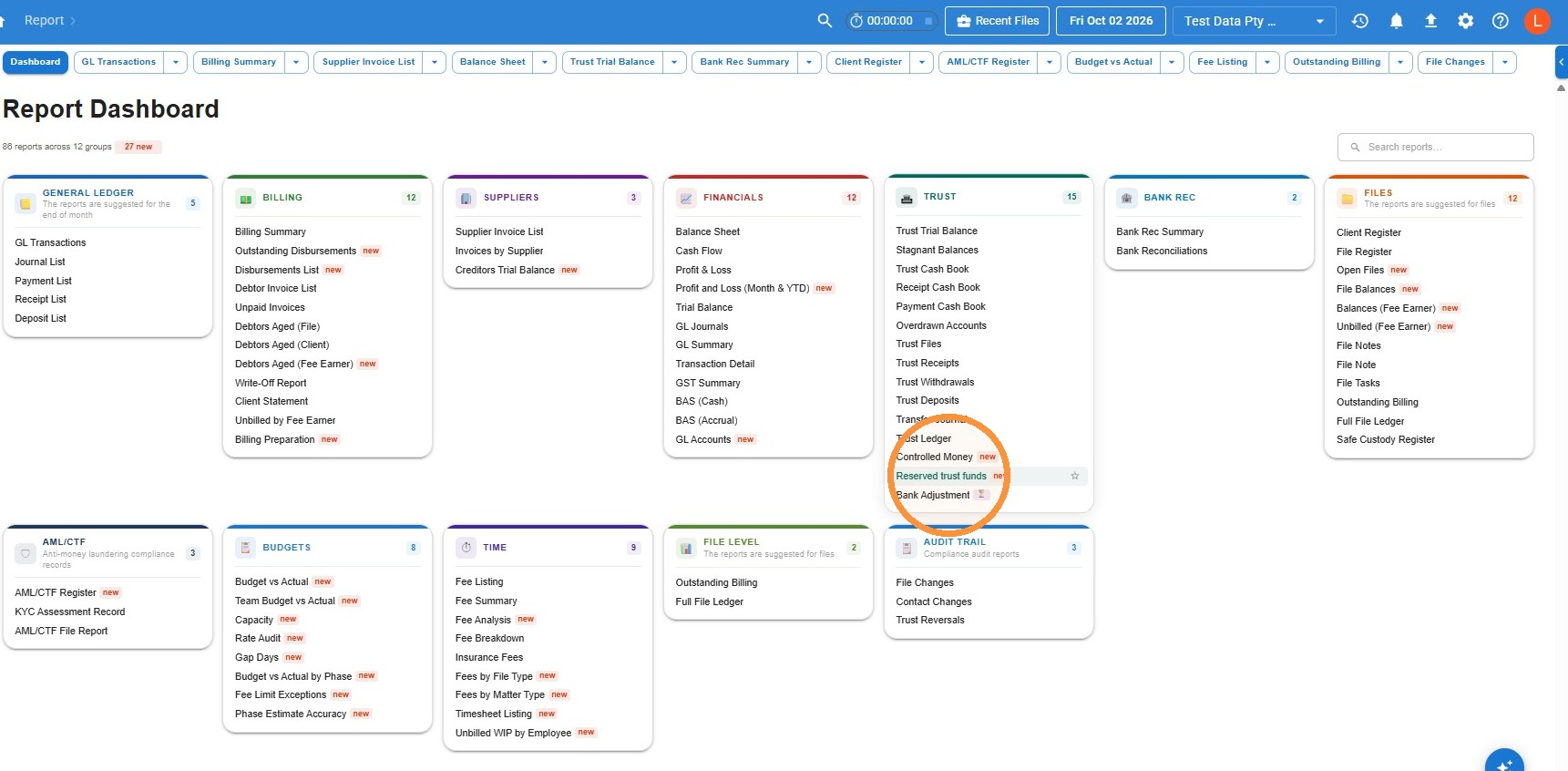
- From the left menu, go to Reports, then Dashboard, and select Reserved trust funds under the Trust group.
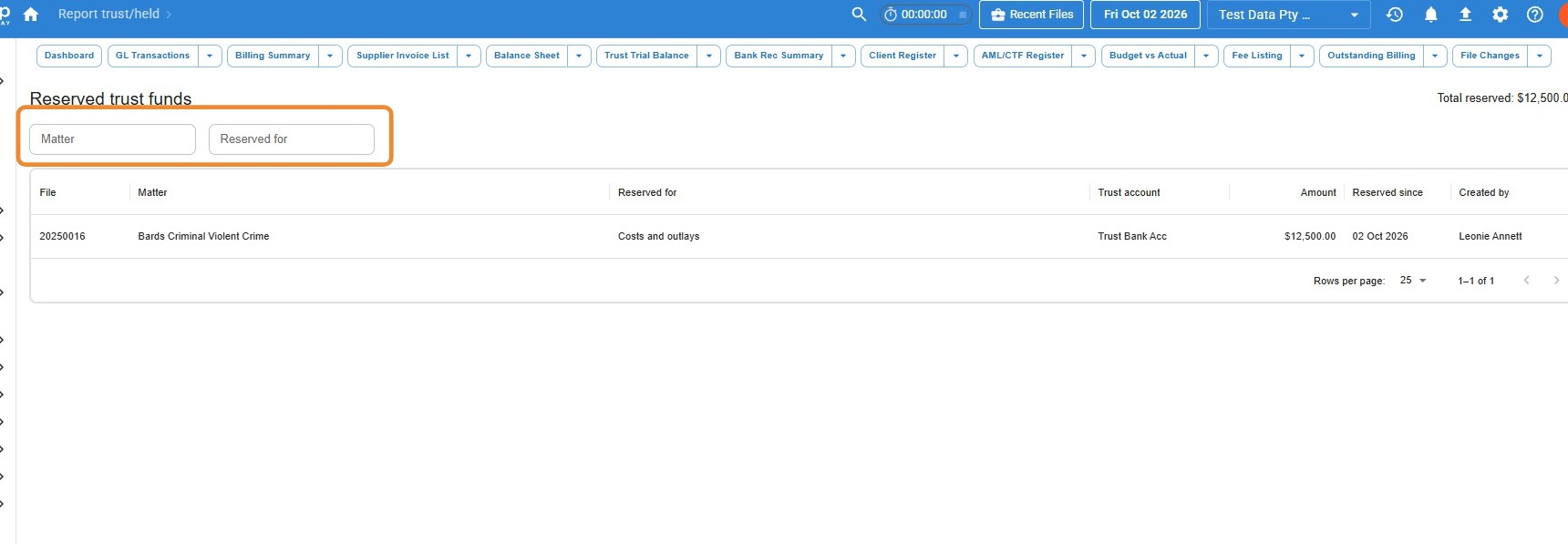
- The report shows each active reservation with its file, matter, purpose, trust account, amount, date and who created it. Use the Matter or Reserved for search boxes to filter the list.
Leave a Reply