
A trust journal transfer moves trust money from one file to another without it ever leaving the trust account. This guide walks you through processing the transfer and printing the trust transfer journal for your records.
Create the transfer request
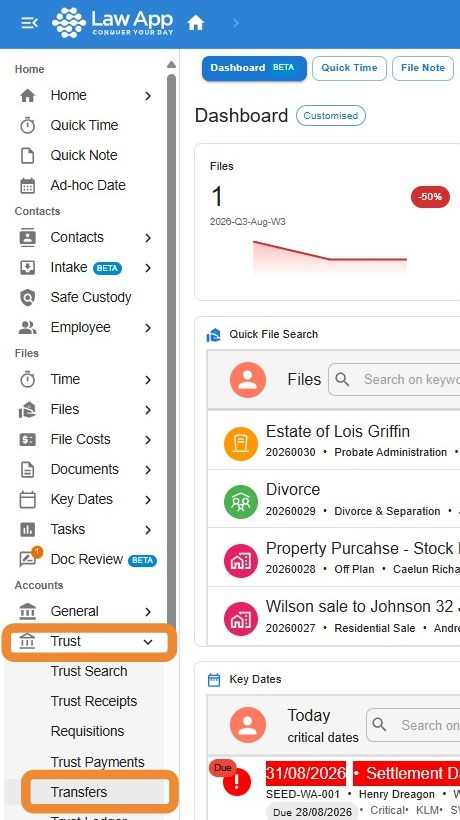
- Navigate to “Trust”, then “Transfers” in the left-hand menu.
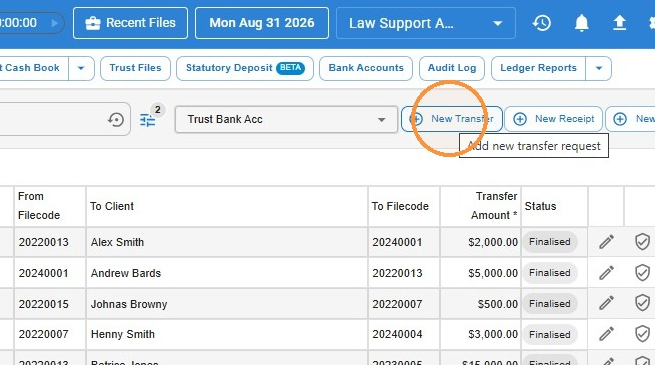
- Click “New Transfer” in the toolbar.
- Enter the file you’re transferring from, the file you’re transferring to, the transfer amount, Description, Reference and reason, then click “Save”.
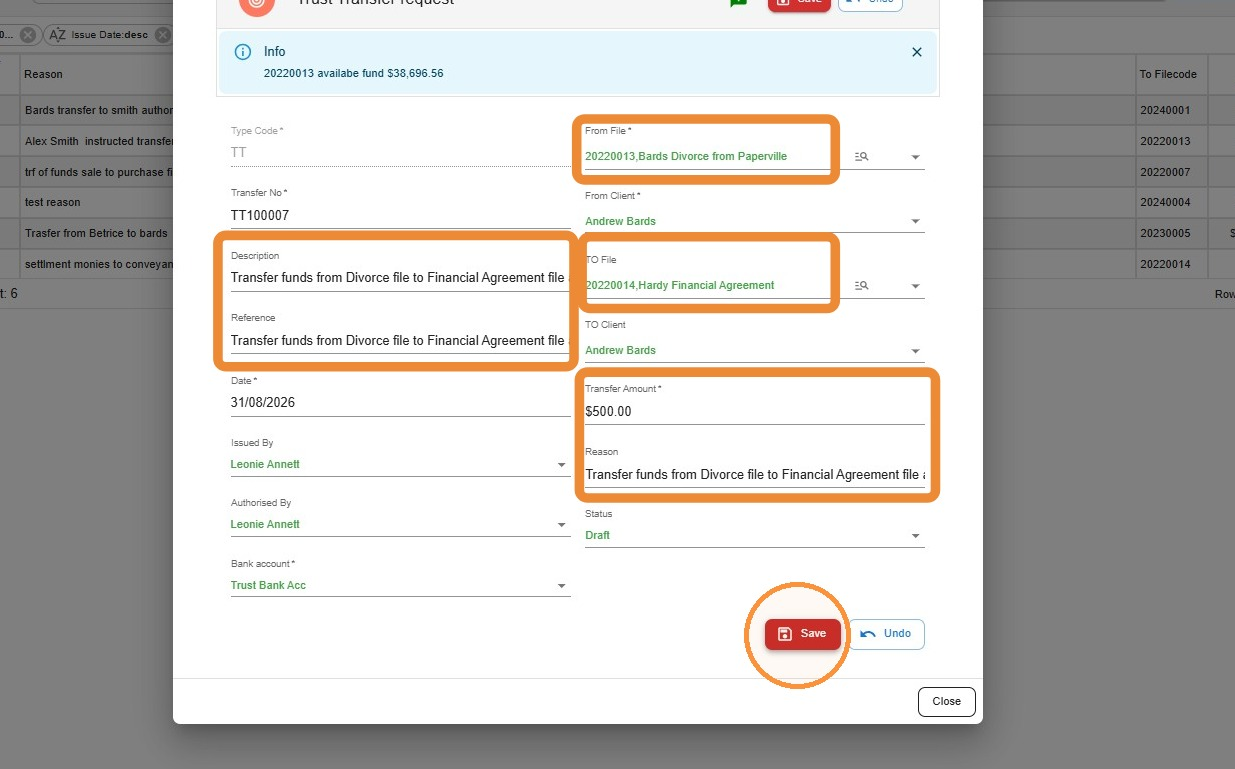
Tip: The description and reference fields print on the trust transfer journal and appear in each file’s ledger, so use wording that will still make sense to someone reading the file later — not just to you today.
Finalise the transfer
Saving the transfer only creates a draft — the funds don’t move between files until it’s finalised.
- Find your draft transfer in the list and click the finalise transfer request icon.
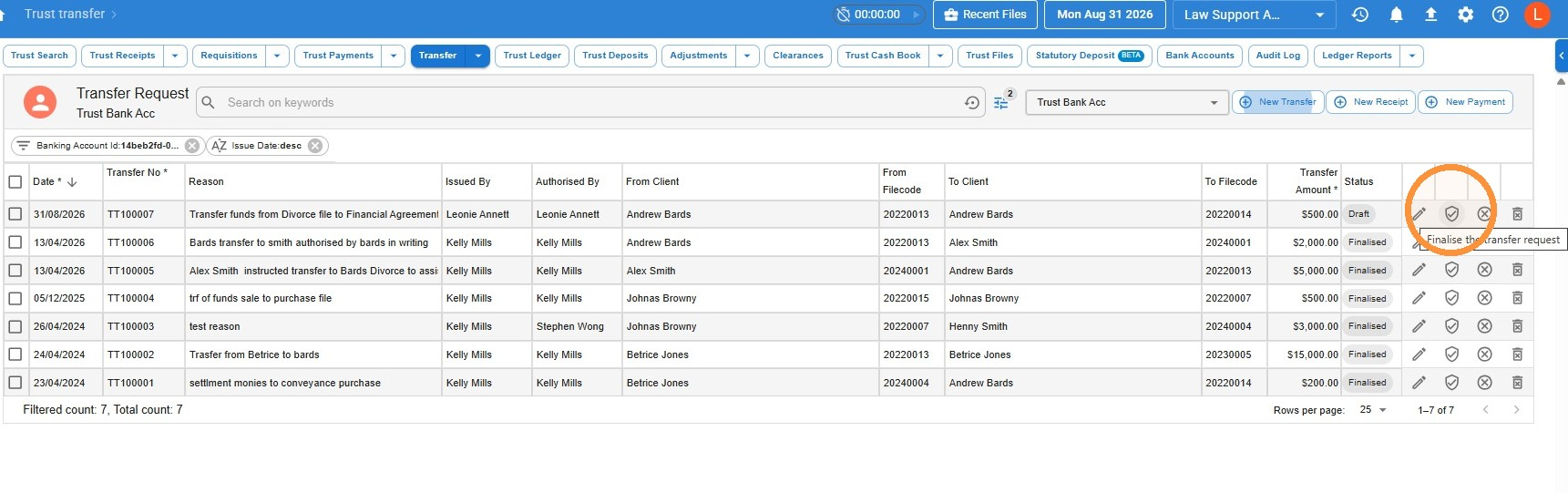
Don’t skip the check. Once you finalise a transfer request you can’t edit it. Confirm the from file, to file, amount and reason are all correct before you finalise.
- On the next screen, enter the login password of the person authorising the transfer, then click “Save”.
Print the transfer journal
Once a transfer is finalised, you can print a copy of the trust transfer journal for your file or trust records.
- Open the “Transfer” menu and select “Transfer Journal”.
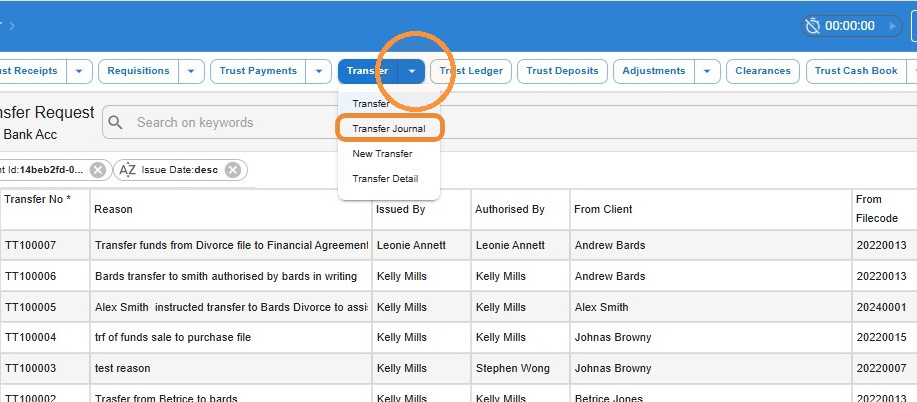
- You will now see a list of your firm’s transfer journal entries. Now, click “Print”.
- Set the date range to “Today”, or choose your own start and end dates to print a transfer from a previous date.
- If more than one journal entry falls in that date range and you only want to print one of them, use the filter to narrow the list down first.
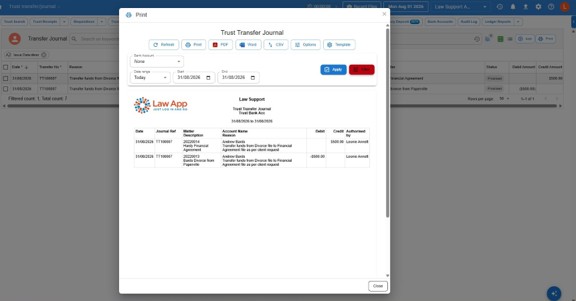
Tip: The printed trust transfer journal shows both sides of the entry — the debit from the sending file and the credit to the receiving file — so file a copy against both matters if your firm keeps hard-copy trust records.
Leave a Reply