
Settings is where your firm sets Law App up the way it works: your firm’s details, the lists people pick from, how time and trust money are handled, what each person can do, and more. Start here to find the right page. Each area below links to a help sheet that explains every setting on it: what it’s for, how to change it, and what changing it does.
How to get there
From the left menu, click Settings. The settings menu has two groups, Firm and General. Click Back to Home at the bottom to return to your work. You can also press Ctrl+K (Quick Find) and type the name of a settings page to go straight to it.
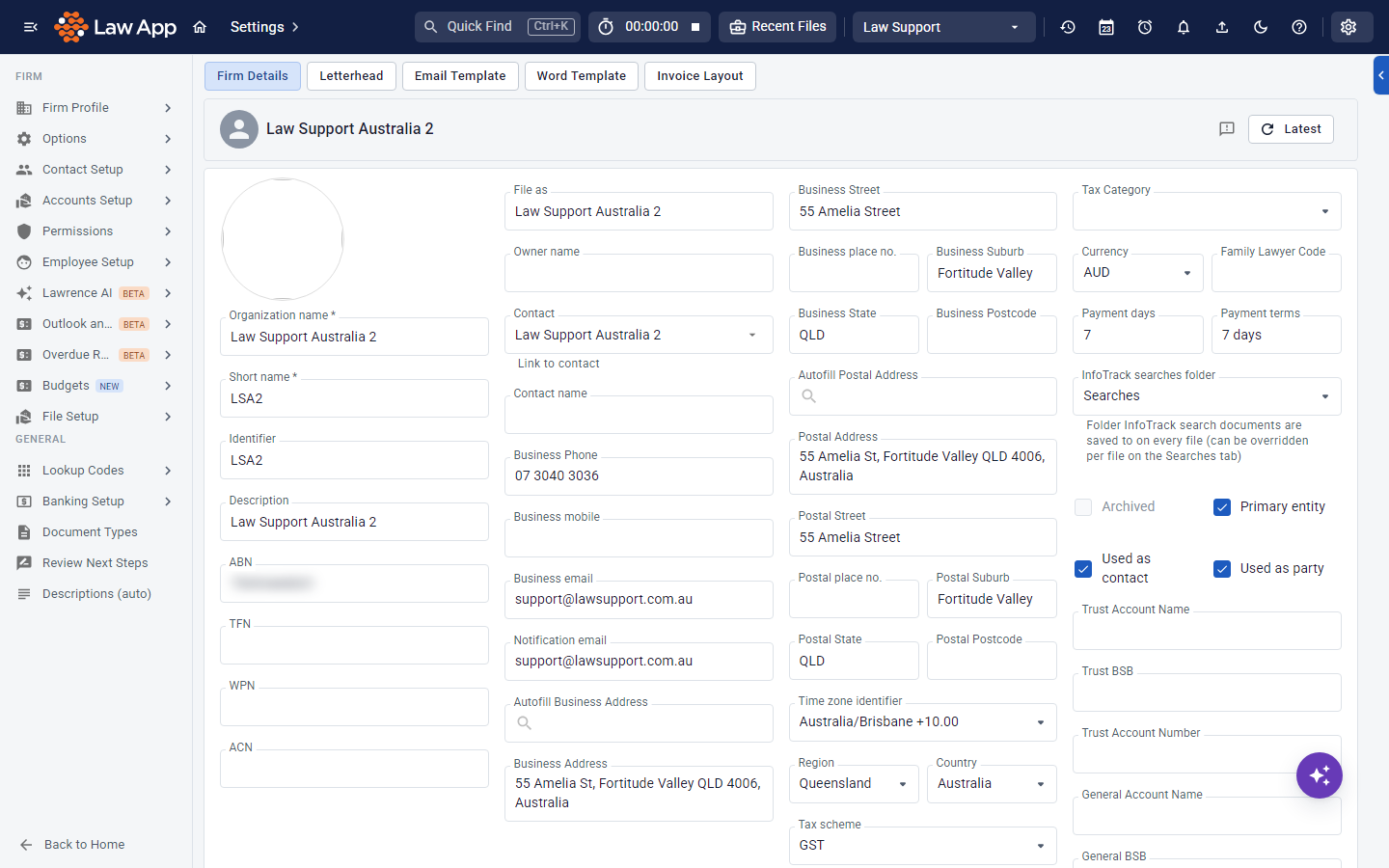
Firm settings
| Area | What it controls |
|---|---|
| Firm Profile | Your firm’s details, time zone and state, payment terms, logo and signature, letterhead, the Email and Letter templates on a file, and the wording on your invoices. |
| Options | 66 switches and values that change how Law App behaves, firm-wide or just for you. Timesheet and Trust options have their own sheets: Timesheet and Auto Time options and Trust Compliance Settings. |
| Contact Setup | The lists picked from on contacts, marketing details, Safe Custody lists and contact custom fields. |
| Accounts Setup | Your chart of accounts, control accounts, GST codes and how bills print. |
| Permissions and Employee Setup | What each person can see and do, their charge-out and cost rates, rate rises, defaults and teams. |
| Budgets | Fee earner budgets, budget defaults, fee limit alerts and standard phases. |
| File Setup | File and matter types, party roles, courts, file rates, archive locations, litigation lists, confidential files, file custom fields and conveyancing outlays. |
| Lawrence AI, Outlook and Calendar, Overdue Reminders | The Beta areas, shown only to firms that have them. |
General settings
| Area | What it controls |
|---|---|
| Lookup Codes, Banking Setup, Document Types, Review Next Steps, Descriptions (auto) | Branches, departments and positions, your bank accounts and feeds, the kinds of document you file, review choices, and the descriptions offered on transactions. |
Who can change settings, and which value wins
- Who: each settings page is open to the people whose permission set includes it. Pages your set doesn’t include show greyed out with the reason. See How to configure user permissions.
- Firm or you: most settings apply to the whole firm. In Options, many can also be changed for one person. Law App uses the most personal value that’s set: your own, then the firm’s, then the LawApp default.
- Set by Law App: a few settings are greyed out because Law App sets them the same for every firm, mostly to protect trust records. Contact us if you think one is wrong for you.
Not sure where a setting lives? Press Ctrl+K and type what you’re looking for, or contact us and we’ll point you to it.
Leave a Reply