
Contact Setup holds the lists your firm picks from on a contact: what kind of contact it is, the categories you file contacts under, the marketing details you record about where clients come from, and your Safe Custody lists. Change a list here and the choices change on every contact.
How to get there
- From the left menu, click Settings.
- Under Firm, click Contact Setup.
- Click the tab for the list you want.
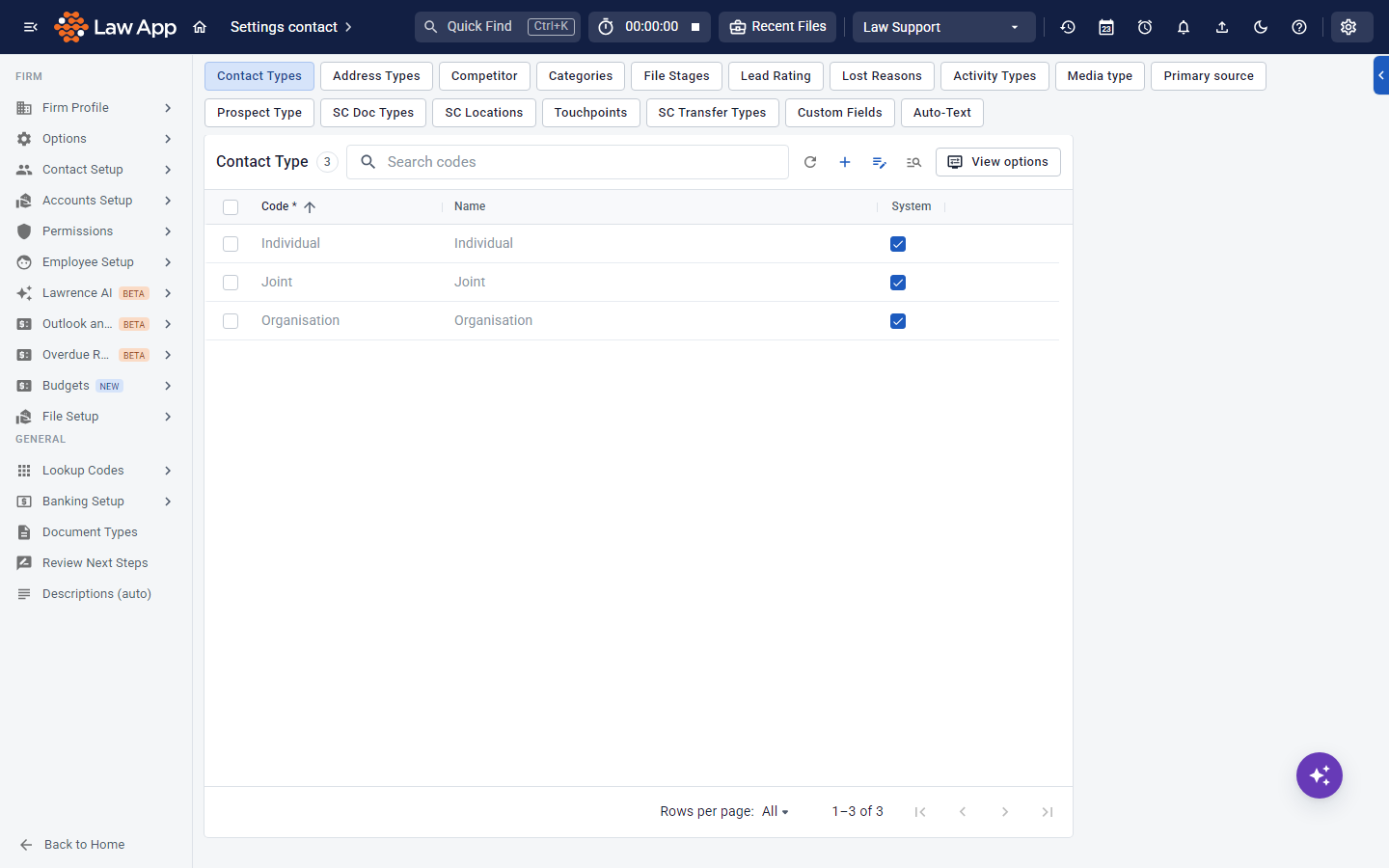
Adding, changing and archiving a value
- Add: click the + button, type a Code (short, unique) and a Name (what people see), then save.
- Change: click the edit button, change the name, then save. Contacts that already use the value show the new name.
- Stop using a value: tick Archived. It no longer appears as a choice, but contacts that already have it keep it. Archive rather than delete anything that has been used.
- System rows (ticked in the System column) are Law App’s own. Leave them as they are.
Use the search box to find a value, and View options to choose which columns show.
Contact lists
| Tab | What it’s for and where it shows |
|---|---|
| Contact Types | Individual, Organisation and Joint. These are system types that decide which fields a contact has, so leave them as they are. |
| Address Types | The kinds of address you can add to a contact, such as Home, Postal or Business. |
| Categories | Your own groupings for contacts, such as Client, Barrister, Real estate agent or Referrer. Used to find and filter contacts. |
| Media type | The choices for Media type on a contact’s General tab. |
| Custom Fields | Extra fields your firm wants on every contact, beyond the standard ones. Click Add, give the field a name, a type (text, date, number and so on) and a display label. Custom fields can be merged into templates. See Custom Fields (UDFs) in Law App. |
| Auto-Text | Shorthand that expands into full wording when you type it, such as a short code for a standard description. This is the same list as Settings, Descriptions (auto). See Transaction Descriptions in Law App. |
Marketing lists
These fill the choices on a contact’s Marketing tab, where you record how a client found you and how a lead is going. Primary source also drives the Marketing Source Report.
| Tab | What it’s for |
|---|---|
| Primary source | Where the client came from: Google, a referral, a past client, a sign and so on. |
| Touchpoints | The ways a contact has dealt with your firm, such as a seminar, your website or a phone enquiry. |
| Prospect Type | The kind of prospect, such as a new client or a repeat client. |
| Lead Rating | How promising a lead is, such as Hot, Warm or Cold. |
| File Stages | Where a lead is up to, such as Enquiry, Quoted or Engaged. |
| Lost Reasons | Why a lead didn’t go ahead, such as price or timing. |
| Competitor | Other firms you lost a lead to. |
| Activity Types | The kinds of marketing follow-up you record, such as a call or an email. |
Safe Custody lists
| Tab | What it’s for |
|---|---|
| SC Doc Types | The kinds of document you hold in safe custody, such as Will, Power of Attorney or Title deed. |
| SC Locations | Where packets are kept, such as a safe, a cabinet or an off-site store. |
| SC Transfer Types | The reasons a packet moves, such as released to the client or transferred to another firm. |
Questions
How do I add a new contact category or other contact choice? Go to Settings, Contact Setup, pick the list’s tab, click + and enter a code and name.
How do I remove a choice we no longer use from a contact list? Tick Archived on it. It stops appearing in the list, but contacts that already have it keep it.
How do I add a custom field to our contacts? Go to Settings, Contact Setup, Custom Fields, click Add and give it a name, a type and a display label.
Leave a Reply