
The Marketing Source Report shows where your firm’s work is coming from. For any date range, it shows how many new clients and new files each marketing source and referrer brought in, and how much they’ve earned you in billed fees. It draws on what your team records on each contact’s Marketing tab, so there’s no spreadsheet to keep up by hand.
Before you start
The report can only show what’s been recorded. For each new client, fill in these fields on the contact’s Marketing tab:
| Field | What to record |
|---|---|
| Primary source | How the client found you, for example Google, client referral or an advertising campaign. |
| Primary source date | When they first came to you through that source. This decides which period the client is counted in. |
| Referred contact | The person or business who referred them, if anyone did. |
The sources in the dropdown come from your firm’s own list under Settings > Contact Setup > Primary source. New sources appear in the report straight away, and if you rename one, the report shows the new name.
Running the report
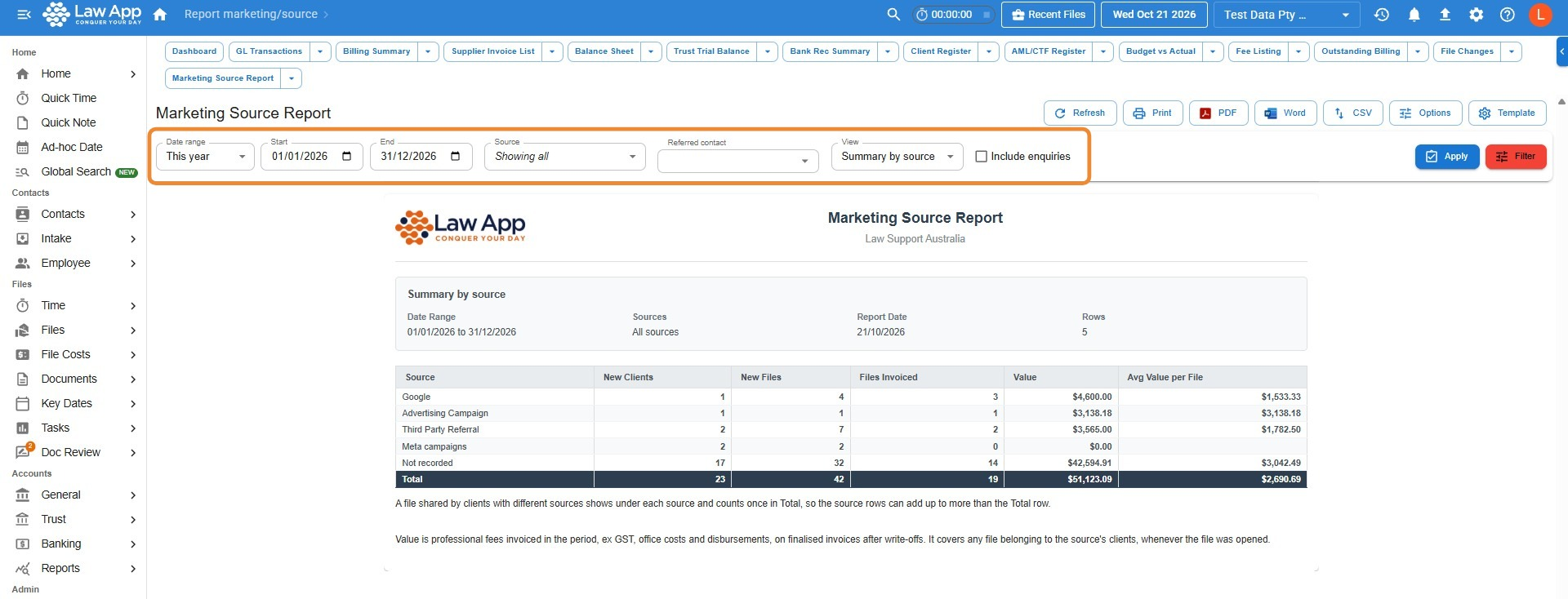
- Go to Reports > Dashboard and click Marketing Source Report.
- Choose a Date range, such as This year, or set your own Start and End dates. Leave the dates blank to report on all time.
- Under Source, leave it on Showing all or pick one or more sources.
- To see what one referrer has sent you, choose them under Referred contact. This is optional.
- Choose a View (see the five views below). Tick Include enquiries if you want to see enquiries too.
- Click Apply.
The five views
| View | What it shows |
|---|---|
| Summary by source | One row per source, with new clients, new files, files invoiced, value and average value per file, plus a Total. The best place to start. |
| By referrer | The same figures for each referrer, grouped under their source. Clients with no referrer show as No referrer recorded at the bottom of each group. |
| New clients | One row per new client, with their source, referrer, source date, files opened and value in the period. |
| New files | One row per file opened in the period, with its client(s), source, referrer, open date and value in the period. |
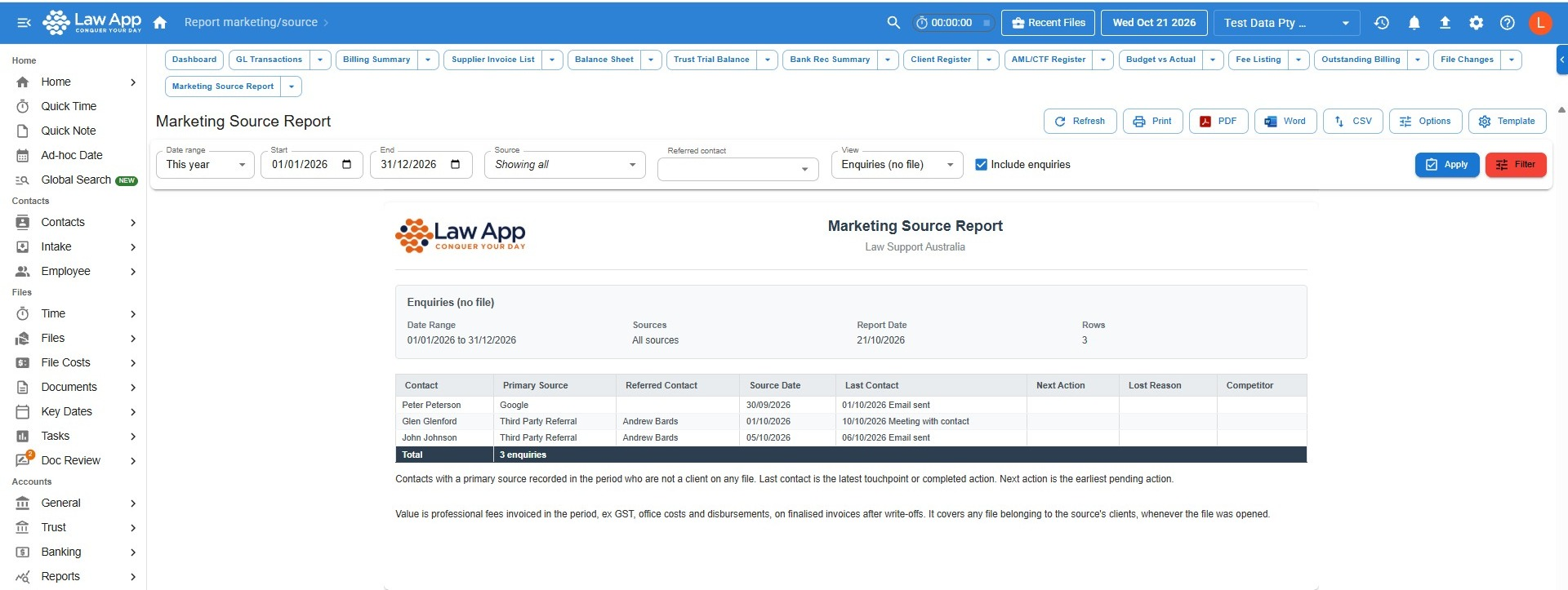
| Enquiries (no file) | People who came to you but haven’t become clients. Only available when Include enquiries is ticked. |
In the list views, names link to the contact and file numbers link to the file, so you can click straight through.
Checking one referrer
Choosing a Referred contact shows everything that contact has sent your firm, whatever source it was recorded under. That’s handy when one referrer’s clients have been recorded under different sources by different staff. You can combine it with Source to narrow it down further. The report header shows the referred contact you chose.
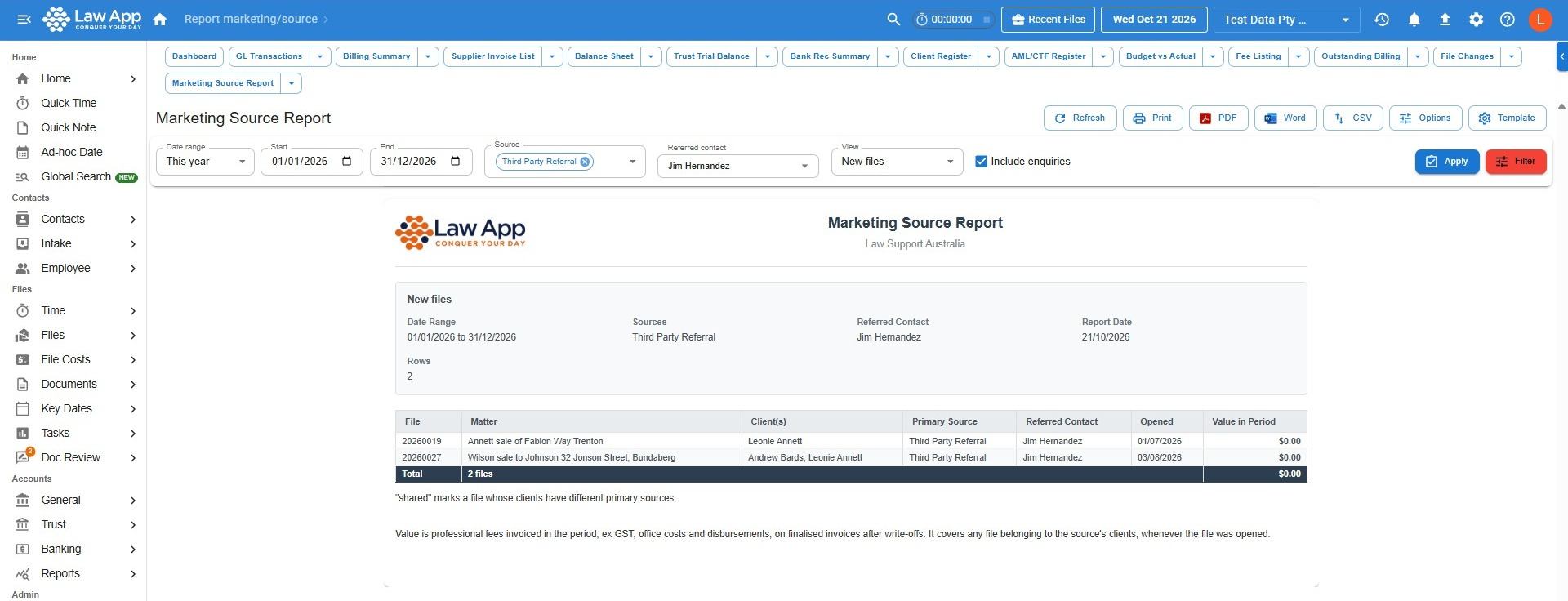 In the New files view, a file whose clients came from different sources is marked shared.
Including enquiries that didn’t become clients
Tick Include enquiries to also see people who came to you through a source but haven’t been opened on a file. It’s off by default, because many firms only fill in the Marketing tab once someone becomes a client.
When it’s ticked:
- The Summary by source and By referrer views gain an Enquiries (no file) column.
- The Enquiries (no file) view becomes available. It lists each enquiry with its primary source, referred contact and source date.
- Where your team has recorded them, it also shows the last contact (the latest touchpoint or completed Todo Action), the next action (the earliest Todo Action still pending), and for lost enquiries, the lost reason and competitor.
 The dropdown options your team picks from on the Marketing tab, such as touchpoint types, lost reasons and competitors, are all set up for your firm under Settings > Contact Setup.
How the figures are worked out
| Figure | How it’s counted |
|---|---|
| New clients | Contacts who are a client on at least one file and whose Primary source date falls in the date range. If the source date is blank, the date the contact was created is used instead, and the New clients view marks them created. |
| New files | Files opened in the date range. |
| Value | Professional fees on finalised invoices dated in the date range, excluding GST, office costs and disbursements, less any write-offs and credit notes. It counts invoices on any of that source’s clients’ files, even files opened before the range. |
| Files invoiced | Files with fees invoiced in the date range. |
| Avg value per file | Value divided by files invoiced. Left blank when no files were invoiced. |
Files with more than one client
Every client on a file counts, not just the first one. If all the clients on a file share a source, the file counts once under that source. If they came from different sources, the file shows under each of those sources, but the Total row only counts it once.
Referrer figures
In the By referrer view, New clients and New files only count the date range. Files invoiced and Value include every client that referrer has sent you whose files were invoiced in the range, so you can see the full value of a long-standing referral relationship, not just this period’s new work.
Printing and exporting
Use the buttons at the top right of the report to Print it, or to create a PDF, Word or CSV copy. Exports follow the view and filters you’ve chosen, and the header lists the filters used, including the referred contact if you chose one.
Common questions
| Question | Answer |
|---|---|
| Why is my Not recorded row so big? | Those clients have no Primary source on their Marketing tab. Open the New clients view, filter Source to Not recorded, and click through to update each contact. |
| A client shows a “created” tag | Their Primary source date is blank, so the date the contact was created was used instead. Add the Primary source date on the Marketing tab for an accurate period. |
| The source rows don’t add up to the Total | A file whose clients came from different sources shows under each source but is only counted once in the Total. See Files with more than one client. |
| Why does a file opened years ago show value this period? | Value is based on the invoice date, not the file’s open date. If that client’s file was invoiced in your date range, the fees count. |
| Why doesn’t Value match the invoice totals? | Value is professional fees only. It leaves out GST, office costs and disbursements, and takes off write-offs and credit notes. |
| I can’t see the Enquiries view | Tick Include enquiries first, then choose Enquiries (no file) under View. |
| How do I add a new source? | Add it to Settings > Contact Setup > Primary source. It appears in the report as soon as it’s used on a contact. |
Leave a Reply