
Follow this guide to quickly generate an Outstanding Debtors report in Law App, so you can see all unpaid invoices across your firm grouped and filtered the way you need.
Opening the Unpaid Invoices report
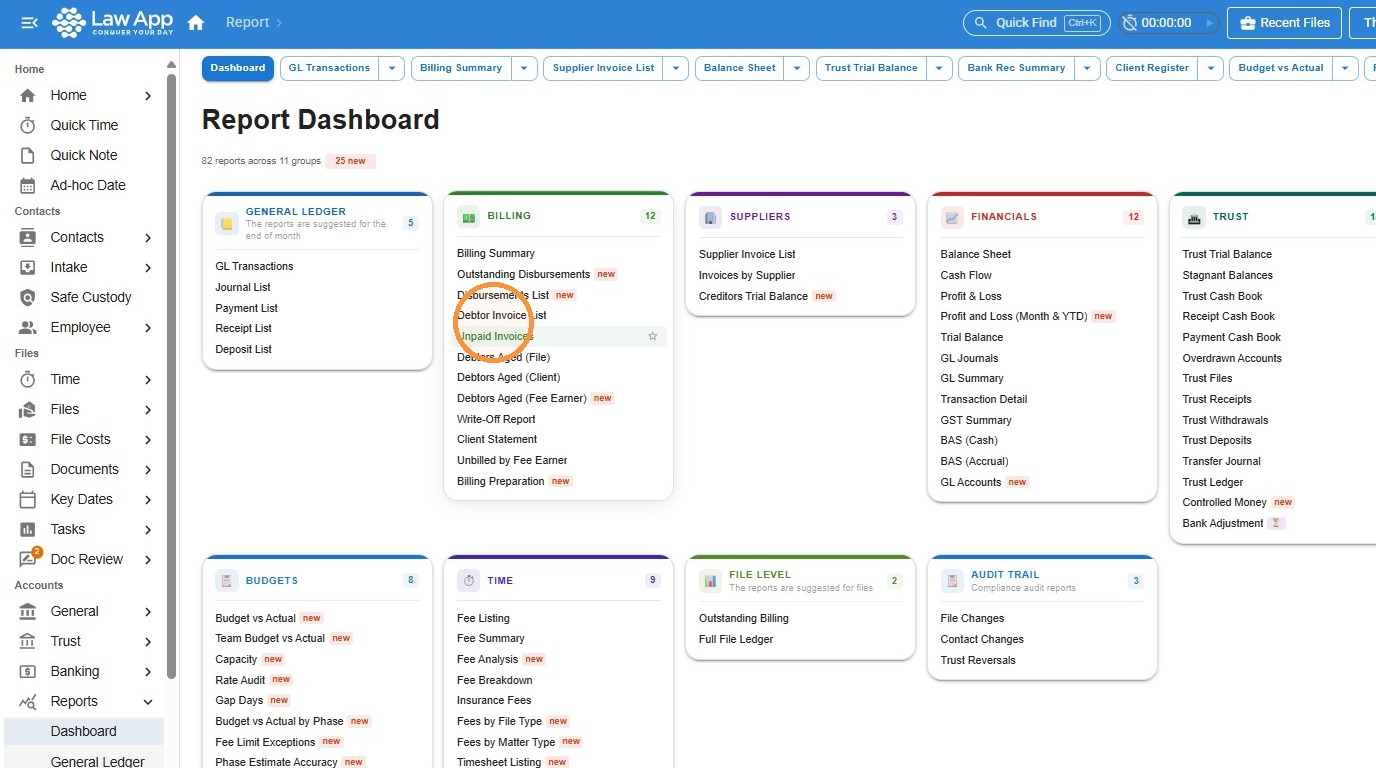
- From the left menu, navigate to Reports, Dashboard. Click Unpaid Invoices.
Note: The reports visible in your dashboard will depend on your user access level — not all reports shown in this screenshot may be available to every user.
Filtering, grouping and exporting the report
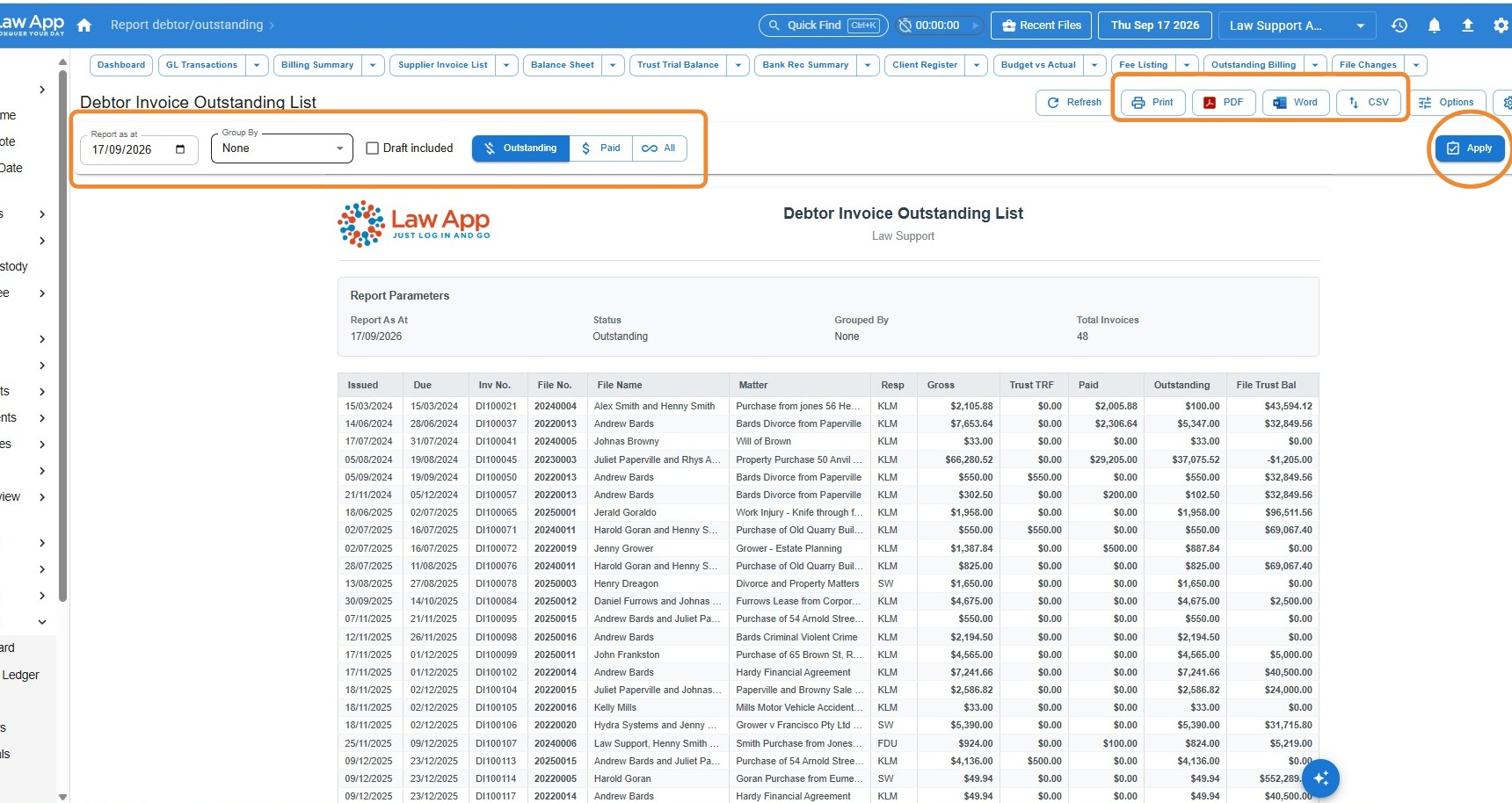
- By default, the report runs as at today’s date and only shows outstanding invoices.
You can choose to run it as at a different date, group by Managing or Responsible Employee, include Draft invoices, or include Paid invoices, simply by using the appropriate filters at the top.
Hit Apply after selecting any of those options.
You can then either print your report, or generate a PDF, Word or CSV copy.
Leave a Reply