
Follow this guide to efficiently access and generate a detailed Billing Preparation report for your firm, which shows unbilled items by file.
Opening the Billing Preparation report
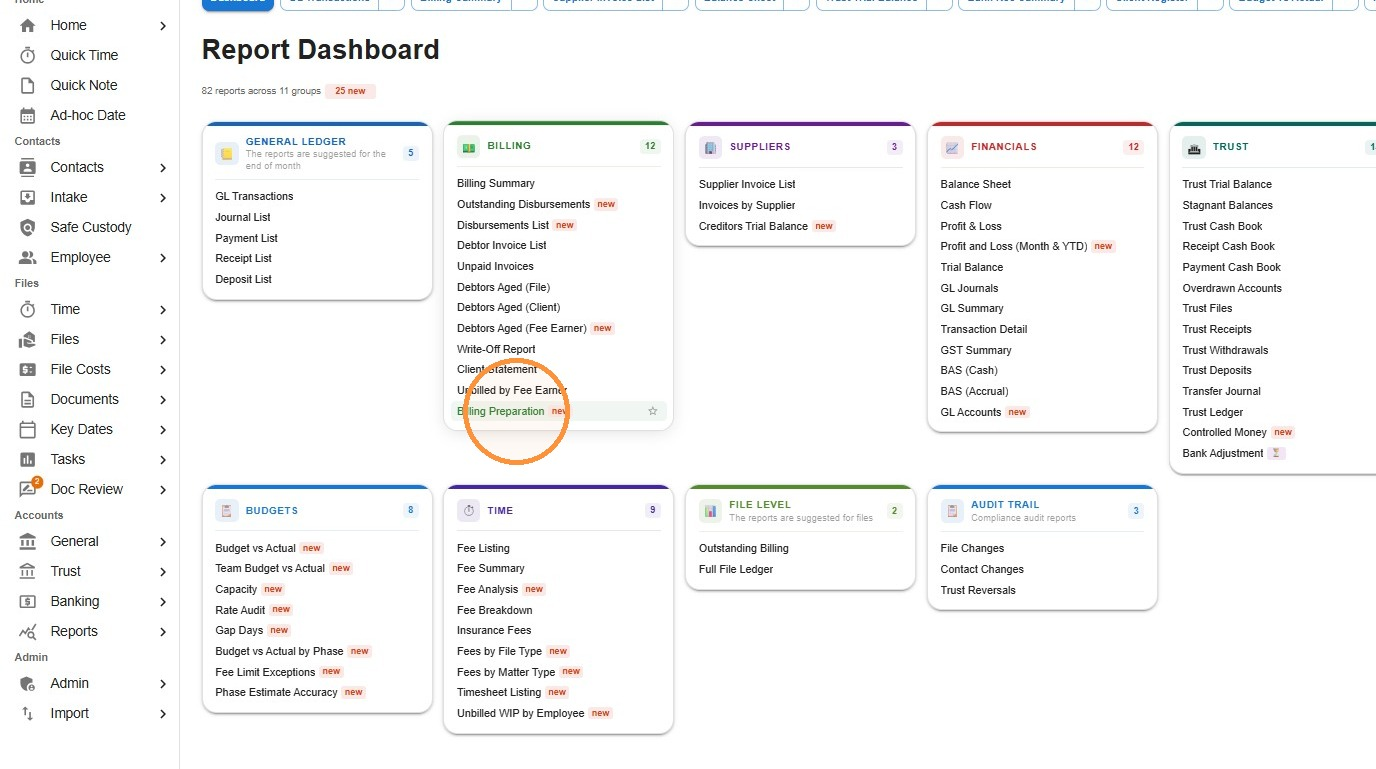
- From the left menu, navigate to Reports, Dashboard. Click Billing Preparation.
Filtering, grouping and choosing your view
-
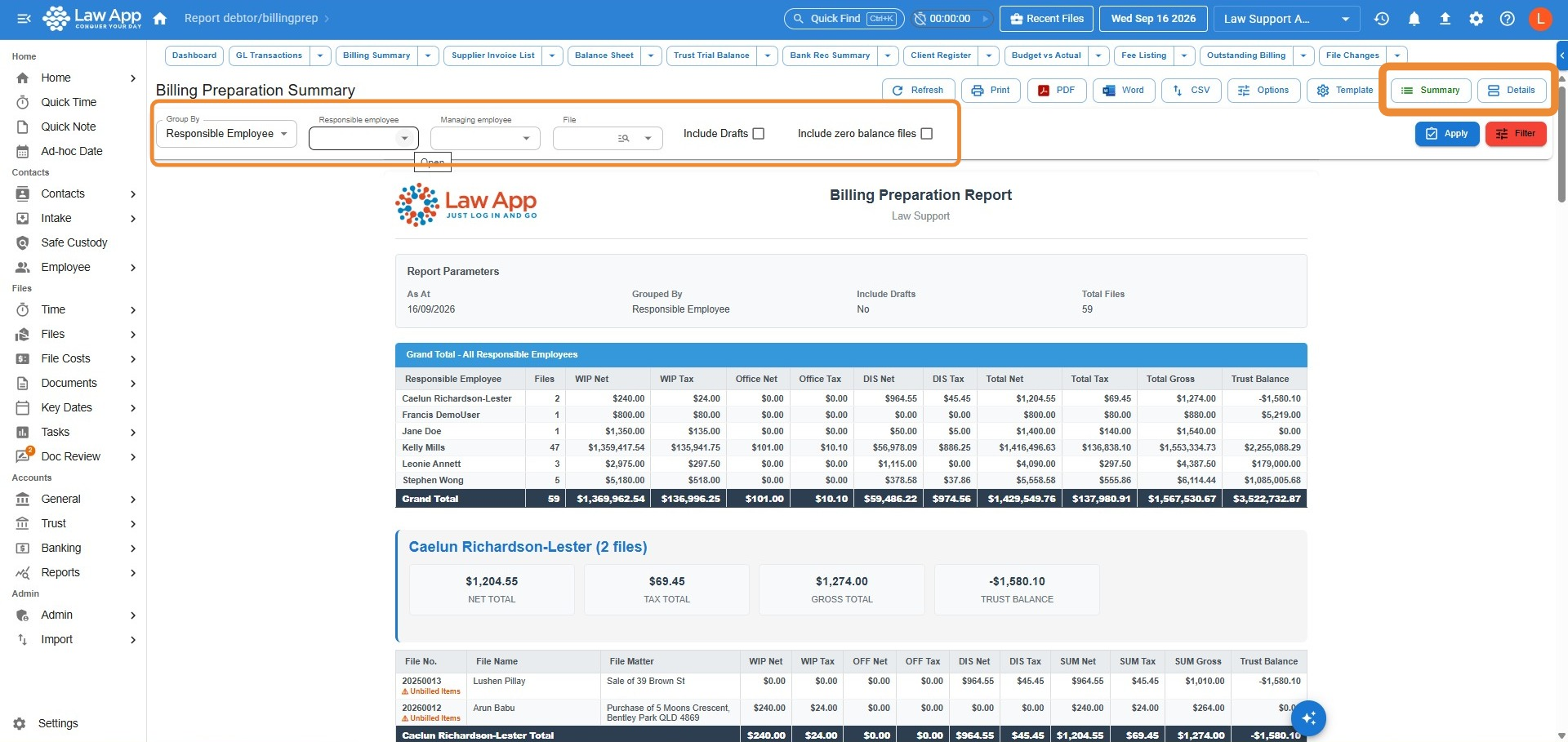
In Group By, you can select how the files in the report are grouped — either by Responsible Employee or Managing Employee.
If you want to narrow the report down and show only files for a specific Responsible or Managing Employee, you can select that employee in the relevant field.
If you want to run the report for one specific file, you can search for and select the file in the File field.
You can choose to include Draft timesheet entries in the report, or include Zero Balance files, simply by ticking the relevant box.
Hit Apply after selecting any of those filters.
You can choose whether to run the report showing either a Summary balance of the unbilled items on each file, as shown in this example, or a detailed list of unbilled items by selecting Details.
Viewing the detailed unbilled items
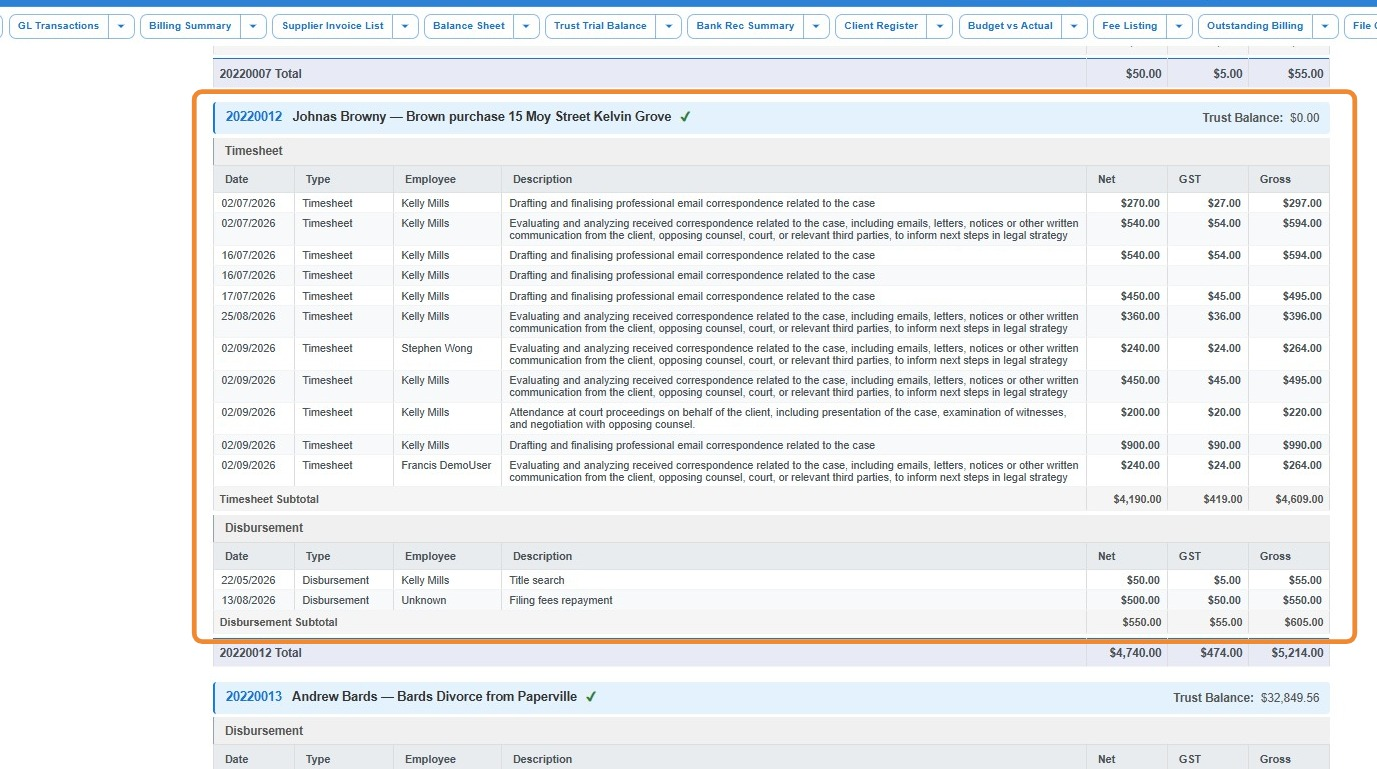
- When the report is run with the Details filter selected, you will see all individual unbilled items for each file.
Exporting or printing the report
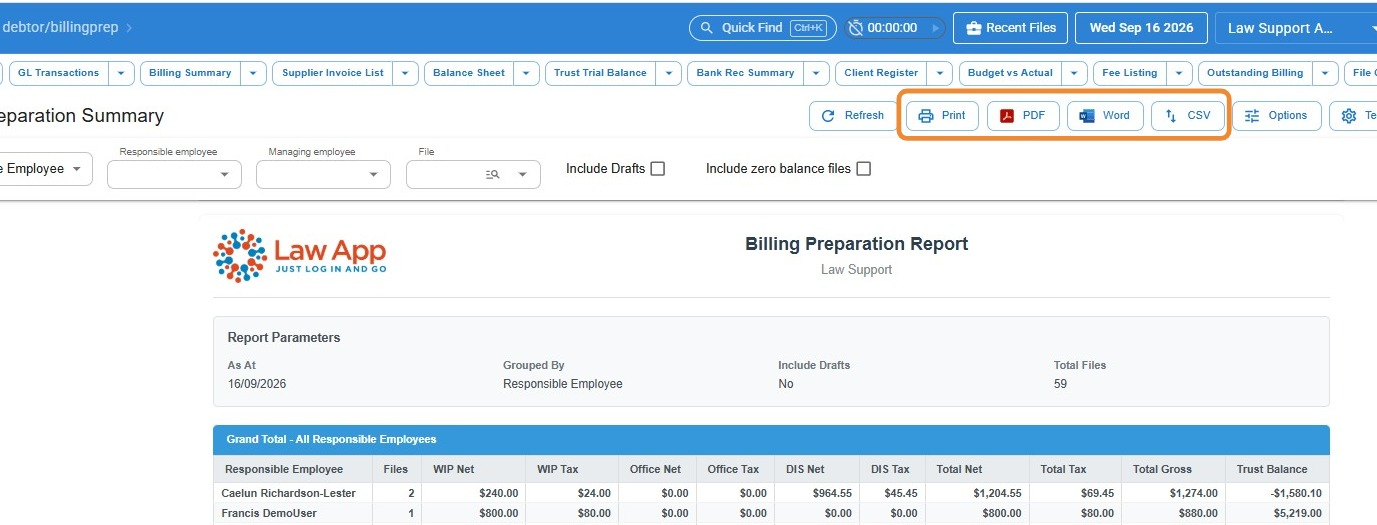
- You can either print the report from here, or generate a PDF, Word or CSV copy of the report, by clicking the relevant button.
Leave a Reply