
Archiving a file moves it out of your active list once a matter is finished, keeping your working files easy to find while still preserving the record. This guide covers how to archive and unarchive a file, set up archive locations, and configure the numbering system your archive numbers are generated from.
How to archive a file
- Prepare the file for archiving.
Navigate to the Financials area of the file and confirm all financials are at zero:
• Disbursements: fully billed, written off, or settled
• Outstanding debtors: cleared
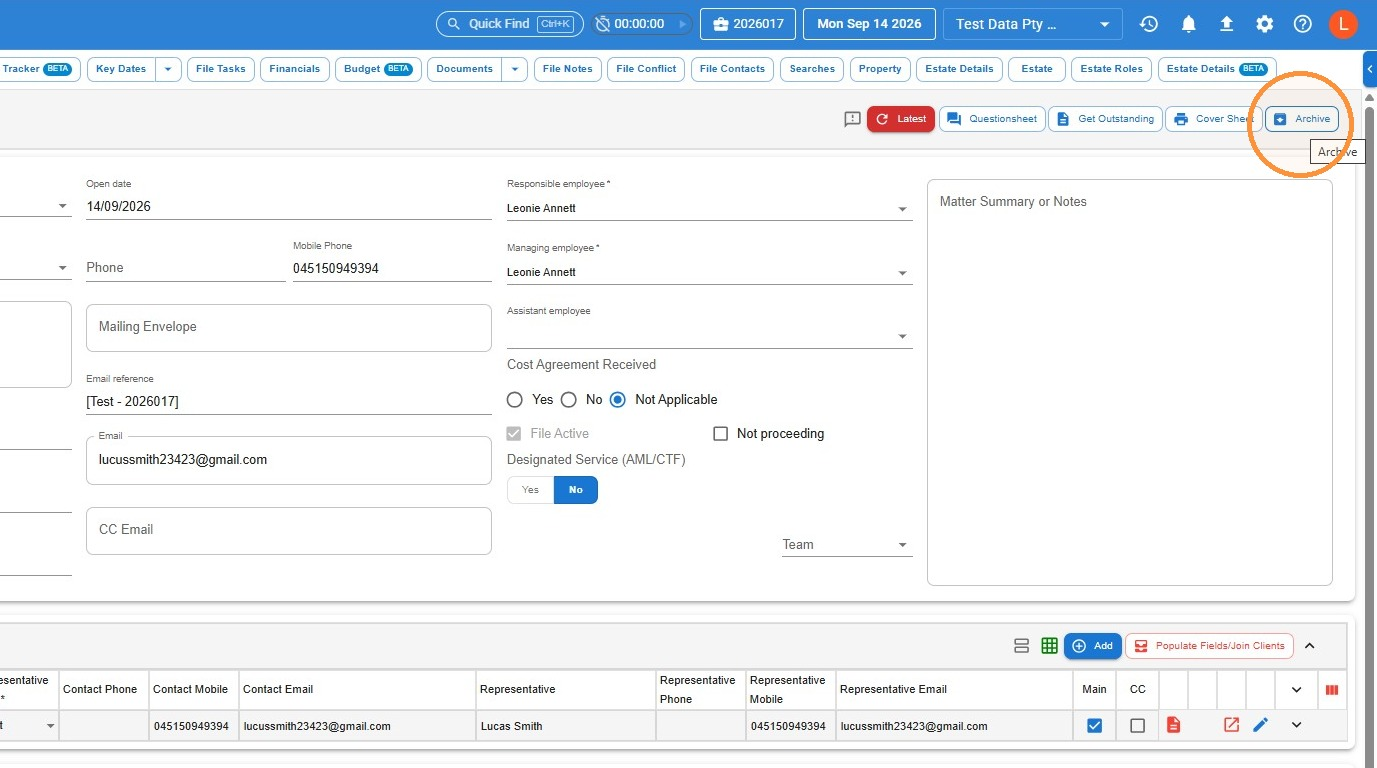
• Trust balances: refunded or transferred appropriately - Once financials are clear, click Archive at the top right of the file.
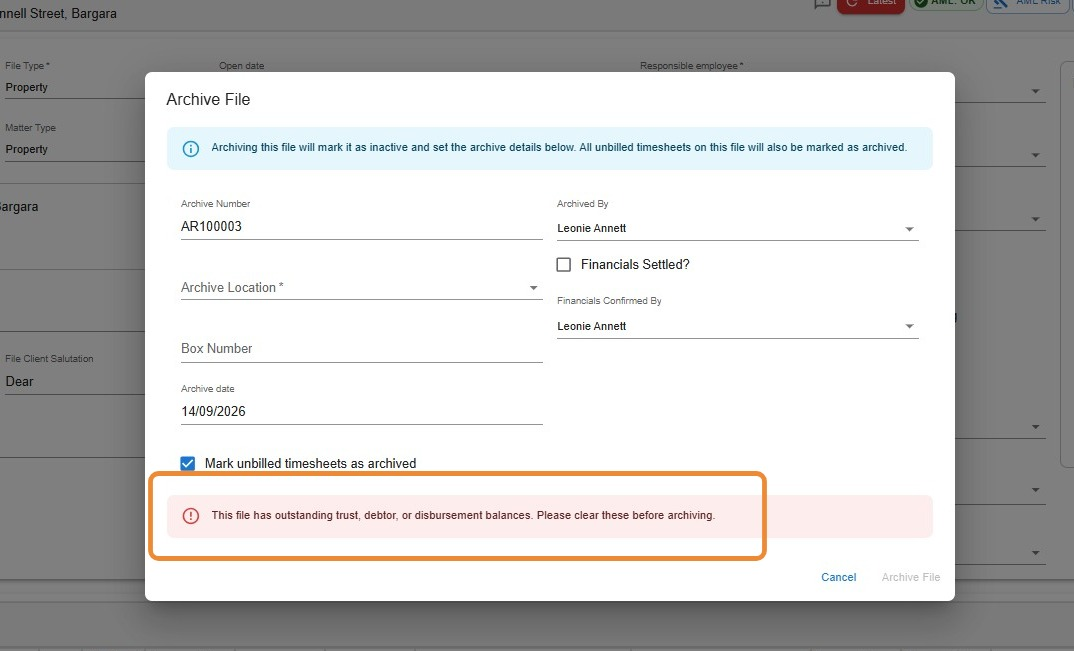
If financials aren’t fully cleared: Law App will show a warning and won’t let you archive the file until the outstanding trust, debtor, or disbursement balances are resolved.
- Configure the archive file options.
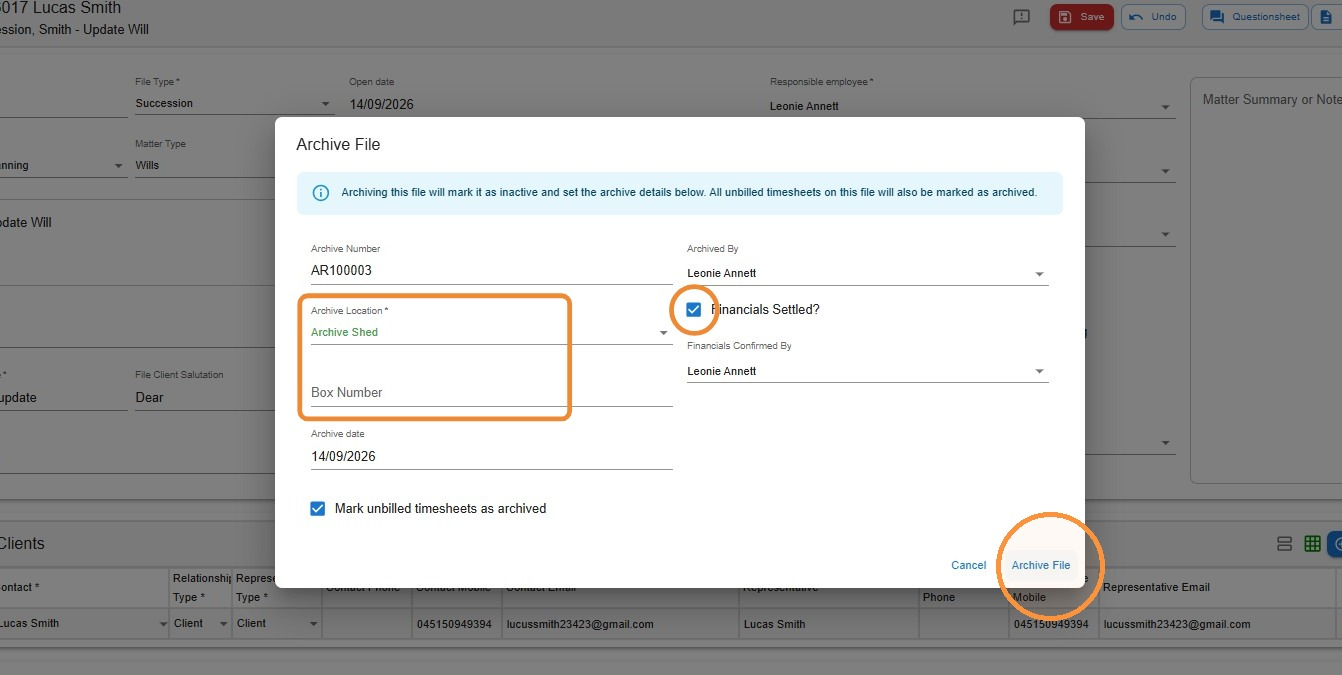
The Archive File window opens automatically. Fill in:
• Archive Number — generated automatically from your firm’s archive numbering settings. Only an Admin can change this, under Admin > Transaction Sequences (see Set up your archive numbering system below).
• Archive Location — choose one from the drop-down. If no location appears yet, you’ll need to add one first — see Archive Location Setup below.
• Box Number — optional. If your firm groups archived files physically by box for storage, enter the box number here.
• Financials Settled? — tick this checkbox to confirm all financials are cleared. Law App records who ticked it and when, so only tick it once you’ve checked. - Click Archive File to finish.
How to locate and unarchive an archived file
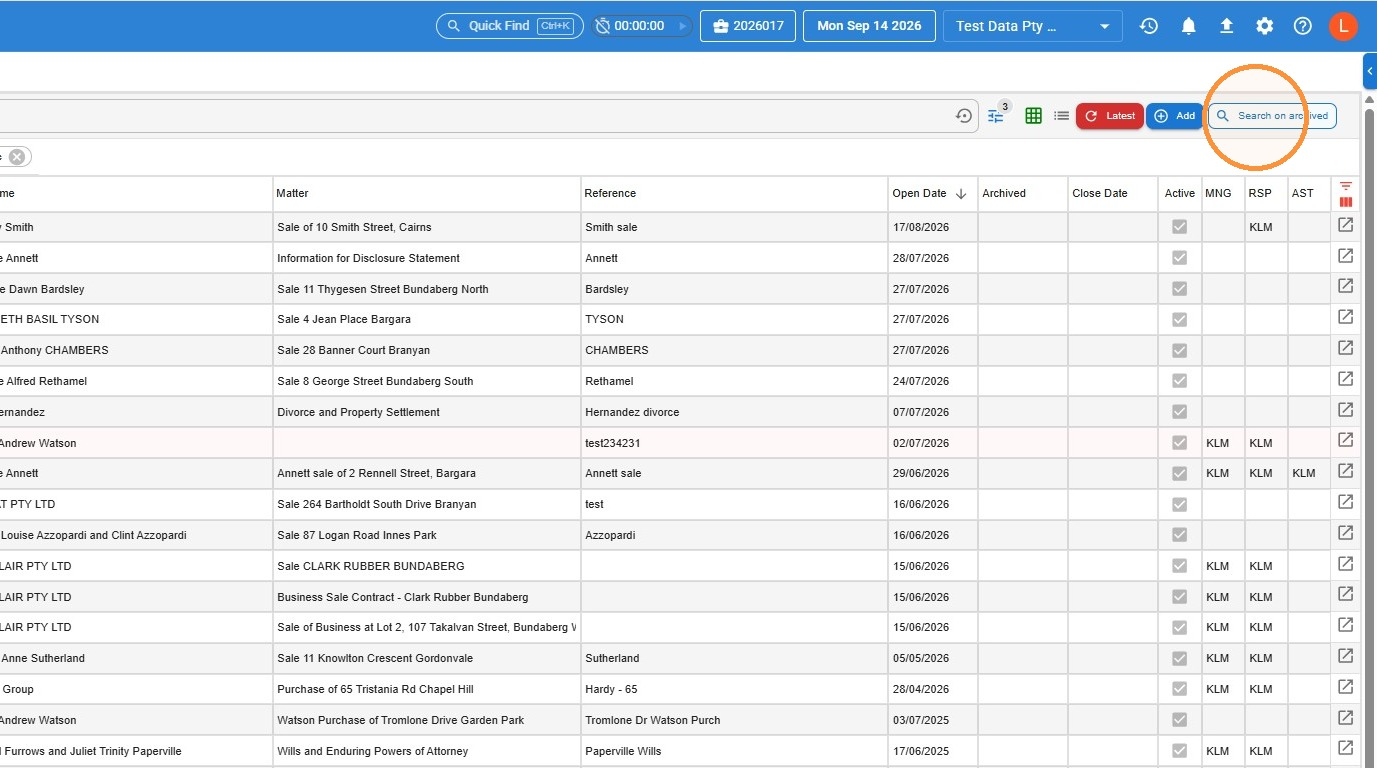
- To find an archived file, click Search on archived, then search by file number or keyword as usual.
Tip: You don’t need to unarchive a file to view the data stored on it.
- To unarchive the file, open it and tick Unarchive.
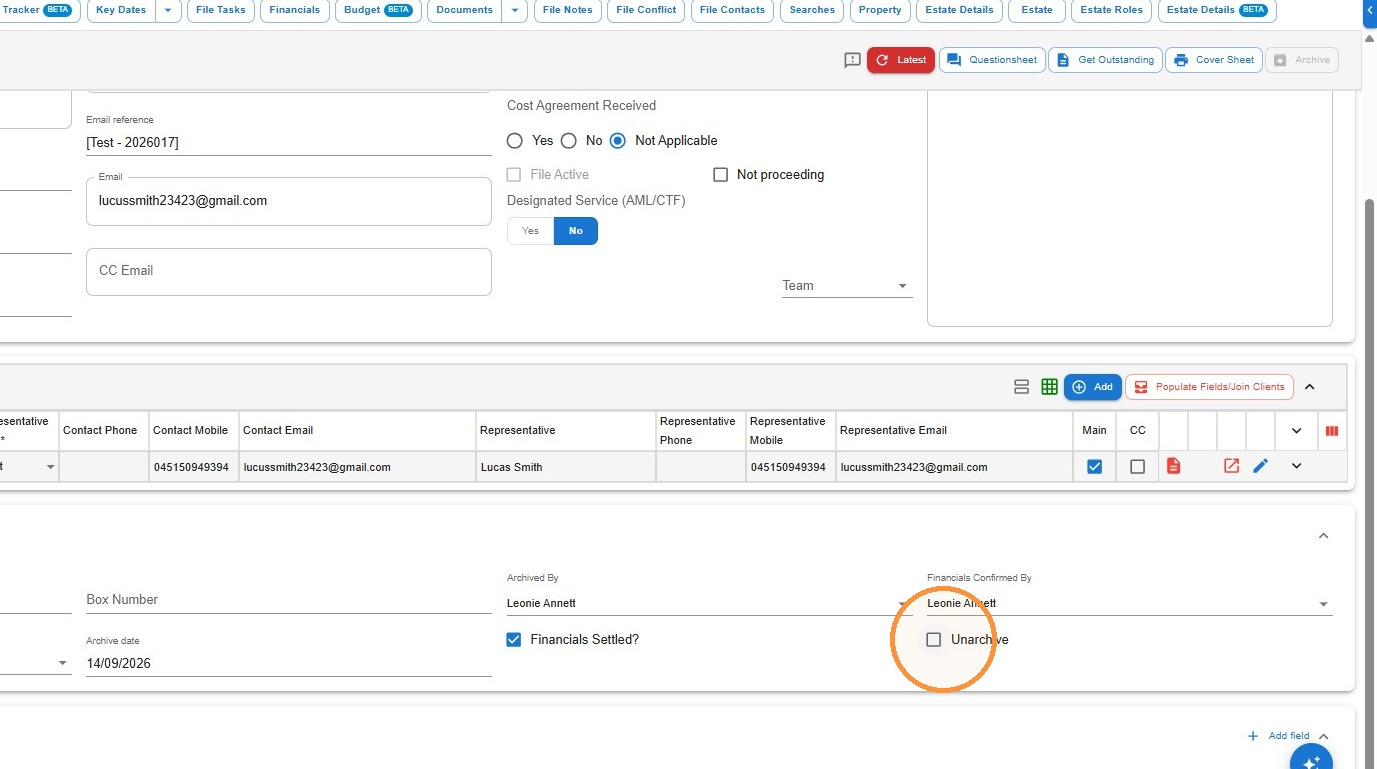
- Click away from the box, then click Save.
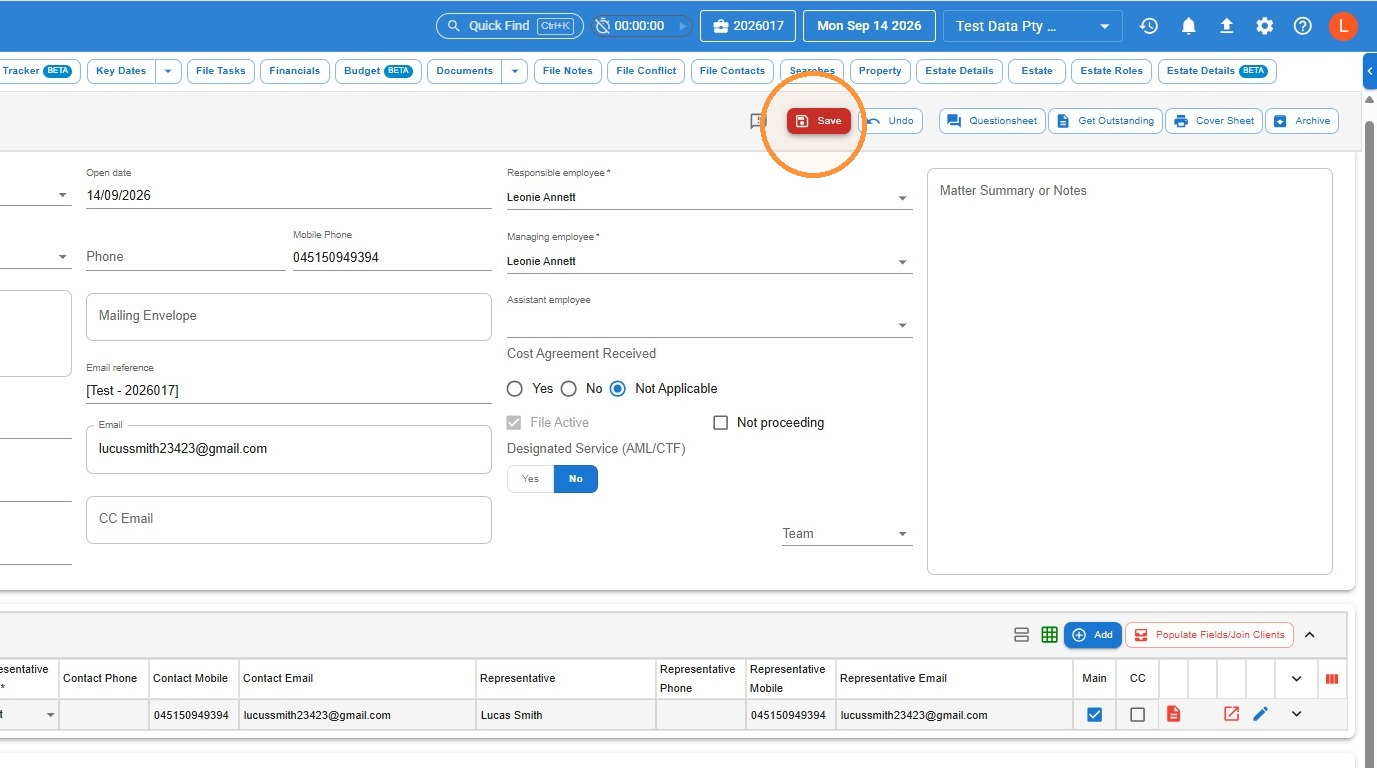
Don’t forget to save. If you don’t save, the file will remain archived.
To re-archive the file later, follow the archive steps above again — Law App will retain the archive settings (archive location, box number, etc.) from the previous archival.
Archive Location setup
- Navigate to Settings > File Setup > Archive Locations.
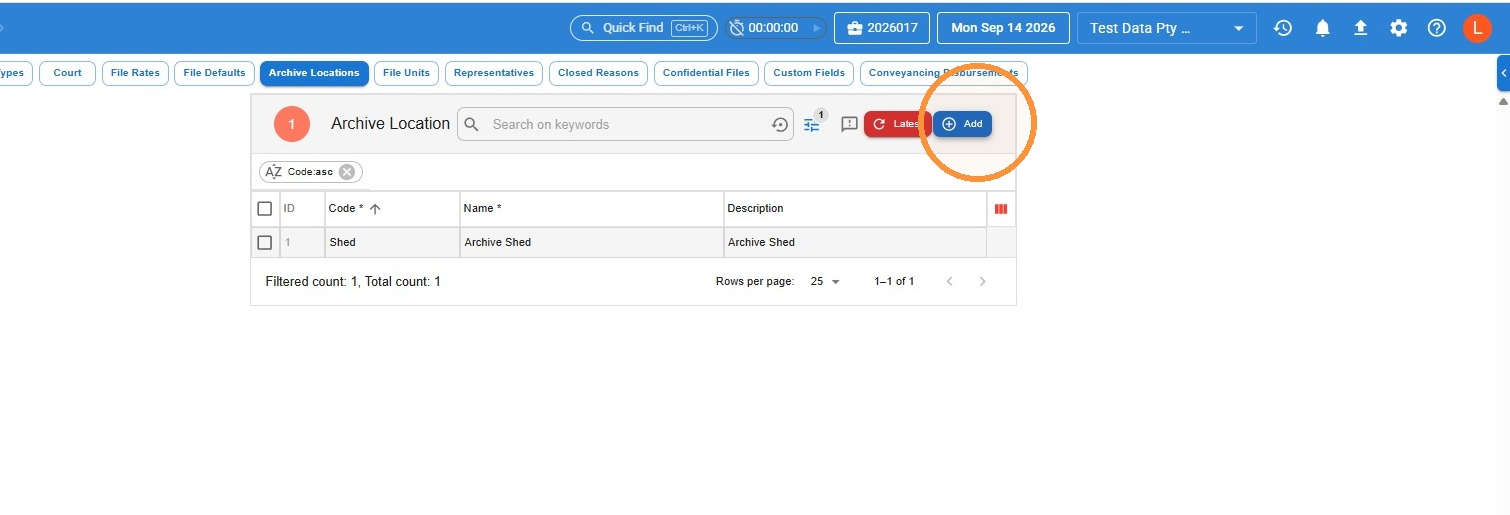
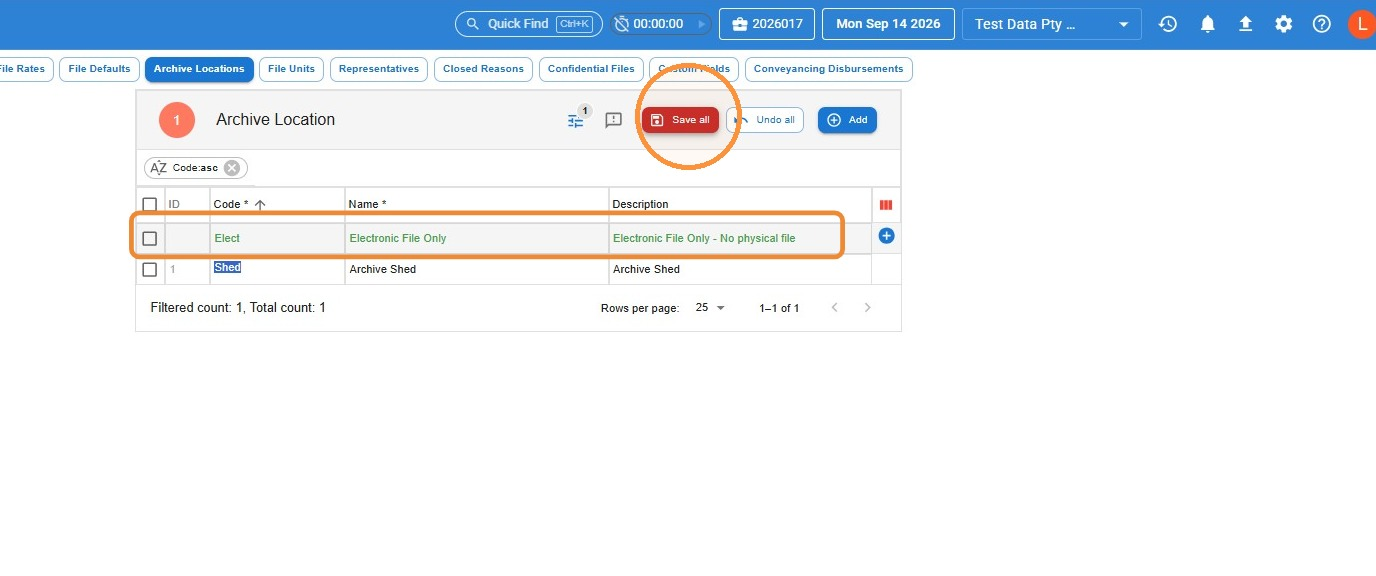
- Click Add and complete the Code, Name, and Description fields to set up the location you need, then click Save all.
Set up your archive numbering system
Admin only: only an Admin on your team can complete these steps.
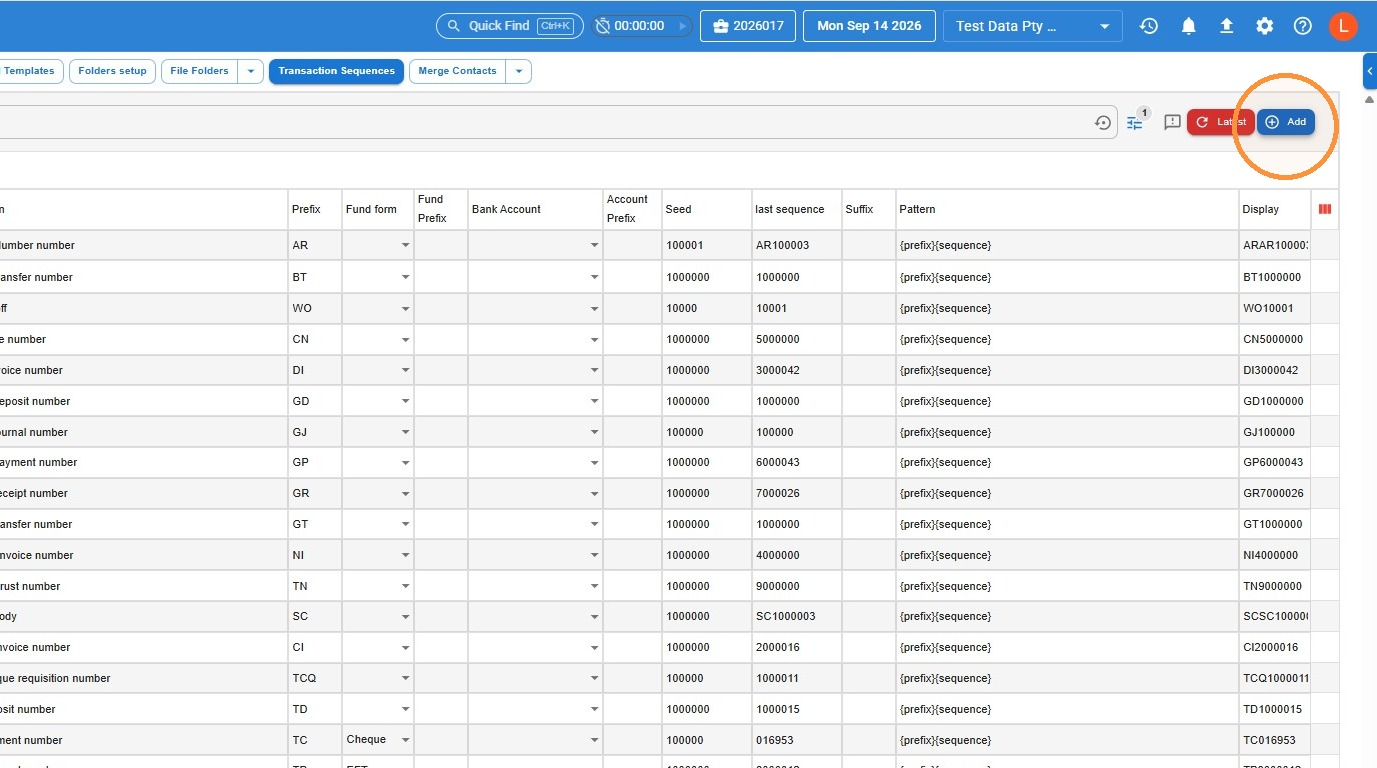
- Go to the Admin section from the left-hand main menu, then Transaction Sequences. Click Add.
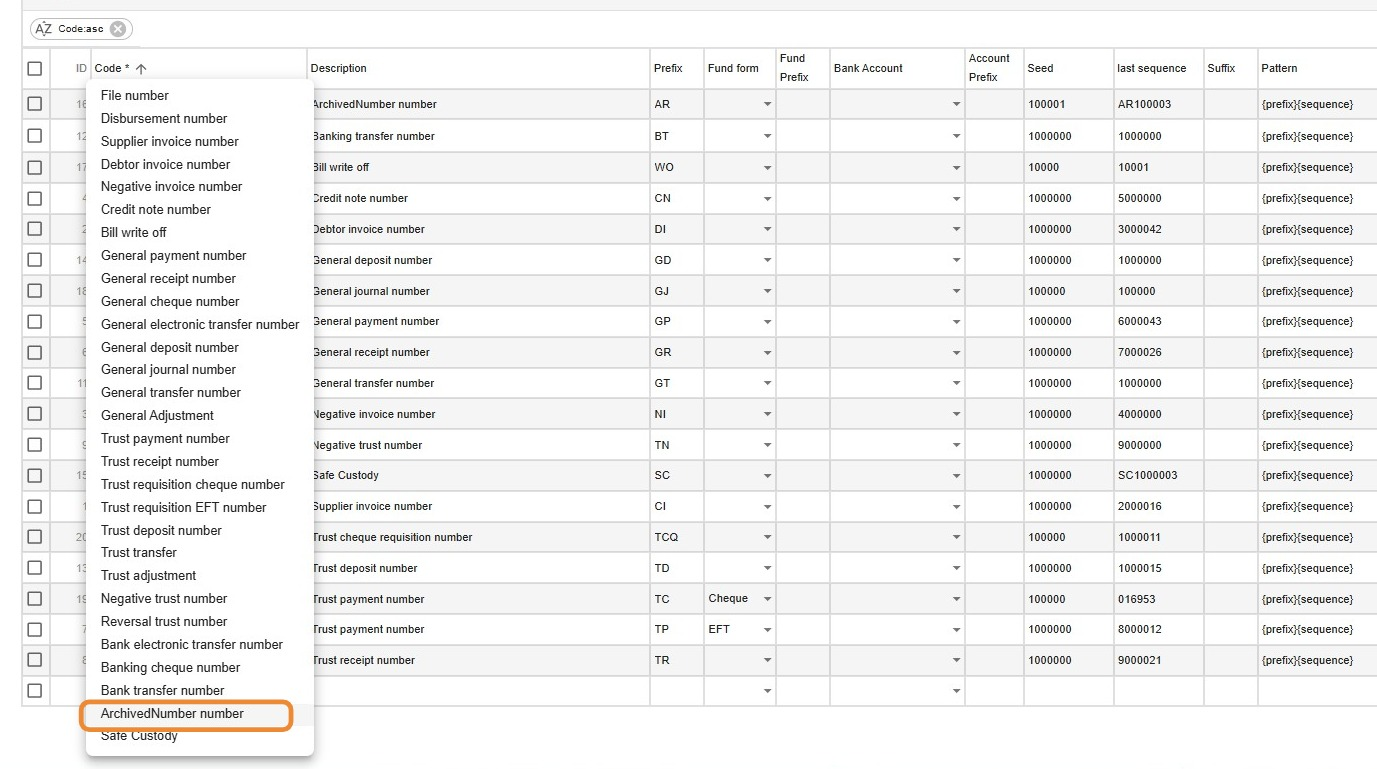
- From the Code drop-down, choose ArchivedNumber number.
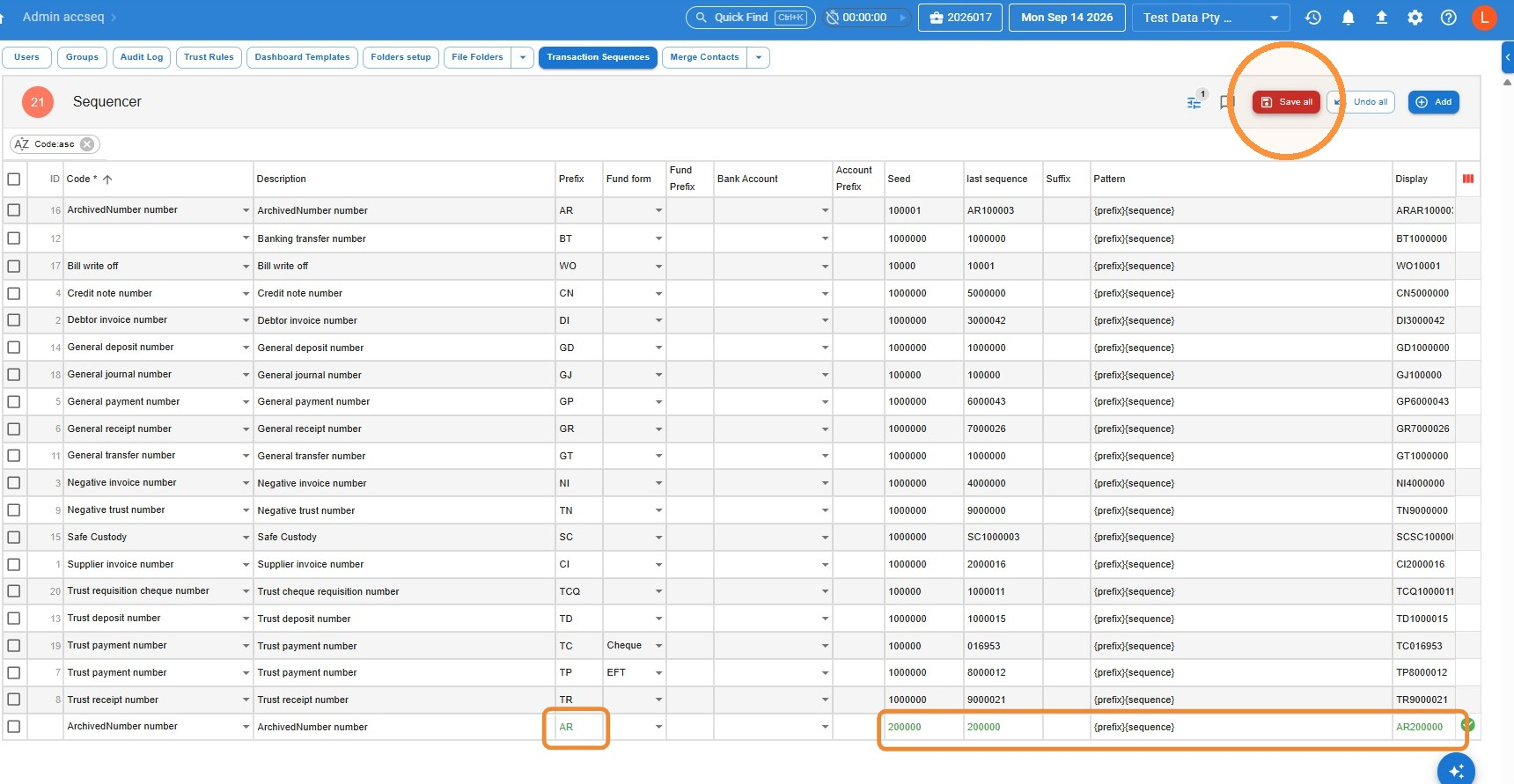
- Type a prefix of your choice (for example, AR), fill in your seed sequence, and make sure the Pattern field reads {prefix}{sequence}. This is what generates your archive numbers in the format AR200001 — the prefix followed by the sequence number.
Click Save all.
Leave a Reply