
You can download individual documents or multiple documents at once from the Documents section of your file in Law App.
Downloading a Single Document
- Open the Documents section on your file.
- Locate the document you want to download.
- Click the download icon next to the document, or right-click and select Download.
- The document will save to your Downloads folder.
Downloading Multiple Documents at Once
To download a selection of documents in bulk:
- Go to the Documents section on your file.
- Increase the Rows per page setting to the maximum (100 is recommended) so more documents are visible on screen at once. This option is at the bottom right of the document list.
- Tick the checkbox next to the word “Documents” at the top of the list to select all documents currently visible on screen.
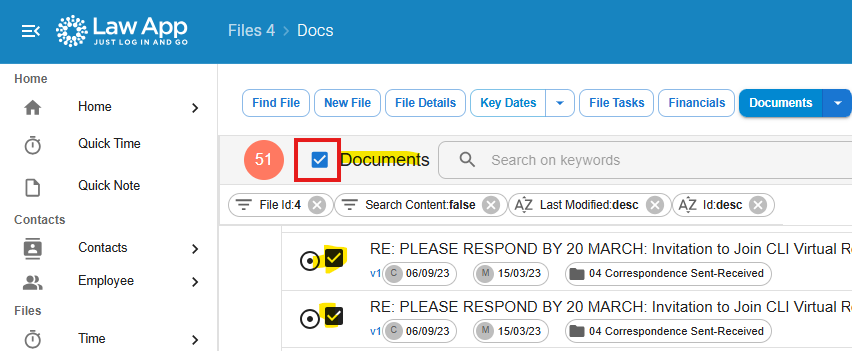
Tick the checkbox next to “Documents” to select all documents on screen.
- If you only want specific documents, tick the checkbox next to each individual document instead of selecting all.
- Right-click on any selected document and choose Download Selected. All selected documents will download to your Downloads folder.
- If your file has more than 100 documents, go to the next page and repeat the process until all documents have been downloaded.
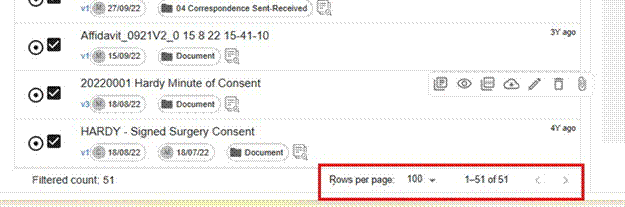
Set Rows per page to 100 at the bottom right, and check the total document count shown.
Tip: Before you start downloading, create a new folder in your Downloads folder and name it with your file number. Then set your browser’s download destination to that folder. This keeps all your documents organised in one place instead of scattered individually through your Downloads folder.
Leave a Reply