
Merge fields not populating in a Law App document almost always comes down to missing information in Law App itself, not a problem with the template. Before editing a document by hand, check the Preview Merge Fields screen for blanks — it shows exactly which fields haven’t drawn data, so you know where to go and fix it.
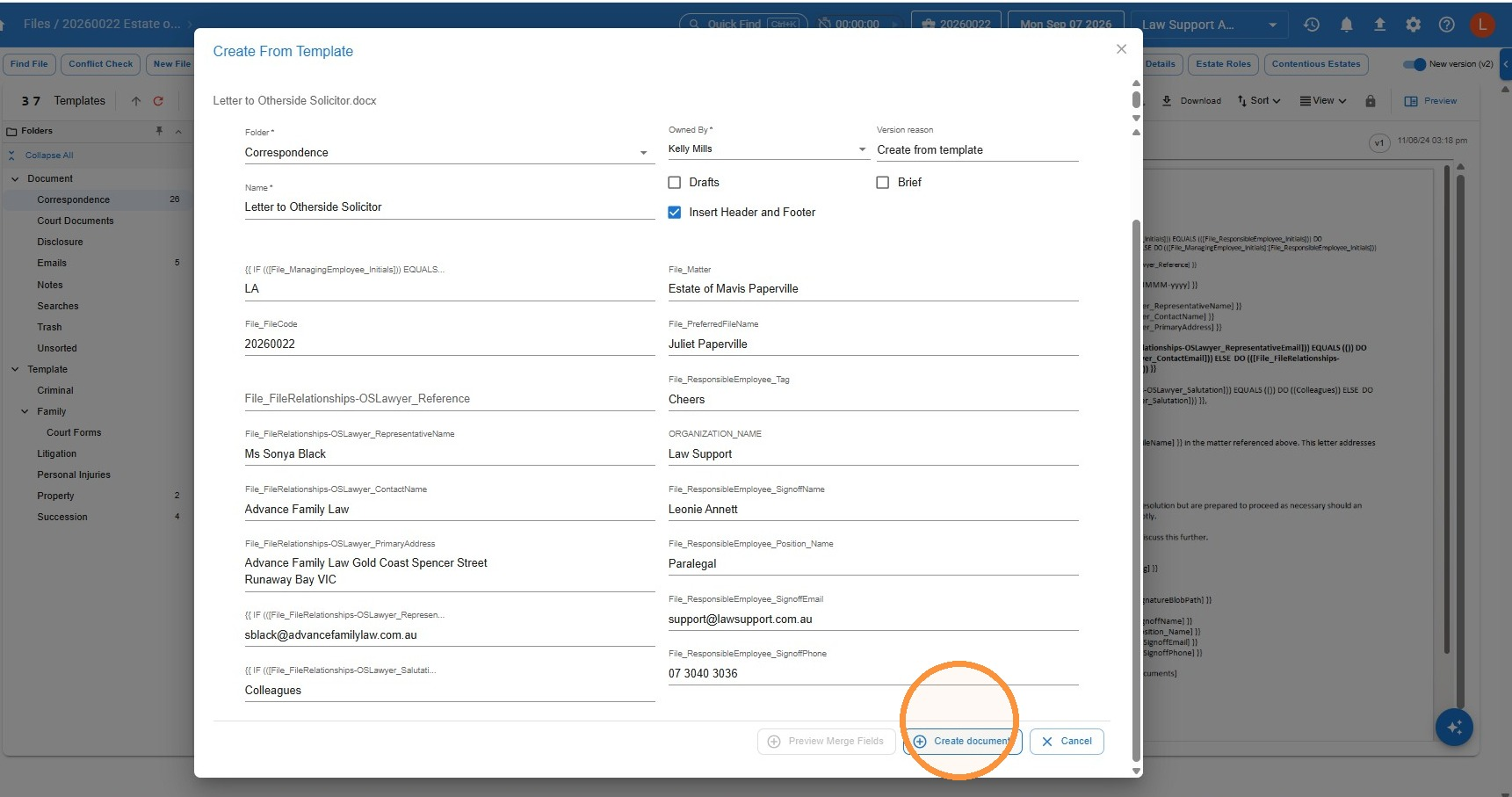
Tip: The Preview Merge Fields screen appears when you create a document from a template, before the document is generated. Review every field listed — if one is blank, it’s generally because that information hasn’t been entered on the file or contact yet. You can type directly into the field to complete it for this document, but it’s worth heading back to the file or contact afterwards to fill it in there too, so it’s ready next time.
Common reasons merge fields don’t populate
- File contacts often need a second Representative Type ticked. Your client should always have Client ticked, but many forms also need a party-specific type — such as Buyer, Seller, Applicant, Respondent or Executor — ticked as well. Some forms use client-specific merge fields and others use party-specific merge fields, and without that second type ticked, Law App has no way to tell which party the contact is in the matter.
- Changes to a contact’s details — such as their address or email — won’t flow through to a file they’re already linked to unless you save with Update Relationships/Contact. Choosing Update Contact Only saves the change to the contact record alone.
- Solicitor details on a form — such as email, phone or address for service — are pulled from the employee’s card under Employee > Active. If these fields are blank in your document, they’re usually just missing from that employee’s card.
Leave a Reply