
A file note keeps a record of what happened on a matter — a call, an update, an instruction — attached to the file itself. In Law App you can add one two ways: from Quick Note without opening the file, or from within the file’s File Notes list. Both save to the same place, so you can find, print or remove them later.
Quick Note
Add a note straight from the left-hand menu without opening the file first — handy when you’re taking a call and need to log it quickly.
Within the file
Add the note from the file’s own File Notes list — use this when you’re already working in the file and want to see previous notes alongside it.
Adding a file note with Quick Note
Quick Note lets you log a note against a file without navigating into it first.
- In the left-hand menu, click Quick Note.
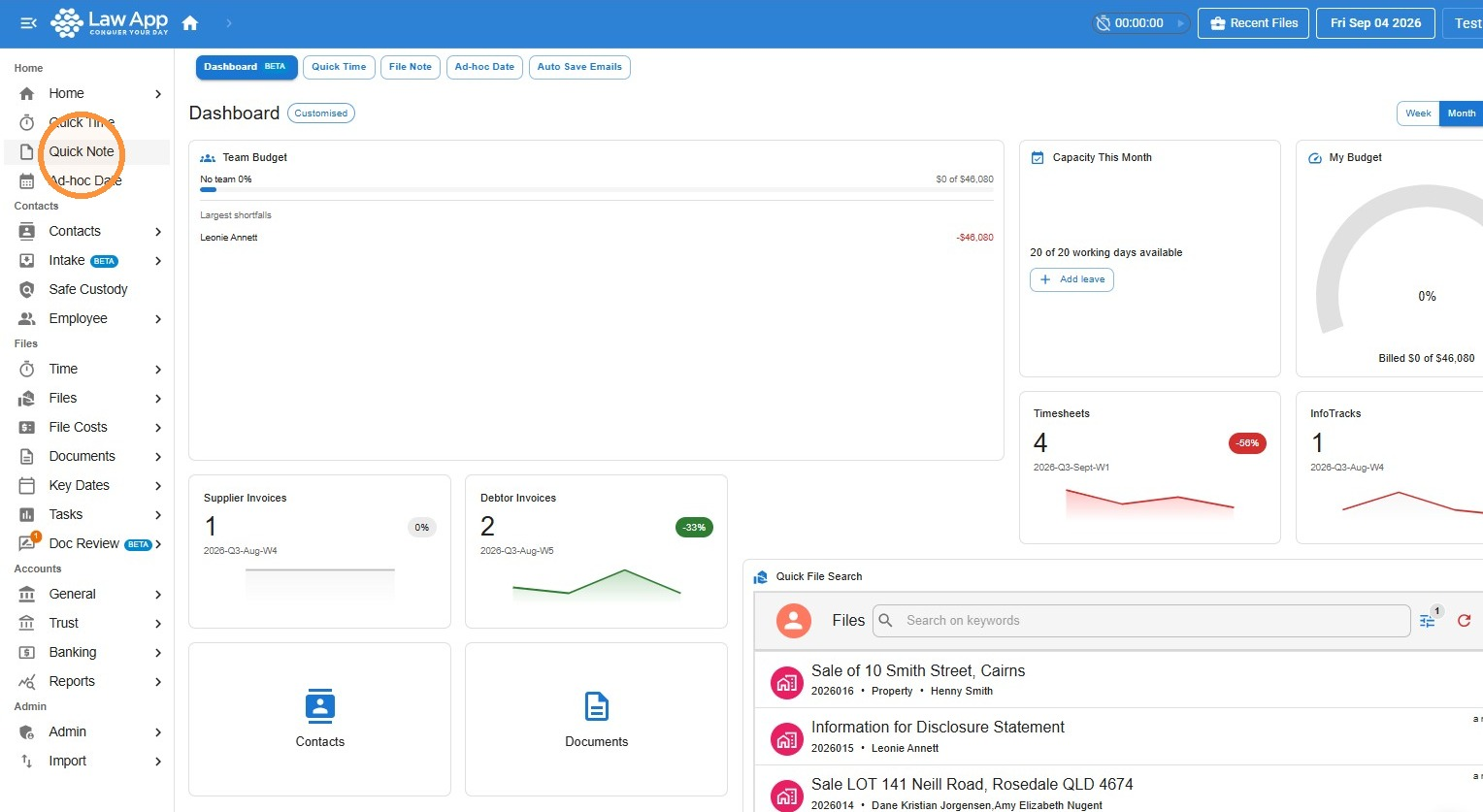
- Enter the file number in File, or search by client name, then type the details of your note and click Save.
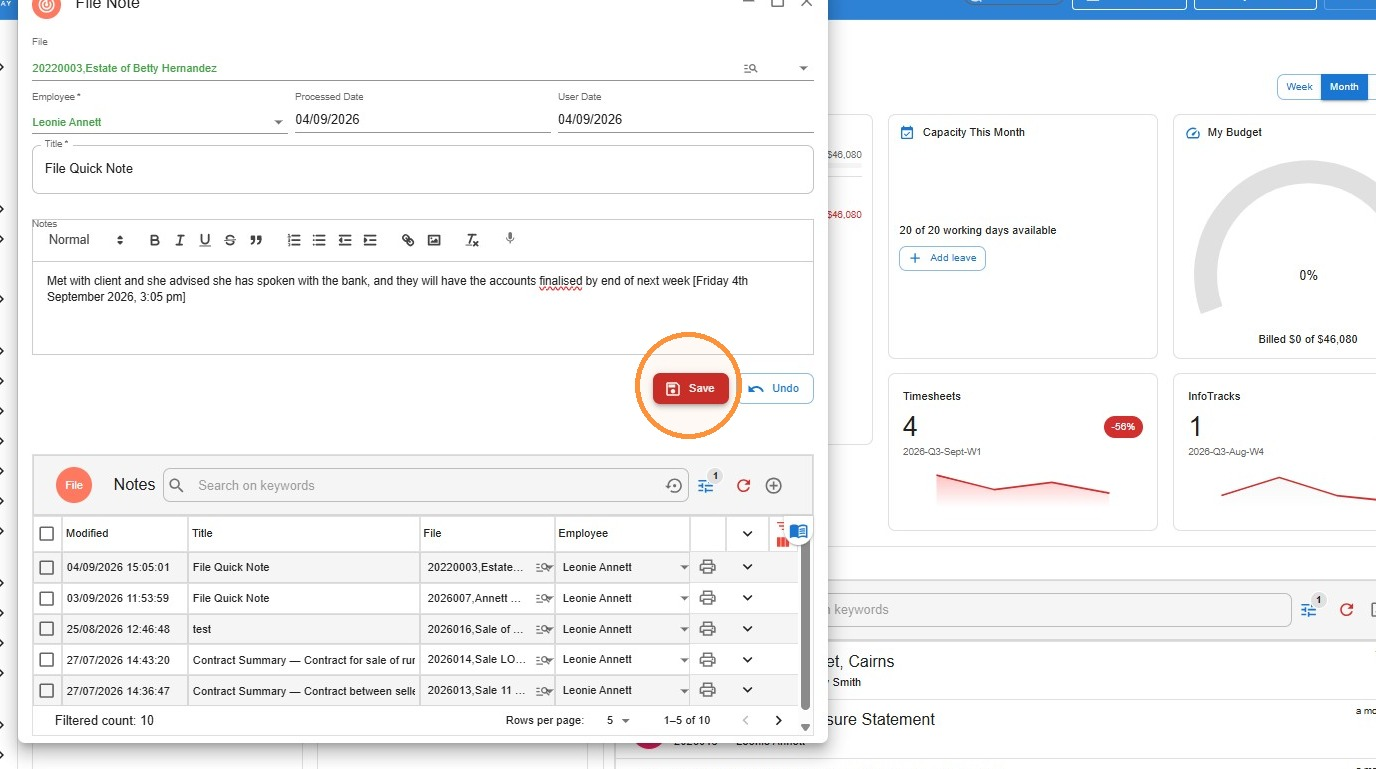
Adding a file note within the file
If you’re already working in a file, add the note directly from its File Notes list.
- Open the file and go to File Notes, where you’ll see any previous file notes and quick notes already on the file.
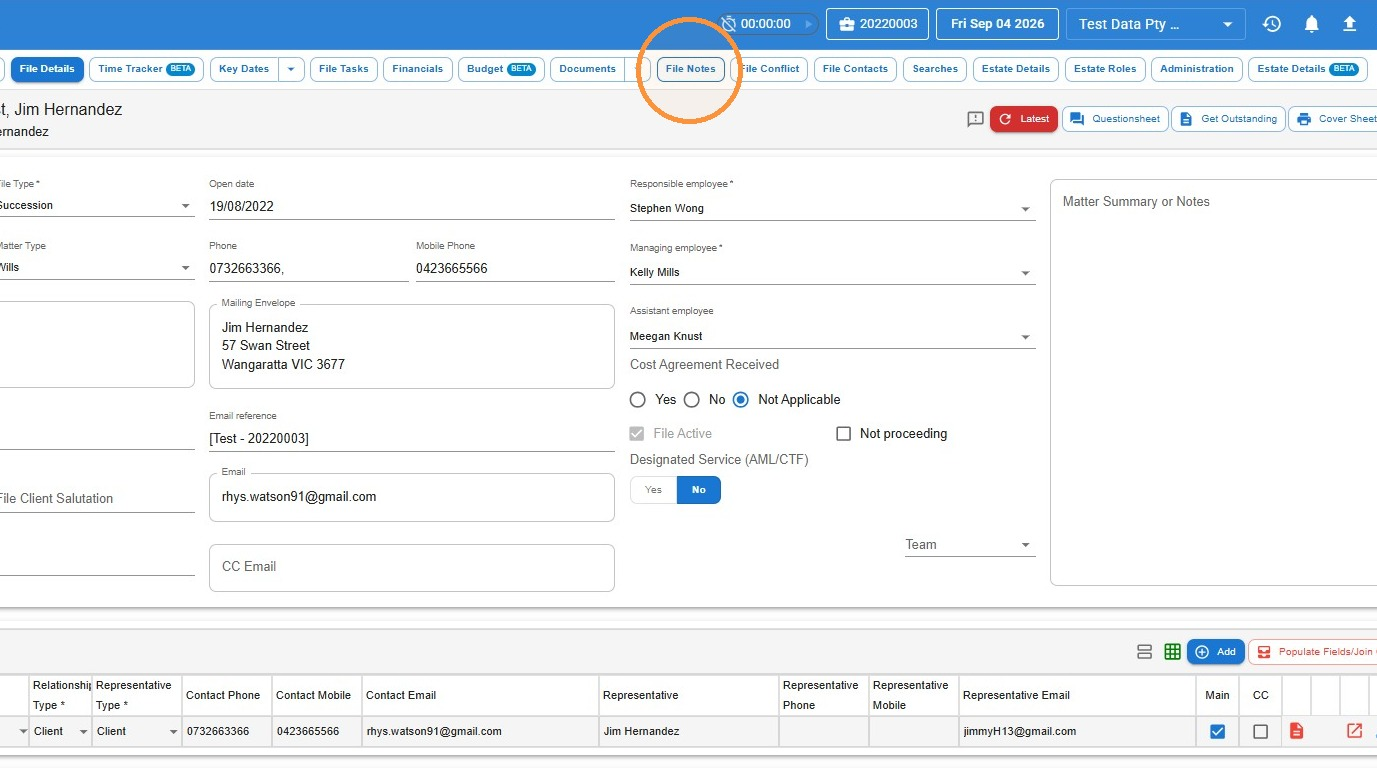
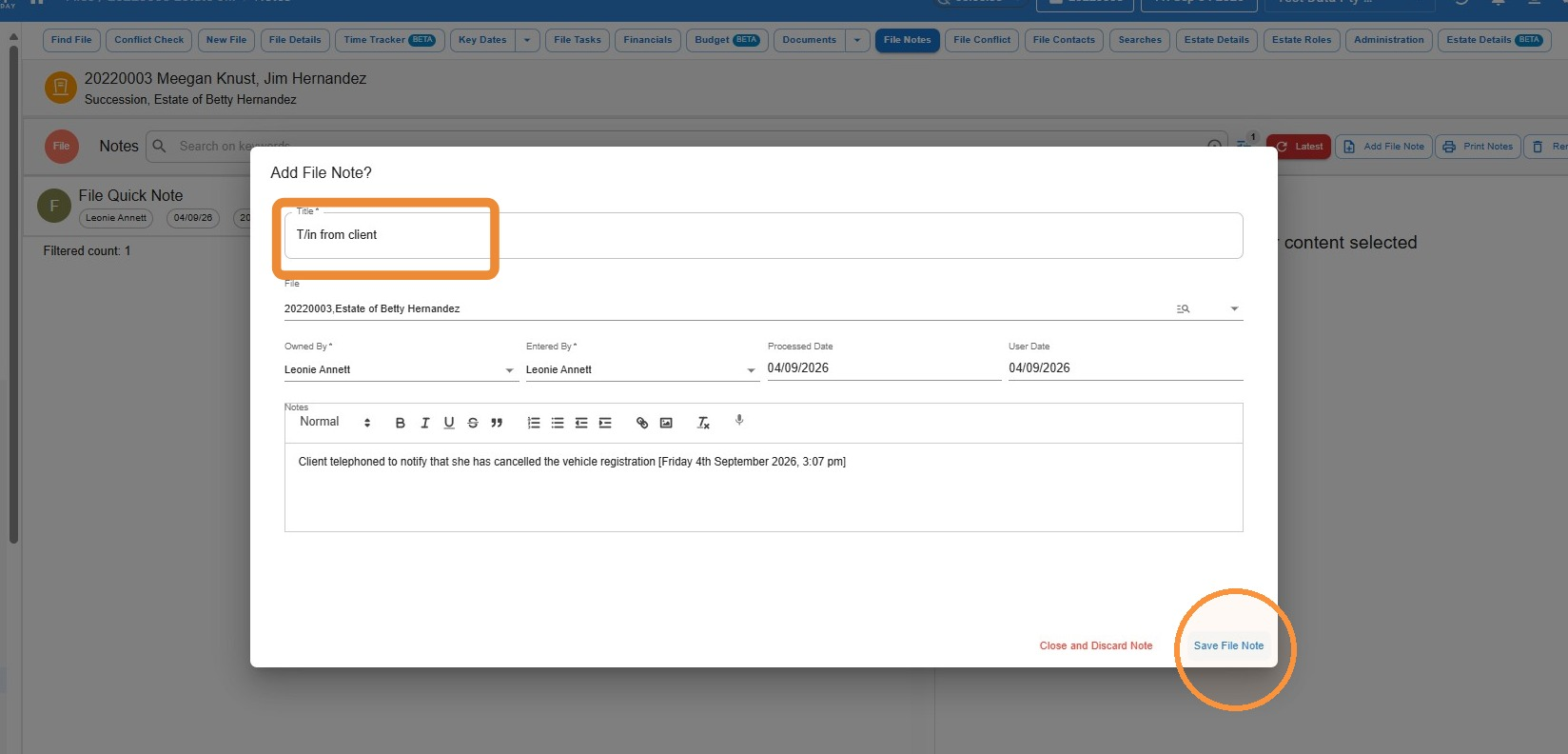
- Select Add File Note.
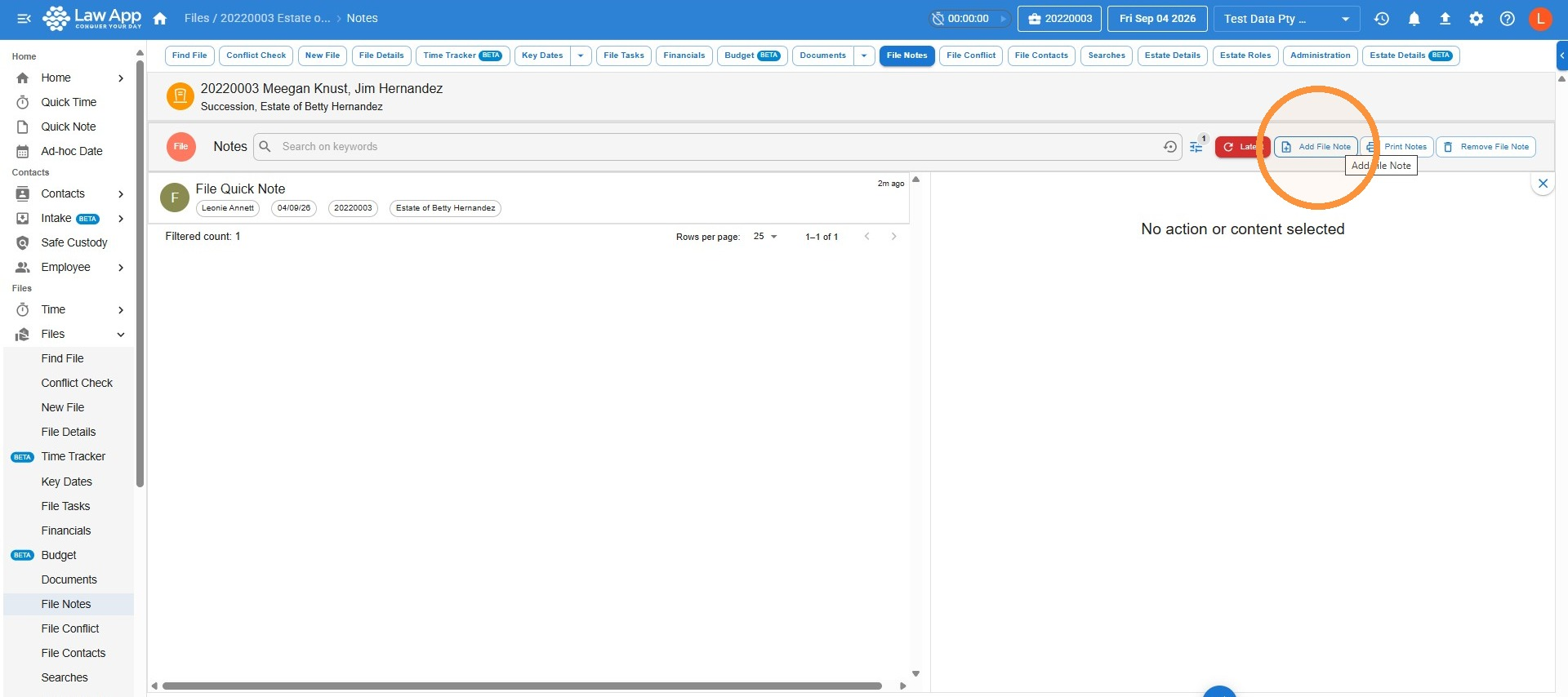
- Give the note a title, type the details, then click Save File Note.
Printing a file note
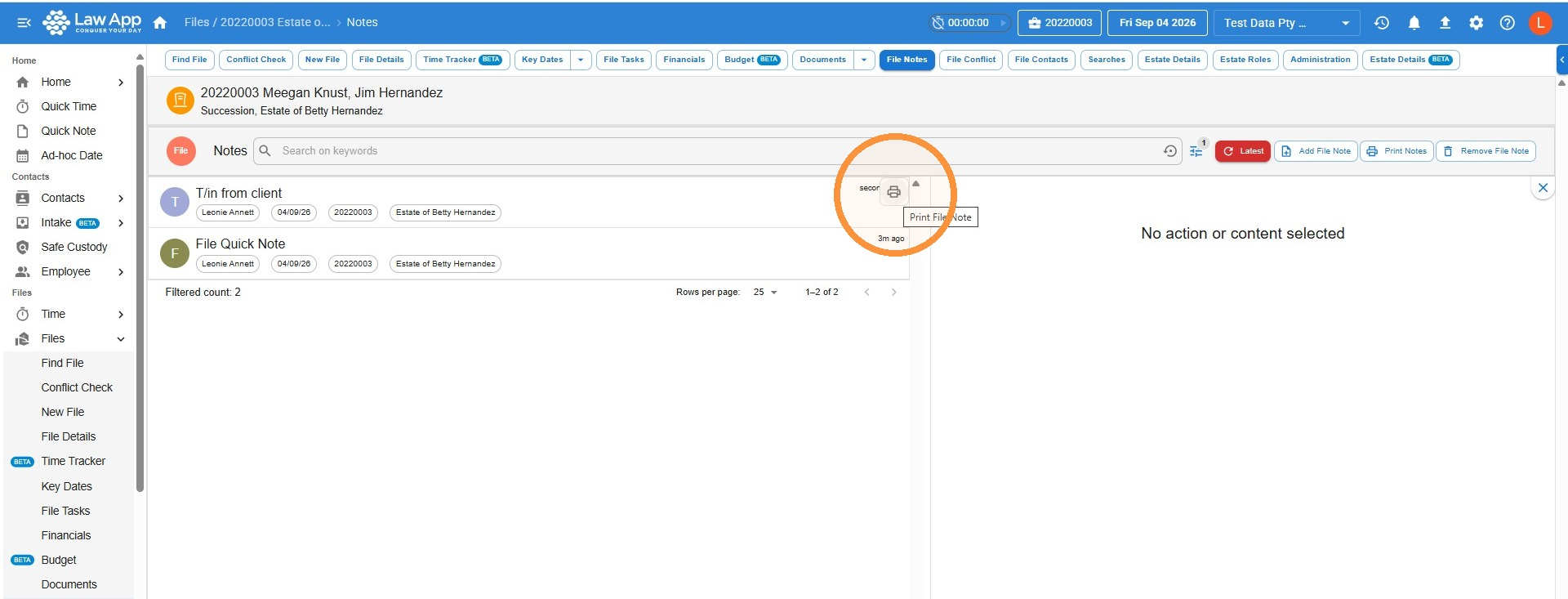
Hover over any note in the File Notes list and a print icon will appear — click it to print a copy of that note.
Deleting a file note
Made a file note in error? Remove it from the File Notes list.
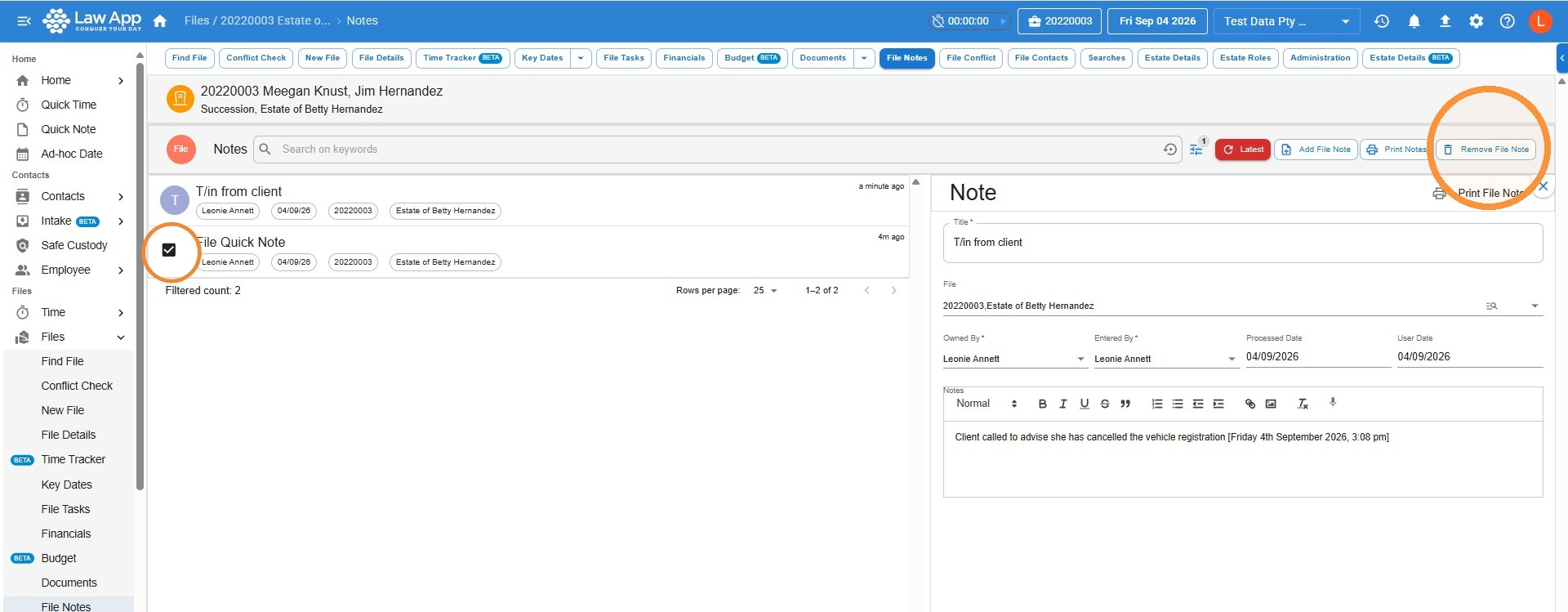
- Click the round icon (it will change to a tick) at the start of the file note you want to remove.
- Select Remove File Note, then save.
Leave a Reply