
When a debtor’s balance can’t be recovered, you can write it off in Law App instead of leaving it sitting as an outstanding invoice. This article covers creating the write-off, adding the write-off line against the correct file, and applying it to clear the invoice.
Create a debtor write-off
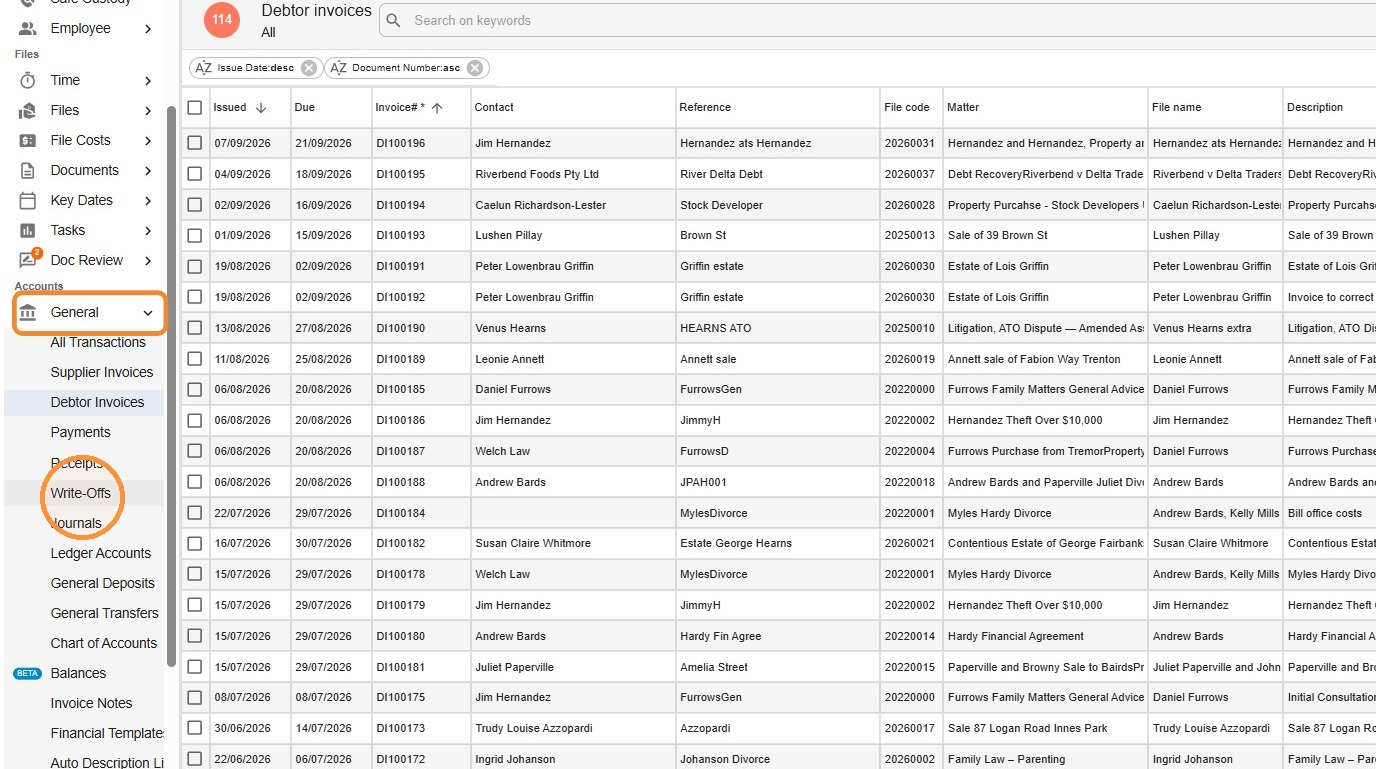
- In the Accounts menu, click General, then Write-Offs.
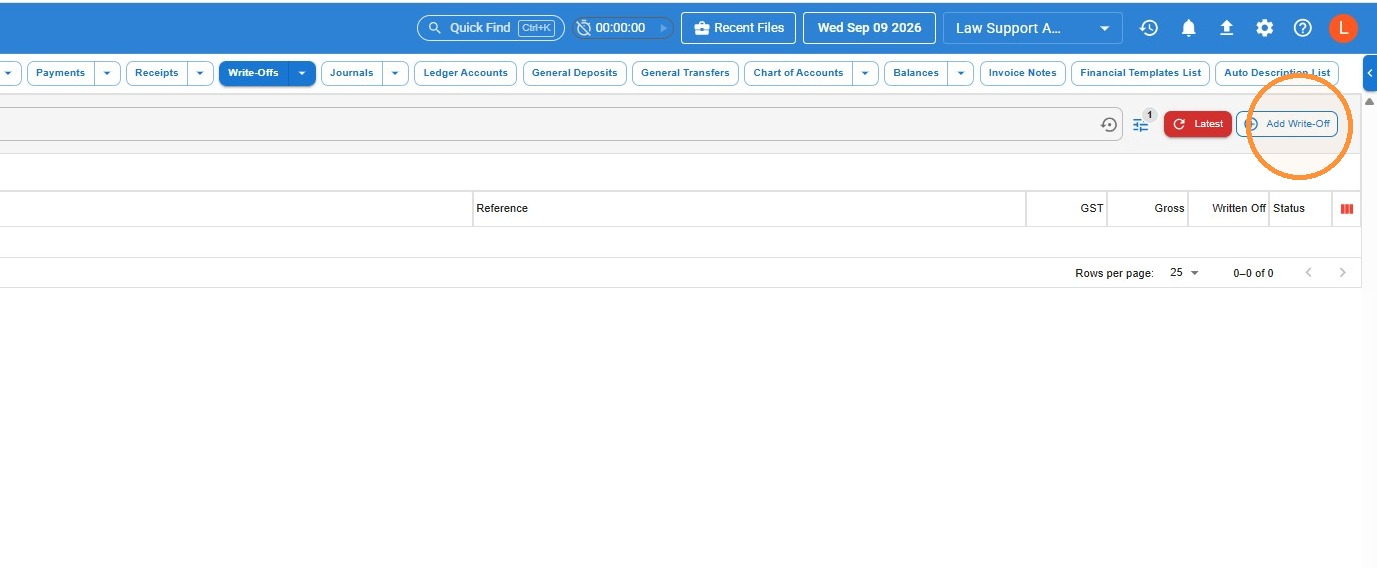
- Click Add Write-Off.
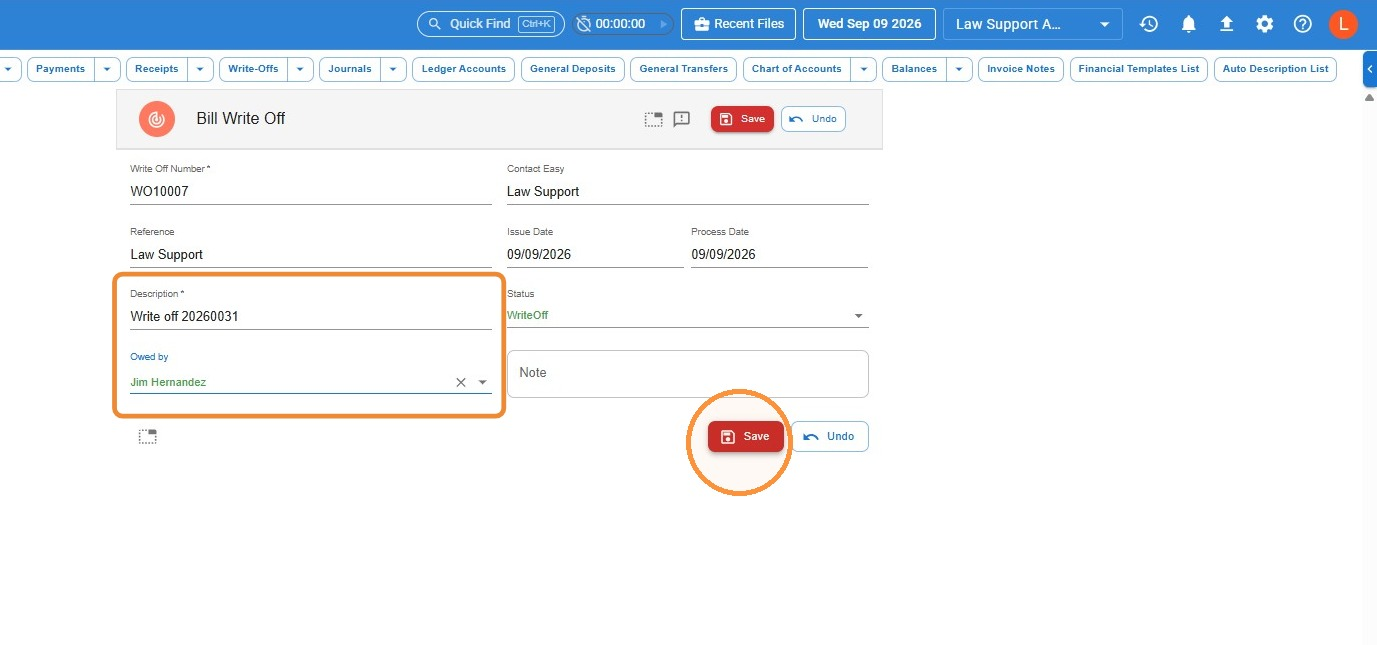
- Enter a Description, search for the debtor’s name in Owed by, then click Save.
Add a write-off line
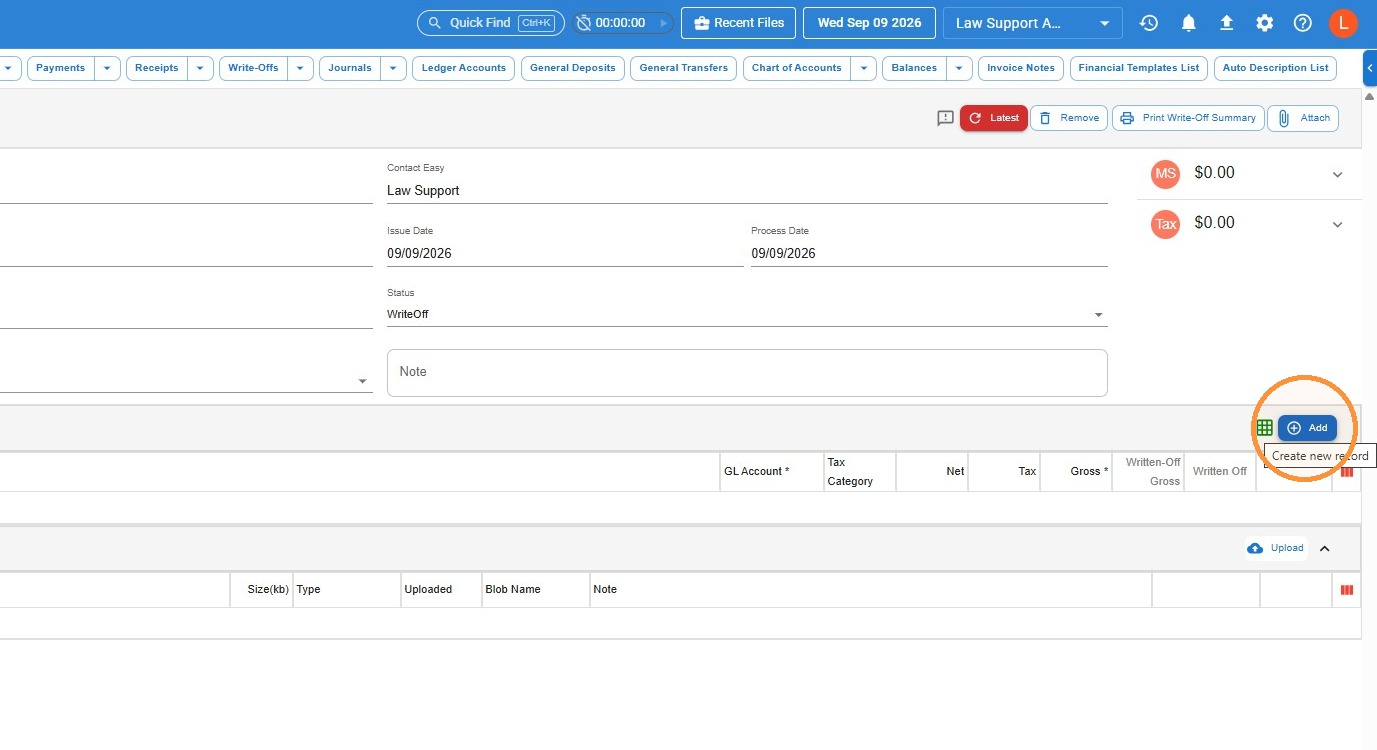
- In Write Off Lines, click Add.
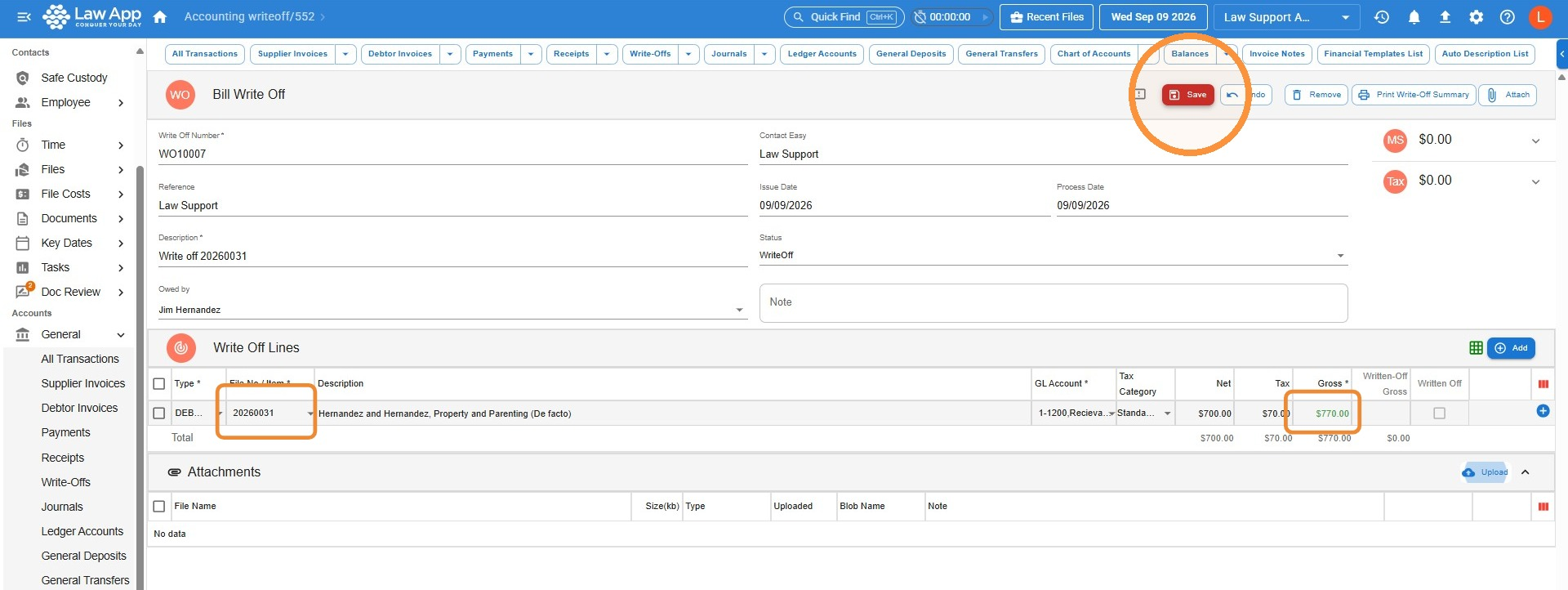
- Enter the file number — this works the same way as completing a Debtor Receipt — then enter the amount you’re writing off in Gross, and click Save.
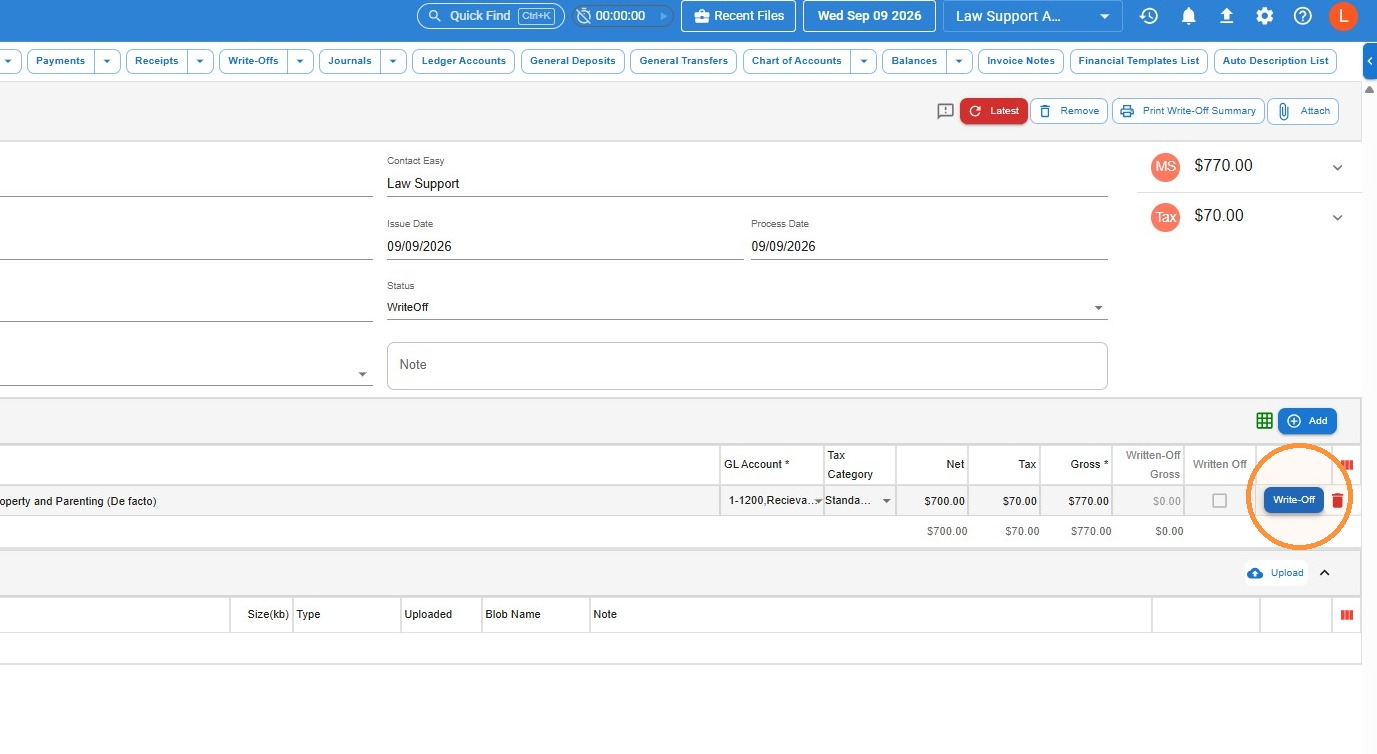
- Click Write-Off to finalise the line.
Tip: Entering the file number and amount for a write-off line works the same way as completing a Debtor Receipt — if that process is familiar, this will be too.
Apply the write-off to an invoice
Applying the write-off works the same way as allocating a receipt — you’re matching the amount against an outstanding invoice so it clears.
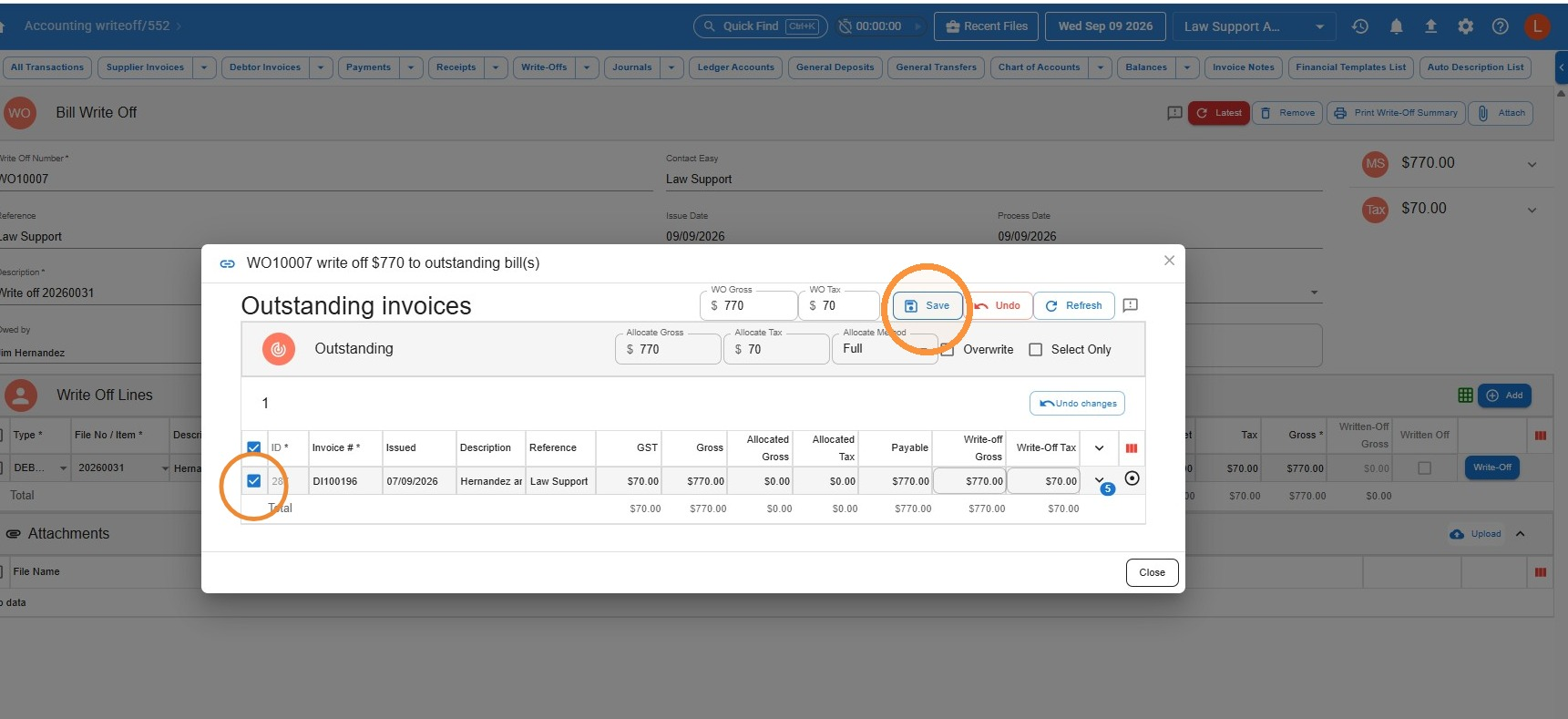
- In the Outstanding invoices list, tick the invoice you want to apply the write-off to.
- Click Save.
Leave a Reply