
A trust payment (also called a trust withdrawal) records client money paid out of your trust account, such as a search fee, stamp duty, or a refund to the client. You can start one from inside a file, which this guide covers, or from the Trust menu, which is covered in How to Record, Cancel or Reverse a Trust Payment. Both end the same way: the payment is saved as a draft, then finalised and printed.
From inside a file: Financials, Trust, Withdrawal
Best when you are already working in the file. The file is filled in on the trust line for you, and you can see the file’s trust balance as you go.
From the Trust menu: Trust, Trust Payments, New payment
Best for accounts staff entering payments for several files. See How to Record, Cancel or Reverse a Trust Payment.
Step 1: Open the file’s trust ledger
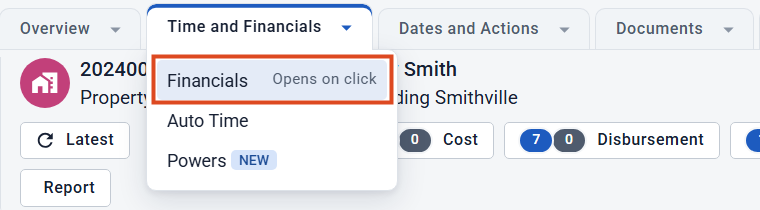
- In the file, open the Time and Financials tab menu and choose Financials.
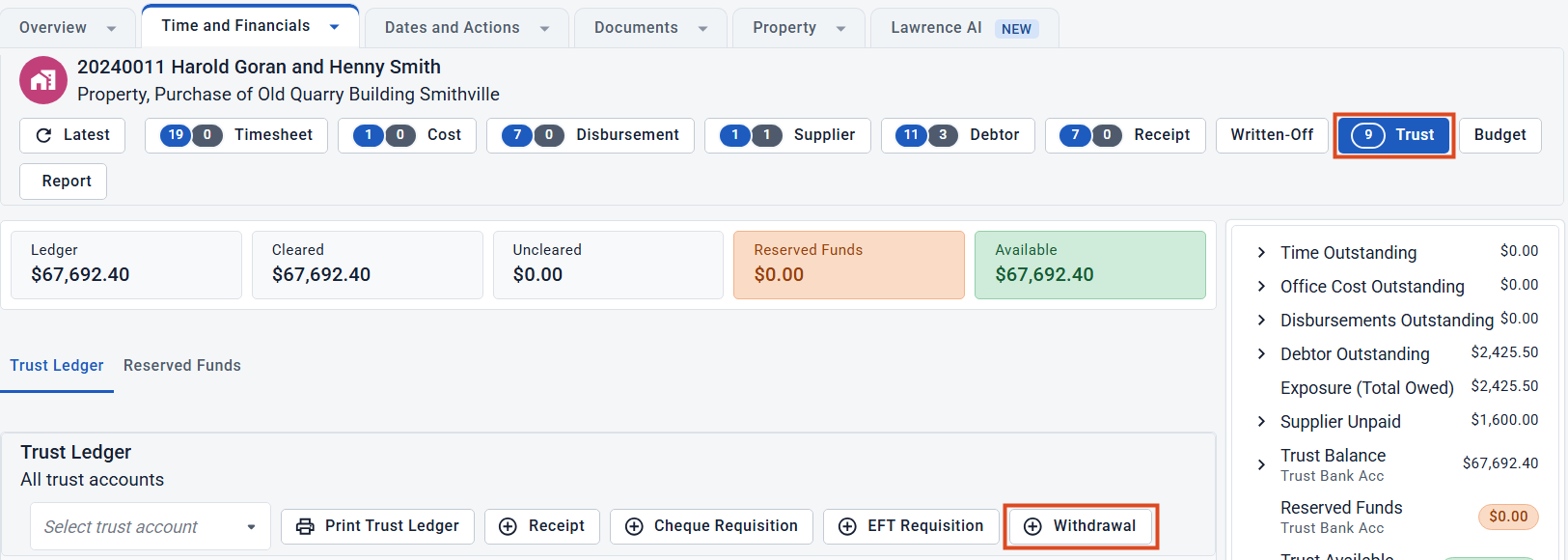
- Click the Trust button. The file’s Ledger, Cleared, Reserved Funds and Available balances show at the top.
- On the Trust Ledger, click Withdrawal.
Step 2: Fill in the payment
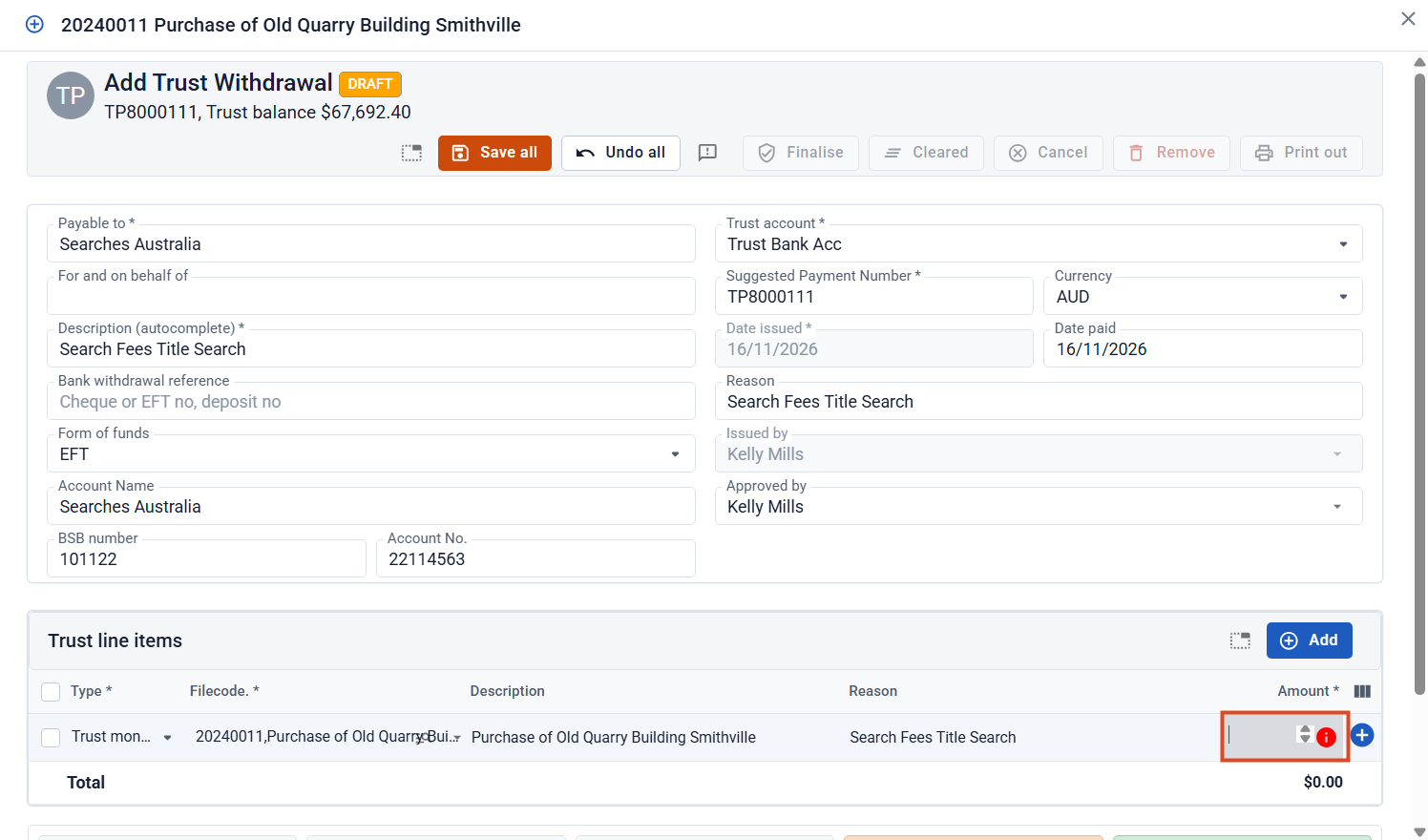
The Add Trust Withdrawal window opens. The Suggested Payment Number is a placeholder: the payment takes its real number when it is finalised.
- Fill in Payable to, Description, Form of funds and the bank details. For what each field means, see What to enter on a trust payment.
- Check the Date paid and the Reason.
- Under Trust line items, the line already shows this file. The Amount is empty and marked with a red i until you fill it in.
Step 3: Enter the amount and save
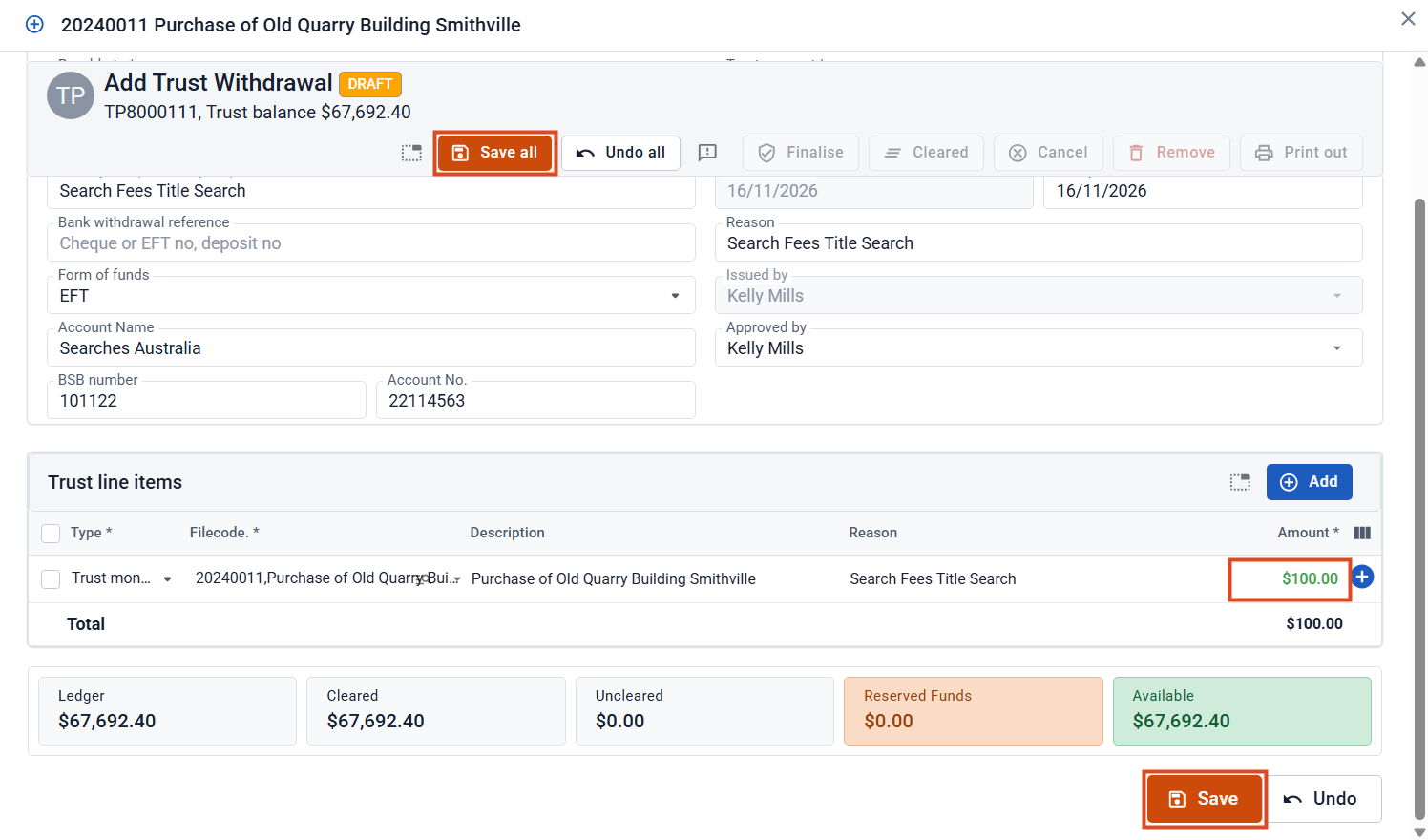
- Enter the Amount on the trust line.
- Click Save all at the top (or Save at the bottom). The payment is saved as a Draft.
Step 4: Check the draft, then finalise
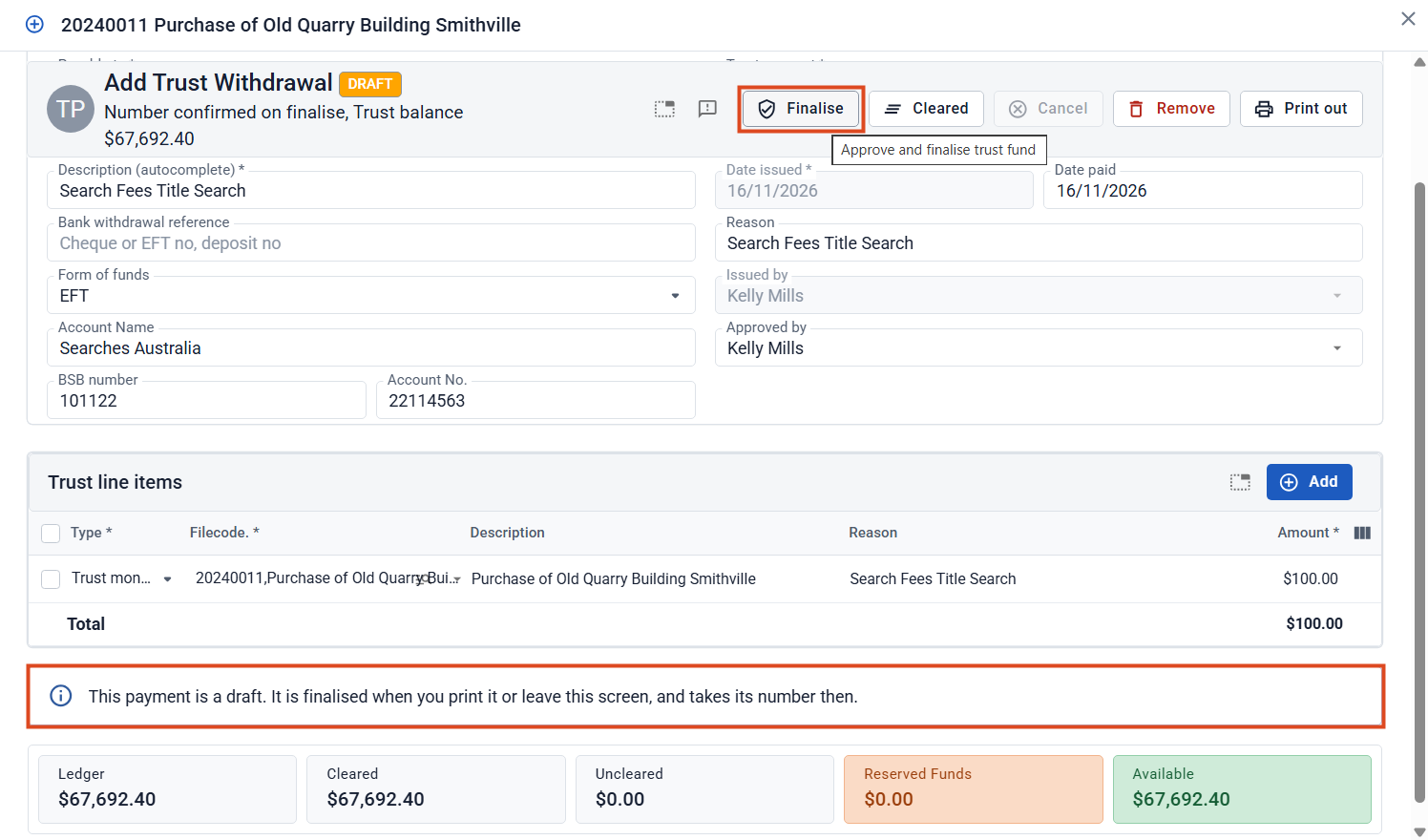
Check the payee, bank details and amount, then click Finalise.
Step 5: Approve and finalise
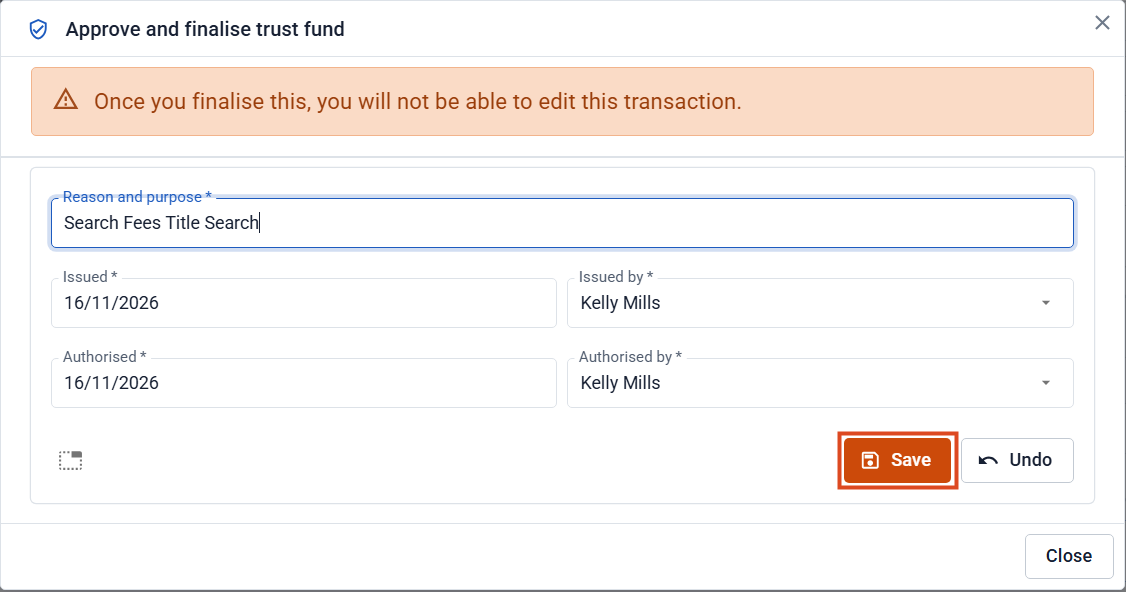
In the Approve and finalise trust fund window, check the Reason and purpose, who issued and authorised the payment, and the dates. Then click Save.
Step 6: Print or email the payment form
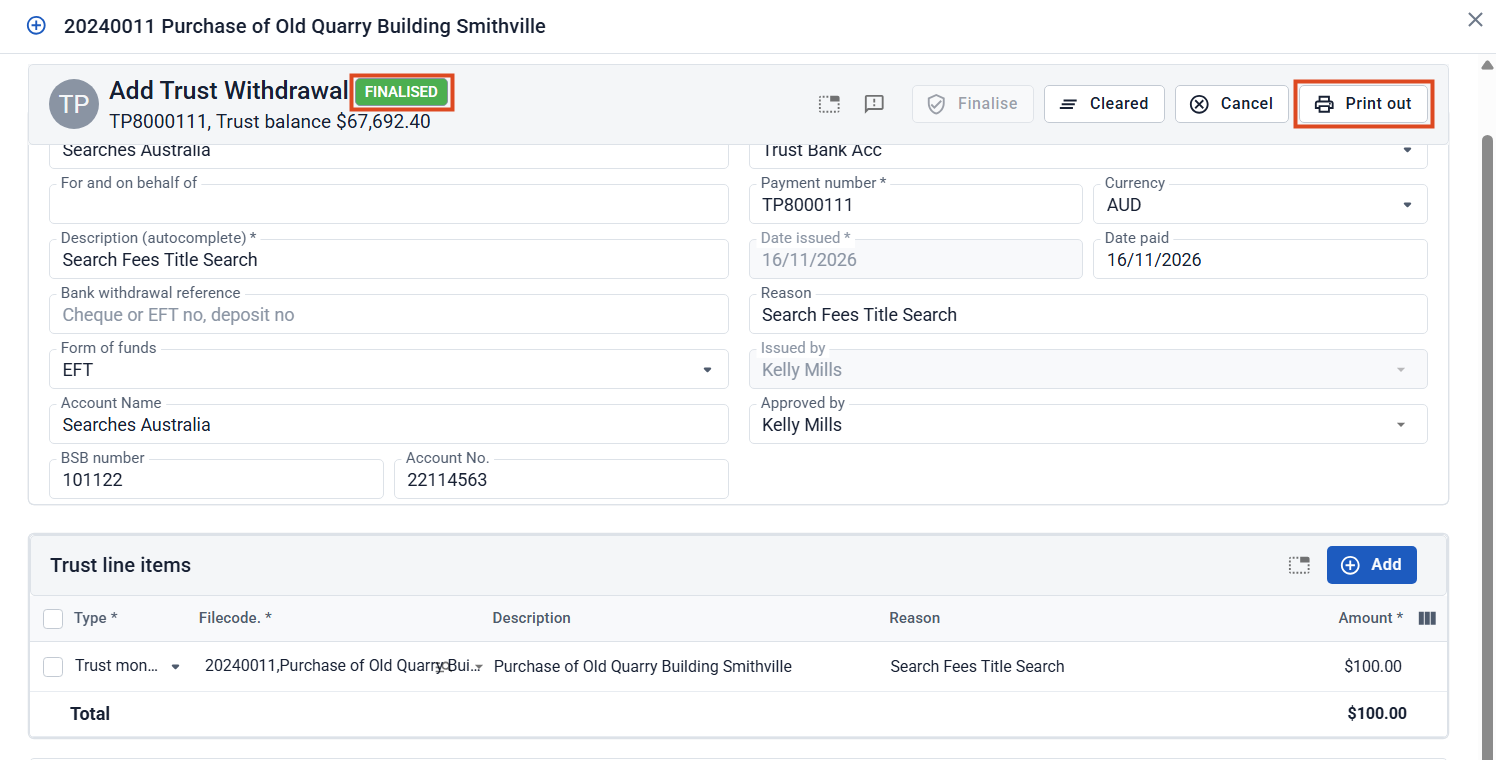
The status changes to Finalised and the payment takes its number. Click Print out to email, print, save to the file or make a PDF of the payment form. Then click Close to go back to the file’s trust ledger.
Leave a Reply