
Before taking on a new client or matter, most firms need to confirm there’s no existing relationship that would create a conflict of interest — a former client on the other side, a related party, or a shared financial interest. Law App’s built-in Conflict Check tool searches your existing client and matter database so you can do this quickly and keep a formal record of the outcome.
There are two ways to run a conflict check, depending on where you are in the intake process:
Manual conflict check
Use this when you’re still deciding whether to accept the matter. You type in the details yourself — no file needs to exist yet.
Check from within a file
Use this if the file has already been created. Law App fills in the file number and can pull the linked contacts in automatically.
Manual conflict check — before creating a file
This method lets you search your database at the enquiry stage, before you’ve committed to opening a file. You’ll enter the matter details and each party manually, run the search, record your assessment against each result, and then generate a report you can save or print for the file.
Steps
- Select Files in the side navigation, then select Conflict Check beta from the buttons at the top.

- Enter the matter name. The description field is optional, but adding a brief note about the nature of the matter can be useful context when you review the report later.
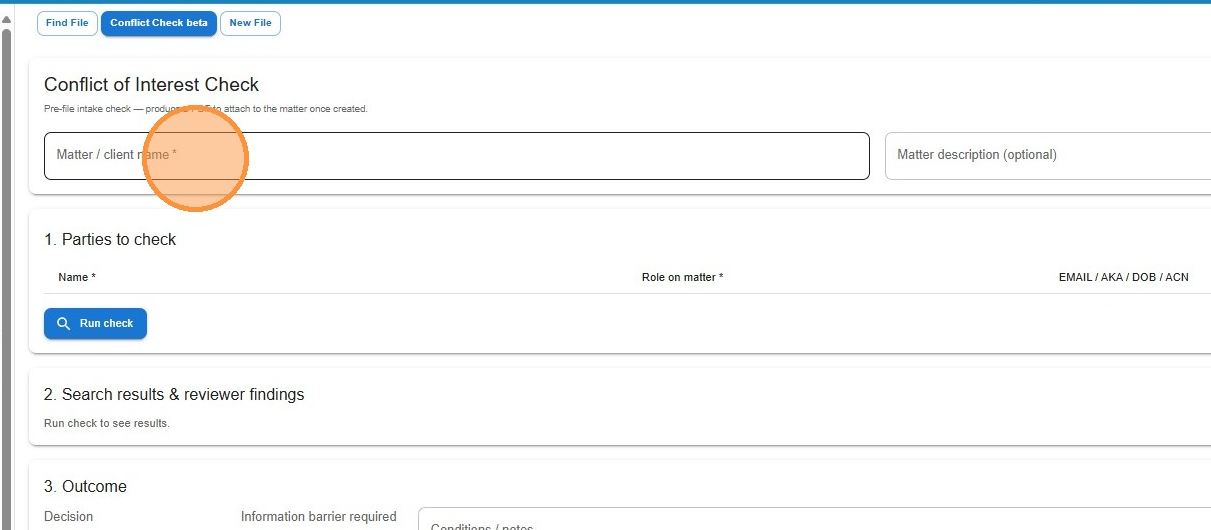
- Click Add party — this appears in the top-right of the Parties section.
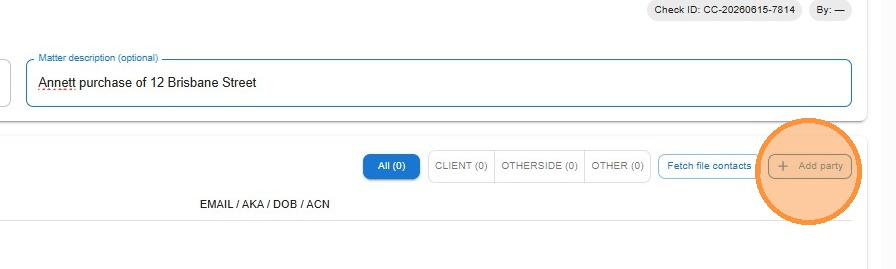
- Enter the person or entity’s name and select their role from the dropdown — Client, Otherside, or Other. Repeat for every party involved in the matter.
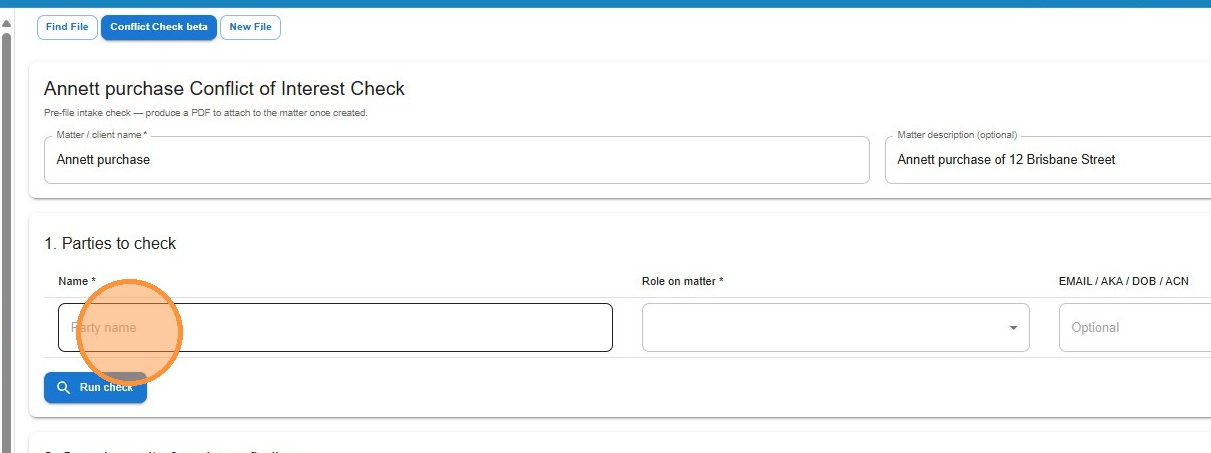
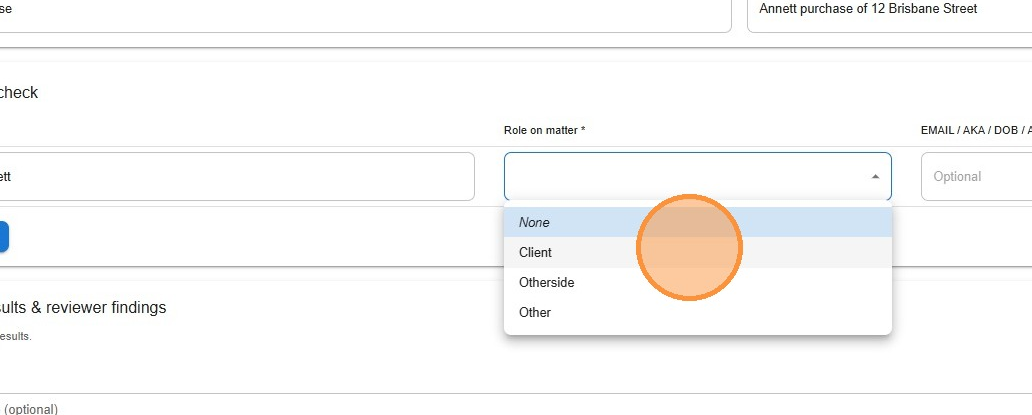
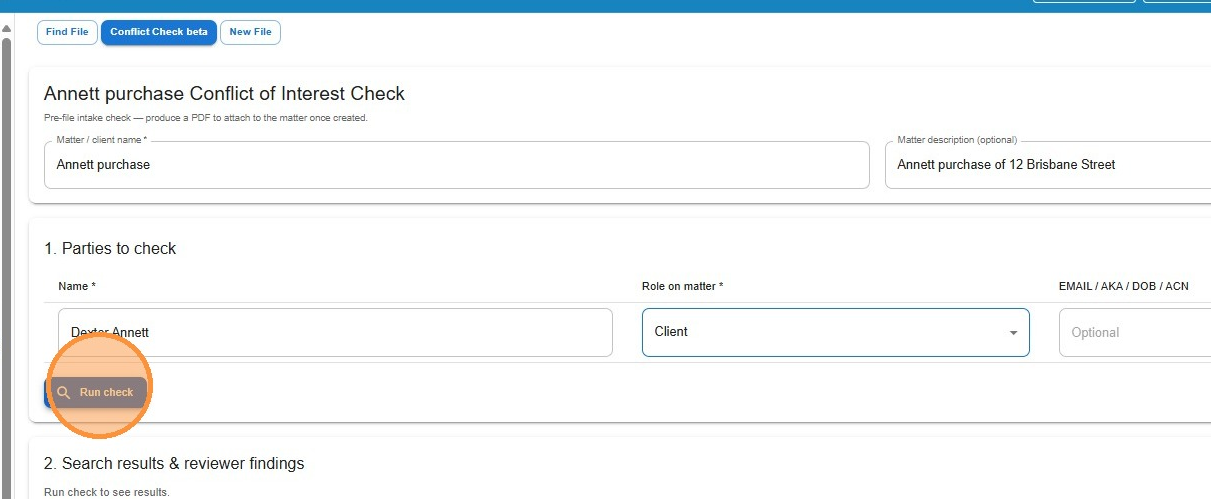
- Click Run check. Law App searches across your existing clients, contacts, and matters for any name matches or related records.
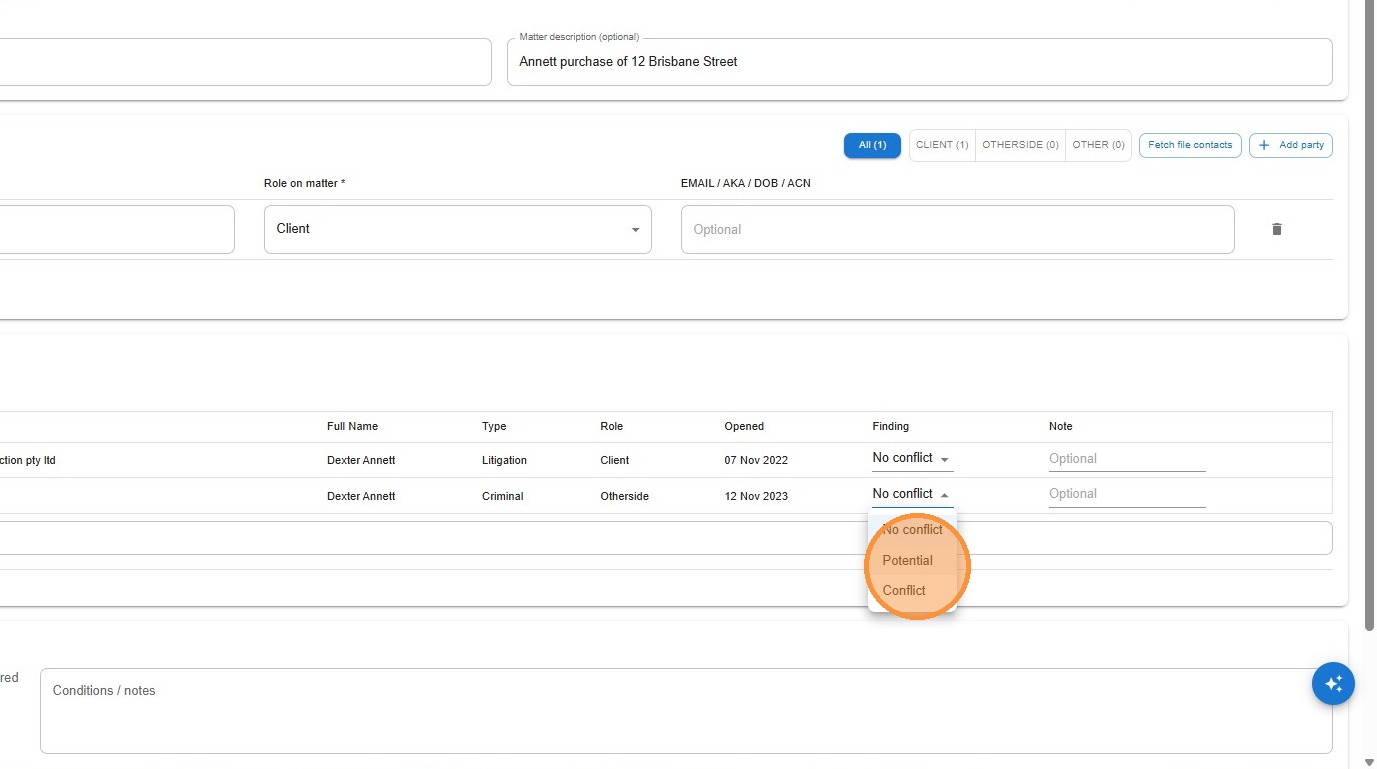
- Work through the results one by one. For each result, set the Finding status — leave it as No conflict if it’s unrelated, or change it to Potential or Conflict if further consideration is needed. Use the Note field to record your reasoning.
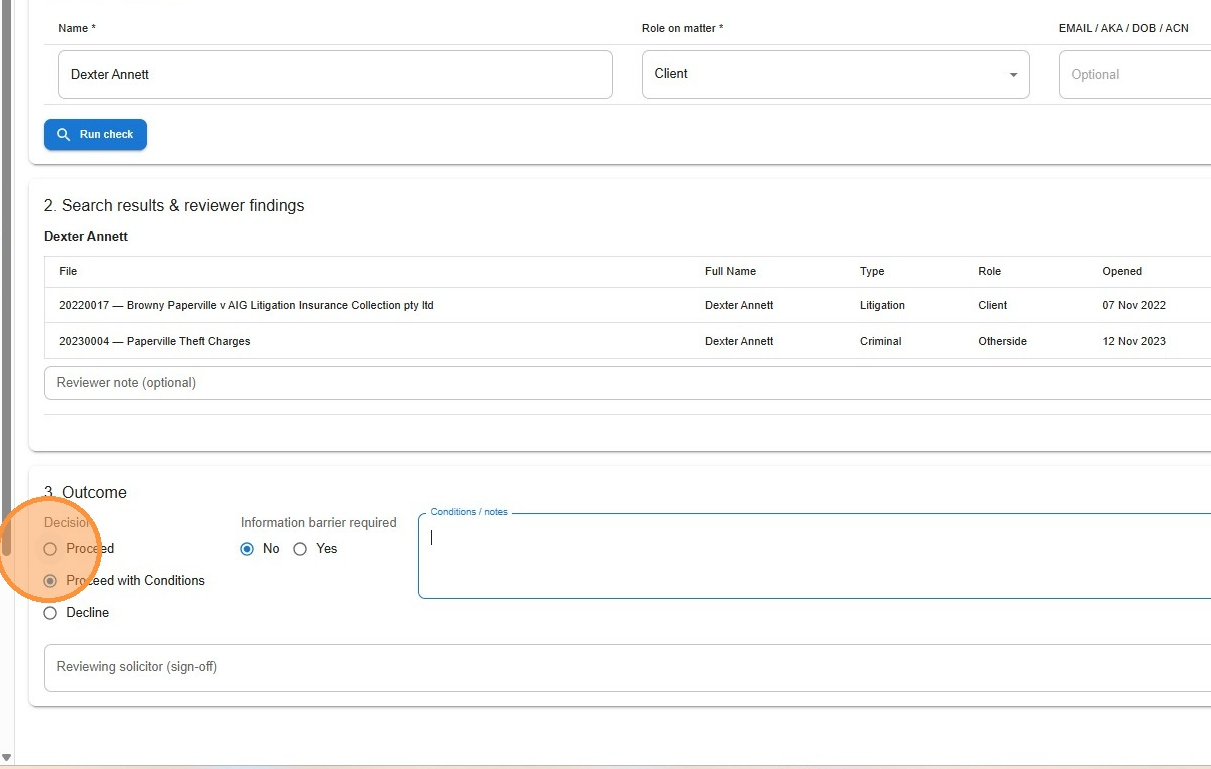
- Once you’ve assessed all results, select the overall Decision in the Outcome section — Proceed, Proceed with Conditions, or Decline — and add any firm-level notes.
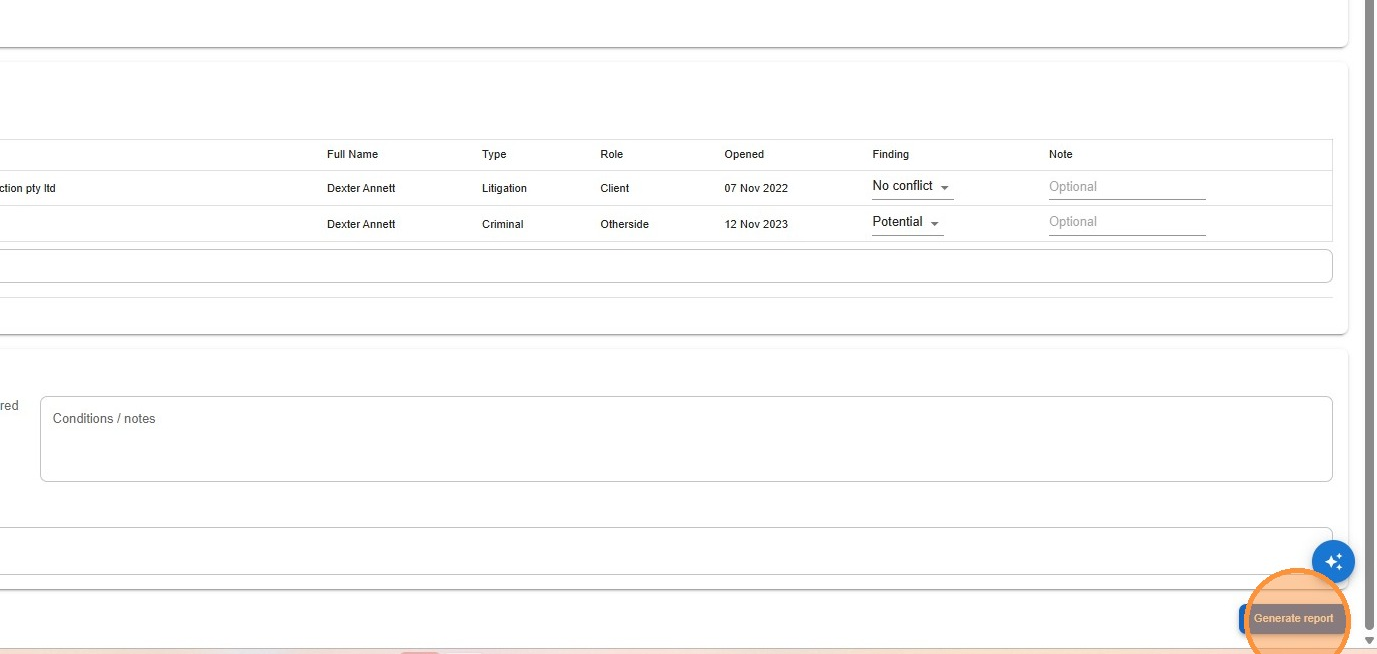
- Click Generate report. A formatted, printable report will be produced showing all parties searched, the results returned, and your recorded assessment. Save it as a PDF or print it for the file.
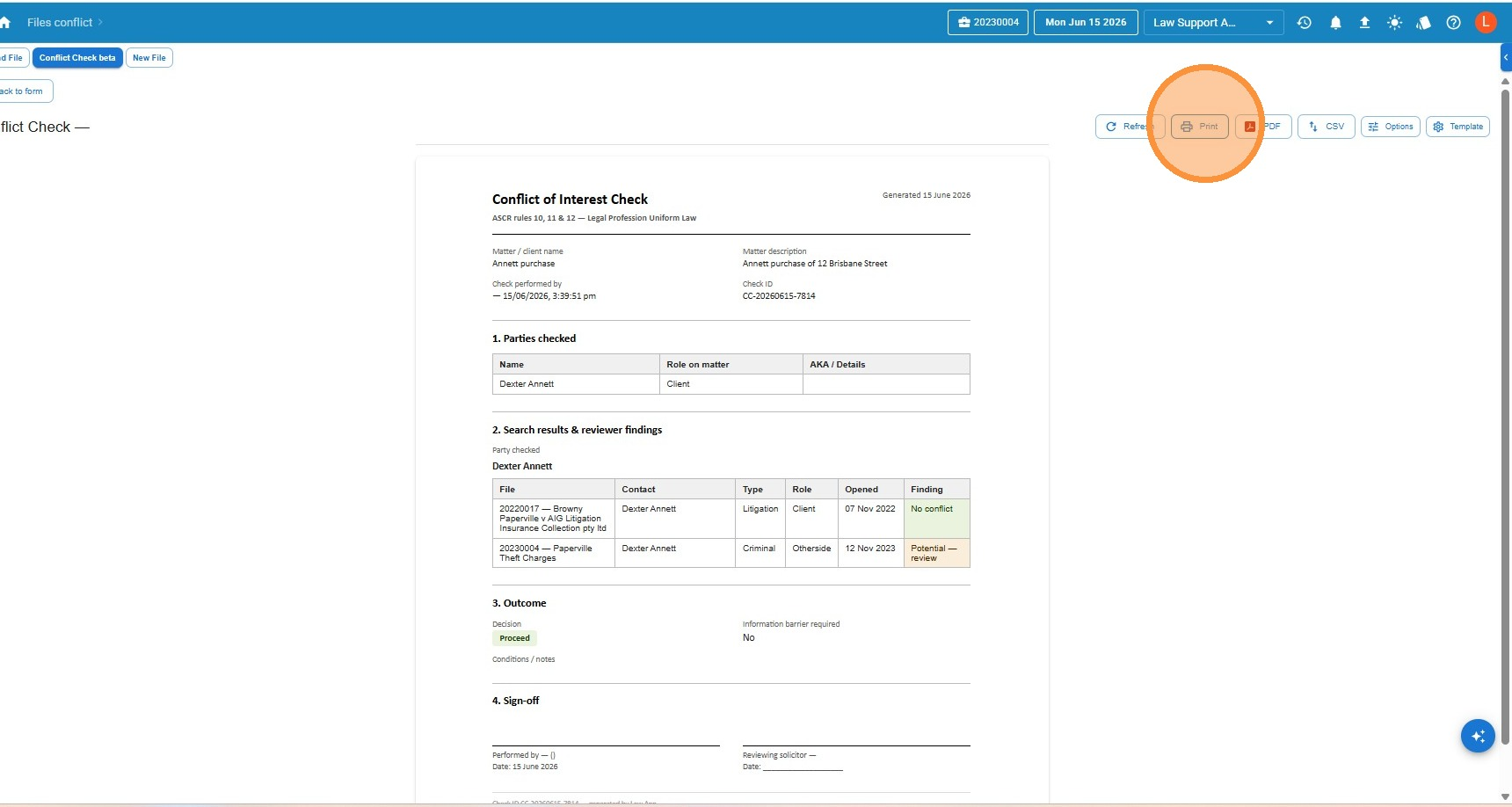
Running a conflict check from within an open file
If a file has already been created, you don’t need to start the check from scratch. Law App can read the file’s existing contacts and pre-populate the party list for you, saving time and reducing the risk of missing someone already linked to the matter.
Steps
- Open the file in Law App and click the File Conflict beta tab in the file navigation. Law App will automatically fill in the file number for you.

- Click Fetch file contacts. This pulls in all contacts already linked to the file as parties. Review the list to make sure it looks right.
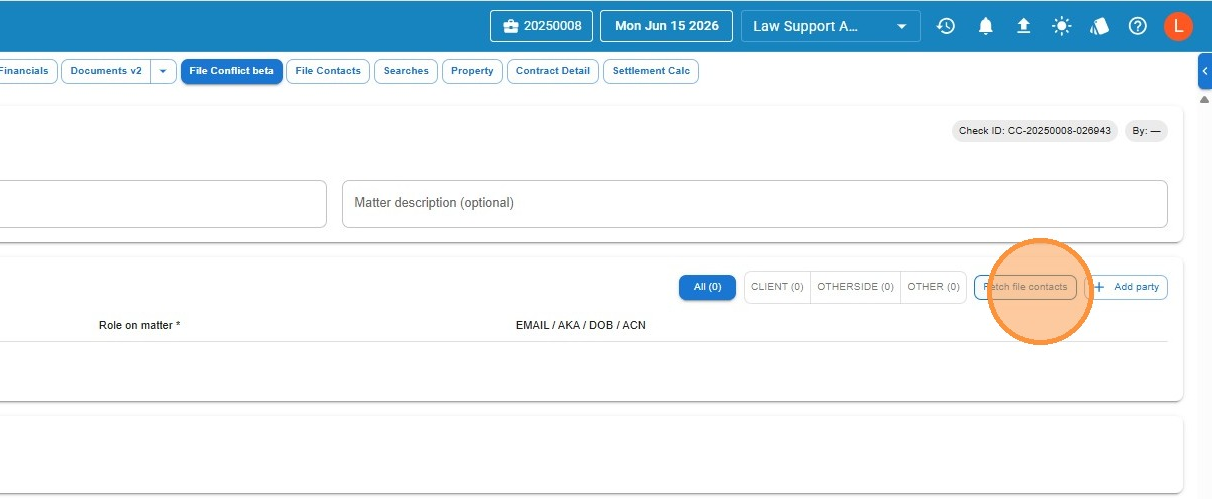
- If there are additional parties not yet linked to the file — such as an opposing solicitor or a guarantor — click Add party to include them manually.
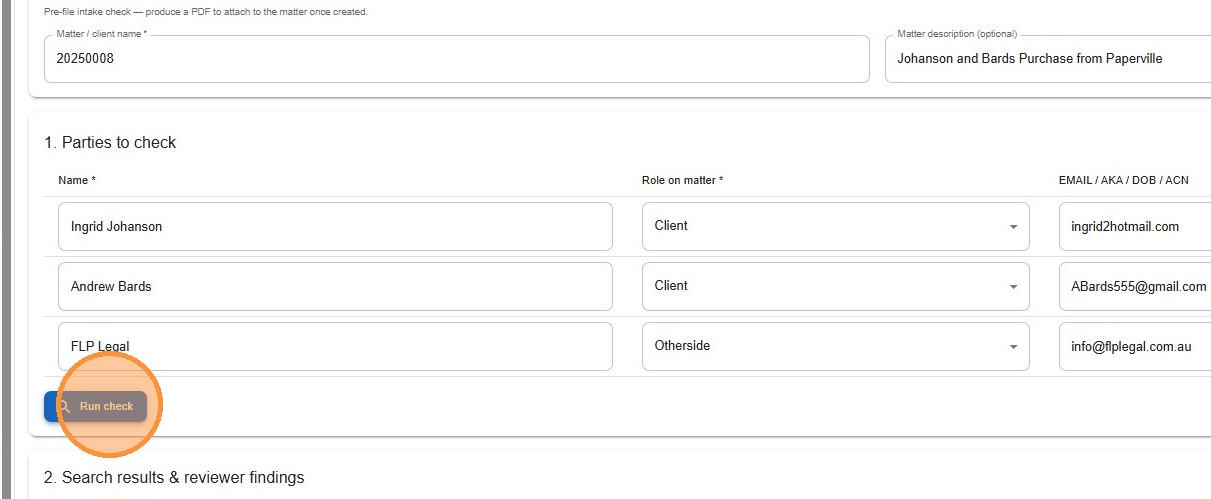
- Click Run check, then follow the same review and report steps as the manual method above (steps 5–7).
Leave a Reply