
If an InfoTrack charge has landed on the wrong file, you can move it to the right one by editing its supplier invoice. You’ll change the file in two places — on the invoice line first, then in the invoice header — and save.
How to move an InfoTrack charge to another file
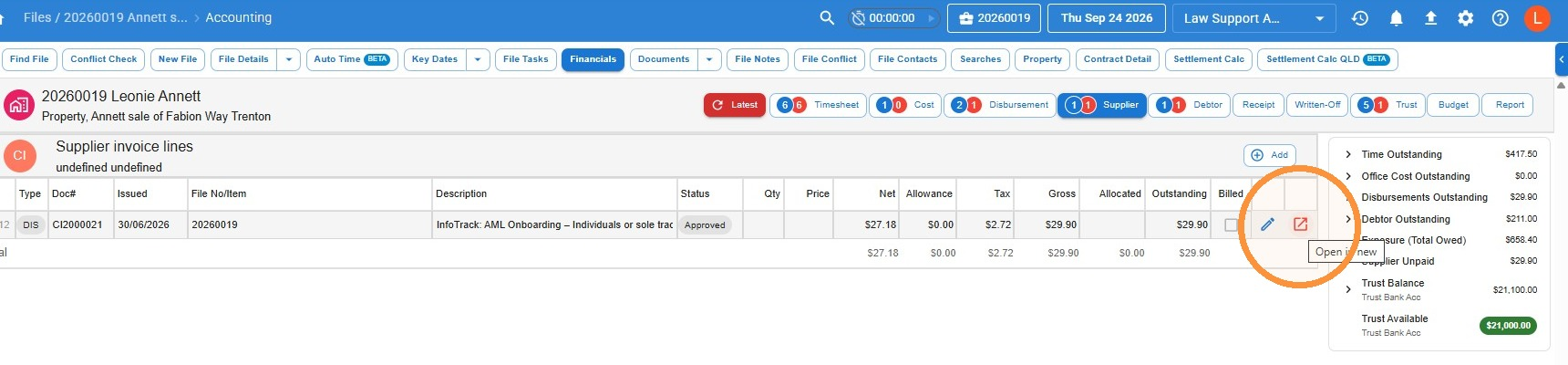
- Open the file the charge is currently on, go to Financials > Supplier, and open the supplier invoice for the InfoTrack charge. You can also go to General > Supplier Invoices, search for the invoice and open it from there.
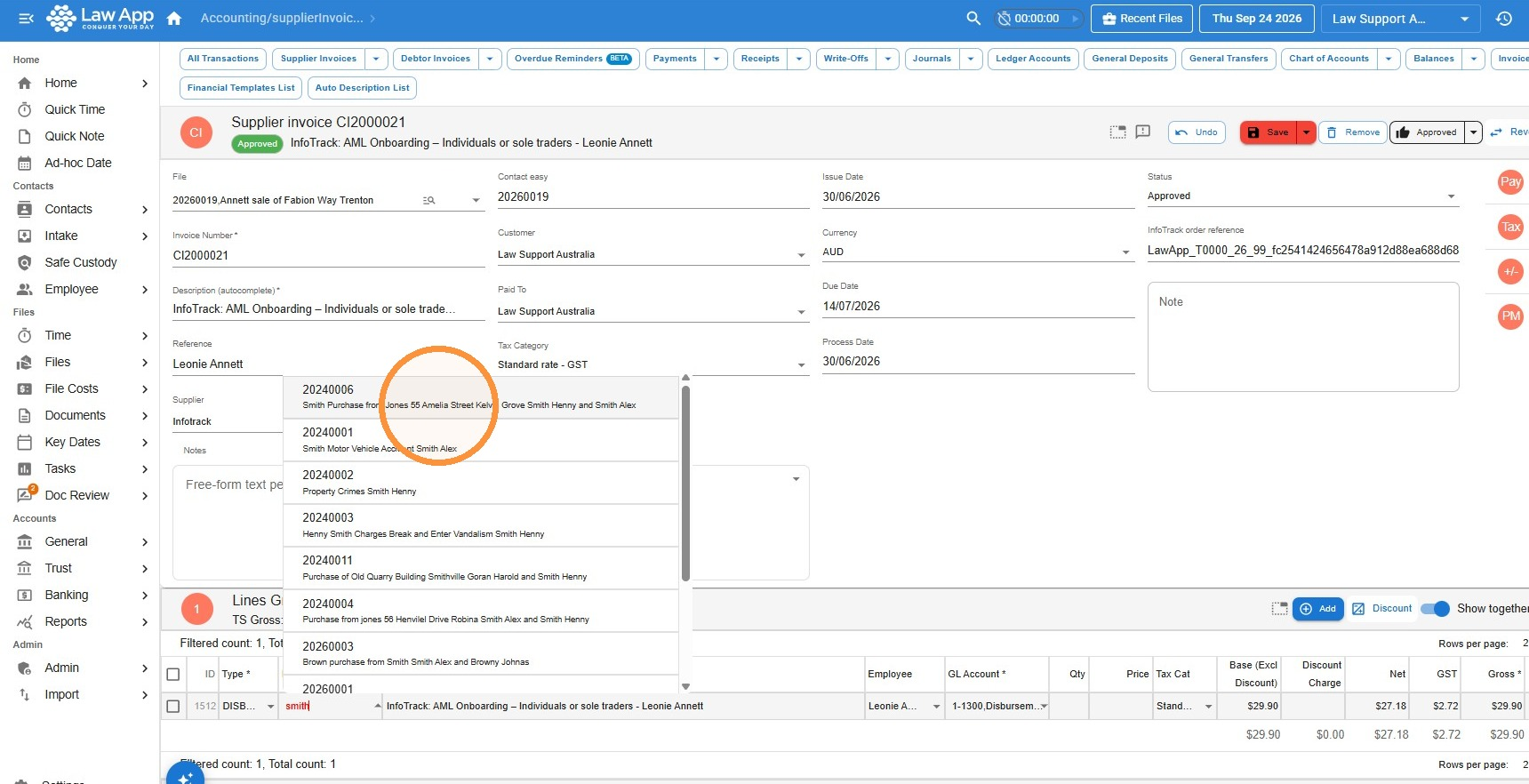
- In the invoice lines at the bottom, click in the File Item field, search for the file you want to move the charge to, and select it.
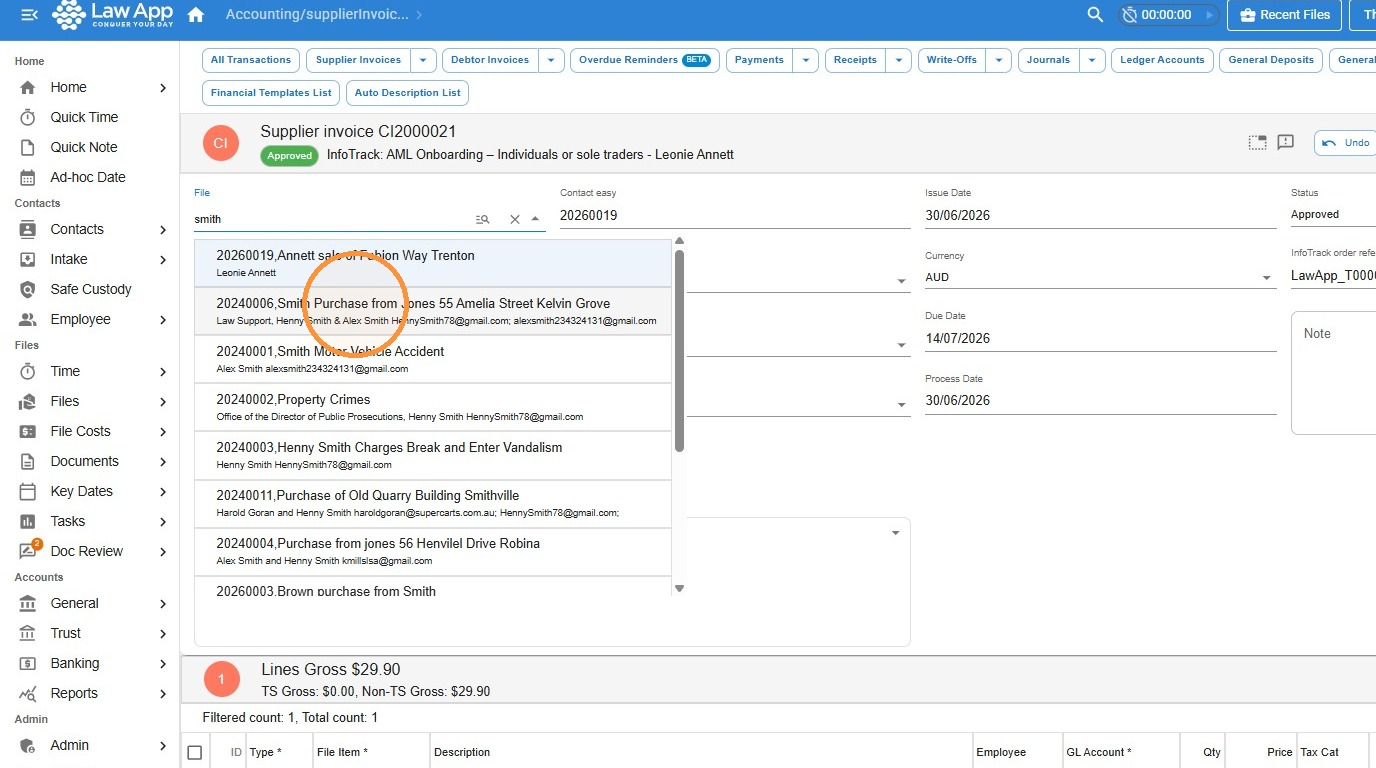
- Next, change the file in the invoice header. Click in the File field at the top of the invoice, search for the same file, and select it.
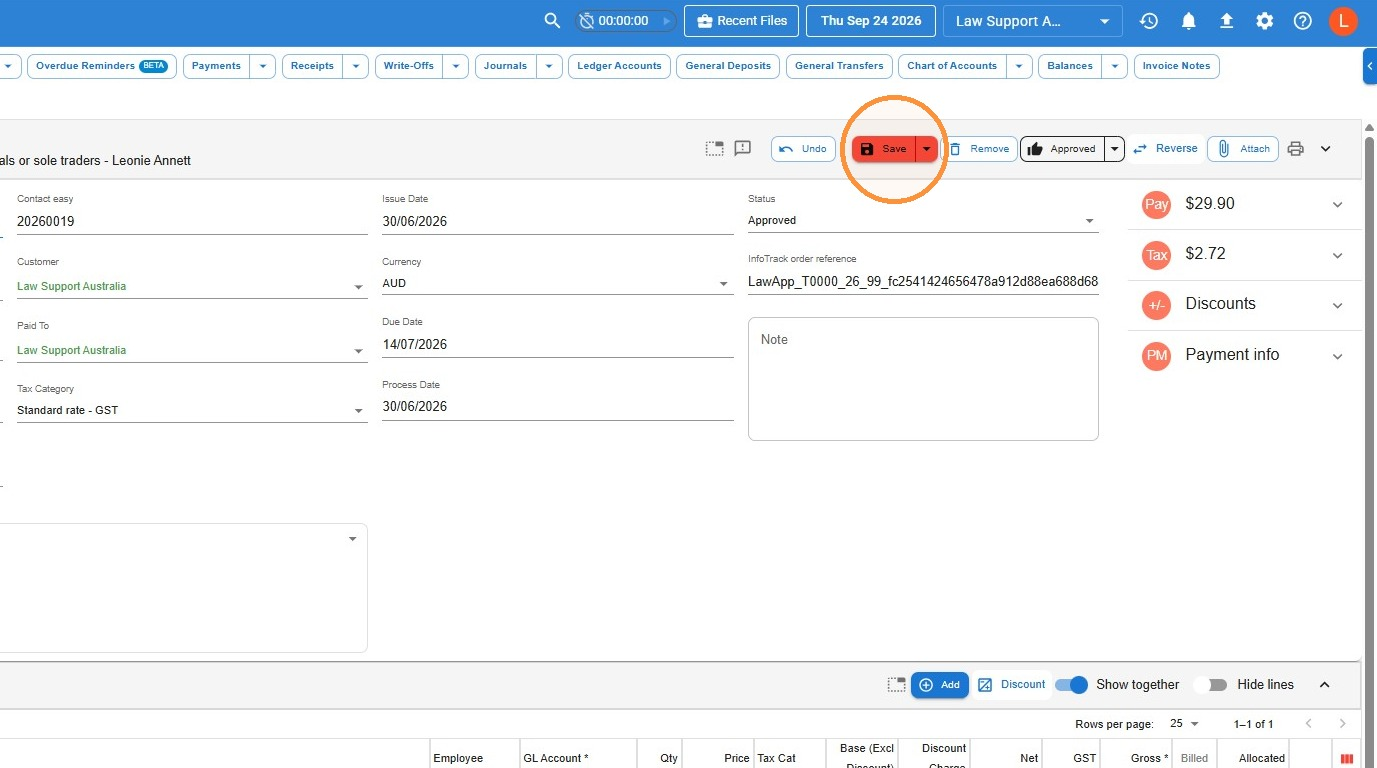
- Click Save.
Change both fields. Update the file on the invoice line and in the header, and make sure they match, before you save.
This moves the charge, not the search. The search itself stays in the Searches list on the original file — it can’t be moved to another file. If you need it on the new file, download a copy of the search and save it to the new file.
Leave a Reply