
You can merge timesheet rate codes in Law App to tidy up codes you no longer need. Merging moves every existing time entry from one or more rate codes onto a single code you choose, then archives or removes the old codes. It’s a handy clean-up when you have duplicate codes, or several codes that should really sit under one label.
Default
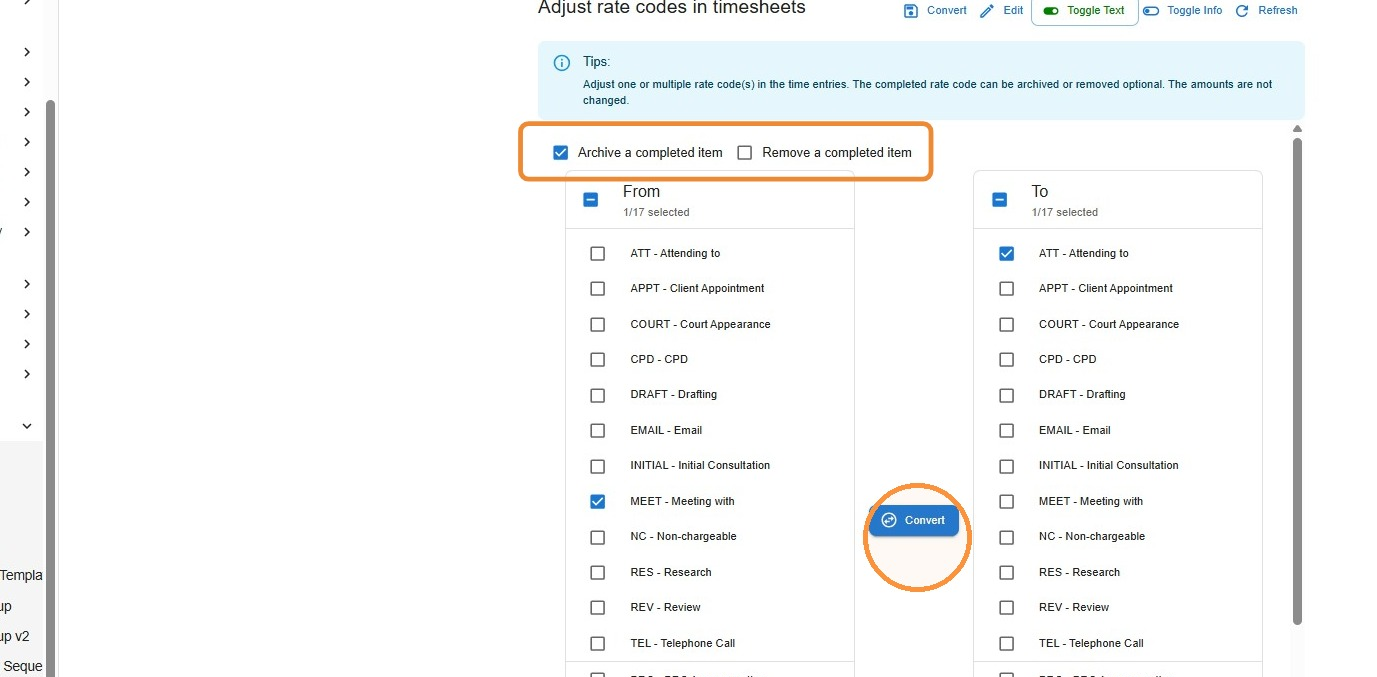
Archive a completed item
The old rate code is kept in a non-active state after its time entries are moved. Choose this if you want to keep the code on record.
Recommended
Remove a completed item
The old rate code is deleted once its time entries are moved. We recommend this for unused codes — you can always add a code again later if you need it.
How to merge and remove timesheet rate codes
- From the left menu, select Admin, then Data Adjustments.
- From the top menu, open the dropdown beside Merge Contacts and select Merge Rates. The Adjust rate codes in timesheets screen opens.
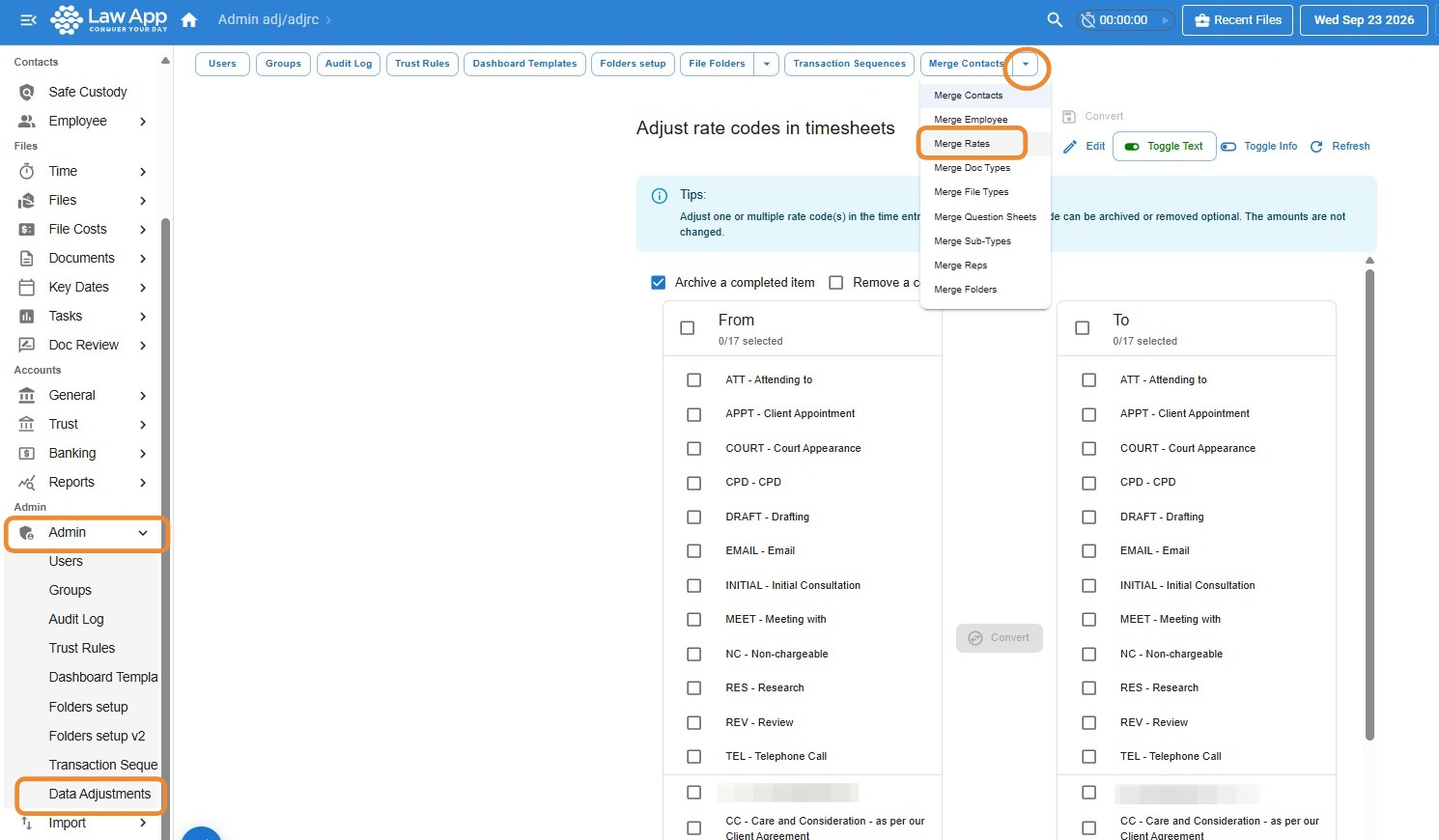
- In the From column, tick the rate code or codes you want to merge away.
- In the To column, tick the rate code that existing time entries should be moved to.
- At the top of the screen, choose what happens to the old code: leave Archive a completed item ticked to archive it, or tick Remove a completed item to delete it once the time entries are moved.
- Click Convert to complete the merge.
Updated on 23 September 2026
Leave a Reply