Open the file
Go to Accounts > Time Entries Button
Managing Time Entries at the File Level
1. Navigate to https://app.lawsupport.com.au/file/
2. Search and open a file of your choice
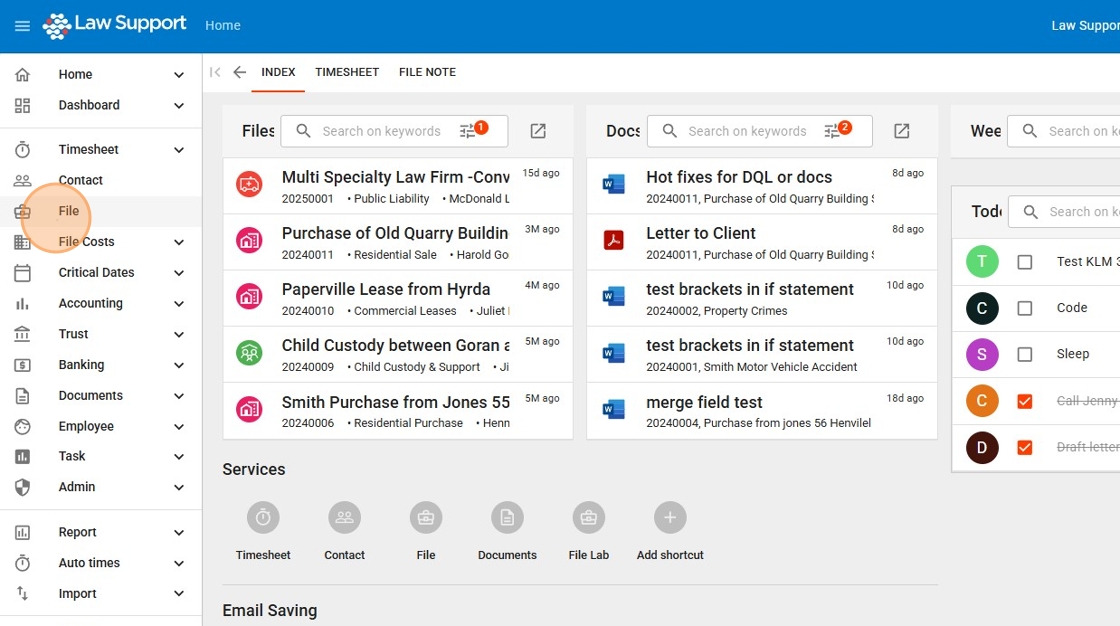
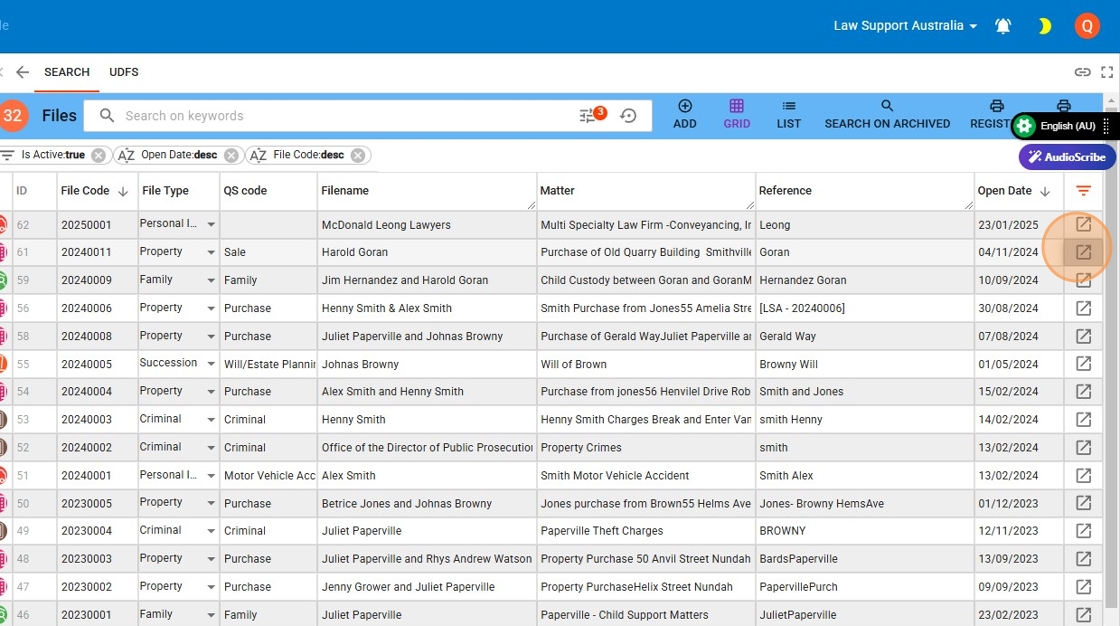
3. Select this icon to open your file
4. When opening a file the first page is always the Details Tab
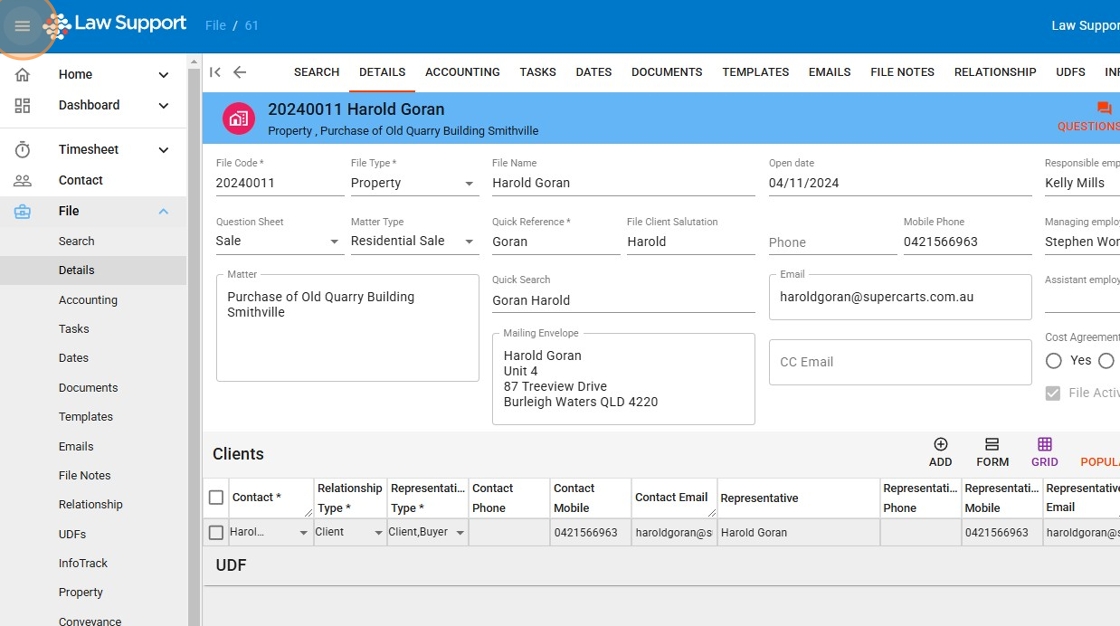
5. Click to open the Accounting Tab
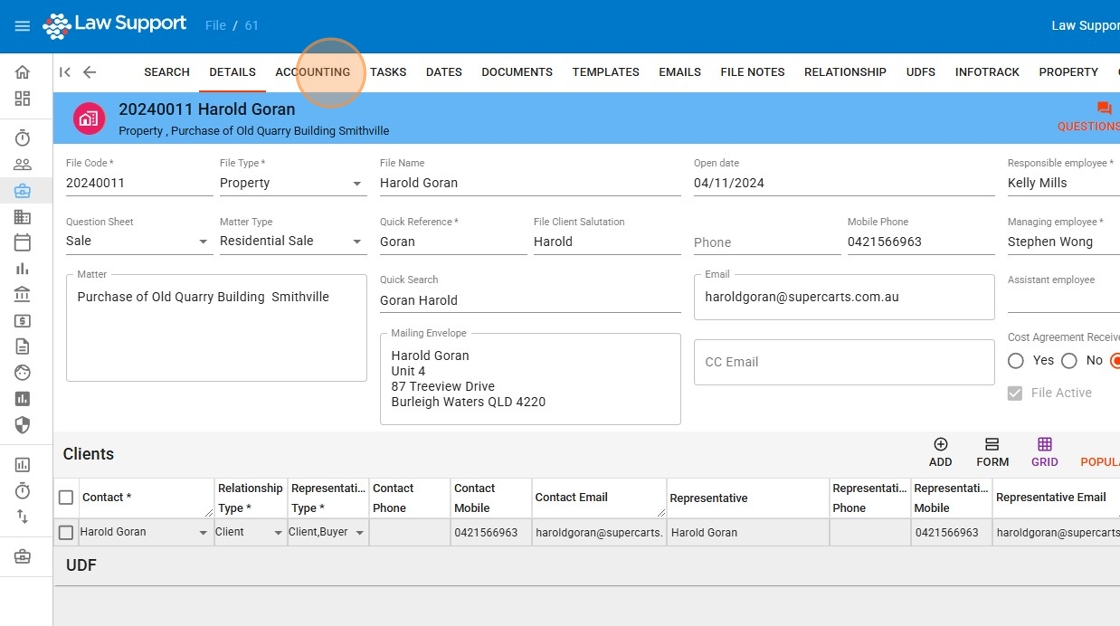
6. Select the Timesheet Icon to navigate to timesheets for a file.
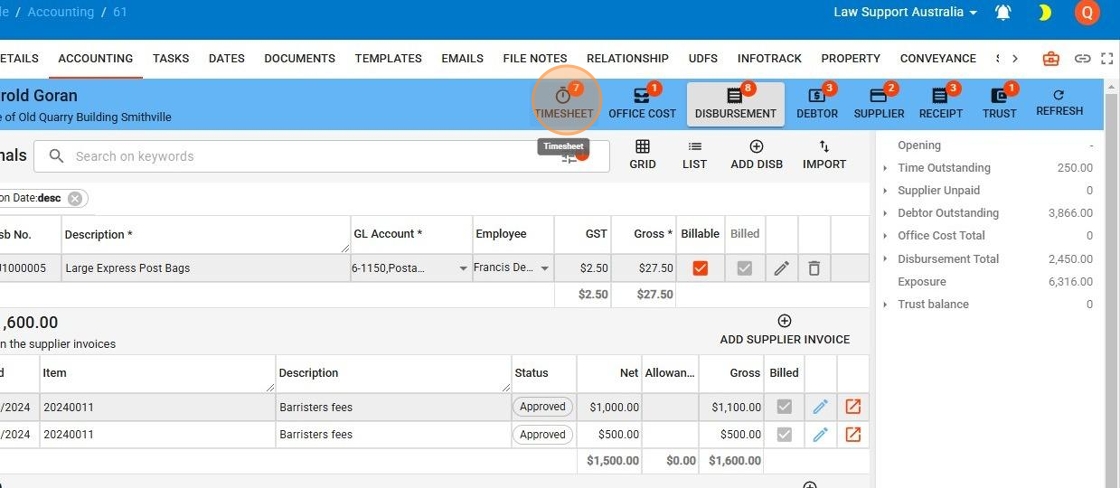
7. Viewing and Editing Timesheets
- A list of Timesheets will be displayed on the Timesheets tab.
- To edit a Timesheet, it must be in Draft status.
- If necessary, change the status to Draft and Save.
- Once in Draft, make your edits and then press Save again to apply the changes.
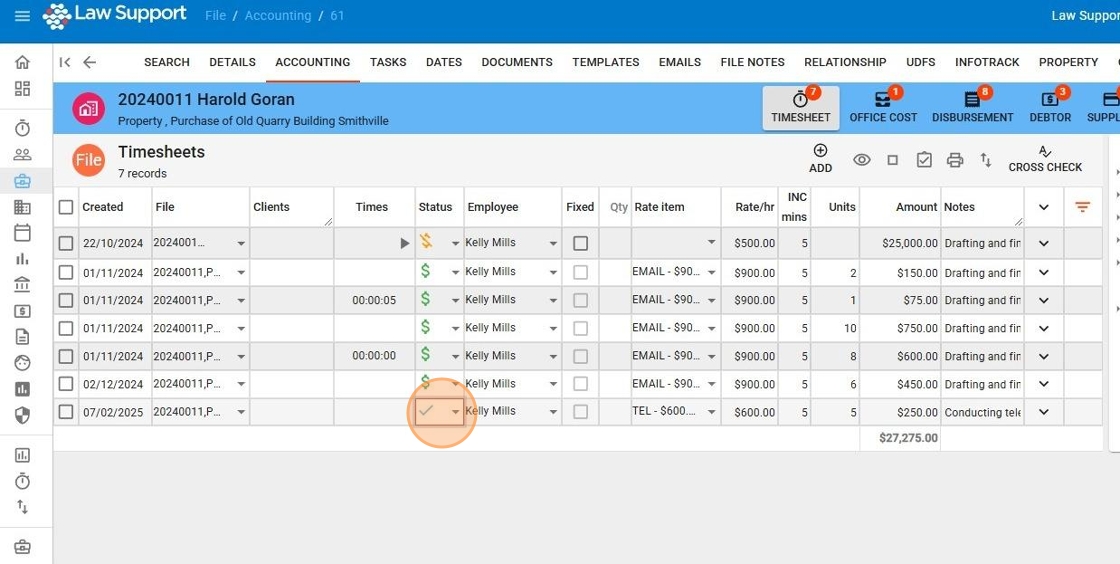
8. Saving Edits Across Multiple Timesheets
- When making any edits, pressing Save will apply all changes made during this session.
- This includes edits across multiple timesheet lines, ensuring all updates are recorded at once.
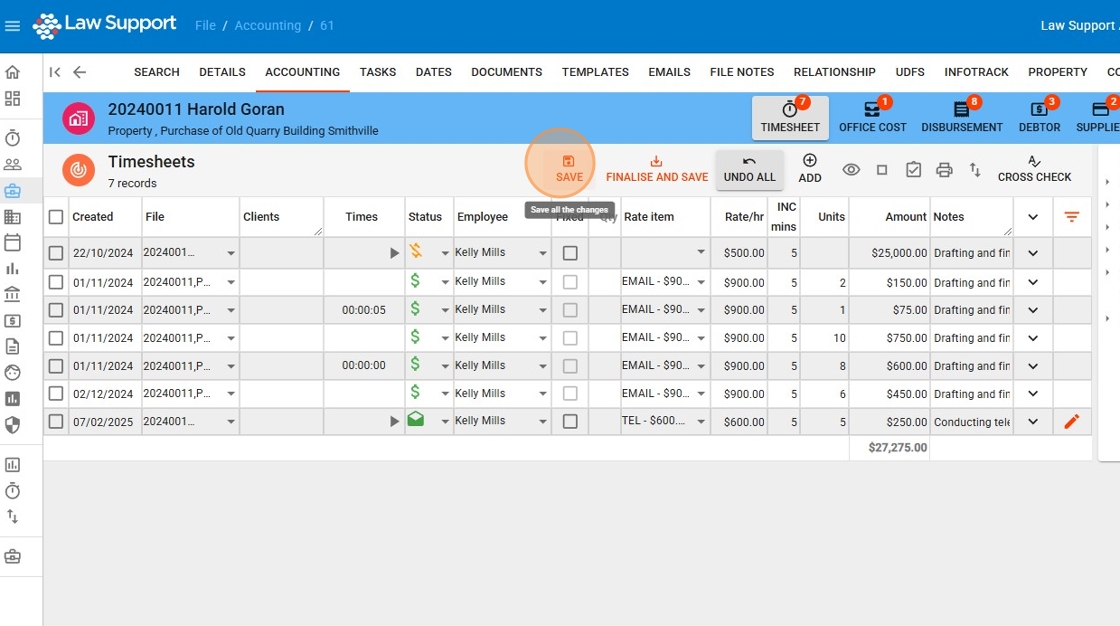
9. Filtering Draft or Unfinished Items
- Click the Eye Icon to display only Draft or unfinished time entries.
- This is an on/off toggle button, so pressing it again will show all time entries.
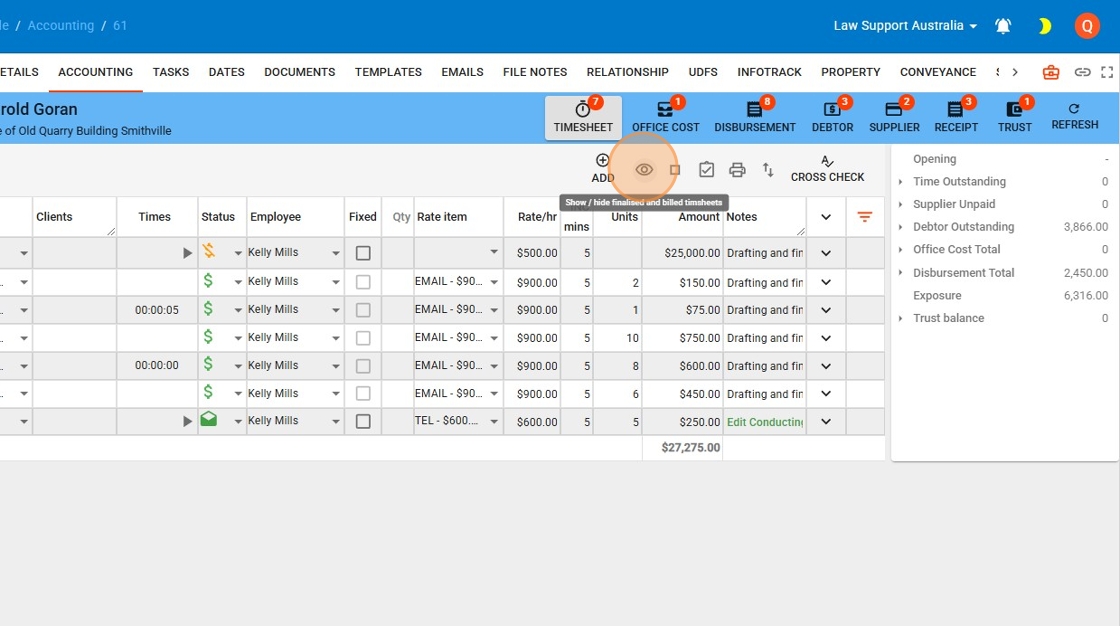
10. Managing Time Entries
- Click the Eye to Unveil all time entries.
- Stop button to Stop all clocks if any are running.
- Tick Box to Finalize or update working time entries.
- Print a time entry record

11. Adding a New Time Entry
- Press the (+) Plus Button – This will add a new time entry in line.
- New Entry Position – The new time entry will appear at the bottom of the list.
Automatic Entries and Edits
- The Date and File Number will be automatically inserted with today’s date and the current file.
- You can edit the date, but if you need to enter time for another file, this is not the correct place.
Using the Clock for Time Entry
- Press the Play button to start the timer.
- When you press Stop, the system will automatically determine the unit value based on elapsed time.
- The time entry starts in Draft, indicated by the orange circle.
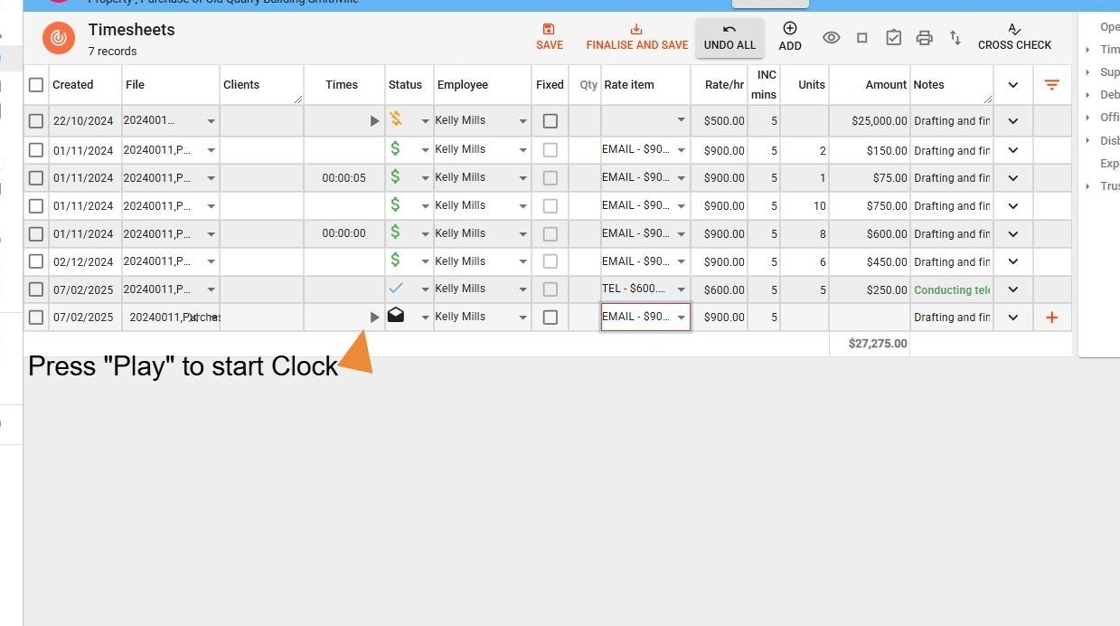
12. Selecting an Employee and Rate Item
- The Employee defaults to the logged-in user, but you can select a different employee from the drop-down menu.
- Choose the correct Rate Item from the drop-down list (e.g., Telephone).
- The Hourly Rate for the selected Rate Item will automatically populate in the Rate/Hour column.
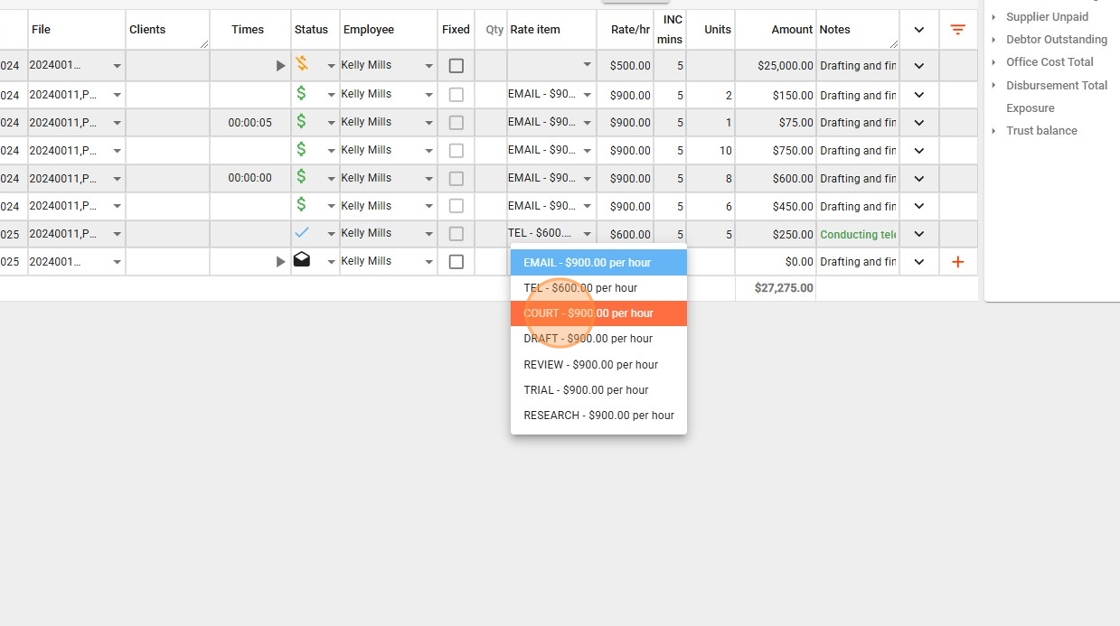
13. Entering and Saving Units
- Tab through the fields until you reach the Units field, or click directly into the Units field.
- Enter the number of units, then press Tab—the system will automatically calculate the time entry amount.
- Once satisfied, press Save to apply the changes.
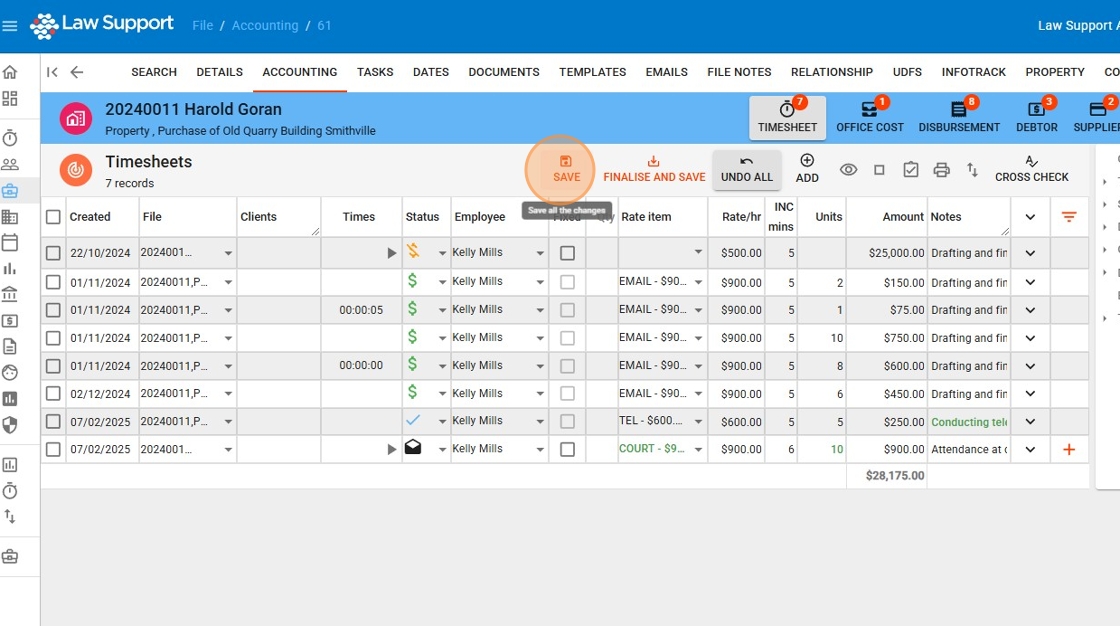
14. Overriding the Amount
- If you wish to override the amount and prevent the system from recalculating it, make editing the amount the last step.
- First, complete any notes or other changes you need to make.
- Then, go to the Amount field and manually edit the value press Tab to secure the update
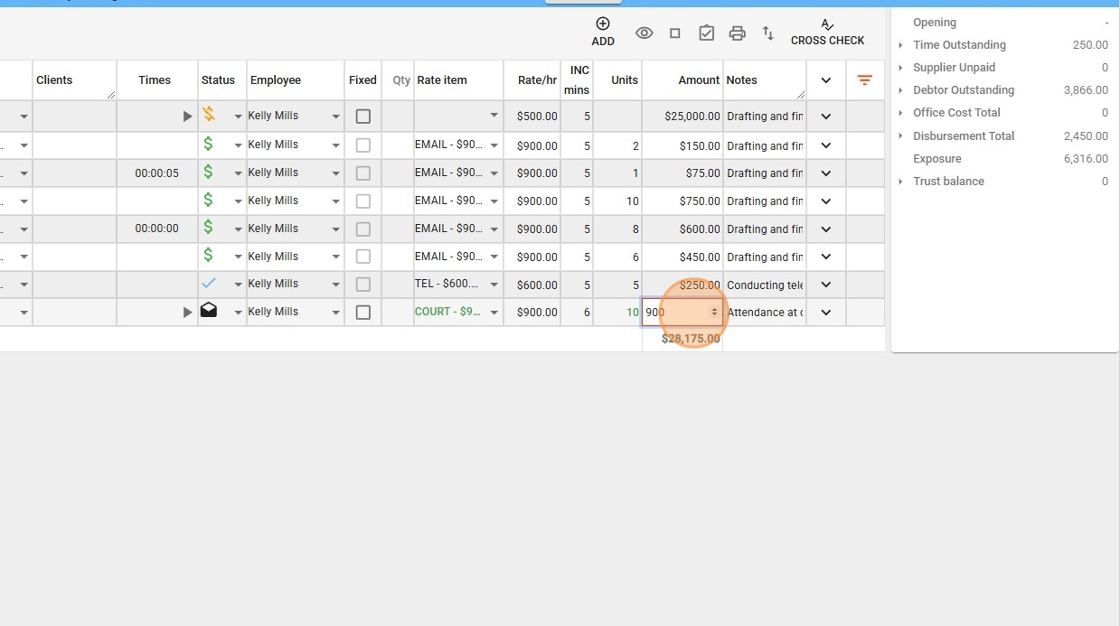
15. Finalizing an Overridden Amount
- Make Editing the Amount Your Last Step
- Complete any notes or other necessary changes before modifying the amount.
- Avoid tabbing across the line or clicking into other fields after changing the amount.
- Edit the Amount and Immediately Finalize
- Go directly to the Amount field and enter the correct value.
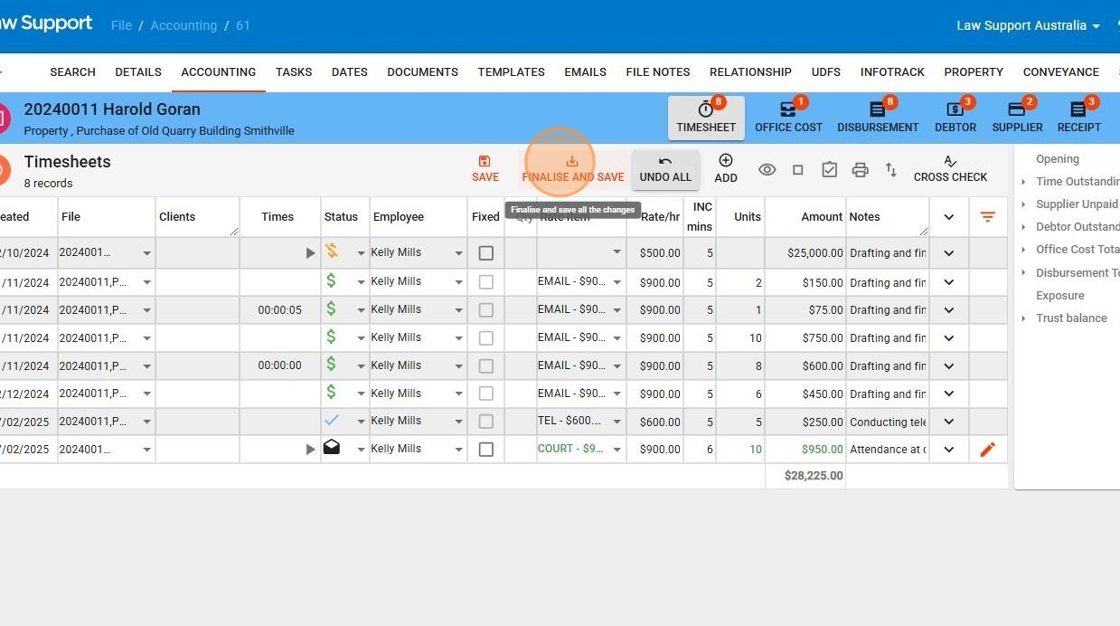
- Press “Finalize and Save” immediately to lock in the change.
- Why This Order Matters
- If you navigate through other fields, the system may assume you want to recalculate the amount based on standard formulas.
- For example, if the system reprocesses 10 units at $900 per hour, it may override your manual $950 entry.
- Finalizing immediately ensures your changes are saved exactly as entered.
16. Just put it in the wash dry in washing machine is it wet is it still washing so grab basket and take it out just do a one hour wash we’ll dry it plenty of time yeah just learning not so just the other one fill it out but do all the school clothes that are in that just all the school oh not these white shirts yeah everything that those white shirt with thinking on it
Understanding Time Entry Totals and Indicators
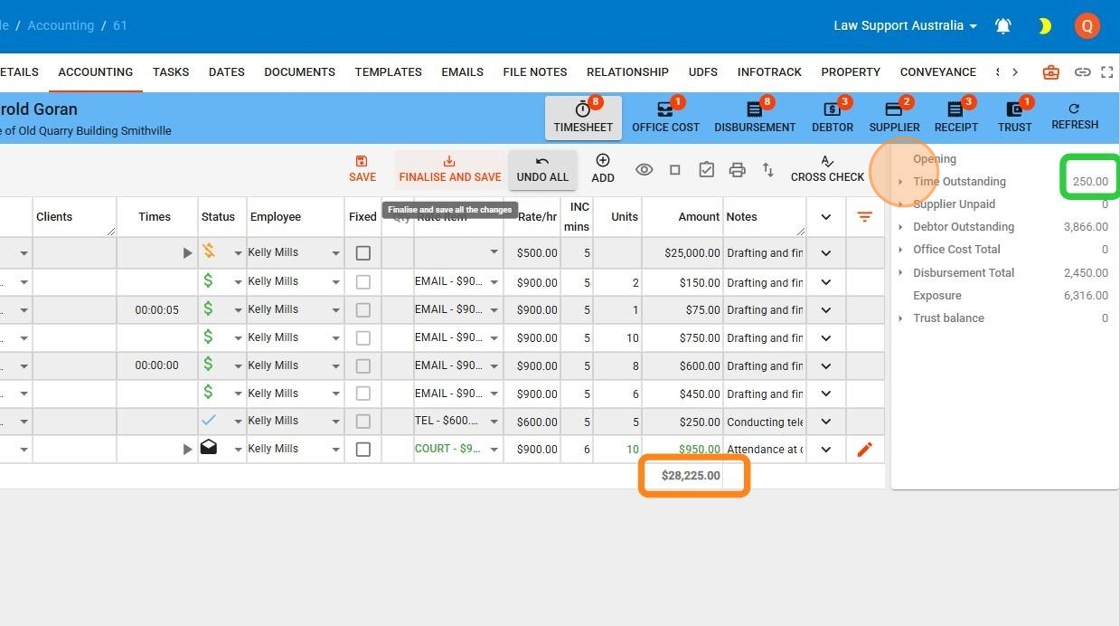
- Total Amount for Today’s Timesheets
- The square rectangle at the bottom of the grid displays the total amount of all timesheets entered today, regardless of their status.
- For example, if the total for today is $900 per hour, this reflects the sum of all recorded time entries.
- Finalized & Unbilled Time Entries
- The green rectangle at the top right indicates the total value of finalized but unbilled time entries, which are ready for billing.
- This does not include Draft items—only those flagged as Finalized and not yet billed.
- Viewing Time Totals in Detail
- The orange circle acts as a drop-down button, allowing you to expand and see more details about time totals.