
A general receipt records money received into your general (office) account – most often when a client is paying a tax invoice. You can record a general receipt from inside the file, or from the Accounts menu.
The short video below walks through the whole process. The step-by-step guide underneath covers the full process with screenshots, so you can refer back quickly.
Step-by-step guide
There are two ways to create the receipt. Both end the same way: the receipt is allocated to the invoice and authorised.
File > Financials > Receipt
Best when you’re already working in the file. The file is filled in for you on the receipt.
Accounts > General > Receipts
Handy for accounts staff entering receipts without opening each file. You search for and select the file on the receipt line.
How to create a general receipt from within the file
- In the file, go to Financials, open the Receipt tab and click Add.
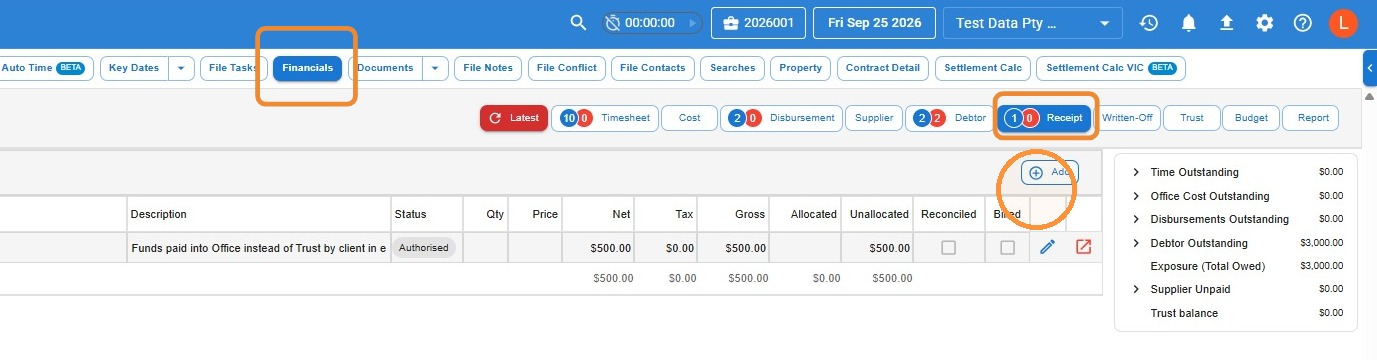
- Click in Paid By and search for and select the contact who made the payment. Check the Bank Account (select it if it isn’t already filled in) and choose the Payment means. Then click Add to add a receipt line.
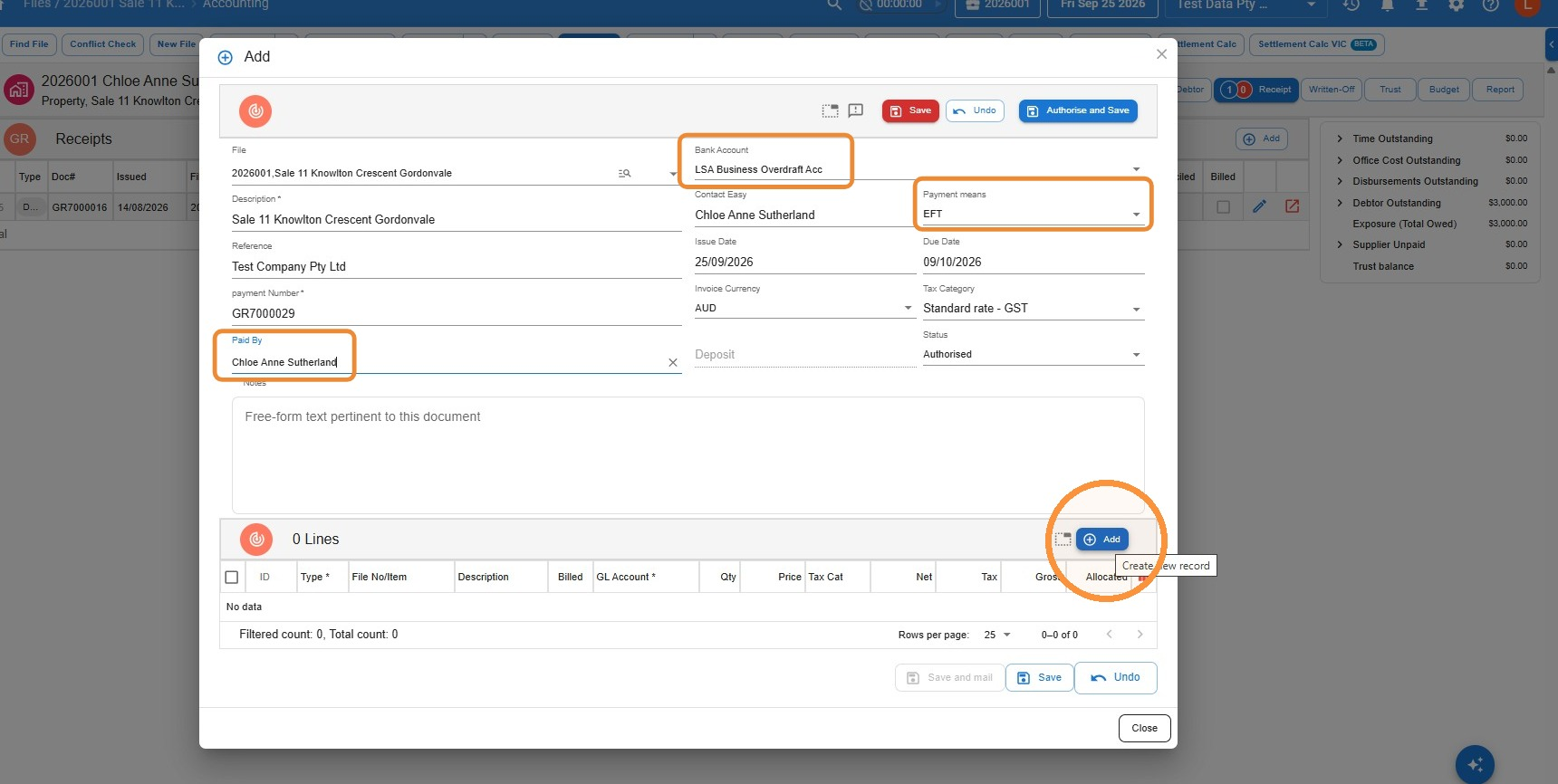
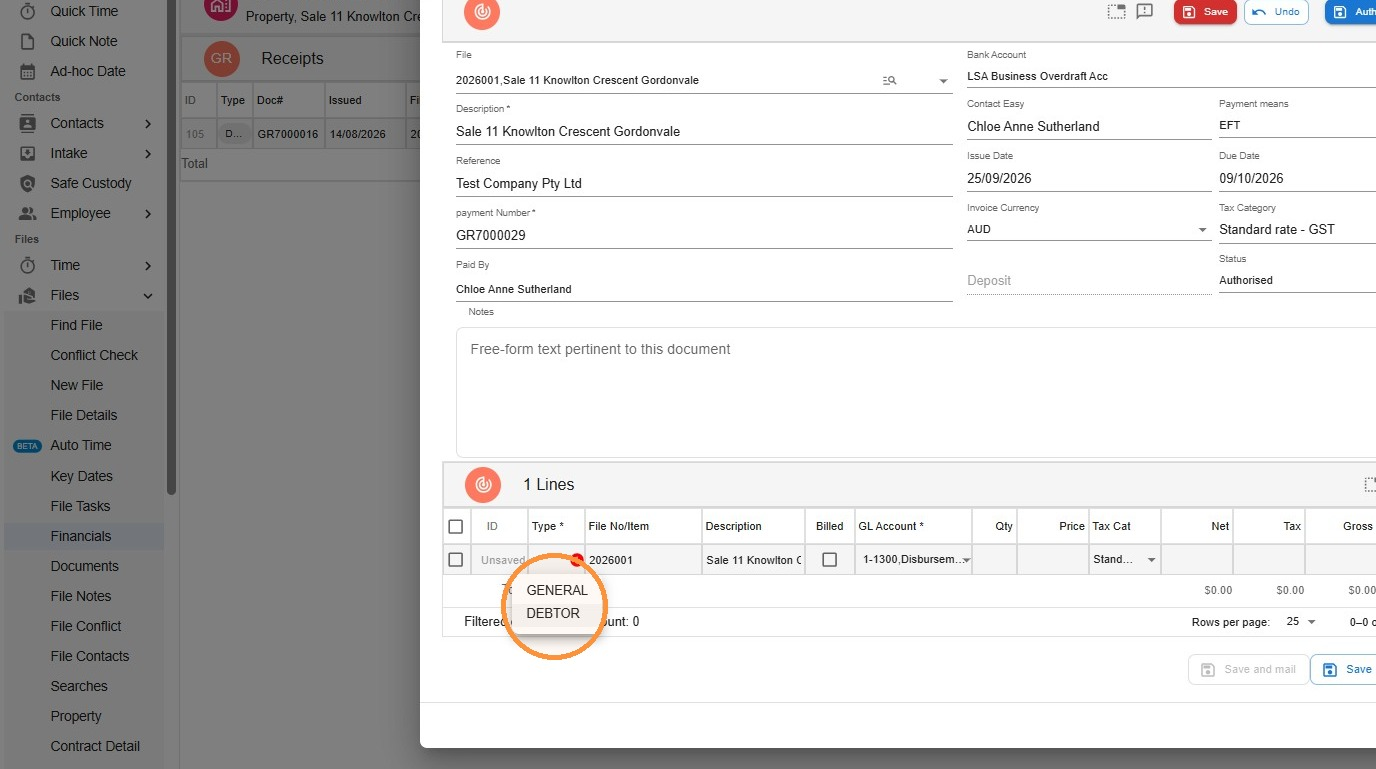
- In the new line, set the Type to Debtor.
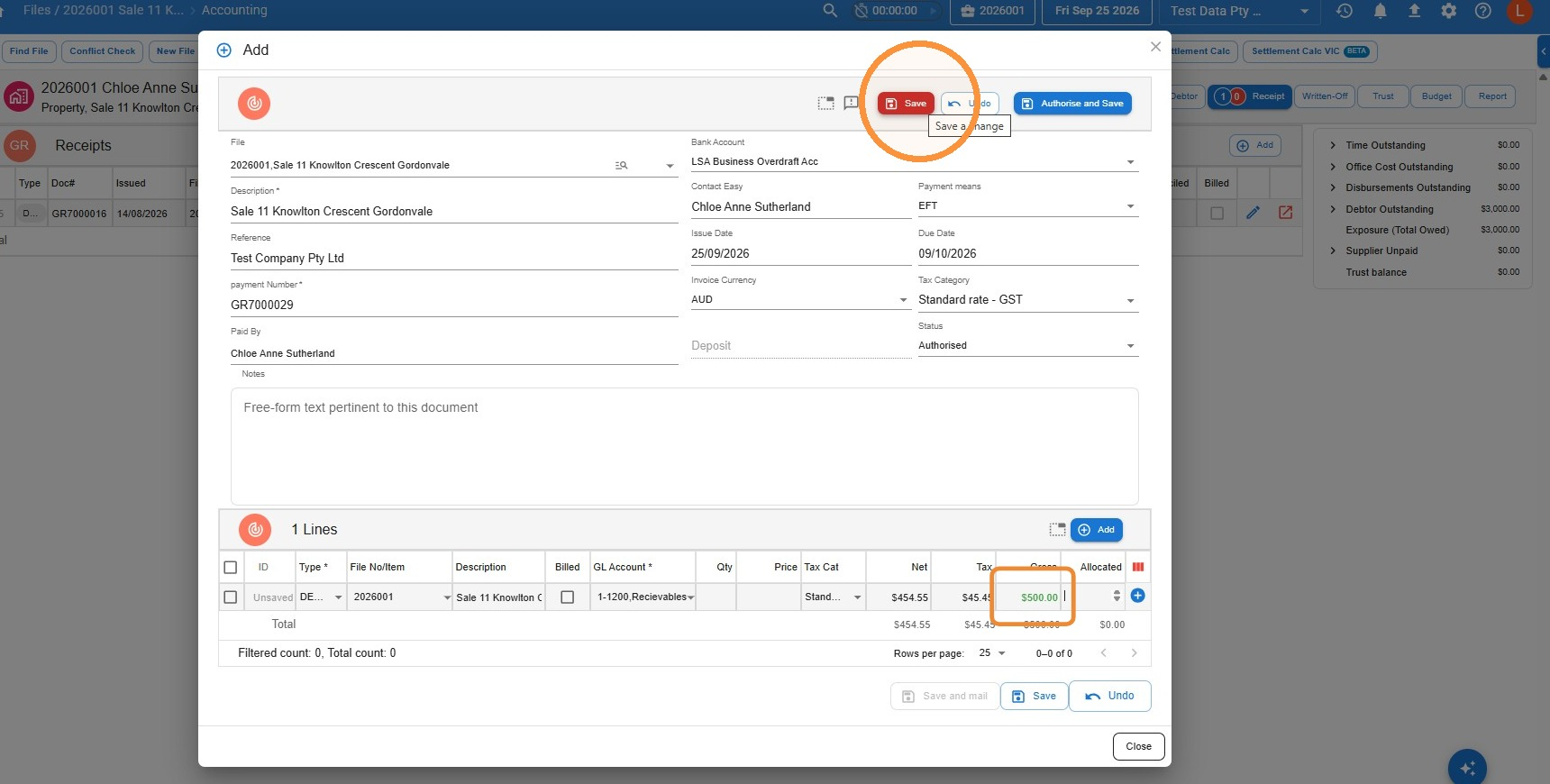
- Enter the amount paid in the Gross column. Click Save to save the receipt as a draft, or Authorise and Save to save it straight to Authorised status.
Allocate the receipt to the invoice
Saving the receipt records the money, but it isn’t linked to an invoice yet. The next step is to allocate it.
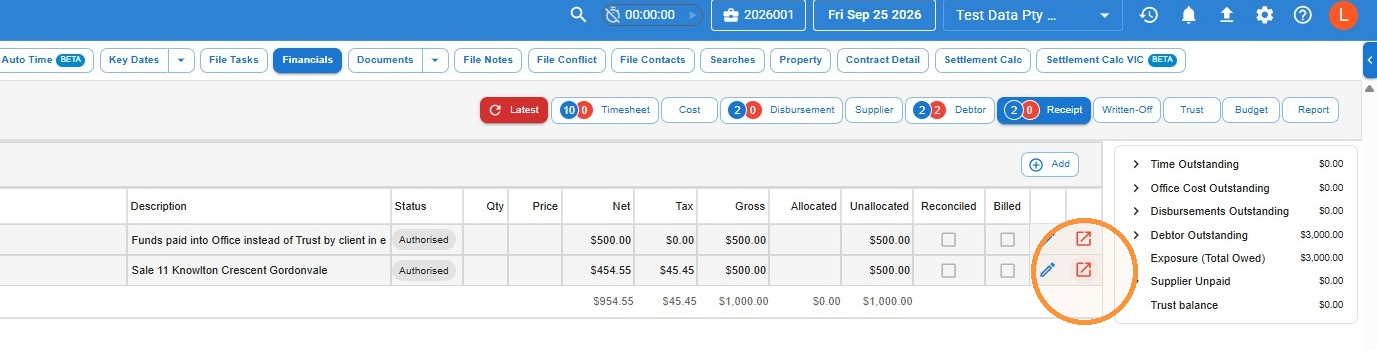
- Find your receipt in the list on the Receipt tab and click the Open in new icon at the end of its row.
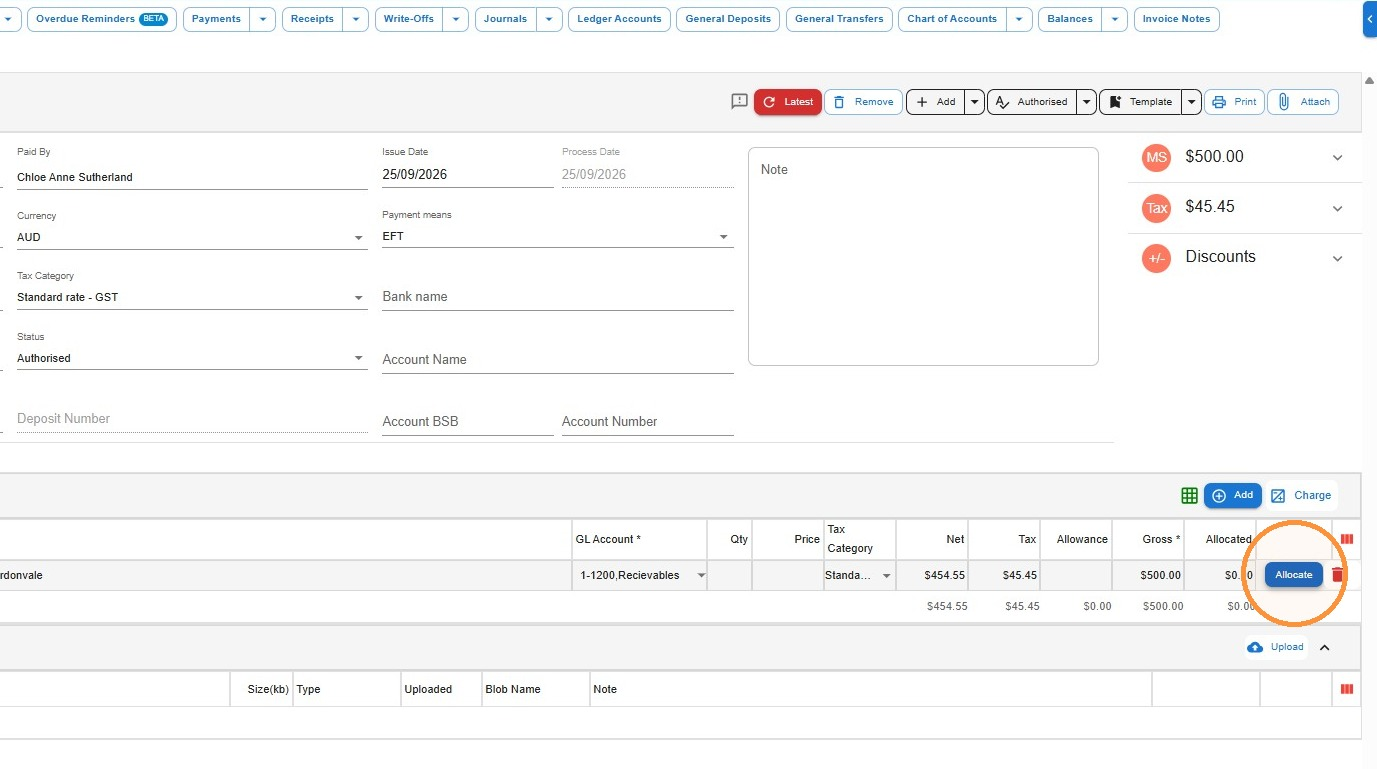
- On the receipt line, click Allocate.
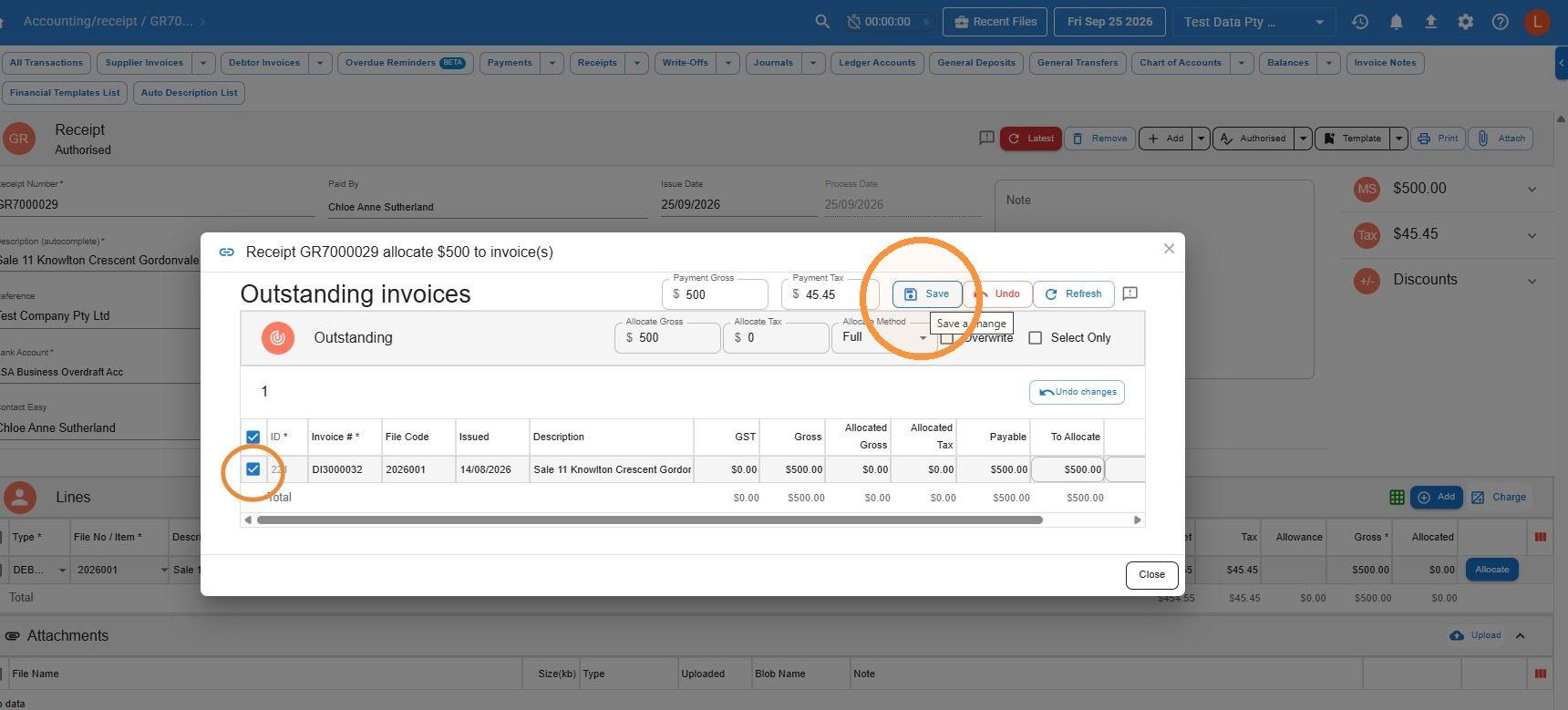
- Tick the outstanding invoice you want to allocate the receipt to, then click Save.
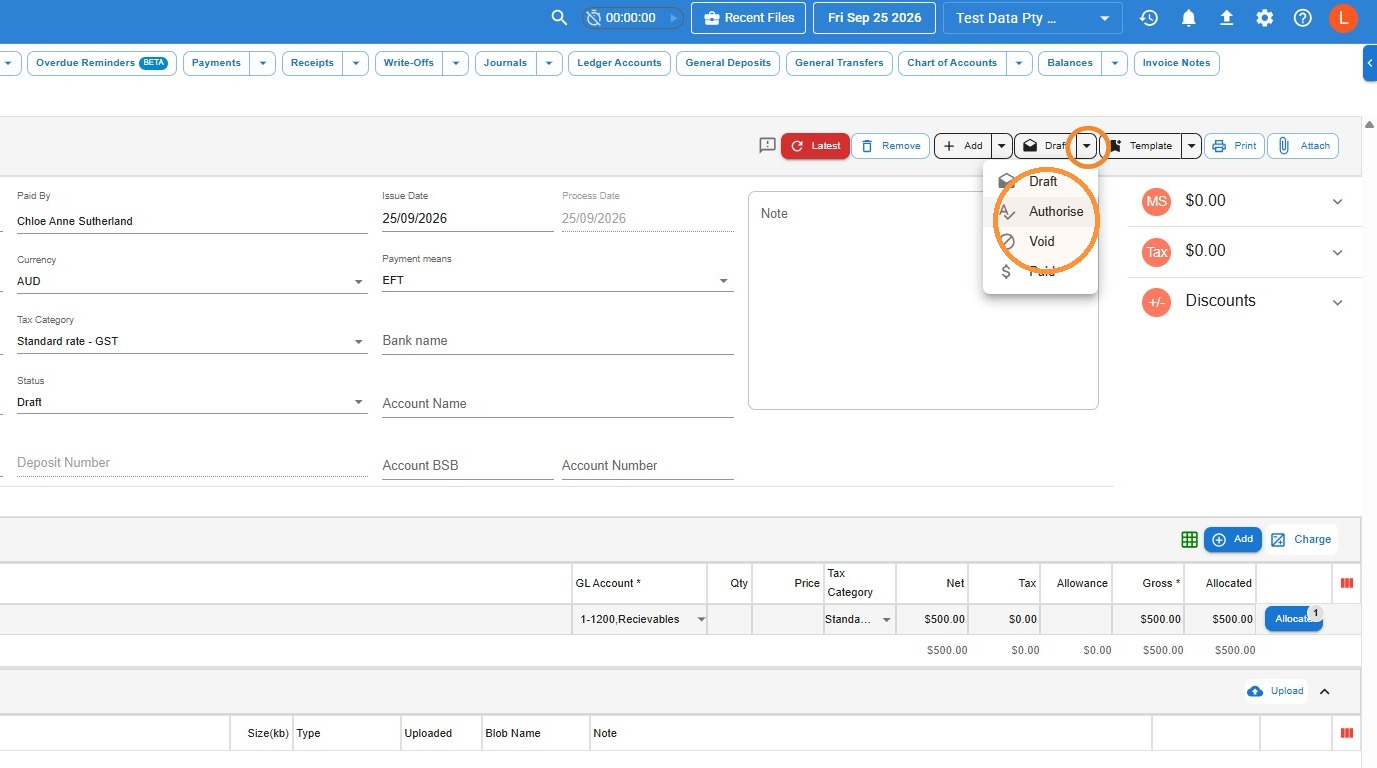
- If the receipt is still in Draft, click the dropdown arrow next to the status button at the top of the receipt and choose Authorise.
How to create a general receipt from the Accounts menu
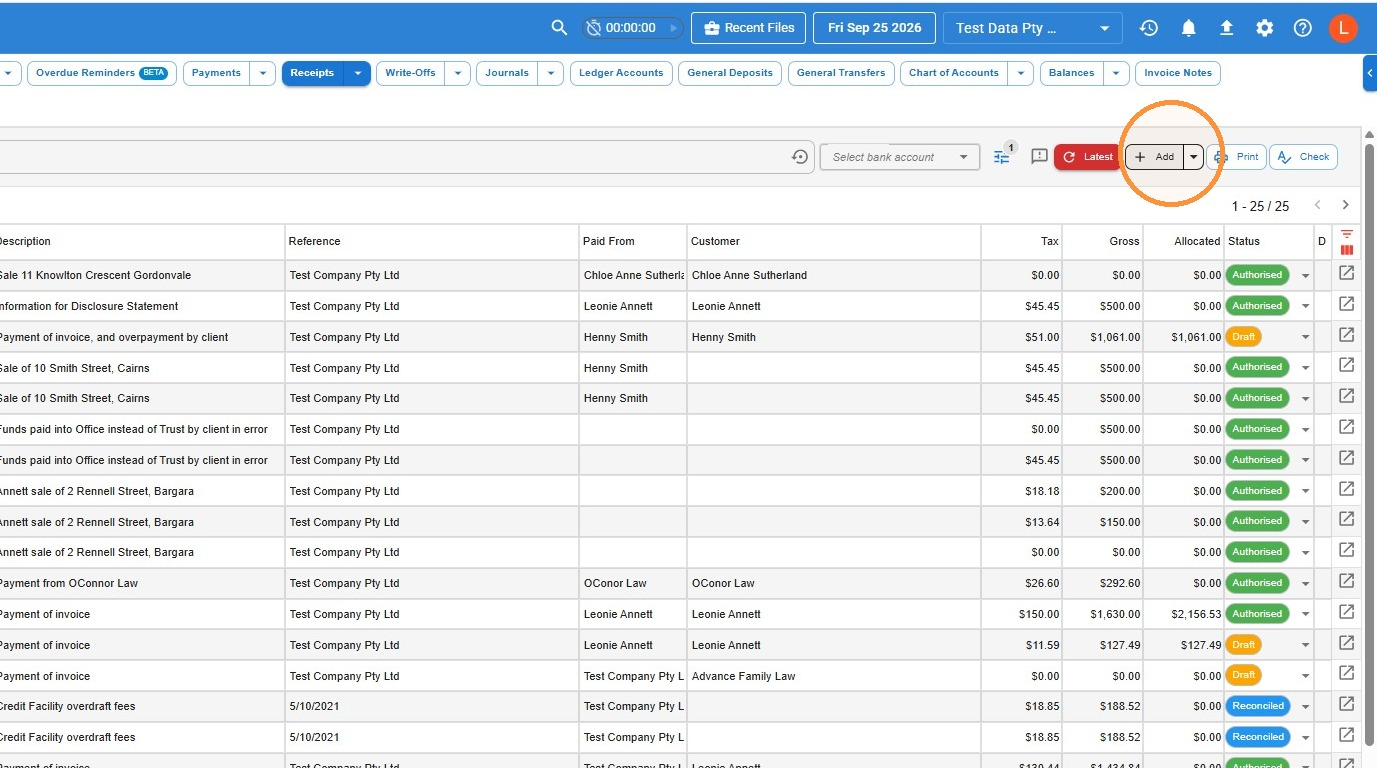
- In the Accounts menu, select General, then Receipts, then click Add.
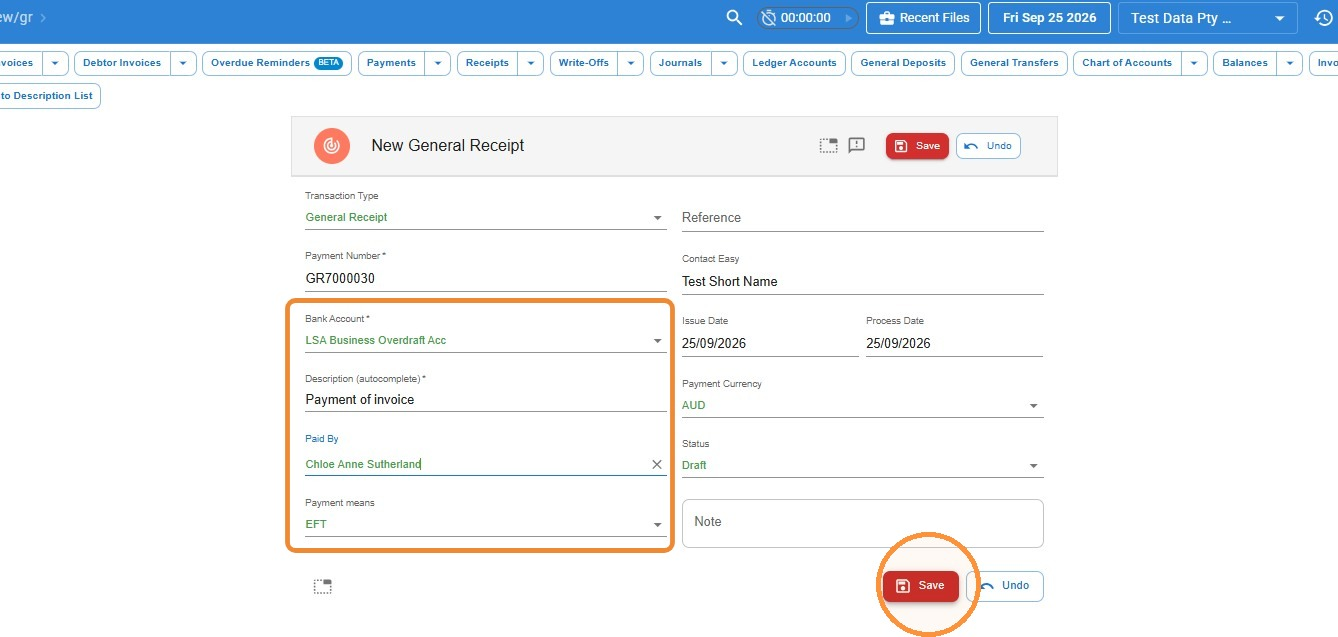
- Add a Description and select the contact who made the payment in Paid By. Check the Bank Account (select it if it isn’t already filled in) and choose the Payment means. Then click Save.
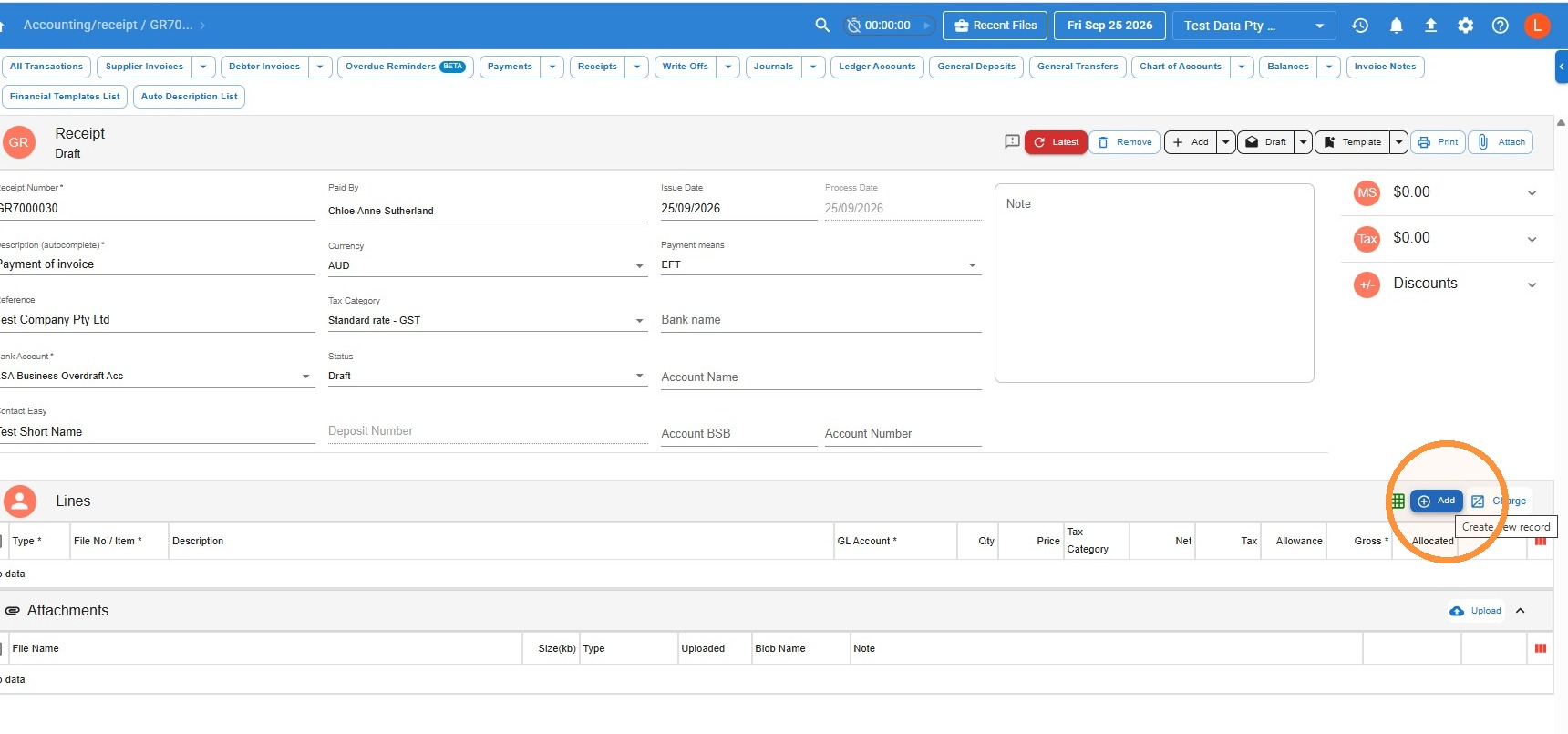
- Click Add to add a receipt line.
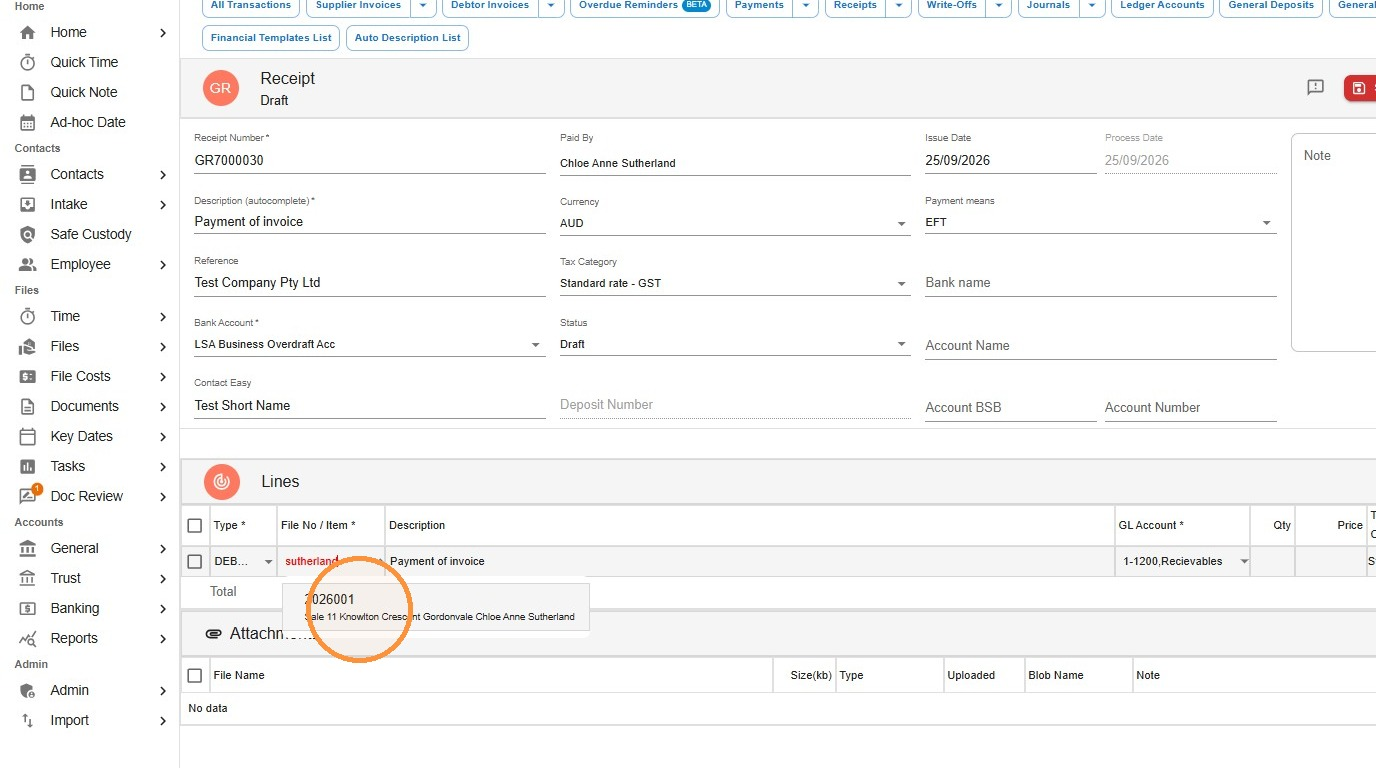
- In File No / Item, search for and select the file. Make sure the line’s Type is set to Debtor.
- Enter the amount paid in the Gross field, then click Save.
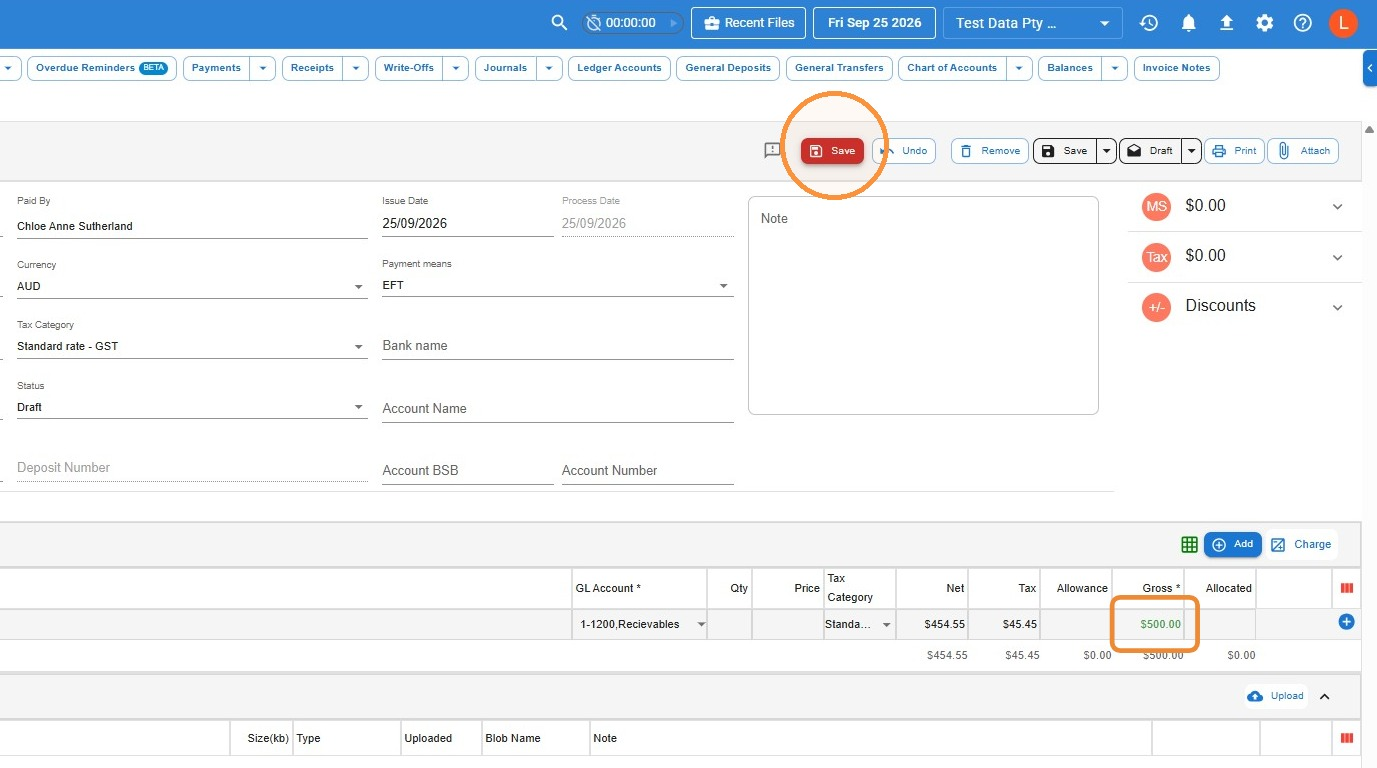
Allocate the receipt to the invoice
- On the receipt line, click Allocate.
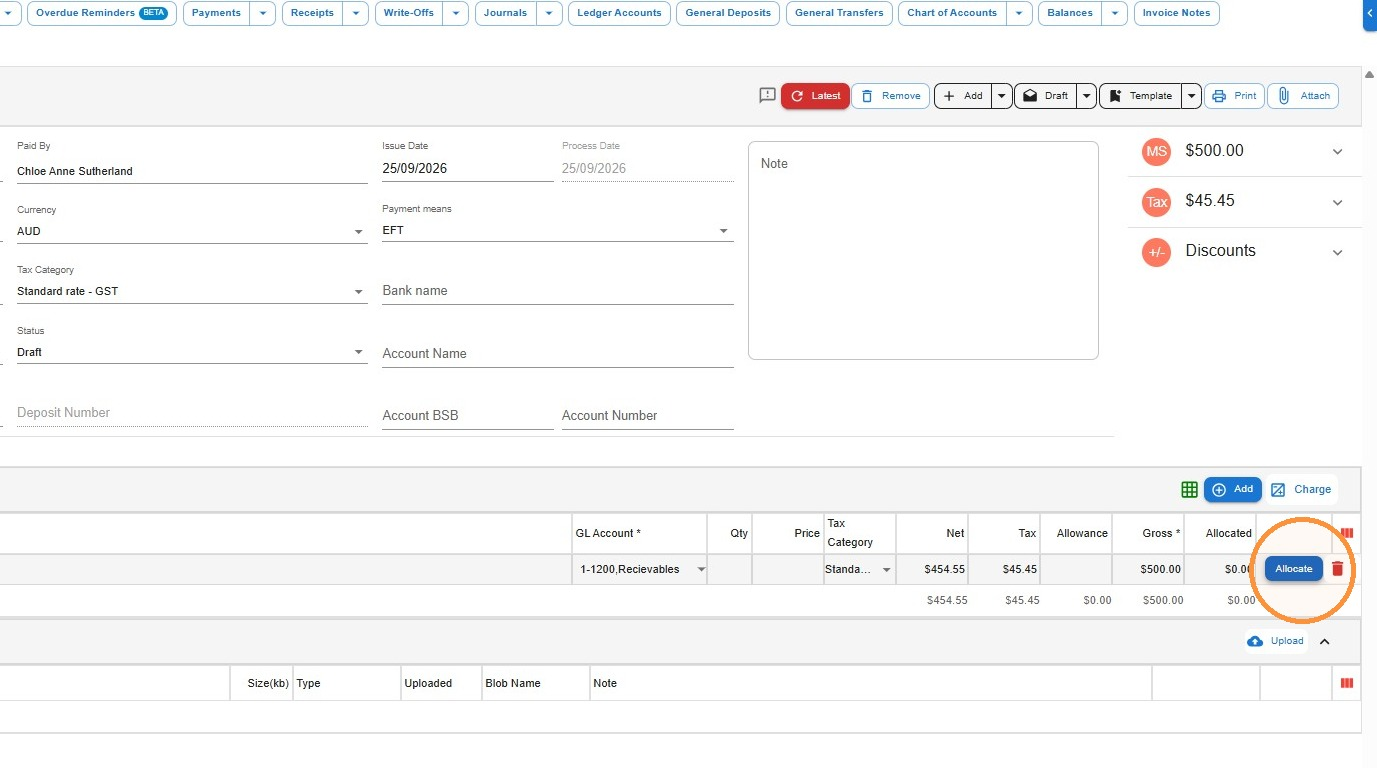
- Tick the outstanding invoice you want to allocate the receipt to, then click Save.
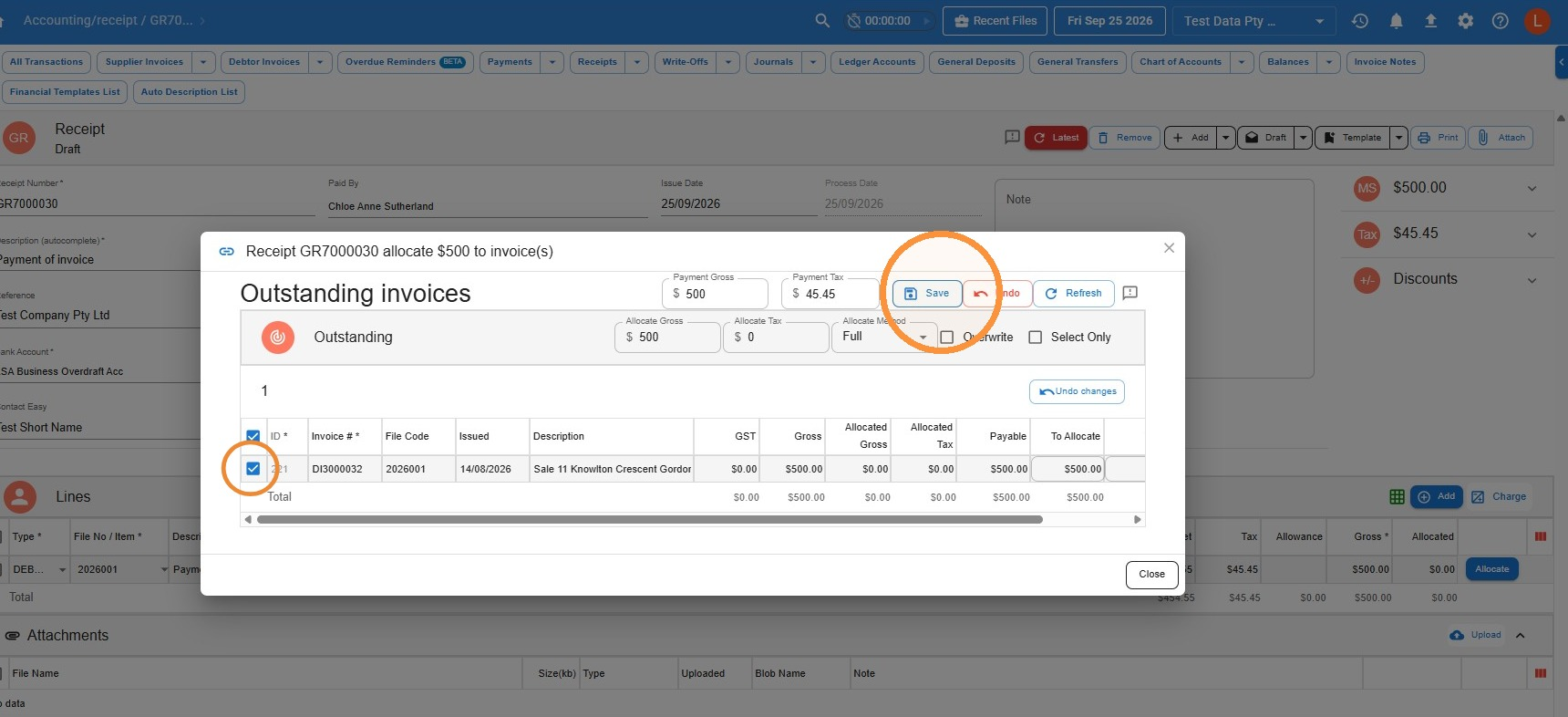
- Once you’re finished, change the receipt’s status to Authorise using the dropdown arrow next to the status button at the top of the receipt.
Common questions
What’s the difference between a general receipt and a trust receipt?
A general receipt records money paid into the firm’s general (office) account, such as a client paying an invoice or other firm income. A trust receipt records client money received into the trust account, which is held on the client’s behalf and is subject to trust accounting rules. Choosing the wrong one puts the money in the wrong ledger, so if the money belongs to the firm or is paying an invoice, use a general receipt.
Why do I need to allocate the receipt?
Saving the receipt records the money in your general account, but it doesn’t reduce what’s owing on any invoice until you allocate it. Allocating links the payment to the outstanding invoice and updates the file’s debtor balance.
Do I need to authorise a general receipt?
Yes. A receipt left in Draft isn’t finalised. You can authorise it when you first save it (with Authorise and Save), or change the status to Authorise once you’ve allocated it. Either way, check it shows as Authorised before you finish.
Leave a Reply