
From 1 July 2026, Australian law firms have AML/CTF obligations for the first time — and Law App builds them into your normal file and contact workflow rather than a separate system. This guide walks through the whole process: flagging a matter, assessing risk at the matter level, verifying and risk-rating each client (including organisations, their beneficial owners and anyone acting on their behalf), generating the official AUSTRAC forms and reports, and keeping the audit trail the legislation requires.
On the matter — flag, assess and report
On the file you mark the matter as a designated service, record the source of funds, and run the matter-level risk assessment. The file’s AML row also generates the working AML report and the official AUSTRAC forms.
On the contact — verify and rate
Verification happens on the contact: the KYC questionnaire, entity details and beneficial owners for organisations, identity verification (VOI), the risk rating, and the periodic reviews.
Setting up AML/CTF compliance on a matter
AML/CTF obligations only apply to matters that involve a designated service under the AML/CTF Act, so Law App doesn’t apply the requirements to every file — only the ones you flag. You set this on a new file, or at any time on an existing file’s Details tab.
Flagging a matter as a designated service
- Set Designated Service (AML/CTF) to Yes.
- Choose the relevant Designated Service Type.
- Record the Source of Funds. This is multi-select — record more than one if it applies (for example, Savings and Gift) — and choose Other to free-type anything not listed.
Assessing risk at the matter level
Alongside verifying each client, every designated-service matter carries its own AML risk assessment. Open it from the AML Risk button in the matter’s AML row (see “AML on the matter” below for where that sits).
Matter facts and risk questions
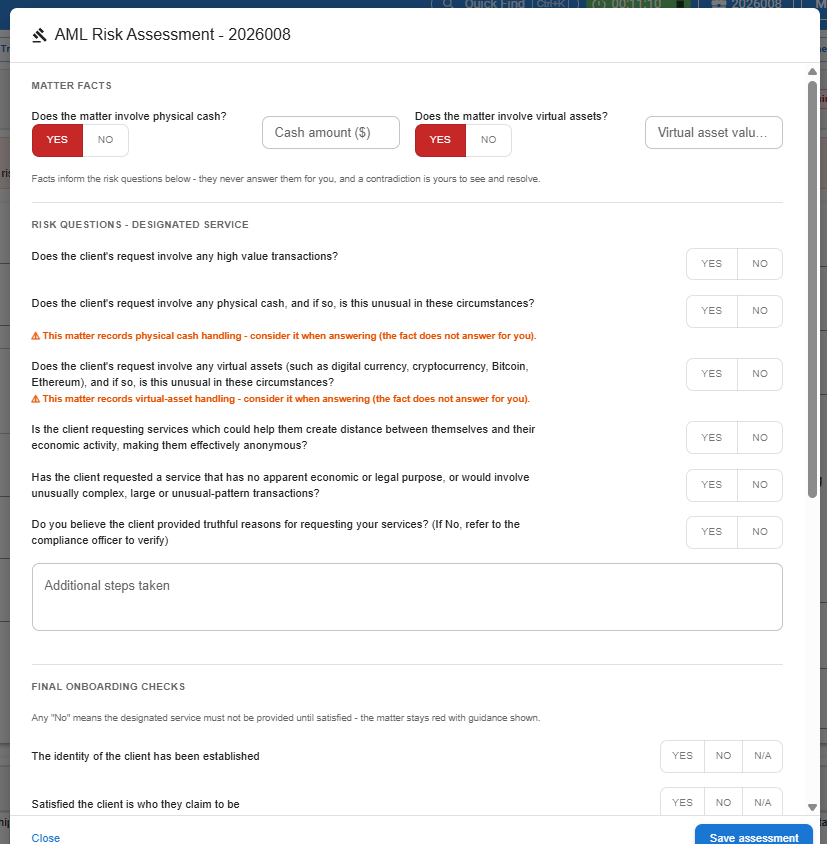
The assessment opens with two matter facts — does the matter involve physical cash (and the amount), and does it involve virtual assets (and the amount). These are records, not answers: if a fact is set, a prompt appears beside the related risk question, but you still have to answer the question yourself.
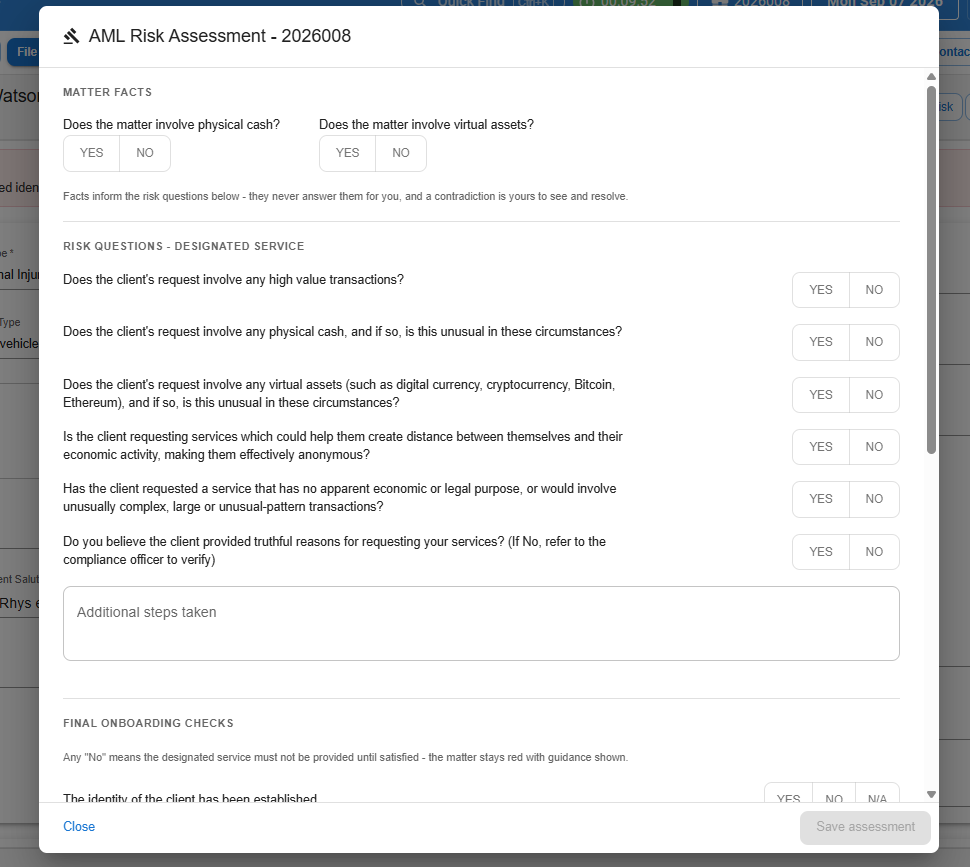
Below the facts sit the risk questions — a property-specific set on real-property matters (a $1.5 million-plus no-mortgage purchase, $50,000-plus in physical currency, and similar) and a general set on everything else (high-value transactions, physical cash, virtual assets, anonymity structures).
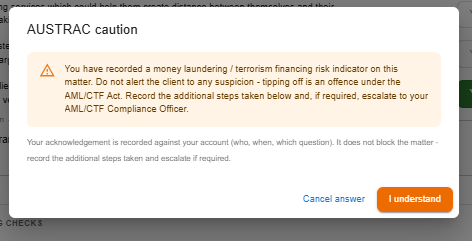
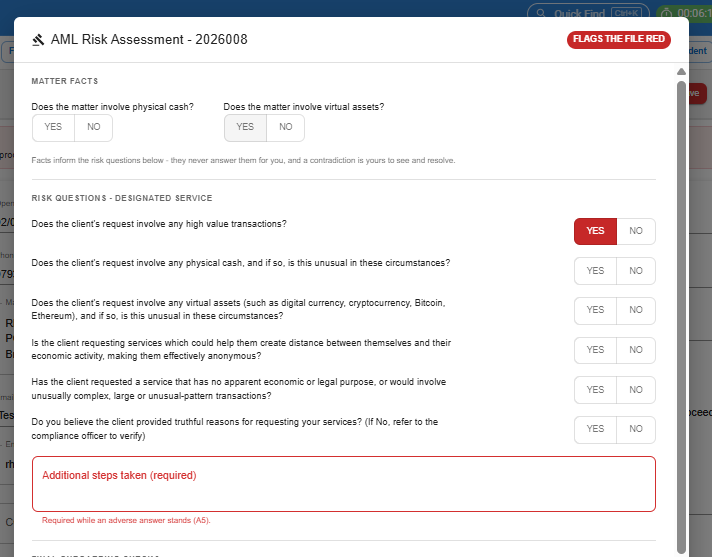
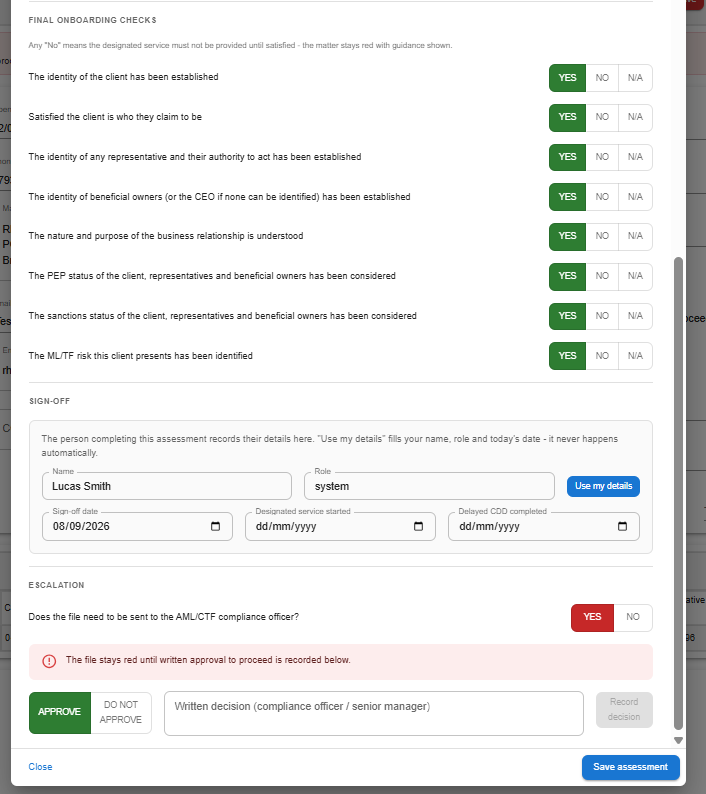
Final onboarding checks and sign-off
The final onboarding checks are the AUSTRAC satisfaction list — things like whether the client’s identity has been established and whether their PEP and sanctions status has been considered. Any “No” also flags the file red. Sign-off comes last: Use my details fills in your name, role and today’s date, and you record when the designated service started.
Escalating a matter to the Compliance Officer
If a file needs to go to your AML/CTF Compliance Officer, tick escalation required in the assessment. The file stays red until a written approval is recorded — the decision (approve or do not approve), who recorded it, and when, are all captured and audited. Recording the decision here is also what feeds the firm’s AML/CTF register.
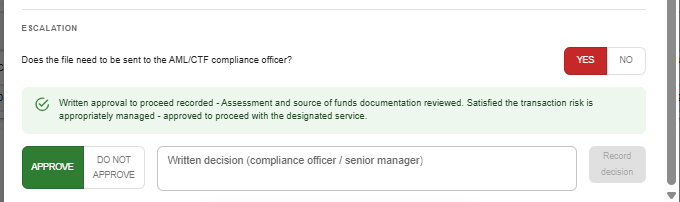
Each contact’s Identity & AML tab shows an AML escalation history panel listing every escalation across their matters, with the file number — so anyone reviewing the contact can see the full picture at a glance.

AML on the matter — the AML row
On a designated-service matter, the File Details toolbar carries an AML row: the file’s AML status pill, a Risk: Low/Medium/High pill summarising the matter’s clients, and three buttons — AML Risk, AML Report and AUSTRAC Form.

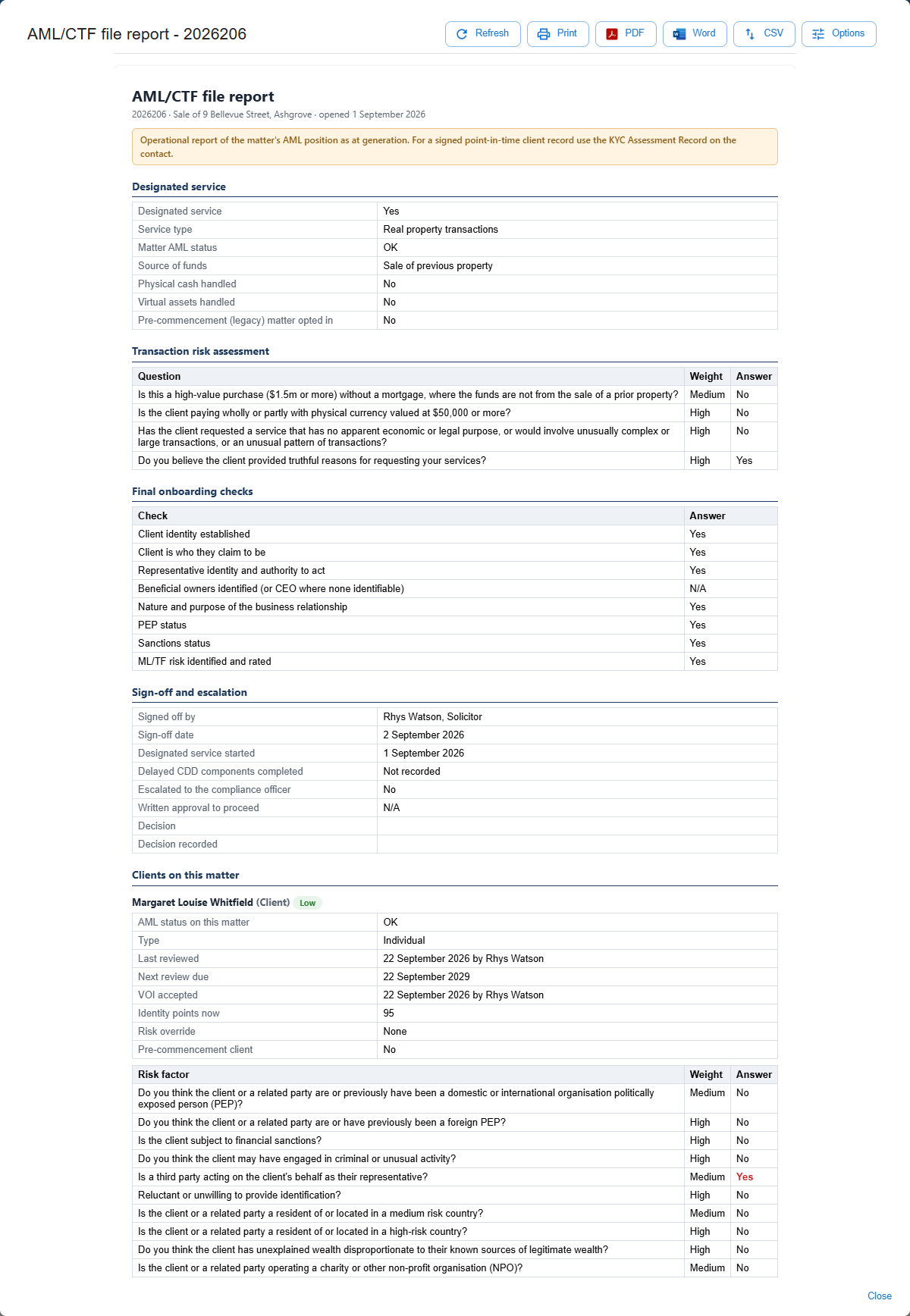
The AML report
AML Report opens a live report over the whole matter: the designated service and its start date, matter facts, the risk answers, the final onboarding checks, the sign-off, any escalation and its decision, and then each client on the matter with their rating, VOI position, questions, people register and representatives. It’s generated fresh from current data every time you open it — a working report, not a signed record. Print or download it from the toolbar.
Generating the official AUSTRAC form
AUSTRAC Form generates the official AUSTRAC customer due diligence form for the matter, for the situations described in “When the official AUSTRAC forms apply” at the end of this guide. The dialog lists the starter-kit forms from Law App’s global template library — the conveyancers kit first on real-property matters, the legal profession kit first on everything else — with chips to jump to the variant you need (individual or sole trader, trust, body corporate/partnership/association, government body), plus the escalation and unusual activity report forms.
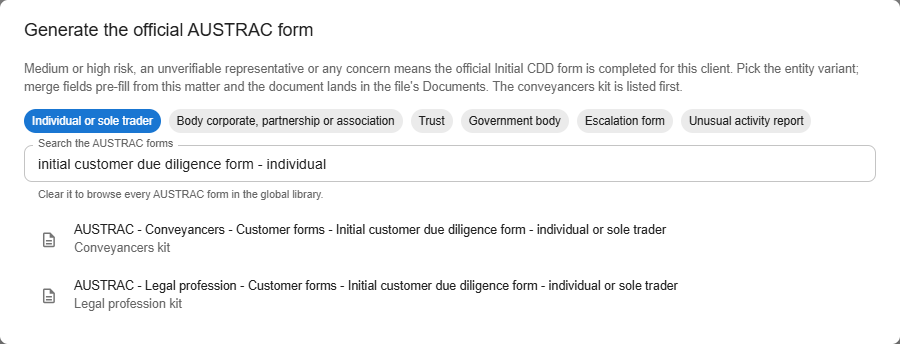
Pick a form, choose the folder it should file into, and it’s created in the matter’s Documents with the file code and client name filled in — complete the rest in Word. These are AUSTRAC’s own documents, so they aren’t editable as firm templates.
Verifying identity and assessing client risk — the Identity & AML tab
Identity verification and risk-rating happen on the contact, not the file. Open the client in the Contacts area and go to their Identity & AML tab — this is where you complete and track everything the legislation requires for that person or organisation.
Completing the KYC questionnaire
The questionnaire matches AUSTRAC’s official customer due diligence forms word-for-word, and adjusts depending on whether the contact is an individual or an organisation. Individuals answer 12 questions, covering PEP status (two separate Yes/No questions — domestic or international-organisation PEP, and foreign PEP), financial sanctions, criminal or unusual activity, third-party representatives, medium and high-risk countries, charities and NPOs, unexplained wealth, and remote-only contact channels. Organisations answer 13 questions, including the same two PEP questions extended to cover any related party, beneficial owner or CEO.

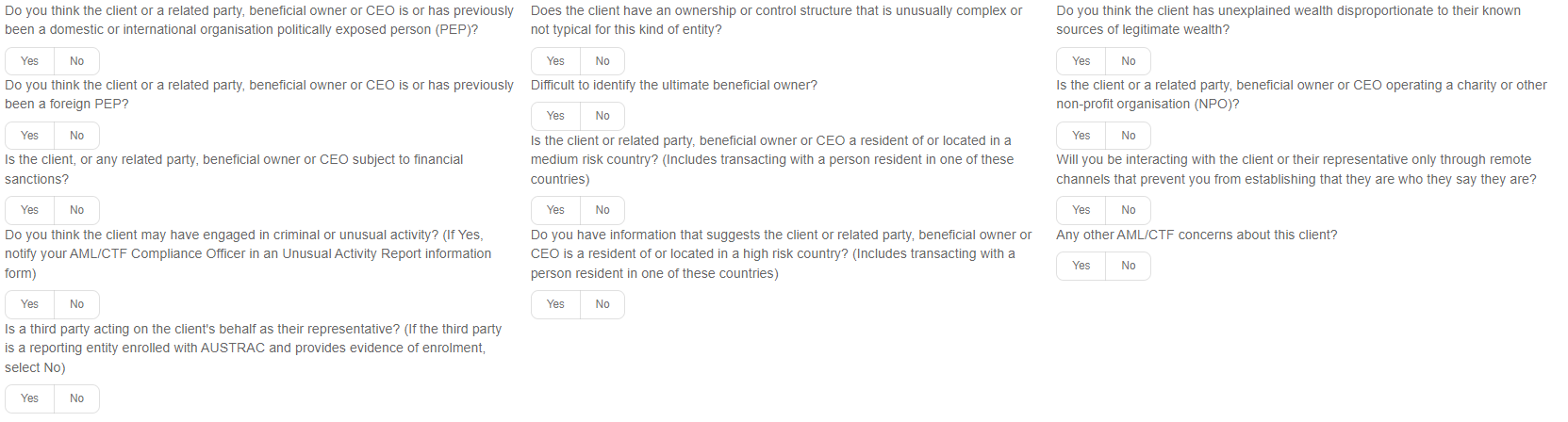
Once the questionnaire is answered, Law App calculates the risk rating for you — you don’t score it manually.
Sole traders
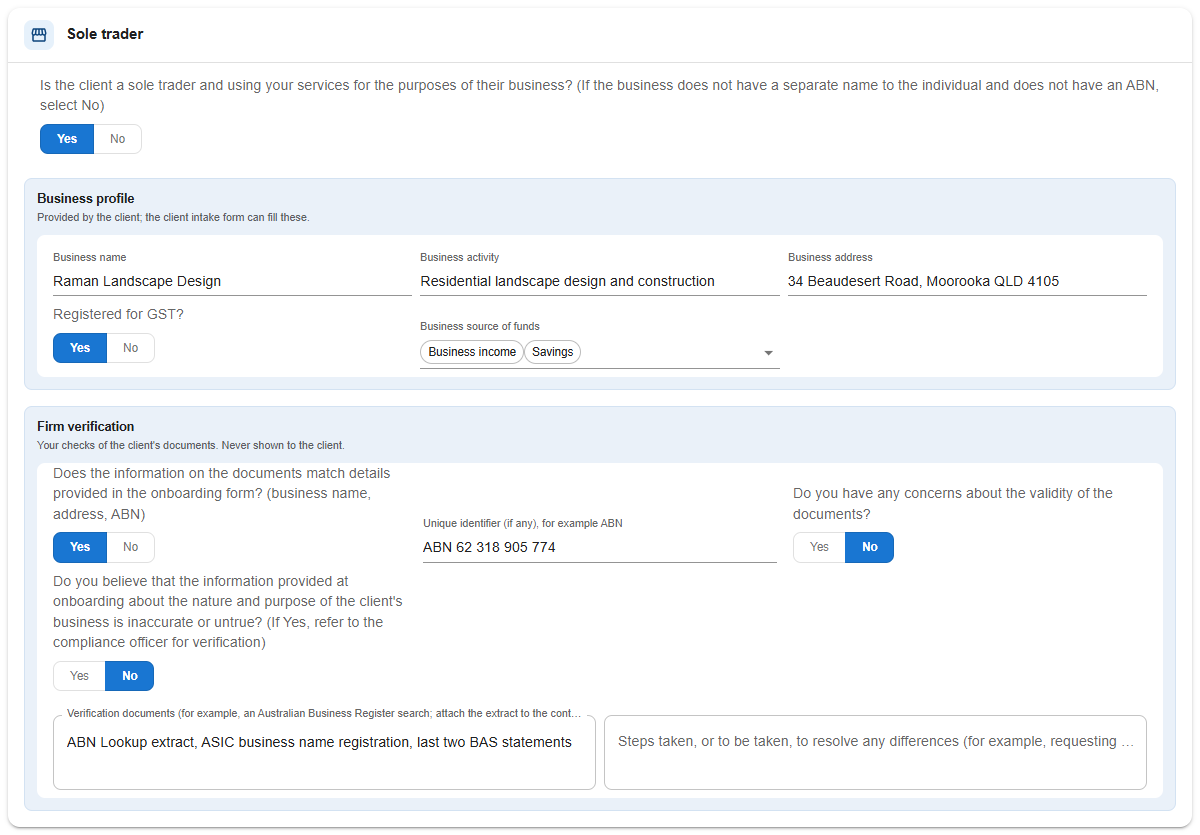
The individual question set includes a gate question: is this person a sole trader? It has to be answered before the review clock starts, just like the other questions. Answer Yes and a Sole trader card appears with two groups — Business profile (business name, address, activity, GST registration and the business’s source of funds — the ABN itself stays on the contact’s Details tab) and Firm verification (which documents you used to verify the business, the unique identifier you relied on, whether the documents matched onboarding, and any concerns). The official AUSTRAC form for a sole trader is the same as for an individual.
How the risk rating is worked out
The rating is weighted, not just counted — each question carries a weight, exactly as AUSTRAC’s forms prescribe:
- High — a Yes to any single high-weight question (for example, foreign PEP, sanctions, a high-risk country, unexplained wealth, or remote-only contact channels).
- Medium — a Yes to two or more medium-weight questions (for example, domestic PEP, a third-party representative, a medium-risk country, or an NPO).
- Low — anything less.
The rating appears after you Save. The review clock only starts once every question has been answered — a partly-answered questionnaire will show a rating, but won’t schedule the periodic review. Until the questionnaire is completed, the contact shows as Not assessed.
Periodic review dates
Law App schedules the next review date automatically, based on the risk rating: low risk reviews every 3 years, medium risk every 2 years, and high risk every year.
Verifying identity (VOI)
The Identity & AML tab is also where you manage identity verification — documents captured in person, and electronic VOI checks run through InfoTrack. Having the documents on file isn’t enough by itself: a person must confirm the VOI before it counts.
The VOI panel shows a live identity points total (passport 70, licence 40, Medicare 25, an InfoTrack VOI Report 100, and so on) summed across unexpired documents. The 100-point standard is a guide — if the total is below 100 you’ll see a warning, but you can still accept if you’re satisfied by other means. That call is yours, and it’s audited.

Press Confirm VOI meets AML requirements — the panel turns green and records who accepted it, when, and at how many points.

Expiry lapses the acceptance. When the documents an acceptance covered have all expired, the panel turns amber (“no longer effective”) and the contact goes red until someone re-confirms against current documents. A document uploaded later never revives an old acceptance — re-confirming is always a deliberate step.

Requesting an InfoTrack VOI
- On the contact, click Request InfoTrack VOI, then select the matter to link the verification to.
- Navigate to All Services > People > AML Onboarding (incl. VOI).
- For an individual, InfoTrack pre-fills the client’s name, email, phone and address. For an organisation or trust, first complete your ASIC search and/or review the trust documents to establish the Ultimate Beneficial Owner, then select +Add new client, choose the organisation type, and complete the party details.
- The client completes the VOI. Once you’ve reviewed and finalised it, the finished report flows back into Law App and attaches to the contact automatically.
- If it can’t be matched automatically, the report appears on the matter’s InfoTrack list — use Assign to contact to attach it.
When a VOI is returned, record the expiry date on the document record — a VOI only counts toward compliance while it hasn’t expired. For now this is entered manually; InfoTrack is working on sending the expiry date automatically.
Setting up an organisation — the entity identity card
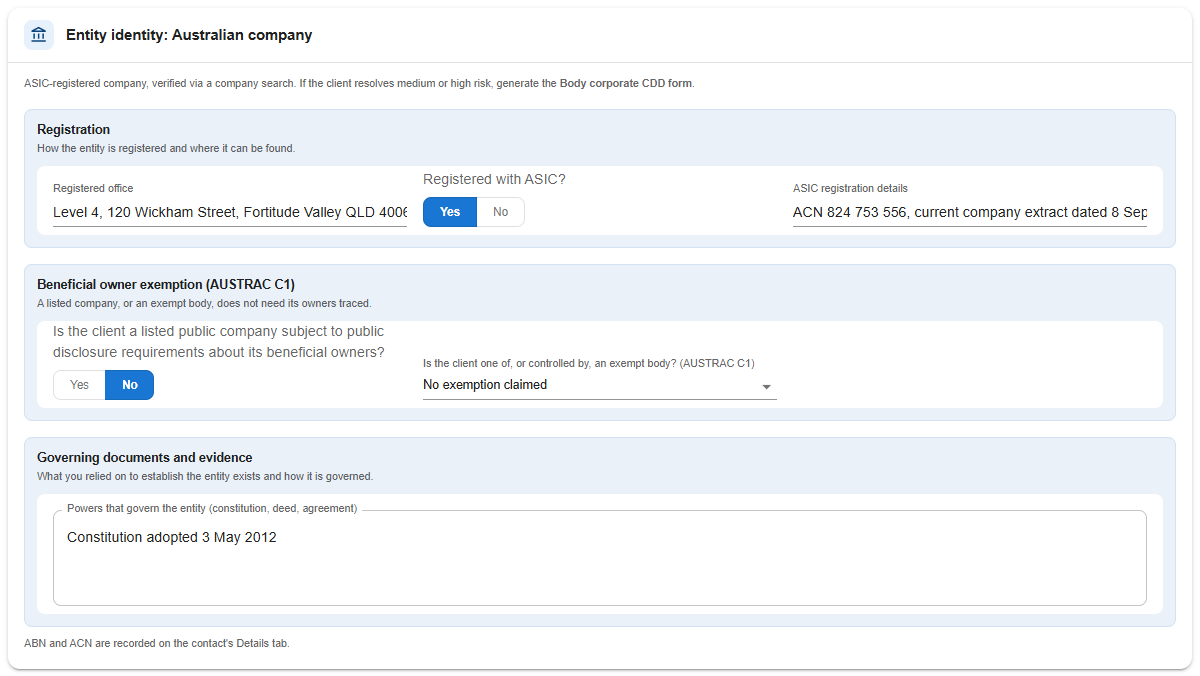
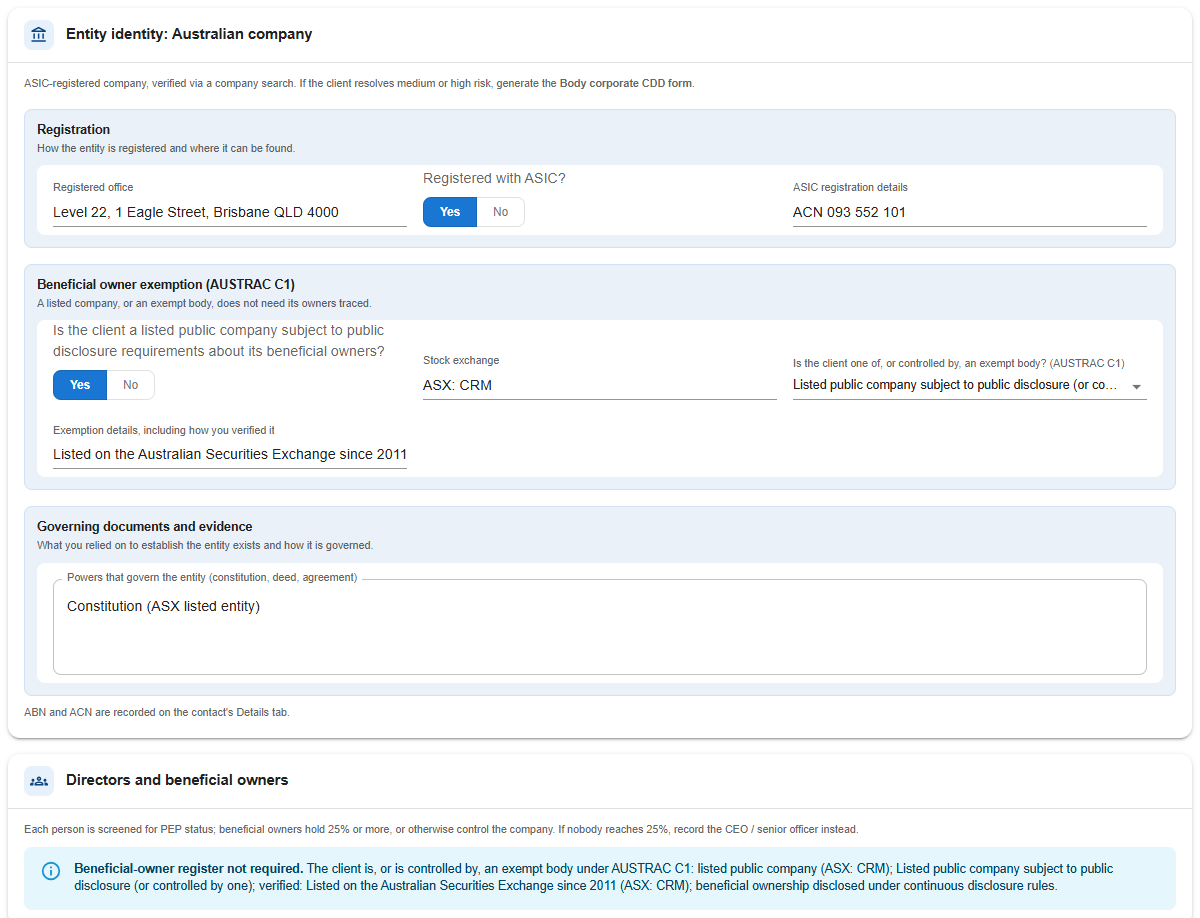
An organisation’s Identity & AML tab starts with an Entity identity card. Pick the entity type first — Australian company, Trust, Partnership, Foreign company, Government body, or Other/association — and the card then shows only the identity details AUSTRAC asks for that structure, in three tinted groups: Registration (registered office, ASIC registration, listing details; trust type and beneficiary class for a trust; overseas registration number for a foreign company; jurisdiction for a government body), Beneficial owner exemption (AUSTRAC C1) (see below), and Governing documents and evidence (the constitution, trust deed or partnership agreement, or evidence of existence for a government body).
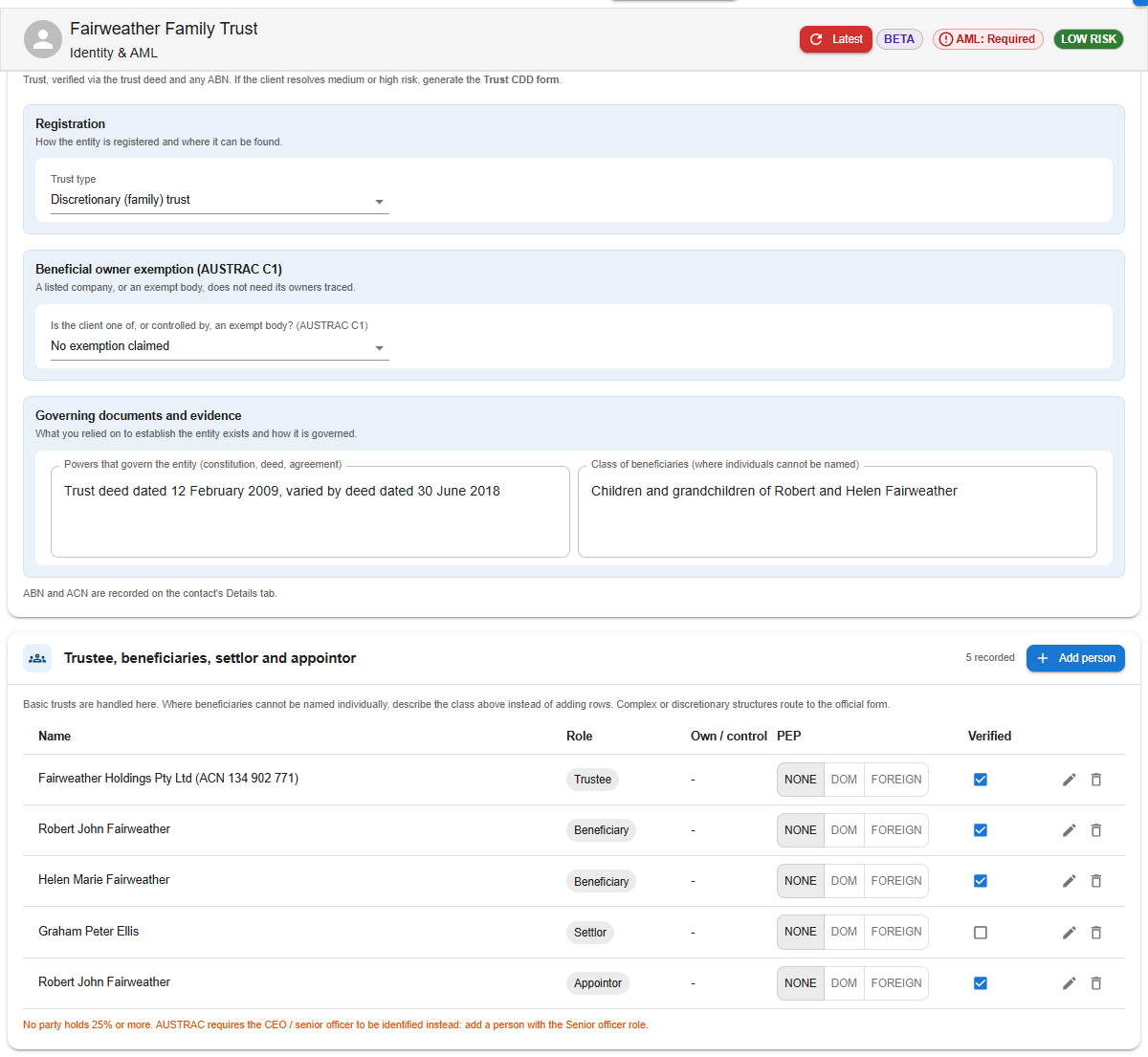
The entity type also drives which people you record in the register below it (directors for a company, trustee and beneficiaries for a trust, partners for a partnership, and so on) and which official AUSTRAC form applies if the client ends up above low risk. Foreign companies show an extra reminder to consider the medium- and high-risk country questions — the reminder doesn’t answer them for you.

Beneficial owner exemption (AUSTRAC C1)
Some clients don’t need a beneficial-owner register. In the Beneficial owner exemption group on the entity card, record that the client is, or is controlled by, a government body or a publicly listed company — the register is switched off outright, and the card says the beneficial-owner register isn’t required. For a regulated entity (for example an AFS licensee) or a strata/body corporate, the register is switched off only while the client stays Low risk with no open escalation — if the rating rises or the matter is escalated, the exemption stops applying and the register becomes required again. Always record the details that support the exemption (the exchange and ticker, the licence, the government act) — they print on the KYC Assessment Record.
Recording the people behind the entity
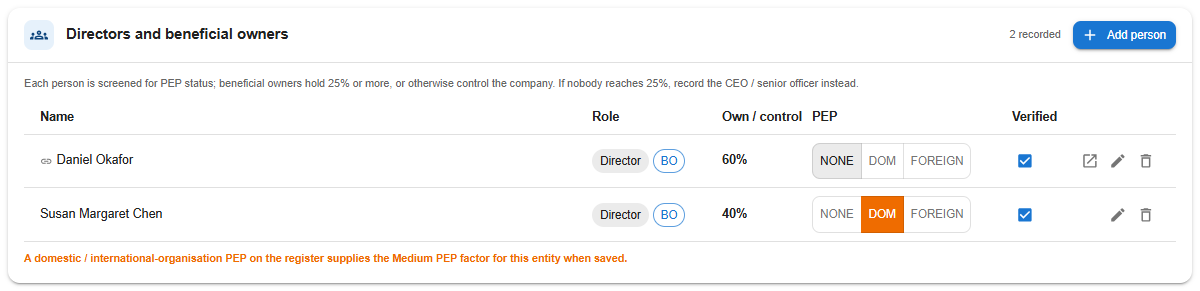
Under the entity card sits the people register, whose heading changes with the entity type: Directors and beneficial owners (company), Trustee, beneficiaries, settlor and appointor (trust), Partners (partnership), Office holders and controllers (association), Authorised representative (government body).
- When the register is empty, the usual roles are pre-seeded as blank rows (for example two directors and a beneficial owner for a company) — fill them in, add more, or remove the ones you don’t need.
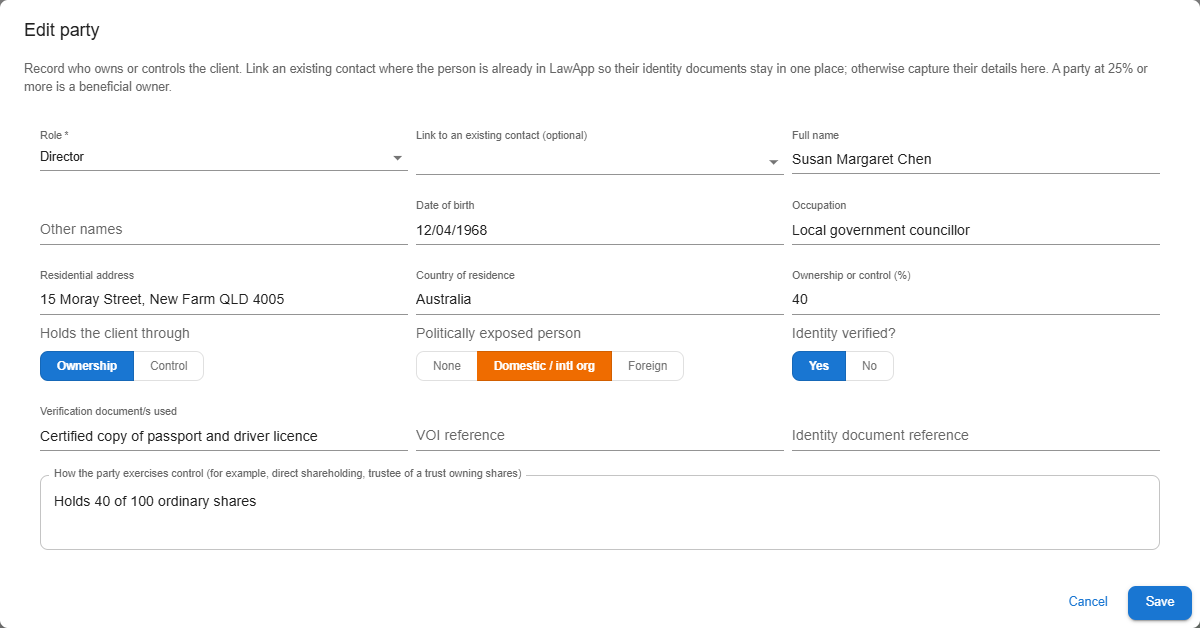
- Each row records the person’s full name, other names, date of birth, residential address, country, occupation, ownership percentage, how they control the entity, and which documents you verified them against.
- 25% or more ownership or control marks the person as a beneficial owner automatically (a “BO” chip appears) whatever their title. If nobody reaches 25%, record the CEO or senior officer instead.
- Tick Verified once you hold identity evidence for the person — unverified rows show as such on the record.
- A row can be linked to an existing contact, so their own card holds their identity documents and PEP details rather than duplicating them.
Representatives and authority to act
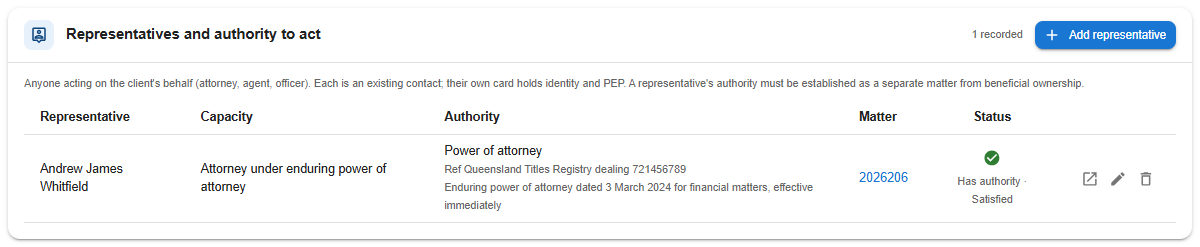
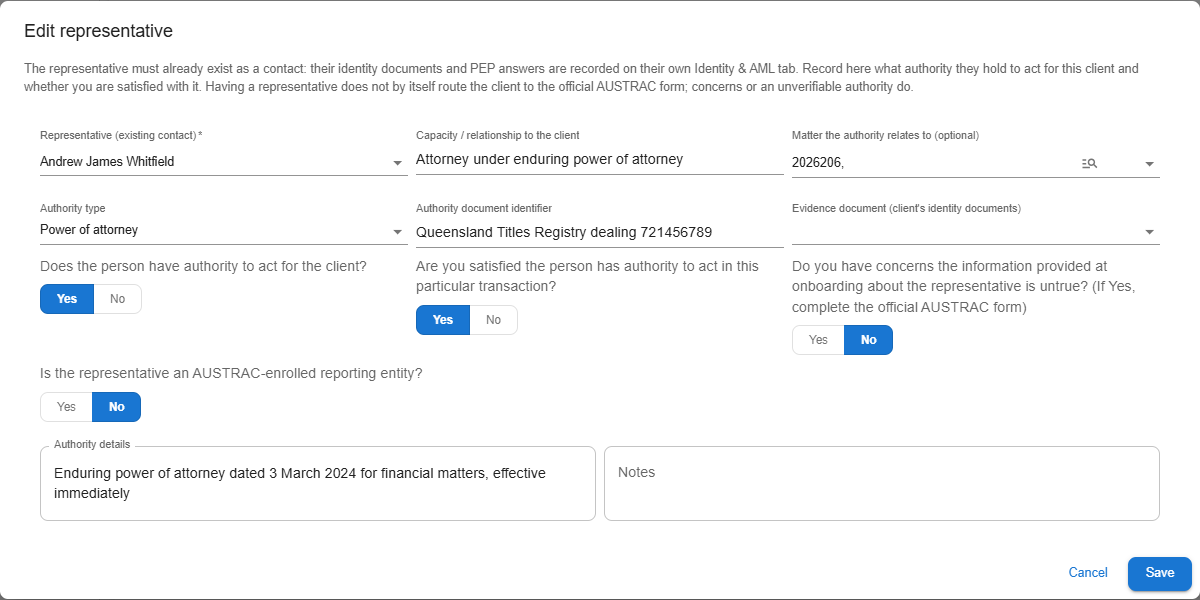
Where someone deals with you on the client’s behalf — an attorney under a power of attorney, an agent, an officer of a company client, a family member with written authority — record them in the Representatives and authority to act register, which appears on both individual and organisation cards.
- A representative is always an existing contact — search and pick them. Their identity documents and PEP questions live on their own card; the register holds only the facts about their authority.
- Record their capacity, whether they’re AUSTRAC-enrolled, the type of authority (power of attorney, agency agreement, written authorisation, office held, other), the details and any unique identifier (for example a Titles Registry dealing number), and optionally which identity document on the client’s card evidences it.
- Tick Satisfied the person has authority to act once you are. If you can’t establish authority, or you have concerns about the onboarding information, the row is flagged and you should complete the official AUSTRAC form for that representative.
- A representative can be tied to a particular matter — the matter opens in a new tab from the row.
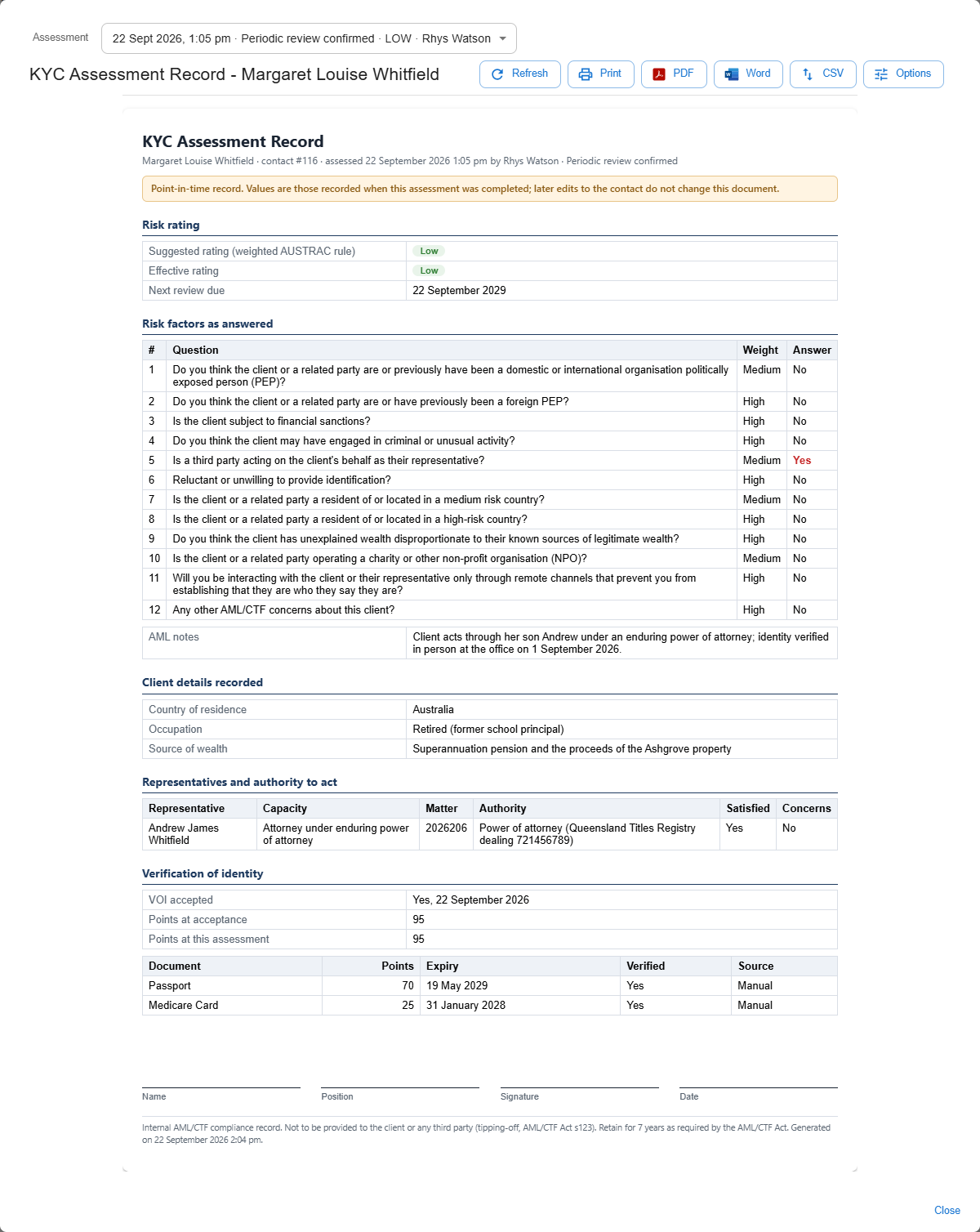
The KYC Assessment Record
Every time a client’s assessment is completed, a review confirmed, or a rating override set or cleared, Law App takes a point-in-time snapshot: the answers and their weights, the suggested and effective rating, the register and representatives as they stood, and the VOI position — documents, points, acceptance.

The KYC Assessment Record panel opens a printable record built from the latest snapshot — older snapshots are listed so you can print an earlier one. It carries a signature block for the person who assessed the client. Use the toolbar to print or download it.
Running your AML searches from Law App
Run your identity, ASIC and other searches from inside Law App rather than going direct to InfoTrack. For AML you’ll use InfoTrack for identity verification and to complete ASIC or other company and person searches — you don’t need to go beyond that for AML purposes.
Everything is logged. Every change to a contact’s Identity & AML tab — KYC answers, risk-rating changes, VOI records and acceptances — is recorded with who made it and when, giving you a clean audit trail for regulators.
Understanding AML status
Every contact and matter shows a live AML status:
| Status | Meaning |
|---|---|
| AML: OK | An accepted VOI with a valid document, a completed KYC assessment, and the next review date set and still in the future. |
| AML: Review | The contact is compliant, but a review is due within 30 days, or a VOI document is expiring within 30 days. The alert tells you which one it is. |
| AML: Required | One or more conditions is missing: no accepted VOI, KYC not completed, or the review date is overdue or not set. |
| Not assessed | The KYC questionnaire hasn’t been answered yet. |
| Pre-commencement | Flagged as an existing client — compliant without fresh VOI/KYC on matter types the firm already handled for them before 1 July 2026. |
A new or partly set-up contact shows Required until all steps are done — that’s expected, not a problem. A matter’s status rolls up from its clients: if any client on the matter is Required, the matter is Required. It only turns OK once every client is compliant.
Admin override
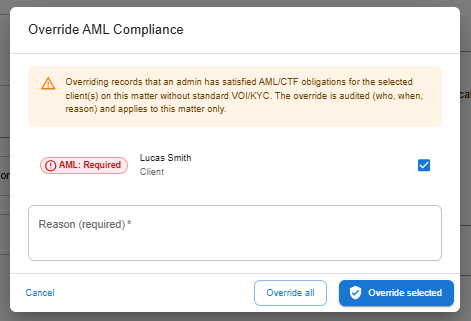
Sometimes a client can’t complete the standard ID or KYC process. Where that happens, and depending on your firm’s policies, an admin can mark them as AML-satisfied directly from the matter’s AML alert — a reason is mandatory and is recorded at the time of the override. The matter shows an orange AML: Overridden status, so anyone on the file can see what’s happened at a glance, and the override record shows who made it, when, and why.
The override dialog pre-selects every non-compliant client on the matter — untick anyone you don’t mean to include. Clearing the override reinstates the standard checks.
Pre-commencement clients
Admin-level users can flag a long-standing client as a pre-commencement client on their Identity & AML page. Flagged clients don’t need new identity verification on matters of a kind the firm already handled for them before 1 July 2026 — those matters show a blue Pre-commencement status. A new kind of matter for them still needs full verification as normal.
Where AML status appears in Law App
You’ll see AML status in several places, so it stays in front of the people who need to act on it:
- File list — an AML status column shows at a glance which matters need attention. Non-AML matters show a quiet dash.
- Clients grid on a matter — per-client AML status, with non-compliant rows flagged.
- Contact list — a risk-rating column across all your contacts.
- Identity & AML tab — the full detail view: the status pill, an alert banner when action is needed, and a complete history of changes.
- File Details toolbar — the AML row’s status and risk pills, on any designated-service matter.
AML questions on Client Intake forms
Firms using Client Intake can add Identity & AML questions to an intake form: the client’s country of residence, occupation, source of wealth, whether they’re a sole trader and their business profile, the entity type and details for an organisation, and rows for the people behind the entity and any representative.
When you accept a submission, the declarations are written to a new contact’s Identity & AML card as a starting point, and any representatives the client named are created as contacts and linked in the register. If the submission is matched to an existing contact, only blank fields are filled and the registers are only seeded when they’re empty — nothing you’ve already recorded is overwritten. Anything that didn’t apply is kept in the AML notes so it isn’t lost.
When the official AUSTRAC forms apply
Law App handles standard, low-risk clients end-to-end, including their people registers and representatives. The “When the official AUSTRAC forms apply” panel at the foot of every Identity & AML tab sets out when to go further:
- Complete the official Initial CDD form for the client type (use the AUSTRAC Form button on the matter) when the client rates medium or high, has an unusually complex ownership structure, can’t provide photo identification or there are issues with the documents, a representative’s identity or authority can’t be verified, initial due diligence is being delayed, or the client has been referred to the Compliance Officer.
- Escalate with the Escalation form where your program requires it, and record the outcome on the matter so it appears in the AML/CTF register.
Leave a Reply