
You can merge duplicate contact cards in Law App from Admin > Data Adjustments. Pick the entry you want to keep and the one you want to remove, then convert — any safe custody or VOI documentation on the removed card carries across automatically.
Identify the duplicate contact
Before you merge, decide which card to keep and which to remove. Keep the version with the most detail — phone numbers, email address, safe custody records and so on.
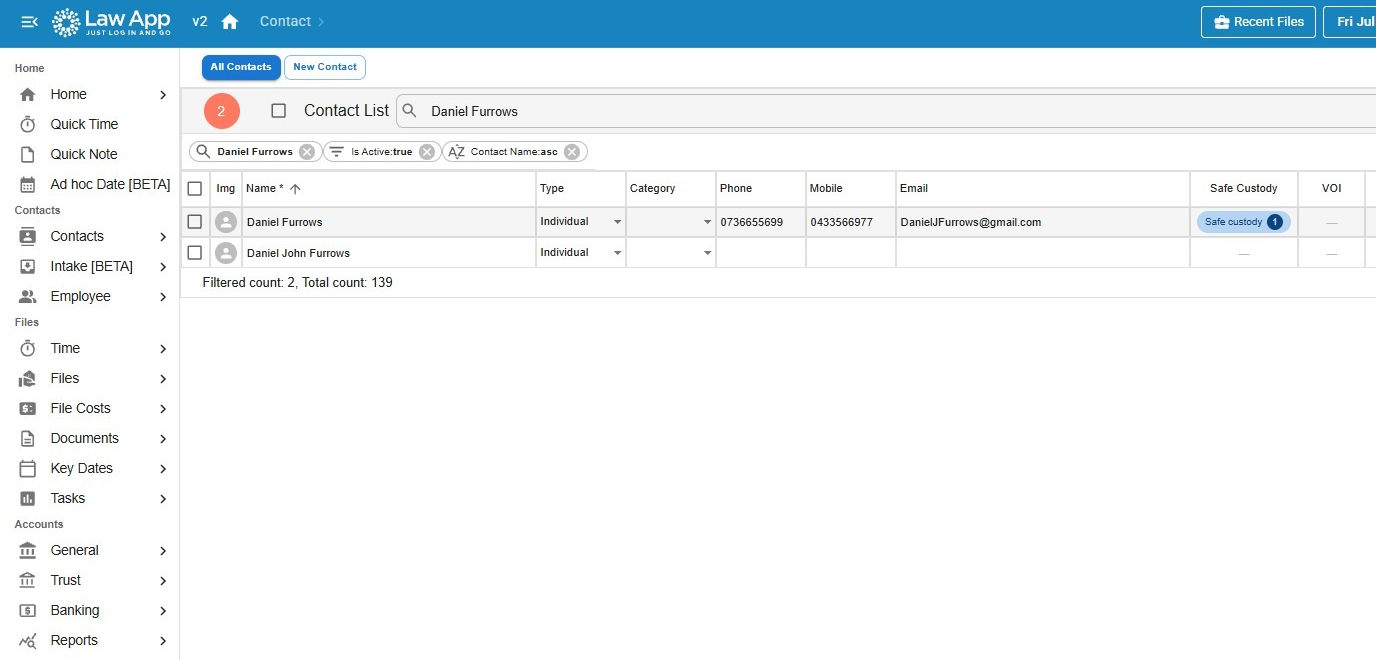
Tip: If both contacts have exactly the same name, add something to the one you’re removing — even just a full stop — so you can tell the two apart on the merge screen.
Check before you merge. Not all contact details copy across in a merge. Safe custody and VOI documentation on the card you’re removing will transfer automatically, but other fields may not — note down anything else you want to keep first.
Merge the duplicate contact
- Go to Admin > Data Adjustments. This opens the Merge Contacts screen.
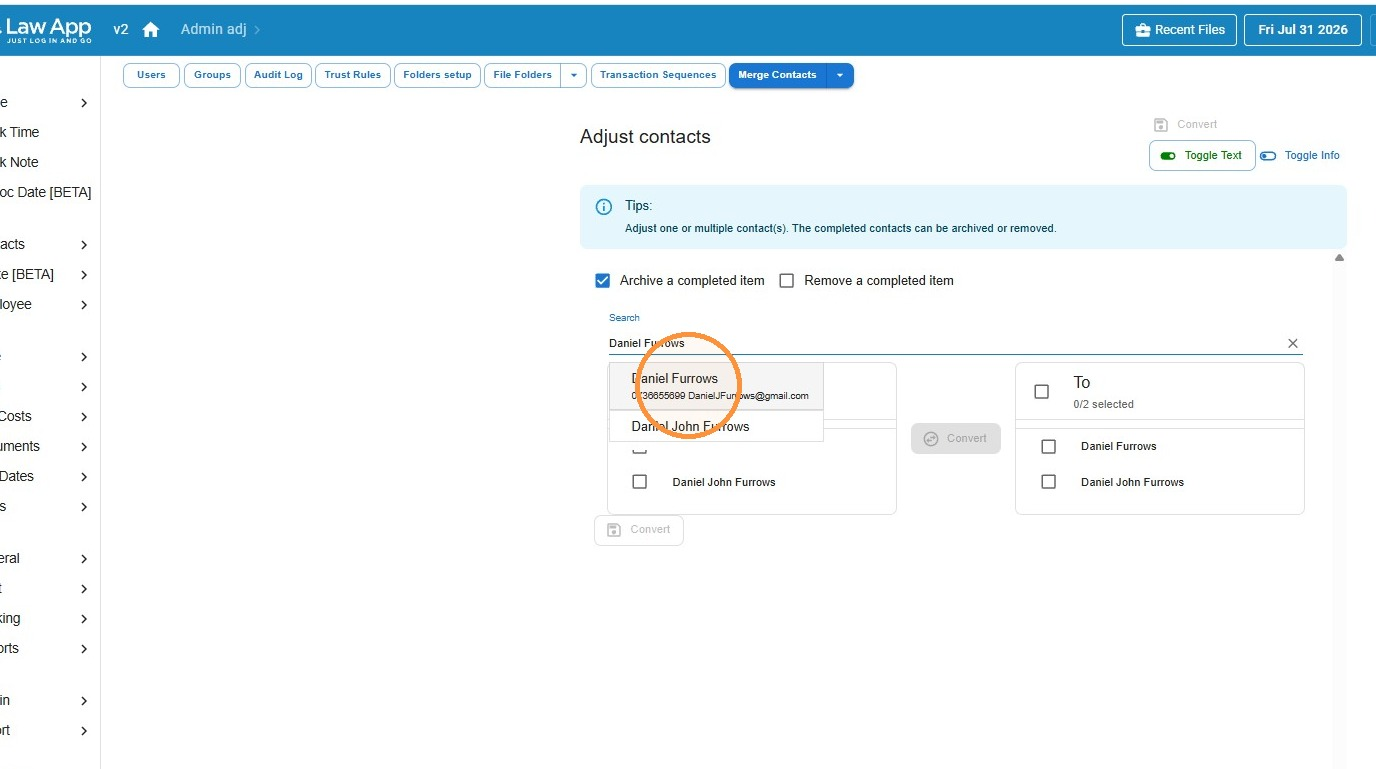
- Type the contact’s name into the search bar and select one of the matching entries.
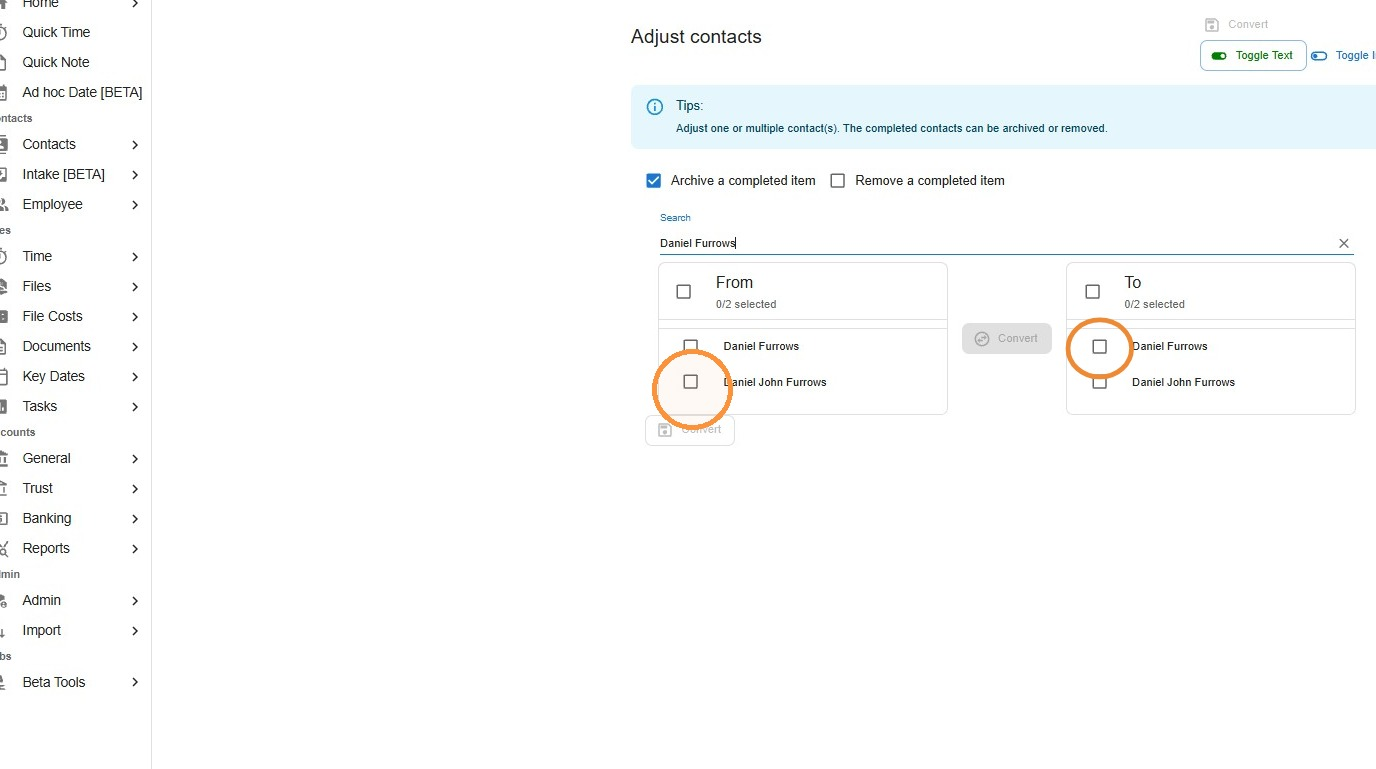
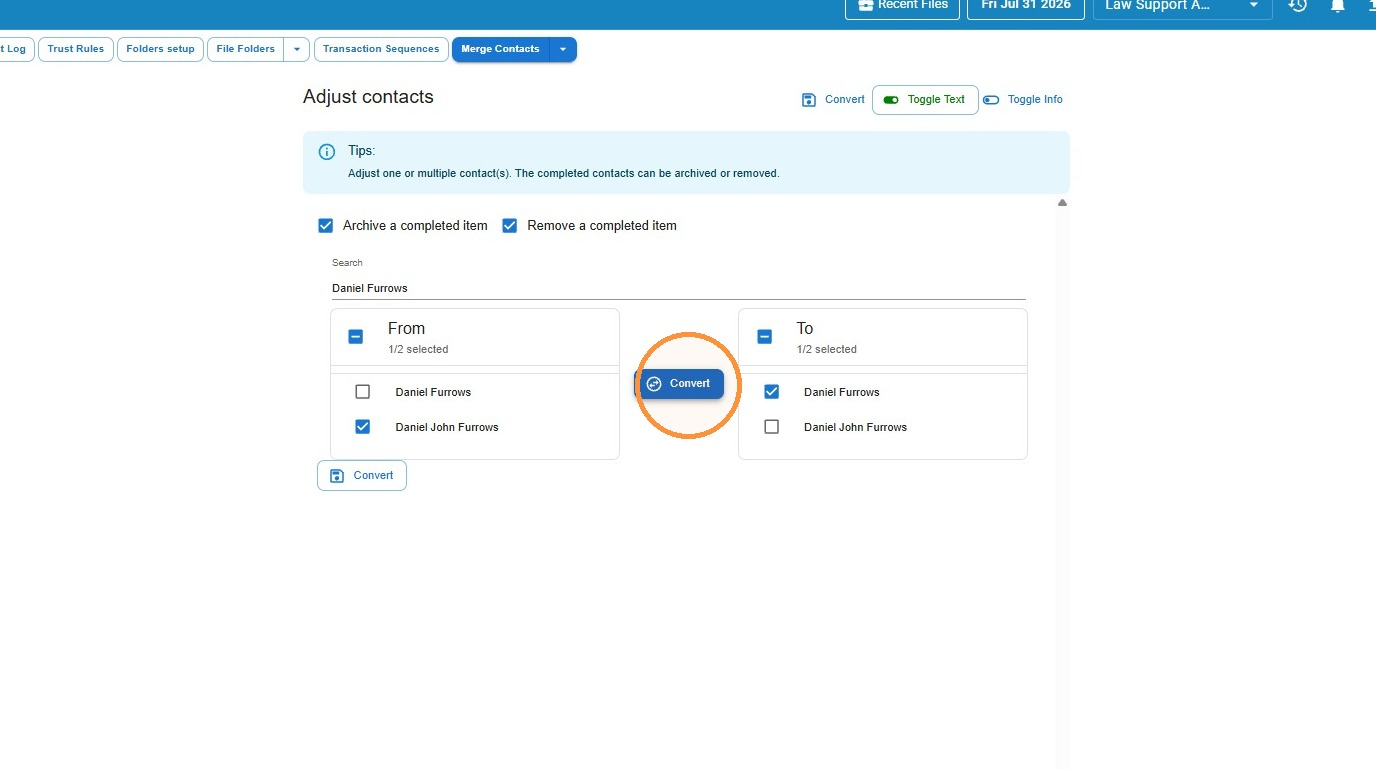
- In the From column, select the entry you want to remove. In the To column, select the entry you want to keep.
- By default, the entry you remove is archived rather than deleted. If you’d rather remove it completely, also tick Remove a completed item.
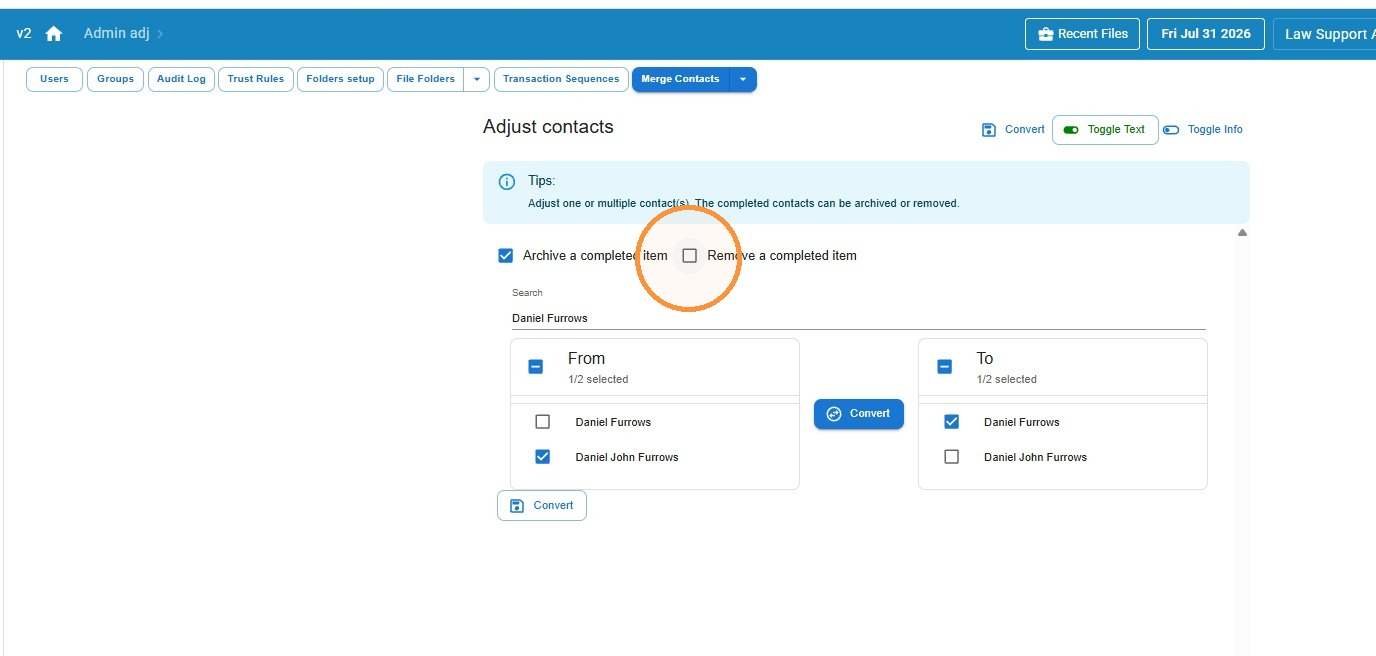
- Click Convert to complete the merge.
Merge contacts with different names
If the duplicate contacts don’t share the same name, search by a keyword they have in common instead — the rest of the process is the same.
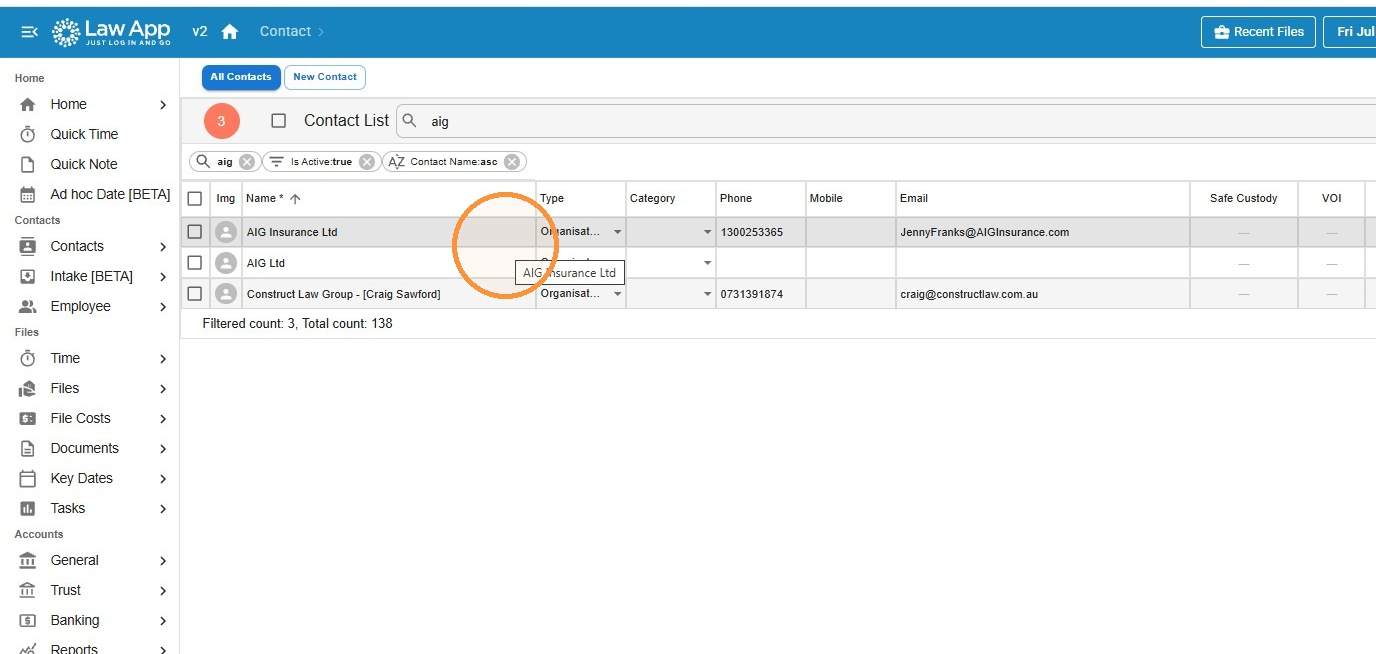
Tip: A keyword search can pull in contacts you don’t want — it matches against email addresses as well as names, not just the contact you’re after. Check each result before you proceed.
- Go to Admin > Data Adjustments and type in the keyword the contacts have in common. This time, press Tab rather than selecting one of the suggested entries.
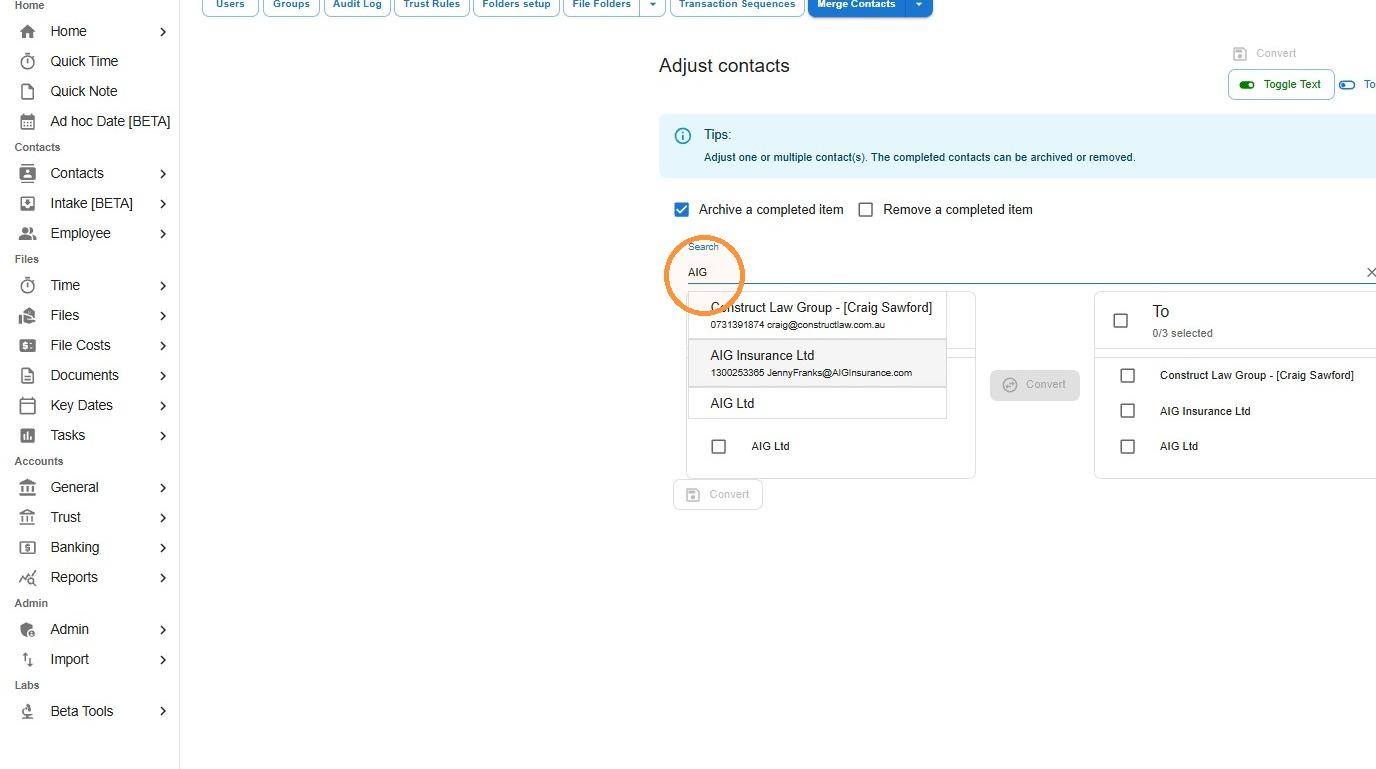
- Select the contact to remove in the From column and the contact to keep in the To column, then click Convert — the same as above.