
A Cost Type is a re-usable template for an expense your firm records against client files. You set it up once with a code, a name, a default price, and (if it’s a disbursement) a General Ledger Account — and from that point on, anyone in the firm can pick it from a dropdown when entering a cost.
This article walks through adding a Cost Type for either an Office Cost or a Disbursement. The process is almost identical for both — the only difference is that you fill in the GL Account field for a Disbursement.
If you’re not sure whether your new Cost Type should be an Office Cost or a Disbursement, read Office Costs vs Disbursements — Understanding the Difference first.
- Navigate to File Costs, then Office Cost Types or DIS Cost Types.
Click Office Costs Types to set up a new Office Cost; or
Click DIS Cost Types to set up a new Disbursement Cost. - Add a new Cost Type.
Click the Add button at the top right of the Cost Type list.
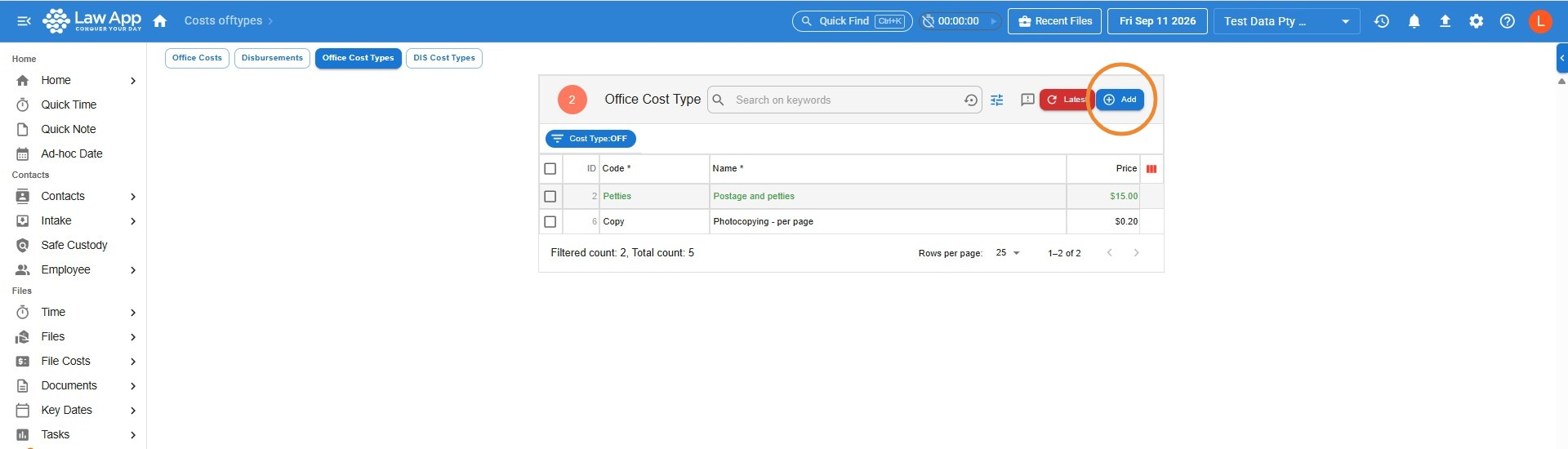
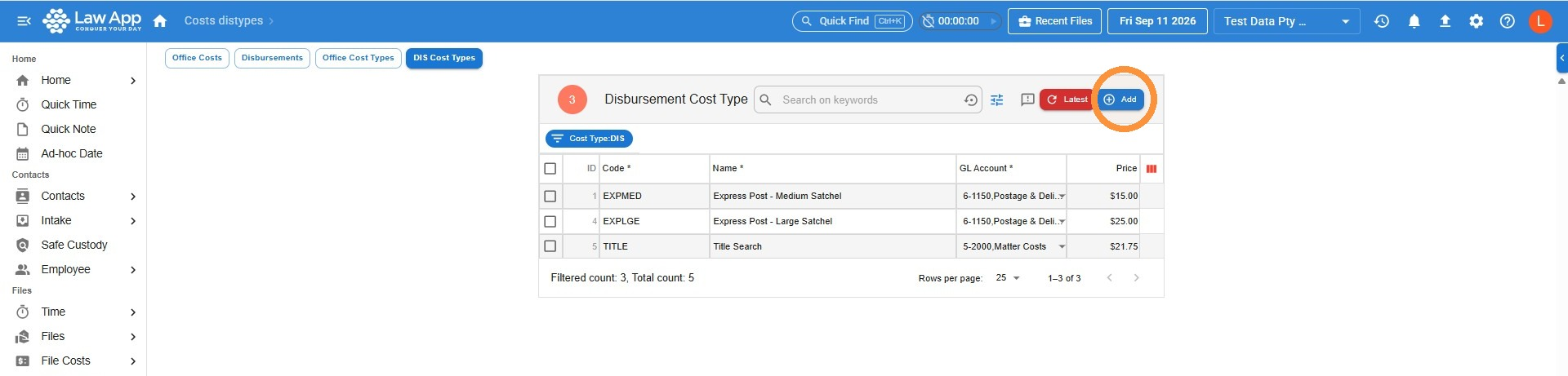 A new blank row appears at the top of the table, ready for you to fill in.
- Fill in the fields.
Code
A short, unique identifier for the cost. Make it something that’s easy to recognise in a dropdown.
Example: ExpressMED for a medium Express Post bag.
Name
A plain-English description of what the cost is. This is what appears on bills and reports, so write it the way you’d want a client to read it.
Example: Medium Express Post Bag
General Ledger Account
Enter a GL Account when you’re setting up a Disbursement — i.e. an expense the firm has already paid for and now wants to recover from a client. The GL Account you enter here must be the same one the original supplier expense was coded to.
Example: If your firm bought 10 prepaid Express Post bags and coded them to Postage & Delivery, then your ExpressMED Cost Type must use the Postage & Delivery GL Account. When you record the disbursement journal against a client file, Law App will pull the cost from that GL.
Price
The net value of the cost — i.e. the amount excluding GST. Law App calculates GST at billing.
Example: If a medium Express Post bag costs $9.30 inc GST, enter 8.45 here (the net amount).
- Save.
Click the red Save All button at the top of the screen. Your new Cost Type is now available to select on any cost or disbursement entry.
Common questions
Can I edit a Cost Type after I’ve created it?
Yes. Find it in the Cost Types tab, click into the field you want to change, and click Save All again. Existing transactions that used the old values are not changed retrospectively.
What if I create a Cost Type with the wrong GL Account?
Edit the Cost Type and correct the GL Account. Any new entries will use the corrected GL. Past entries keep the GL Account they were posted with — if you need to correct those, raise it with your bookkeeper.
Can I have two Cost Types with the same Code?
No. Codes must be unique within the firm.
Where to next
Your Cost Type is now ready to use. To actually record an expense against a file:
From within the file you’re working on: How to Enter a Cost from Within a File
For background on when each type applies, see Office Costs vs Disbursements — Understanding the Difference.
Leave a Reply