
Batch billing lets you raise debtor invoices for several files in one run, instead of creating them one by one. You pick the files to bill, review a draft invoice for each, save them all as drafts, then approve and send each one. It’s the standard end-of-period workflow for accounts staff — quicker and less error-prone than billing each file individually.
The video below walks through the full process. The step-by-step guide underneath covers the same flow, with screenshots so you can refer back quickly.
Check what’s ready to bill (optional)
Before running a batch, it can help to see what unbilled work is sitting on each file.
- Go to Reports > Dashboard and open the Billing Preparation report (in the Billing group). It shows outstanding fees and disbursements grouped by responsible employee, so you can see which files are ready to bill.
Generate the draft invoices
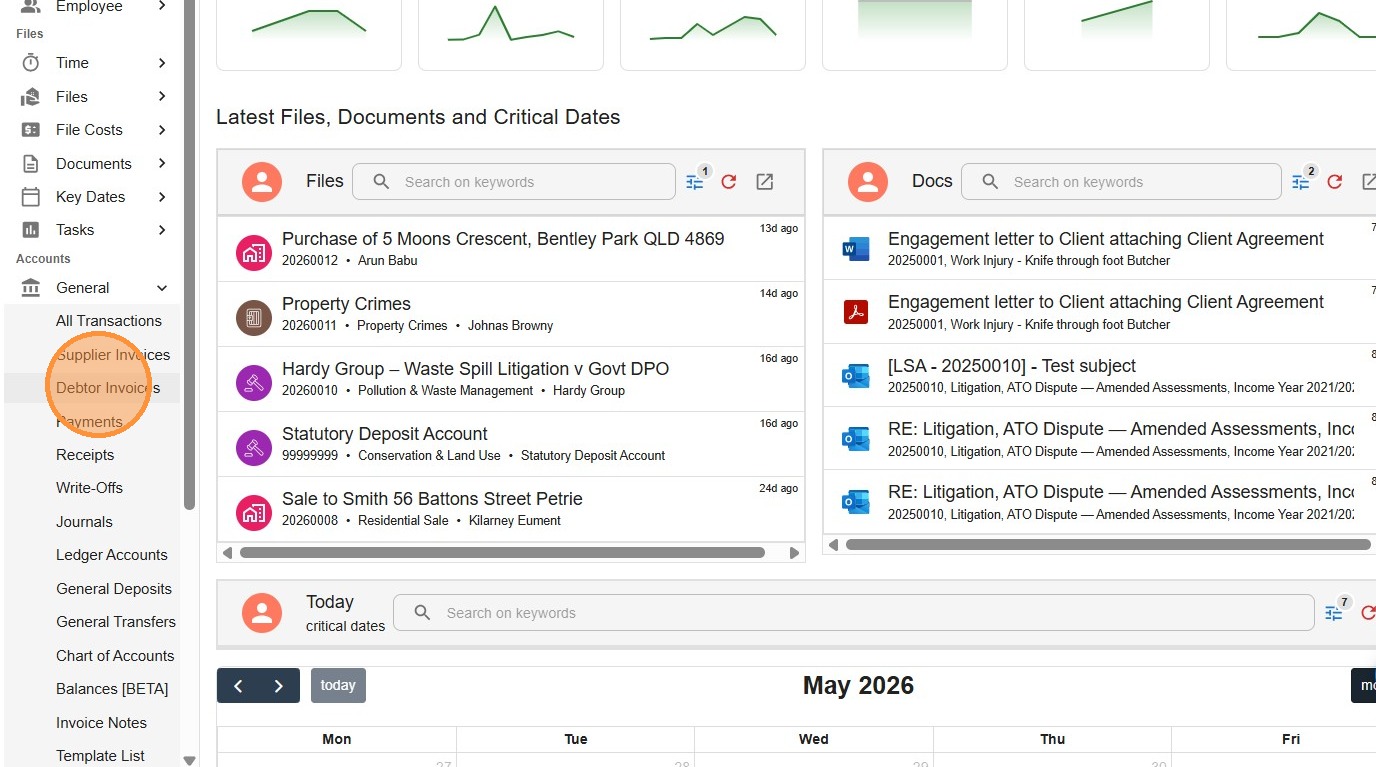
- From the left-hand menu, open Accounts > General > Debtor Invoices.
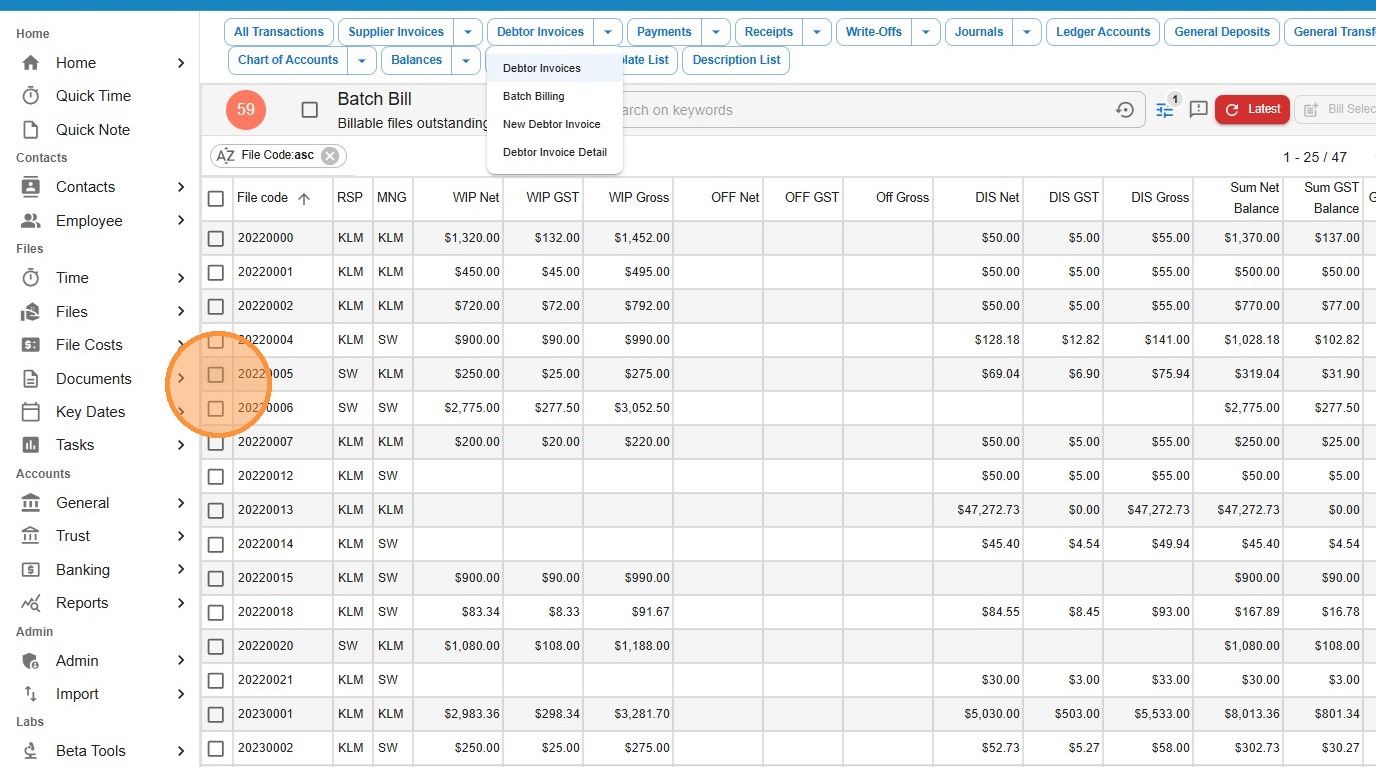
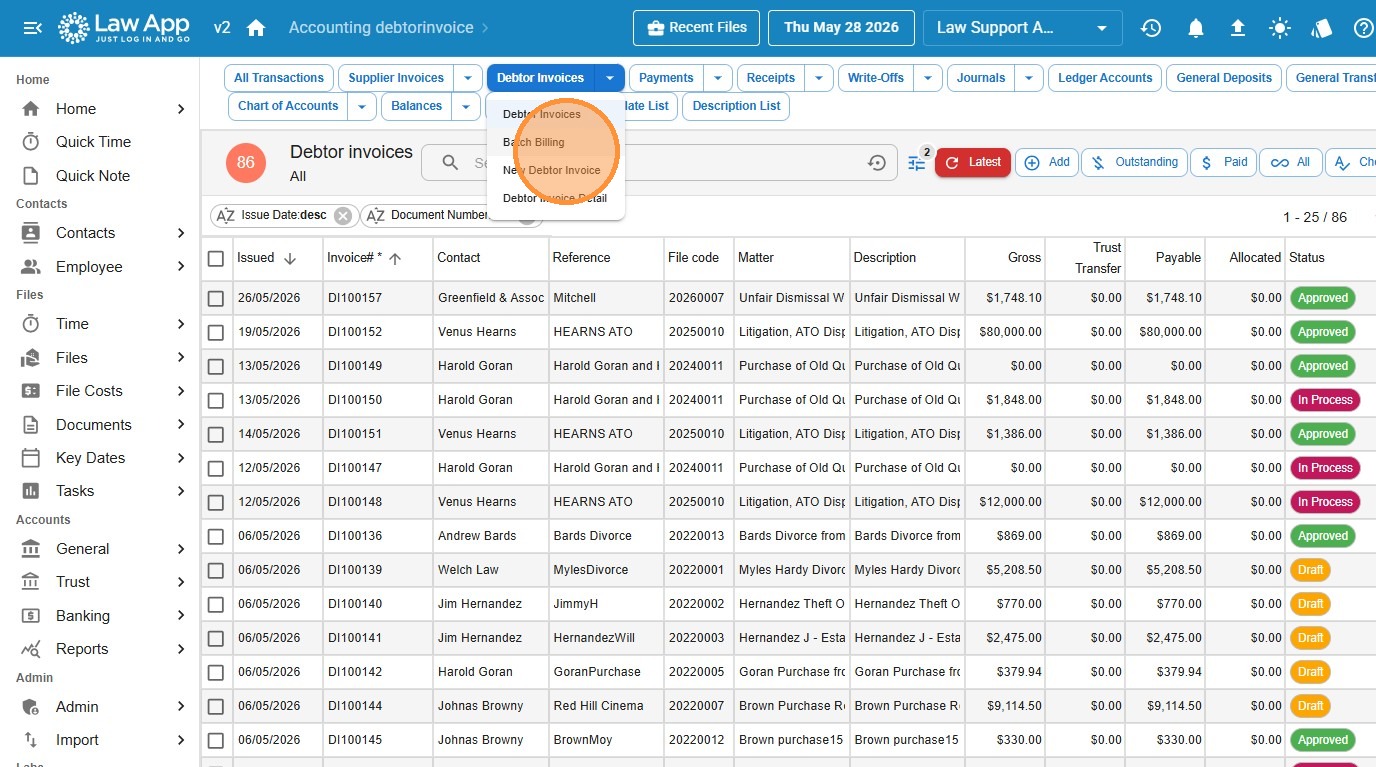 The Batch Bill screen lists every file with an outstanding billable balance — WIP, disbursements, or both. Each row is a file you can bill.
- Tick the checkbox next to each file you want to include in this billing run — you can select as many as you need.
- Click Bill Selected at the top right.
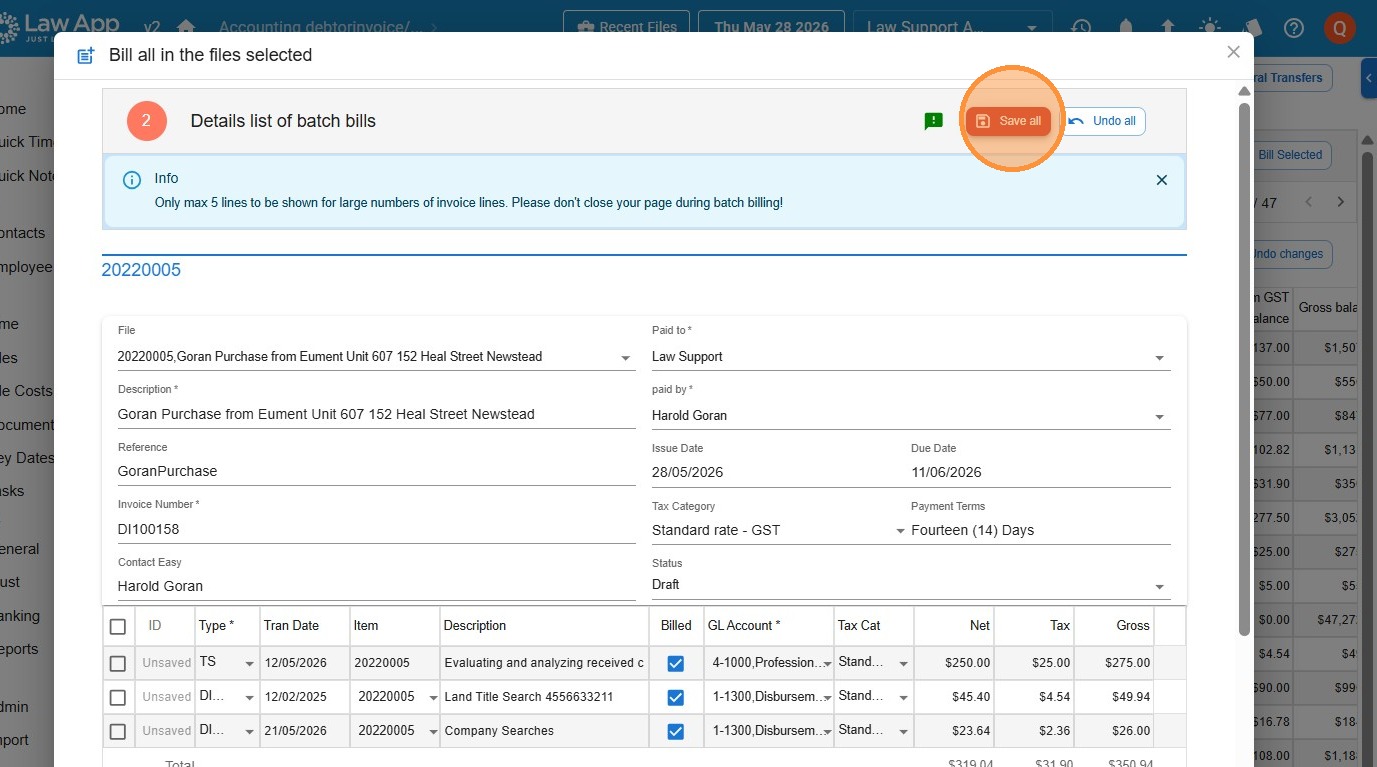
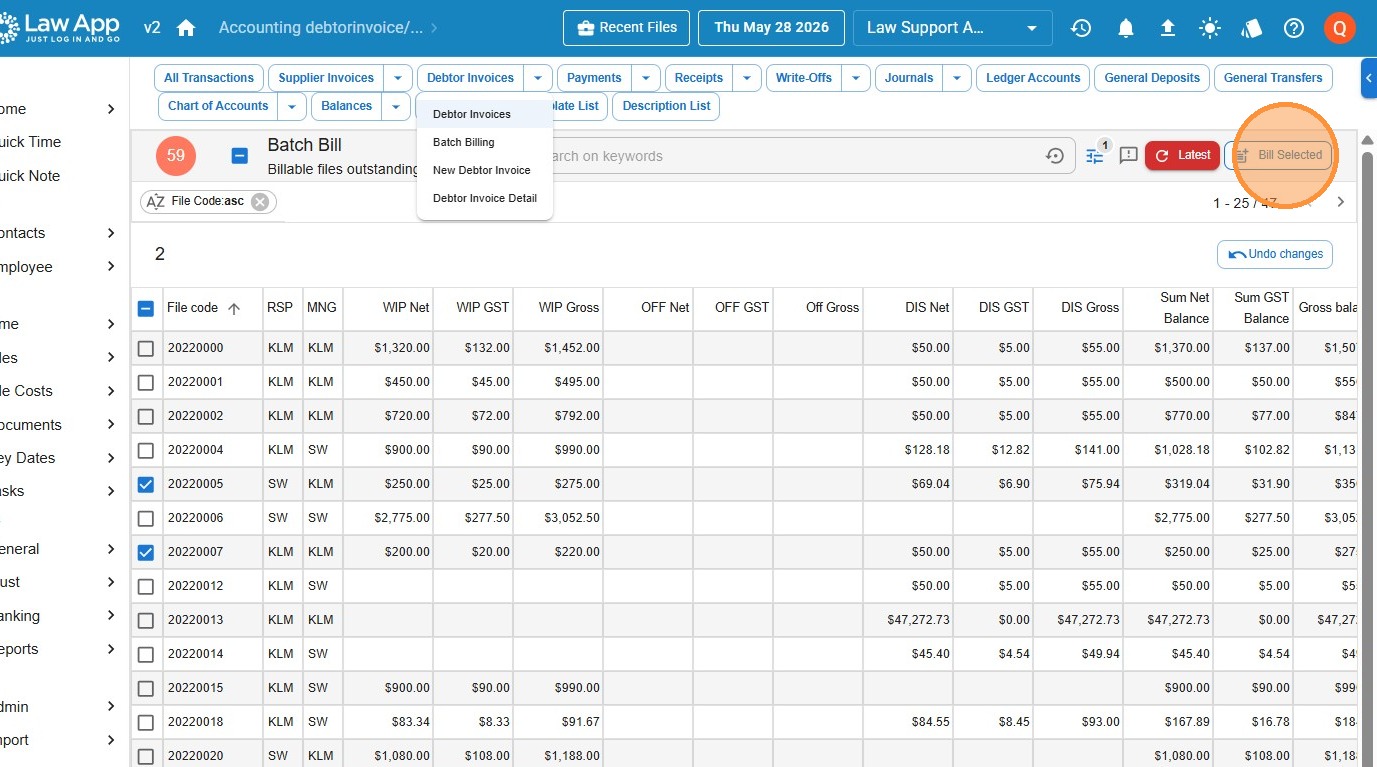 A details window opens showing every draft invoice that’s about to be created — invoice number, client, file, line items and totals. Nothing is saved yet, so this is your chance to review.
- Review each draft. Check the issue date, due date, tax category and payment terms, and remove any unwanted line items using the delete button.
- When you’re happy, click Save all.
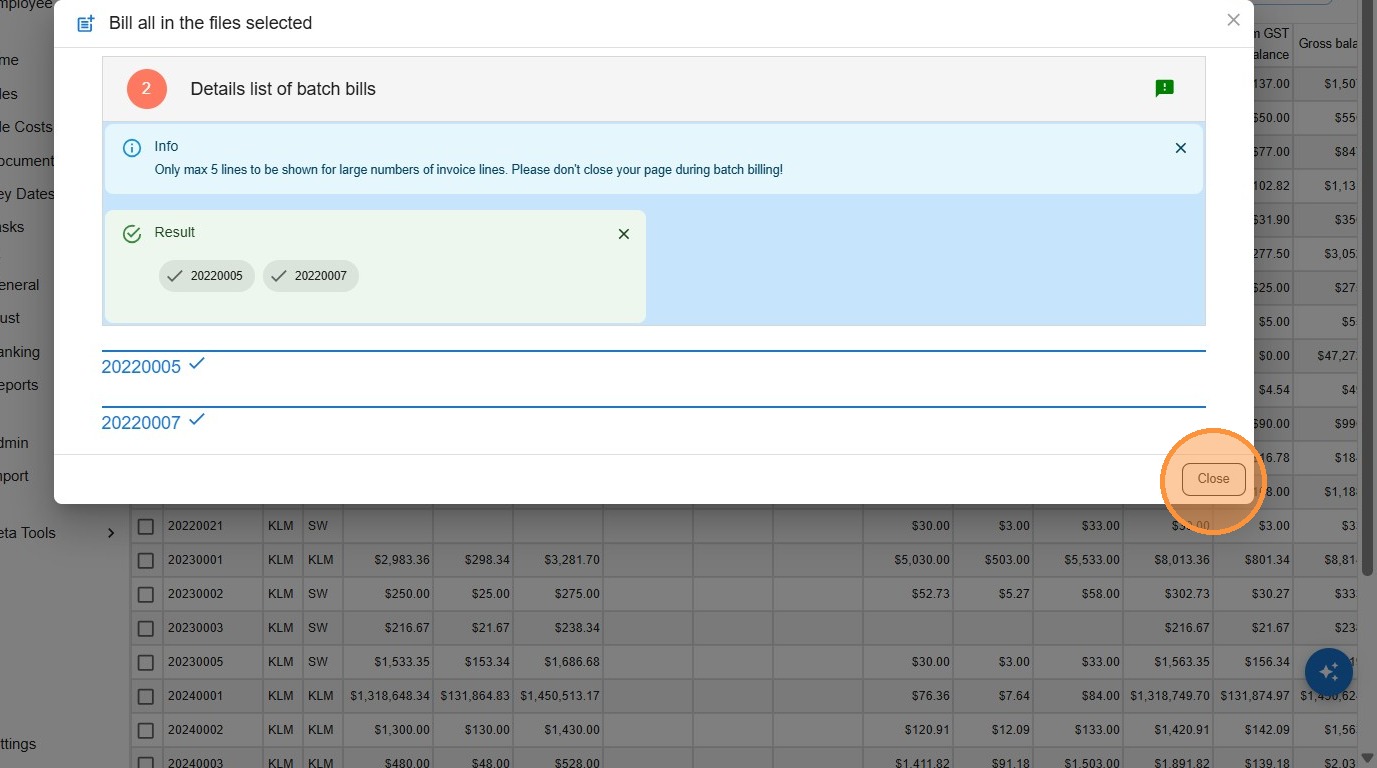
- When the result panel lists the invoice numbers that were created, click Close.
Approve the invoices
Approving an invoice locks it, posts it to the general ledger and creates the debtor balance the client owes. From there it’s ready to print, email and have payments applied against it.
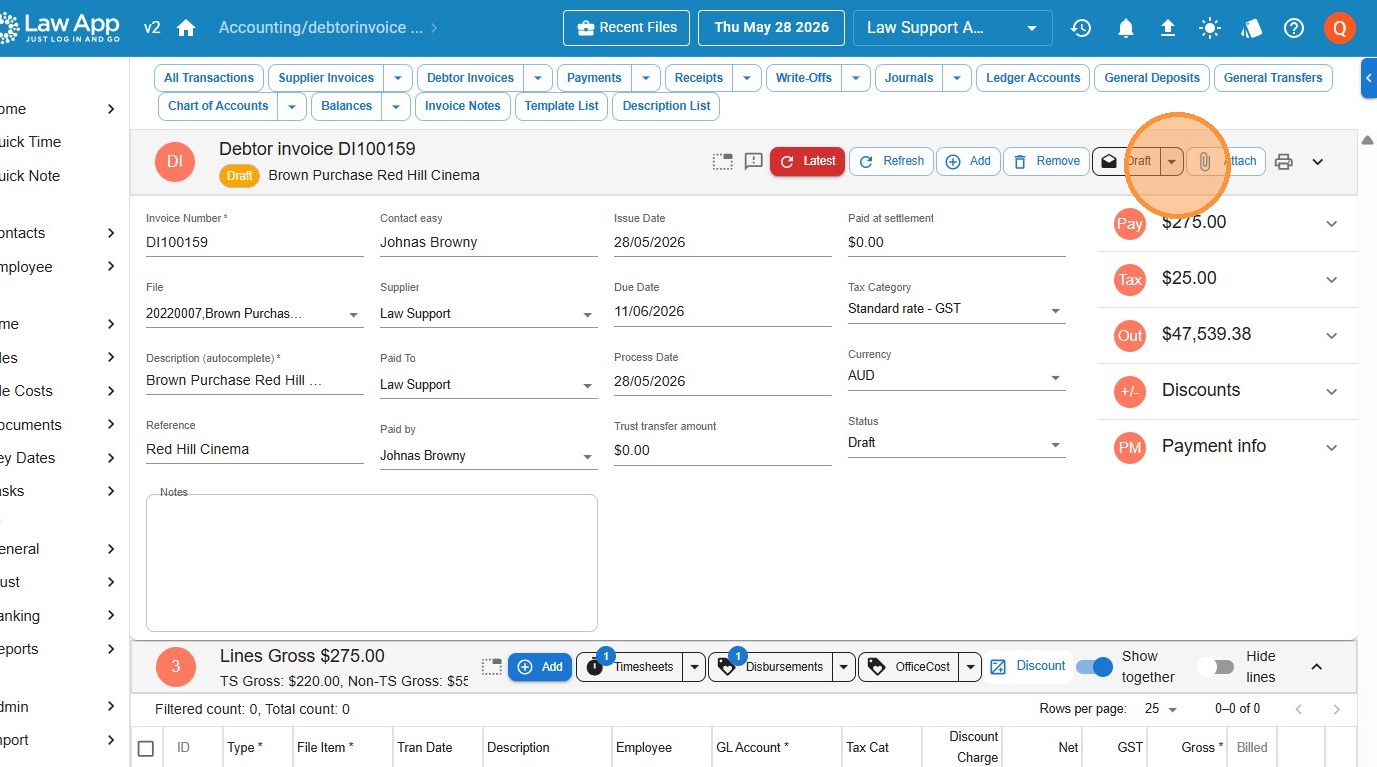
- Go back to the main Debtor Invoices list. The new invoices appear at the top with a Draft status badge.
- Open each draft invoice in turn and check the detail.
- Change the status from Draft to Approved.
Troubleshooting
A file I expected isn’t on the Batch Bill screen. Batch Billing only shows files that have unbilled WIP or disbursements at the moment you open the screen. Check the file has unbilled time entries or disbursements, or run the Billing Preparation report to see what’s outstanding.
Leave a Reply