
The AML update changes three things you will notice straight away: the KYC questions on a contact now match the AUSTRAC customer due diligence forms word-for-word, the suggested risk rating is weighted rather than counted, and a verification of identity has to be explicitly accepted before a contact counts as compliant. It also adds a new matter-level AML risk assessment and a formal escalation path to your AML/CTF compliance officer. Nothing you have already done was lost in the upgrade.
Who the client is
KYC questions, weighted risk rating and VOI acceptance all sit on the contact’s Identity & AML tab. This answers whether you know who you are dealing with.
What the matter involves
The new AML risk assessment sits on the matter. This answers whether the work itself carries money laundering risk — and it can flag the file red even when every client is compliant.
What changed in the KYC questions
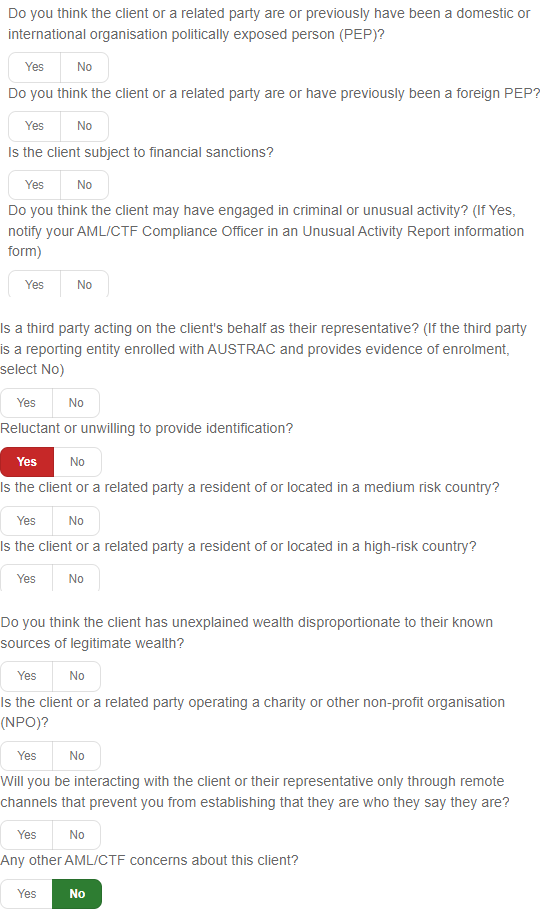
The risk questions on a contact’s Identity & AML tab now match the official AUSTRAC customer due diligence forms word-for-word. The question sets are longer than before, and the old free-text and dropdown approach to politically exposed persons has been replaced by direct Yes/No questions.
Individuals now answer 12 questions, up from 6. The old “Politically Exposed Person” dropdown is gone — PEP exposure is now captured by two separate Yes/No questions, one for domestic or international-organisation PEPs and one for foreign PEPs. New questions cover financial sanctions, criminal or unusual activity, third-party representatives, medium-risk countries, charities and non-profits, and remote-only contact channels.
Organisations now answer 13 questions, up from 8. This includes the two PEP questions for the first time, covering any related party, beneficial owner or CEO.
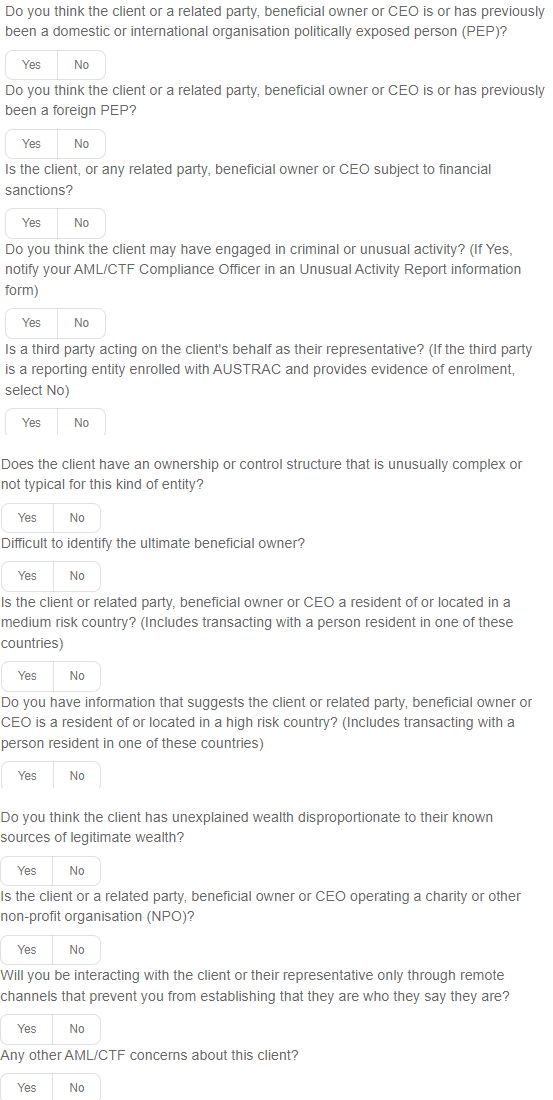
Two old questions were retired — unusual secrecy, and shell company or nominee structures. The cash transactions question moved off the contact and onto the matter, where it now sits in the AML risk assessment.
How the suggested risk rating is now weighted
This is the biggest rule change in the update. The suggested rating no longer counts how many questions were answered Yes. Each question now carries a weight, exactly as the AUSTRAC forms prescribe.
How the rating is calculated
High — Yes to any one high-weight question. Foreign PEP, financial sanctions, high-risk country, unexplained wealth and remote-only channels all sit in this group, so a single Yes is enough.
Medium — Yes to two or more medium-weight questions. Domestic PEP, third-party representative, medium-risk country and non-profit organisation sit here.
Low — anything less.
The rating appears after you press Save. Review periods have not changed: high risk is reviewed every year, medium every two years, low every three years.
You can still Override the suggested rating. A reason is mandatory and the override is audited.
Why VOI now needs an explicit acceptance
Having identity documents on file is no longer enough on its own. Someone at the firm has to confirm that the documents actually satisfy the AML/CTF rules, and that confirmation is recorded against their account.
The VOI panel shows a live identity points total summed across unexpired documents — a passport is 70 points, a driver licence 40, Medicare 25, and an InfoTrack VOI Report 100. The 100-point standard is a guide. If the total is below 100 you will see a warning, but you can still accept if you are satisfied by other means. That call is yours and it is audited.

Accepting a VOI
- Open the contact and go to the Identity & AML tab.
- Check the identity documents listed in the VOI grid, and confirm the expiry dates are current.
- Read the identity points total and any warning shown beneath it.
- Press Confirm VOI meets AML requirements.
The panel turns green and records who accepted the VOI, when, and at how many points.

Acceptances lapse when the documents expire
When the documents an acceptance covered have all expired, the panel turns amber and shows that the acceptance is no longer effective. The contact goes red until someone re-confirms against current documents.

What happened to contacts that were already compliant
Existing compliant contacts were grandfathered at the upgrade. Anyone who already had a valid unexpired identity document received an automatic system acceptance labelled “(grandfathered at the v3 upgrade)”. No contact turned red because of the upgrade itself.
Editing a document in the VOI dialog now auto-fills the points when you change the Identity Type, and documents can be removed from the grid by ticking them and pressing Save.
What each AML status pill means
The coloured pill on a contact or matter is a summary of everything above. There are four states.
Contact status reference
AML: OK (green) — an accepted VOI with a valid document, a complete risk assessment, and a review that is up to date.
AML: Review (amber) — a document expires within 30 days, or the periodic review falls due within 30 days.
AML: Required (red) — a missing, expired or unaccepted VOI, an unassessed risk rating, or a lapsed review.
Pre-commencement (blue) — a flagged existing client, compliant without fresh VOI or KYC on the matter types your firm handled for them before 1 July 2026.
How to complete a matter AML risk assessment
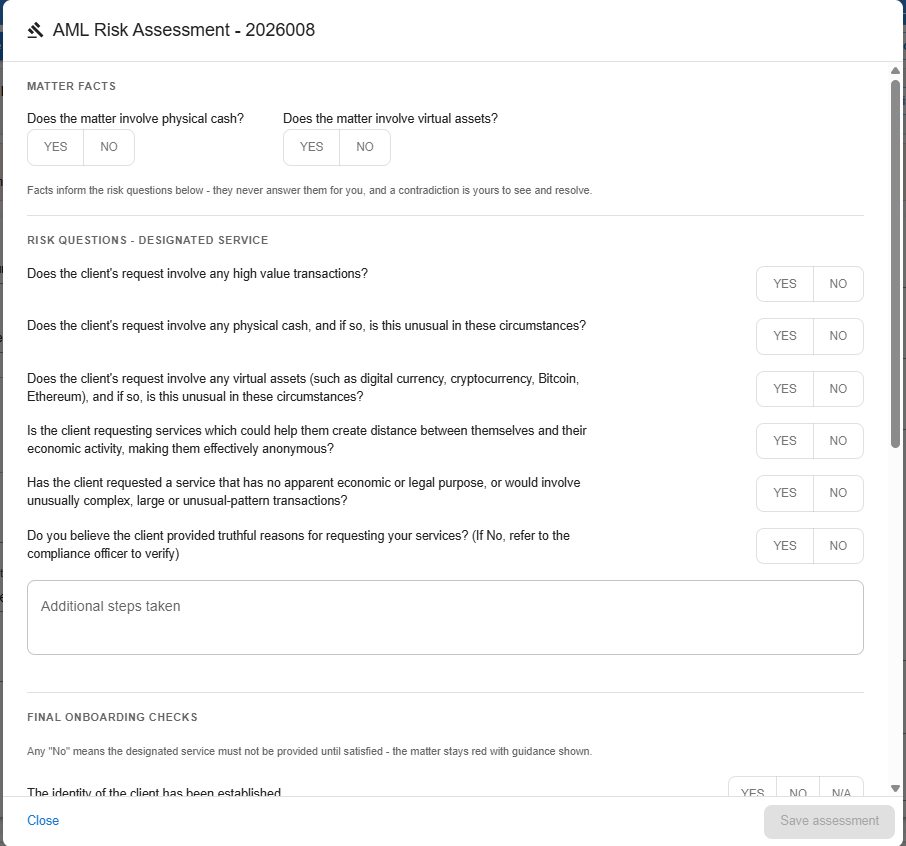
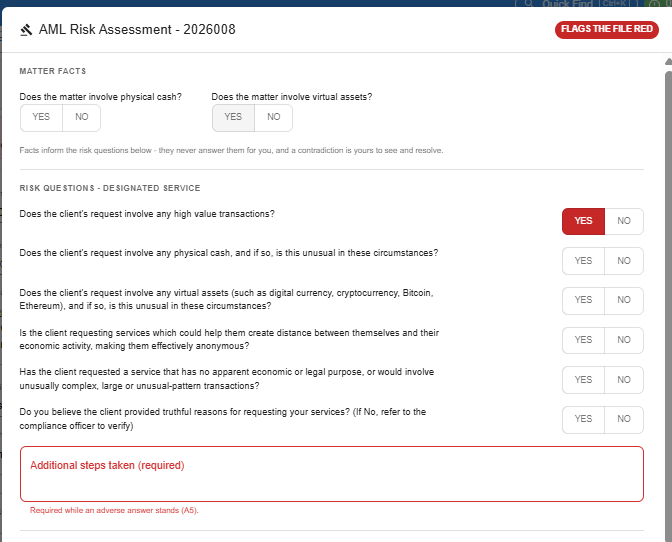
The AML risk assessment is a new pop-out on any designated-service matter, opened with the AML risk assessment button. It asks about the work itself rather than the client, and it has four parts.
Matter facts
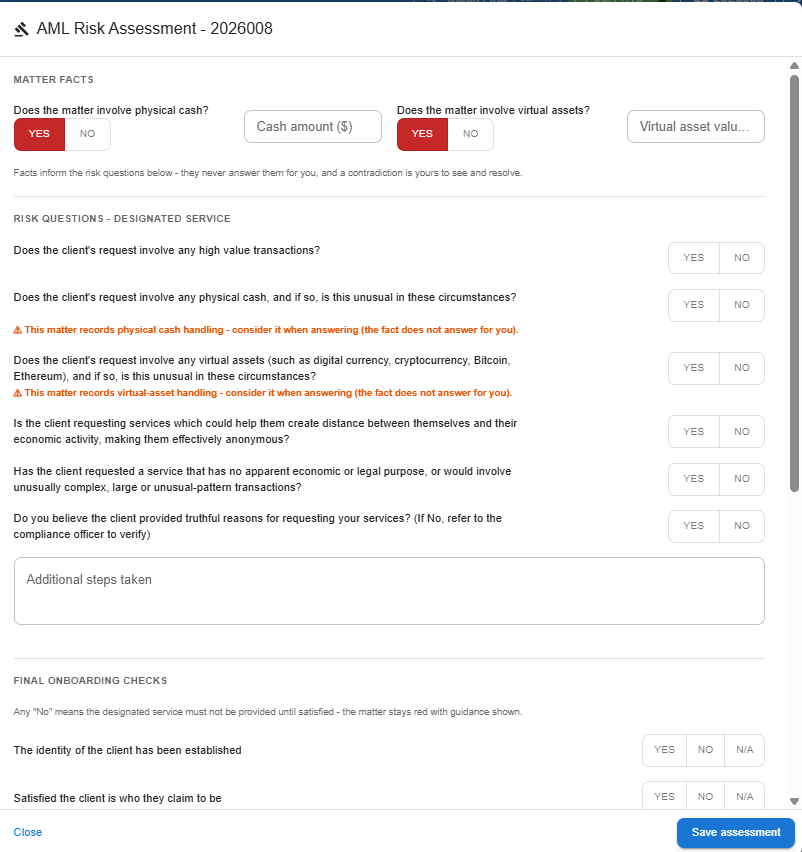
Matter facts record whether the matter involves cash handling or virtual assets, and the amounts involved. These are records only. If a fact is set, a prompt appears beside the related risk question — but you still answer the question yourself.
Risk questions
Real-property matters get a property-specific set covering things like a purchase over $1.5 million with no mortgage, or $50,000 or more in physical currency. Every other matter type gets a general set covering high-value transactions, physical cash, virtual assets and anonymity structures.
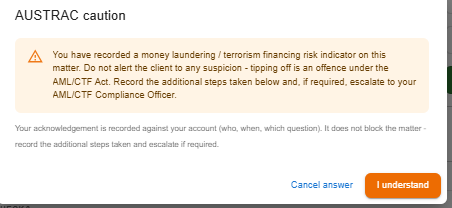
An adverse answer also shows the AUSTRAC caution, which you must acknowledge. The acknowledgement is audited against your account.
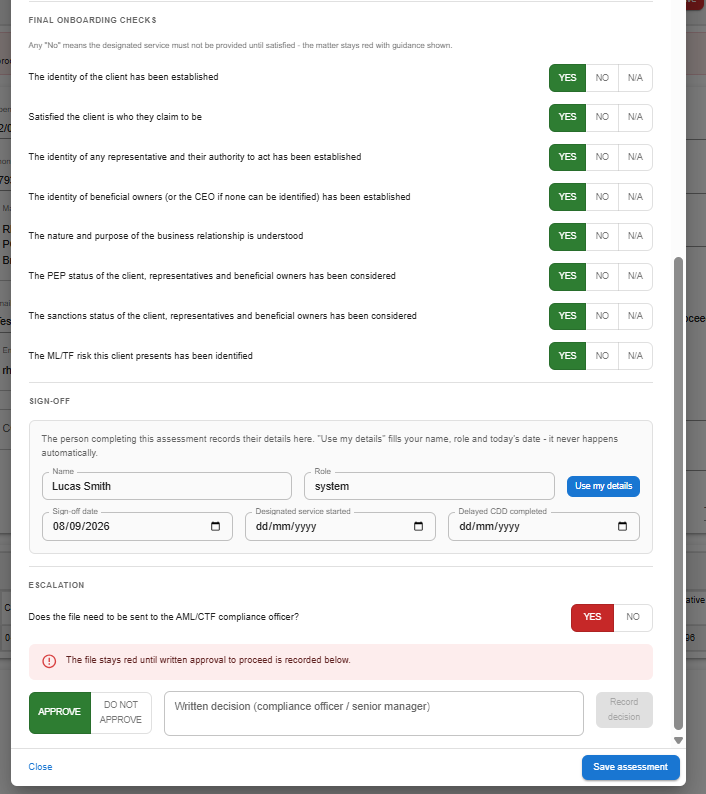
Final onboarding checks and sign-off
The final checks are the AUSTRAC satisfaction list — identity established, beneficial owners identified, PEP and sanctions status considered, and so on. Any “No” also flags the file red. In the sign-off panel, Use my details fills in your name, role and today’s date, and you record when the designated service started.
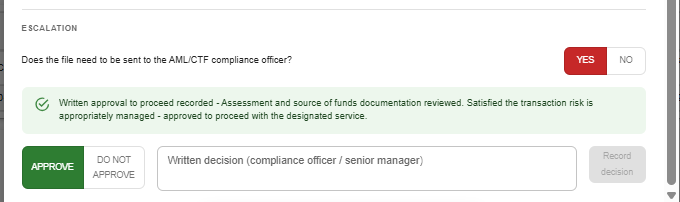
How to escalate a file to your compliance officer
If a file needs to go to your AML/CTF compliance officer, tick escalation required in the assessment. The file stays red until a written approval is recorded — the decision to approve or not approve, who recorded it, and when are all captured and audited.
Each contact’s Identity & AML tab also shows an AML escalation history panel, listing every escalation raised on their matters with the file number against each one.

Overriding AML compliance on a matter
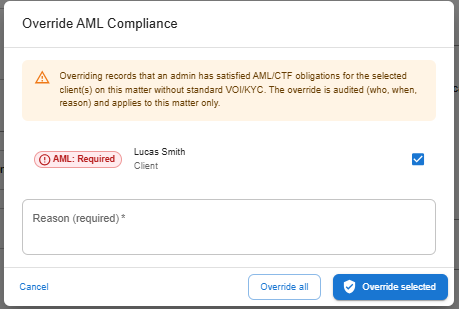
Admins can still override AML compliance for clients on a matter, which shows an orange AML: Overridden pill. A reason is mandatory. The override dialog now pre-selects every non-compliant client on the matter, so untick anyone you do not mean to include. Clearing the override reinstates the standard checks.
What you might notice on existing data
Older InfoTrack VOI reports may show 0 identity points because they predate the points system. This is cosmetic — points are advisory, not a block. If it bothers you, edit the document and re-pick the identity type to set its value.
Contacts assessed under the old questions keep their existing rating and review date until their next review falls due. The new questions sit greyed out until then. At the review, the full new question set must be answered.
When to go beyond the standard path
Law App handles standard low-risk clients end to end. Step outside the system and use the official AUSTRAC forms when the client is medium or high risk, uses a representative, has a complex ownership structure, cannot provide standard identification, or has been referred to your compliance officer.
In those cases, complete the AUSTRAC Initial CDD form for the relevant client type — available in the template library — and use the Escalation form where one is required.
Leave a Reply