
You can enter an office cost or disbursement in Law App in two ways: from the central File Costs screen, or straight from the Financials tab of the client’s file. Both write exactly the same journal — the only difference is convenience. Either way, the Cost Type you choose is what tells Law App whether the entry is an office cost or a disbursement.
From the File Costs screen
Best when you’re processing a batch of costs across several files — for example, the week’s Express Post recoveries. You pick the file on each row, so there’s no navigating in and out of files.
From within the file
Best when you’ve just finished a piece of work and want to record one cost while it’s fresh. The file is already filled in for you, so it’s one step shorter.
Before you start
- Check the Cost Type you want to use already exists. If it doesn’t, set it up via How to Add a Cost Type.
- For central entry, have the file number (or client name) ready for each file the cost belongs to.
How to enter an office cost or disbursement from the File Costs screen
Use this method when you have several costs to enter across different files.
Method 1 — Central entry
- From the left-hand sidebar, click File Costs, then Office Costs or Disbursements.
- Click Add (in Office Costs) or Create (in Disbursements) at the top right. A new blank row appears.
- Click into the File field and start typing the file number or client name. Law App searches as you type — select the correct file from the dropdown.
- Click into the Cost Type field and select the Cost Type from the dropdown.
- Adjust the Quantity if needed. For example, if the Cost Type is one Express Post bag at $8.45 and the client used three, enter a quantity of 3.
- Click Save. The entry now sits against the client’s file, ready to be picked up at the next bill run.
To enter another cost, repeat the above steps. The tab can hold a list of pending entries — just save each one as you go.
How to enter an office cost or disbursement from within a file
If you’re already working in a client’s file, there’s no need to leave it. The Financials tab on every file lets you add an office cost or disbursement directly, with the file already filled in.
Method 2 — In-file entry
- Open the file you want to record the cost against — use Find File in the sidebar, or open it from any list where it appears.
- Across the top of the file, click Financials. You’ll see several sub-sections: Timesheet, Cost, Disbursement, Supplier, Debtor and Receipts.
- Pick the sub-section that matches what you’re recording: Cost for an office cost, or Disbursement for a disbursement. You’ll see that file’s existing entries, or “No data” if there are none yet.
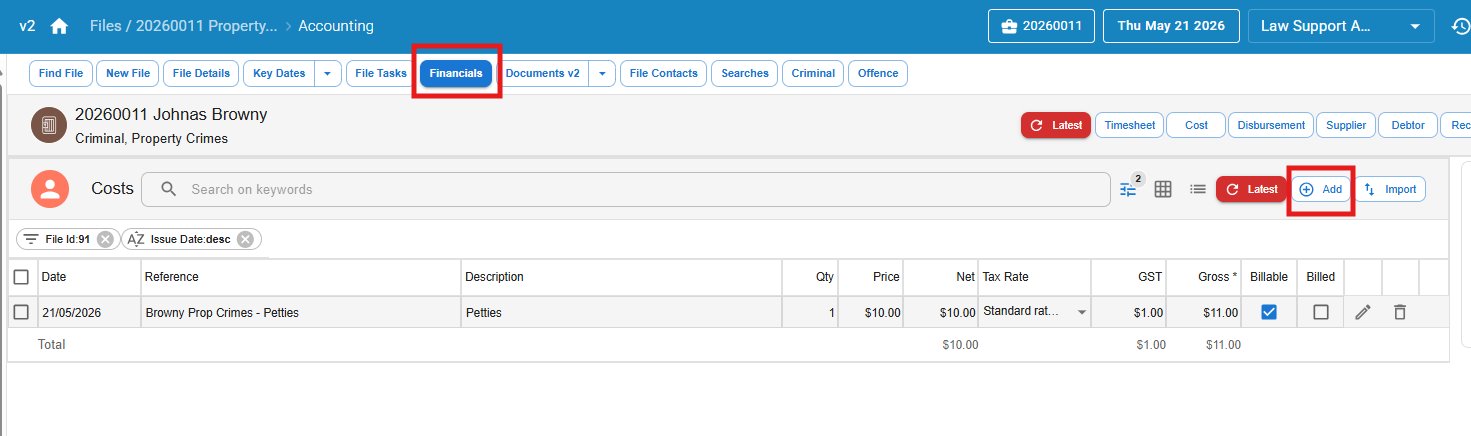
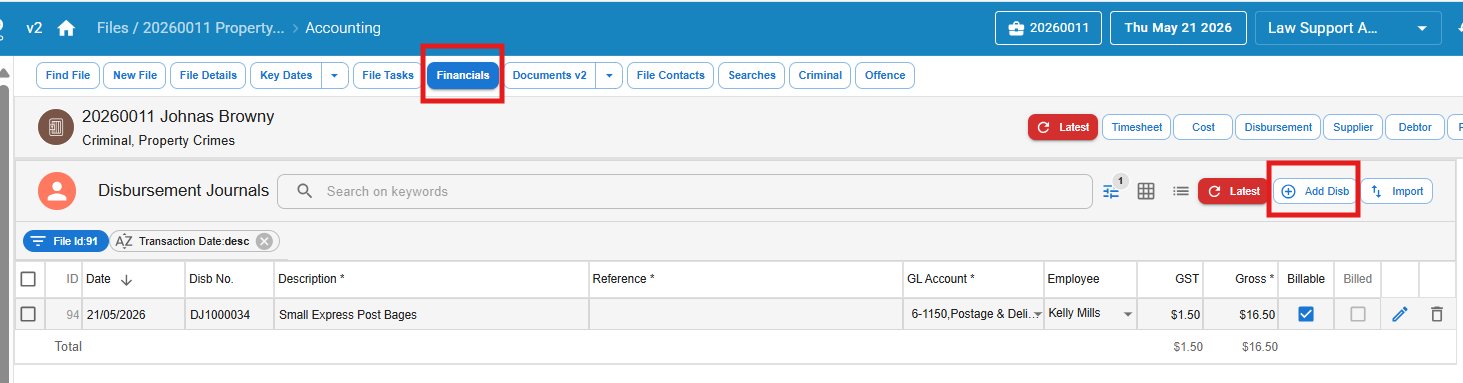
- Click the + button in the top right of the list — it’s labelled Add on the Cost sub-section and Add Disb on the Disbursement sub-section. A new blank row appears with the current file already filled in.
- Select the Cost Type from the dropdown.
- Adjust the Quantity if needed (the default is 1). The price flows through from the Cost Type — only change it if you need to override.
- Click Save. The entry is now recorded against the file, ready for the next bill run.
What happens behind the scenes
Whichever method you use, Law App writes the same journal in the same way:
- Disbursement: Law App posts a journal that moves the cost from the GL Account on the Cost Type onto the client’s file. The original supplier expense is reduced by that amount, and the file picks it up as a billable disbursement.
- Office cost: Law App holds the charge against the client’s file. At billing, the default Office Cost GL is applied — there’s no draw-down from a supplier expense.
For more on how the two differ, see Office Costs vs Disbursements — Understanding the Difference.
Common questions
Why is the central entry screen called “Disbursements” if it handles both?
When the journal was first built, it only handled disbursements. Office costs were added later and kept on the same screen because the workflow is identical — the Cost Type does the heavy lifting.
What if I picked the wrong file?
You can edit the entry directly in the list. Click into the File field, change it, and click Save.
The Cost Type I need isn’t in the dropdown
It hasn’t been set up yet. Add it on the Cost Types tab, then come back and enter the cost.
The Add button doesn’t appear on the file’s Financials tab
Check your user permissions — the ability to add costs and disbursements is controlled by your role. If you should have access but don’t, speak to your firm’s Law App administrator.
Where to next
- Setting up a new Cost Type — How to Add a Cost Type
- Understanding the distinction — Office Costs vs Disbursements
Leave a Reply