
How to enter a supplier invoice for a file or business expense

Contents

    A supplier invoice is a bill you’ve received from outside the firm — a search provider, an expert, the phone company, your accountant — that you want to record in Law App so you can pay it and keep your books straight. The same form handles two very different cost types: costs that get billed back to a client file as a disbursement, and costs that are just an expense of running the firm. The key is to set the line type correctly for each line.

    File-level

    Disbursement

    A cost incurred for a specific client matter — a search, a court filing fee, an expert report. Attaches to a file and gets billed back to the client.

    Firm-level

    General

    A cost of running the firm — telephone, software subscription, office supplies. Posts to a normal GL expense account and isn’t attached to any file.

    A single invoice can be a mix of both. A monthly ASIC bill, for example, might cover five company searches that each go to different files, plus one search you’ve decided to write off to the firm. You add a line for each item and set the type per line.

    Mark the contact as a supplier

    Before you can enter a supplier invoice for someone, their contact record has to be flagged as a Supplier. This only needs doing once per supplier — after that, they show up in the Supplier dropdown whenever you enter a new invoice.

    1. Open Contacts from the main menu.
    2. Find and open the contact you want to mark as a supplier — in this example, ASIC.

    Selecting the supplier contact (ASIC in this example) from the Law App contact list

    1. On the contact’s profile, switch the Supplier toggle on.

    Contact record with the Supplier toggle switched on, marking the contact as a supplier for invoicing

    1. Click Update Contact to save. Any save action will do — there’s nothing special about that button.

    Clicking Update Contact to save the supplier flag against the contact record

    Tip: The Supplier toggle is independent of every other contact flag. A contact can be a Client, a Supplier and a Solicitor all at once — turning Supplier on doesn’t change any of the contact’s other roles.

    Enter the supplier invoice

    Once the contact is flagged as a supplier, you can record a new invoice from the General accounting area.

    1. From the main menu go to General, then Supplier Invoices.
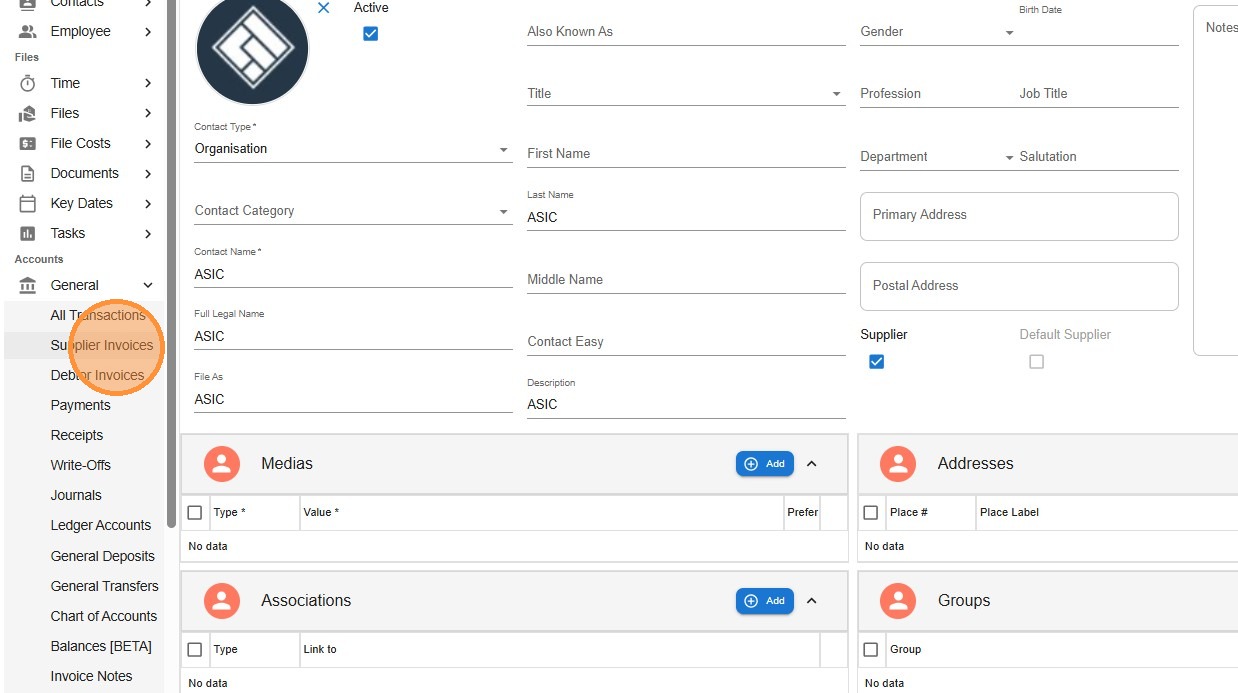
    Law App navigation menu showing General then Supplier Invoices to open the supplier invoice list

    1. Click Add on the supplier invoice list to start a new invoice.
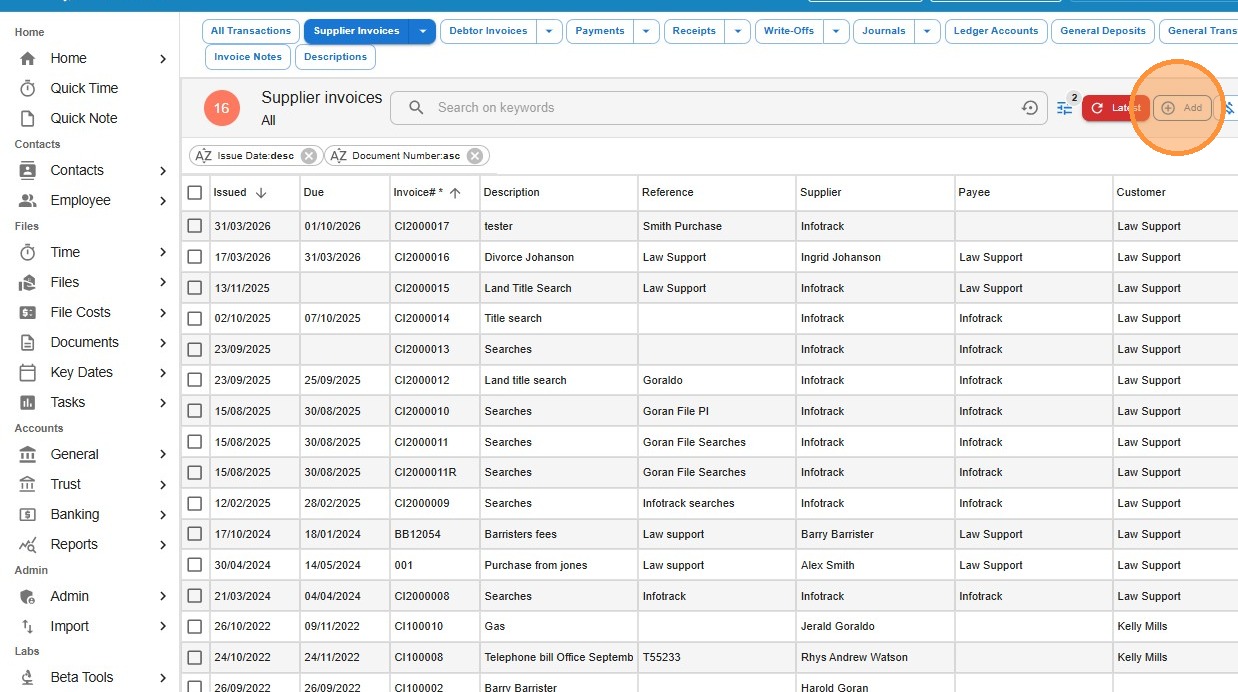
    Supplier Invoices list page with the Add button highlighted to create a new supplier invoice

    1. Fill in the invoice header: set Supplier to the contact (e.g. ASIC), enter a Description (e.g. “Company Searches”), set Payable to (usually the same contact), and enter the Due Date — either the actual due date on the bill or the date you plan to pay it.
    2. The Tax Category defaults to GST. You can override the tax type on each line individually if a particular line is GST-free, input-taxed, or anything else.
    Why Payable to is its own field: The supplier who issued the invoice and the payee you actually pay can be different. A barrister, for example, issues the invoice but their chambers handles the banking. Supplier is who the invoice is from, Payable to is who gets paid.

    Add the line items

    For each line on the invoice, set the line type to either Disbursement or General.
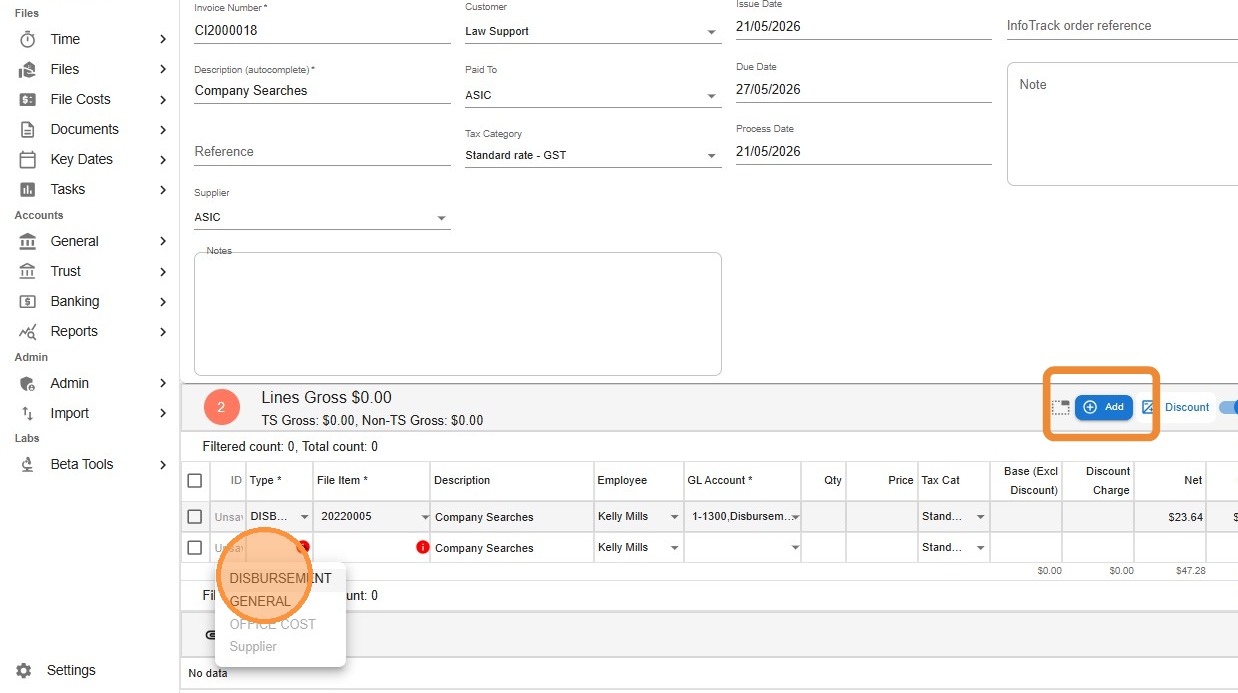
    Supplier invoice line item dropdown showing the choice between Disbursement (file-level) and General (business expense)

    1. For a Disbursement line, pick the File the cost relates to. The GL Account will automatically be the disbursement control account, 1-3000.
    2. For a General line, choose whatever GL expense account fits the cost — for example, an Office Telephone expense for a phone bill, or a Searches Unrecoverable expense code for a search you can’t bill back to a client.
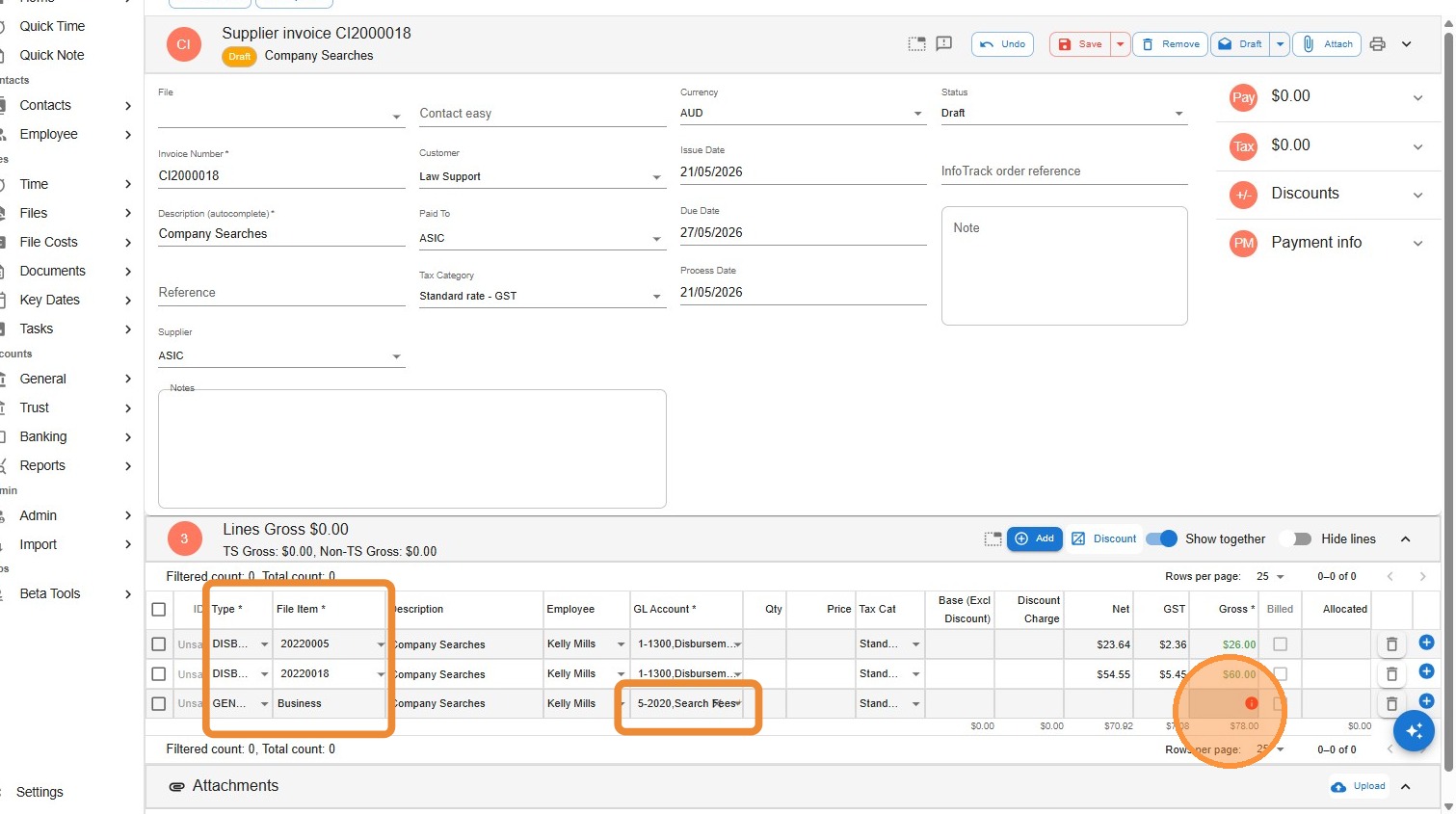
    Supplier invoice with multiple lines showing how GL codes differ between Disbursement lines (1-3000 control) and General lines (any expense code)

    Don’t change the GL code on a Disbursement line. Disbursement lines must use the disbursement control account 1-3000 — that’s what links the cost to the file’s WIP and lets you bill it back to the client. If you override it to a different GL code, the cost won’t appear on the file and you won’t be able to invoice it out.

    Save and finalise

    1. Click Save.
    2. Change the status from Draft to Finalise. This is the step that actually posts the invoice to the ledgers — until you finalise, the invoice doesn’t exist as a financial transaction.
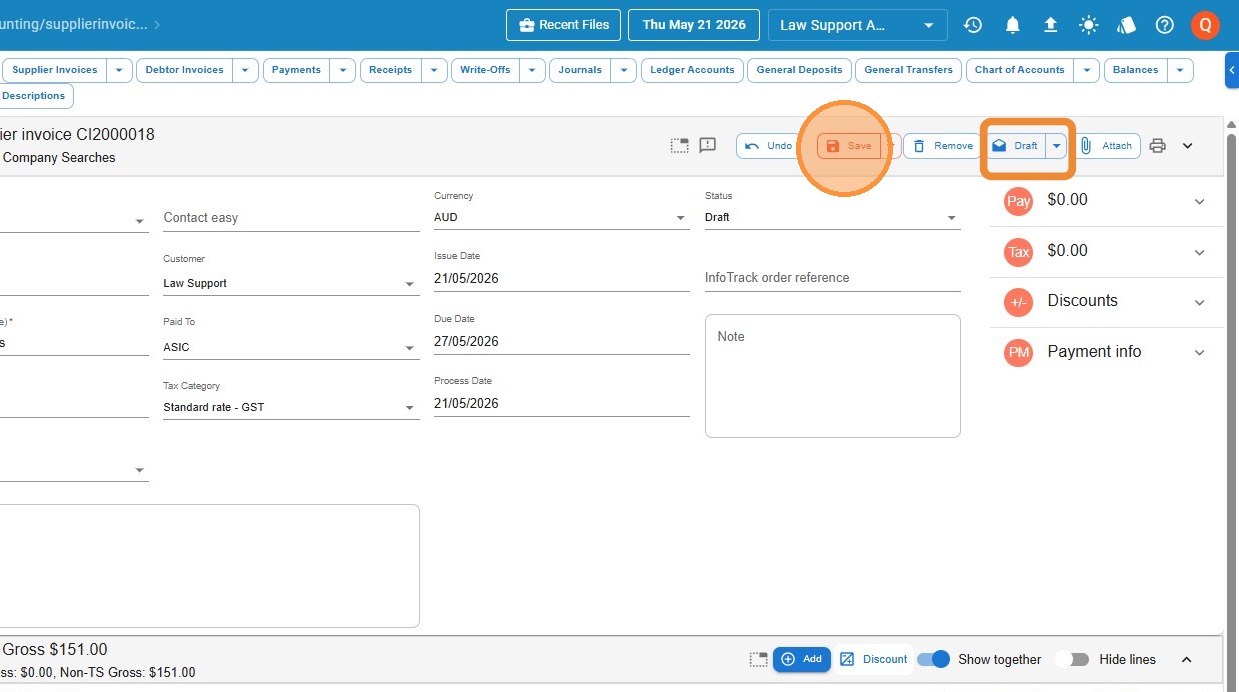
    Supplier invoice screen with the Save button and the Draft/Finalise toggle, used to commit the invoice to the ledgers

    Draft invoices don’t post anywhere. A saved Draft is a parked entry — it isn’t in your supplier payables, isn’t on the file, and won’t show on any report. The invoice only takes effect once you change it to Finalise.

    Updated on 25 May 2026

    Leave a Reply

    Your email address will not be published. Required fields are marked *