
Every receipt, payment and invoice in Law App has a Description: a few words saying what the money is for. The Description is what people read later on ledgers, statements, reports and printed forms, so it pays to word it the same way every time.
To help with that, each Description field searches your firm’s saved list of transaction descriptions as you type. This article explains how that list works across all transactions: which list each screen uses, how to pick and add descriptions, and how to manage the list in Settings. For a walk-through on one screen, see Trust Payment Descriptions.
Why descriptions matter
Consistent records
The same payment reads the same way on every file. Ledgers and reports are easier to check, and clients see clear, tidy wording on their statements.
One-off wording
Type anything and carry on. It saves on that transaction only and isn’t added to the list. Good for something you won’t see again.
Here’s where a description ends up. On a trust payment, the description becomes the Reason printed on the payment form, both at the top and in the transaction table:
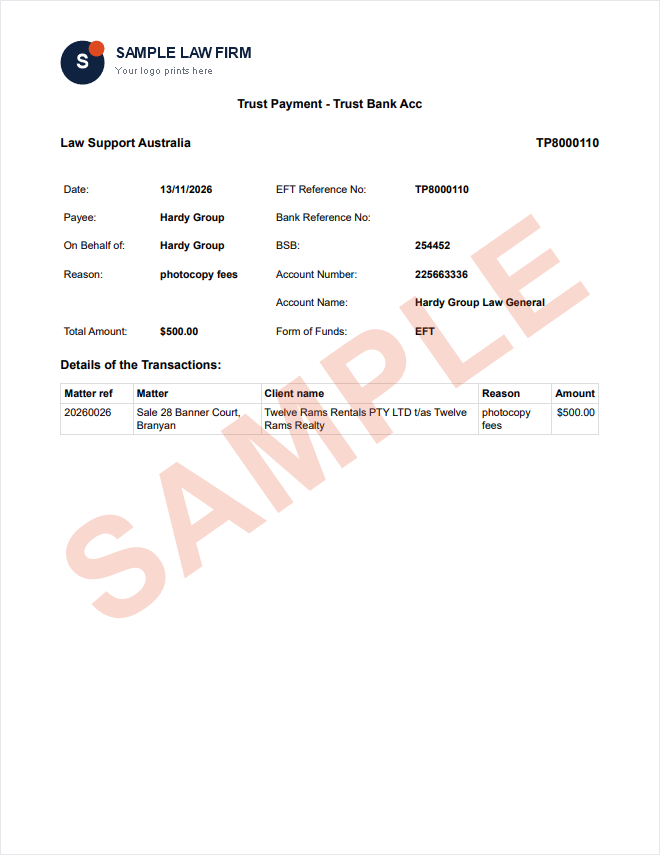
Sample only. Your firm’s own logo and details print on your forms.
Which list each transaction uses
Your description list is split into categories. Each Description field shows the descriptions in its own category, plus any description with no category.
Transaction and its category
| Transaction | Category it searches |
|---|---|
| Trust payment (withdrawal) | Payment |
| General payment and supplier payment | Payment |
| Trust receipt | Receipt |
| General receipt and debtor receipt | Receipt |
| Trust requisition | Receipt |
| Trust adjustment | Receipt |
| Supplier invoice | Supplier Invoice |
| Debtor invoice | Debtor Invoice |
| Settlement adjustment (conveyancing) | File |
How to pick a saved description
This works the same on every screen in the table above.
- Open the transaction you’re entering, for example a new receipt, payment or invoice.
- Click in the Description field and type at least two letters of the description or its code.
- Pick the description from the list. Each one shows its code underneath.
How to add a description to the list
When nothing in the list matches what you’ve typed, an Add new description panel appears under the field with two buttons. The second button names the category of the screen you’re on.
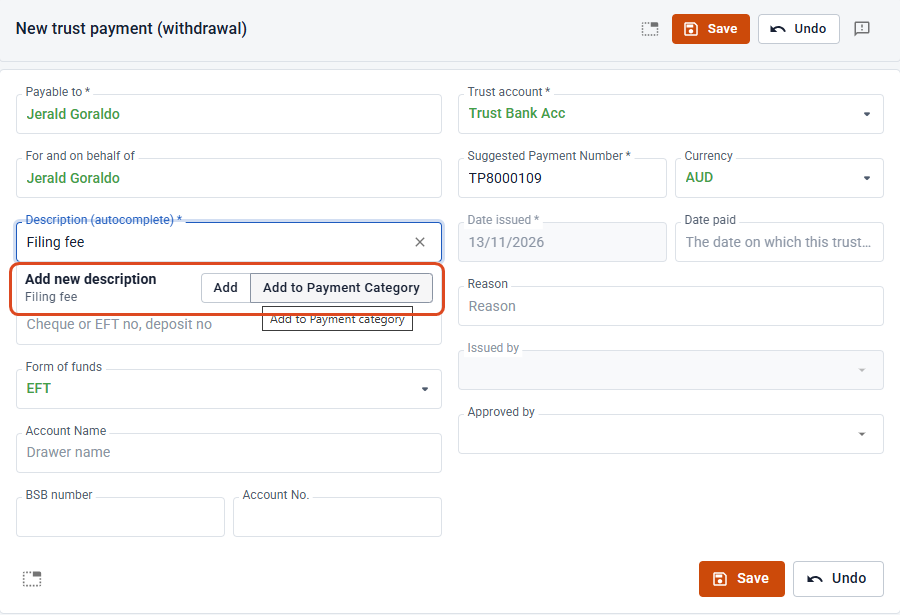
The two buttons
Add saves it with no category, so every Description field in Law App offers it.
Add to [category] Category saves it to this screen’s category only. On a trust payment it reads Add to Payment Category, on a receipt Add to Receipt Category, on a supplier invoice Add to Supplier Invoice Category.
Most of the time, use the category button. Keep Add for wording that genuinely fits receipts, payments and invoices alike, or every list fills up with descriptions that don’t belong there.
The new description goes straight onto your transaction and into the list for everyone in your firm. Law App gives it a code from its first four letters, which you can change in Settings.
How to manage the list in Settings
- Click Settings at the bottom of the left menu.
- Under General, select Descriptions (auto). You can also type Descriptions into Quick Find (Ctrl+K).
- Add rows, fix wording, change a Category or Code, or tick Archived to stop a description being offered. Then click Save.
Tips for good descriptions
- Write for the client. Descriptions print on forms and statements. Search fees reads better than srch.
- Keep the matter detail out. The file, client and amount are already on the transaction. Stamp duty, not Stamp duty for Smith purchase $12,400.
- One wording per thing. If the list has Filing fee and Court filing fee, archive one so everyone uses the same.
- Use short codes for favourites. Give your most used descriptions a code that’s quick to type, like FF for Filing fee.
- Review the list now and then. Archive descriptions nobody uses so searches stay short.
Common questions
Why isn’t a description showing on this screen?
Check you’ve typed at least two letters, the description isn’t Archived, and its category matches this screen (see the table above) or is blank.
Can two descriptions share a code?
No. Each code must be unique across the whole list.
Does everyone in the firm share the list?
Yes. A description anyone adds is offered to everyone in your firm.
Leave a Reply