
✨ A fresh look for Law App New
Law App has a new look. We’ve redesigned the main areas of the program so that screens, buttons, lists and menus all look and work the same way, wherever you are. The aim is a cleaner, more consistent experience that’s quicker to find your way around.
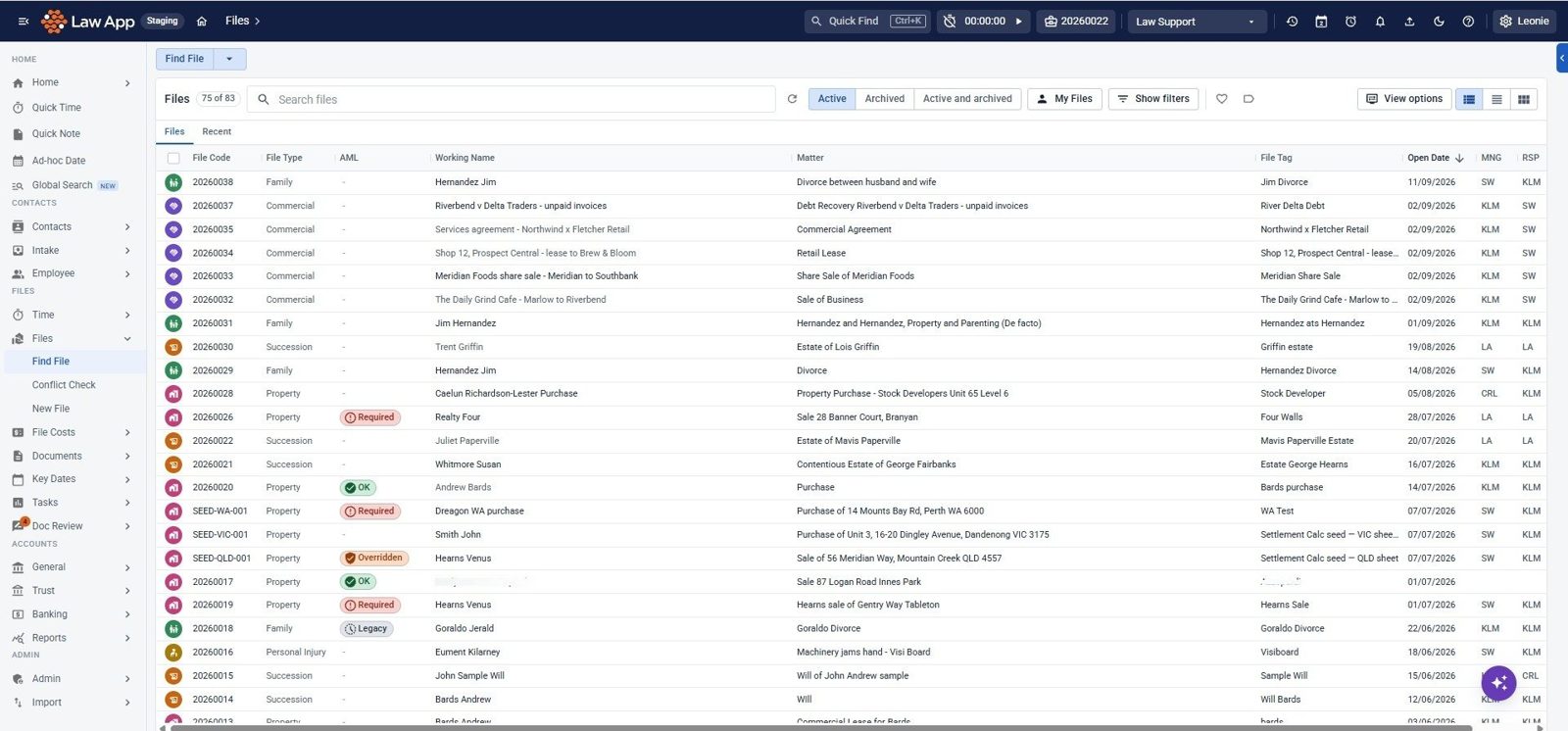
📋 Find File and Find Contact lists New
The file and contact lists have been rebuilt from the ground up.
- Keep scrolling. More results load on their own as you scroll, so there are no pages to click through.
- Choose your view. Switch between Grid, List and Card views, and drag columns into the order you like. Law App remembers your choices.
- Pinned and Recent. Pin the files and contacts you use most. Pinned and Recent sections sit above the main list, each with its own Clear all, and hovering over a recent item shows when you last visited it.
- Labels. Add your own coloured labels to any file or contact, then filter the list by label. Use Manage labels to rename, recolour or delete them.
- Filters and quick toggles. A filter pane narrows the list by type, status and more. My Files shows only the files you’re responsible for, manage or assist on, and you can show archived files or inactive contacts with one click.
- Right-click shortcuts. Right-click a row to jump straight to a tab such as Trust, Documents or Time, or to start a Quick Time entry.
- View options. Choose the text size, switch to denser rows to see more on screen, and show or hide the tabs and Pinned and Recent sections.
- Smoother and faster. Large lists stay smooth even with thousands of rows.
The contact list is now called Find Contact.
👁️ Peek windows New
Check the key details of a file without leaving the page you’re on. Click the eye icon next to a file in Recent Files or Find File to open File Peek, a small card showing:
- The matter, client names and contact details.
- Available trust, trust balance, outstanding disbursements, fees and unpaid suppliers.
- The next critical or high-priority date, the next task and the next appointment.
- Billable items, unconverted Auto Time, and the responsible and managing staff.
Some values have a copy button, which is handy when you’re on the phone or entering a transaction. You can choose which sections show, and click Open full file when you need more. The same kind of peek window is also available on debtor invoices and most accounting lists.
🪟 Floating windows New
Quick Time, Quick Note and Ad-hoc Date open in floating windows that you can move and resize. You can now pin a window in place, or minimise and dock up to five windows along the bottom of the screen. Pinned and docked windows come back after you refresh your browser.
🔝 The top bar Improved
- A neater bar. Every button is the same size and shape, grouped together, with matching icons. On smaller screens, items tuck into a More menu instead of being cut off.
- Calendar and Key Dates. The calendar icon shows today’s date and opens a cleaner calendar. Key Dates opens a simple list that starts on your own dates for today.
- Profile button. Shows your first name, with a Settings option for your own settings.
- Light and dark mode. One click switches between light and dark mode, and Law App remembers your choice.
- Uploads and Recent pages. Both open in the same tidy panel. Uploads now shows your files, and Recent pages tells you which file each page belongs to.
📁 File Details and New File Improved
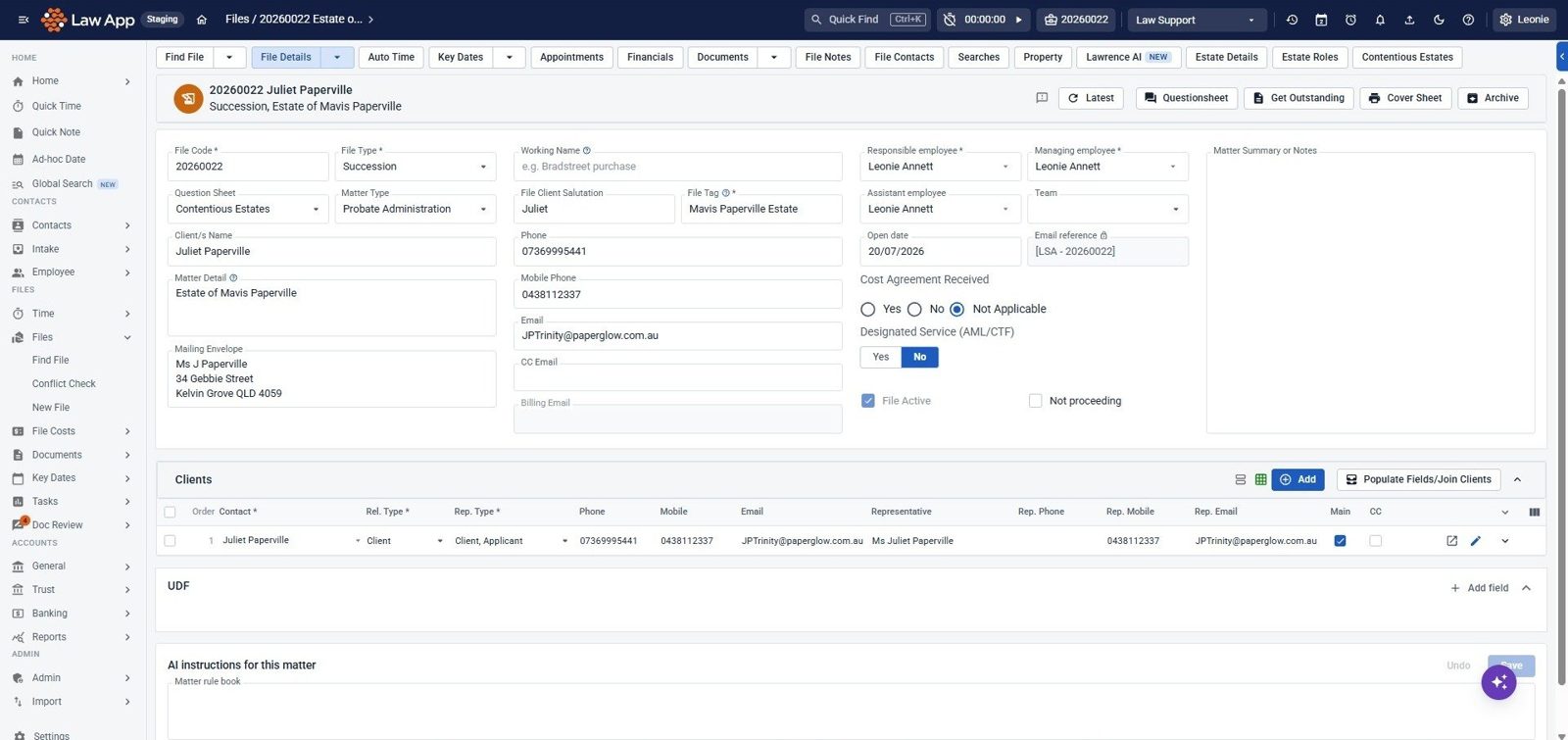
- File Details has a new three-column layout with the Matter Summary alongside, and the file’s AML status beside the file name.
- Tidier tabs. Find File, Conflict Check and New File are now one tab. File Conflict sits under File Details, and File Tasks sits under Key Dates.
- Opening a new file is now streamlined. There are four clear steps, and you’re pre-filled as the lawyer. Clients are added from a search box, and their details are added to the file automatically once it’s saved, so you no longer need to select populate fields or join clients. A single pop-up before the file is created holds the conflict check PDF.
- Clearer field names. A few fields on the file have been renamed to make it clearer how they should be completed and where the information appears. For example, the “Matter” field is now Matter Detail. We’ve also added explanatory notes: look for the ? beside a field to see what it’s for. Your merge fields, letters and templates are not affected by the renames.
📄 Documents Improved
Every documents page, including file Documents, All documents, Trash, Saved emails, Notes and templates, now works the same way.
- A cleaner toolbar. The top bar holds page controls only, such as search, Upload, View and Preview.
- Act on several documents at once. Tick documents and a blue strip appears with Email, PDF, Print, Move to folder, Flag for review, Delete and Clear.
- Consistent right-click menus. The menus are the same on every documents page.
- Better search. The search box is wider, with options for searching names or contents.
- Quick filters. Favorites, Pinned and Out for review (with a count) sit above the list, with a View options button for row size, sort and columns.
⏱️ Time Entries and Quick Time Improved
- Edit in the grid. Click a cell and type, just like a spreadsheet. Entries save as you move to another row.
- Rates and amounts update themselves when you change the employee, file, rate or time.
- Stopwatch in the Time cell, with play and pause saving straight away.
- Today view. Time Entries opens on your own entries for today, so you can check your day against your target, with a switch to see all dates.
- Quick status changes. Each row has a status you can change in one click. “Approved” is now called Finalised.
- Quick Time. The File box is full width so long matter names read in full, and your recent entries show underneath in the new grid.
🧾 Debtor invoices New
Debtor Invoices has had a few more changes than other areas in this release, so it’s worth a quick look before you next raise or edit an invoice.
The invoice list
- Outstanding, Paid or All. Switch between them with one click, and Law App remembers your choice.
- Find invoices faster. Filter by any of the usual fields, or use the new Gross Amount filter to type a minimum and maximum or drag the slider.
- Pins, labels and Recent. The same pins, labels and Recent history as your file list, with tabs above the list.
- Invoice Peek. Click the eye icon on a row to open a floating card with the invoice’s general information, lines, totals and allocated amount, without leaving the list. You can have up to five open at once.
- Creating a new invoice. Clicking New opens a quick pop-up form. Once you save it, the new invoice opens straight away on its invoice page, so you don’t have to go back and find it in the list.
The invoice page
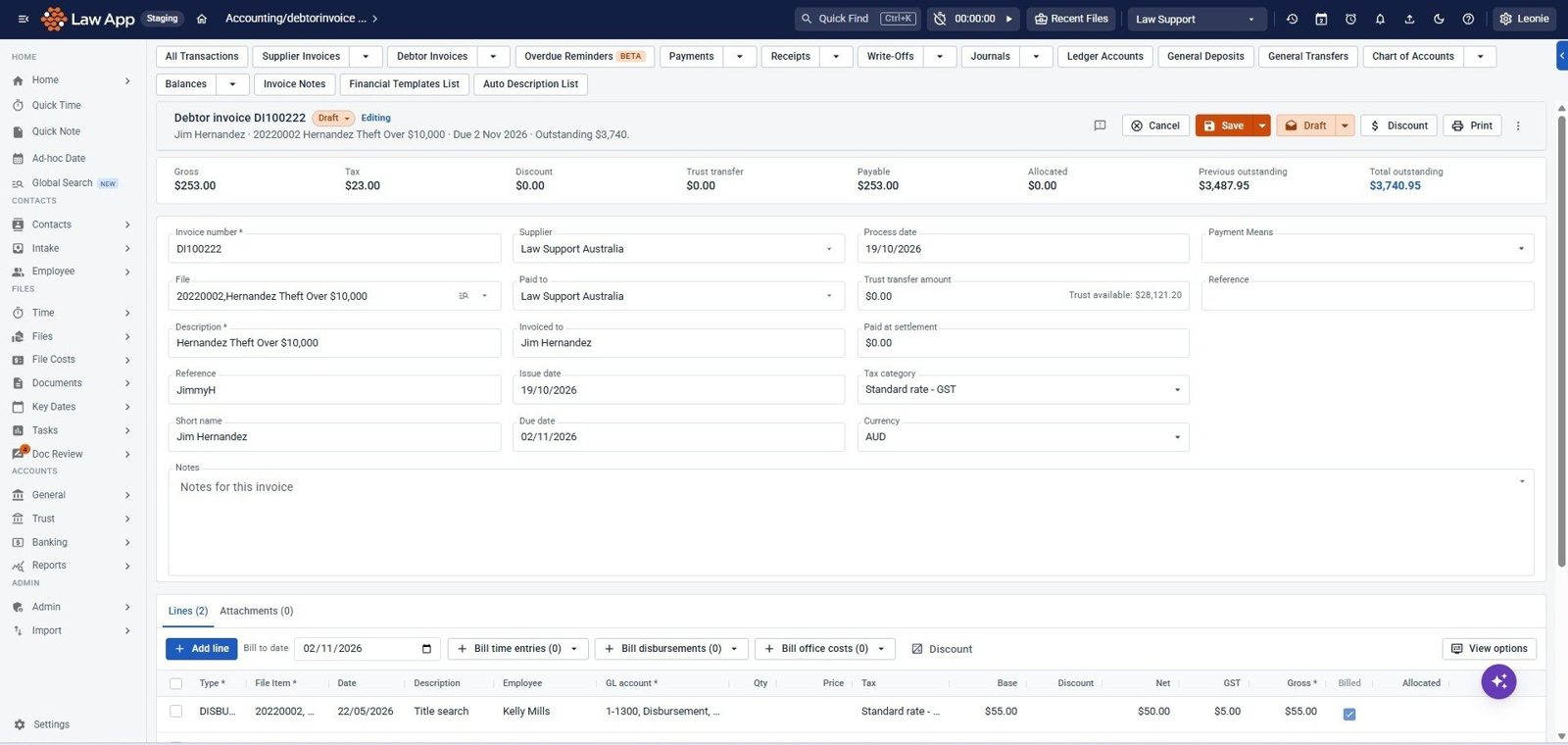
- Opens to view first. Draft and In Process invoices open ready to edit. Any other invoice opens read-only, so nothing is changed by accident. Click Edit to make changes, then Save or Cancel.
- Status at a glance. The status button shows the invoice’s own status, Draft, Approved, Rejected or Paid, each with its own icon. A headline shows the customer, file, due date and outstanding amount.
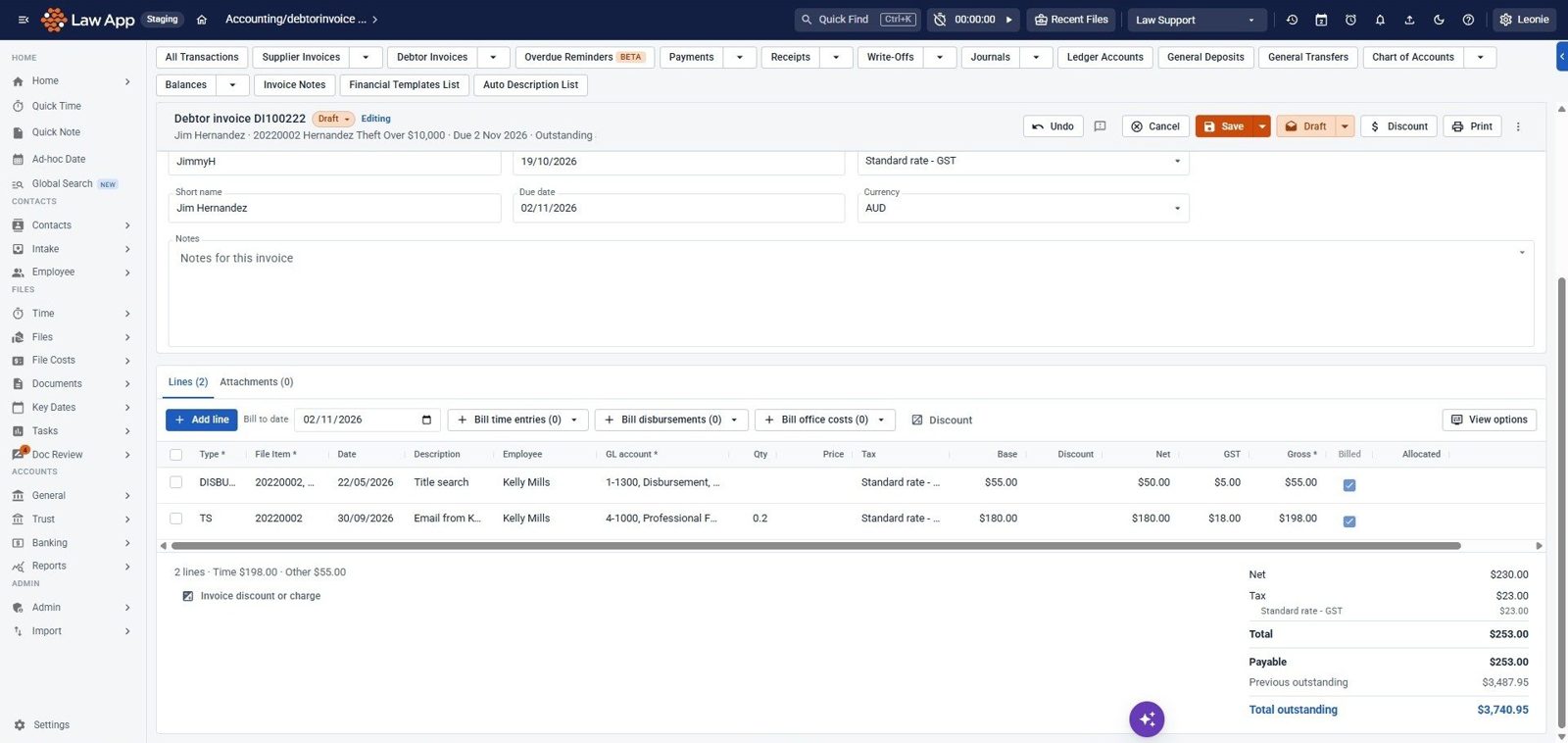
- Edit lines like a spreadsheet. Click a cell and type. Enter moves down and Tab moves right. You can also edit a whole row or open a line in a form, and on smaller screens the lines show as cards.
- Separate Bill buttons. Time entries, disbursements and office costs each have their own Bill button, with the bill-to date alongside. On a phone or tablet, these sit together in one Bill unbilled menu.
- Actions stay visible. Remove, Reverse and Credit note are always in the toolbar, and are greyed out when they don’t apply to that invoice, or if you don’t have permission.
- New Allocated figure in the key figures and the totals summary.
- Saved in one go. Nothing is saved until you click Save, so if you remove a line by mistake, it shows struck through with a Restore option until then.
- Attachments have their own tab beside the invoice lines.
📊 Accounting lists Improved
All Transactions, Supplier invoices, Payments, Receipts, Write-Offs, Journals, Ledger Accounts, General Deposits and Chart of Accounts now use the new list design, along with the Trust, Banking and File Costs menus. Most of these lists also have a peek window, so you can check the key details and amounts without opening each record.
🔔 Document review notifications New
A new bell in the top bar shows how many notifications you haven’t read. When a document is flagged to you for review, or someone adds a note, completes, refers, reopens, cancels or takes over a review you’re part of, a message pops up straight away with an Open button. Click the bell to see your notifications, or use Mark all read.
The critical dates button is now an alarm clock icon, next to the bell.
🖥️ Everyday usability
- New date range picker. Type the dates or pick them on a calendar, with one-click ranges such as Today, This week or Last month.
- Copy and paste dates. Copy a date from any date field with Ctrl+C and paste one in with Ctrl+V. Dates copy as dd/mm/yyyy, and pasting understands the usual ways of writing a date.
- Audit log. Double-click a row to see its before and after details, and a new History view tracks when records were added, changed or deleted.
- Parties filled in for you. Family Law, Litigation and Commercial sheets now fill in the parties from File Contacts.
- Lawrence in the Outlook add-in. The Lawrence button on the Time tab now reads the email and describes it, for example “Email from X regarding Y”.
- Clearer messages throughout. We’ve started rewording error messages, field prompts and general notifications across Law App so they’re easier to understand, with more improvements to come. Many errors now tell you why something didn’t work, such as a wrong password or missing permission, and fields that can’t be edited show a lock with a note explaining why.
- Works better on your phone. Files, contacts and documents are easier to use on a mobile device.
Leave a Reply