
A trust requisition is a request to pay money out of trust. Staff submit a requisition from the file, and whoever looks after trust payments then processes it into a trust payment. This keeps the request and the payment separate, so every payment out of trust is checked before any funds move.
This guide covers both parts: submitting the requisition, then processing it into a payment.
Submit a requisition
Request the payment from within the file, enter who it’s going to and why, then finalise it. This doesn’t move any funds.
Process it into a payment
Open the requisition from Accounts > Trust > Requisitions, enter the date paid, then process it. This creates the trust payment.
Submit a trust requisition
Most of the time, staff submit a requisition from within the file. You can also create one from the left menu under Accounts > Trust > Requisitions, using the New EFT Requisition button.
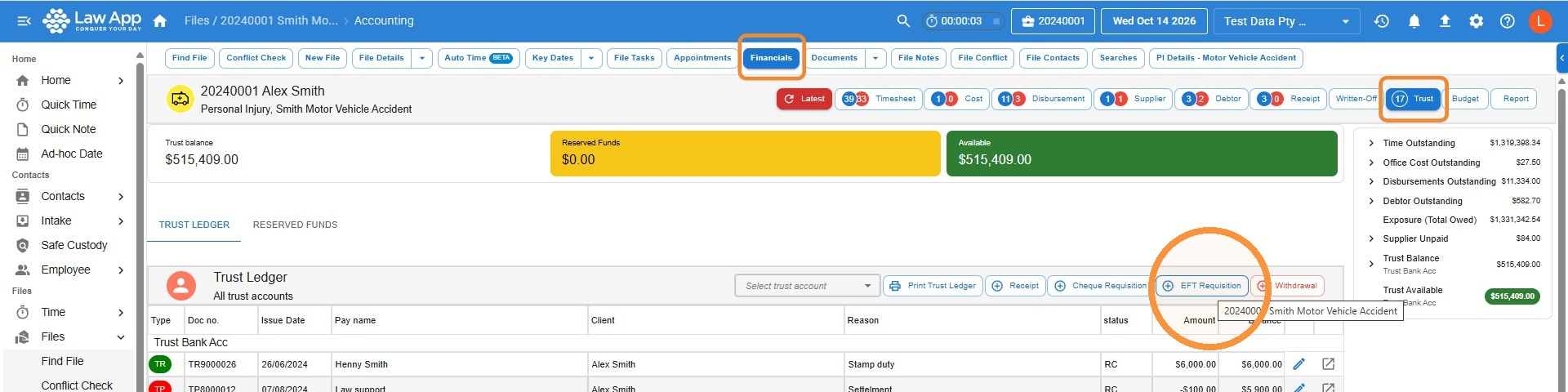
- In the file, click Financials, then Trust, then EFT Requisition. If your firm still uses cheques, click Cheque Requisition instead.
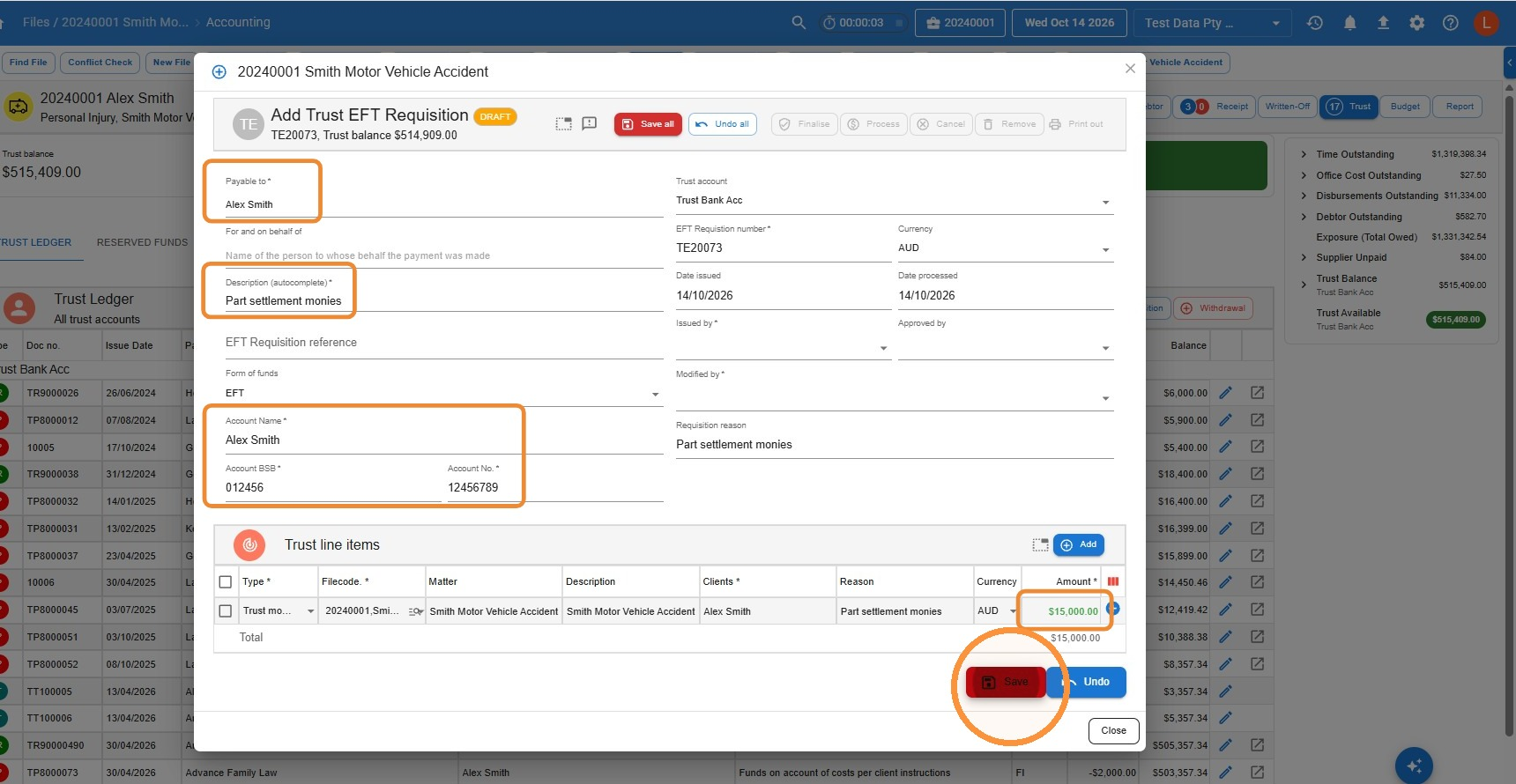
- Enter who the payment is being made to in Payable to, the reason in Description, and the account name, BSB and account number. Enter the Amount on the trust line item, then click Save.
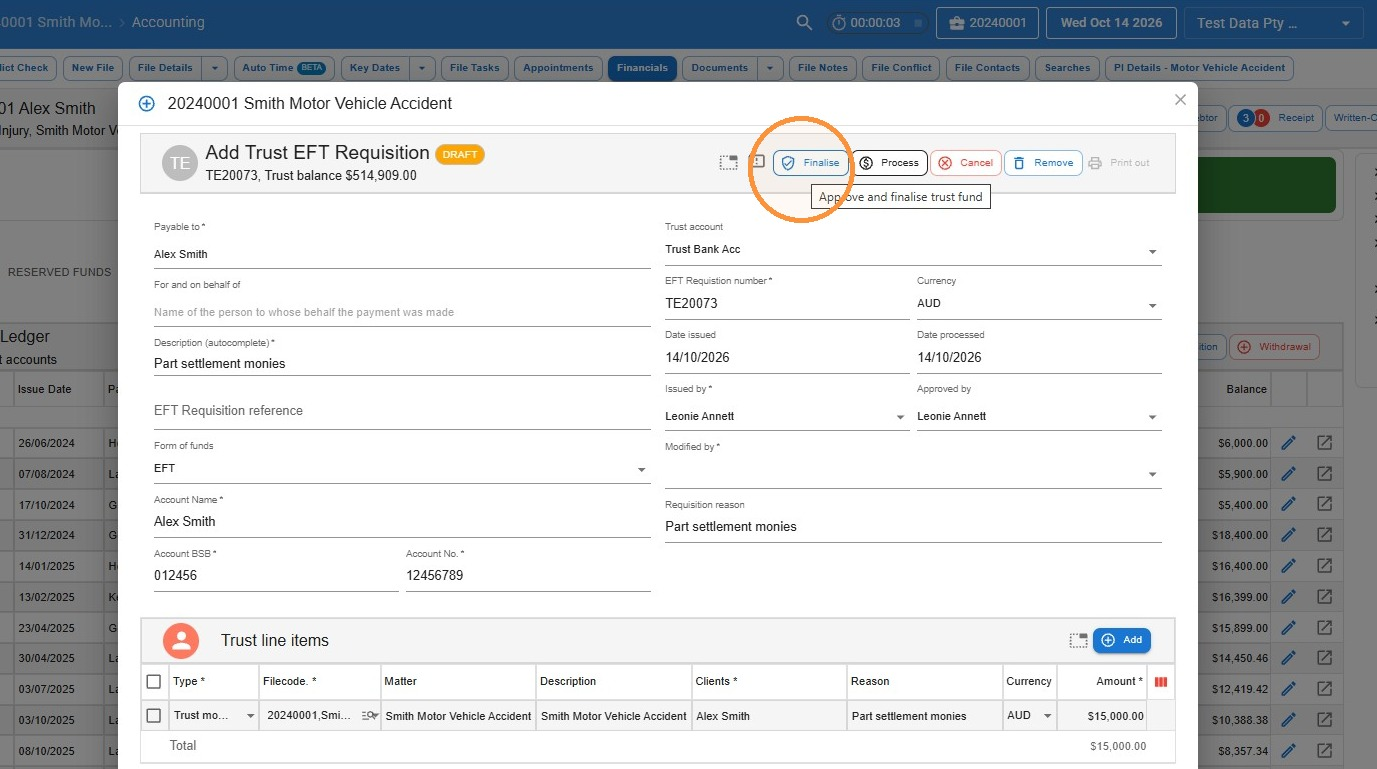
- The requisition is saved as a Draft. Some firms prefer to leave requisitions in draft so another person can check them. If not, click Finalise.
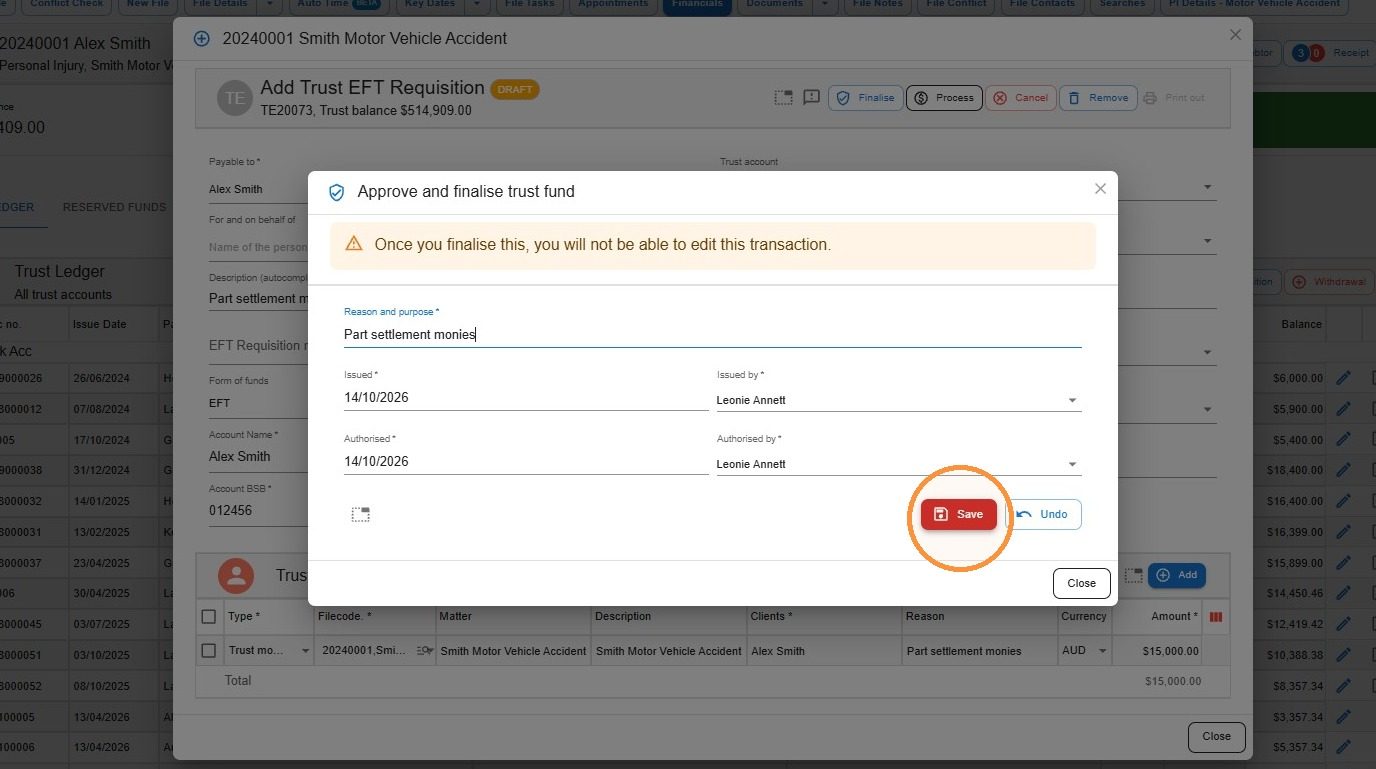
- In the Approve and finalise trust fund window, click Save to finalise and approve the requisition.
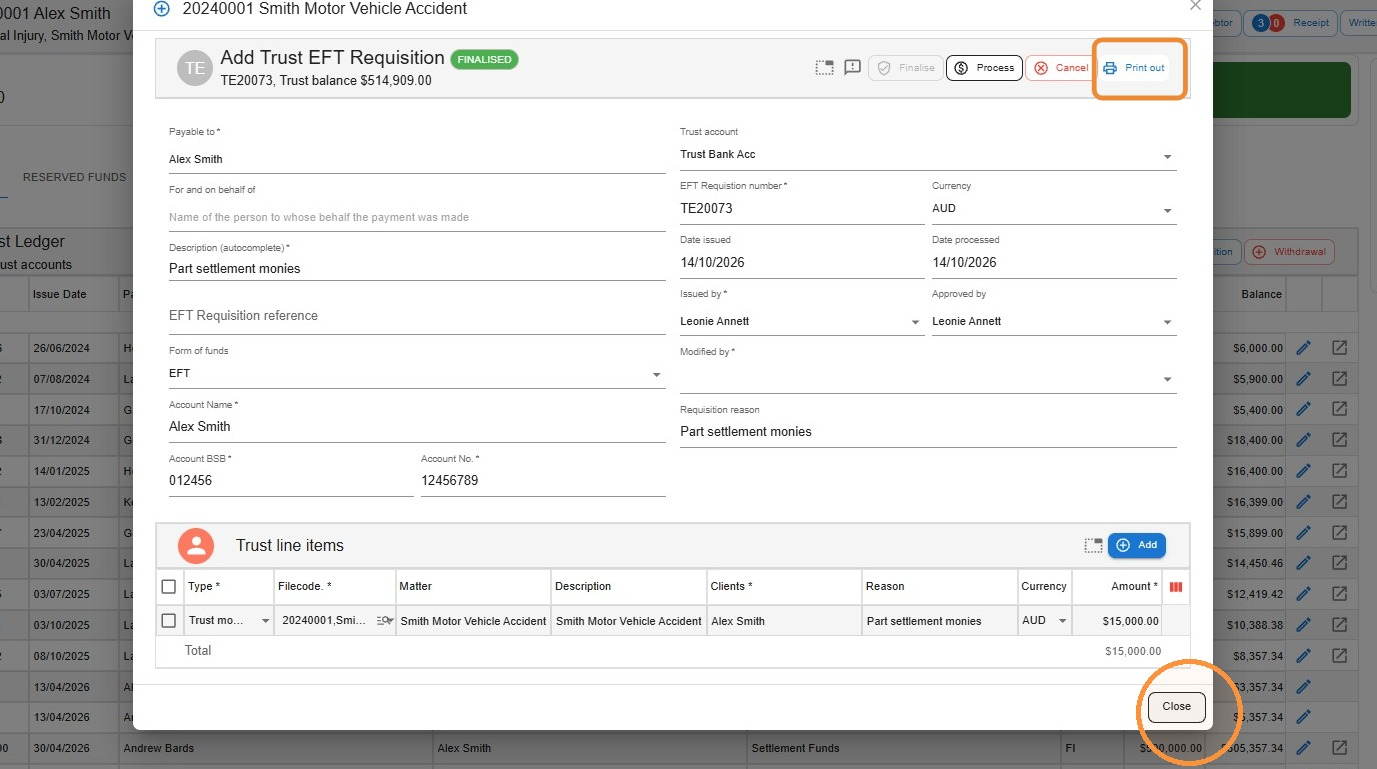
- Click Print out to print a copy of the requisition for whoever will process the payment, then click Close.
Process a requisition into a trust payment
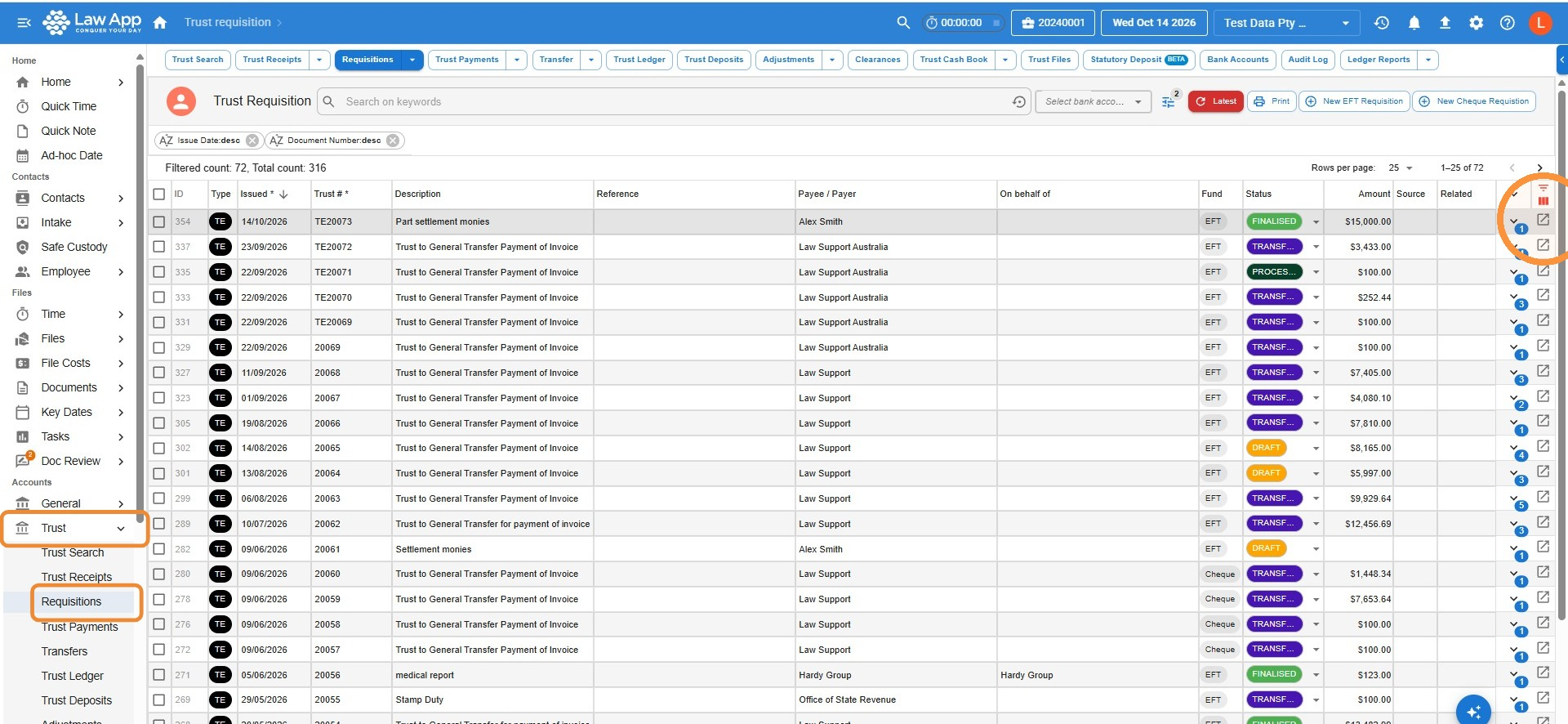
- In the left menu, go to Accounts > Trust > Requisitions. Find the requisition and click the Open icon at the end of its row.
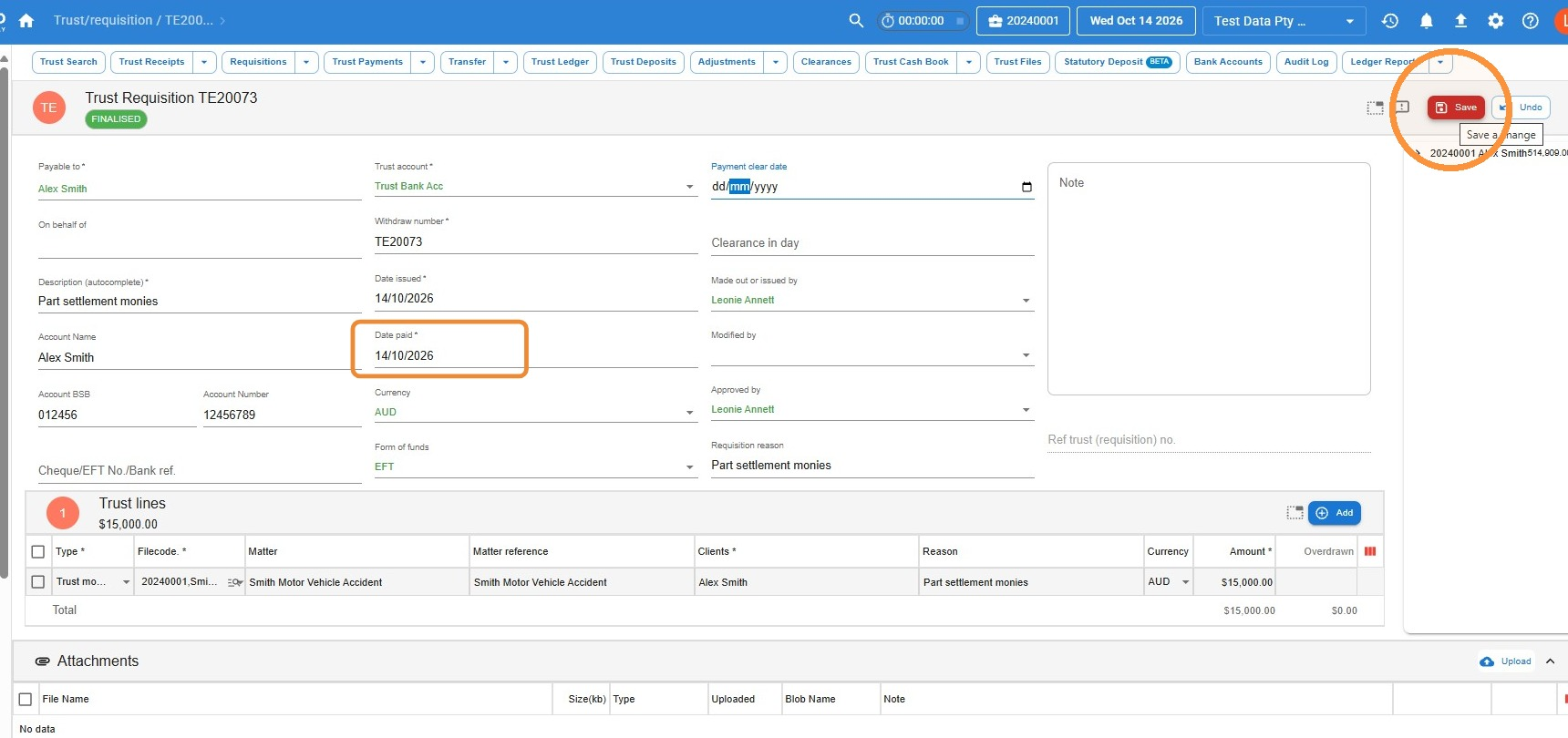
- Enter the Date paid as the date you’re making the payment. Check all the details and make any changes you need, then click Save.
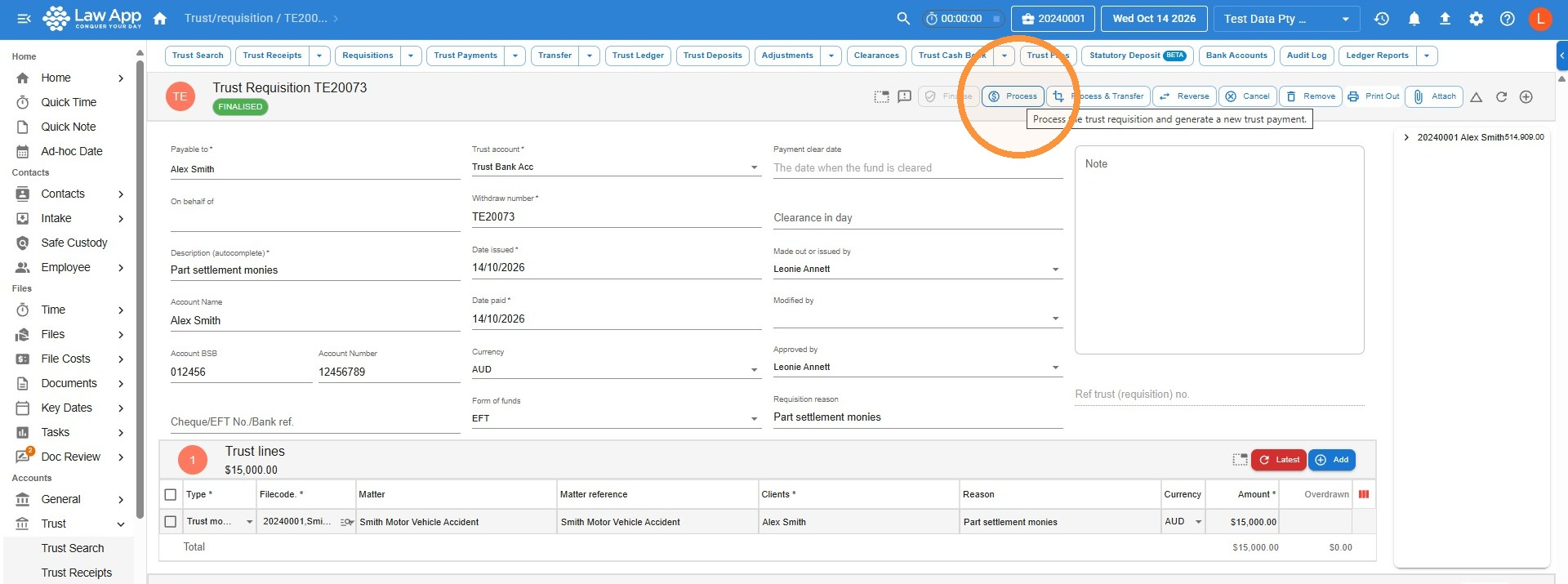
- Click Process to convert the requisition into a trust payment.
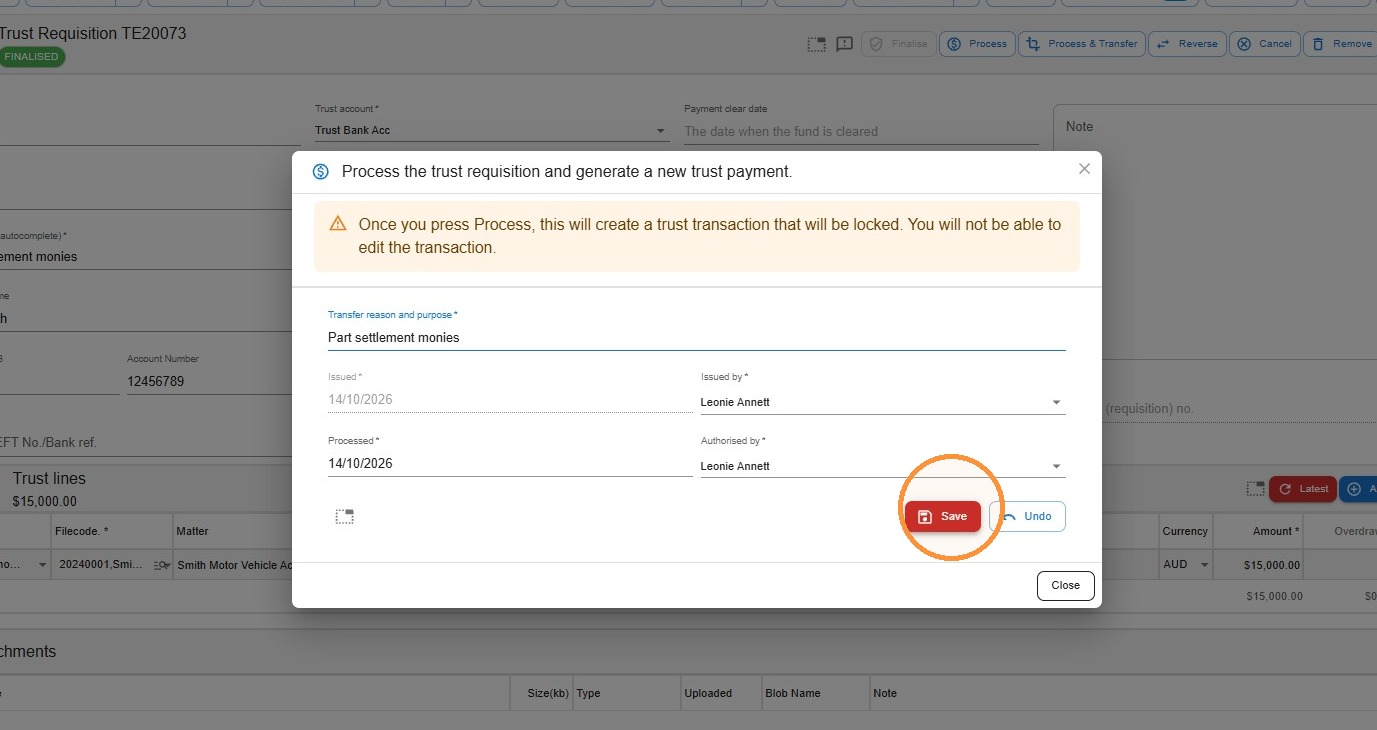
- In the Process the trust requisition and generate a new trust payment window, click Save.
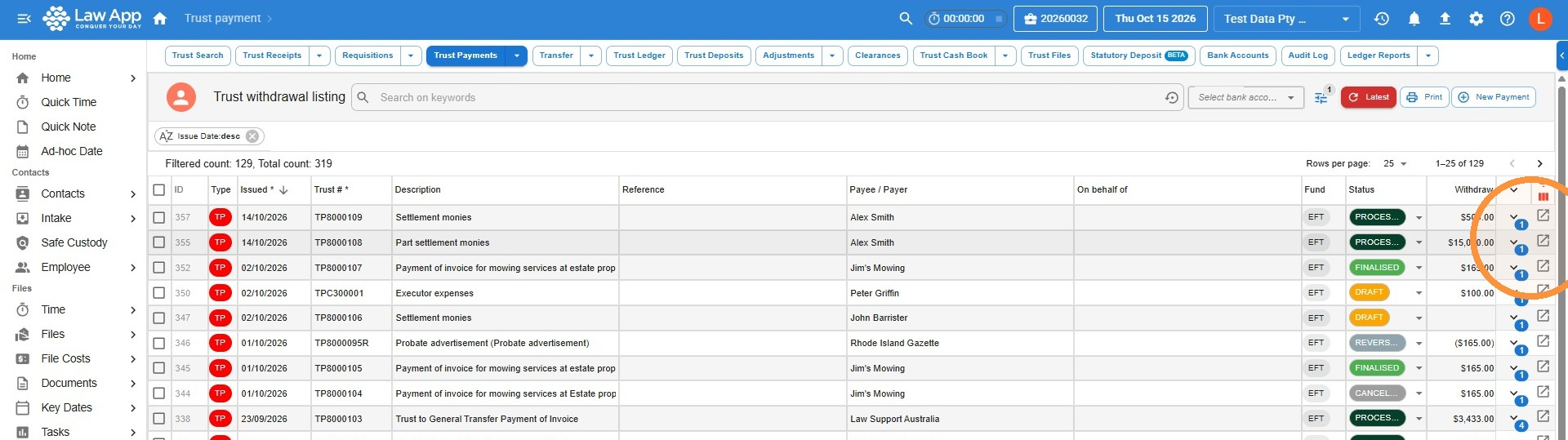
- Go to Accounts > Trust > Trust Payments. Find the new payment and click the Open icon at the end of its row.
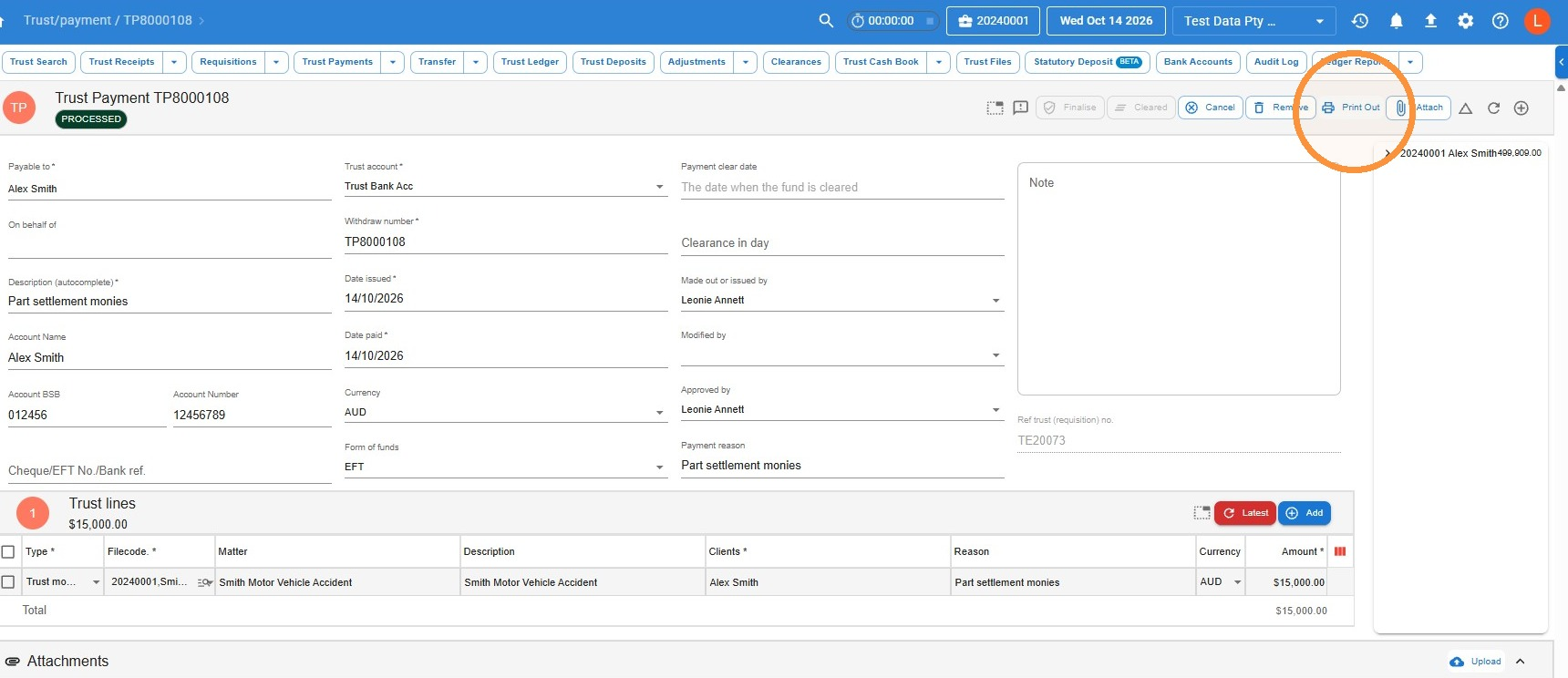
- The payment shows as Processed. Click Print Out to print a copy of the payment for signing and your records.
Common questions
Does finalising a requisition pay the money out?
No. Finalising approves the request only. No funds move until the requisition is processed into a trust payment.
Should requisitions be left in draft?
It depends on your firm’s process. Some firms leave requisitions in draft so a second person can check them before they’re finalised. Others finalise them straight away.
Can I request a cheque instead of an EFT?
Yes. In the file, click Cheque Requisition instead of EFT Requisition. The rest of the process is the same, except you won’t need to enter bank details.
Leave a Reply