
If someone at your firm is locked out of Law App, an admin user can unlock a user account in a few clicks from Admin > Users. Once it’s unlocked, they can log straight back in.
This guide explains why accounts get locked and how to unlock them.
Why a user account gets locked
For security, Law App locks a user’s account after 5 incorrect password attempts. Failed attempts on the Law App login page and in the Outlook add-in both count towards those 5, so a few wrong tries in each can add up quickly.
How to unlock a user account
You’ll need to be an admin user to do this.
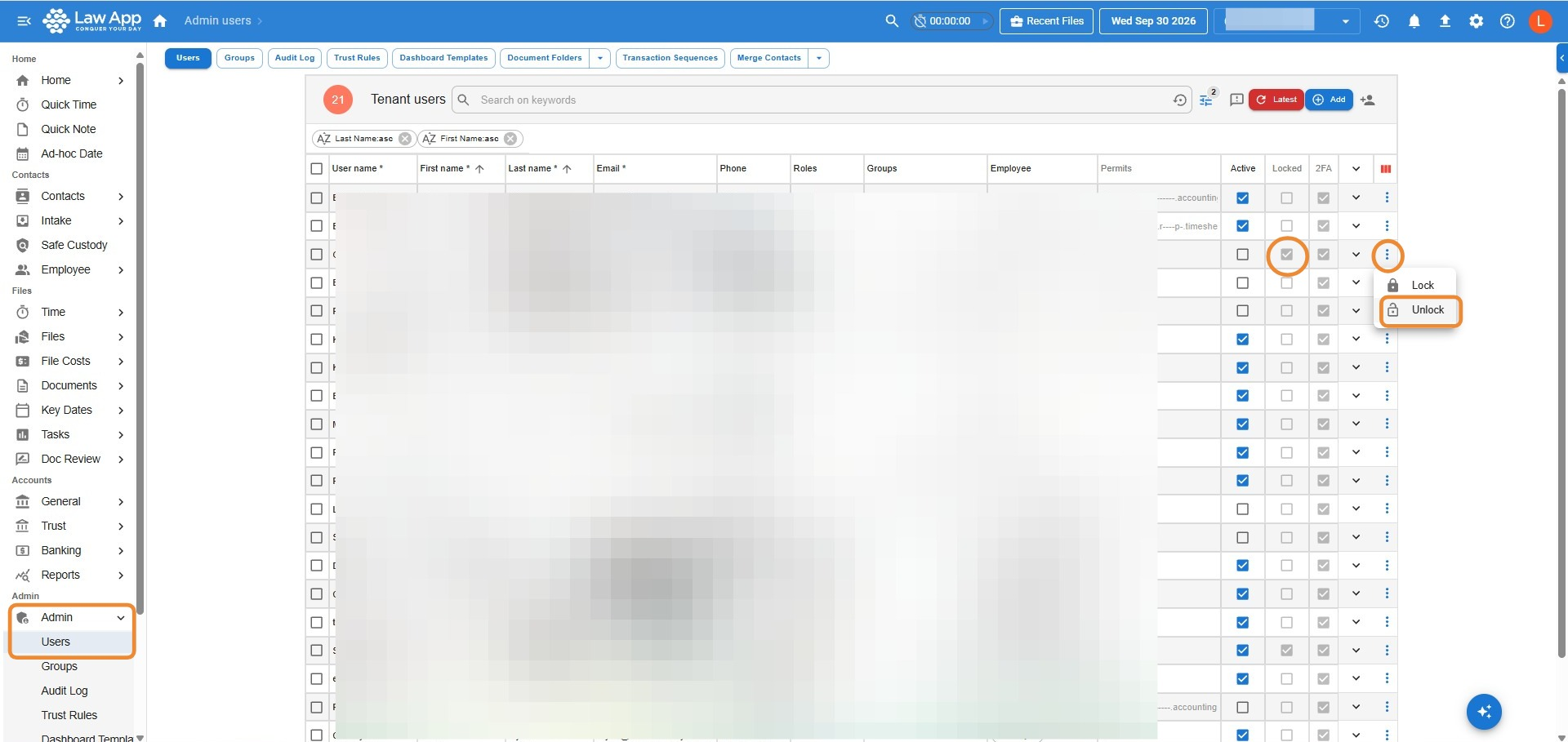
- Go to Admin, then Users.
- Find the user in the list. A locked user has a tick in the Locked column.
- Click the three dots at the end of their row and select Unlock.
Tip: If the user can’t remember their password, they may need to reset it once they’re unlocked. Otherwise, a few more wrong guesses will lock them out again.
Leave a Reply