
Rate codes control what your firm charges for different activities, and you can layer on default billing rates at the employee level or the individual rate code level. This guide walks through adding and archiving rate codes, and setting default rates for employees.
Note: all rates entered should be ex. GST.
Adding a new rate code
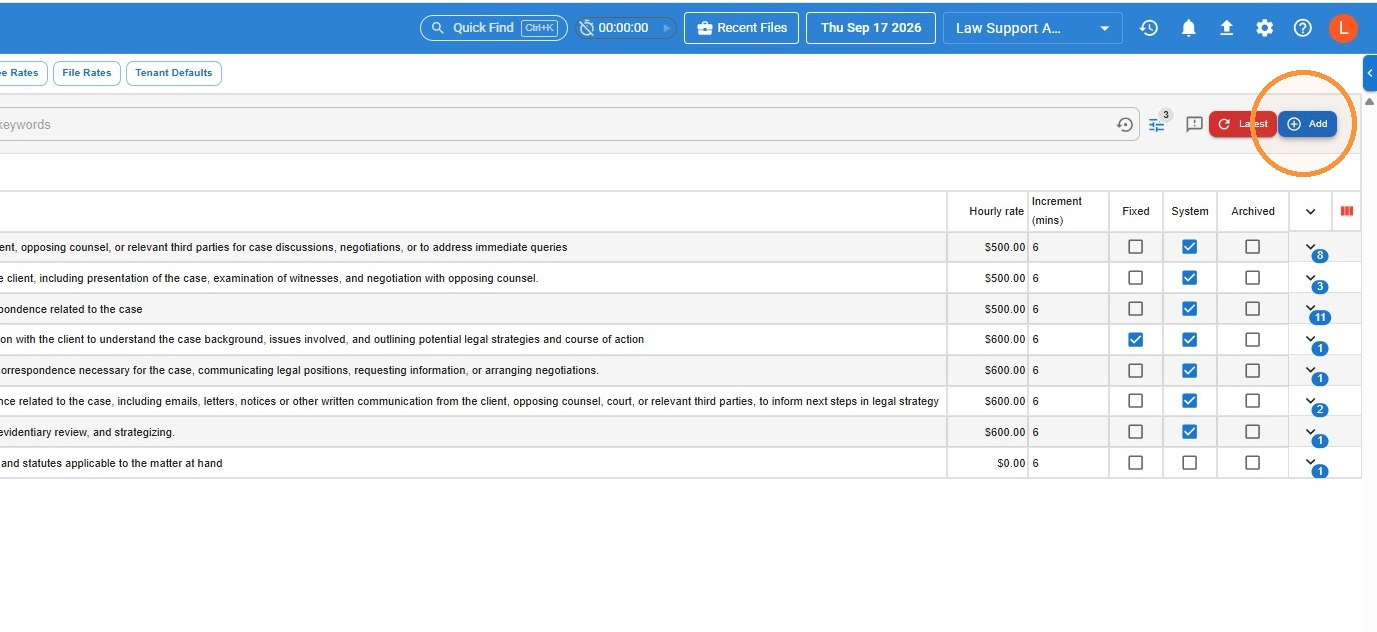
- Navigate to Time, Rate Codes, and click Add.
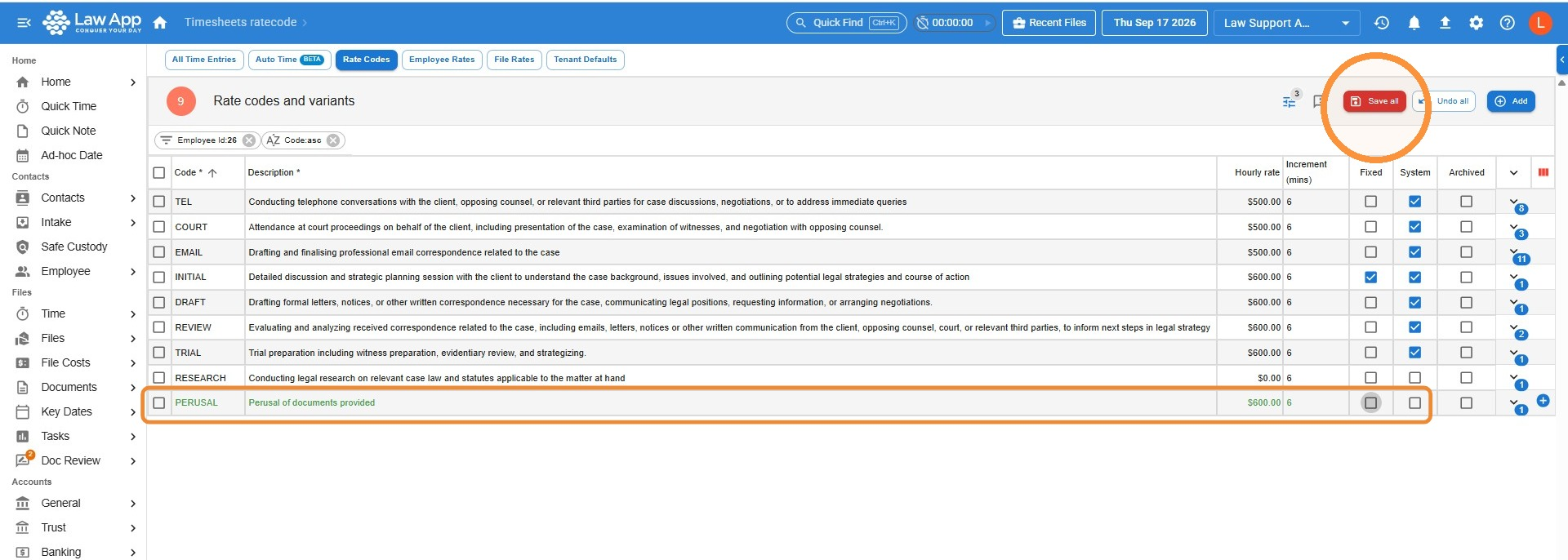
- Complete the details of your new rate code. Enter the hourly rate ex. GST, or leave it as $0.00 if your firm uses employee default rates instead.
For a fixed fee rate code, tick Fixed.
Then click Save All.
Archiving unused rate codes
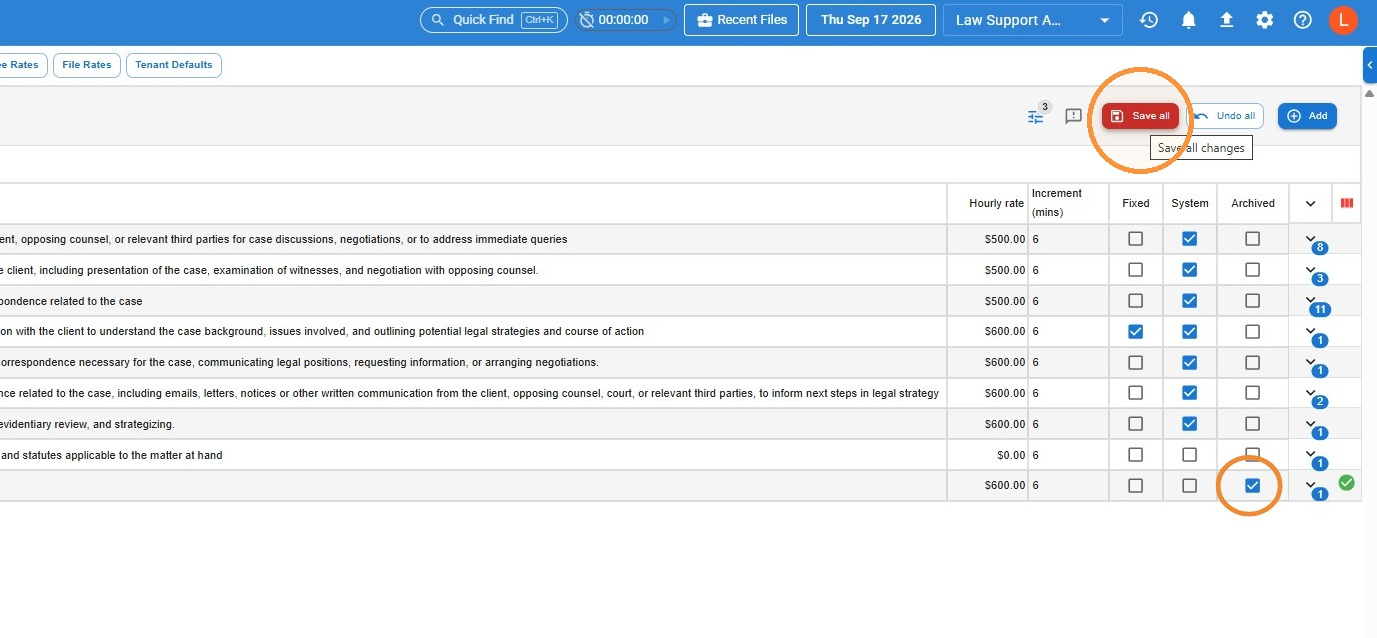
- Navigate to Time, Rate Codes, and locate the entry you want to archive.
Tick the Archived box, and click Save all.
Setting a default billing rate for an employee
Note: Law App only supports one default rate per employee. If you have multiple charge rates, you can set your most commonly used billing rate as your default, and then either manually change the rate as you are charging time, or you can set up specific rate codes to utilise your second rate.
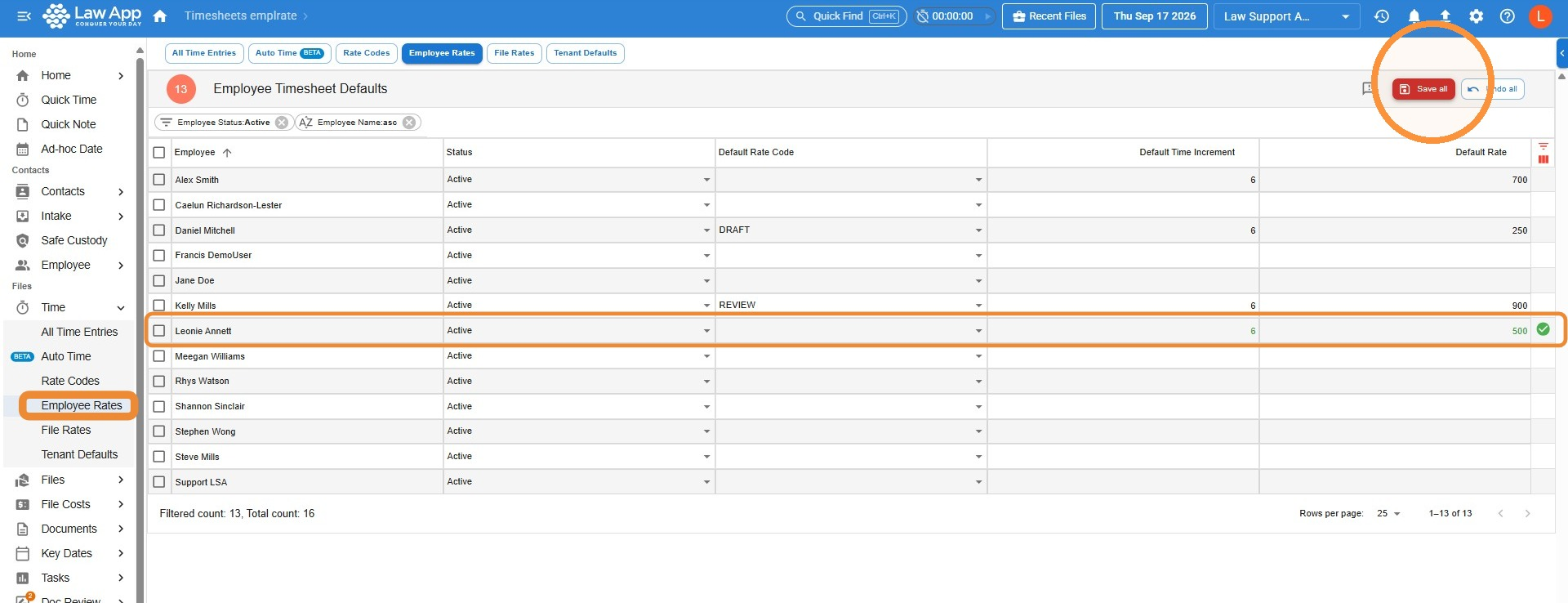
- To insert a default rate, head to Time, Employee Rates.
- Locate the correct employee in the list.
- Enter their default rate (ex. GST) and default time increment, and optionally select a default rate code from the dropdown. Users can still override these defaults while recording time, if needed. Click Save all.
Setting a default billing rate on a specific rate code
Note: by adding an employee or position default on a specific rate code, you will override the default billing rate, if you have one set, in Employee Rates.
Tip: if you have multiple billing rates, this can be a good way to manage that. Simply set one billing rate as as your default in Employee Rates, and create some new rate codes to use your second billing rate, and apply your second billing rate to those codes (e.g. if you already have TELEPHONE, create TELEPHONE2).
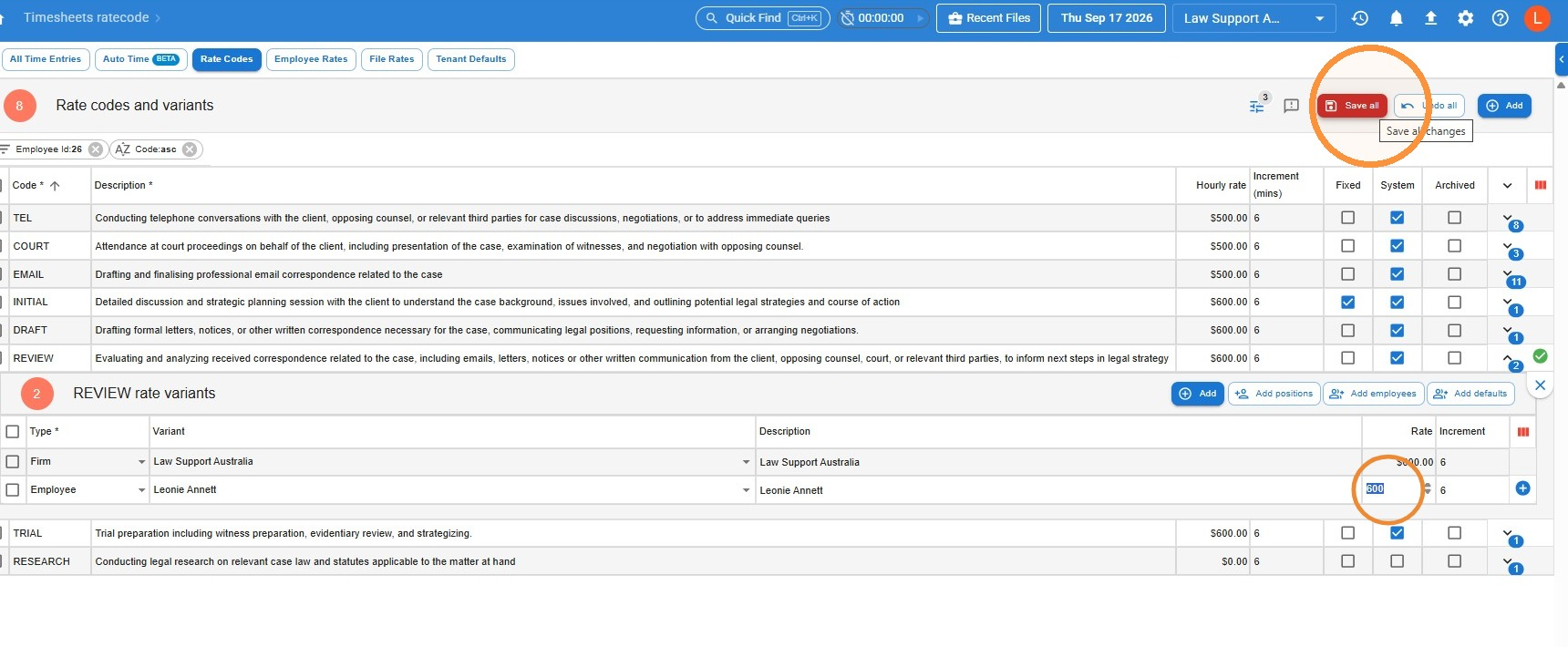
- Navigate to Time, Rate Codes.
- Locate the correct rate code, and click the arrow to expand the menu.
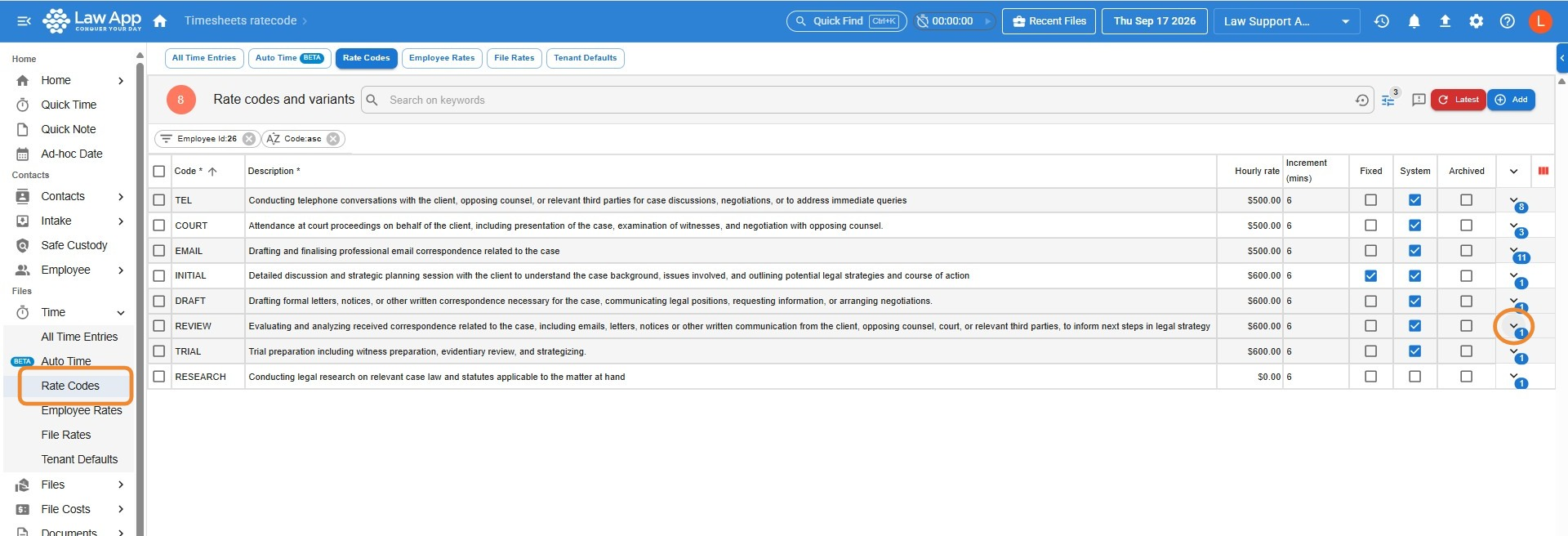
- Click Add.
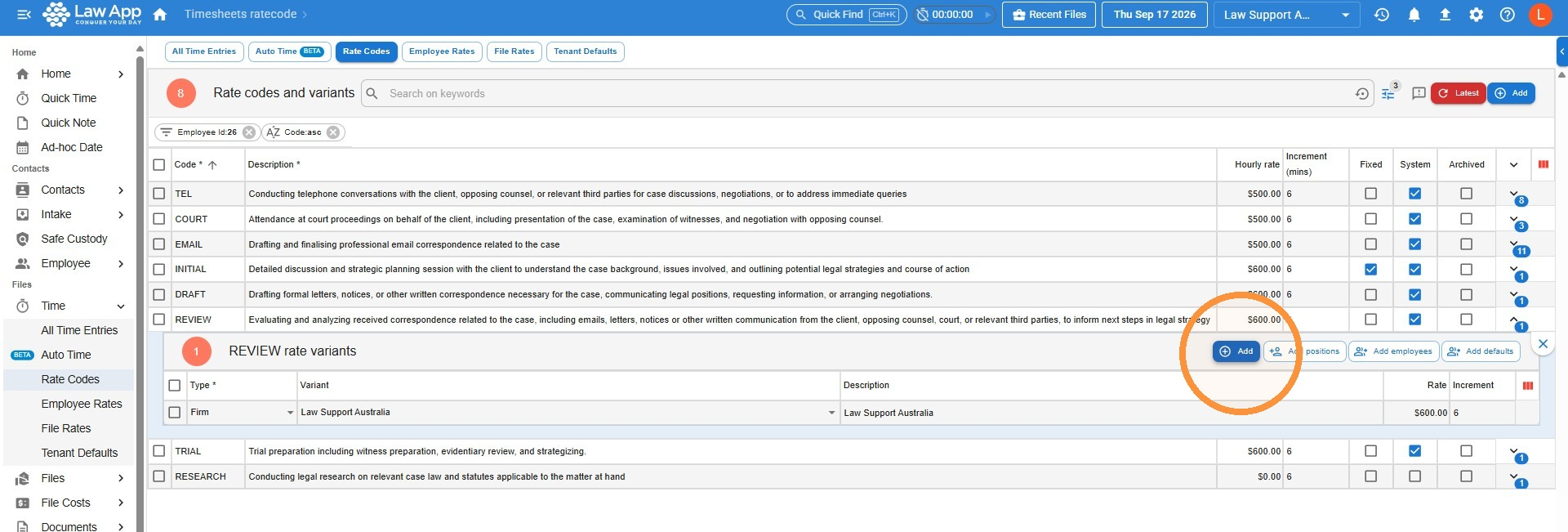
- Click the Type menu to choose what the default applies to.
Firm applies the rate to all employees in the Firm, but will not override an Employee Default Rate if they have one.
Position applies the rate to all employees with a specific position on their Employee card (set or check this in Employee, Active). This will override an Employee Default Rate, if they have one set up.
Employee applies the default to one specific employee – this will override their Employee Default Rate, if they have one set up.
File applies the default to a specific file — though file defaults are best handled in the File Rates area instead.
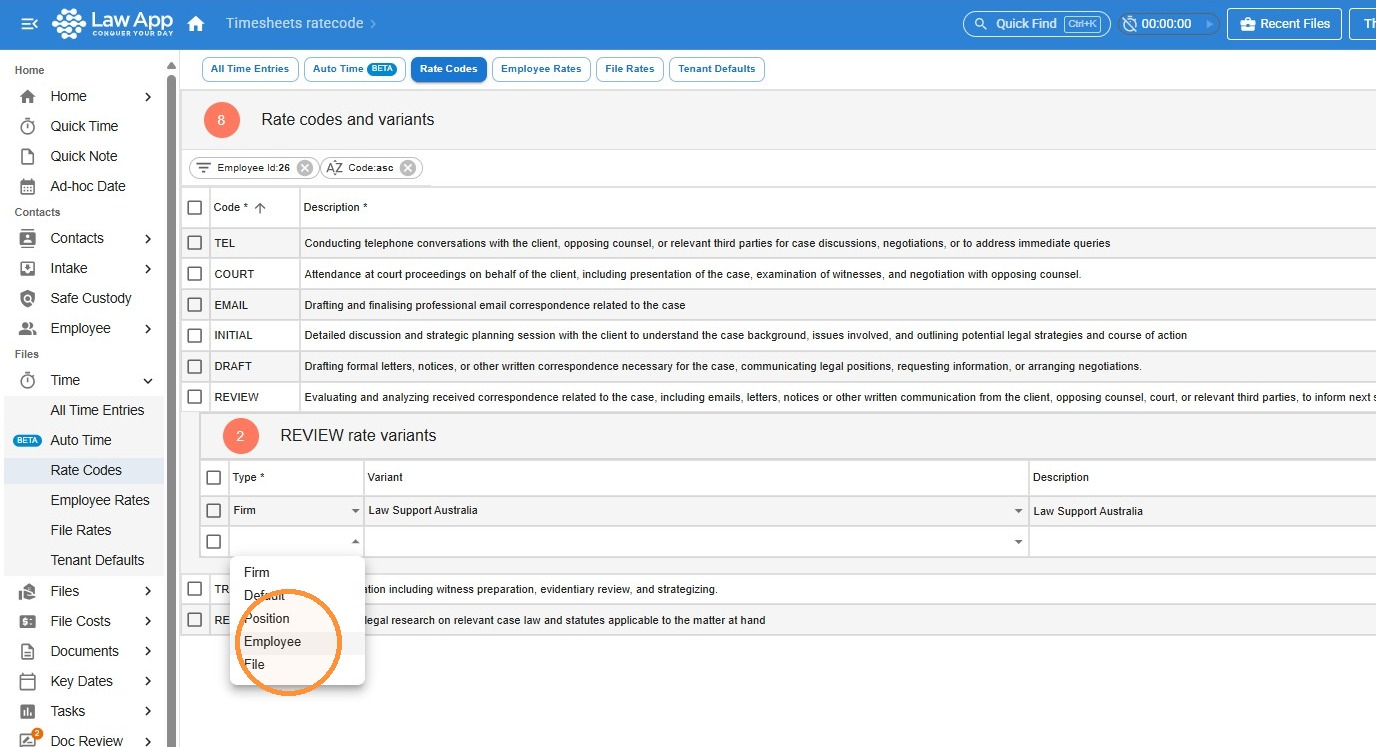
- In this example we’re applying the default to a specific employee — click the Variant field and select them from the dropdown.
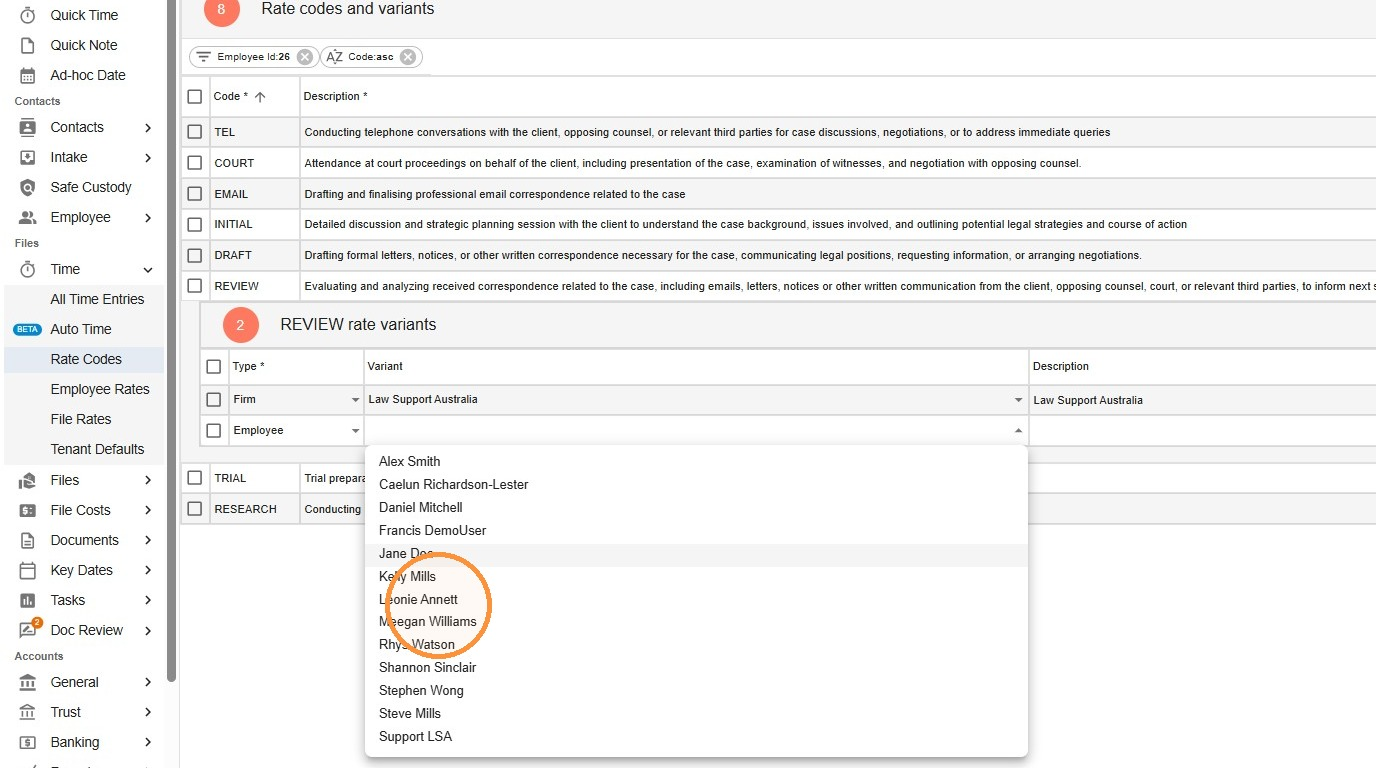
- Enter the rate (ex. GST) and click Save all.
Leave a Reply