
At the end of each financial year, Australian trust legislation requires your firm to send a trust statement to every client who had movement on their trust balance during the year. Law App lets you do this in bulk straight from the Trust Ledger — filter to the financial year, pick your trust account, select the clients, and Law App emails each one their statement with the trust ledger PDF attached.
Open the Trust Ledger
The whole process runs from the Trust Ledger screen, so start there.
- From the left-hand menu, open Accounts > Trust.
- In the Trust submenu, click Trust Ledger.
Filter to the financial year
Next, narrow the ledger to the financial year you’re reporting on. The Issued date range is the one that controls which transactions appear on each statement.
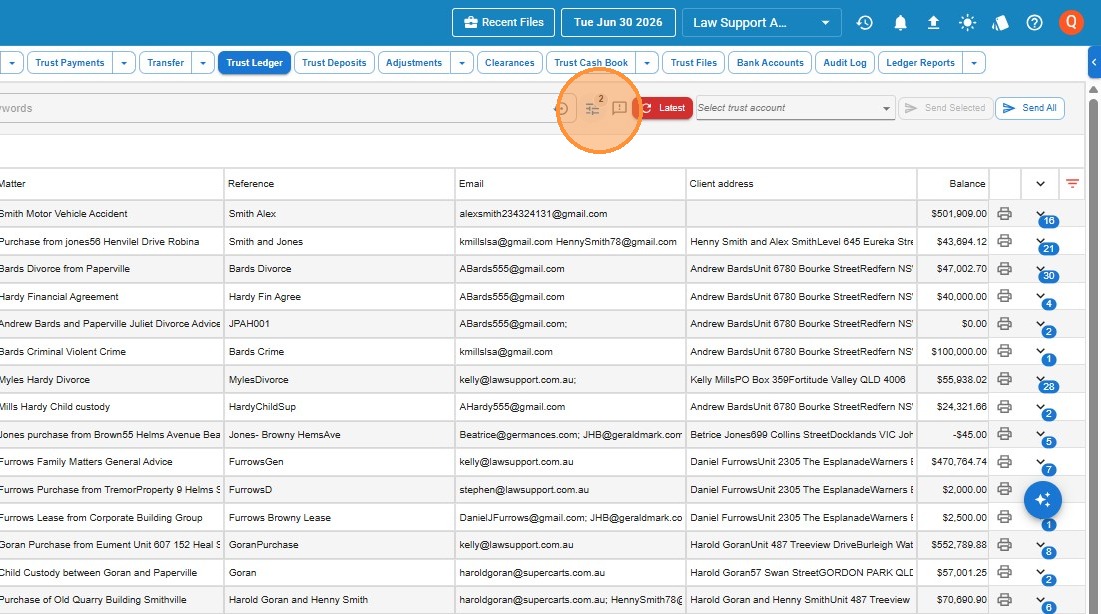
- Click the filter icon at the top right of the ledger.
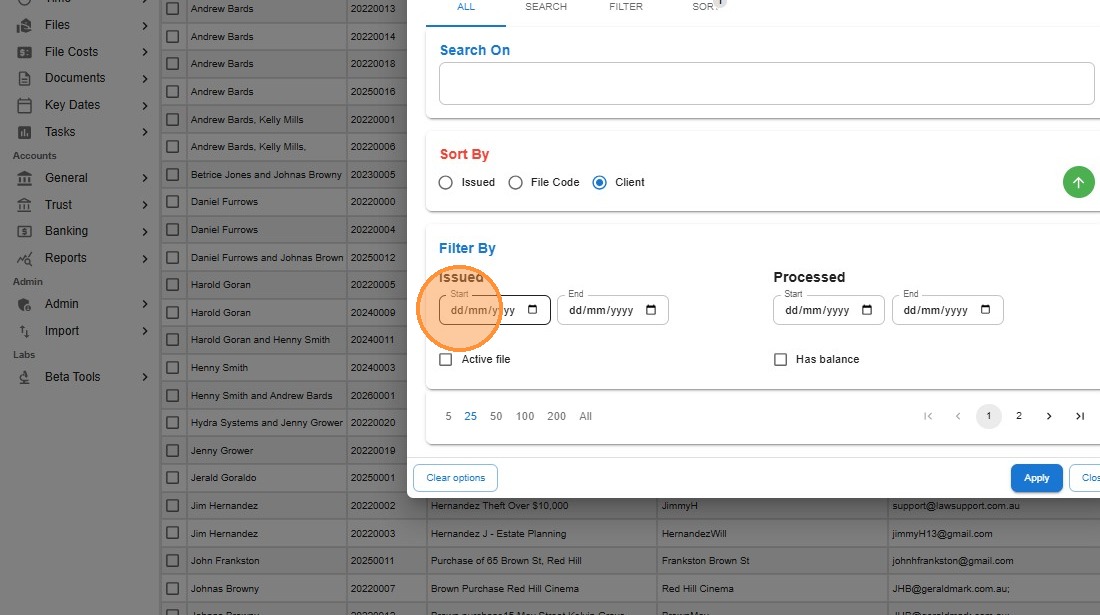
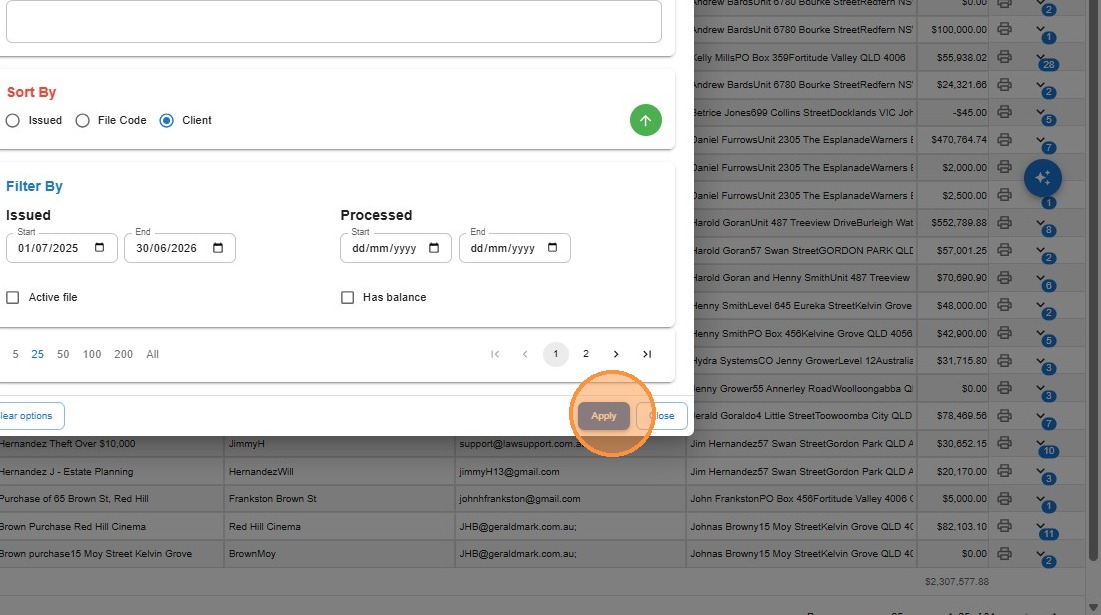
- Under Filter By, set the Issued Start and End dates to your financial year — for example, 01/07/2025 to 30/06/2026.
- Leave Active file and Has balance unticked so the list includes every client with movement during the year, not just currently active files or files still holding a balance.
- Click Apply.
Select the trust account
The statements are produced from one trust account at a time, so tell Law App which account you’re reporting on.
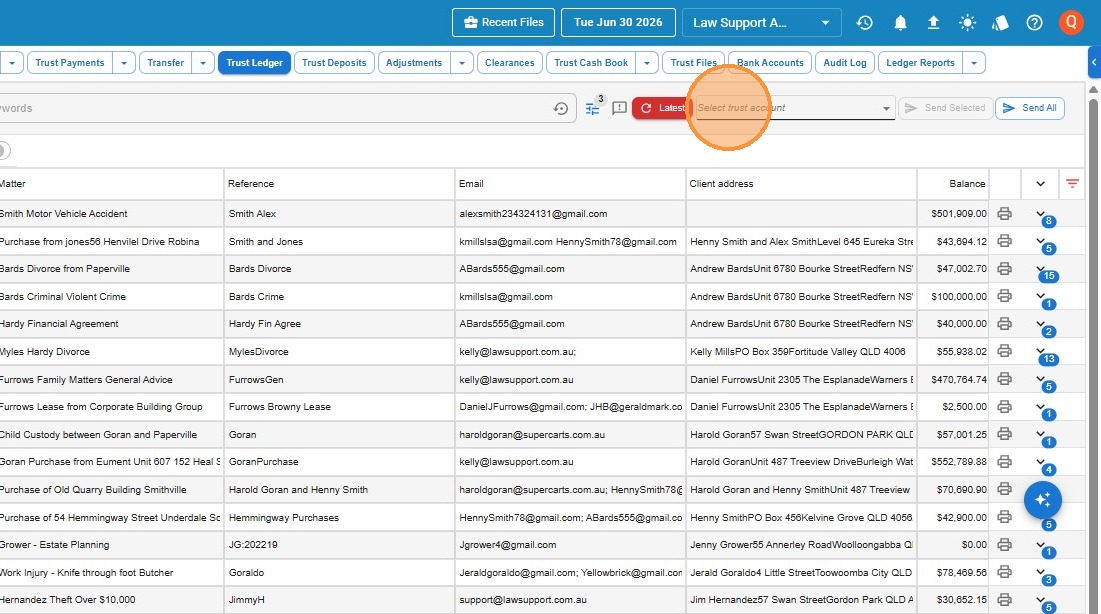
- Click Select trust account at the top of the ledger.
- Choose the correct trust account for these statements.
Select the clients to send to
With the ledger filtered and the account chosen, choose who receives a statement.
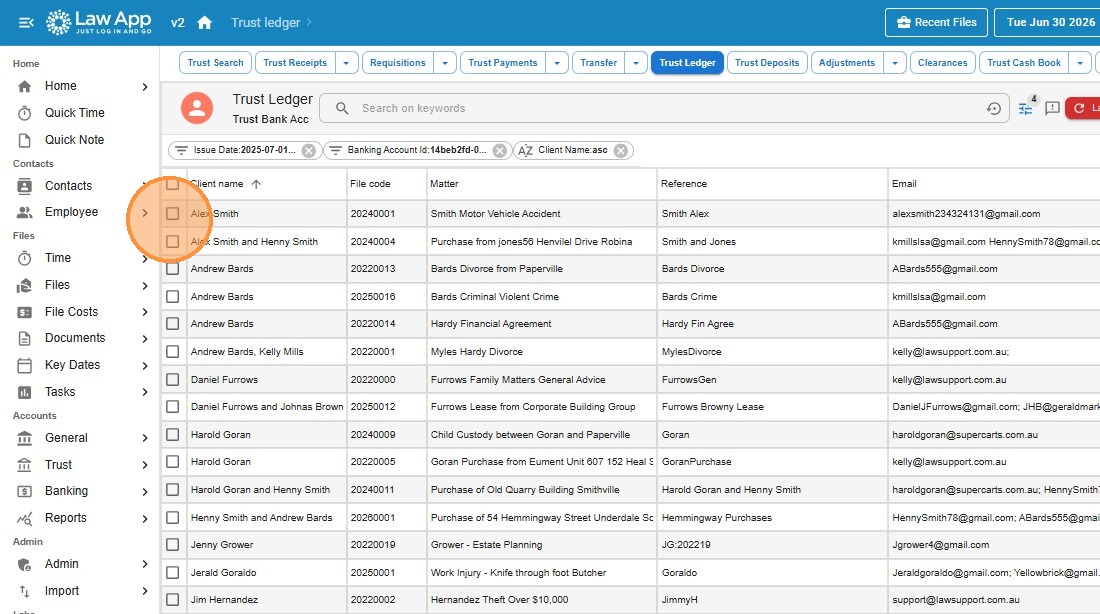
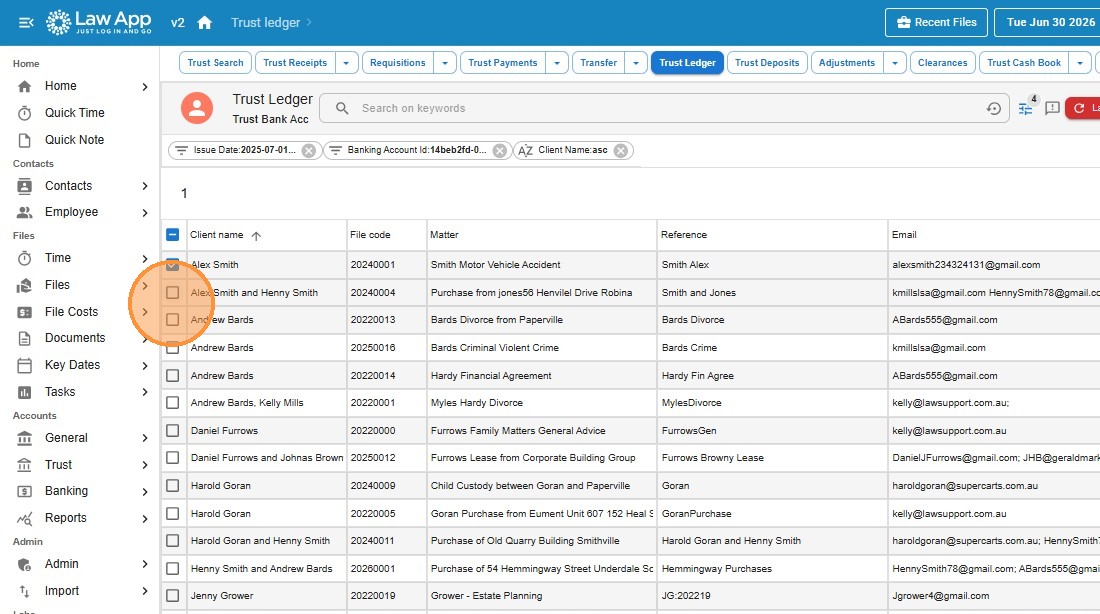
- Tick the checkbox in the column header to select every client in the list, or tick individual rows to send to a specific selection.
- Click Send Selected.
Check the email before it sends
Law App opens the email it’s about to send so you can review it. Each client receives their own statement with their trust ledger PDF attached — the fields below are populated automatically from the Client Trust Ledger Email template.
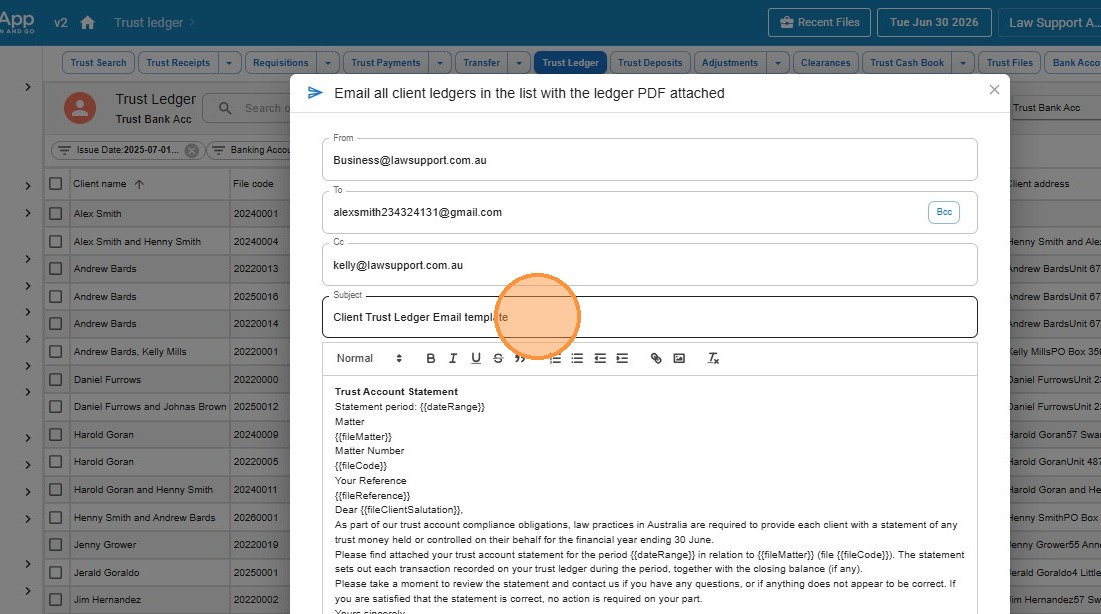
- From shows your organisation’s email address.
- To shows the first ledger in the list, so you can see a sample of how each email is addressed.
- Cc is the carbon-copy address every statement is also sent to.
- Subject comes from the email template — edit it here if you need to.
- The body is built from the template using merge fields that pull in each client’s details and balance.
Sign in to Outlook and send
Law App sends the statements through your Outlook account, so the last step is a quick sign-in.
- When you send, Law App asks you to sign in to Outlook.
- Once you’ve signed in, the emails send automatically.
- Open Outlook to confirm the statements have gone out.
Leave a Reply