
A trust receipt records client money received into your trust account and held on the client’s behalf — for example, funds paid in advance on a matter. In Law App you create the receipt, allocate it to the right file, then finalise it so it’s recorded against the file’s trust ledger.
The short video below walks through the whole process. The step-by-step guide underneath covers the same steps with screenshots, so you can refer back quickly.
Step-by-step guide
There are two ways to create a trust receipt. Both end the same way: the receipt is saved as a draft, then reviewed and finalised.
Trust > Trust Receipts > New Receipt
Handy for accounts staff entering receipts without opening each file. You search for and select the file on the trust line.
File > Financials > Trust > Receipt
Best when you’re already working in the file. The file is filled in for you on the trust line.
What to enter on a trust receipt
The receipt fields are the same whichever way you create it.
Receipt fields
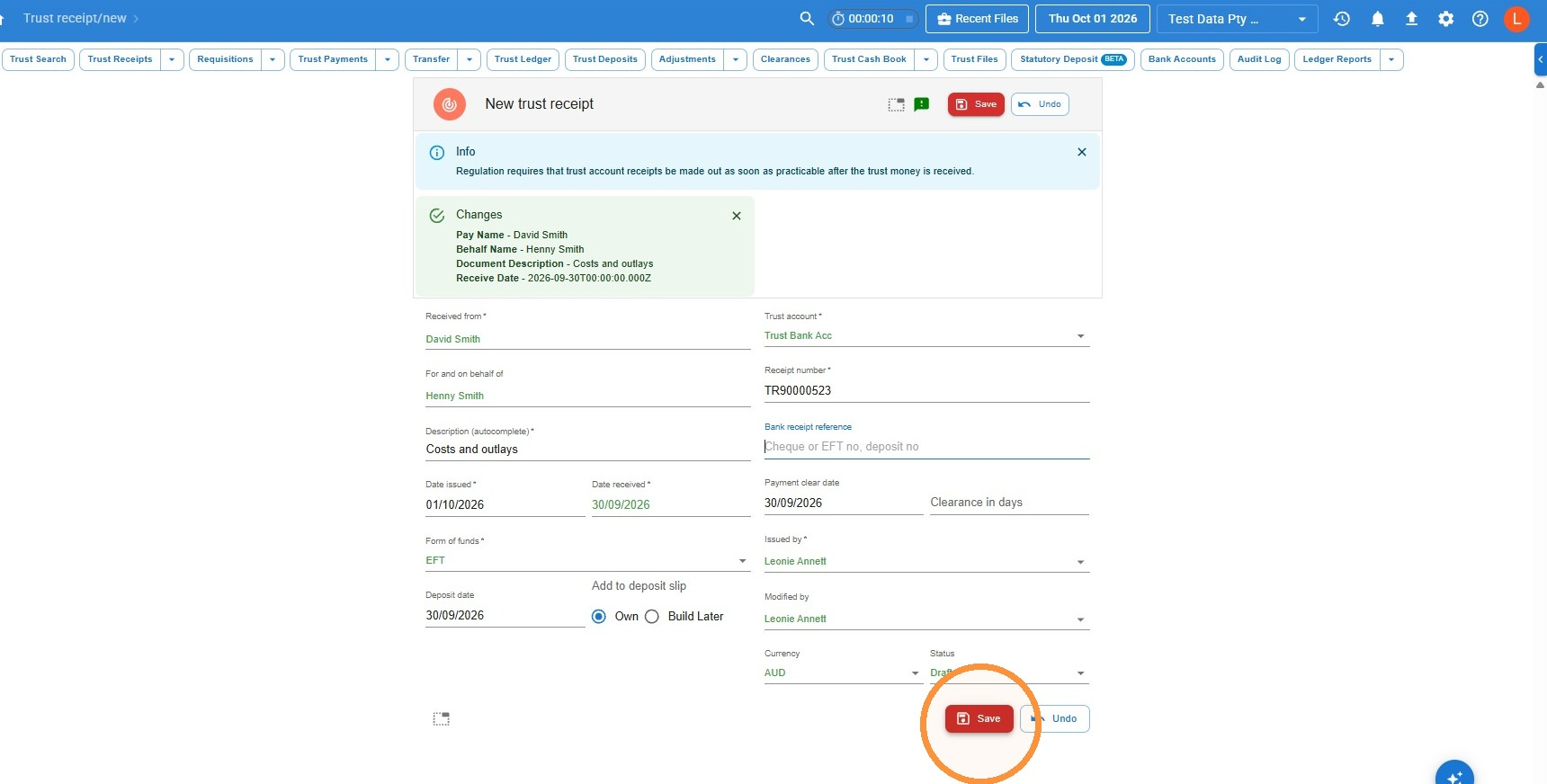
Received from — who the money is from. This can be the client, or someone paying on the client’s behalf. Type and select a contact, or free type a name if there’s no contact.
For and on behalf of — only needed when someone has paid on behalf of your client. Enter your client’s name here. Otherwise leave it blank.
Description — what the money is for.
Date issued — always leave this as today’s date.
Date received — the date you received the funds. For EFT, that’s the date on the bank statement. For cash and cheques, it’s the date the funds were physically received.
Bank reference — optional. Fill it in if you want to save the reference from the bank statement.
The other fields fill in automatically.
How you set Add to deposit slip depends on how the money was paid:
Leave it as Own
Add to deposit slip fills in as Own — leave it that way. Deposit date and clear date fill in from the date received, which is generally correct. If a deposit hasn’t cleared yet, you can change the clear date.
Leave it as Build Later
Add to deposit slip fills in as Build Later — leave it that way. You’ll then need to link the receipt to a bank deposit. See Creating bank deposit slips.
How to create a trust receipt from the Accounts menu
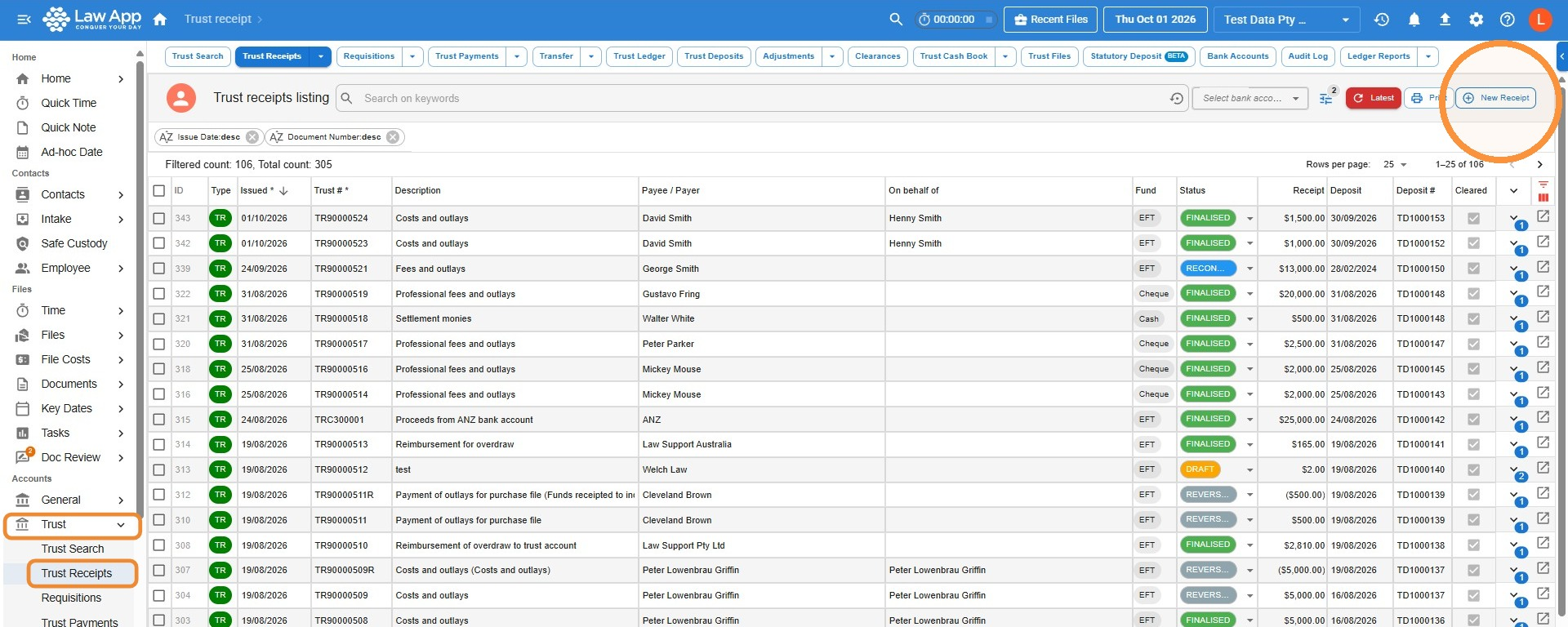
- In the left menu, select Trust, then Trust Receipts, then click New Receipt.
- Fill in the receipt details (see What to enter on a trust receipt), then click Save.
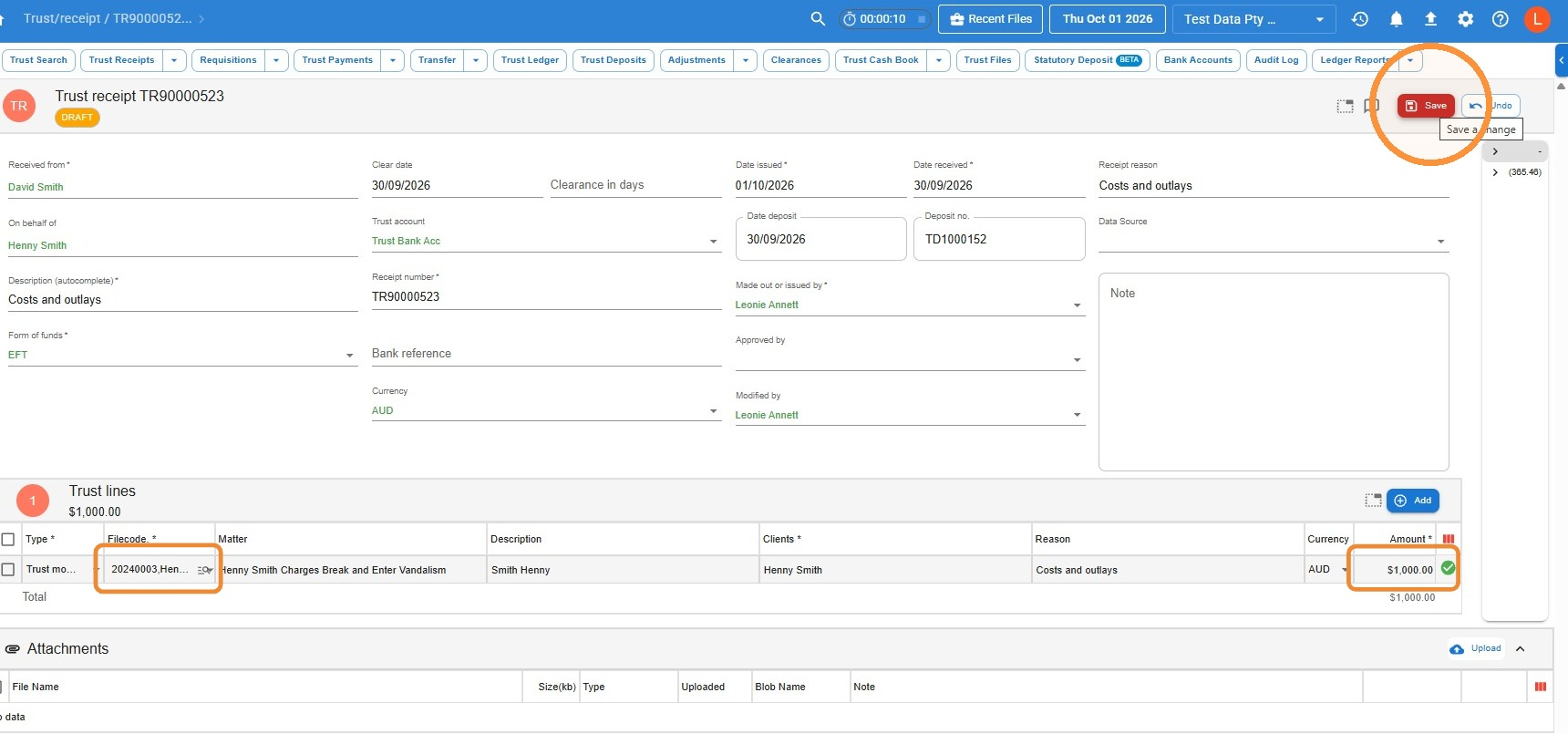
- On the trust line, click in Filecode and search for and select the correct file. You can search by file number or keyword. Enter the Amount, then click Save.
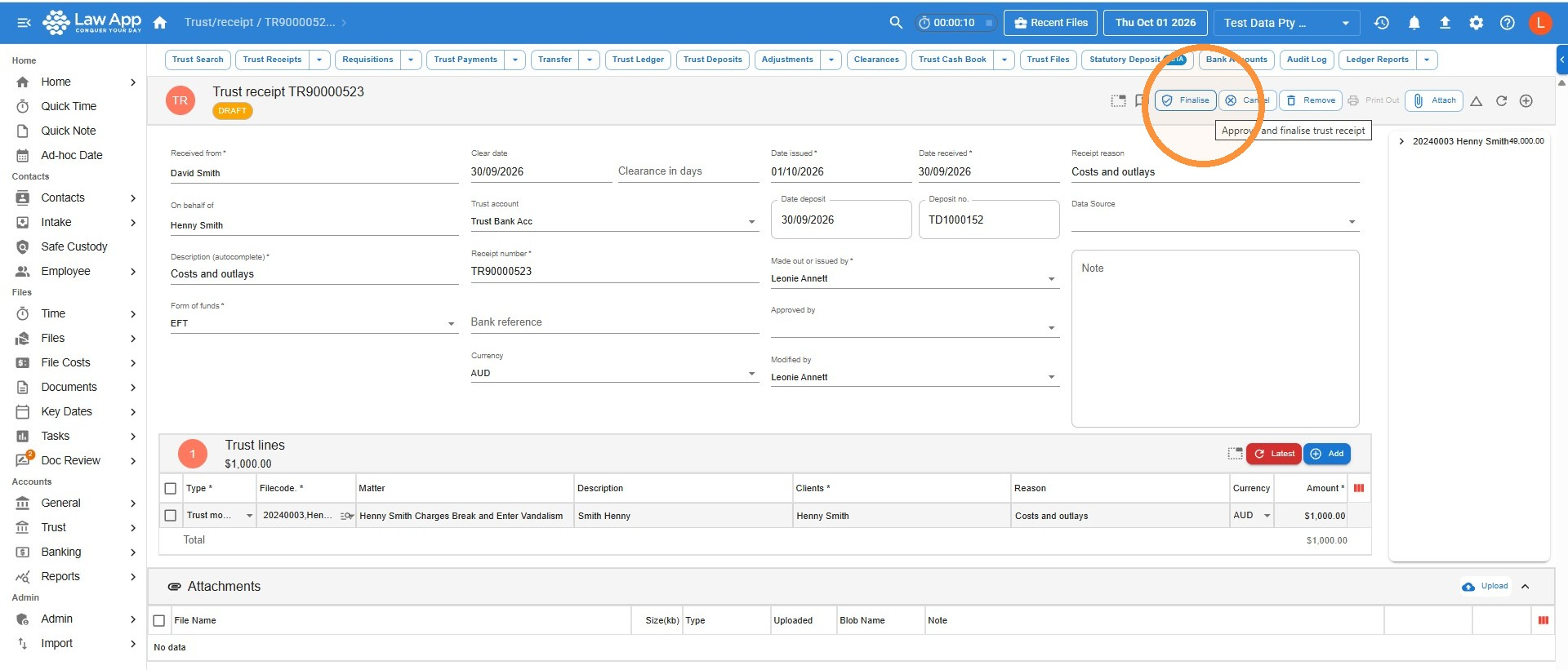
- The receipt is saved as a Draft. Review all the details and make any changes you need, then click Finalise.
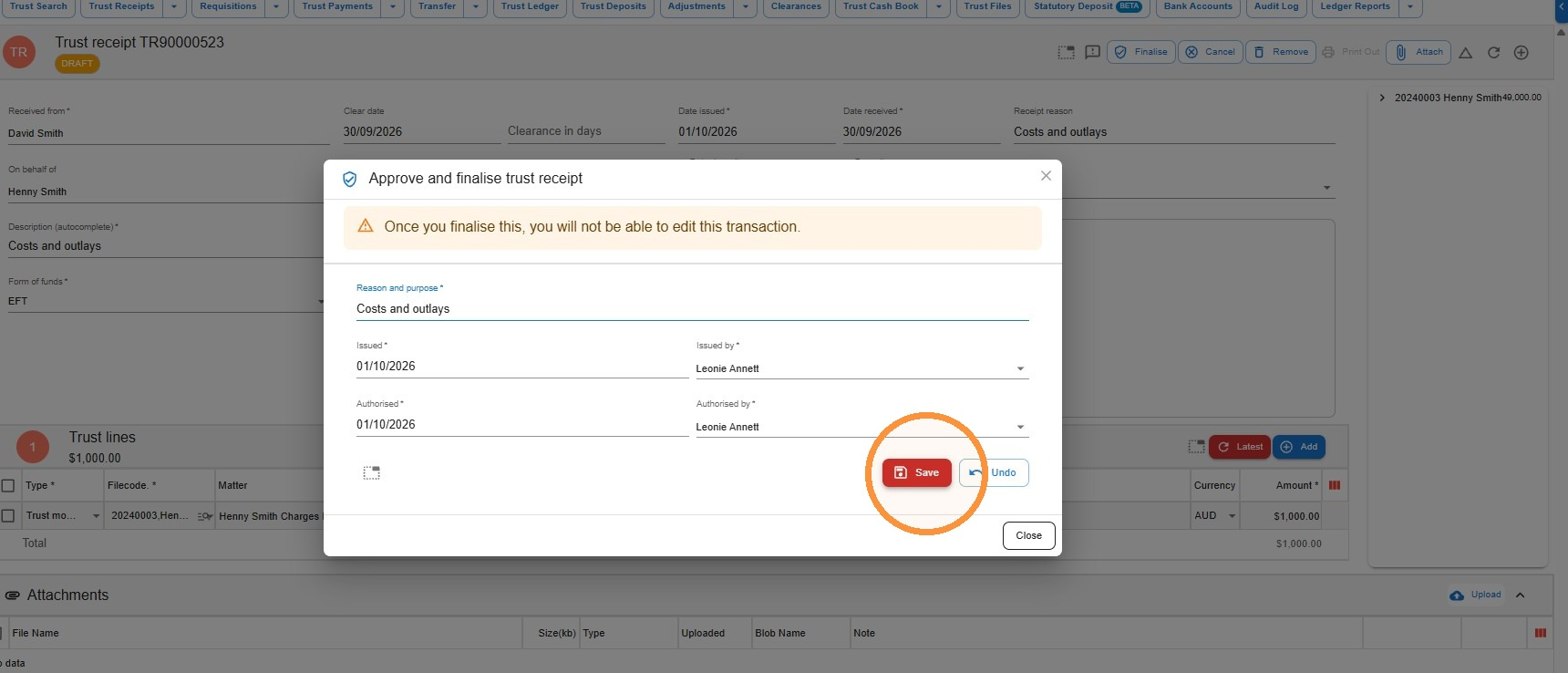
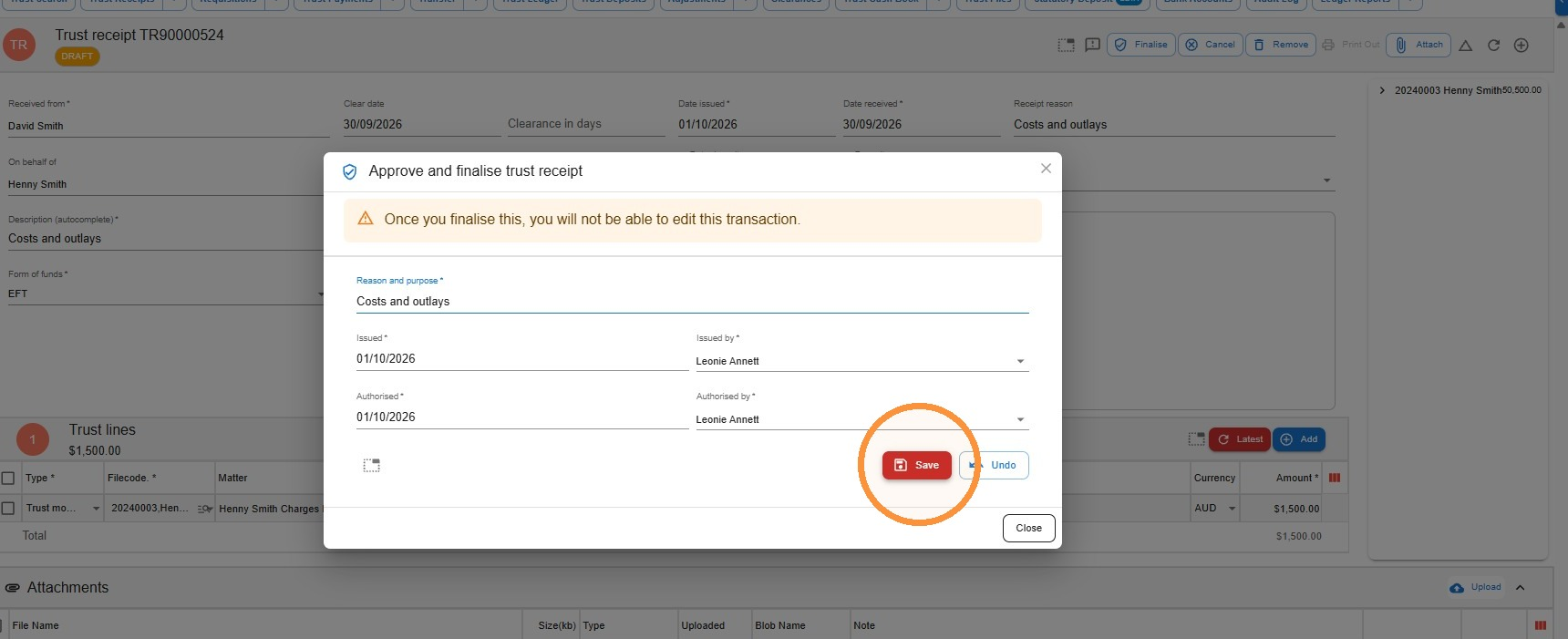
- In the Approve and finalise trust receipt window, click Save.
How to create a trust receipt from within the file
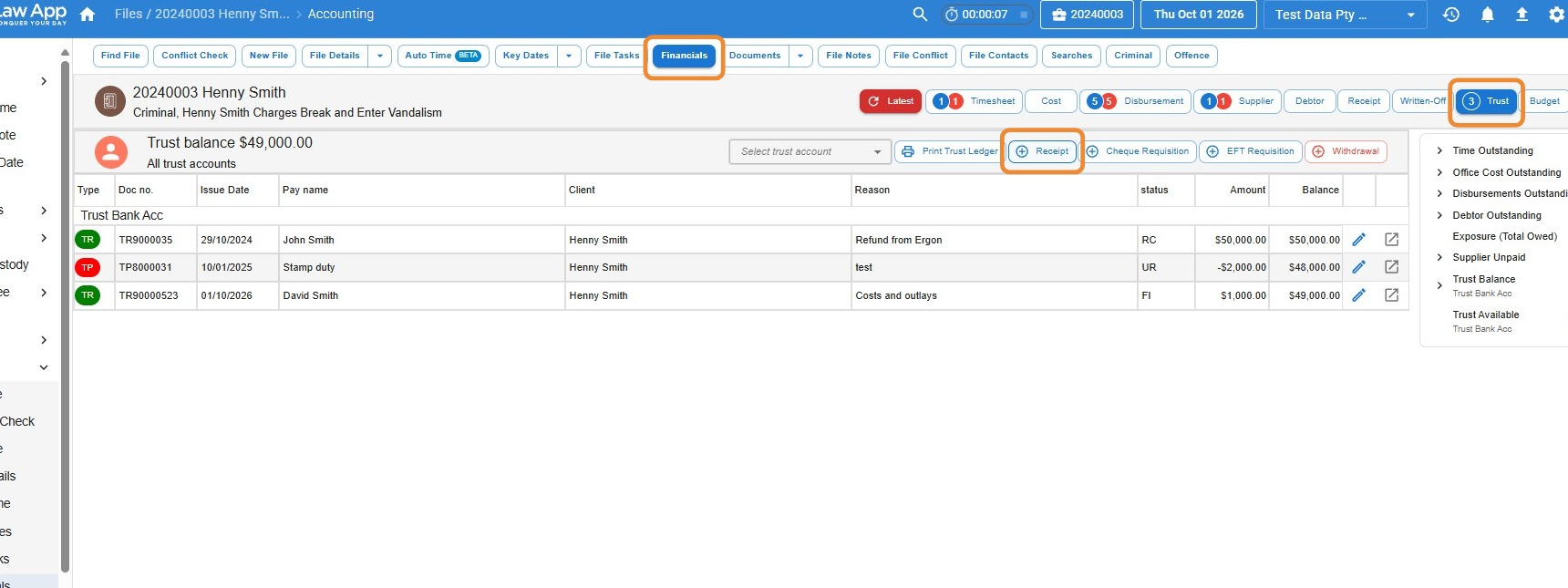
- In the file, click Financials, then Trust, then Receipt.
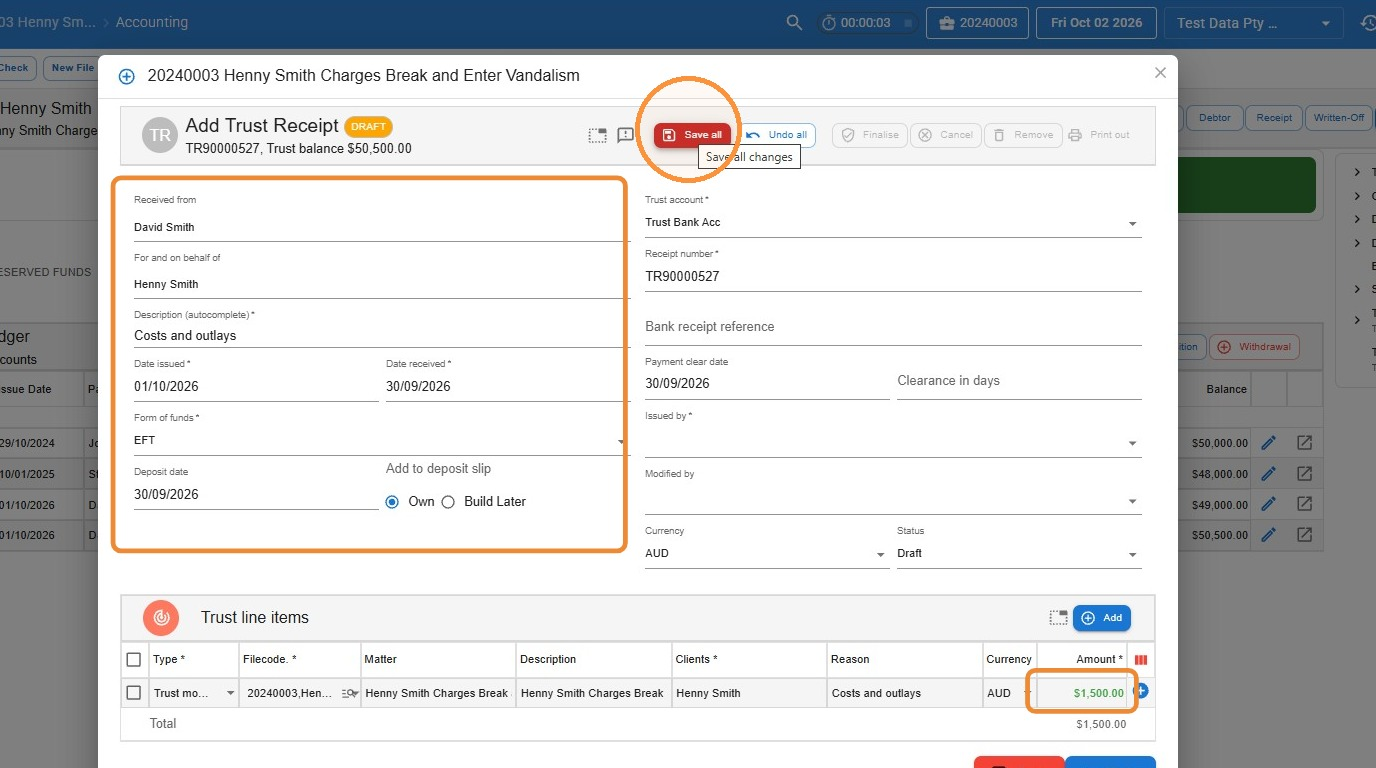
- Fill in the receipt details (see What to enter on a trust receipt). Enter the amount in the Amount column of the trust line item, then click Save all.
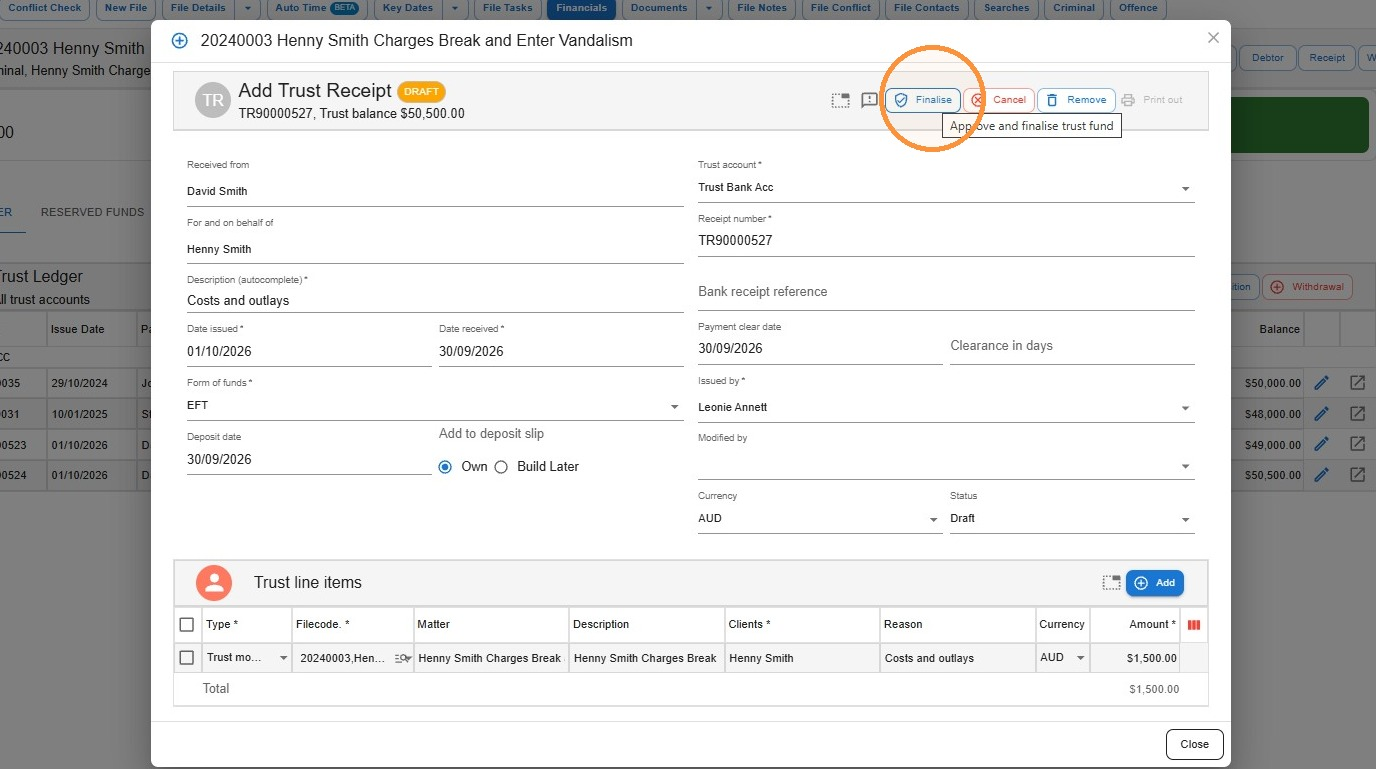
- The receipt is saved as a Draft and stays open in the same window. Review all the details and make any changes you need, then click Finalise.
- In the Approve and finalise trust receipt window, click Save.
Common questions
What’s the difference between a trust receipt and a general receipt?
A trust receipt records client money received into the trust account, held on the client’s behalf under trust accounting rules. A general receipt records money paid into the firm’s general (office) account, such as a client paying an invoice.
Do trust receipts need to be finalised?
Yes. A receipt left in Draft isn’t finalised. Clicking Finalise approves the receipt and records it against the file’s trust ledger as part of a compliant trust record. Once finalised, it can’t be edited.
What details do I need to record a trust receipt?
Who paid the money (and who they paid on behalf of, if it wasn’t the client), what it’s for, the date it was received, how it was paid, the amount, and the file it belongs to.
Leave a Reply