
Law App has two separate tools for reducing or removing a client’s outstanding balance. Which one you use depends on whether the client is receiving an adjustment, or you’re writing off an unrecoverable debt.
Client receives a reduction
Use when reducing or reversing a debtor invoice. The client sees it. Any balance in their favour must go to trust — it cannot sit on the debtors ledger.
Internal bad debt adjustment
Use when a debt is irrecoverable or you’ve decided not to pursue it. Removes the balance from your debtors ledger. The client receives nothing.
How to issue a credit note
There are two methods — use whichever suits your workflow.
Method 1 — Negative time entries
- Enter time entries against the file using negative amounts
- Bill those entries as normal
- When selecting the invoice layout, choose Credit Note
Method 2 — Add directly to a debtor invoice
- Open or create a debtor invoice
- Press + to add a line
- Type TS in the type field and select GL Professional Fees
- Enter the fee earner and enter the amount as a negative number
- Press Save
- Press the Print button and select Credit Note as the layout
- From here you can print to PDF, save to the file, or use the Compose button to automatically draft an email with the credit note attached and send it directly to the client
Credit notes in a legal practice
In a legal practice, a client credit cannot sit on the debtors ledger. Any balance in the client’s favour must go to trust.
If you realise at the time of receipt
- First line — allocate the amount that pays the outstanding invoice in full
- Second line — receipt the balance to trust against the file
This keeps everything in one transaction and avoids any need for a subsequent transfer.
How to process a write-off
- Go to Accounts → Write-Offs
- Click Add Write-Off
- Fill in the header — Contact, Reference, Description (e.g. “Unpaid for over 1 year”), Owed By
- Click Save — the screen expands to show Write-Off Lines
- Click Add — select Type, Item, GL Account and enter the gross amount
- Click Save again — the Write-Off button will appear
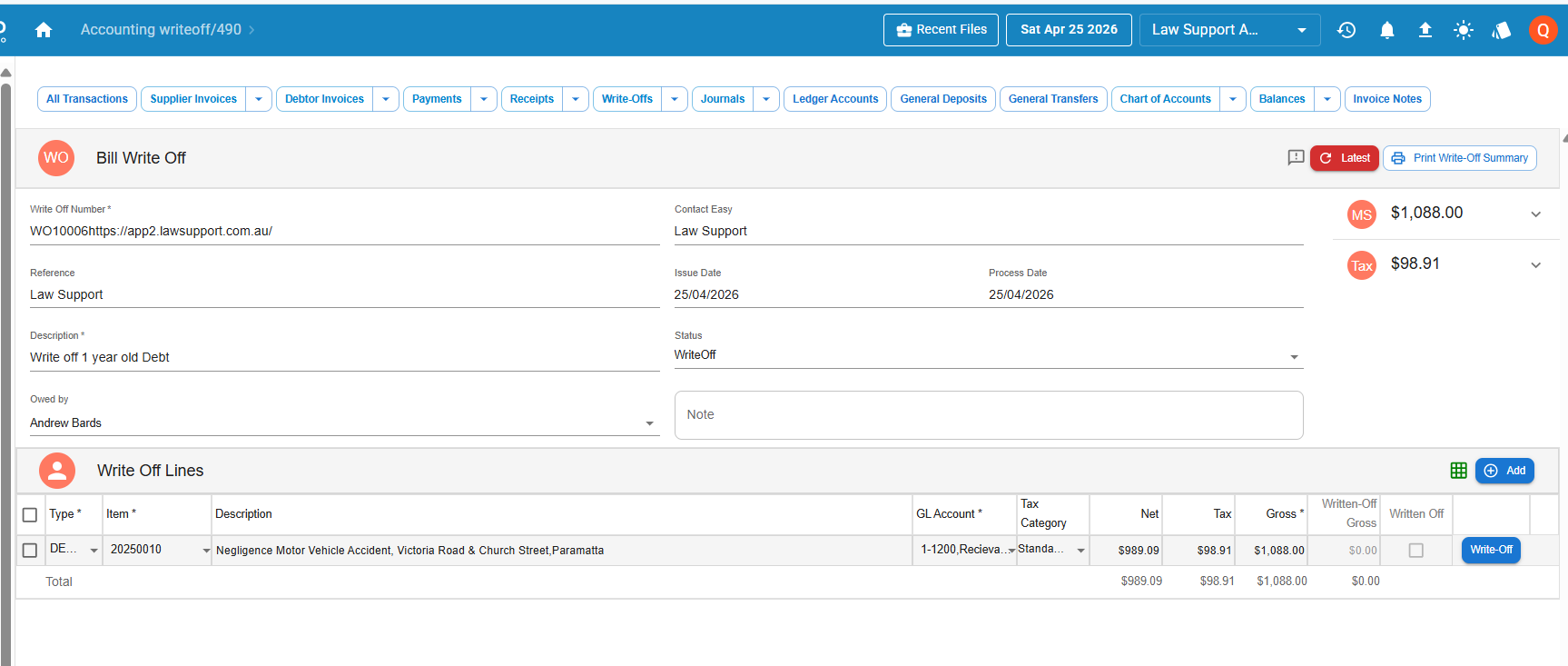
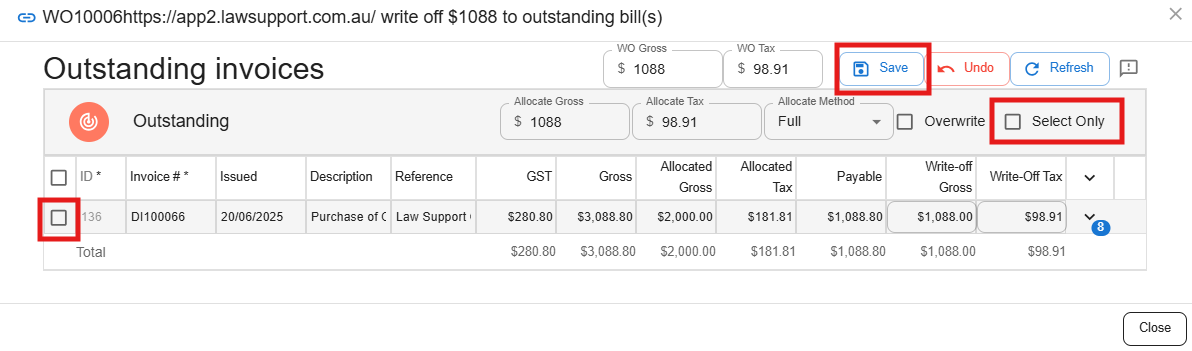
- Click Write-Off — a dialog opens showing outstanding invoices for that contact
- Select the invoice(s) to allocate against and Save to finalise
Leave a Reply