
If the Law App add-in in Word keeps showing a sign-in prompt like the one below, you can fix it by adding the Law App hosts to Word’s Trust Center.
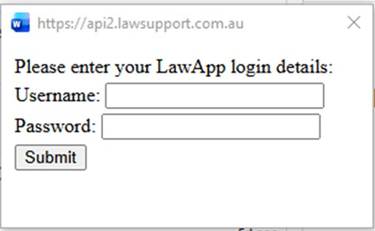
The sign-in prompt appearing in Word when the Law App add-in loads.
Steps to fix
- Open Word.
- Go to File → Options.
- Click Trust Center in the left panel, then click Trust Center Settings…
- Click Form-based Sign-in in the left panel of the Trust Center window.
- Under Sign-in Prompt Behavior, select Ask me what to do for each host.
- Check that the following host is listed under Hosts allowed to show sign-in prompts:
• api.lawsupport.com.au
- If it is missing, type it in the box and press Enter.
- Click OK to close Trust Center, then OK again to close Word Options.
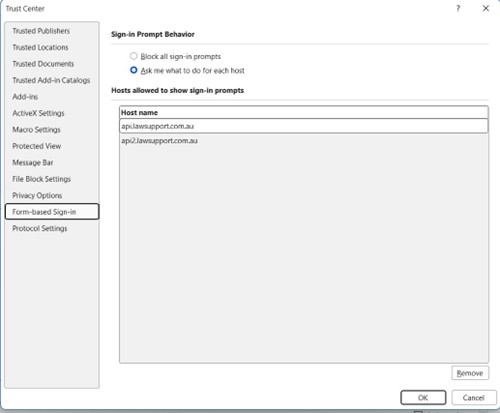
The Trust Center with both Law App hosts correctly added to the allowed list.
After making the change
Restart Word and open a document that uses the Law App add-in. It should connect without prompting you again. If it asks once after the restart, sign in as normal — it will not prompt you again after that.
Still having trouble?
Contact the support team:
Email: support@lawsupport.com.au
Phone: 07 3040 3036
Leave a Reply