
Sometimes you’ll want to charge a different rate for a specific file than your firm’s usual billing rate — for example, a discounted rate for a long-standing client or a fixed rate agreed for a particular matter. A File Rate lets you set that rate against the file itself, so it applies automatically whenever time is entered against it, instead of falling back to the standard employee or rate code rate.
File Rate Setup
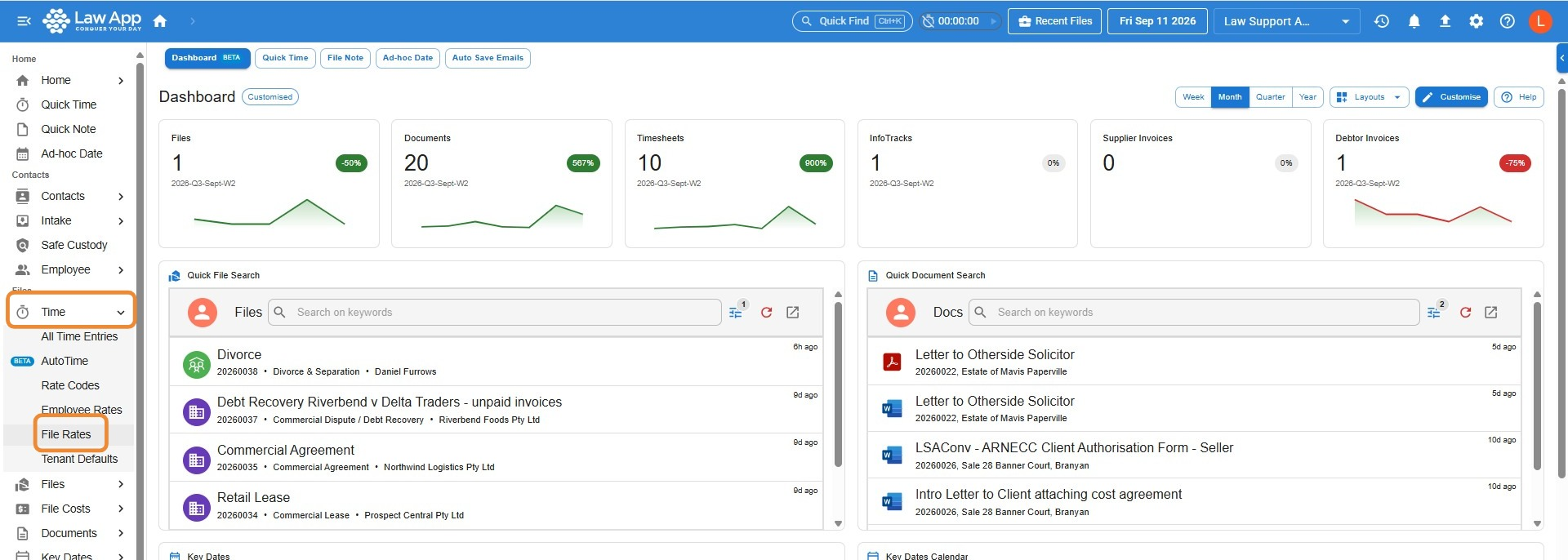
- Navigate to Time, then select File Rates
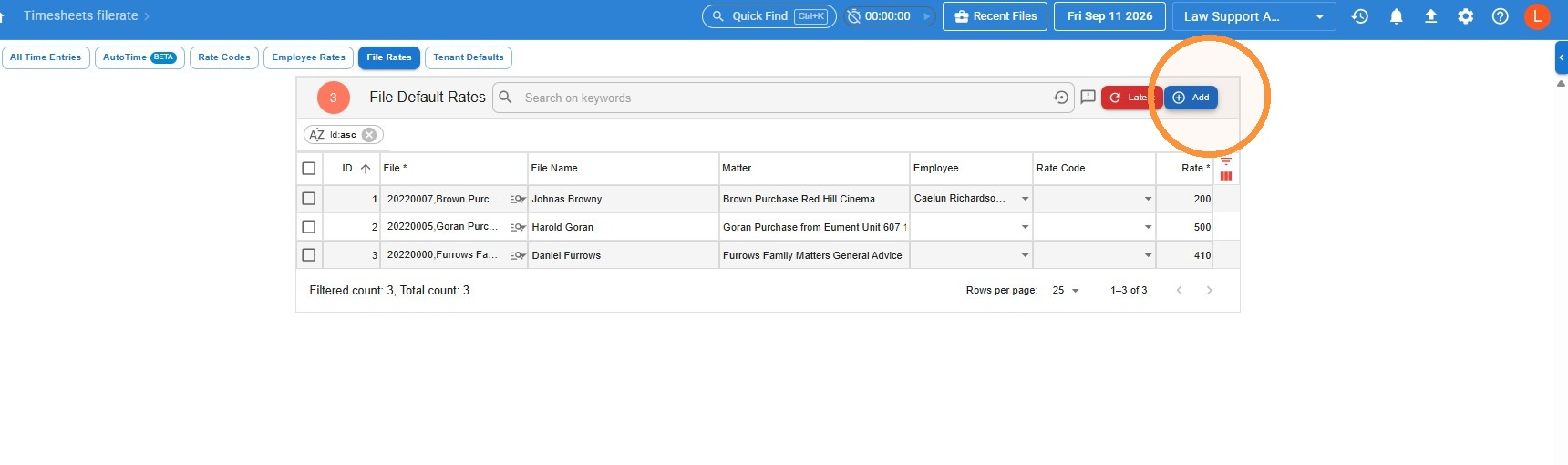
- Click Add
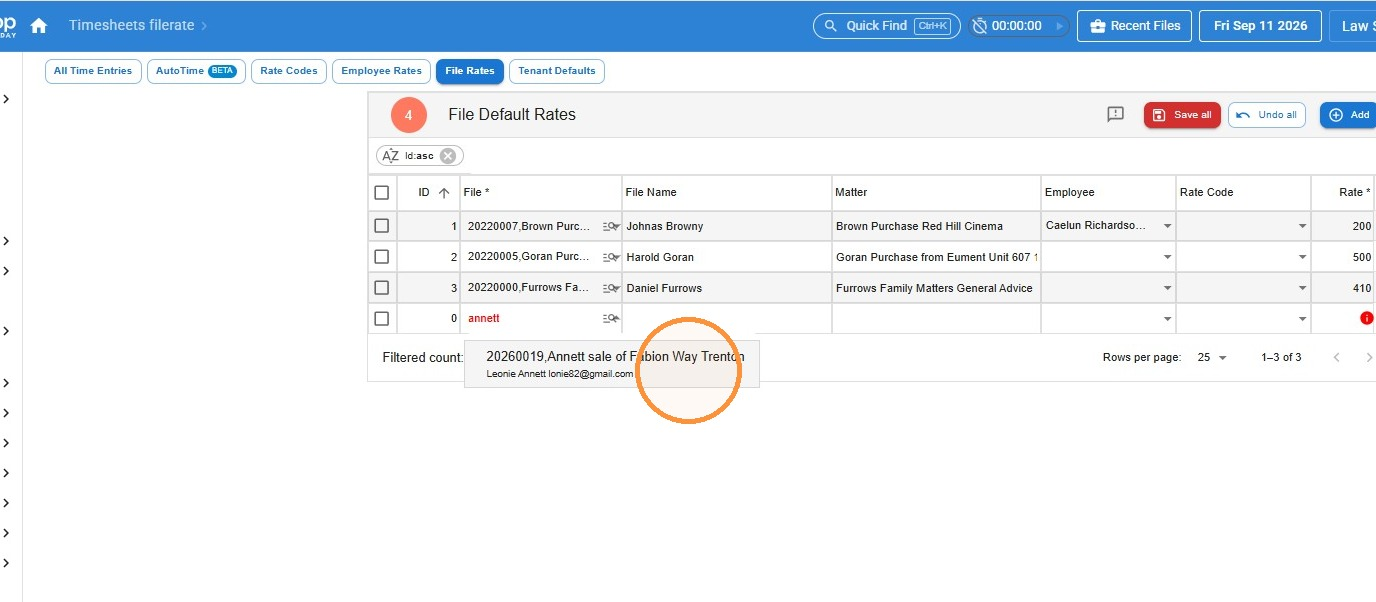
- Lookup and select the file
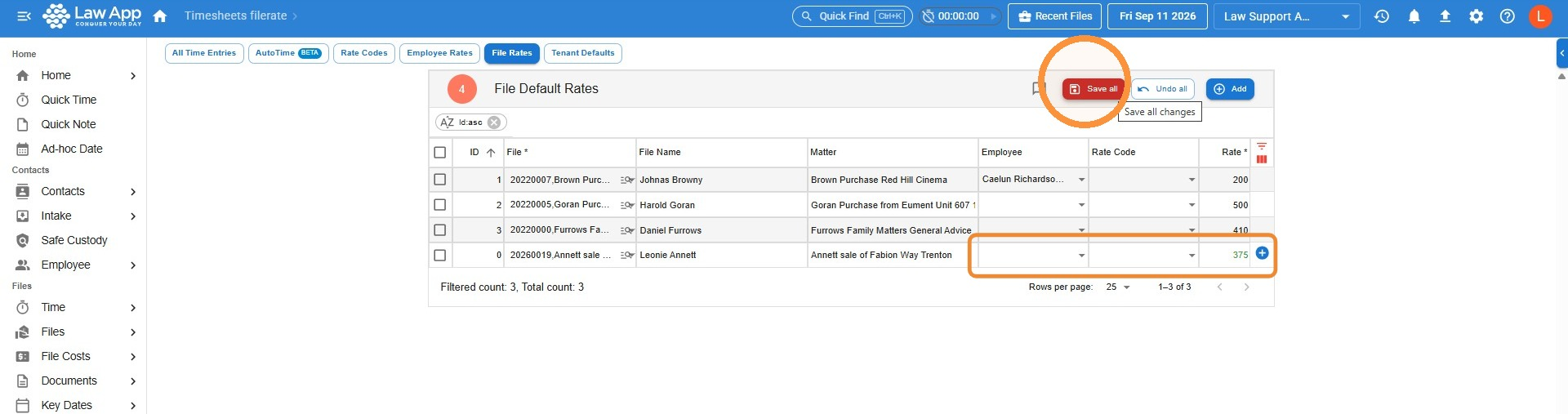
- If you want a specific rate code or employee for this Rate Amount then also fill in the employee and/or rate code. Otherwise, the rate inserted will apply to all employees and rate codes for this file. Enter the amount. Click “Save all”
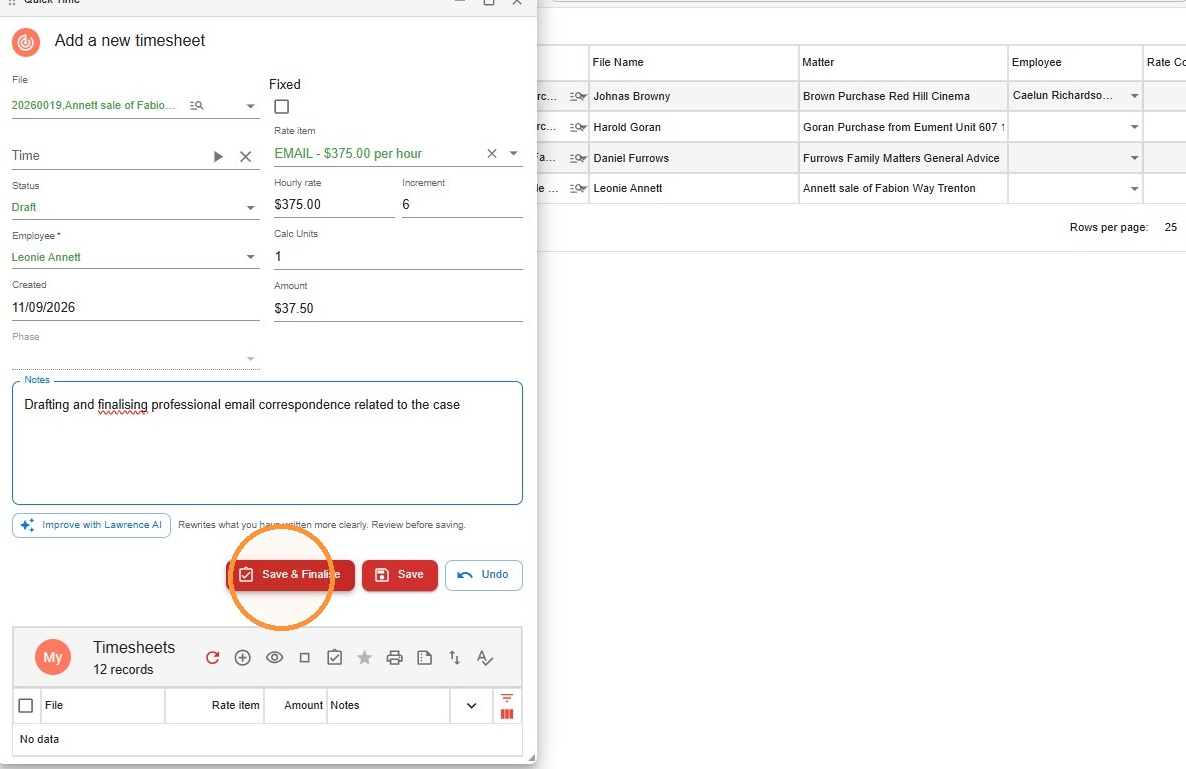
Time Entry
- Now, when you do a time entry the rate will be as you inserted
Leave a Reply